

Aby poznać ogólne pojęcia związane z Kolekcjami, takie jak typy pól, widoki i sortowanie, zapoznaj się z artykułami Przegląd Kolekcji i Widoki Kolekcji.
Pierwsze kroki
Utwórz Kolekcję w dowolnym dokumencie za pomocą menu ukośnika lub menu bloków. Na iOS kreator pozwala skonfigurować pola i od razu zacząć dodawać wpisy.
Tworzenie i edytowanie wpisów
Dodawanie wpisów
Użyj przycisku Add w prawym górnym rogu lub przycisku + w lewym dolnym rogu, aby utworzyć nowe wpisy.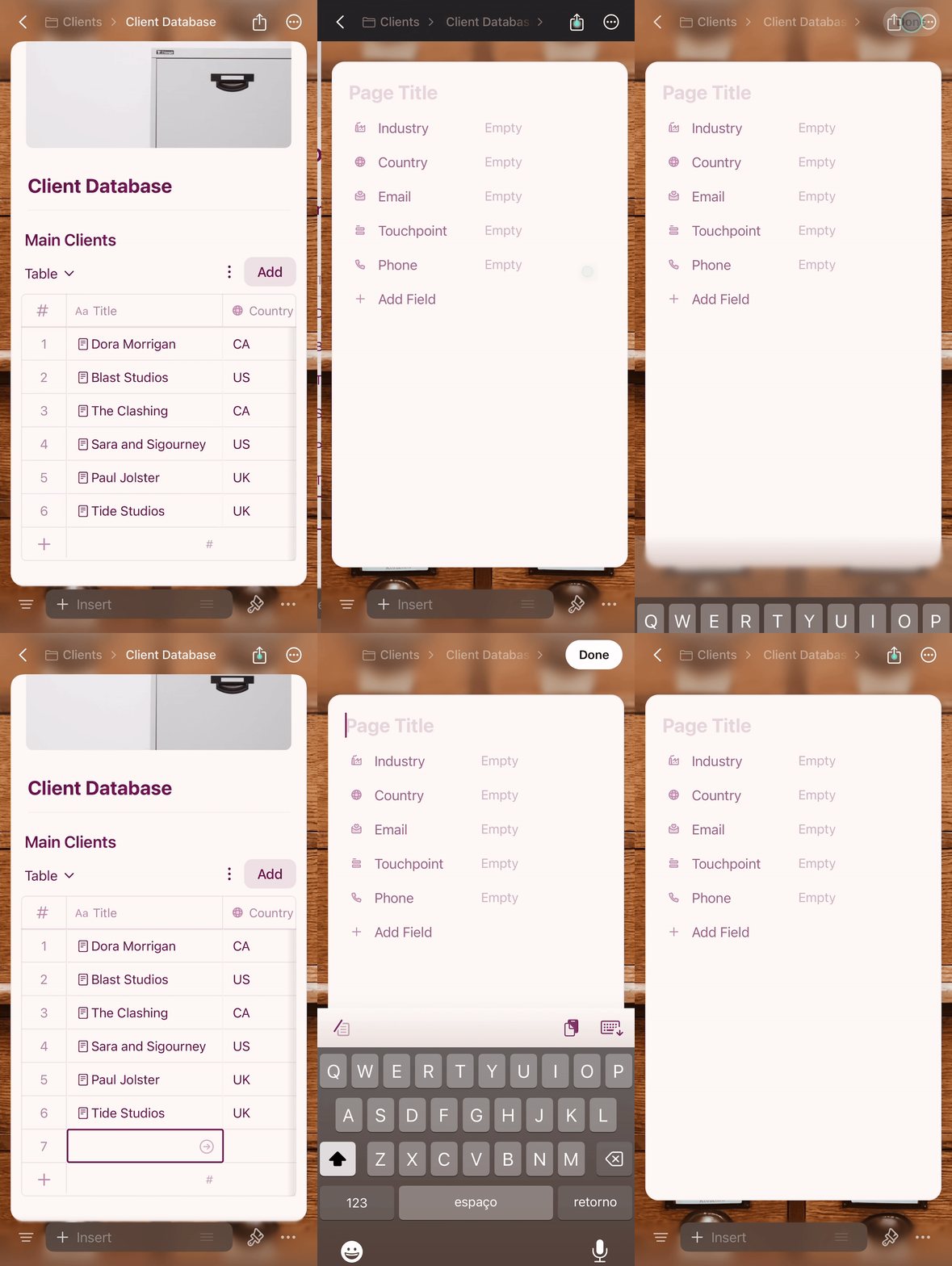
Wypełnianie danych
Stuknij dowolną komórkę, aby ją edytować. Pola wyboru wyświetlają predefiniowane opcje umożliwiające szybkie wprowadzanie danych.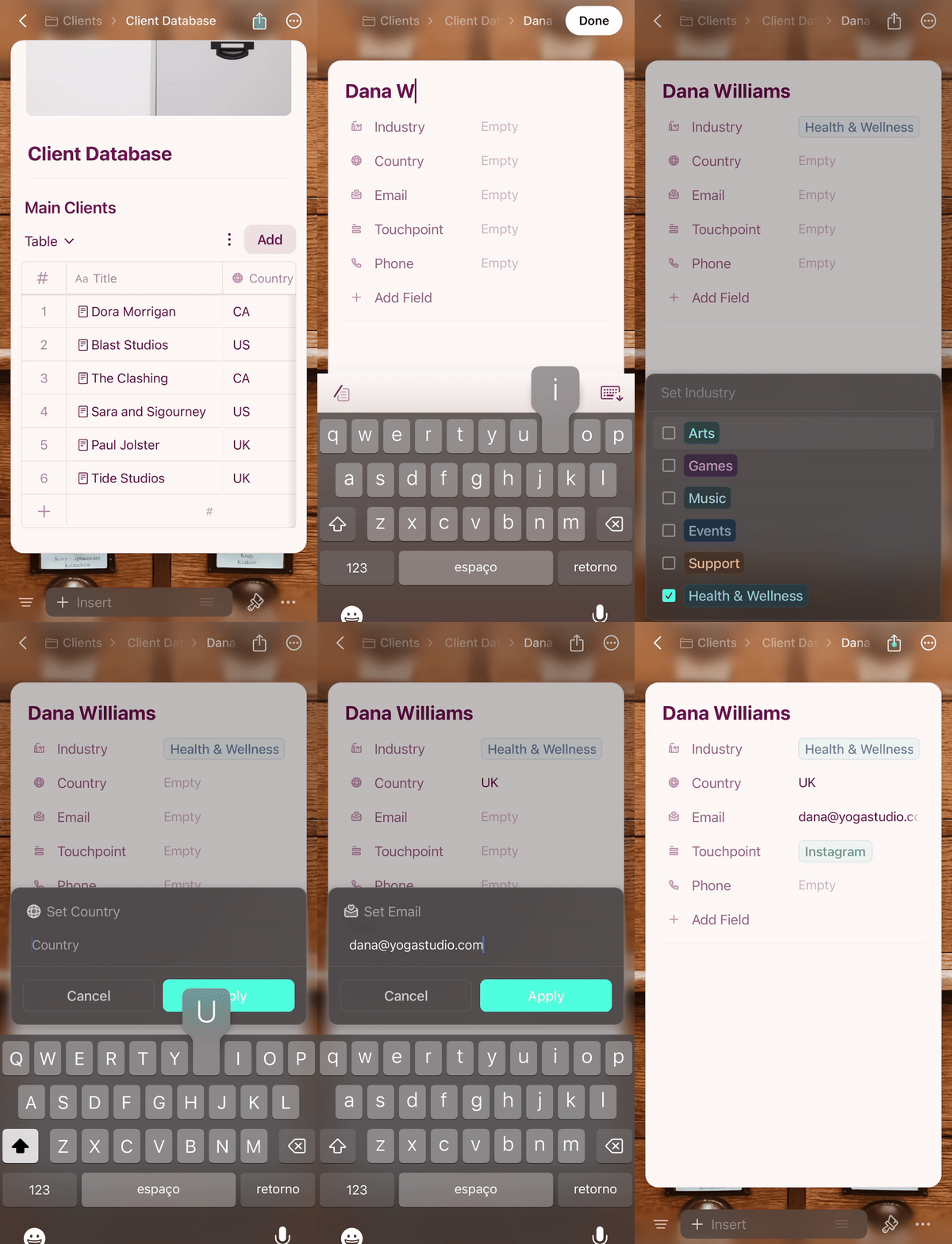
Dodawanie treści do wpisów
Każdy wpis w Kolekcji jest osobną stroną w Craft. Stuknij tytuł wpisu, aby go otworzyć i dodać dowolną treść — tekst, obrazy, linki lub zagnieżdżone strony.
Usuwanie wpisów
Przytrzymaj dowolny wiersz, aby wyświetlić menu kontekstowe. Możesz usunąć cały wpis lub wyczyścić zawartość konkretnych komórek.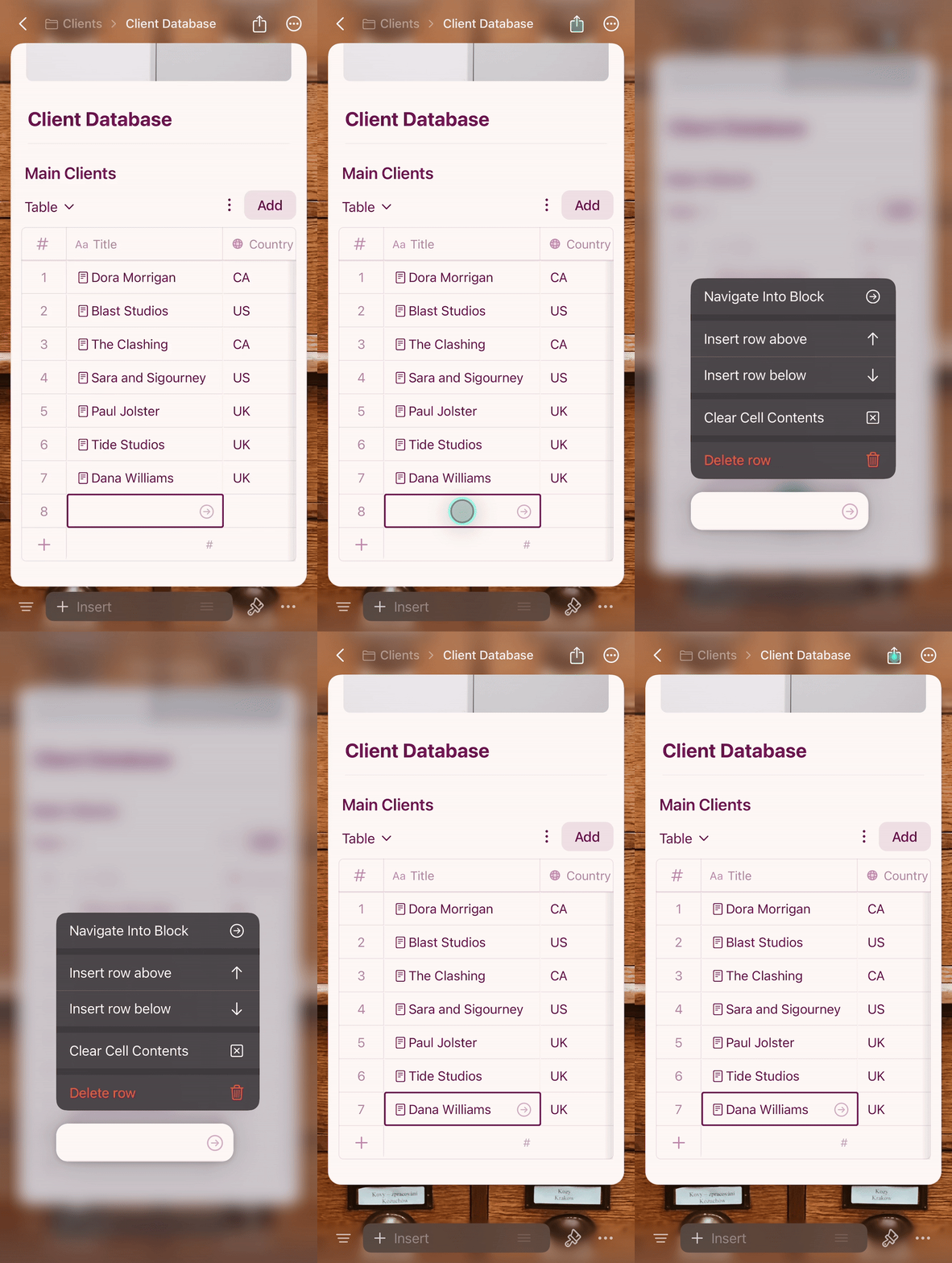
Zarządzanie opcjami pól wyboru
Gdy potrzebujesz nowej opcji dla pola wyboru, wpisz ją bezpośrednio i stuknij Add Option.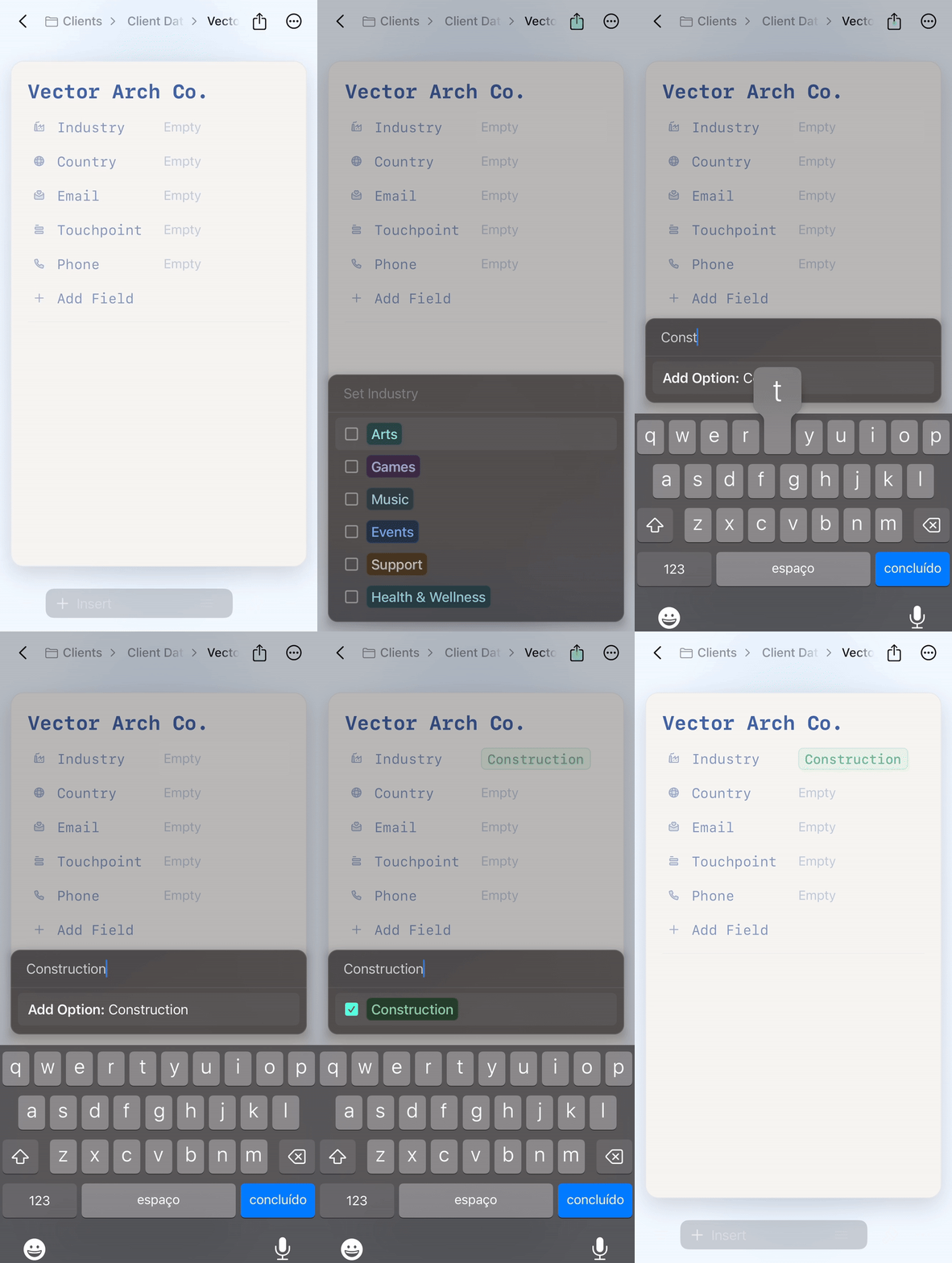
1
Stuknij nagłówek pola, aby otworzyć ustawienia pola
2
Stuknij wartość, którą chcesz usunąć
3
Wybierz Delete z opcji
4
Stuknij Apply, aby zapisać zmiany
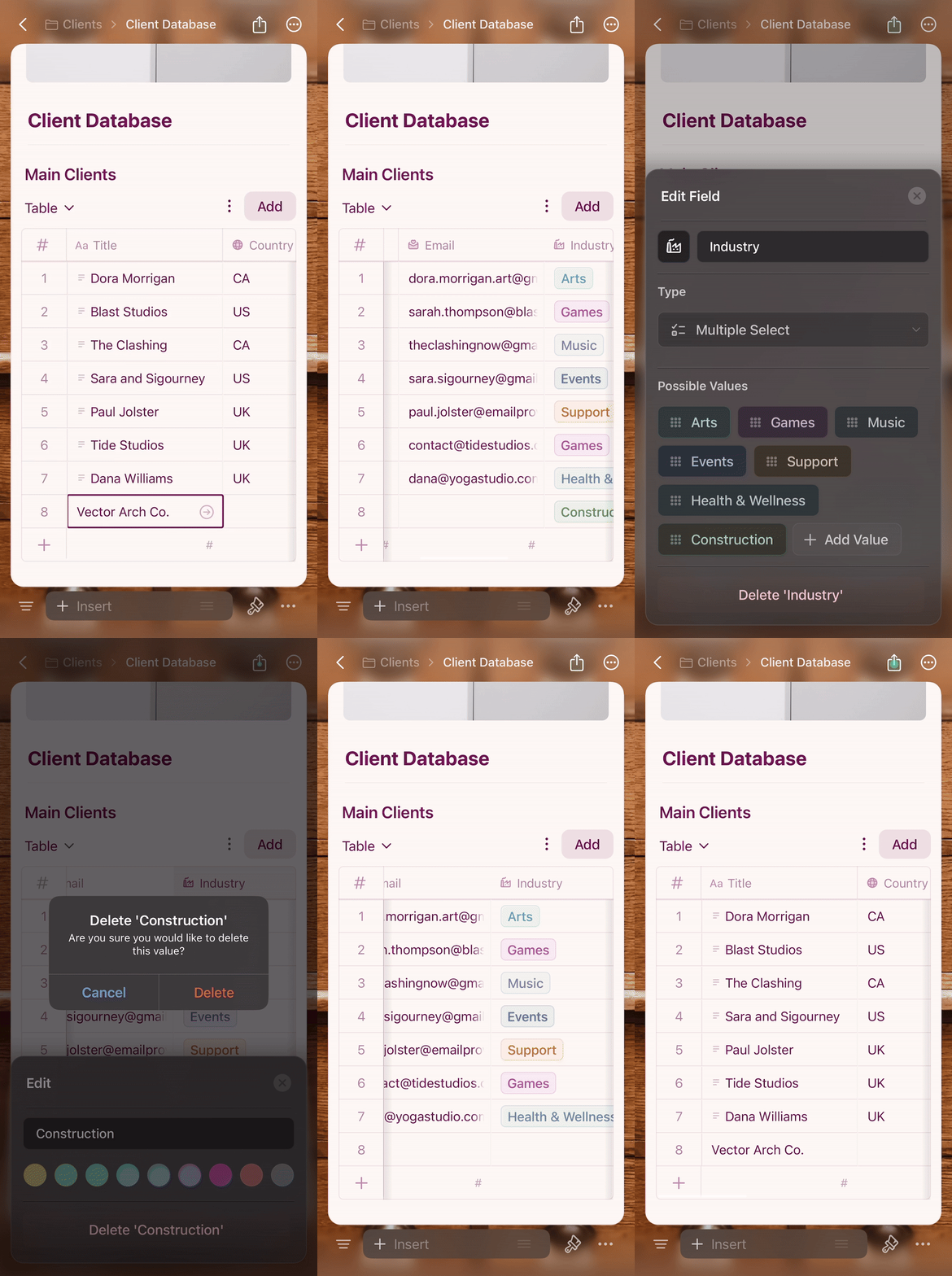
Widok tabeli na iOS
Widok tabeli na iOS działa jak arkusz kalkulacyjny z interakcjami zoptymalizowanymi pod kątem dotyku:- Przewiń poziomo, aby zobaczyć więcej kolumn
- Stuknij komórkę, aby edytować jej wartość
- Przytrzymaj wiersz, aby wyświetlić menu kontekstowe (usuwanie, duplikowanie)
- Zmień rozmiar kolumn, przeciągając ich krawędzie
Widok galerii na iOS
Widok galerii wyświetla wpisy jako wizualne karty z podglądem obrazów, zoptymalizowane pod kątem dotyku.
- Stuknij kartę, aby otworzyć wpis
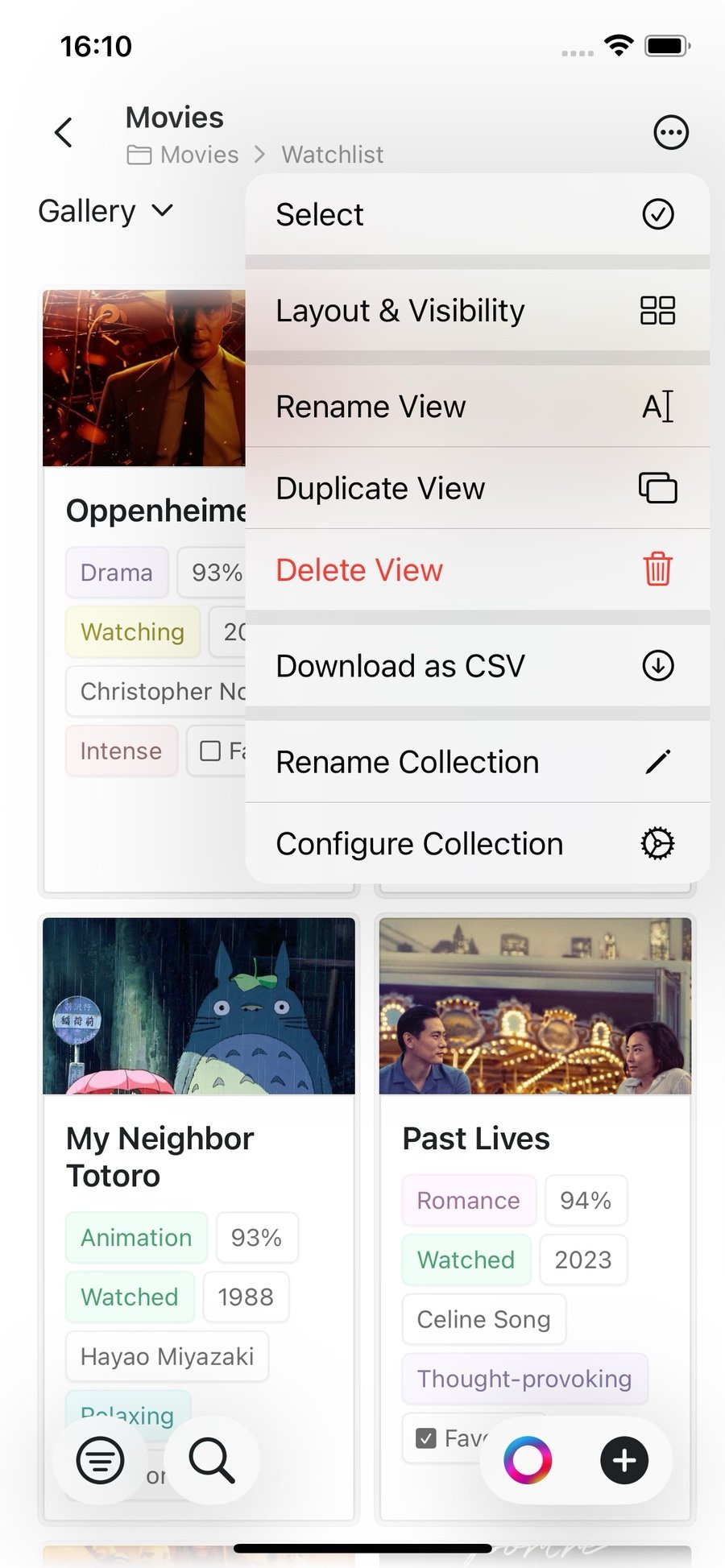
- Przytrzymaj kartę, aby wyświetlić menu kontekstowe z opcjami zaznaczenia, usunięcia lub zarządzania kartą
Tryb pełnoekranowy (iPhone)
Na iPhonie stuknij wbudowaną kolekcję, aby otworzyć ją w trybie pełnoekranowym z płynną animacją powiększenia. Zapewnia on pełny ekran do przeglądania kolekcji bez otaczającego dokumentu. W orientacji poziomej widok pełnoekranowy wykorzystuje cały ekran — selektor widoków przenosi się na górny pasek, a przewijanie pozwala ukrywać i wyświetlać paski narzędzi, aby uzyskać więcej miejsca.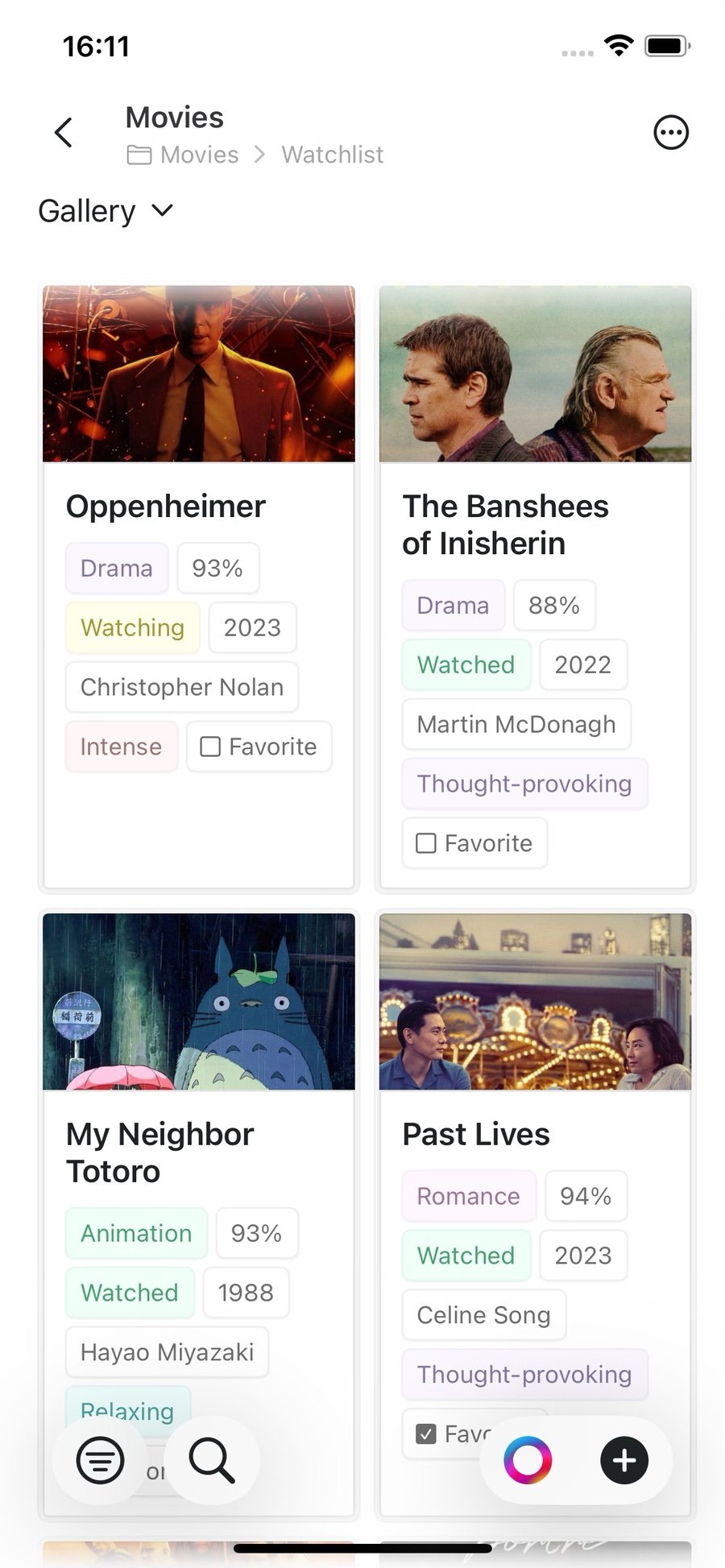
Przełączanie między widokami
Stuknij nazwę widoku (na przykład Galeria) na górze Kolekcji, aby otworzyć selektor widoków. Możesz stąd przełączyć się na inny widok lub:- Dodaj widok — utwórz nowy widok tabeli, galerii lub Kanban
- Zmień kolejność widoków — zmień kolejność swoich widoków
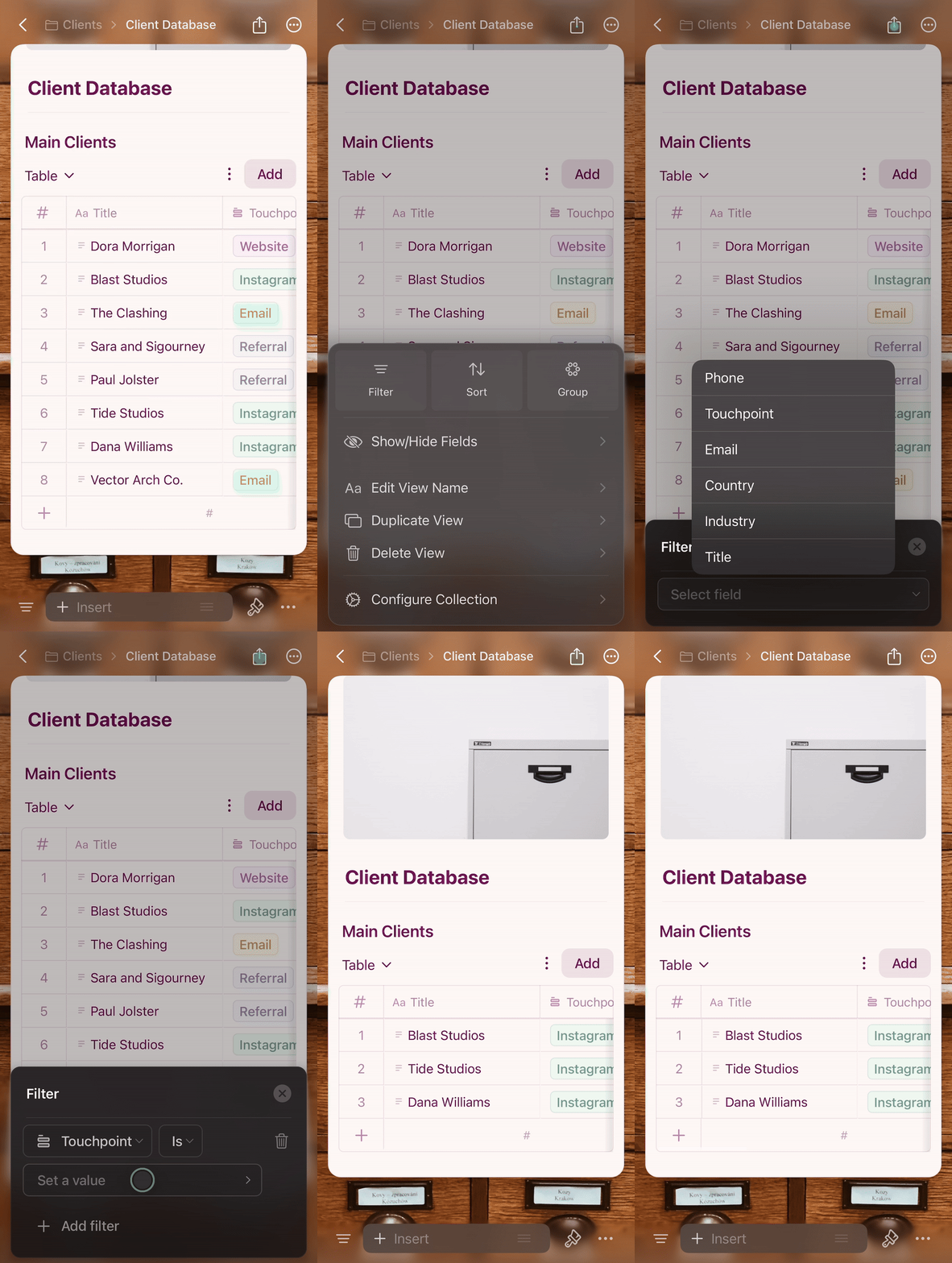
Filtrowanie, sortowanie i grupowanie
Dostęp do tych opcji uzyskasz przez menu konfiguracji (⋯) na górze Kolekcji.Filtrowanie
Wyświetlaj tylko wpisy spełniające określone kryteria.1
Stuknij menu konfiguracji (⋯)
2
Wybierz Filter i wskaż pole
3
Ustaw warunki filtrowania
4
Stuknij poza panelem, aby zastosować
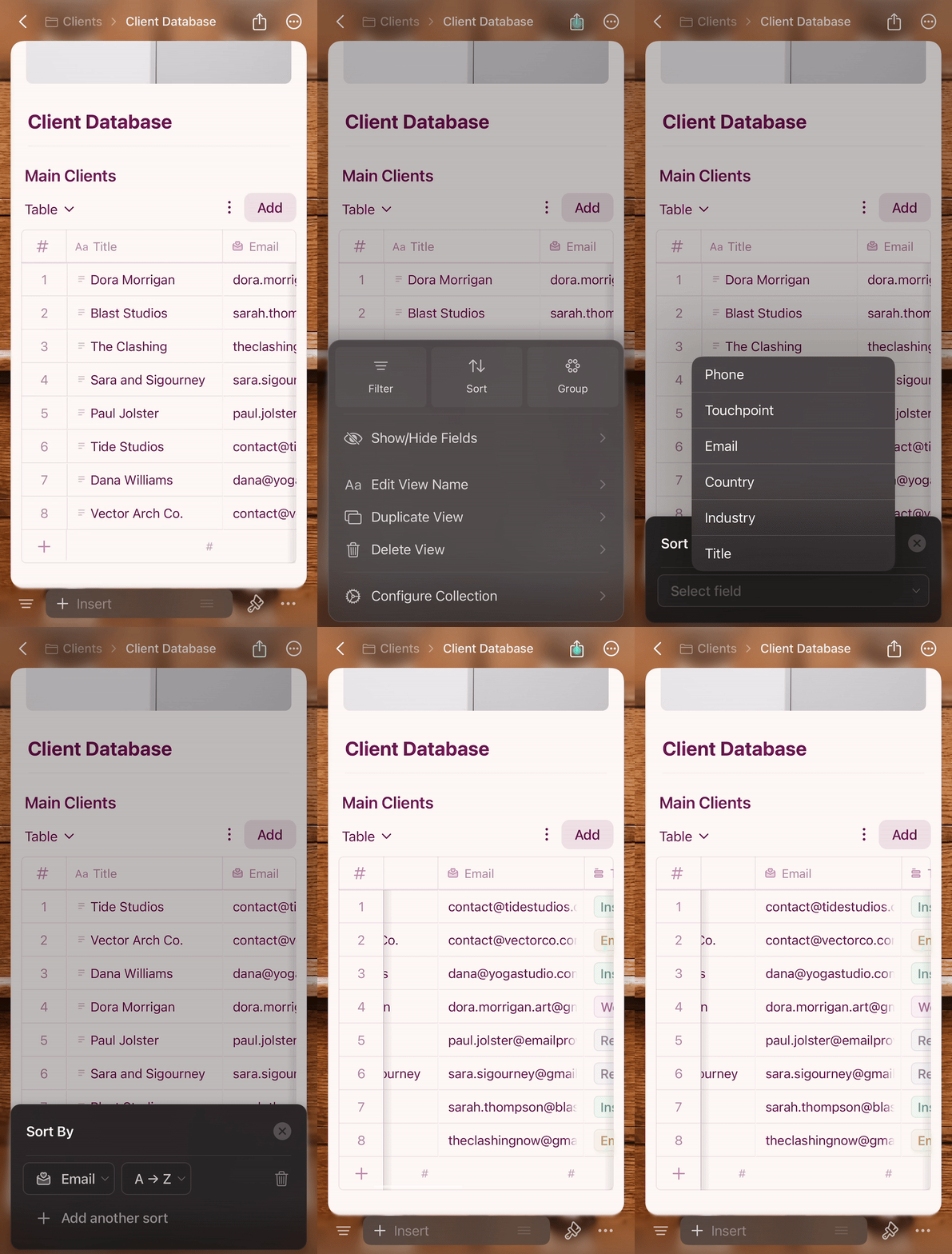
Sortowanie
Uporządkuj wpisy na podstawie wartości pól.1
Stuknij menu konfiguracji (⋯)
2
Wybierz Sort i wskaż pole
3
Wybierz kolejność rosnącą lub malejącą
4
Stuknij poza panelem, aby zastosować
Grupowanie
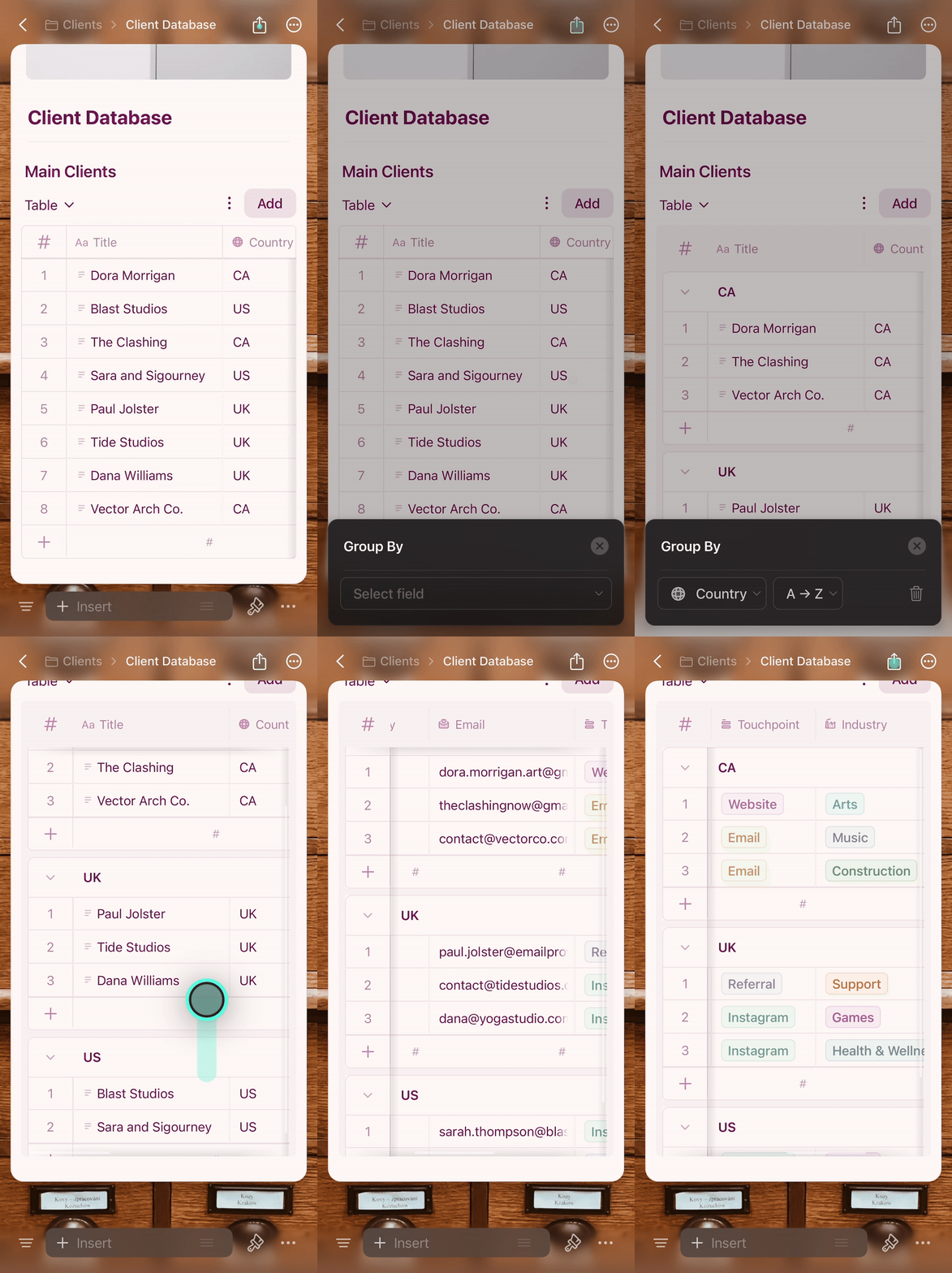
Organizuj wpisy w grupy na podstawie wartości pól.1
Stuknij menu konfiguracji (⋯)
2
Wybierz Group i wskaż pole
3
Stuknij poza panelem, aby zastosować — grupy zostaną automatycznie utworzone i oznaczone
Usuwanie filtrów, sortowania lub grup
Otwórz menu konfiguracji (⋯) i stuknij ikonę kosza obok aktywnego filtra, sortowania lub grupy.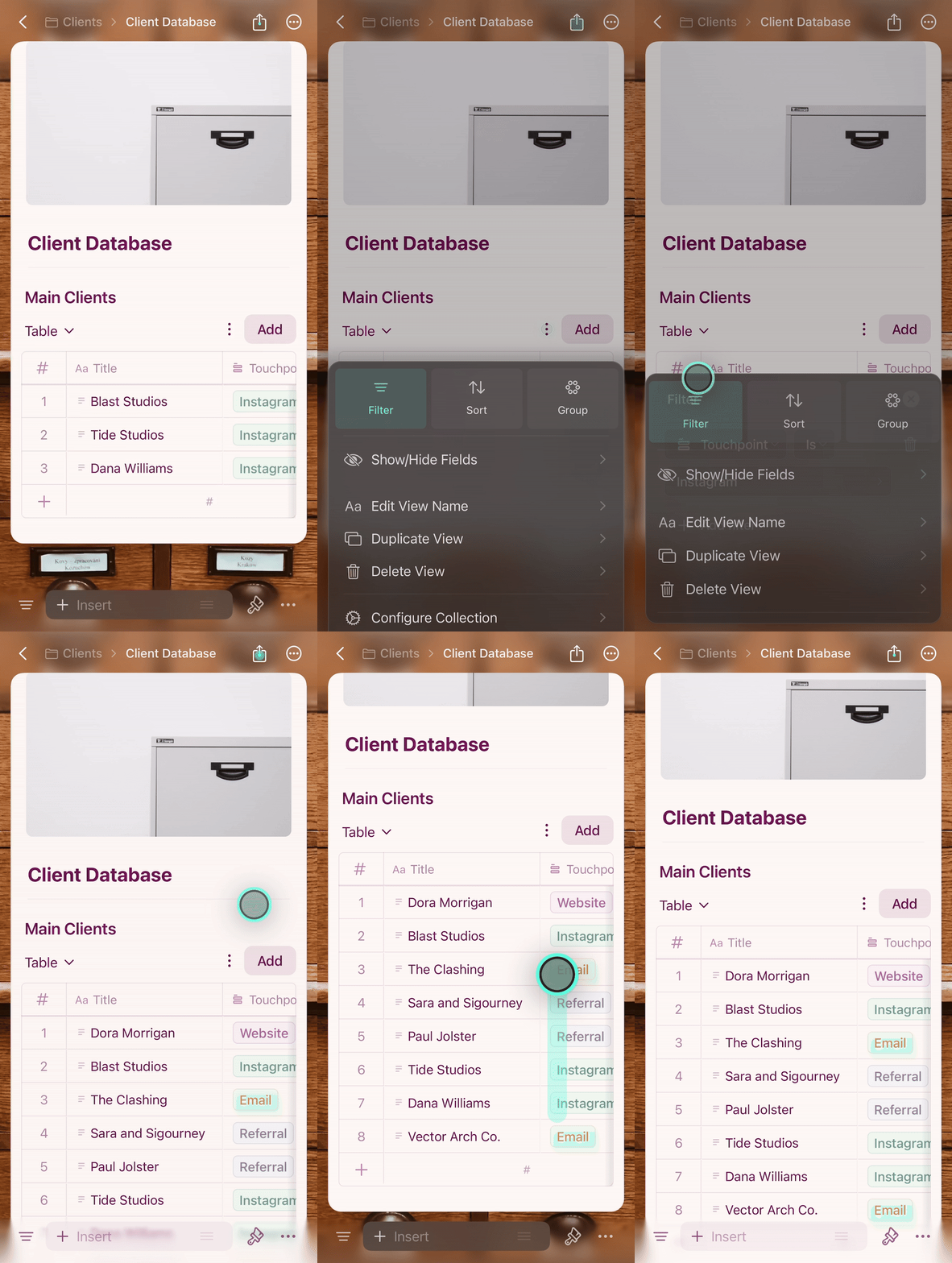
Wskazówki dla iOS
- Przytrzymanie to odpowiednik kliknięcia prawym przyciskiem myszy — używaj go na wierszach, kartach i komórkach, aby uzyskać dostęp do akcji kontekstowych
- Gesty przesuwania pozwalają szybko nawigować między wpisami
- Aby uzyskać najlepsze wrażenia na iPhonie, twórz mniejsze Kolekcje — iPad lepiej radzi sobie z większymi zbiorami danych.
- Widok galerii świetnie sprawdza się przy przeglądaniu jedną ręką na iPhonie, szczególnie w trybie pełnoekranowym
Powiązane artykuły
Przegląd Kolekcji
Poznaj Kolekcje i ich główne funkcje
Widok galerii
Wyświetlaj Kolekcję jako wizualne karty z podglądem obrazów
Widoki Kolekcji
Twórz i zarządzaj różnymi widokami swoich danych
Zmiana kolejności pól i kolumn
Dostosuj kolejność pól i kolumn