

Supported Languages
Apple Devices (Mac, iPad, iOS)
Craft is available in the following languages on Apple devices:- English
- Spanish
- French
- German
- Italian
- Japanese
- Korean
- Chinese (Simplified)
- Chinese (Traditional)
- Hungarian
Change Language on Apple Devices
- Mac
- Web / Windows
- iOS
- Android
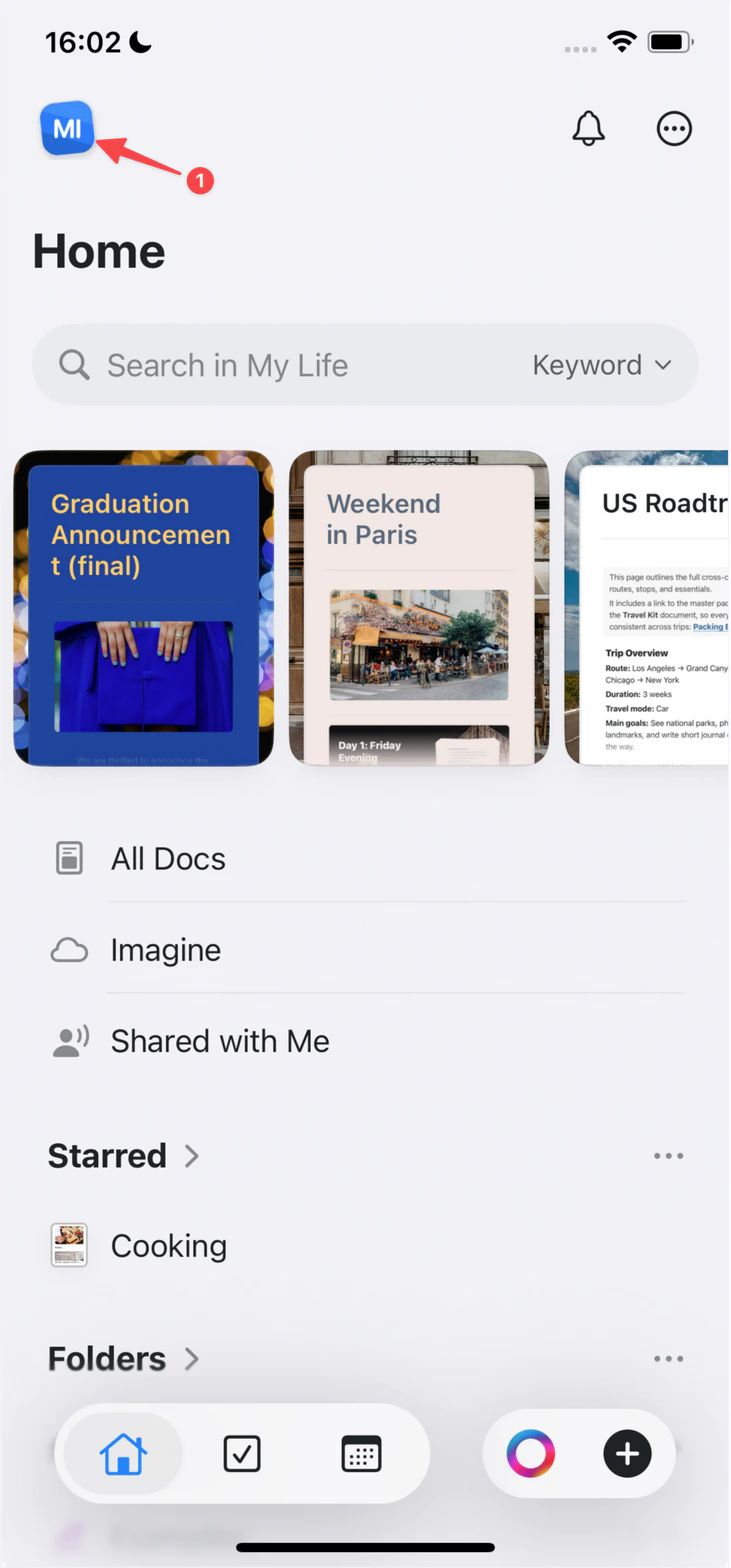
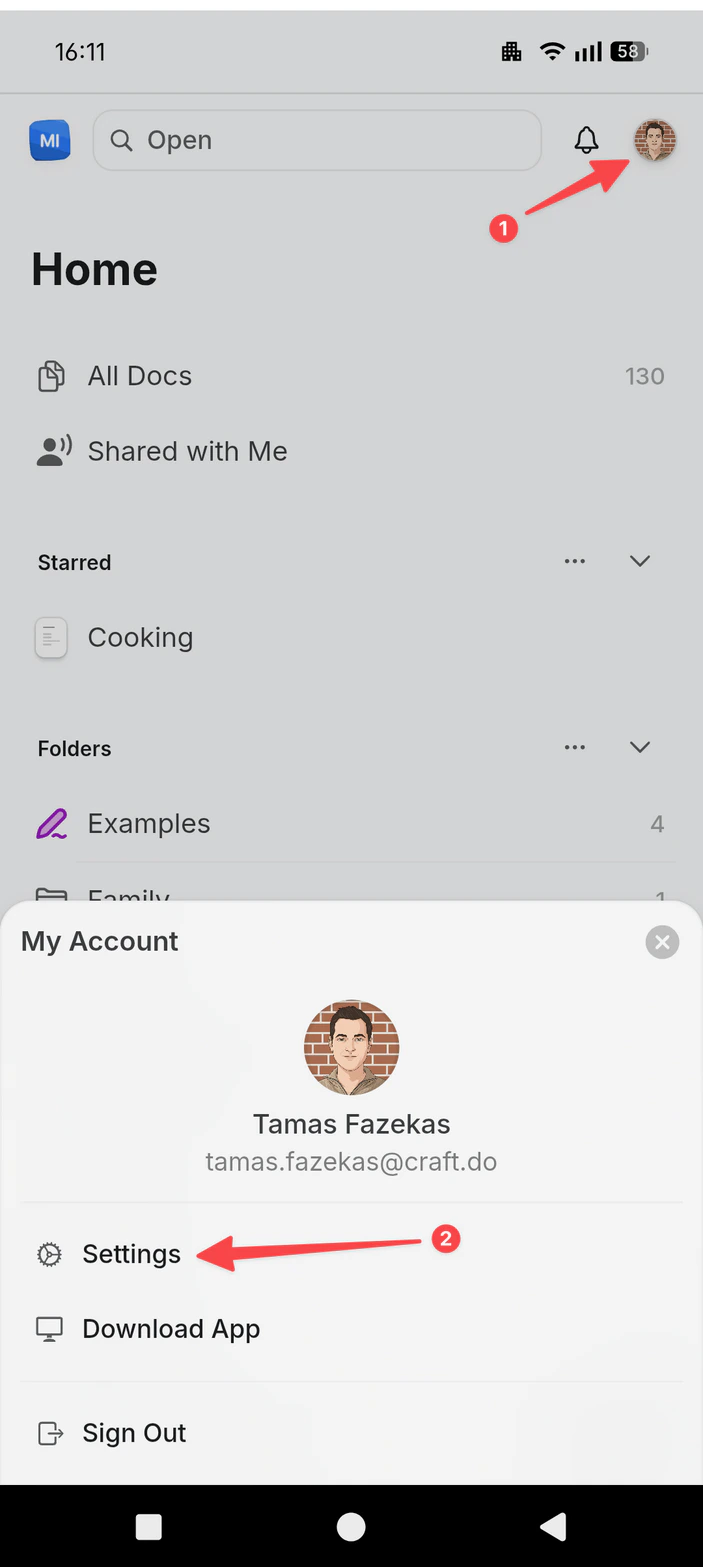
Click the Space name at the top of the sidebar to open Settings.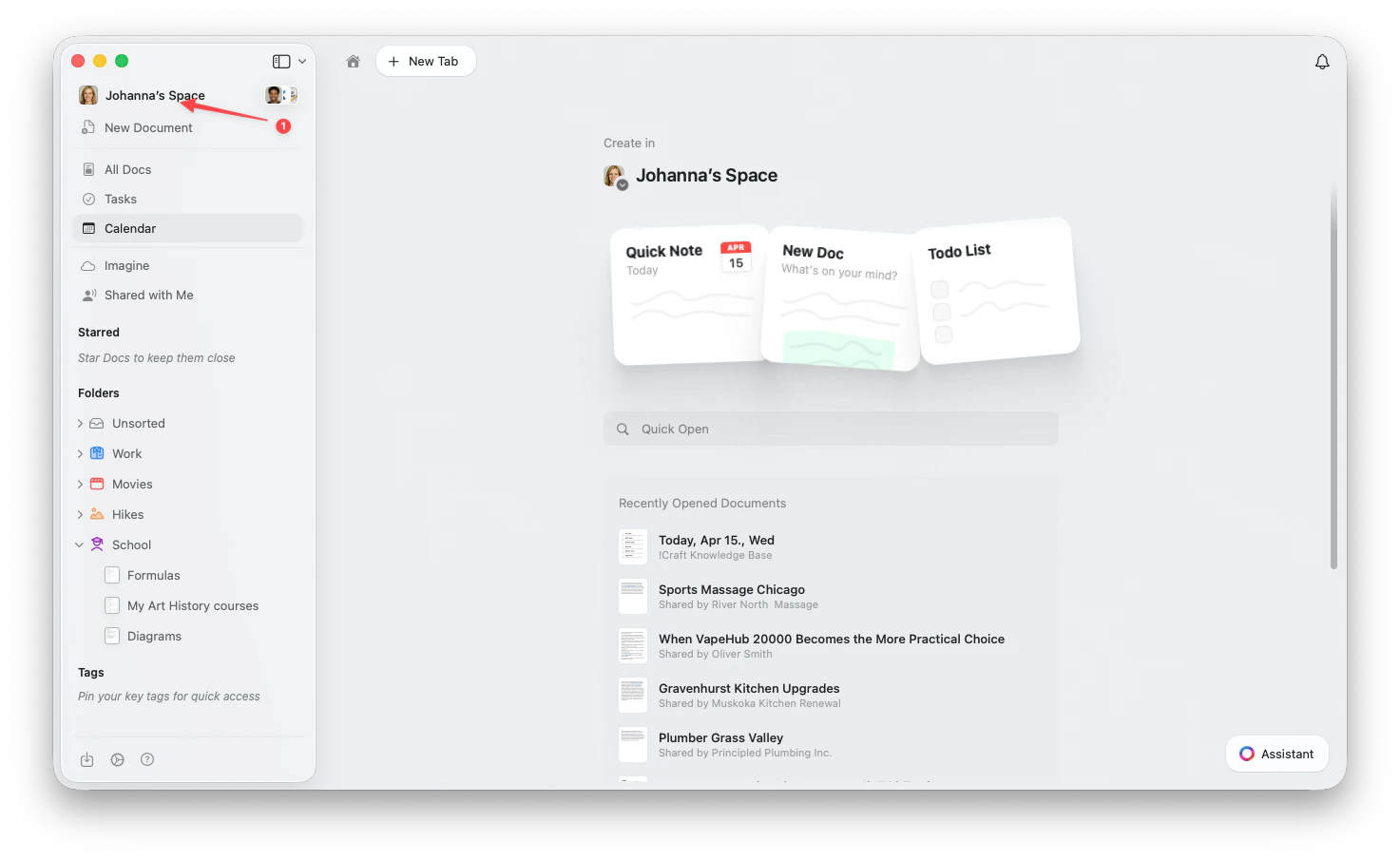
1
Open Language & Spelling, select Language, and choose a language.
Web and Windows
Craft’s Web and Windows apps are available in:- English
- Spanish
- French
- German
- Italian
- Japanese
- Korean
- Chinese (Simplified)
- Chinese (Traditional)
Change Language on Web or Windows
- Mac
- Web / Windows
- iOS
- Android
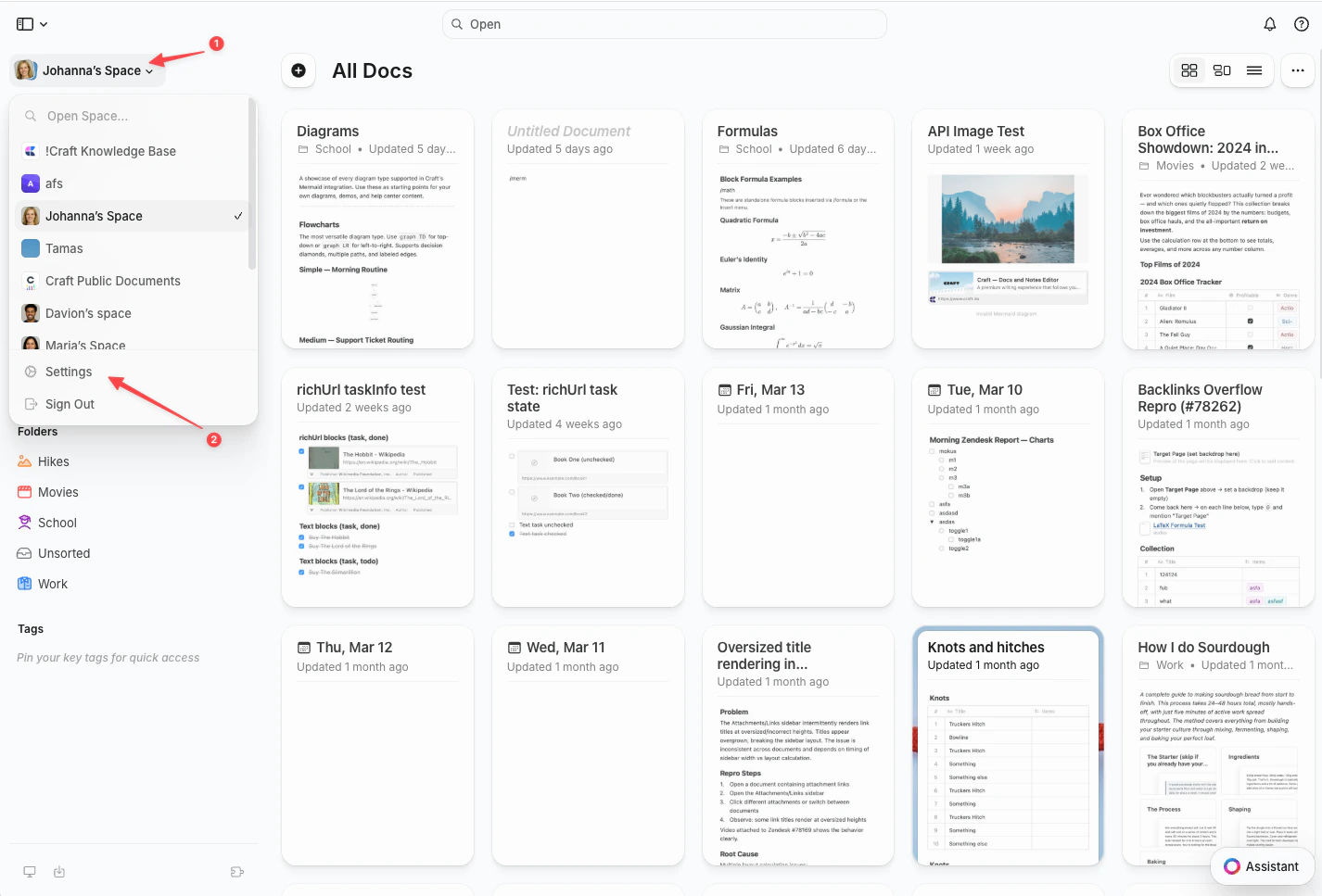
Click the Space name at the top of the sidebar to open Settings.
1
Click Language and choose your preferred language
If you find any translation inconsistencies, please let us know at support@craft.do. We appreciate your feedback!
Chinese, Japanese, and Korean Fonts
When Craft’s language is set to Japanese, Korean, Chinese (Simplified), or Chinese (Traditional), the Serif, Mono, and Rounded fonts use typefaces made for that language to show Chinese, Japanese, and Korean characters. Latin text in your documents keeps the same font. Craft chooses these fonts based on its app language, not on the language of the text in your document.Apple Devices (Mac, iPad, iOS)
Craft downloads the fonts the first time you switch to one of these languages, and the new fonts take effect after you restart Craft. Fonts for Chinese, Japanese, and Korean on Apple devices require Craft 3.7 or later. The System font uses the font built into your device. For other app languages, Craft doesn’t download these fonts and uses the fonts built into your device.1
Choose the language
In Settings, open Language & Spelling, select Language, and choose Japanese, Korean, Chinese (Simplified), or Chinese (Traditional).
2
Wait for the download
If the fonts aren’t on your device yet, the Downloading Fonts panel appears while Craft downloads them. Your device needs an internet connection.
3
Restart Craft
When the Restart Craft panel appears, restart the app:
- Mac: Click Restart App. Craft closes and opens again.
- iPad and iOS: Tap OK, then close Craft completely from the app switcher and open it again.