This guide covers common issues you might encounter while using Craft and how to resolve them. Expand the sections below to find the topic that matches your issue.
Some troubleshooting topics live in their feature documentation: Start here
Three checks resolve most reports:
- Update Craft to the latest version on every device you use.
- Restart the app, or reload the page on the Web app.
- Check your operating system version. Craft requires macOS 12 or later, iOS or iPadOS 15 or later, or Windows 10 or later.
Sync Issues
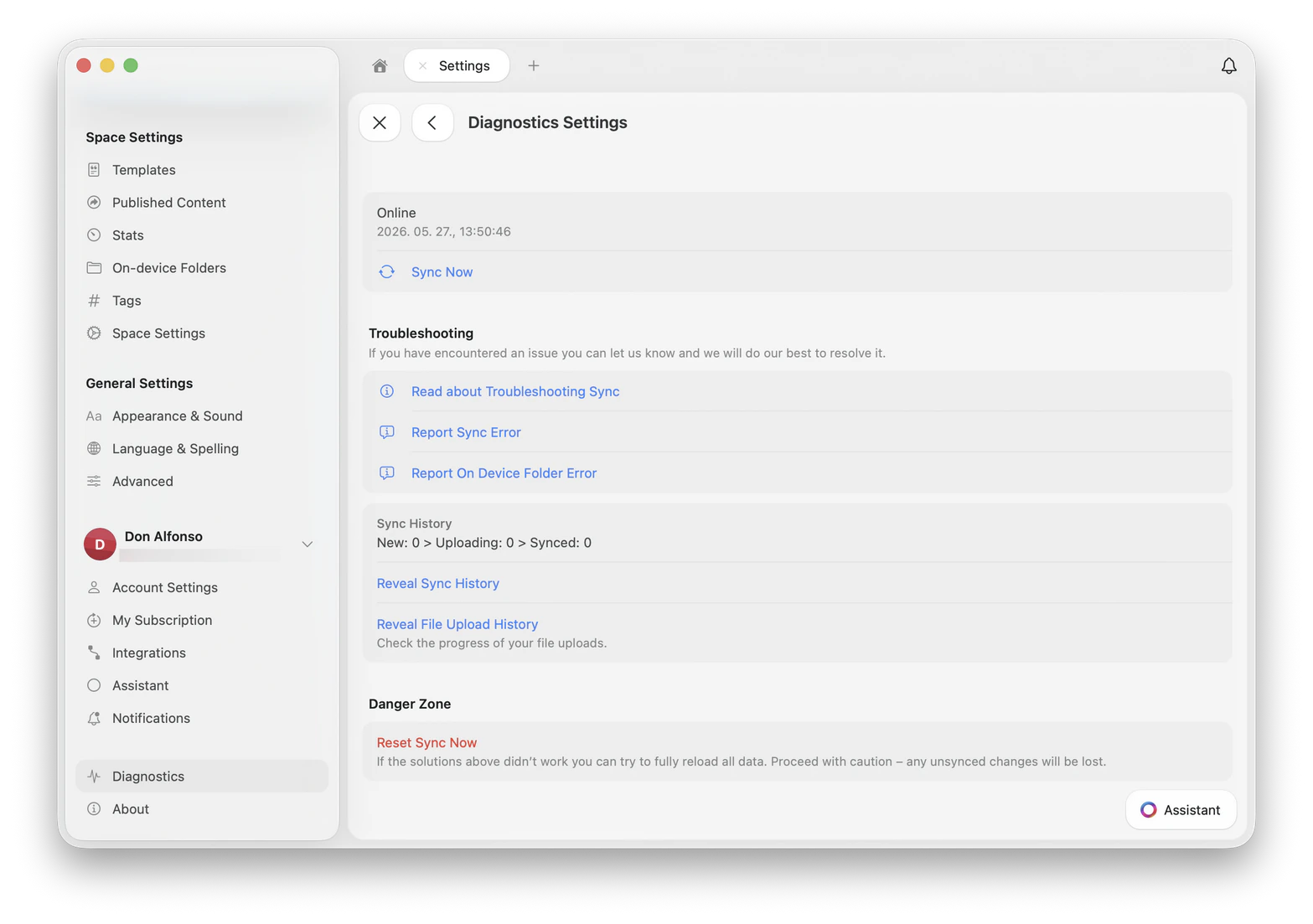
Most sync problems can be diagnosed and fixed from the Diagnostics panel. Open Settings → Diagnostics to see your current sync status, trigger a manual sync, or report a sync error directly to our team.
Craft for Windows and the Web app have no Diagnostics panel. On those platforms, see Windows and Web App Issues for what to check instead. Sync Now and Report Sync Error are safe to use at any time. Reset Sync Now discards local changes that have not reached our servers yet, and they cannot be recovered afterwards. Use it only when support asks you to.
Sync shows as 'Offline' in diagnostics
The fastest fix is to fully close and restart Craft. macOS
iOS / iPadOS
Windows
- Open Activity Monitor (Spotlight search, or Applications → Utilities)
- Find Craft in the list
- Select it and click the Stop (⊗) button at the top
- Reopen Craft
- Force quit Craft (swipe up and flick the Craft card away)
- Wait about 30 seconds
- Reopen Craft
- Right-click the Craft icon in the taskbar and choose Close window
- If it’s still running, open Task Manager, find Craft, and click End task
- Reopen Craft
Documents not syncing across devices
First, confirm you’re signed in with the same account and login method on every device. Email and Sign in with Apple create different accounts even if the email looks the same.To check your email address:Your email is shown at the top-left corner of the Documents list, next to your avatar.
Tap the avatar at the top-left of the Documents list to open the Spaces list.
Tap the avatar at the bottom-right of the Documents list to open the Spaces list.
If your email ends with @privaterelay.appleid.com, you signed up using Sign in with Apple. That’s a relay address generated by Apple, not your real email. Make sure you use the same Apple ID on every device.
On Mac, iPhone, and iPad, open Settings → Diagnostics and tap Sync Now. The app will attempt to restart the sync process. On Windows and the Web app there is no Diagnostics panel, so restart the app or reload the page instead.If Sync Now doesn’t resolve the issue: macOS / iOS
Windows / Web
- Sign out of Craft (Settings → Account → Sign Out)
- Force quit the app
- Wait 30 seconds, reopen Craft, and sign back in
- Restart the app (Windows) or clear your browser cache (Web)
- Check your internet connection, ideally try a different network
- Sign out and back in
VPN or ad blocker blocking sync
VPNs, ad blockers (e.g., AdGuard), and network monitoring tools (e.g., Little Snitch) can prevent Craft from syncing.
- Temporarily disable the tool
- Restart Craft
- Check whether sync is restored
Browser extensions like Hush and Plume Guard can also block access to Craft’s servers. Corporate network blocking Craft
Corporate firewalls and privacy programs can block traffic to Craft. If you’re on a work network, ask your IT department to allow these domains:
api.craft.dodocs.craft.dores.craft.do
See also: Can’t access Craft on Web app or Windows. Sync says everything is synced, but a document is missing
In the Diagnostics panel, the sync history line shows counts for New, Uploading, and Synced. When New and Uploading are both 0, nothing is waiting to upload, so the document is not stuck in the sync queue.Missing content in that situation usually comes down to one of these:
- You are signed in to a different account. Email sign-in and Sign in with Apple create separate accounts. See Documents not syncing across devices above.
- You are looking at a different space. Open the Spaces list from your avatar and check each space.
- The document was deleted. Check Recently Deleted, then see Storage and Recovery.
Do not use Reset Sync Now to look for missing content. It discards local changes that have not uploaded yet, which can turn a display problem into permanent data loss.
Signing in with Apple opens an empty account
If Continue with Apple signs you in to an account with no documents, but signing in with your email address and a code shows everything, your Apple sign-in is no longer linked to your Craft account.This happens after you change your account email address with a verification code. The change removes the Sign in with Apple link, so the next Continue with Apple creates a new, empty account.Your content is safe in the original account. Sign in with your email address and a code to reach it.To relink Apple sign-in, open Settings → Account → Email Address → Continue with Apple on Mac, iPhone, or iPad.Three things to know before you relink. The relink is rejected while the new empty account still holds your Apple ID, so that account has to be deleted first. It is also rejected if your account is a member of any team. Relinking sets your Craft email address to the one Apple sends, which may be your previous address. Accounts cannot be merged, so contact support if you have added content to both.
An image or file won't finish uploading
File uploads run separately from document sync, so a failed upload does not hold up your text edits or your other documents. Craft retries a failed upload up to three times and then stops.If a file has not appeared on your other devices:
- Check your internet connection, and check for a VPN, proxy, or ad blocker on the network.
- Delete the block and add the file again.
- If the file is large, try a smaller version. The maximum file size depends on your plan, and files above that size are rejected before the upload starts.
If the same file fails every time, send us the file type and size along with a screen recording. See Reporting bugs. Login Issues
Unable to log in with Apple ID on macOS
When you choose Continue with Apple on your Mac, you’ll be prompted for a password. This is Apple’s security measure.Enter the password of your macOS user account, not the password for your Apple ID. If you type the Apple ID password, the prompt reappears without an error.
Unable to access Craft's website or apps
Some browser extensions, ad blockers, or private networks may prevent you from reaching Craft. Common symptoms include “Server Not Found” or pages that don’t load.Apps known to cause this:
- Hush
- Plume Guard (the Secure DNS feature in the Plume HomePass app)
Try these steps:
- Disable the extension or tool temporarily
- Mark Craft’s domain as secure in the tool’s configuration
- Try a different network
If the issue persists across networks and cellular data, please contact support. Craft running slowly on macOS
Quick fixes:
- Restart the app via Activity Monitor (see Sync shows as ‘Offline’ above for steps)
- Close unused tabs and windows
- Check whether window management apps (e.g., Magnet, Rectangle) are up to date
Information to include when contacting support:
- Are you using an External Storage space?
- Any window management apps in use?
- Any third-party text editing tools?
- Screenshot of System Settings → Privacy & Security → Accessibility
- Does restarting the app help?
- Do multiple tabs and windows trigger the issue?
For persistent slowdowns, send us a Spindump. See Capture diagnostic data under Reporting bugs for steps. Craft running slowly on Windows
Check the following:
- Which Windows version are you running?
- Are you connected to a company network or VPN?
- Does restarting the app restore normal performance?
- Does restarting the computer restore normal performance?
If the issue persists, record a full-screen video of the problem and share it with support. See Capture diagnostic data under Reporting bugs for additional logs you can include. Using Grammarly Desktop with Craft on macOS
To use the Grammarly desktop app with Craft on macOS:Launch Grammarly
Open the app after installation.
Grant accessibility permission
Follow the in-app guide to enable Grammarly in System Settings → Privacy & Security → Accessibility.
Restart Craft
Quit and reopen the Craft app.
Editing Issues
Text reverts or disappears while typing
Craft merges edits from every device that has a document open. Changes to different blocks are kept from both devices. When two devices change the same part of the same block before they have synced, the version on our servers is kept, so text typed on the other device can be replaced.What helps:
- Close the document on your other devices. On the Web app, close any extra browser tab showing it.
- Let sync finish on each device before you continue editing. Check the sync status in Settings → Diagnostics on Mac, iPhone, and iPad.
- Update every device to the latest version of Craft.
If text still disappears with the document open on a single device, we want to see it. Send us a screen recording, your app version, and your operating system version. See Reporting bugs. Content flickers or flashes in the Web app
If the Web editor redraws or flashes while you work, narrow down where it comes from:
- Reload the page.
- Open Craft in a private window with extensions disabled, to rule out an extension.
- Update your browser to the current version.
- Try a different browser to see whether the flickering follows.
If it continues, send us a screen recording, your browser and version, and a screenshot of the browser console. See Capture diagnostic data. macOS-Specific Issues
Latest update not showing in App Store
If you only see an Open button in the App Store instead of the update:Open the app details page
Click the app title to enter the full detail view.
Check for the update button
Pop-up: 'Another Craft is already installed'
This message appears when leftover files from a previous installation remain on your Mac. It typically happens when Craft was installed from multiple sources (e.g., both the App Store and Setapp).Delete Craft from Applications
Clear container folders
In Finder, go to Go → Go to Folder and paste these paths one at a time, then delete the contents: Sweep for leftovers
If the message persists, search both Group Containers and Containers folders for any items containing craft, lukilabs, or lukiapp and delete them.
Reinstall Craft
Install Craft fresh from your preferred source.
iOS / iPadOS-Specific Issues
Sharing files ends up as an unusable link
You can share text and links to Craft via the Share Sheet. Sharing photos or files directly can result in an unusable link.Option 1: Copy and paste
- Choose Copy in the Share Sheet
- Open Craft
- Paste into the target document
Option 2: Download and add
- Save the file to your device
- In Craft, tap the + button at the bottom-left
- Choose Files
- Select the file
Windows and Web App Issues
Can't access Craft on Web app or Windows
On a company device or network, your company’s proxy may be blocking access.Ask your IT department to allow these domains:
api.craft.dodocs.craft.dores.craft.do
'You Are Offline' message
This message means the app has lost its connection to the internet or our servers. It will automatically attempt to reconnect.What to do:
- Check your internet connection. Make sure it’s active and stable.
- Pause editing. Avoid making changes until the connection is restored, to prevent potential data loss.
- Reload the page. If your connection is stable and you have no unsaved changes, refresh the page.
The message disappears as soon as the connection is back. Thumbnail failed to fetch data
On the Web app, some pasted links (e.g., LinkedIn) may show “Failed to fetch data” instead of a thumbnail.The third-party service we use to fetch link previews is blocked by some providers. This is an external issue we can’t control directly.What still works:
- Clicking the link opens it normally
- Only the Web app is affected
- Only personal LinkedIn profile links are affected
- Company LinkedIn links display correctly
- All LinkedIn thumbnails render correctly on macOS, iOS, and iPad
How to update Craft for Windows
Craft for Windows checks for updates in the background and downloads them automatically. A banner appears in the app when a new version is ready, and the update is applied the next time you quit and reopen Craft.If you installed Craft from the Microsoft Store, the Store handles the download. Craft then shows a banner asking you to restart.To update manually:
- Uninstall Craft for Windows
- Download the latest version from craft.do/download or the Microsoft Store
Craft keeps running after I close the window
On Windows, the close (X) button hides the window and leaves Craft running in the system tray, at the right end of the taskbar. This is the intended behavior, and there is no setting to turn it off.
- To quit Craft completely, right-click the Craft icon in the system tray and choose Quit Craft.
- To bring the window back, click the tray icon, or choose Open Craft from its right-click menu.
In versions before 3.4.0, opening Craft from the Start menu while it was minimized to the tray did not bring the window back, and the tray icon was the only way to restore it. Update to 3.4.0 or later if you see this.
Sync troubleshooting on Windows
Craft for Windows has no Diagnostics panel, so the sync actions described under Sync Issues are not available. Work through these instead:Restart the app
Quit from the system tray rather than closing the window, then reopen Craft.
Update to the latest version
Check for a VPN, proxy, or DNS filter
Company VPNs, proxies, and DNS filtering are a frequent cause of sync failures on Windows. Disconnect and test again.
Confirm your account and sign-in method
Ask IT to allow Craft's domains
On a managed device, allow *.craft.do. Craft uses several subdomains for sync, resources, and content, so allowing only some of them leaves parts of the app broken.
'Disk space is critically low' or 'Couldn't save tab state'
Craft for Windows shows these messages when it cannot write your window and tab layout to disk.
- Disk space is critically low. Craft has run out of room to write. Free up space on your system drive, then restart Craft.
- Couldn’t save tab state. Another program has locked Craft’s data files. Restart Craft, and restart Windows if it continues.
Both messages are about the saved tab layout rather than your documents. A full disk can still interrupt other writes, so free up space either way. Subscription Issues
Still seeing the block limit after upgrading
If you recently upgraded but Craft still shows the free tier limit (1,500 blocks), the app may not have refreshed your subscription status yet.
- Sign out of Craft (Settings → Account → Sign Out)
- Close the app completely
- Reopen Craft and sign back in
Your upgraded plan should now apply. If not, make sure you’re signed in with the same account you used to purchase the subscription. Data & Storage Issues
Recently Deleted folder disappeared
The Recently Deleted folder can disappear for two reasons:
- The deleted documents are older than 30 days
- The content of the deleted folder was emptied manually
If you deleted something by accident, check the Storage and Recovery documentation for available options. Error: External location already added
If you keep getting “External location already added” when re-adding an external location, but it doesn’t appear as a space:Try adding the external location again
- Delete the Craft app from your device
- Reinstall the app
- Try adding the external location again
What an iCloud backup of your iPhone or iPad covers
An iCloud device backup and Craft’s own sync are two different things.
- Craft sync copies your documents to our servers. This is what restores your content when you sign in on a new device, and it is the path to rely on.
- An iCloud device backup backs up your device as a whole. It restores the whole device, not a single document, so you cannot pull one Craft document out of it.
For document-level recovery, use Recently Deleted and document history rather than a device backup. See Storage and Recovery.External Storage spaces kept in iCloud Drive are a separate case. See iCloud sync issues with External Storage below. iCloud sync issues with External Storage
The reliability and performance of iCloud Drive sync are outside our control. If syncing isn’t working, these steps usually help.We do not recommend using External spaces across multiple devices. It can lead to data conflicts and data loss. If you’re unsure how to use your spaces, please contact support.
- Trigger sync manually. Open Finder (macOS) or the Files app (iOS) and navigate to your iCloud Drive folder.
- Edit a document. Changing content kicks off syncing.
- Check internet access. Use Wi-Fi or a fast cellular connection. Make sure your device is charged.
- Toggle Airplane Mode. Reconnecting can restart iCloud Drive sync.
- Check cellular sync settings:
- Enable System Services under Settings → Cellular Data
- Enable Use Cellular Data under Settings → iCloud → iCloud Drive
- Check battery level. Low battery slows sync to preserve power.
- Check iCloud storage limit. Sync stops if you’ve hit your storage quota.
- Restart your devices. Ensures iCloud services are running.
- Verify iCloud is enabled:
- iOS: Sign in to iCloud and enable iCloud Drive
- macOS: Sign in to iCloud and enable iCloud Drive in Apple ID settings
- Disable ‘Optimize Mac Storage’. With this on, your Mac offloads files to the cloud, which can cause missing files.
- Be patient. First-time syncing can take up to a day.
- Sign out and back in. If iCloud Drive is hanging, sign out of iCloud and back in.
- Set time automatically. Make sure all devices have automatic time enabled.
- Update your OS. Apple improves iCloud with each OS version.
- Check Apple’s System Status page.
Reporting bugs
If you’ve encountered a bug in Craft, we’d love your help tracking it down. Clear reports help us investigate and resolve issues faster.
Before you report
- Make sure you’re using the latest version of Craft
- Restart the app, or refresh the Web version
- If the issue persists, continue below
What to include
Confirm your version
Mention the exact version number you’re running.
Share your environment
- Device model (e.g., MacBook Pro M2, iPhone 15, Windows laptop)
- Operating system and version (e.g., macOS Sequoia 15.4, iOS 18.5, Windows 11 23H2)
- Platform (desktop app, mobile app, or Web)
Describe the steps to reproduce
List the exact actions that led to the problem. Example: “Opened a document → added a new page → inserted an image → issue happened.”
Attach a screen recording
Keep it short and focused on the issue, record the entire screen (not a crop), and use the highest resolution available. Screenshots also work for visual bugs and error messages. See how to record your screen below. Attach a diagnostic file (if applicable)
For crashes, freezes, or persistent sync issues, include a Spindump, sysdiagnose, or browser console log. See Capture diagnostic data below. How to record your screen
iPhone / iPad
macOS
Windows
- Enable Screen Recording in Settings → Control Center
- Open Control Center and tap Record
- Stop the recording by tapping the red status bar
- Apple’s official guide
Capture diagnostic data
For persistent crashes, freezes, or sync issues, our team may ask for a diagnostic file. The exact format depends on your platform, but the goal is always the same: capture what your system was doing when the problem happened.
macOS
iOS / iPadOS
Windows
Web
A Spindump captures a snapshot of all running processes. It’s the most useful file you can send us for hangs, beachballs, or slowness on macOS.Reproduce the issue
Trigger the slow or unresponsive behavior in Craft, and leave it in that state.
Open Activity Monitor
Find it in Applications → Utilities, or search with Spotlight (⌘ + Space).
Create the Spindump
Click the three-dot menu (⋯) in the toolbar, then choose Spindump.
Save the file
Wait a few seconds for the report to generate, then Save the file to your Desktop.
Send it to support
Attach the .txt file to your support ticket along with a short description of what you did right before the issue.
A sysdiagnose is Apple’s built-in diagnostic snapshot. It’s the iOS equivalent of a Spindump.Trigger the sysdiagnose
- iPhone (Face ID): Press and quickly release Volume Up, then Volume Down, then press and hold the Side button + both Volume buttons for about 1 second.
- iPhone with Home button: Press and hold the Home button + both Volume buttons for about 1 second.
- iPad: Press and hold the Top button + both Volume buttons for about 1 second.
You’ll feel a short vibration. No notification appears, this is normal.Wait for it to generate
Wait about 10 minutes. The system needs time to compile the report in the background.
Find the report
Open Settings → Privacy & Security → Analytics & Improvements → Analytics Data. Scroll to find an entry starting with sysdiagnose_ and today’s date.
Share with support
Tap the entry, tap the share icon at the top-right, and send it to support via Mail or Files.
The file is large (often 100+ MB). Sharing via Mail or AirDrop to your Mac, then attaching to a support email usually works best.
The quickest way to help us on Windows is a screen recording of the issue, plus your system information.Record the issue
Press Windows key + G to open the Xbox Game Bar, then use the Capture widget to record. Keep the recording short and focused on the problem.
Grab your system info
Open Settings → System → About and take a screenshot of the Device specifications and Windows specifications sections.
(Optional) Export Event Viewer logs
For repeat crashes, open Event Viewer (search the Start menu), expand Windows Logs → Application, find the recent Error entries related to Craft, right-click → Save All Events As… and save as a .evtx file.
Send to support
Attach the recording, screenshots, and any logs to your support ticket.
For Web app issues, the browser console usually shows what went wrong.Open DevTools
- Chrome, Edge, Brave: Press F12 (Windows) or ⌘ + Option + I (Mac)
- Safari: Enable the Develop menu first (Safari → Settings → Advanced → Show Develop menu), then press ⌘ + Option + C
- Firefox: Press F12 (Windows) or ⌘ + Option + I (Mac)
Switch to the Console tab
Click Console at the top of the DevTools panel.
Reproduce the issue
With the Console open, repeat the steps that caused the problem so any errors are captured.
Send a screenshot
Take a screenshot of the Console showing any red error messages, and include your browser and version (e.g., Chrome 124, Safari 17).
What happens after you report
- One-off issues: We log it and monitor for related cases
- Reproducible bugs: We escalate internally for investigation and resolution
Thank you for taking the time to report bugs. Your input helps us make Craft better for everyone.
Still need help?
If you can’t find a solution here, we’re here to help:
Contact Support
Get help directly from our support team
Getting Help
Learn about all the ways to get support and share feedback