

Applying a Block Color
1
Select a block
Click the block you want to color, or select multiple blocks at once.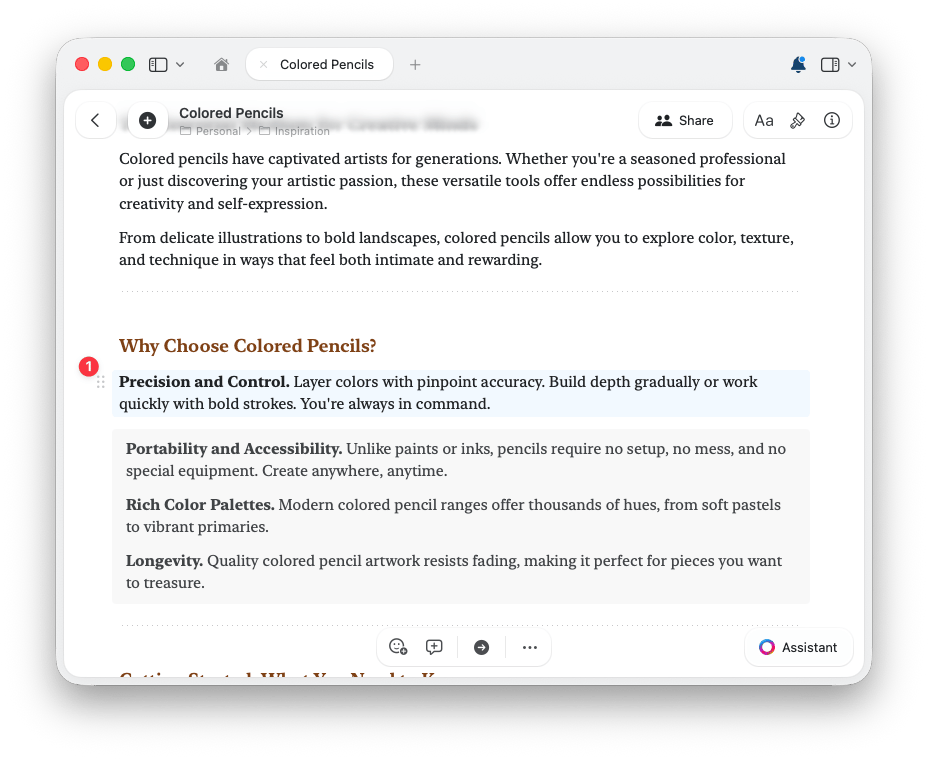
2
Open the Format panel
Open the right sidebar and select the Format tab.
3
Pick a block color
Under Decorations, select Block, then choose a color from the Color palette. Hover over any color to see its name in a tooltip.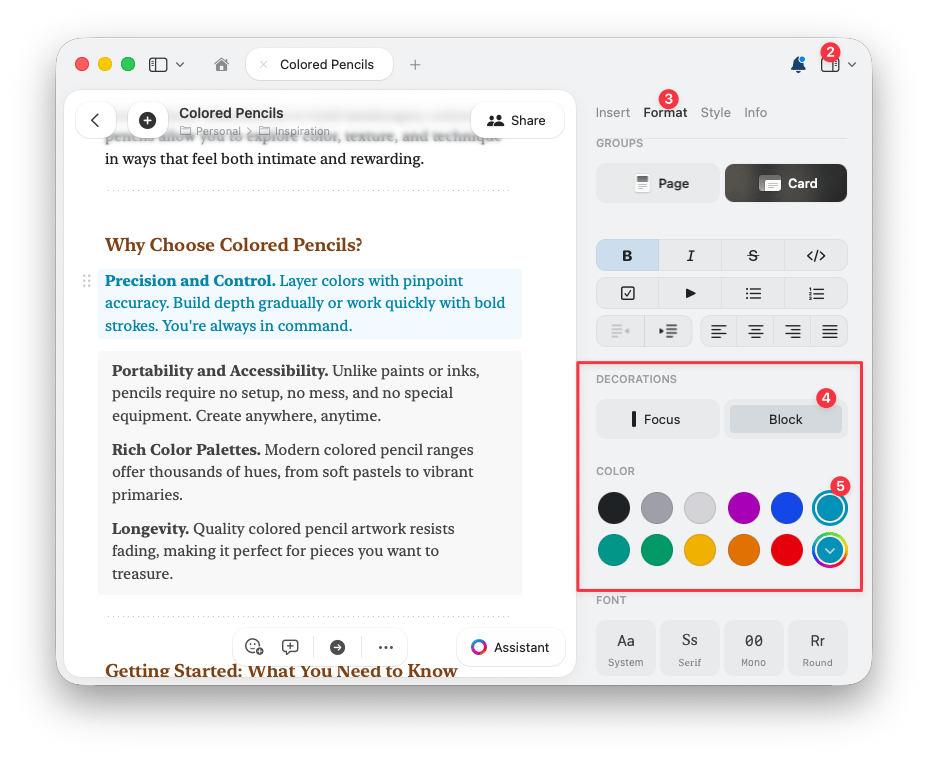
Picking a Custom Block Color
Want a shade that isn’t in the palette?1
Open the color picker
Select the custom color option at the end of the block color palette.
2
Choose your shade
Browse a grid of shades, pick from a spectrum, or fine-tune with sliders.
3
Or enter an exact value
Type an RGB or HSB value for a precise match. This is handy for brand colors.
Setting Your Own Default Block Colors
You can also replace any color in the default palette with your own shade. This is great if you want your favorite color always at hand, or use a specific brand color across your documents.1
Open the context menu on a palette color
In the block color palette, right-click (macOS) or tap and hold (iOS) the color you want to replace.
2
Customize the color
Choose the option to customize the color and pick your own shade in the color picker. The palette now shows your color in that spot, everywhere block colors appear.
3
Reset when needed
To bring back the original color, open the context menu on it again and reset it.
Tables and collections inherit the block color set on them, so you can color-code these blocks the same way as any other content.
Related Articles
Backdrops, Colors & Separators
Customize backdrops, document and text colors, and separators
Default Styles
Set your preferred style as the default