

Explore and Execute modes
Craft Assistant has two modes:- Explore — The Assistant reads your document and proposes changes. You review and approve before anything is modified.
- Execute — The Assistant reads your document and applies changes directly. You see edits appear in real time.
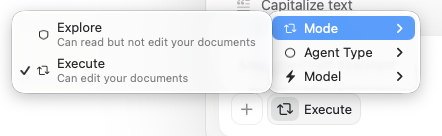
What the Assistant can do in Execute mode
The Assistant can:- Create and modify text — headings, paragraphs, lists, callouts, and code blocks
- Style your document — highlights, colors, backgrounds, dividers, and visual styling
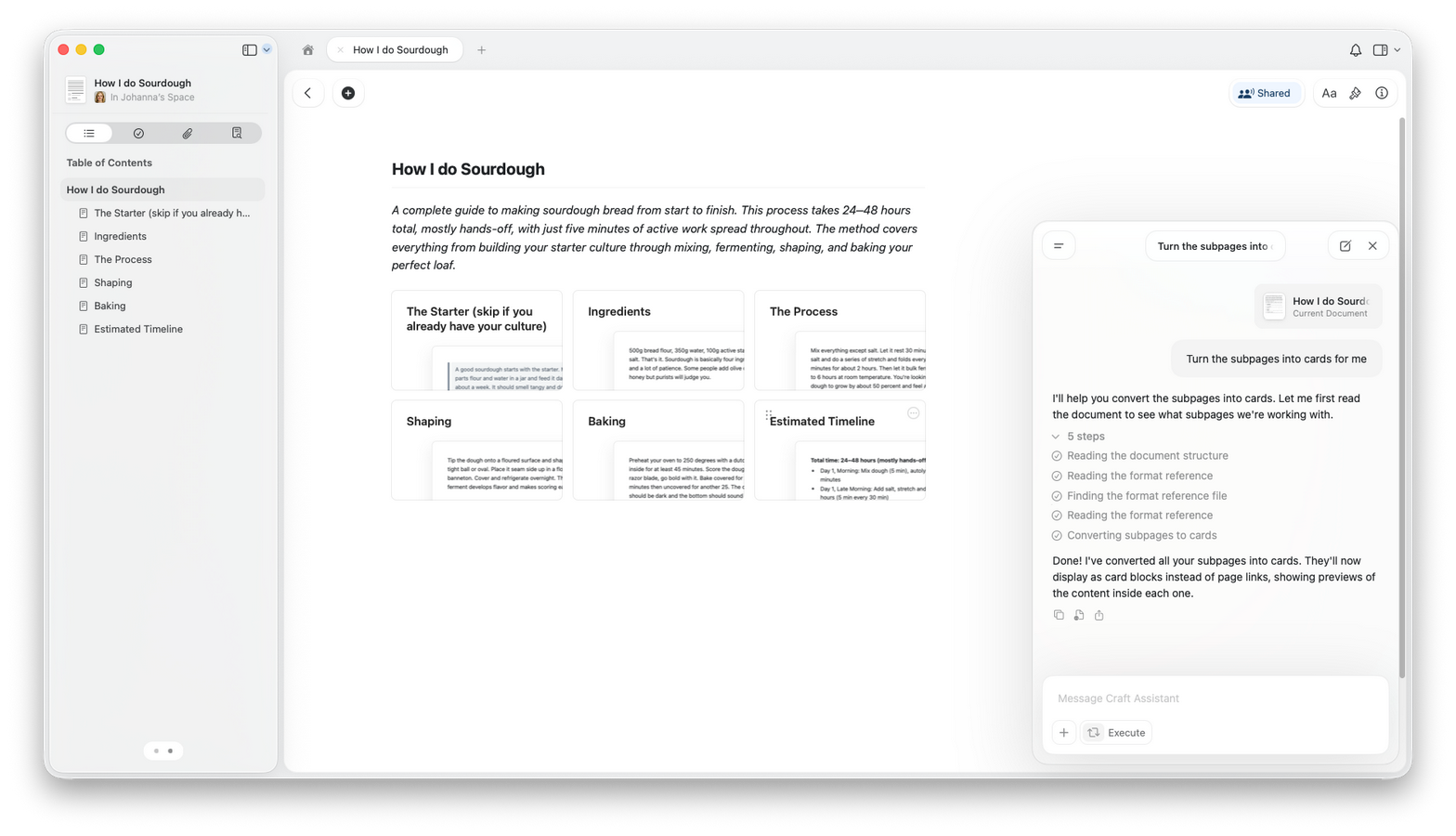
- Create subpages — add new pages nested inside your document
- Create new documents — add documents in your Space or duplicate existing ones
- Create folders — organize content into new folders
- Move documents and folders — rearrange your Space structure
- Delete content — remove blocks, documents, or folders
- Reorganize sections — move and restructure content
Sessions
- Sessions sync across your devices.
- You can run multiple sessions in parallel.
- A session pauses after 5 minutes of inactivity. Your conversation history is preserved — reopen previous sessions anytime from the session list.
- A notification dot appears when a background session completes.
Starting an editing session
1
Open the document you want to edit.
2
Open the Assistant panel.
3
Switch to Execute mode.
4
Describe what you want to change.
5
Review the result in your document.
Undo and reverting
You can also ask the Assistant to revert or adjust what it changed.Tips for better results
- Be specific about what you want changed.
- Start with smaller edits before large rewrites.
- Try Fast first — it handles most edits well and uses less of your quota. Switch to Max for complex multi-section restructuring.
- Review changes after each request.
Which models support editing
Usage
Editing uses more of your quota than read-only conversations because the Assistant performs multiple steps (reading, planning, and applying). Exact usage depends on document size and request complexity. Use Fast for simpler edits to stay efficient.Platform availability
- macOS
- iOS
- Windows
- Web
Full editing support at document-level and space-level.
Related Articles
Using Craft Assistant
Learn how to start conversations and work with modes
Choosing AI Models
Pick the best model for editing tasks
Usage & Limits
Understand AI usage for editing and other tasks
Custom Prompts
Create reusable editing instructions
Document Review
Get AI feedback before applying edits