

Canceling moves your account to the free plan at the end of your current billing period. Your documents and data are never affected by subscription changes.
Where did you subscribe?
How you cancel depends on where you subscribed to Craft:
Not sure which one applies to you? See the Billing overview to check where your subscription is managed.
Cancel a subscription purchased directly from Craft
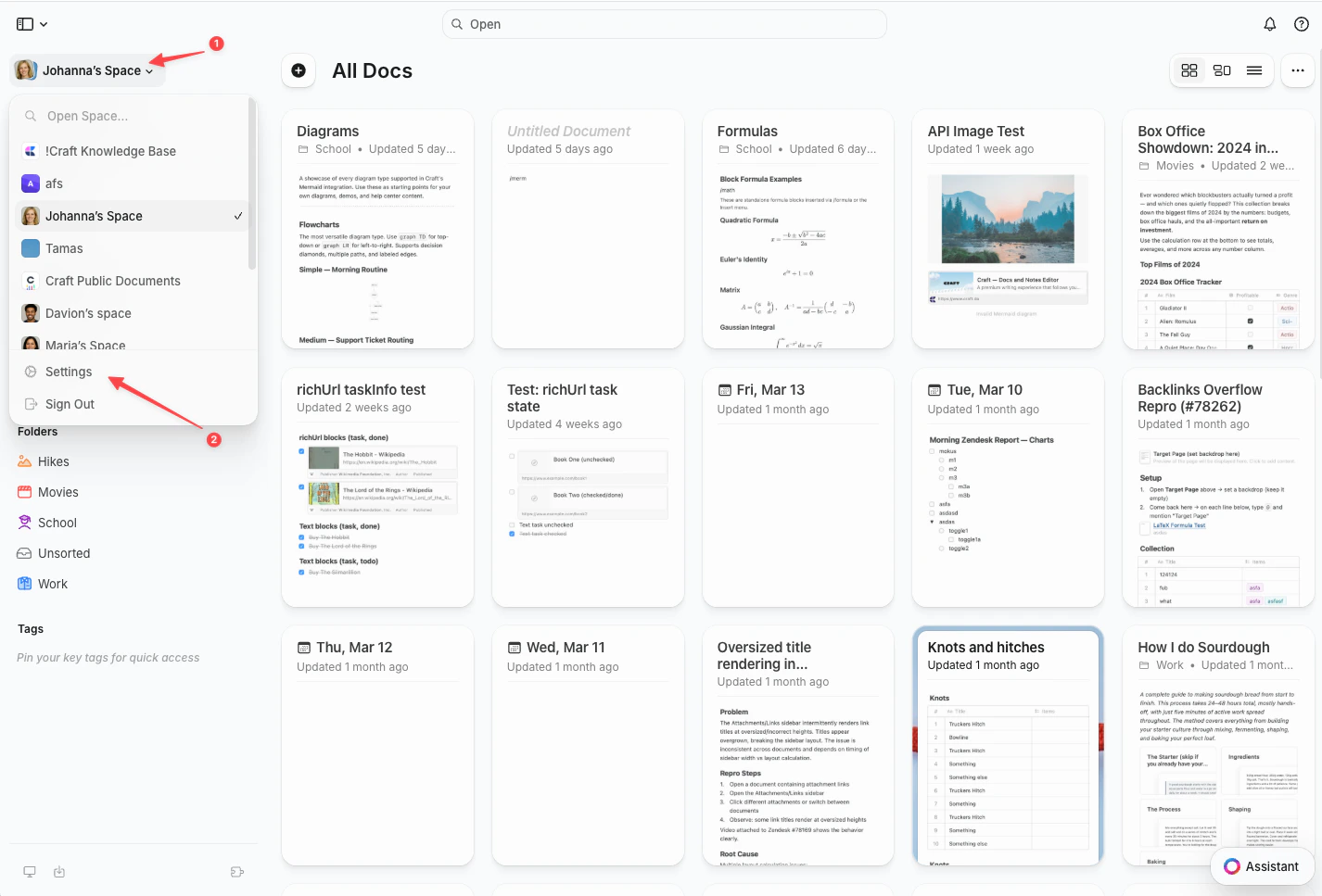
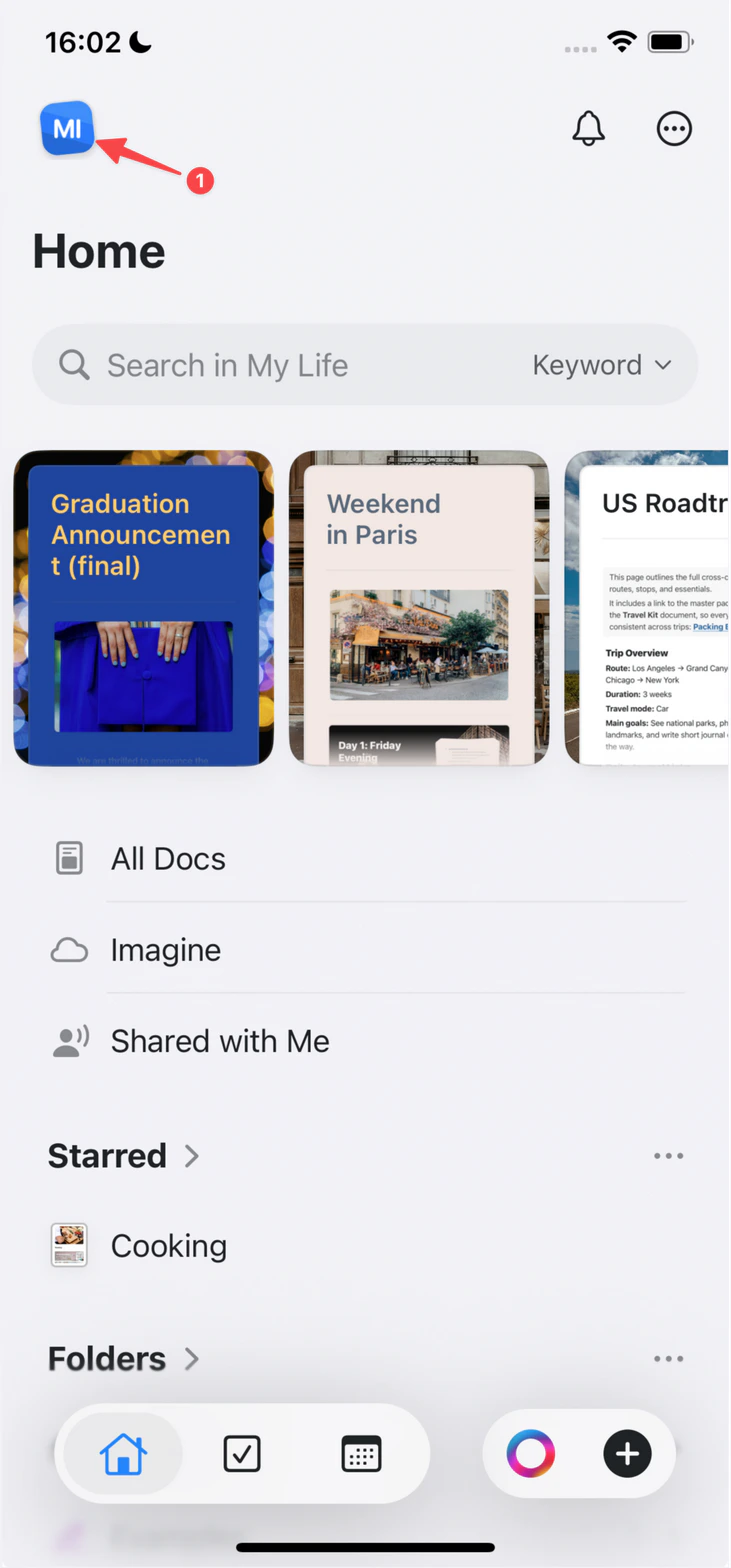
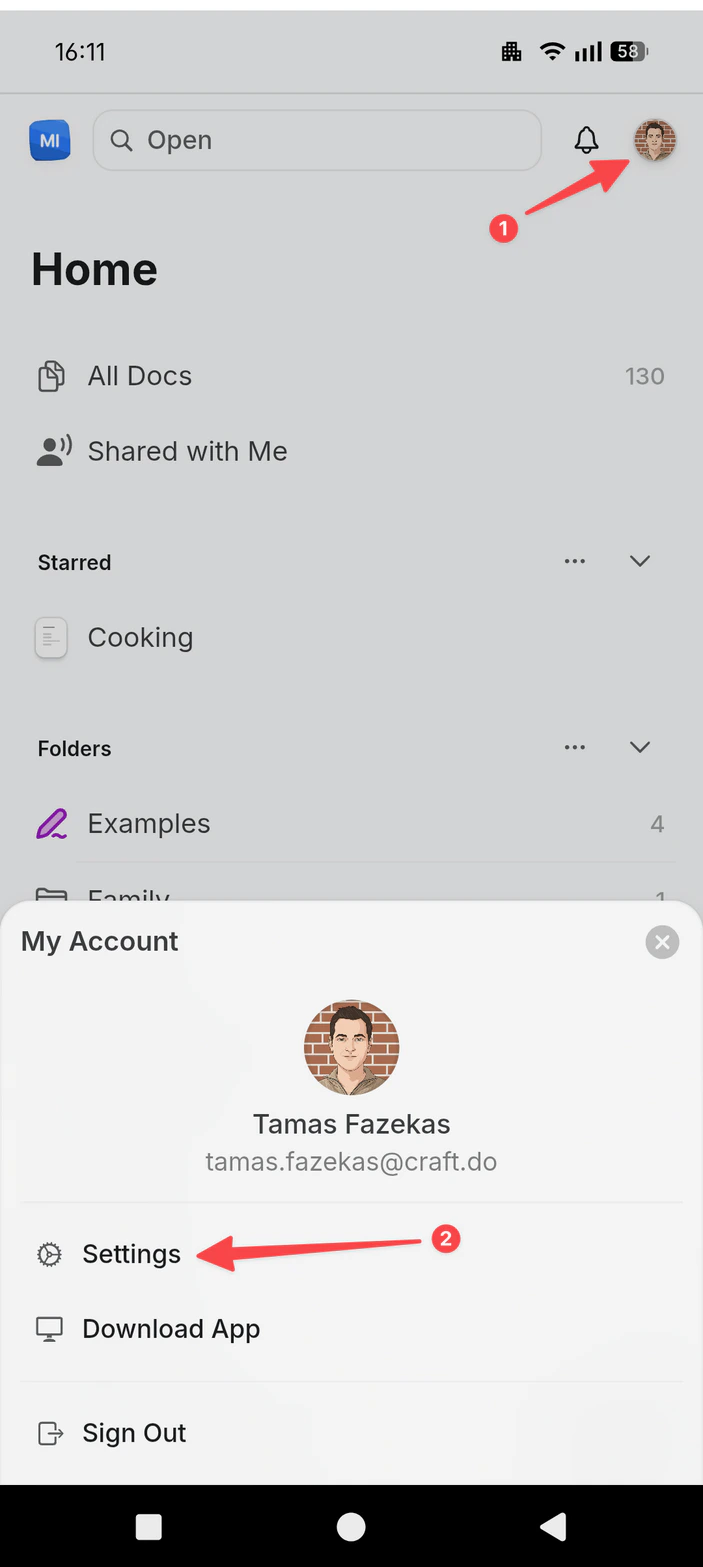
First, open Settings in Craft:- Mac
- Web / Windows
- iOS
- Android
Hover over the Space icon at the top of the sidebar, then click the settings icon that appears.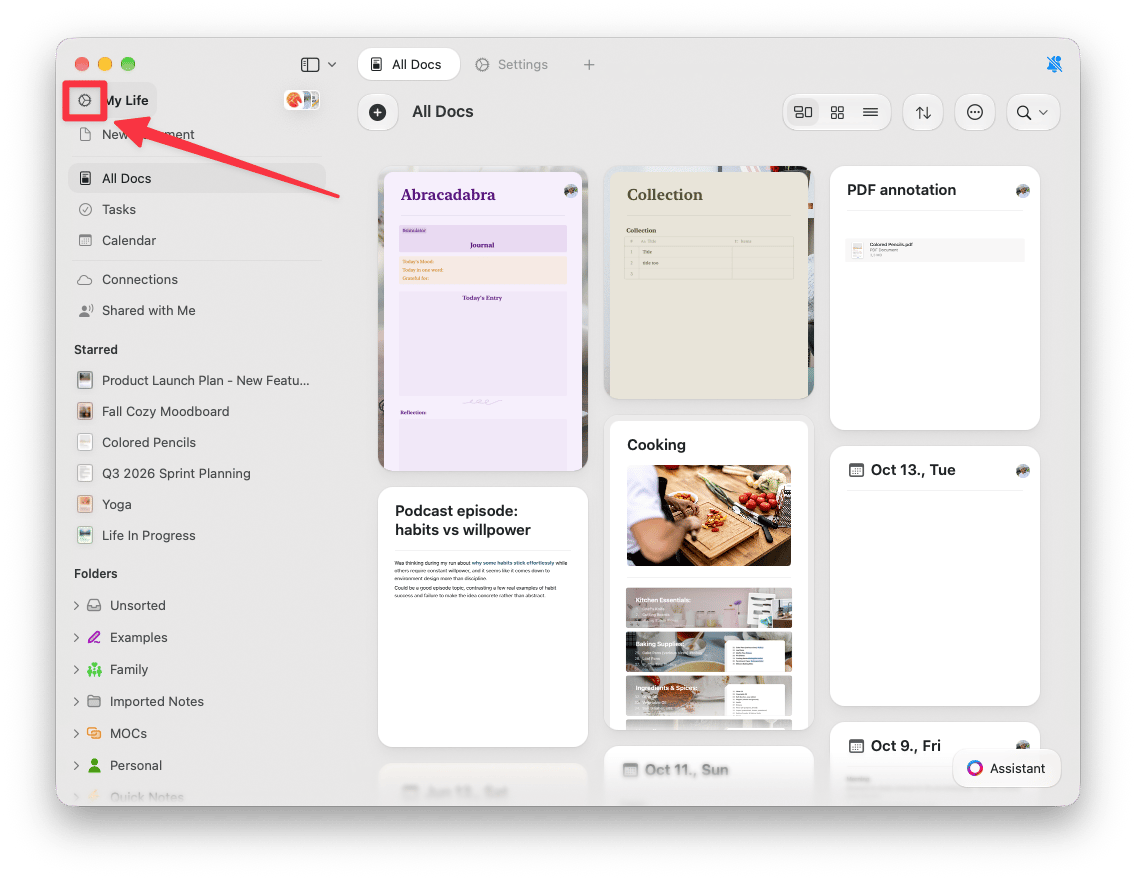
1
Select My Subscription
In the Settings sidebar, select My Subscription (called My Subscriptions on the web).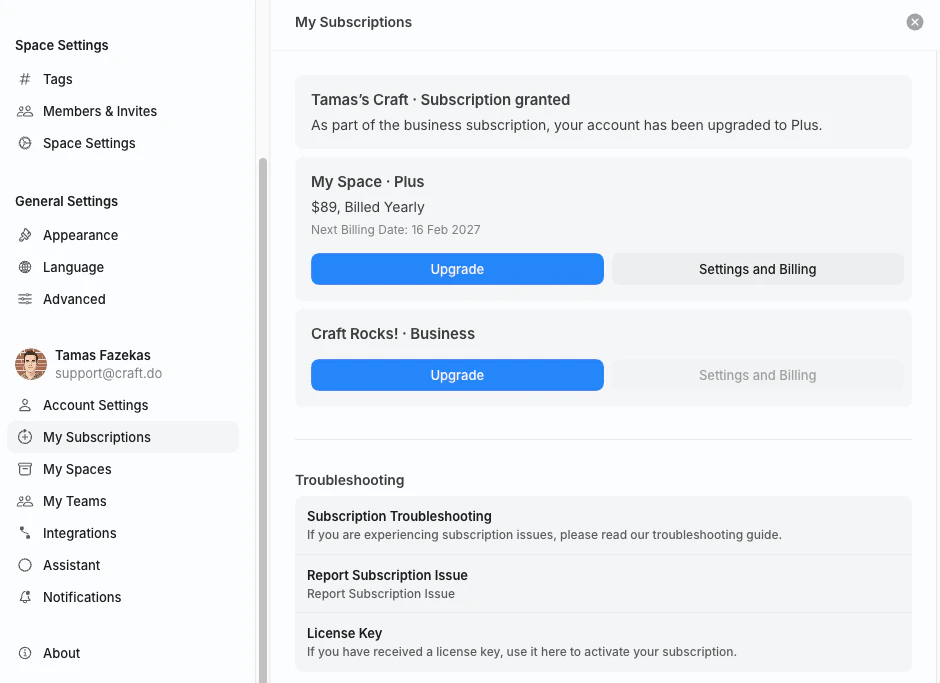
2
Open Settings and Billing
On the subscription you want to cancel, click Settings and Billing. This opens the Billing & Subscription view.Only the subscription owner (the account that purchased the plan) sees this button.
3
Select Cancel Subscription
In the Subscription section, select Cancel Subscription and confirm. The button includes your plan name, for example Cancel Plus Subscription.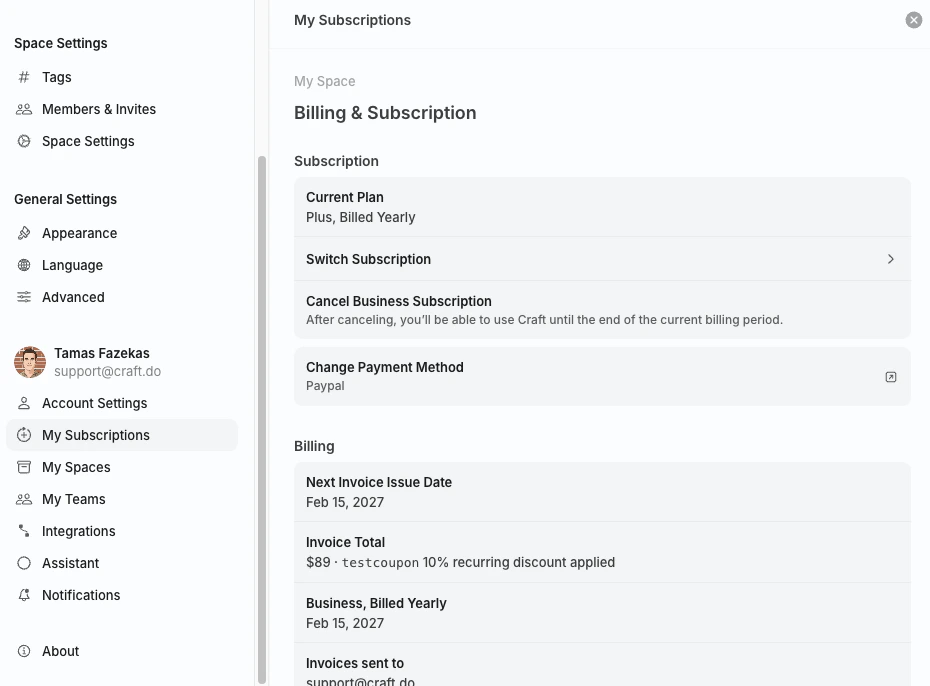
After canceling, you can keep using your paid features until the end of the current billing period. Your account then moves to the free plan.
Cancel an App Store subscription
If you subscribed through the App Store on an iPhone, iPad, or Mac, Apple manages your subscription. Cancel it from your Apple Account subscription settings by following Apple’s guide.Cancel a Setapp subscription
If you use Craft through Setapp, your subscription is managed by Setapp. Sign in at my.setapp.com to manage or cancel your membership.Switching to a lower plan
Craft does not have a direct downgrade button. To switch to a lower plan (for example, from Plus to Starter):1
Cancel your current subscription
Use the steps above for where you subscribed.
2
Wait for your billing period to end
You keep your current plan’s features until the expiry date.
3
Subscribe to the new plan
After your plan expires, subscribe to the lower plan in the app, on craft.do/pricing, or through the App Store.
Family to Plus
The steps are the same, with one thing to plan for: Family seats do not carry over. When the Family subscription ends, anyone you invited loses access to the shared team space. Before you cancel:1
Tell your family members
Let anyone you invited know the date your Family plan ends so they can save or move anything they need.
2
Move shared content
Anything in the shared team space that you want to keep should be moved into your own space before the plan ends.
3
Cancel and wait
Cancel the Family subscription and keep using it until the billing period ends.
4
Subscribe to Plus
After the Family plan expires, subscribe to Plus.
Related Articles
Billing Overview
Where your subscription is managed and what happens when it ends
Update Payment Method
Change the card on file for your subscription
Subscription Plans
Compare Craft’s subscription tiers and features
For general troubleshooting, sync, or platform-specific issues, see the Troubleshooting Guide.