

Adding team members requires a Family, Team, or Business subscription. The Plus plan is designed for solo users only.
Understanding Teams and Spaces
In Craft, there’s an important distinction between Teams and Spaces:- Team — The overall organization or group that shares a subscription
- Space — An individual workspace within a team for organizing projects, departments, or areas of work
Opening Settings
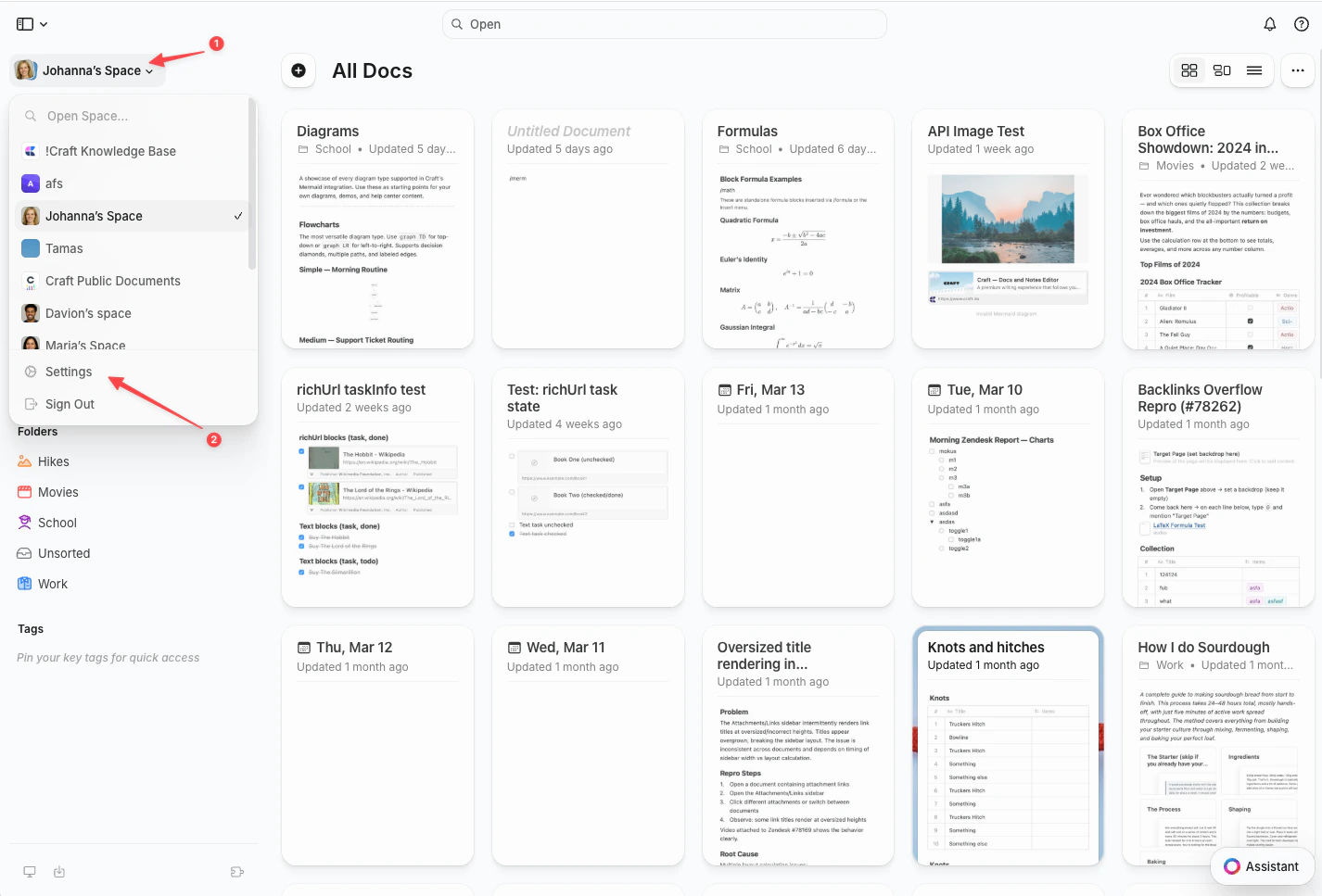
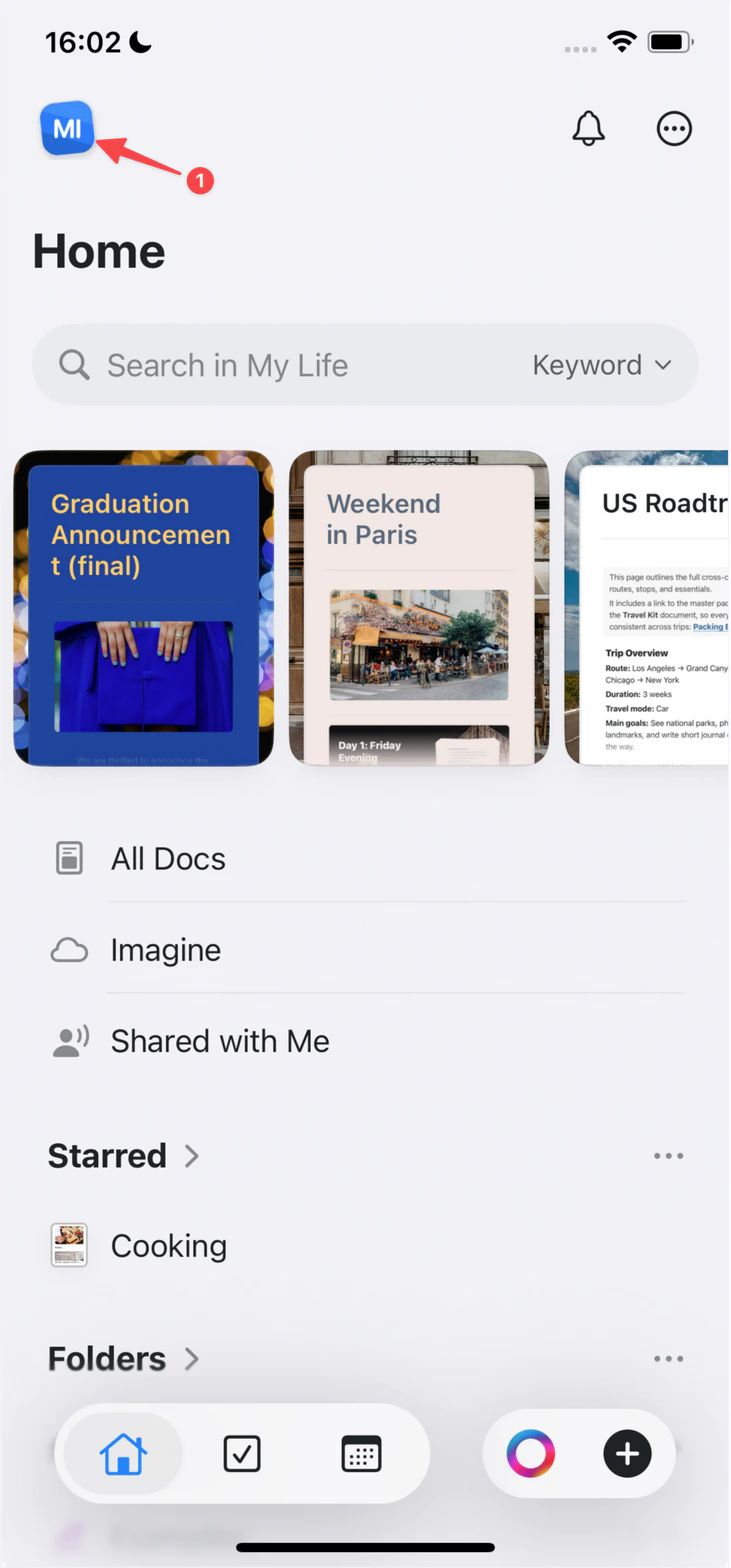
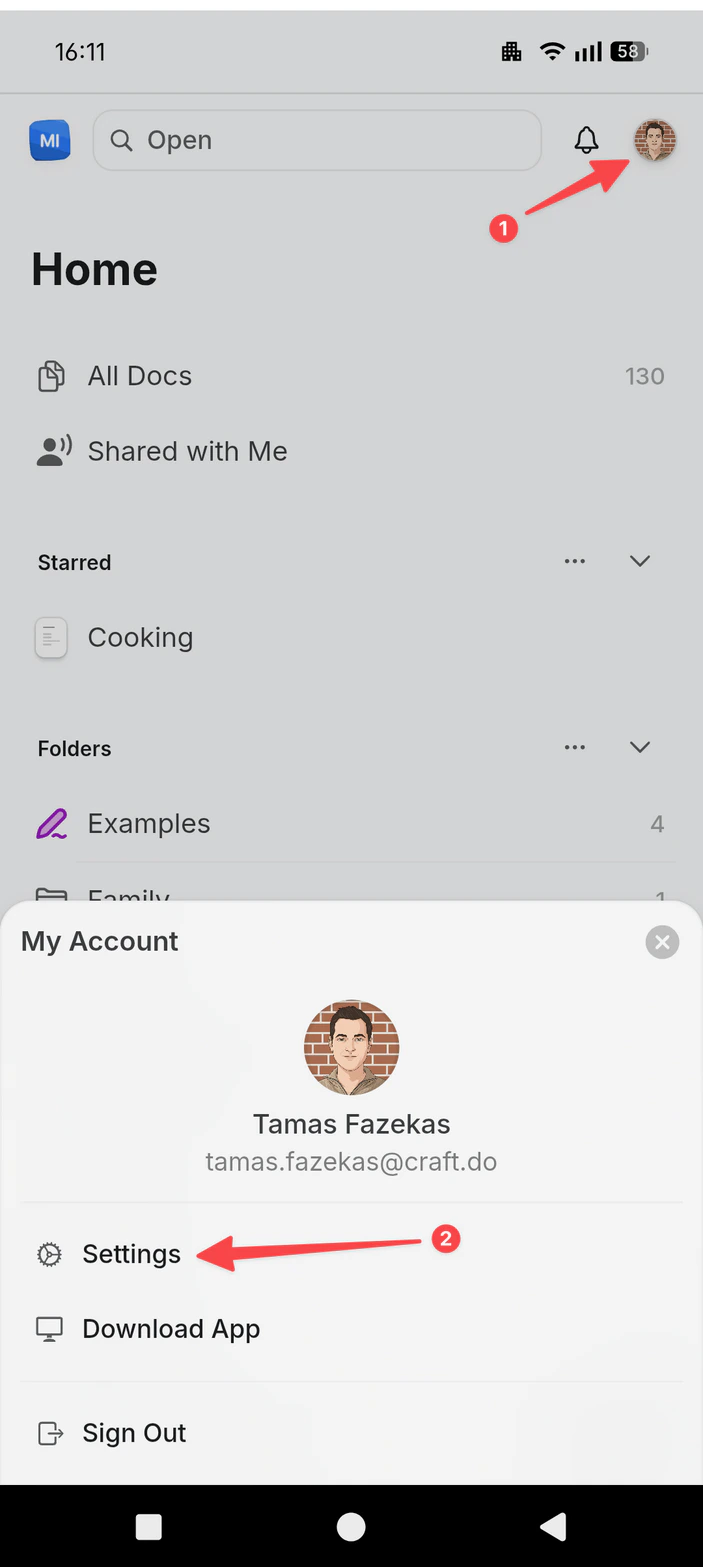
All team and space management happens inside Settings. The entry point depends on your platform — follow the instructions for yours:- Mac
- Web / Windows
- iOS
- Android
Click the Space name at the top of the sidebar to open Settings.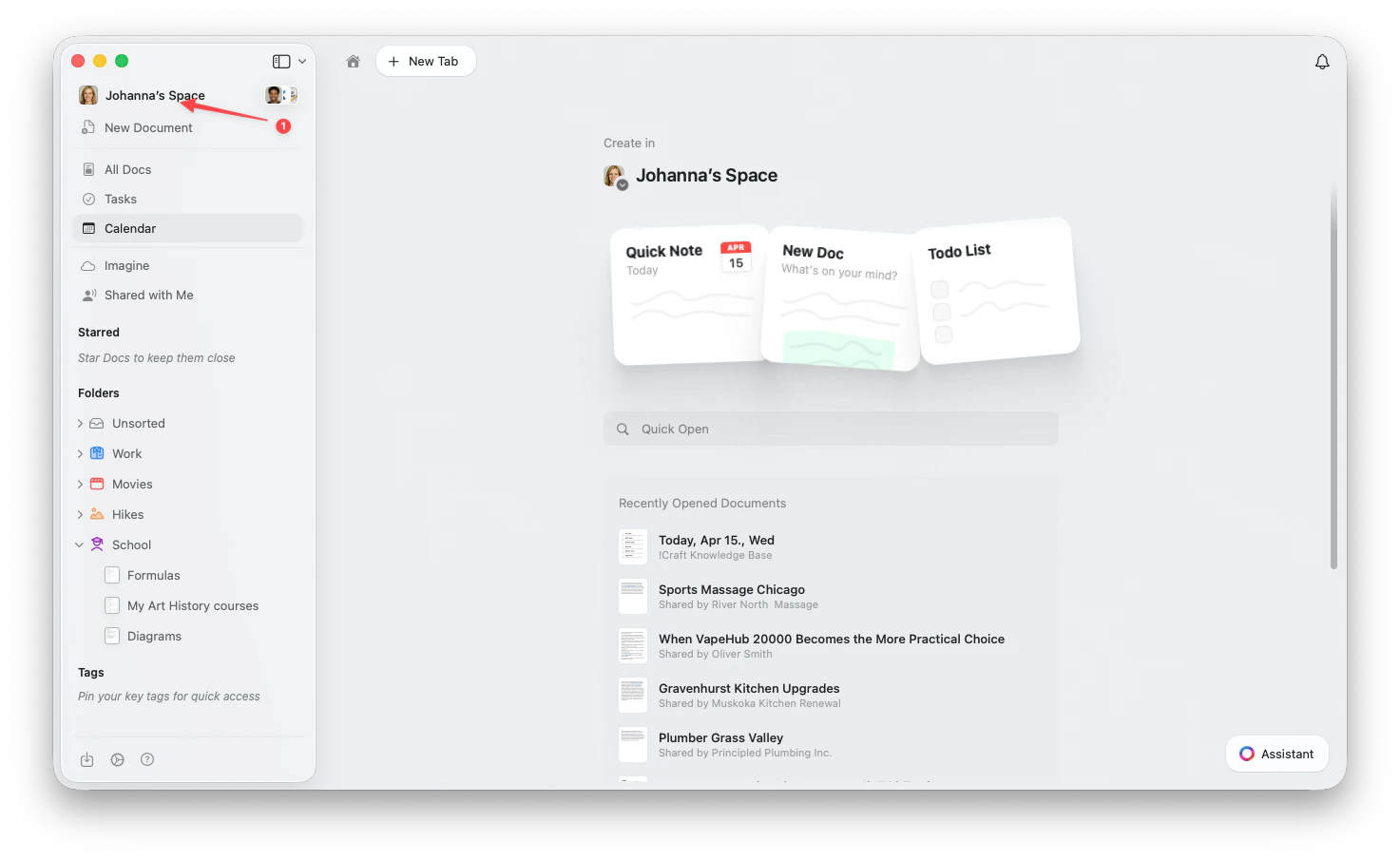
Adding Members to Your Team
Team members have access to your account and can utilize the benefits of your subscription.1
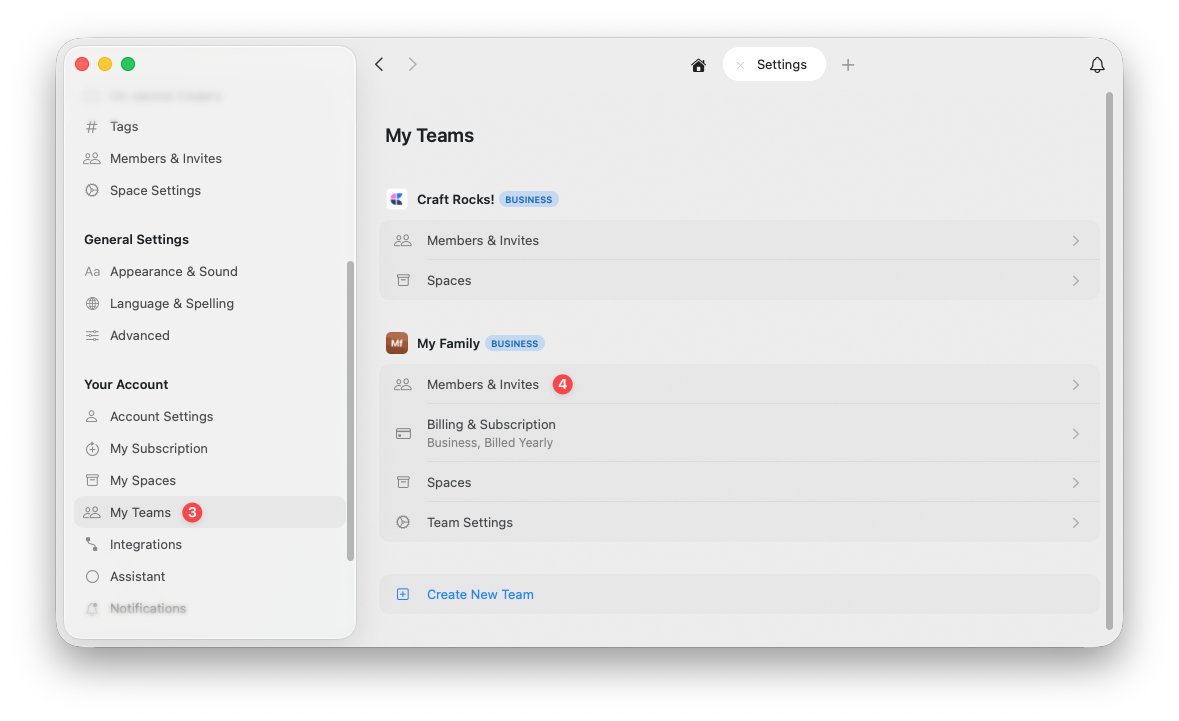
Go to My Teams
Select the My Teams tab from the left sidebar.
2
Open Members & Invites
Under the team you want to manage, click Members & Invites.
3
Send invitations
Click Invite to Team and enter the email addresses you’d like to invite.
Adding Members to Spaces
After someone accepts your team invitation, you can add them to specific spaces where they’ll collaborate.1
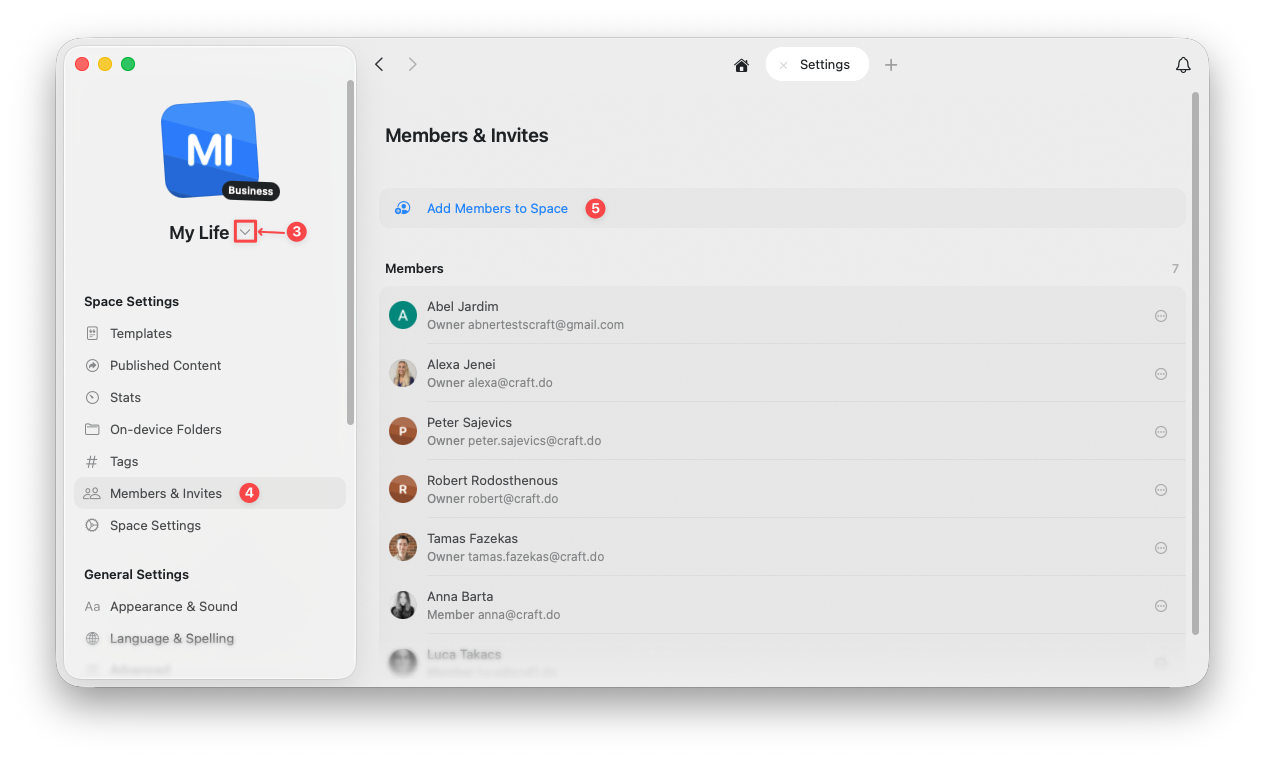
Switch to the target space
Use the space selector at the top of the left sidebar to switch to the space you want to manage.
2
Open Members & Invites
Under Space Settings, select Members & Invites.
3
Add members
Click Add Members to Space and select the team members you want to add.
Space Member Permissions
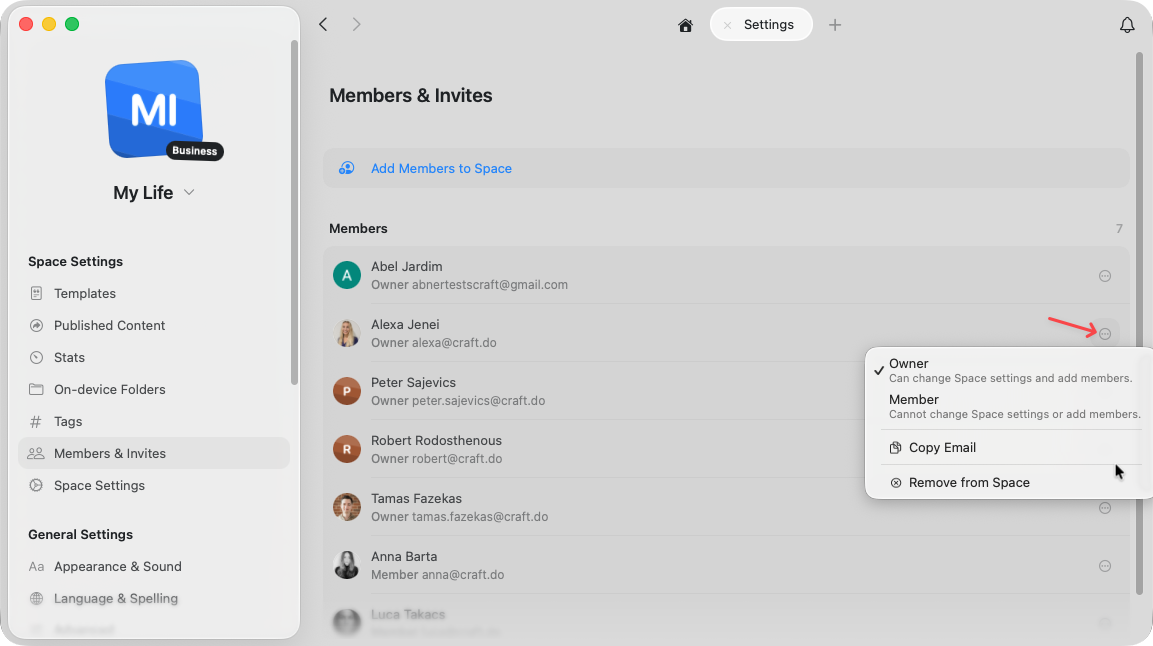
Once members are added to a space, you can assign them one of two roles:- Owner — Can change space settings and invite new members to the space
- Member — Can access and work in the space but cannot change settings or invite others
Removing Team Members
You can remove members from either your entire Team or from a specific Space.Removing from a Space
Removing someone from a space only affects that specific space — they remain a team member and can still access other spaces they’ve been added to.1
Switch to the target space
Use the space selector at the top of the left sidebar to switch to the space you want to manage.
2
Open Members & Invites
Under Space Settings, select Members & Invites.
3
Open the member's menu
Locate the member you want to remove and click the three-dot menu (⋯) on the right side of their row.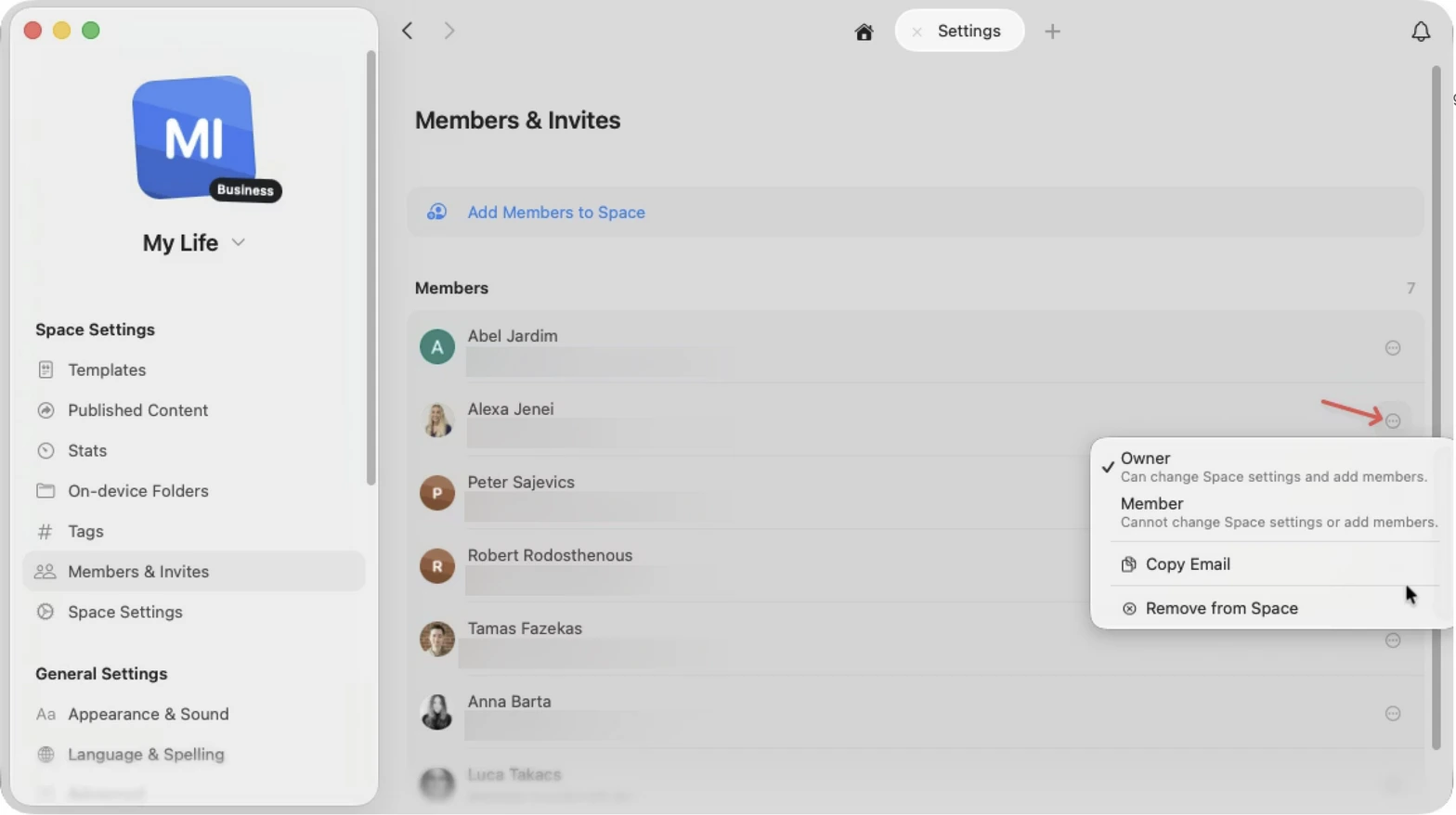
4
Remove from Space
Select Remove from Space from the menu.
Removing from Your Team
Removing someone from your team removes them from all spaces and revokes their access to team benefits.1
Go to My Teams
Select the My Teams tab from the left sidebar. Each of your teams is listed with its management options.
2
Open Members & Invites
Under the team you want to manage, click Members & Invites.
3
Open the member's menu
Locate the member you want to remove and click the three-dot menu (⋯) on the right side of their row.
4
Remove from Team
Select Remove from Team from the menu.
Sharing Documents
Learn how to share individual documents with collaborators
Spaces
Understand how to organize content across multiple spaces