

Custom branding features are available on Plus, Family, Team, and Business plans.
Logo on Published Pages
When enabled, your logo appears in the top-right corner of every published document and as the browser tab favicon. Readers can click the logo to visit a URL of your choice (e.g., your website).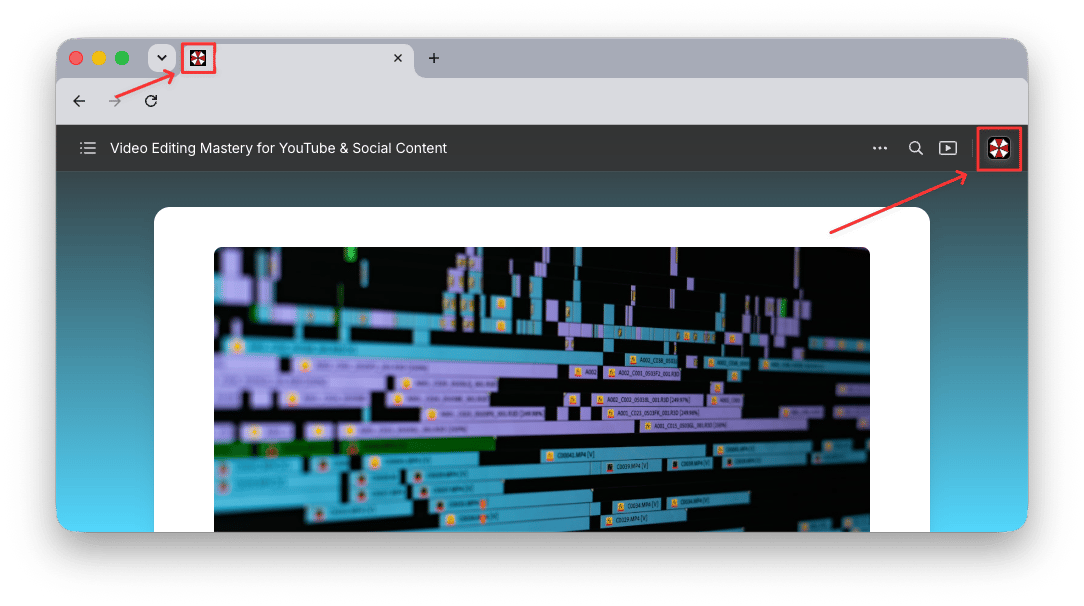
Enabling Your Logo
1
Open Space Settings
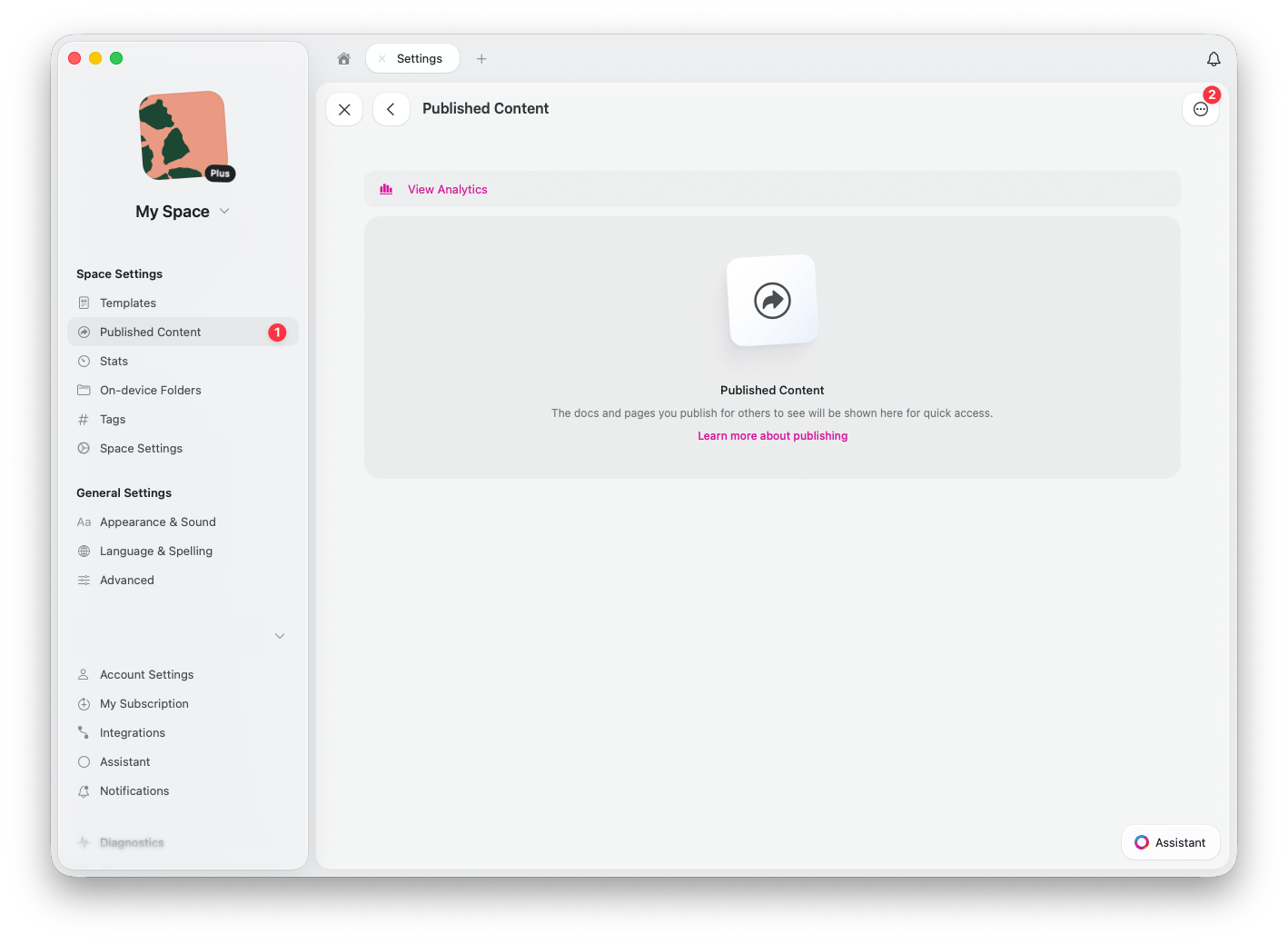
In the Craft Web or Desktop app, go to Space Settings > Published Content
2
Open Published Content Settings
Click the settings icon to access Published Content Settings
3
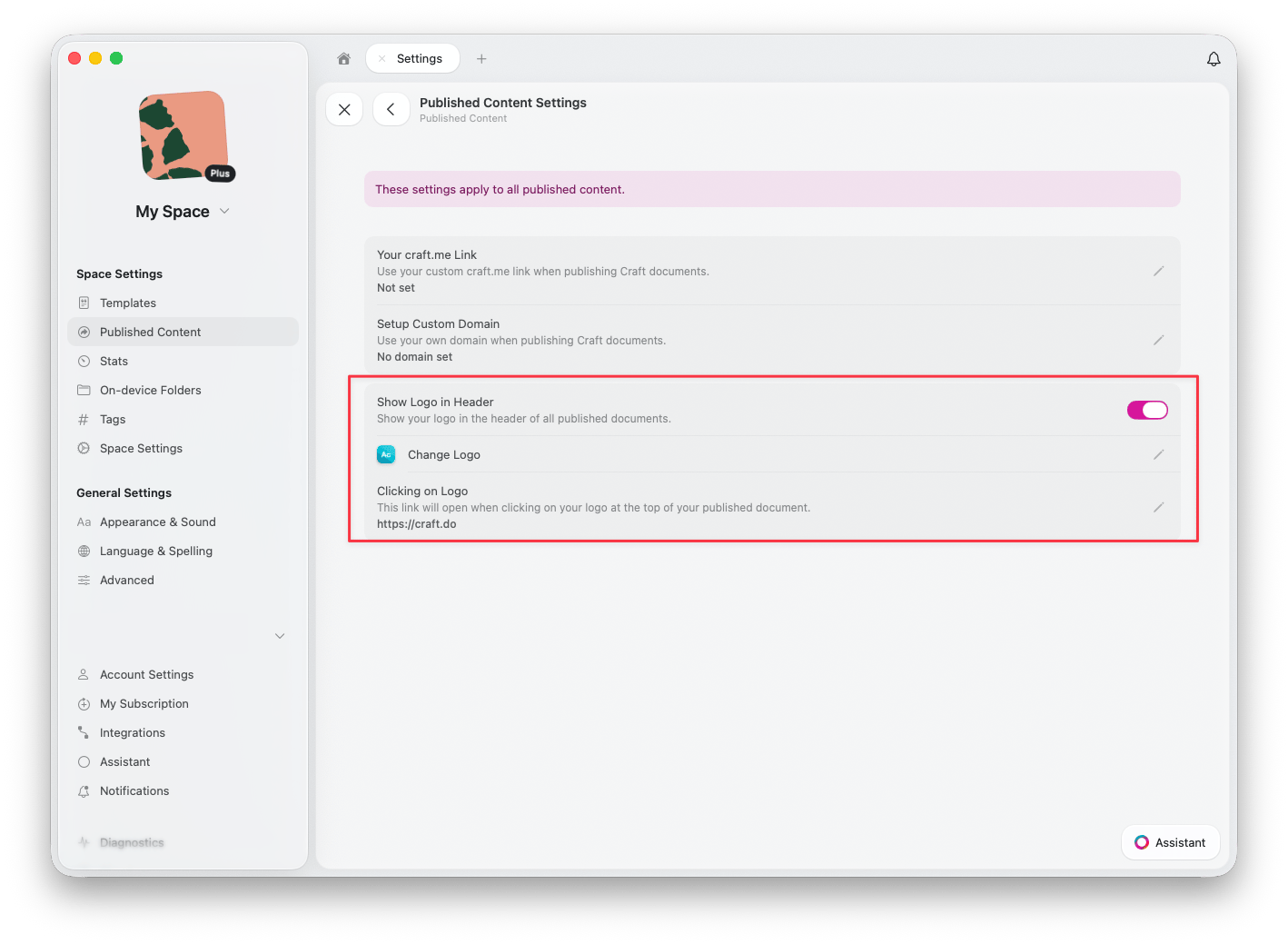
Toggle Show Logo in Header
Enable Show Logo in Header to display your logo in the header of all published documents
4
Change the logo (optional)
Click Change Logo to upload or update the logo displayed on your published pages
5
Set the logo link (optional)
Under Clicking on Logo, set the URL that opens when readers click your logo (e.g., your website homepage)
Combined Branding Features
Custom branding works together with other publishing features to create a complete brand experience: Custom Domains — Use your own domain (e.g.,blog.yourcompany.com) instead of craft.me
Logo — Display your logo on all published pages
Custom craft.me Link — Personalize your craft.me URL to match your brand
Together, these features let you publish professional content that looks and feels like a seamless part of your brand, while leveraging Craft’s powerful document features behind the scenes.
Custom Domains
Connect your own domain to published content
Publishing Documents
Learn how to publish documents to the web