

According to Mem’s migration guide, Mem notes become read-only on December 18, 2026, and Mem shuts down on January 15, 2027. You can export your notes until then.
Step 1: Export Your Notes from Mem
1
Open Mem's export settings
On your computer, sign in to mem.ai and go to Settings > Exports.
2
Start a new export
Click Start new export, choose My Computer, then click Start export. Mem lets you choose whether to include meeting transcripts and recordings.
3
Download the ZIP file
When the export is ready, click Download. Keep the file zipped. Craft reads the ZIP as it is, so don’t unpack it.
Step 2: Import into Craft
1
Open the Mem import page
Go to docs.craft.do/import/mem and sign in to your Craft account if asked.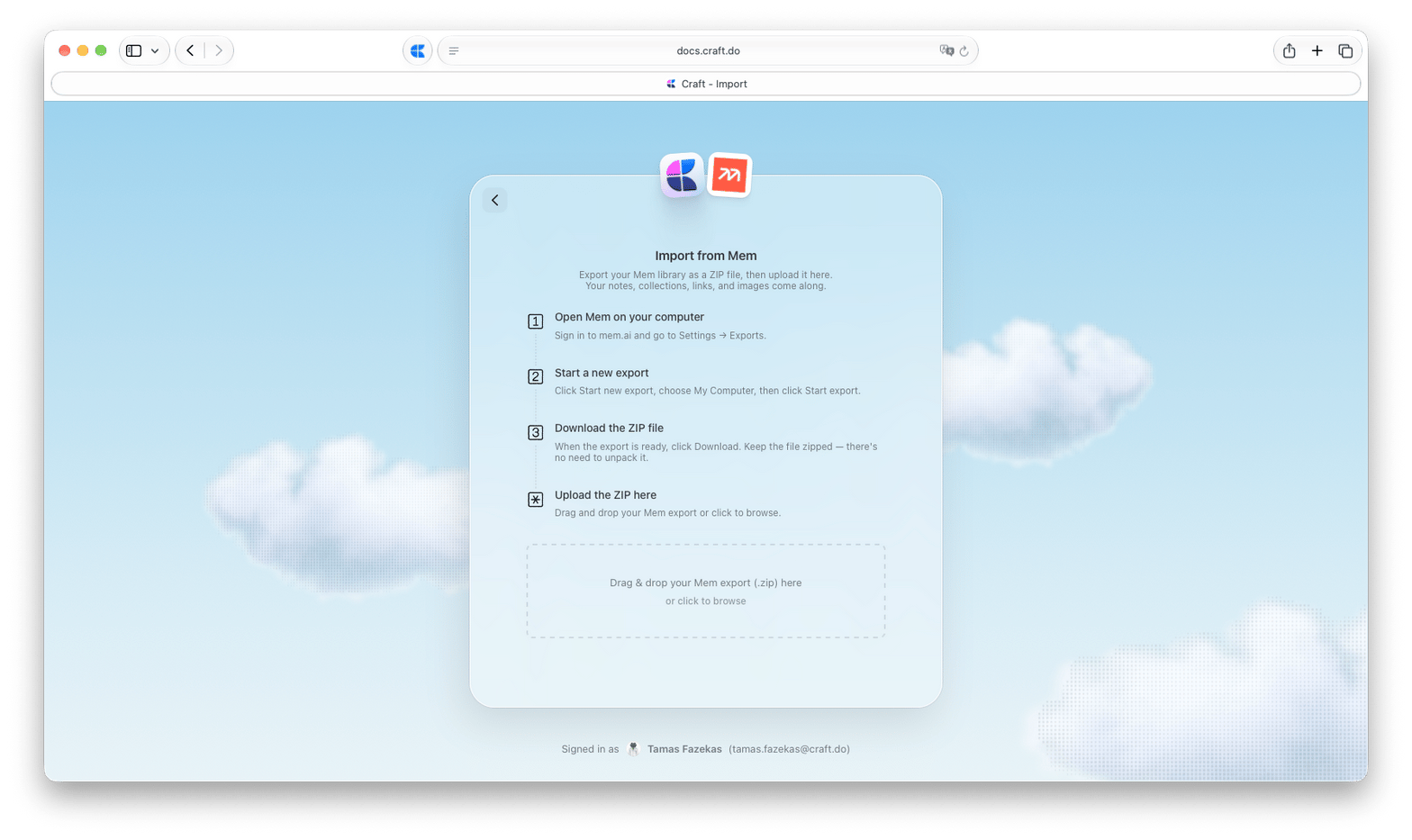
2
Add your Mem export
Drag the ZIP file onto the upload area, or click it to browse and select the file.You can import one ZIP file of up to 5 GB at a time.
3
Choose where the notes go
Select the Space where you want your notes to appear. Optionally, select a folder. If you don’t choose one, the notes go to Unsorted.
4
Start the import
Click Import Mem Export. Keep the page open while the ZIP uploads. Once the page shows Importing your documents, you can close it and the import will continue in the background.
What Comes Over
Notes, images, and links
Notes, images, and links
Each Mem note becomes a Craft document with its original title and its created and modified dates. Images and attached files come over with the notes, and links between notes point to the matching Craft documents.
Collections
Collections
In Mem, a note can belong to several collections. Mem’s export includes a document for each collection that lists the notes in it. Craft imports these into a Collections folder, so you can open a collection and follow the links to its notes.
Transcripts and recordings
Transcripts and recordings
If your export includes them, transcripts are imported as documents in a Transcripts folder, and the notes they belong to link to them. Recordings come over as audio files (
.wav) linked from their notes.Tables
Tables
Tables come over as Craft tables. Content inside table cells is simplified, so check tables with more than plain text after the import.
After the Import
Once the import is complete, you’ll see a confirmation with a button that takes you to your imported notes in Craft. If some content couldn’t be imported, the confirmation lists it so you can check the affected documents. You can find the results of earlier imports under Previous Imports on the import page.Troubleshooting
The file isn't accepted or isn't recognized as a Mem export
The file isn't accepted or isn't recognized as a Mem export
The import page only accepts the
.zip file you downloaded from Mem. If you unpacked or changed it, download a new export from Mem and upload it as it is.Import failed
Import failed
Try starting the import again. If the issue persists, contact support.