

- Word documents in the
.docxformat - Up to 100 files per import
- Up to 50 MB per file
Import Your Documents
1
Save your documents as .docx
The import page only accepts
.docx files. If a document is in another format, open it in Microsoft Word, choose File > Save As, and select Word Document (.docx).2
Open the Word import page
Go to docs.craft.do/import/word and sign in to your Craft account if asked.
3
Add your files
Drag your
.docx files onto the upload area, or click it to browse and select them.4
Choose where the documents go
Select the Space where you want the documents to appear. Optionally, select a folder. If you don’t choose one, the documents go to Unsorted.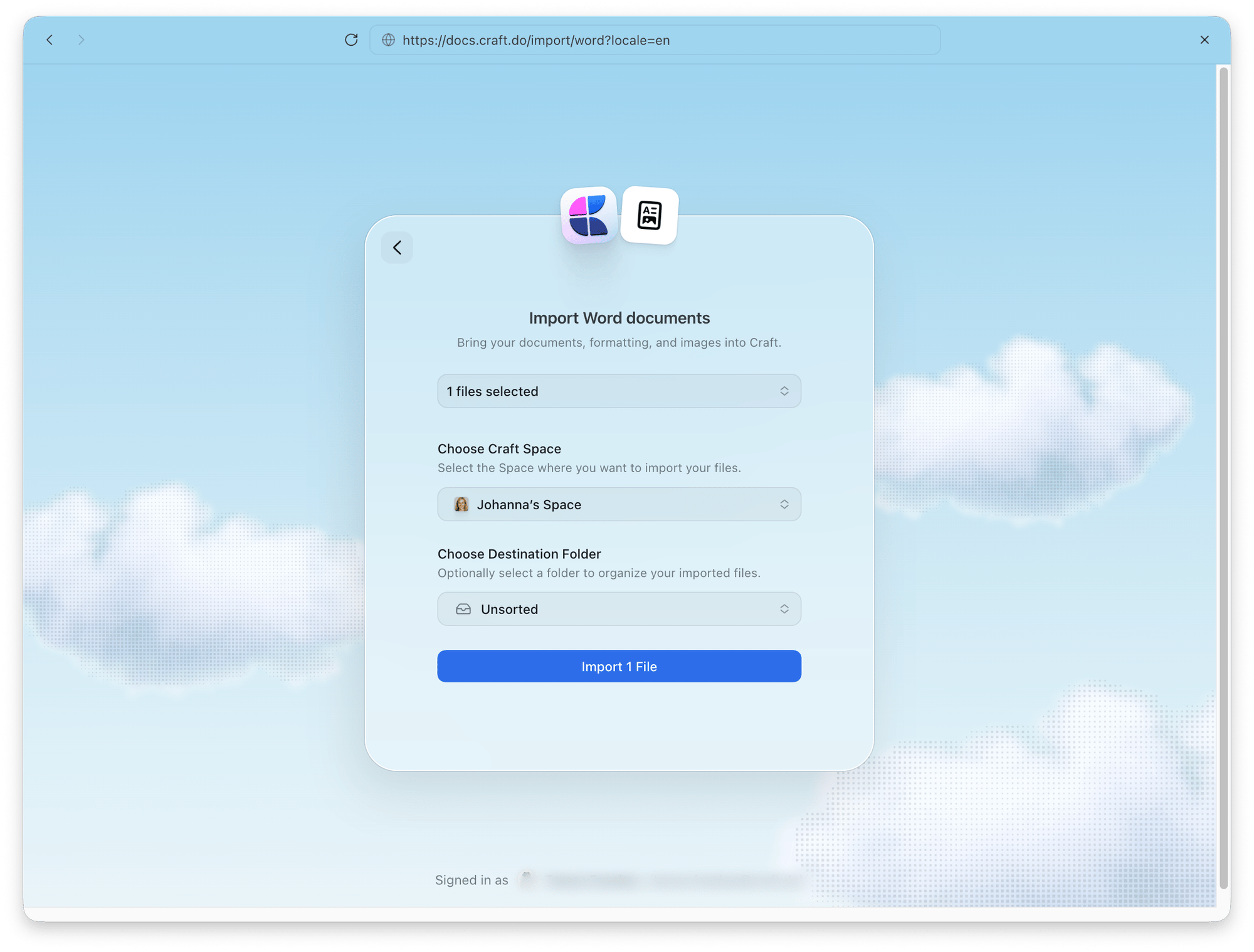
5
Start the import
Click Import. The import has two stages:
- Uploading: Your browser uploads the files. Keep the page open until the upload finishes.
- Processing: Craft converts the files. When the page says you can close it, you can leave and the import will continue in the background.
After the Import
Once the import is complete, you’ll see a confirmation with a button that takes you to your imported documents in Craft. If some formatting or content couldn’t be converted, the confirmation shows Formatting or content could not be fully preserved with a count. Some formatting was simplified and unsupported content was left out. The count refers to these conversion limits, not to missing documents or blocks. Open the affected documents to check them. You can find the results of earlier imports under Previous Imports on the import page.Troubleshooting
Please select Word documents (.docx)
Please select Word documents (.docx)
One of the selected files isn’t a
.docx file. Save it as a Word document (.docx) and try again.A selected Word document exceeds the 50 MB upload limit
A selected Word document exceeds the 50 MB upload limit
Files can be up to 50 MB each. Large Word files usually contain large images. Compress the images in Word or split the document into smaller files, then try again.
Too many files
Too many files
You can import up to 100 files at a time. Split larger sets into batches.
Import failed
Import failed
Try starting the import again. If the issue persists, contact support.