

How to Check Storage Usage
1
Open Settings
Click the Settings icon (gear) at the bottom of the left sidebar.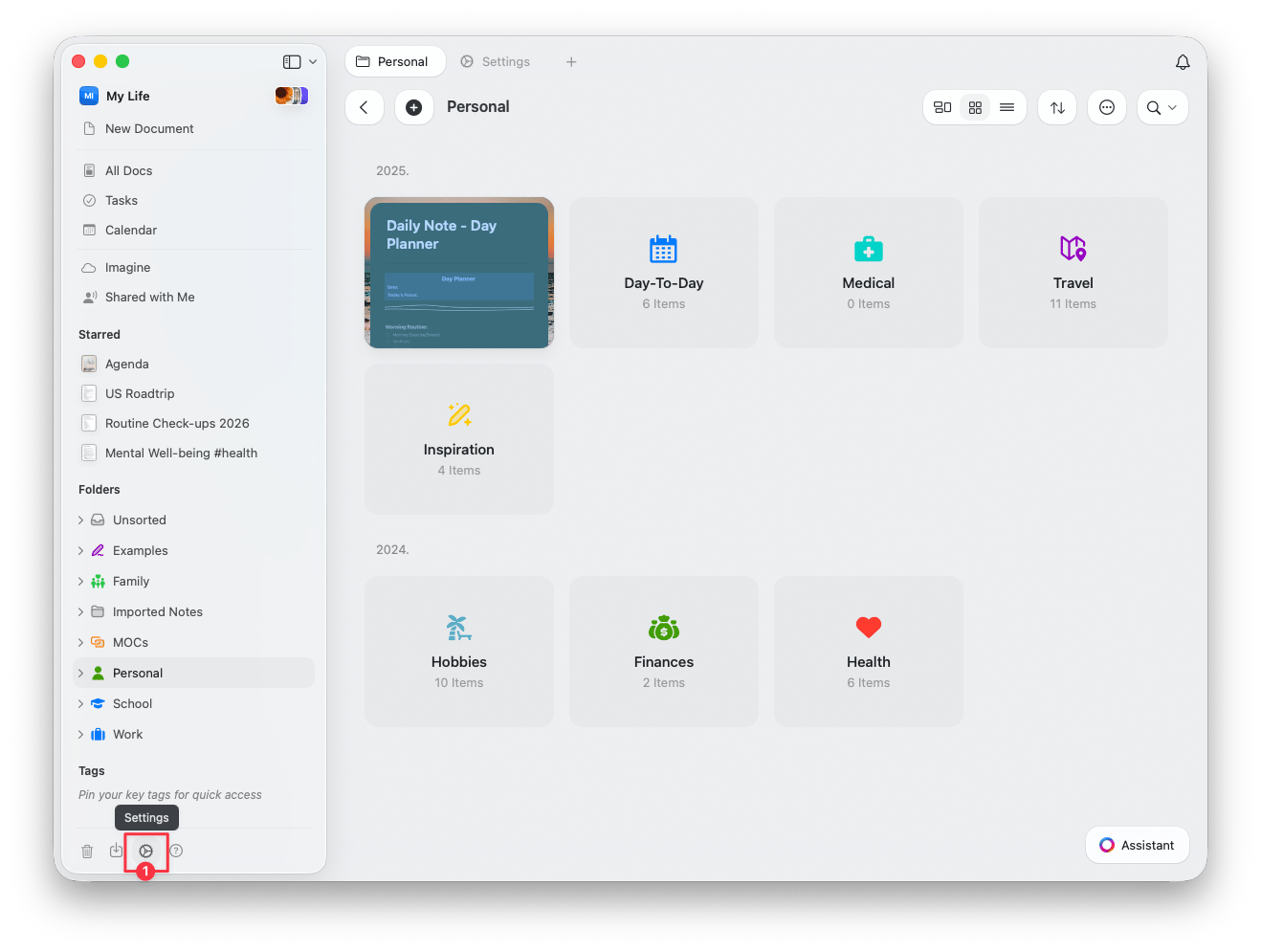
2
Open Stats
Under Space Settings, select Stats.
3
View your usage
The Stats panel shows your Storage Limit at the top, along with other space statistics.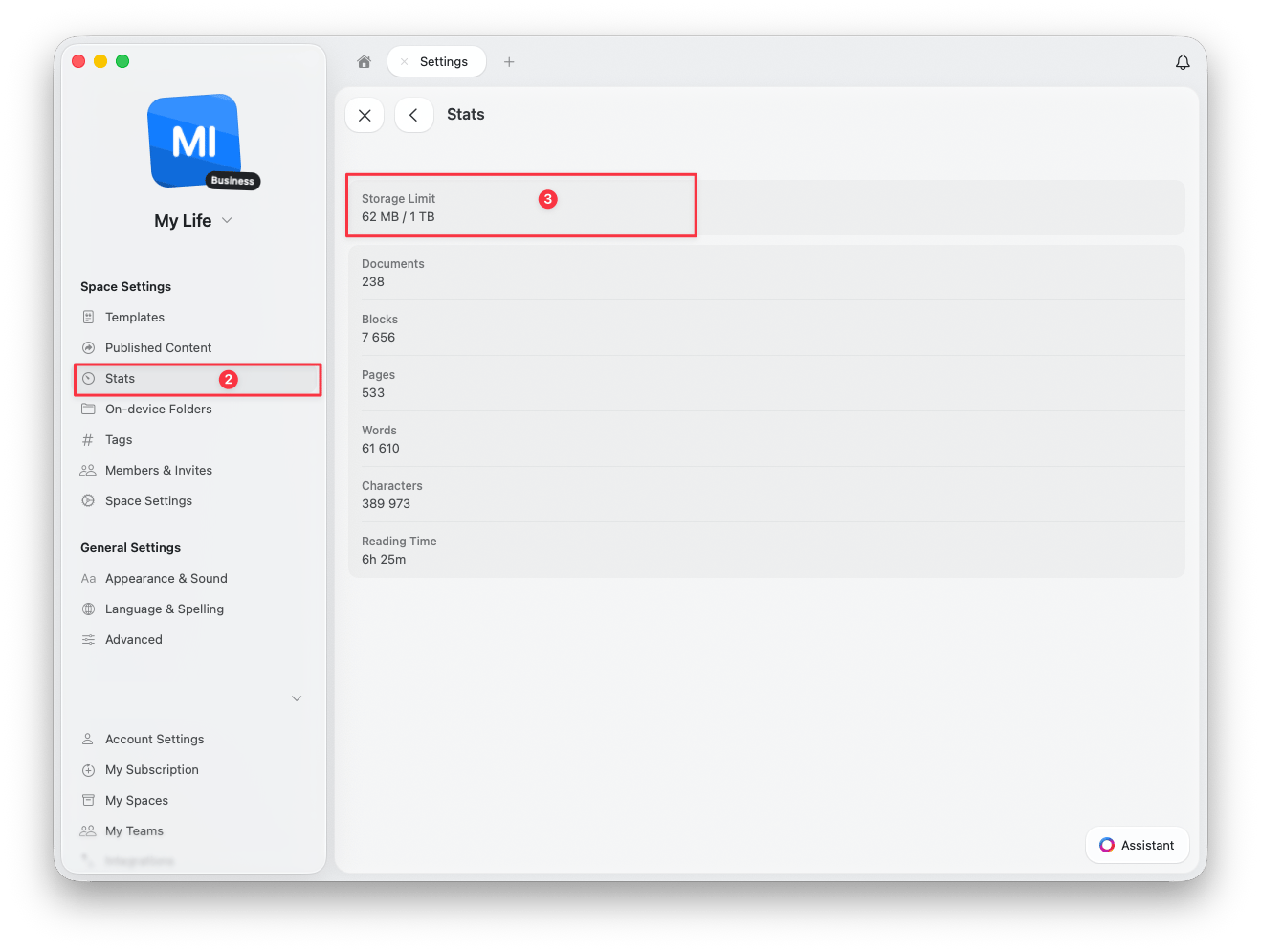
Available Stats
The Stats panel also shows additional information about the selected space:- Storage Limit — your current usage and total storage allowance
- Documents — total number of documents in the space
- Blocks — total number of content blocks
- Pages — total number of pages (including subpages)
- Words — total word count across all documents
- Characters — total character count
- Reading Time — estimated time to read all content in the space
Understanding Storage Limits
Free Plan
- 1,500 blocks content limit
- 1 GB storage
- 25 MB media upload limit
Plus, Family, Team, and Business Plans
- Each space can hold up to 1 TB of content
- Once a space reaches this limit, you’ll need to remove content to continue adding new material
- You can create up to 5 spaces (on Plus and Family plans) to distribute and organize your content
The 1 TB cap ensures optimal sync and app performance. Craft will notify you if you’re nearing the limit.
Block Limit Per Space (Mac, iOS, iPad)
Each space has a limit of 300,000 content blocks on the Mac, iOS, and iPad apps. This limit exists to ensure reliable syncing across your devices. On the web app, there is no such limit. If you reach this limit, you’ll see a notification suggesting you upgrade your plan. If you’re already on Plus (or another paid plan), the message can be confusing because your plan does include unlimited content. The limit is per space, not per account, and is related to sync performance rather than your subscription.We plan to revisit this restriction in the future. For now, the best approach is to spread your content across multiple spaces.
What to Do If You Hit the Limit
- Move content to another space to bring the block count below 300,000
- Organize your spaces by topic, project, or purpose (e.g. work, personal, archive)
- Move documents you don’t access often into a separate space for long-term storage
Tips for Managing Storage
- Regularly review and delete old or unused content
- Use compressed media files when possible
- Spread content across multiple spaces to stay within limits
- Check version history and delete old backups if needed
Related Articles
Subscription Plans
Compare storage limits across plans
Recovering Deleted Content
Learn how to recover deleted content
External Locations
Store content on your device or cloud provider