

Jak działa tryb offline na Twojej platformie
- macOS
- iOS / iPadOS
- Web / Windows
- Android
Edycja offline działa od razu — nie wymaga konfiguracji.Wszystkie dokumenty synchronizują się w tle, więc są zawsze dostępne nawet bez połączenia. Po ponownym połączeniu zmiany są automatycznie przesyłane.
Co możesz robić offline
Pracując offline, możesz:- Czytać i edytować dowolny wcześniej otwarty dokument
- Tworzyć i formatować tekst z wszystkimi opcjami stylizacji
- Dodawać i organizować bloki
- Pracować z tabelami, listami i nagłówkami
- Oznaczać zadania jako wykonane
- Przenosić i restrukturyzować treść
Co wymaga połączenia z internetem
Niektóre funkcje są dostępne tylko online:- Tworzenie nowych dokumentów lub folderów
- Wyszukiwanie
- Dodawanie komentarzy i reakcji
- Przesyłanie nowych obrazów lub plików
- Zmiana ustawień udostępniania lub publikacji
- Korzystanie z funkcji AI Assistant i Połączenia
- Zarządzanie dokumentami (oznaczanie gwiazdką, przypinanie, duplikowanie, przenoszenie, usuwanie)
- Widok zadań (skrzynka odbiorcza, nadchodzące i aktywne zadania)
Synchronizacja i ponowne połączenie
Gdy tracisz połączenie
Craft kontynuuje pracę bez przerw. Wszystkie edycje są zapisywane lokalnie, a aplikacja automatycznie próbuje ponownie się połączyć w tle.Gdy połączysz się ponownie
- Niesynchronizowane zmiany są automatycznie przesyłane
- Jeśli dokument jest otwarty, synchronizacja następuje natychmiast
- Jeśli dokument jest zamknięty, zsynchronizuje się po kolejnym otwarciu
Praca na wielu urządzeniach
Jeśli edytujesz ten sam dokument na różnych urządzeniach w trybie offline, żadne z urządzeń nie zobaczy zmian drugiego, dopóki oba nie będą online i nie otworzysz ponownie dokumentu.Uwagi dla Web i Windows
Te szczegóły dotyczą konkretnie aplikacji webowej, Windows i Android.Przechowywanie dokumentów
Dokumenty są zapisywane lokalnie po ich otwarciu (nie cała przestrzeń naraz). Przeglądarka lub aplikacja automatycznie zarządza pamięcią. Jeśli pamięć się wyczerpie, starsze dokumenty z pamięci podręcznej mogą zostać usunięte — zawsze możesz uzyskać do nich dostęp ponownie, otwierając je online.Wiele kart
Tryb offline działa na wielu kartach lub oknach przeglądarki. Gdy go włączysz lub wyłączysz, ustawienie stosuje się automatycznie do wszystkich otwartych kart.Przeładowanie strony
Rozwiązywanie problemów
Dokument nie ładuje się offline
Dokument nie ładuje się offline
- Upewnij się, że otworzyłeś dokument przynajmniej raz będąc online
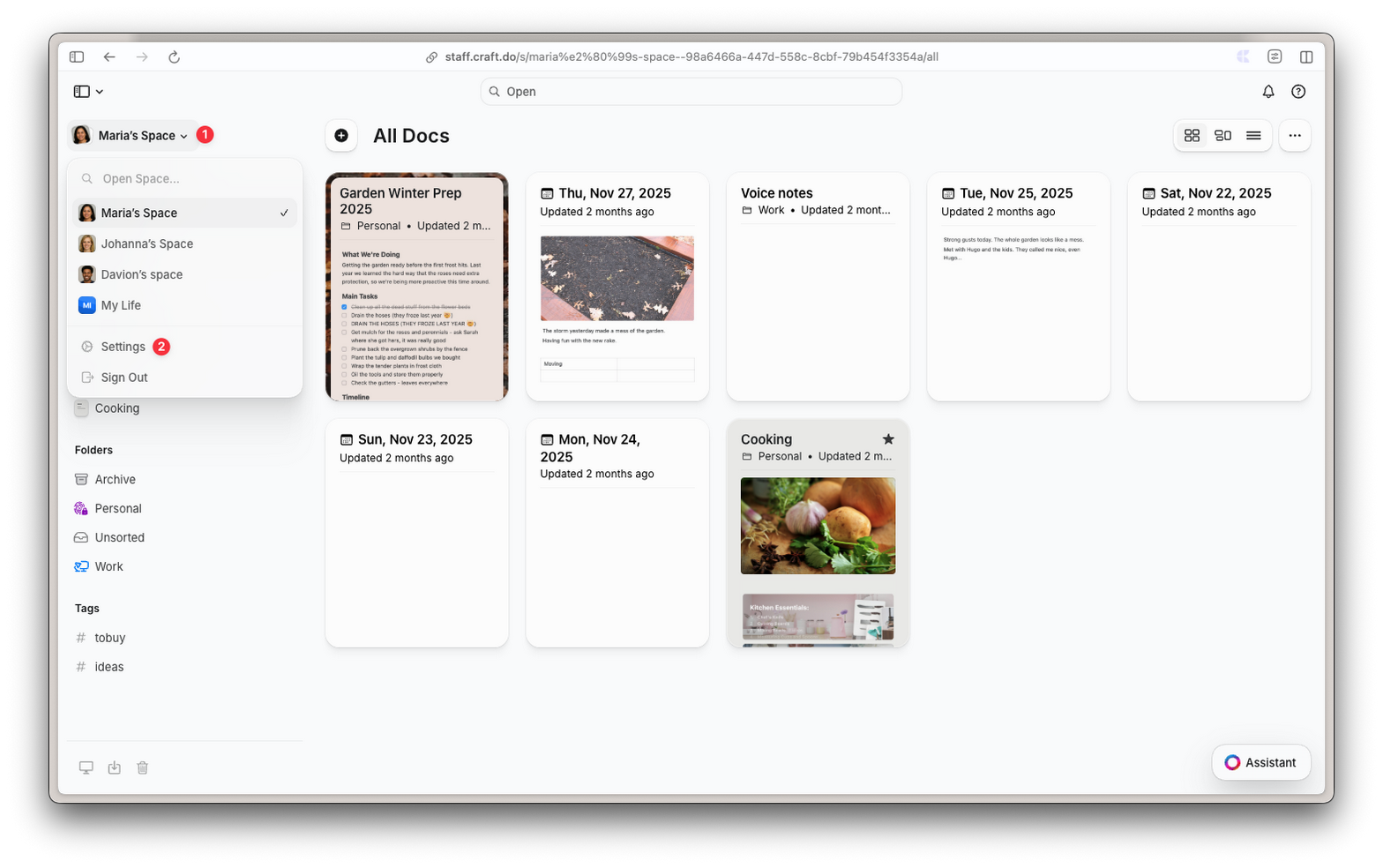
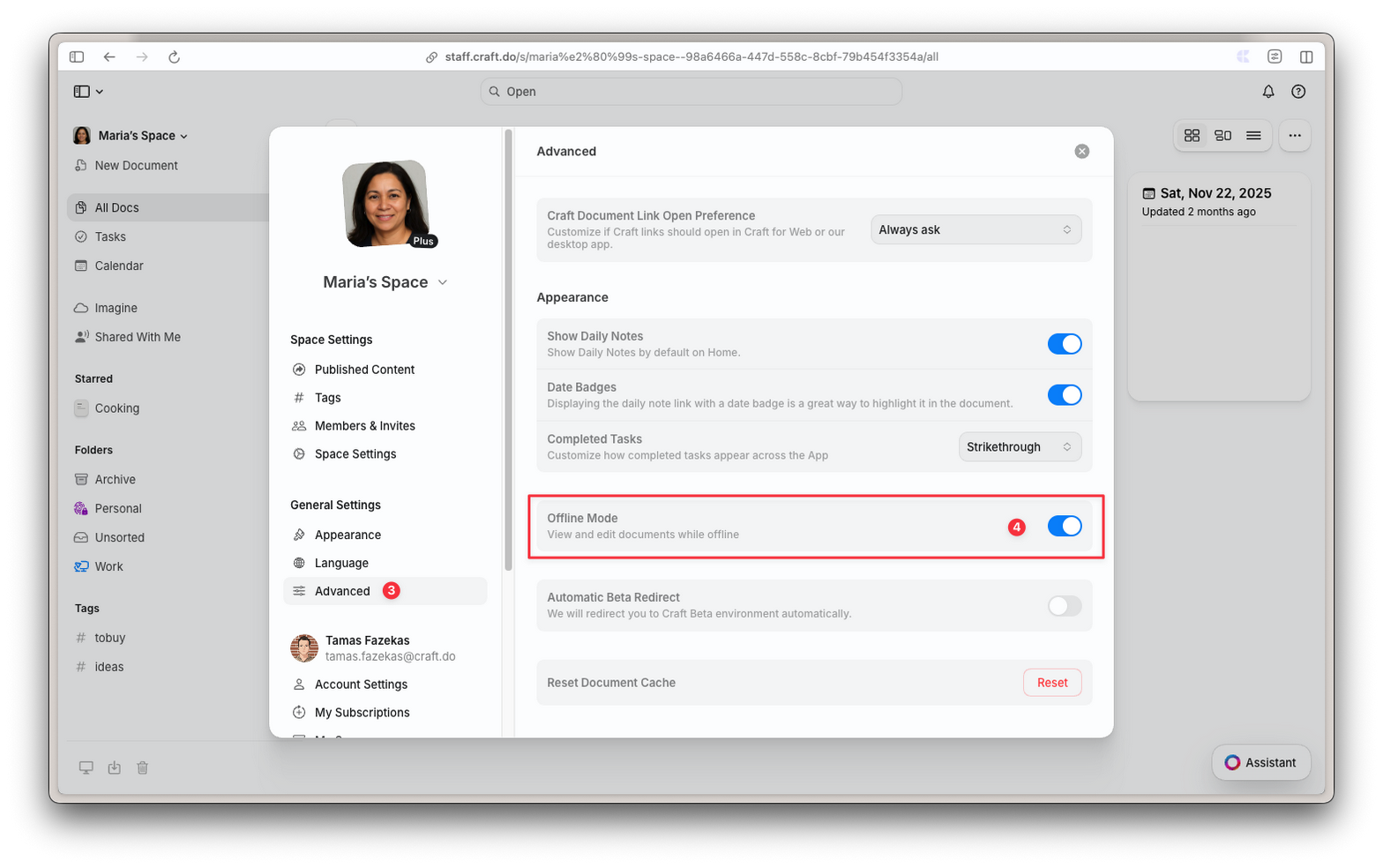
- Na Web/Windows/Android: sprawdź, czy tryb offline jest włączony w Ustawienia → Zaawansowane
- Sprawdź, czy przeglądarka nie wyczyściła pamięci
- Spróbuj otworzyć dokument ponownie online, aby odświeżyć lokalną kopię
Zmiany się nie synchronizują
Zmiany się nie synchronizują
- Sprawdź połączenie z internetem
- Otwórz dokument ponownie, aby wywołać synchronizację
- Na Web: upewnij się, że nie przeładowałeś strony przed synchronizacją zmian
Najczęściej zadawane pytania
Czy muszę wybierać, które dokumenty mają być dostępne offline?
Czy muszę wybierać, które dokumenty mają być dostępne offline?
Na macOS i iOS wszystkie dokumenty synchronizują się automatycznie. Na Web, Windows i Androidzie dokumenty są zapisywane po ich otwarciu — wystarczy włączyć tryb offline w Ustawieniach, a Craft zajmie się resztą.
Jaka jest różnica między natywnym trybem offline a Web/Windows/Android?
Jaka jest różnica między natywnym trybem offline a Web/Windows/Android?
Główna różnica to synchronizacja w tle. Natywne aplikacje macOS i iOS synchronizują wszystkie dokumenty w tle, nawet gdy są zamknięte. Web, Windows i Android synchronizują dokumenty tylko wtedy, gdy je masz otwarte. Oznacza to, że musisz otworzyć dokument online, aby uzyskać najnowsze zmiany z innych urządzeń.
Co się stanie, gdy skończy się miejsce na dysku?
Co się stanie, gdy skończy się miejsce na dysku?
Przeglądarka automatycznie zarządza pamięcią. Jeśli miejsce się wyczerpie, starsze lub rzadziej używane dokumenty mogą zostać usunięte z lokalnej pamięci. Zawsze możesz uzyskać do nich dostęp ponownie, otwierając je online.
Czy moje zmiany zostaną utracone, jeśli zamknę przeglądarkę?
Czy moje zmiany zostaną utracone, jeśli zamknę przeglądarkę?
Nie, niesynchronizowane zmiany są bezpiecznie przechowywane lokalnie. Zsynchronizują się automatycznie, gdy ponownie otworzysz Craft i będziesz mieć połączenie z internetem.
Czy mogę pracować nad tym samym dokumentem offline na dwóch różnych urządzeniach?
Czy mogę pracować nad tym samym dokumentem offline na dwóch różnych urządzeniach?
Tak, ale żadne z urządzeń nie zobaczy zmian drugiego, dopóki oba nie będą online i nie otworzysz ponownie dokumentu. Aby uniknąć konfliktów, pracuj nad różnymi dokumentami na każdym urządzeniu lub synchronizuj przed przełączeniem.