

Switching Spaces
Each Space holds its own documents, folders, and tags. Content in one Space never appears in another, so when documents you expect are missing, check which Space you are in before looking anywhere else. Select the Space name in the top left corner to open the Space switcher, then pick a different Space.Working with Spaces
Create Spaces, move documents between them, and manage Space settings
Zooming Documents
Adjust the text size in your documents for better readability using the zoom feature (macOS). Zoom In:Cmd +
Zoom Out: Cmd -
Reset Zoom: Cmd 0
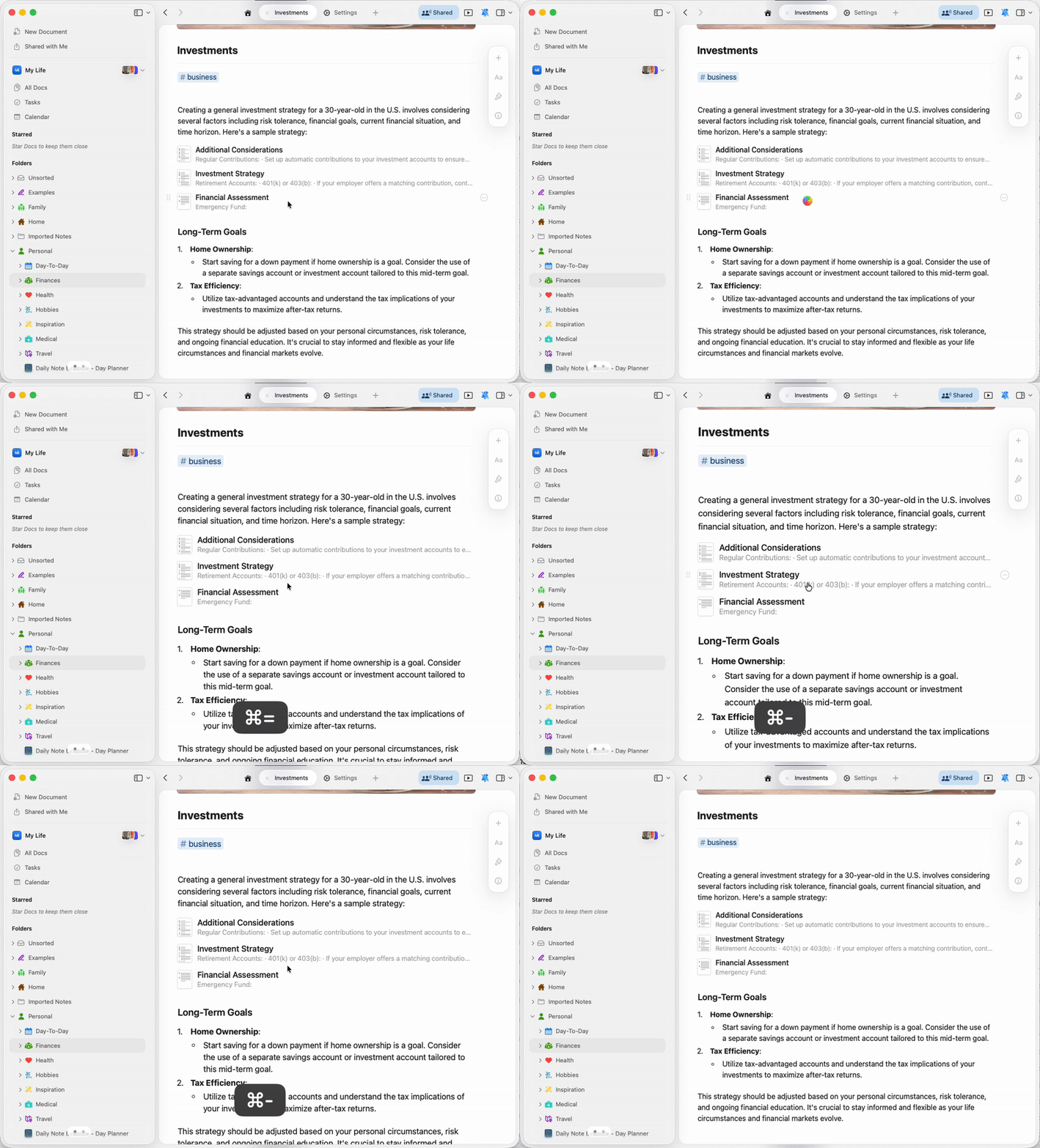
- Zoom affects only document content, not the app interface
- Zoom level applies to all open Craft windows
- This is separate from font size settings in document styling
Tab Management
Craft supports multiple tabs to help you work with several documents simultaneously. Learn more about opening, organizing, and navigating between tabs.Tab Management
Work with multiple documents using tabs
Comments and Notifications
Stay connected with collaborators through comments and real-time notifications on shared documents.Comments and Notifications
Collaborate with comments and manage notifications
Table of Contents
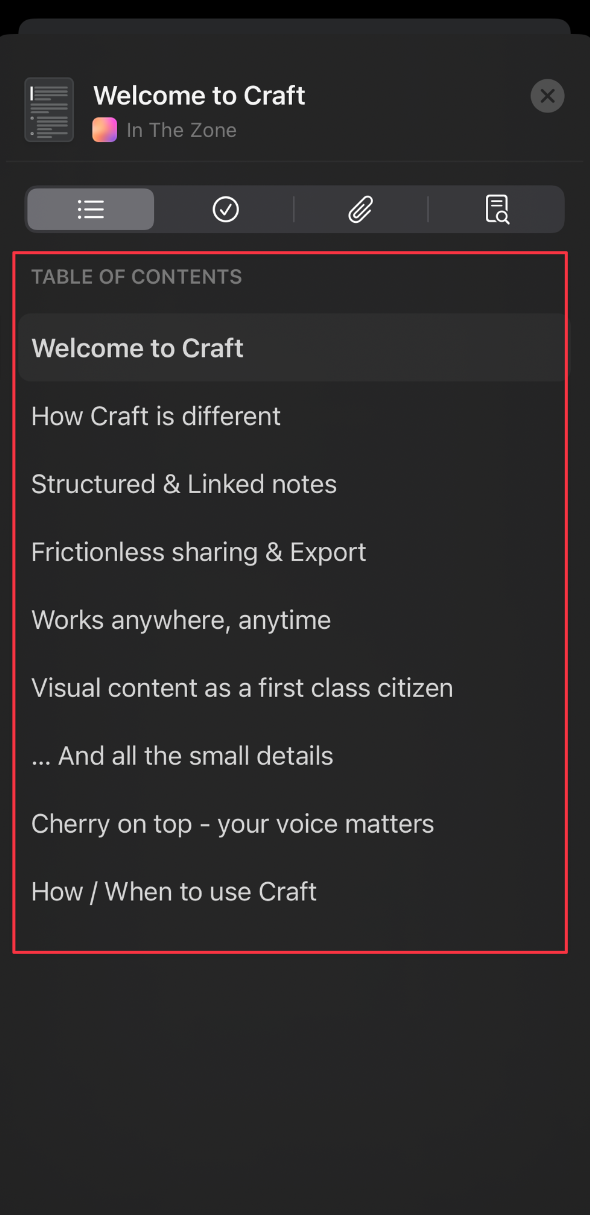
When a document contains multiple headings and sections, Craft outlines a Table of Contents for it in the left sidebar. Titles, subtitles, headings, and subpages each create an entry. Other text styles, including body text and lists, do not appear in the outline. Each Table of Contents is document-specific. Here’s how to switch between folder and Table of Contents view:- macOS
- iOS
1
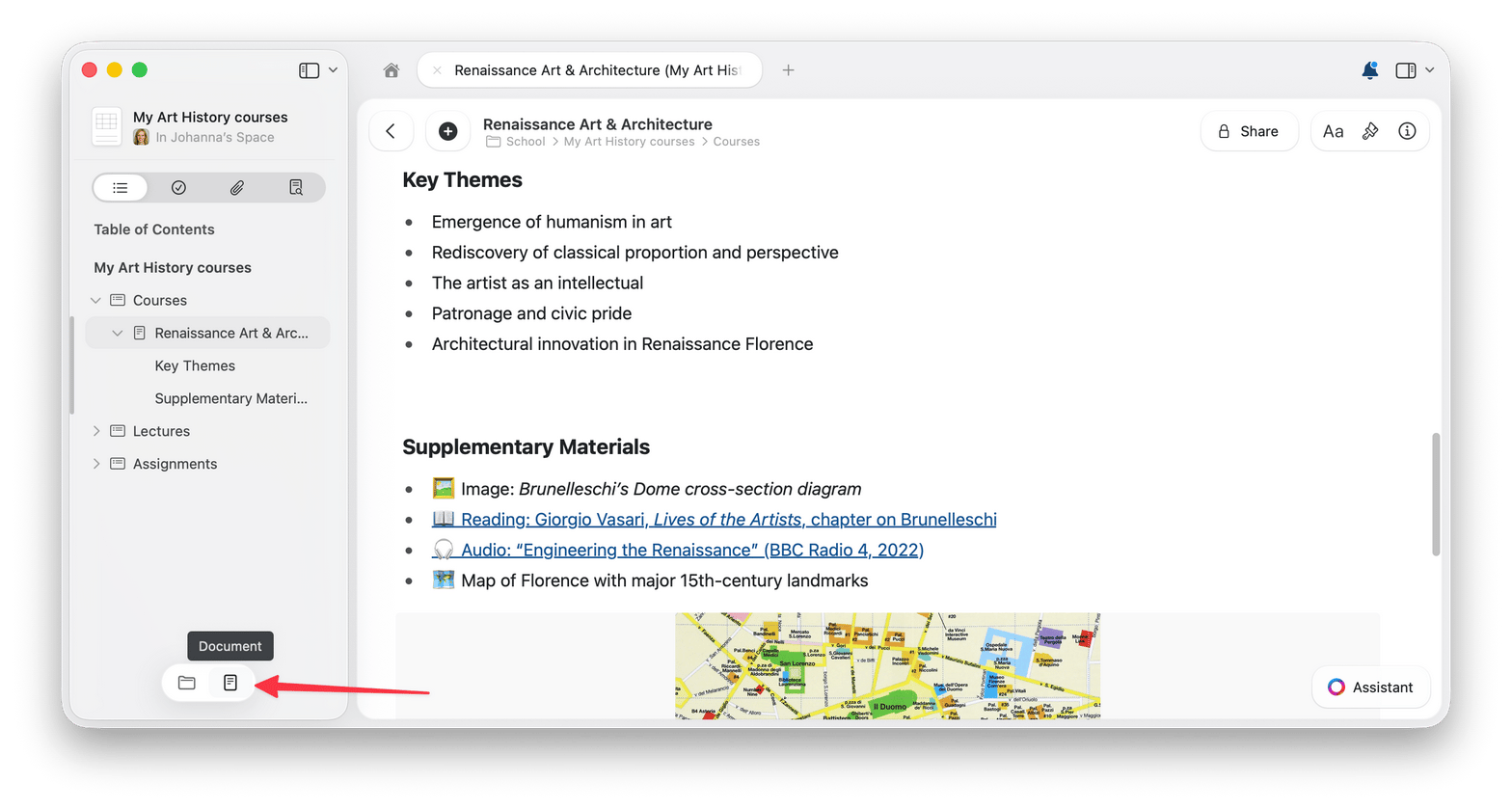
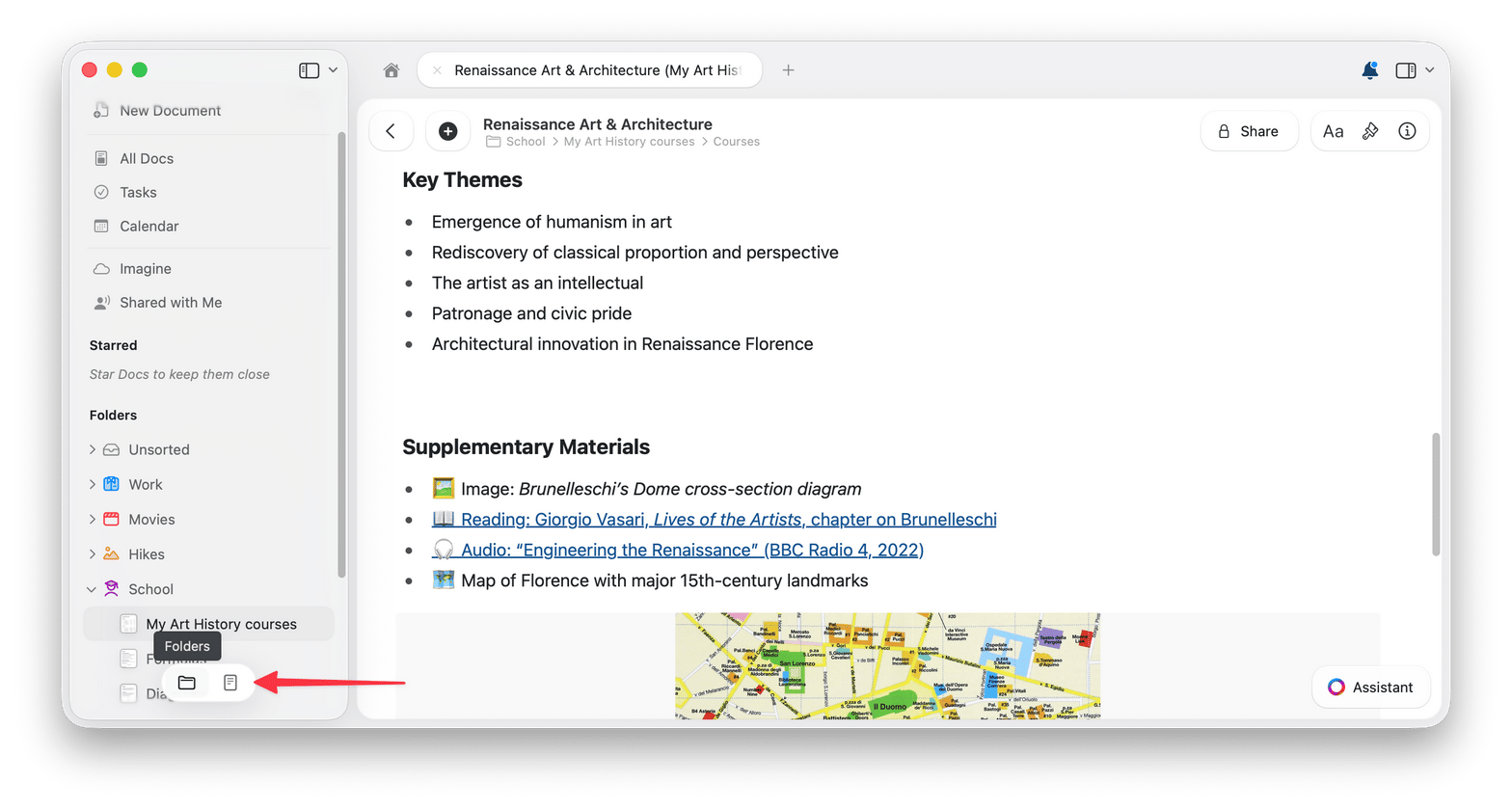
Move your cursor to the bottom of the left sidebar to reveal the view switcher.
2
Select the Document icon to open the Table of Contents view, or select the Folders icon to return to your folder list.
Starring Documents
Star a document to reach it from the Starred section in your sidebar.- macOS
- iOS
Method 1: Right-click MenuRight-click on any document and select Star.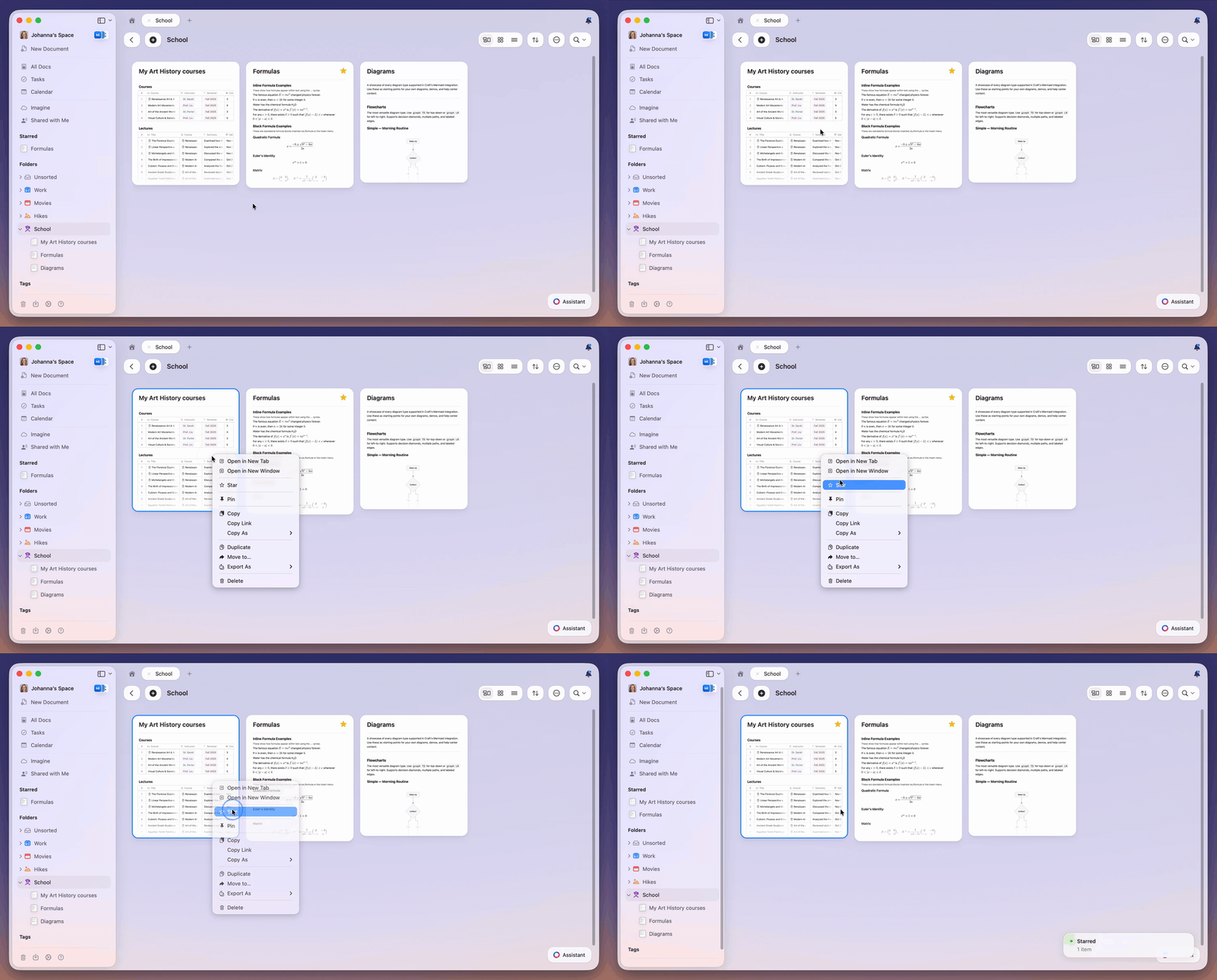
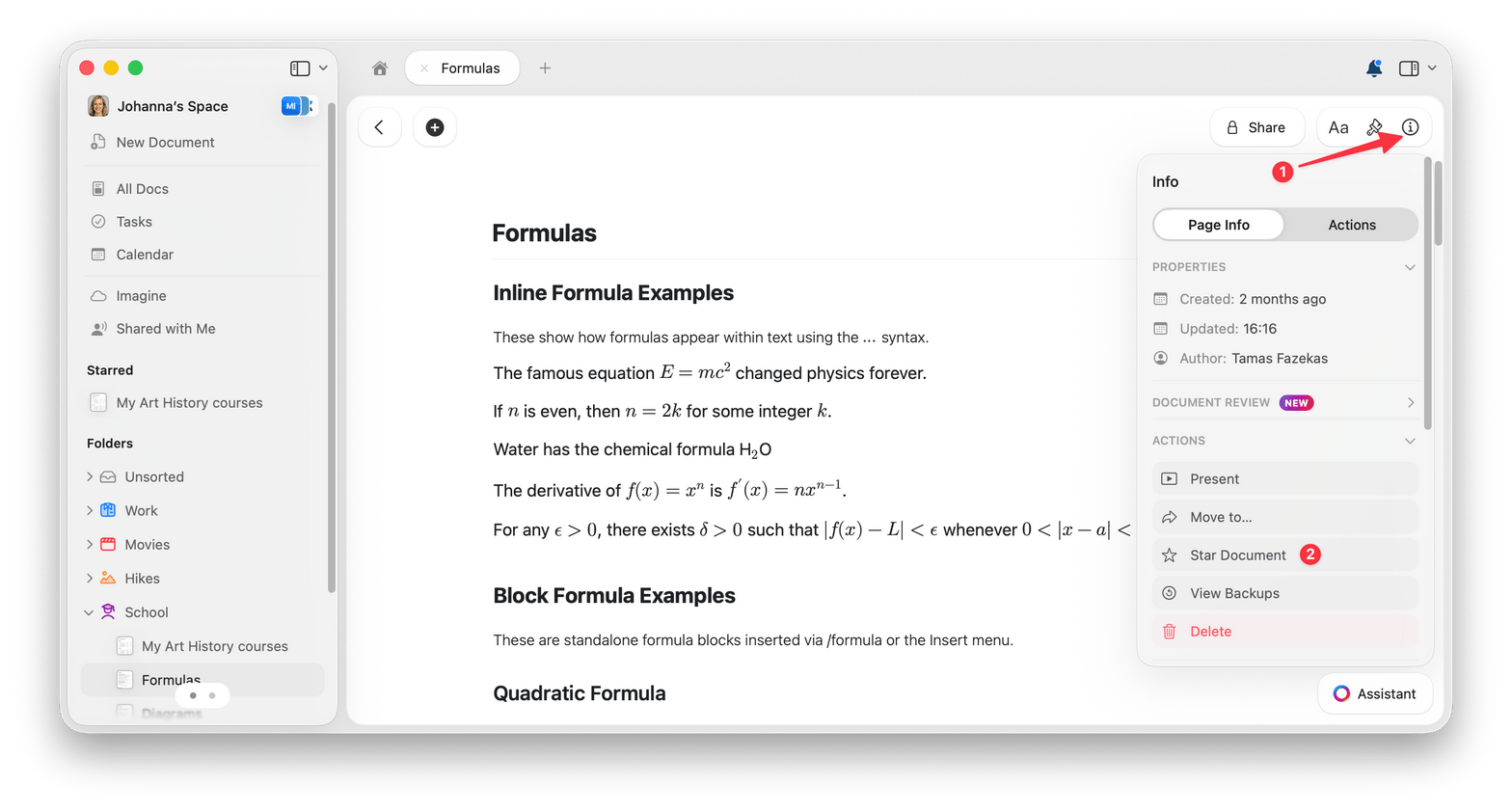
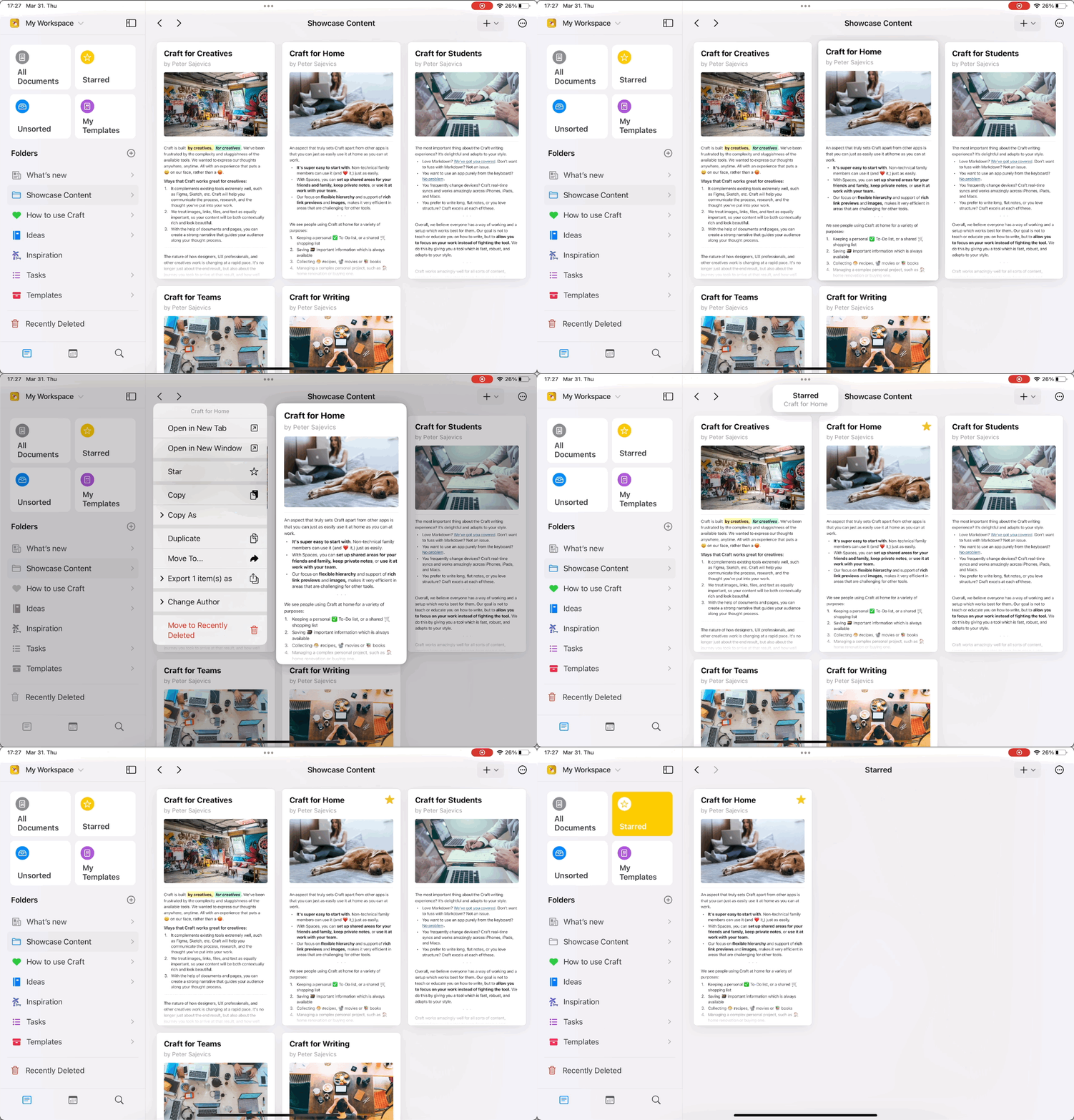
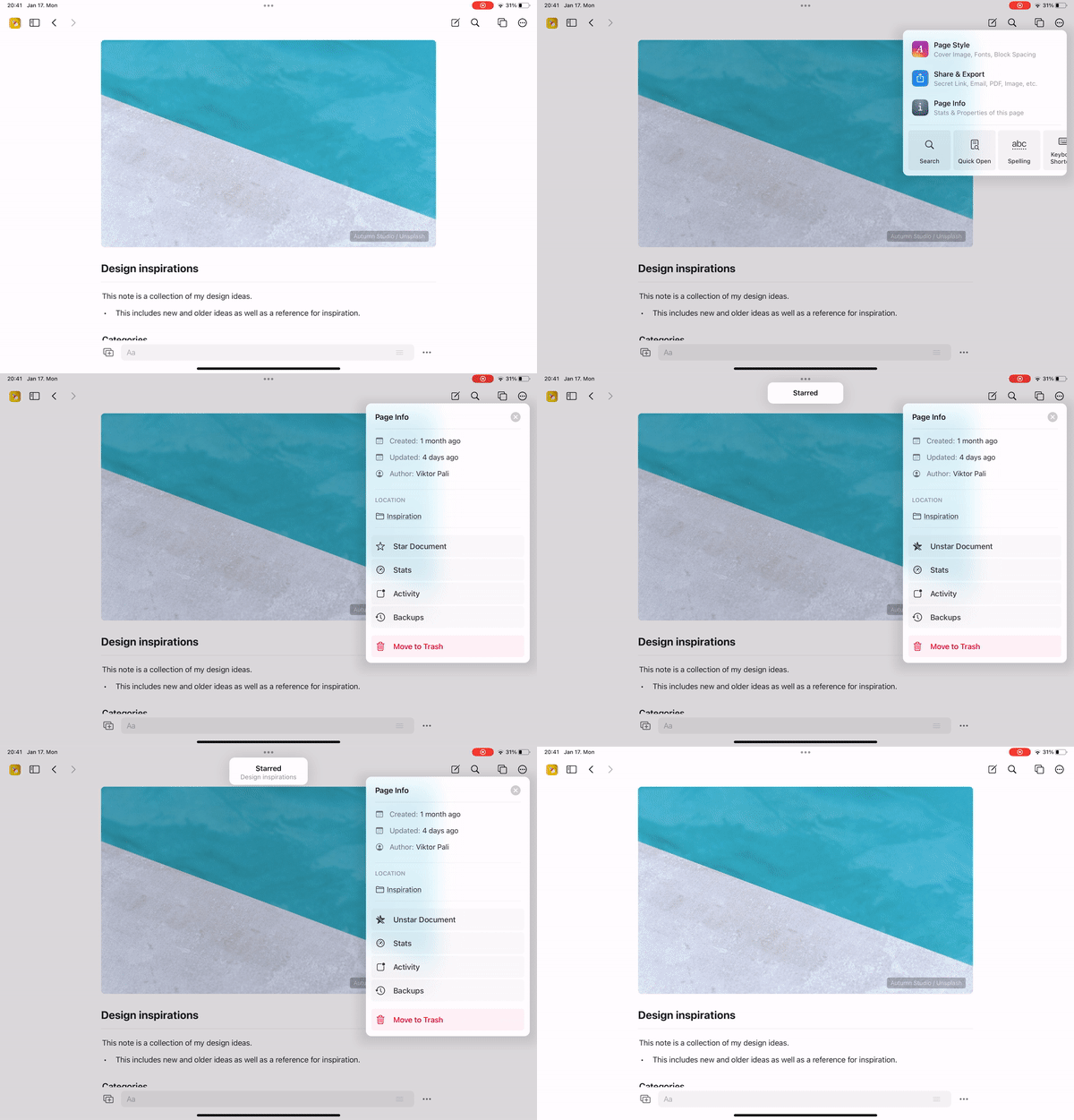
Only documents can be starred. Folders have no Star option, so the Starred section never contains folders.
Customizing the Sidebar
You can hide sidebar sections you don’t use and reorder them to match how you work. This applies to sections like Connections, Shared with Me, Tags, Starred, and Folders.- macOS
- iOS
1
Right-click on one of the customizable sidebar sections (Connections, Shared with Me, Tags, Starred, or Folders).
2
Select Customize Sidebar to open the customization popup.
3
Toggle a section off to hide it, and use the drag handles to reorder the Starred, Folders, and Tags sections.
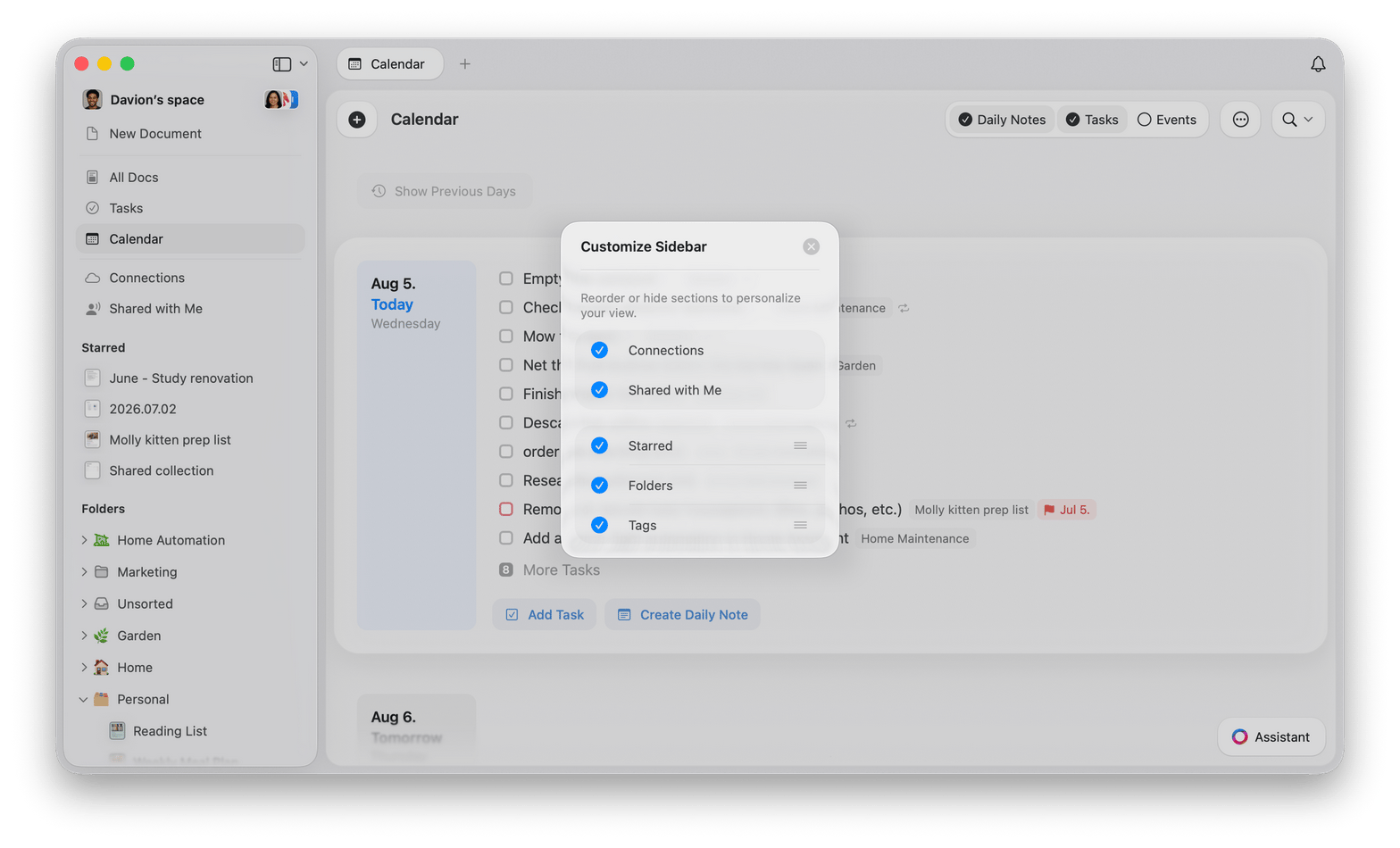
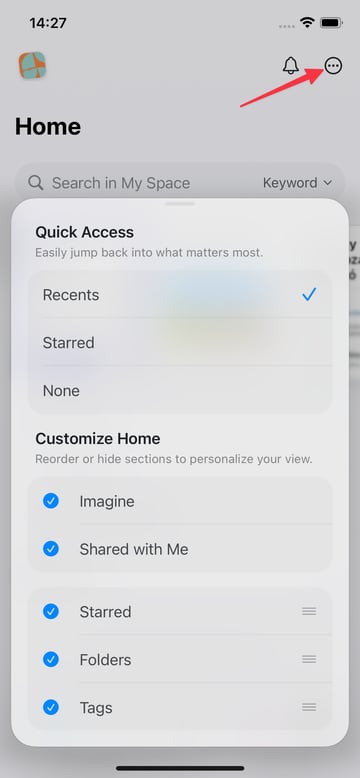
Sidebar customization is saved locally and applies only to the device where you set it. It does not sync across your devices.
Duplicating and Moving Documents
Sometimes when navigating you end up on a document you want to take an action upon that’s not available from within the document itself. These actions include duplicating the document or moving it to a new folder. All of these actions on the document are available from the folder view (e.g., by long pressing on the document in the folder on iOS or right-clicking on macOS). If you don’t know which folder the document is in, here’s a quick solution:1
Edit the document somehow (you can make a change like adding a blank line and removing it again so you’re not really altering it if you want).
2
From the folder list on the left (or, on iPhone, hold the < in the top left corner and then swipe left-to-right), select All Documents.
3
If the document isn’t at the top of the page, sort the folder by Date Updated so the most recently changed documents come first. Sorting Folder Contents covers where the sort control sits on each platform.
Sorting Folder Contents
Every folder keeps its own sort setting, including All Documents.- macOS
- iOS
Open the folder, then select the sort button in the toolbar. It sits between the view style buttons and the three-dot menu (⋯), and it uses an up and down arrow icon. Sorting is not inside the three-dot menu on macOS.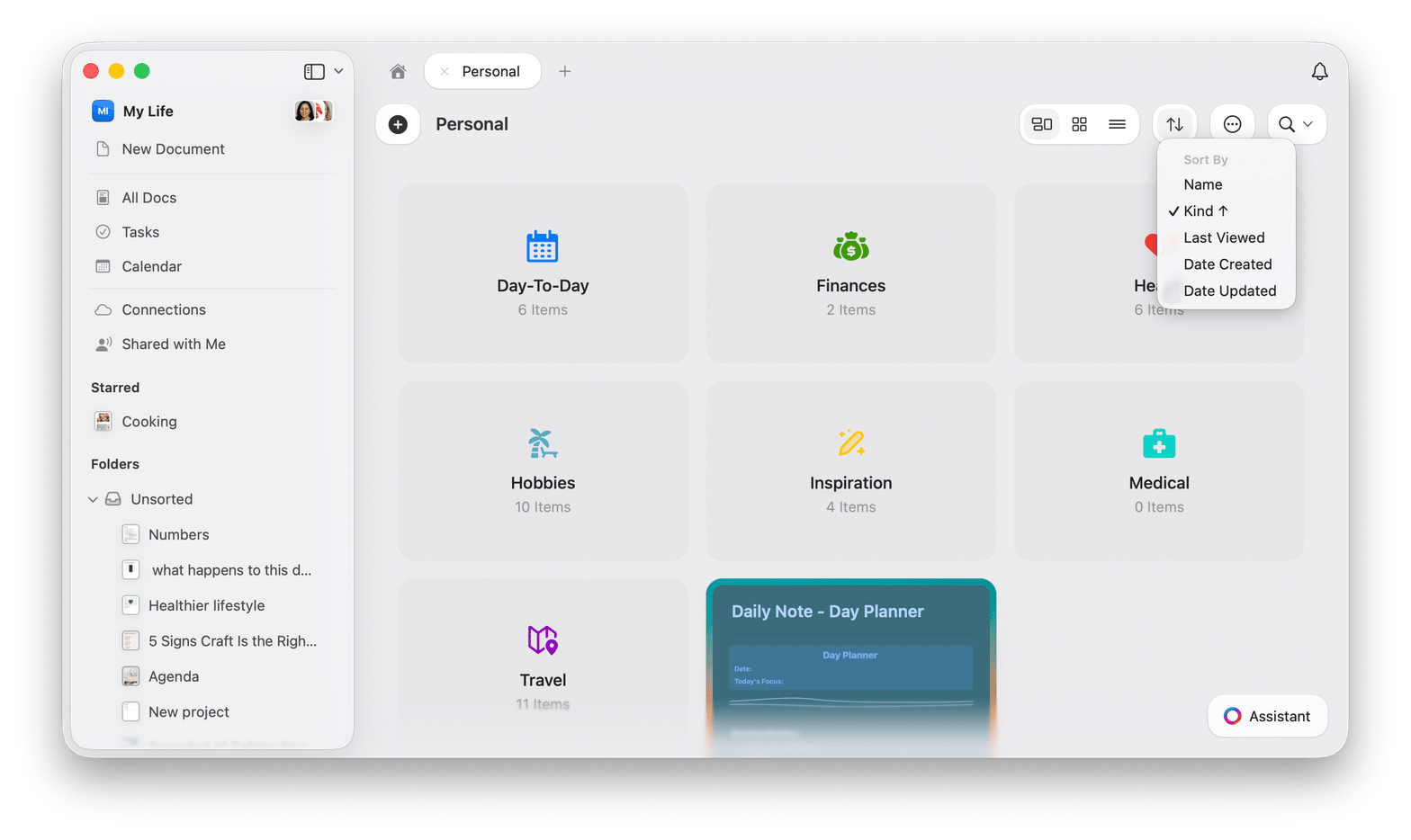
- Name sorts alphabetically by title
- Kind separates folders from documents, keeping each group together and sorting by name inside each group
- Last Viewed sorts by when you last opened the document
- Date Created sorts by when the document was created
- Date Updated sorts by the time of the last edit
Kind is offered in folders that can hold both folders and documents. Views that list documents only, such as All Documents and Starred, do not show it.
Quick Navigation Tips
Document Search
PressCmd + O (macOS) or tap the search icon to quickly open any document by name.
Block Navigation
UseCmd + F to search within a document and jump to specific content.
Sidebar Toggle
PressCmd + \ to show or hide the sidebar for a distraction-free writing experience.
Related Articles
Keyboard Shortcuts
Complete list of keyboard shortcuts for faster navigation
Search
Learn advanced search techniques to find anything