> ## Documentation Index
> Fetch the complete documentation index at: https://craft-support.mintlify.site/llms.txt
> Use this file to discover all available pages before exploring further.

# 背景、顏色與分隔線

> 自訂背景、文件與文字顏色、字型，以及和紙膠帶分隔線，並在樣式庫中瀏覽預設外觀。

Craft 讓您無需任何設計專業知識，就能輕鬆打造視覺精美的文件。樣式功能讓您可以自訂背景、文字與文件顏色、字型，以及和紙膠帶等裝飾性分隔線。請參閱[樣式總覽](/zh-Hant/write-and-edit/styling)，了解如何在各平台找到樣式選單。

## 樣式預覽與樣式庫

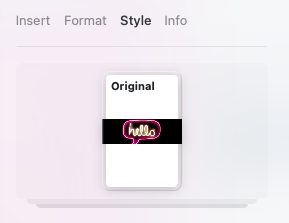
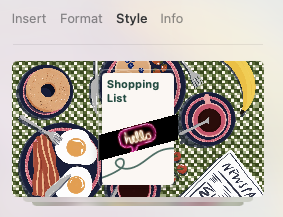
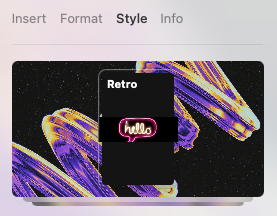
樣式選單會顯示您目前字型、封面與背景設定的簡約預覽，讓您快速掌握文件各項樣式元素的整體呈現效果。

<img src="https://mintcdn.com/craft-support/jHjNTJCRmpMXi5vN/images/write-and-edit/styling/quick-guide/en/content/style-preview-1.png?fit=max&auto=format&n=jHjNTJCRmpMXi5vN&q=85&s=0129a124f65d801c8869a4fe08b3c0ce" alt="Style preview example 1" width="289" height="223" data-path="images/write-and-edit/styling/quick-guide/en/content/style-preview-1.png" />

<img src="https://mintcdn.com/craft-support/jHjNTJCRmpMXi5vN/images/write-and-edit/styling/quick-guide/en/content/style-preview-2.png?fit=max&auto=format&n=jHjNTJCRmpMXi5vN&q=85&s=8b9989c9e3feb864e536ec6dd41721be" alt="Style preview example 2" width="283" height="217" data-path="images/write-and-edit/styling/quick-guide/en/content/style-preview-2.png" />

<img src="https://mintcdn.com/craft-support/jHjNTJCRmpMXi5vN/images/write-and-edit/styling/quick-guide/en/content/style-preview-3.png?fit=max&auto=format&n=jHjNTJCRmpMXi5vN&q=85&s=bae07e2a5e816779ece33c4a81a7f647" alt="Style preview example 3" width="277" height="216" data-path="images/write-and-edit/styling/quick-guide/en/content/style-preview-3.png" />

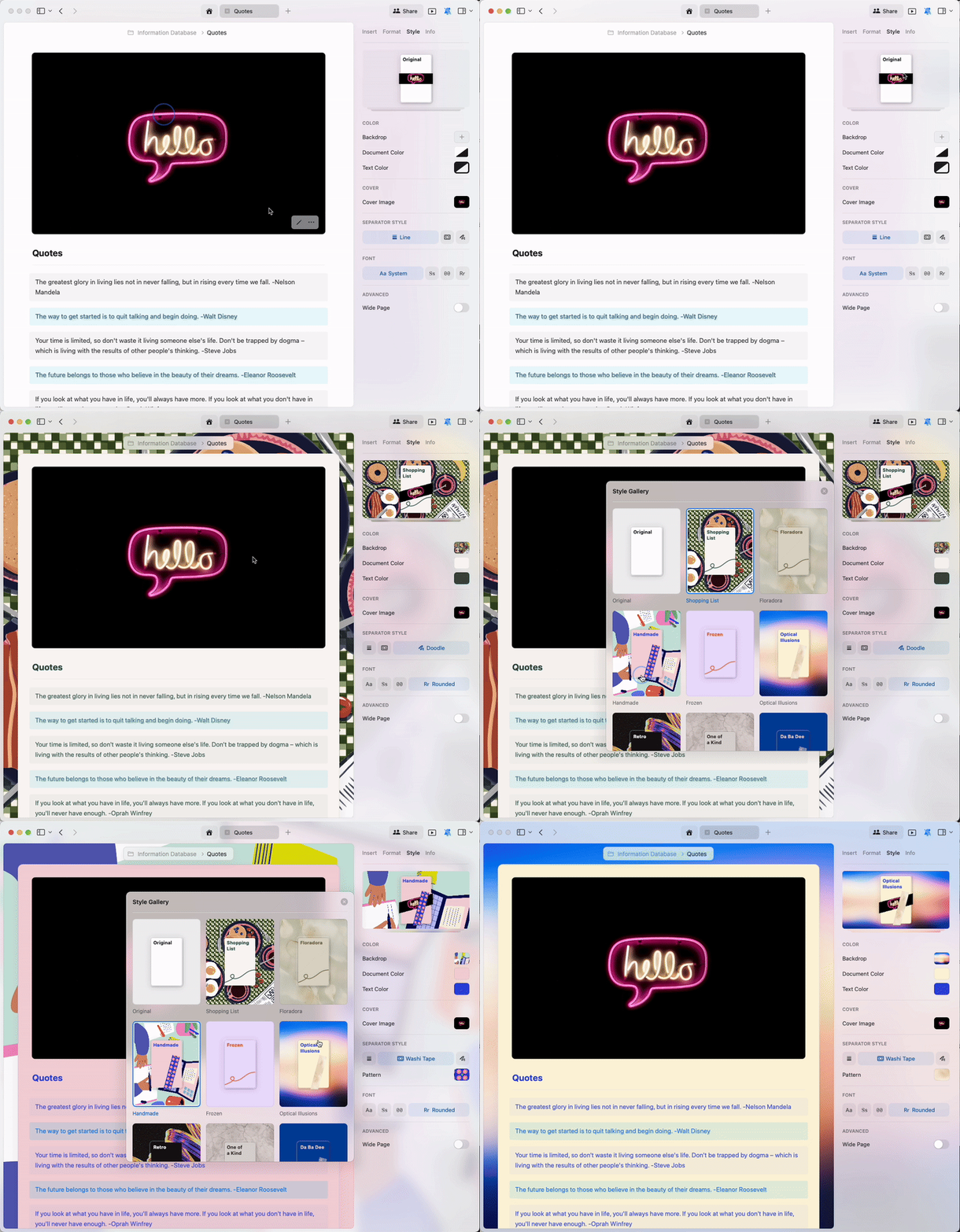
點擊**樣式預覽**即可開啟**樣式庫**，瀏覽我們為文件精心策劃的預設樣式合集。

<img src="https://mintcdn.com/craft-support/jHjNTJCRmpMXi5vN/images/write-and-edit/styling/quick-guide/en/content/styles-gallery.gif?s=62ec4bc1e0ad9fa6ddc9845ef44b59b7" alt="Opening the styles gallery" width="800" height="685" data-path="images/write-and-edit/styling/quick-guide/en/content/styles-gallery.gif" />

## 自訂樣式

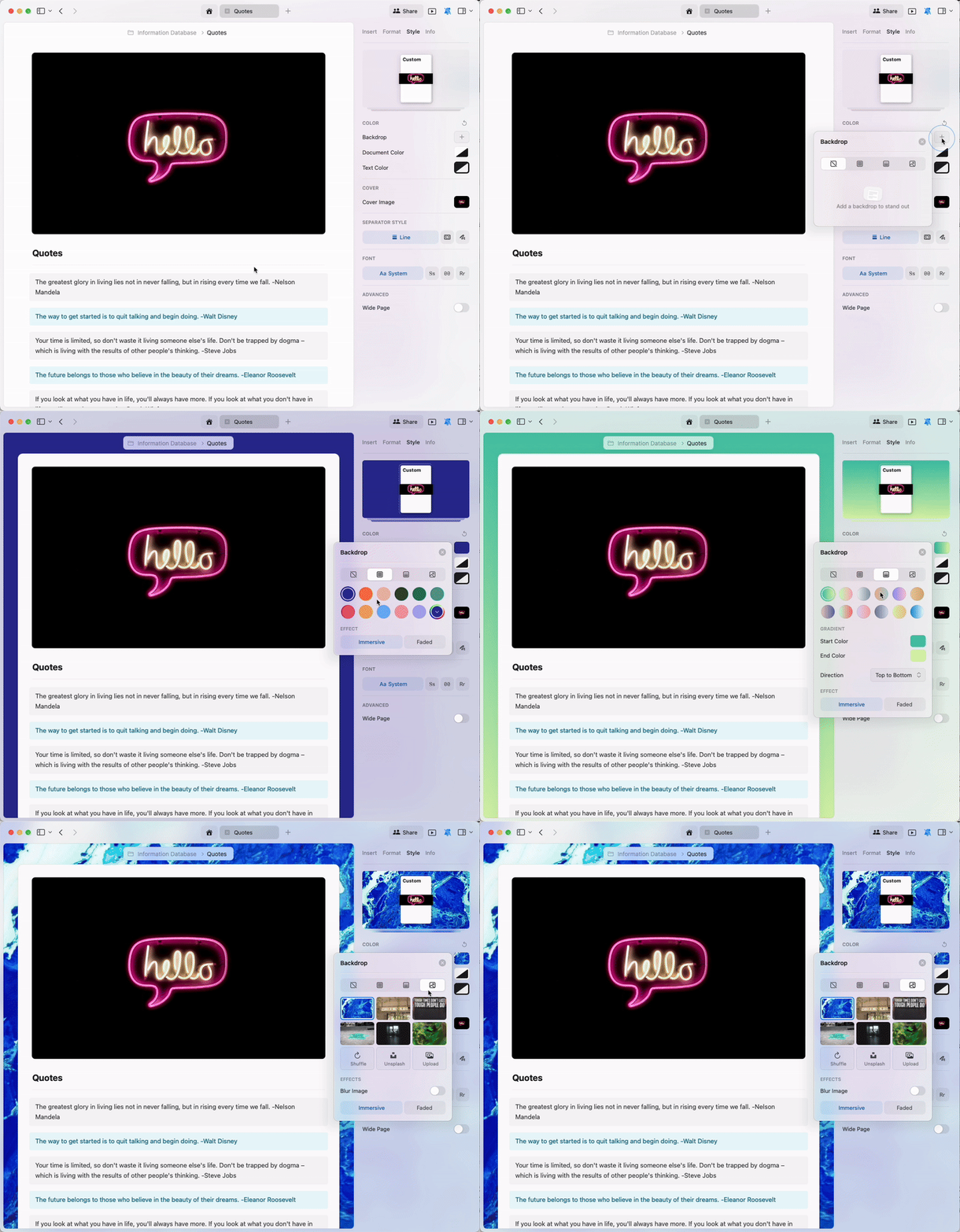
除了預設樣式外，您還可以為背景、文字及文件本身建立專屬的自訂顏色。

背景功能提供多種豐富選項：

* **純色** — 從調色盤選擇，或建立自訂顏色
* **漸層** — 混合兩種或多種顏色
* **圖片** — 上傳自己的圖片，或從 Unsplash 選取

<img src="https://mintcdn.com/craft-support/L5zMoIm2o8A5WVUD/images/write-and-edit/styling/quick-guide/en/content/custom-styling.gif?s=83ee42ce92078710e3acca683ec82ec0" alt="Creating custom styles" width="800" height="685" data-path="images/write-and-edit/styling/quick-guide/en/content/custom-styling.gif" />

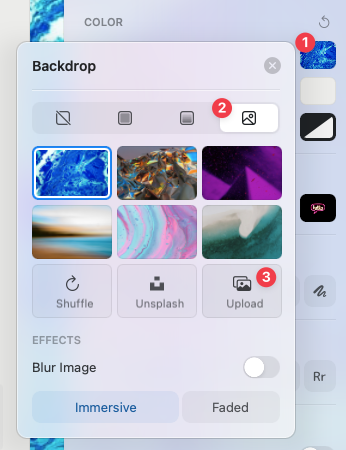
若要上傳自訂背景圖片，請在背景設定中選取**圖片**選項，然後選擇**上傳**並從裝置中挑選圖片。您也可以點選 **Unsplash** 按鈕，輸入關鍵字搜尋符合主題的專業攝影作品。

<img src="https://mintcdn.com/craft-support/jHjNTJCRmpMXi5vN/images/write-and-edit/styling/quick-guide/en/content/upload-backdrop.png?fit=max&auto=format&n=jHjNTJCRmpMXi5vN&q=85&s=37096d20142bf302b8b642af18df45ee" alt="Upload backdrop image option" width="346" height="450" data-path="images/write-and-edit/styling/quick-guide/en/content/upload-backdrop.png" />

<Info title="封面圖片">
  想為文件加入視覺標題嗎？請參閱專屬的[封面圖片](/zh-Hant/write-and-edit/styling/cover-images)文章，了解上傳、裁切及 Unsplash 相關選項。
</Info>

## 分隔線與和紙膠帶

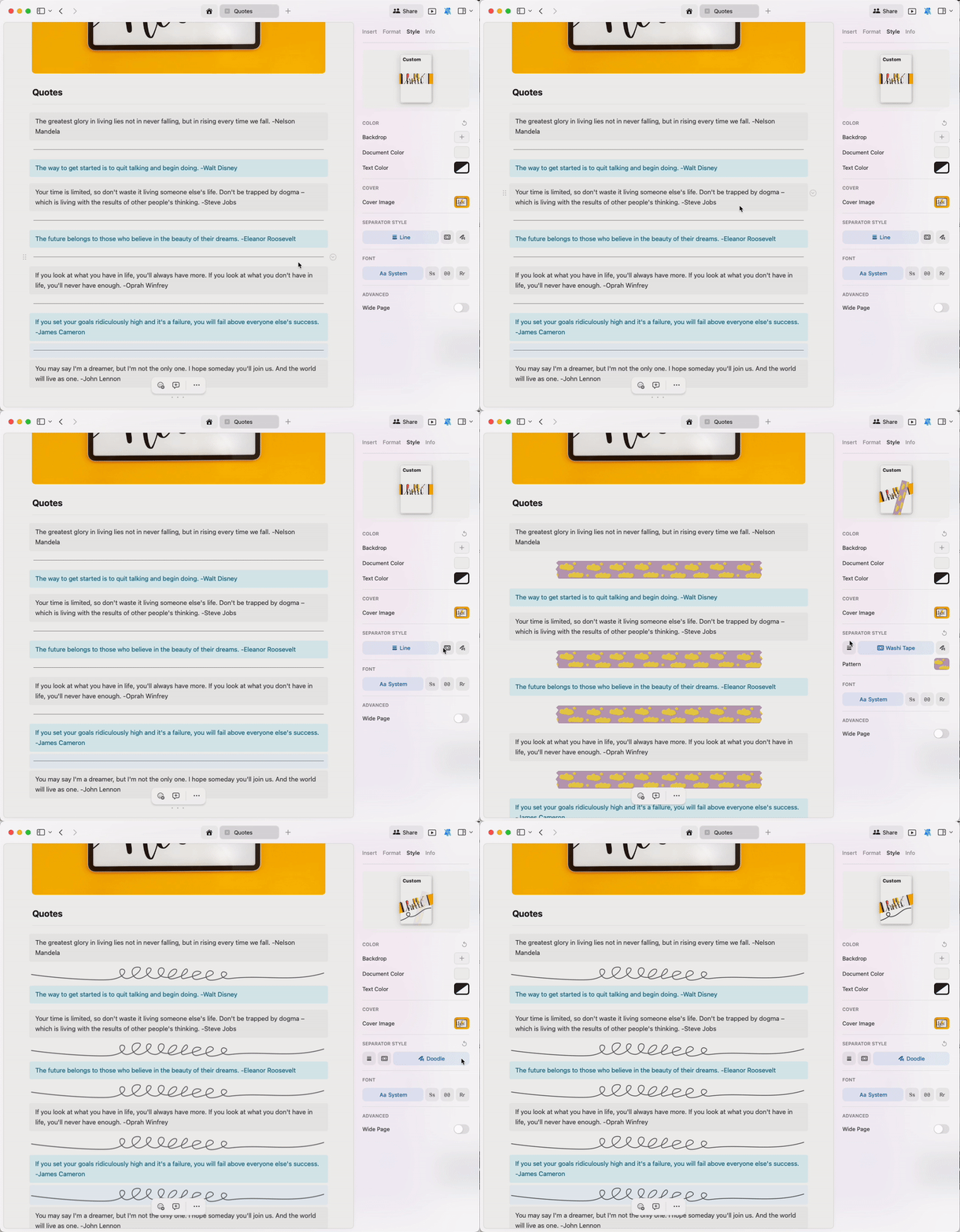
分隔線有助於整理文件內的內容架構。Craft 更進一步推出和紙膠帶功能——以獨特裝飾條帶作為視覺分隔線。

可選擇：

* **標準線條** — 經典分隔線樣式
* **和紙膠帶** — 具裝飾圖案的分隔線
* **塗鴉** — 手繪風格分隔線
<img src="https://mintcdn.com/craft-support/jHjNTJCRmpMXi5vN/images/write-and-edit/styling/quick-guide/en/content/separators.gif?s=72c338272195774355f463276a46264c" alt="Different separator styles" width="800" height="685" data-path="images/write-and-edit/styling/quick-guide/en/content/separators.gif" />

<Info title="快速提示">
  輸入三個連字號（`---`）即可立即插入與文件當前樣式相符的分隔線。
</Info>

### 和紙膠帶樣式設定

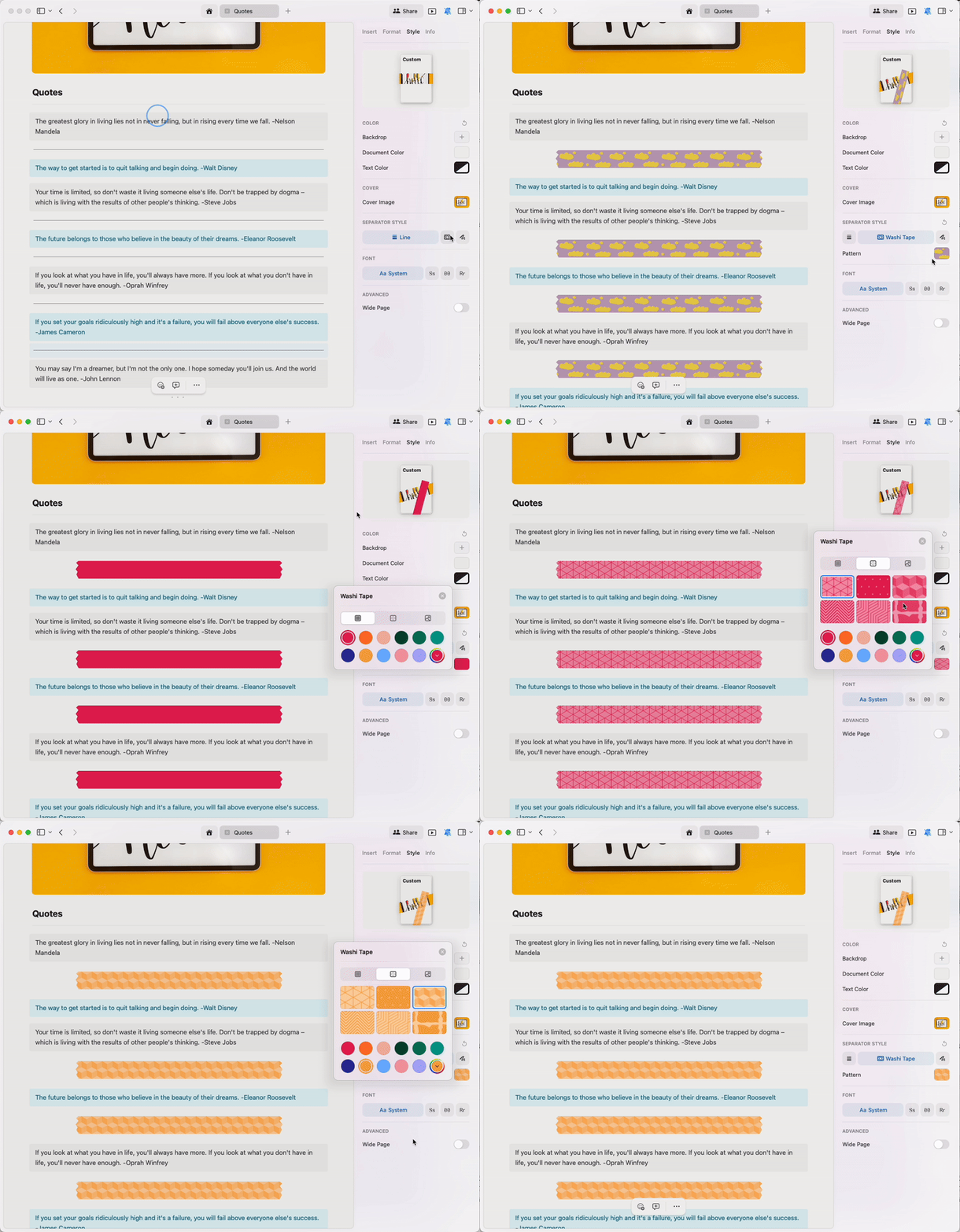
與背景和封面圖片選項類似，您可以為和紙膠帶分隔線套用純色或圖案樣式。

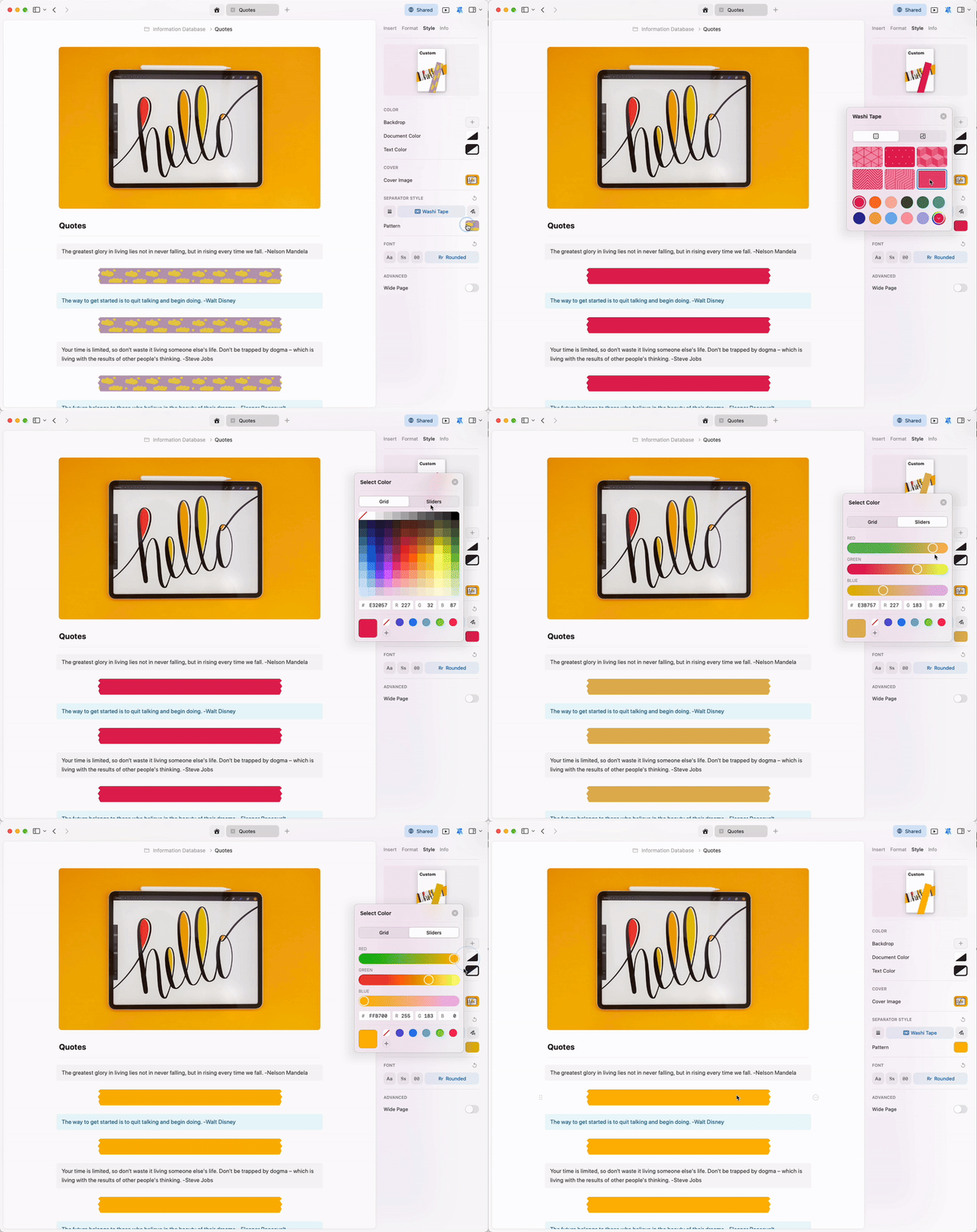
<img src="https://mintcdn.com/craft-support/jHjNTJCRmpMXi5vN/images/write-and-edit/styling/quick-guide/en/content/washi-styling.gif?s=cc832858117b1aa2e4407cd3d0433971" alt="Styling Washi tapes" width="800" height="685" data-path="images/write-and-edit/styling/quick-guide/en/content/washi-styling.gif" />

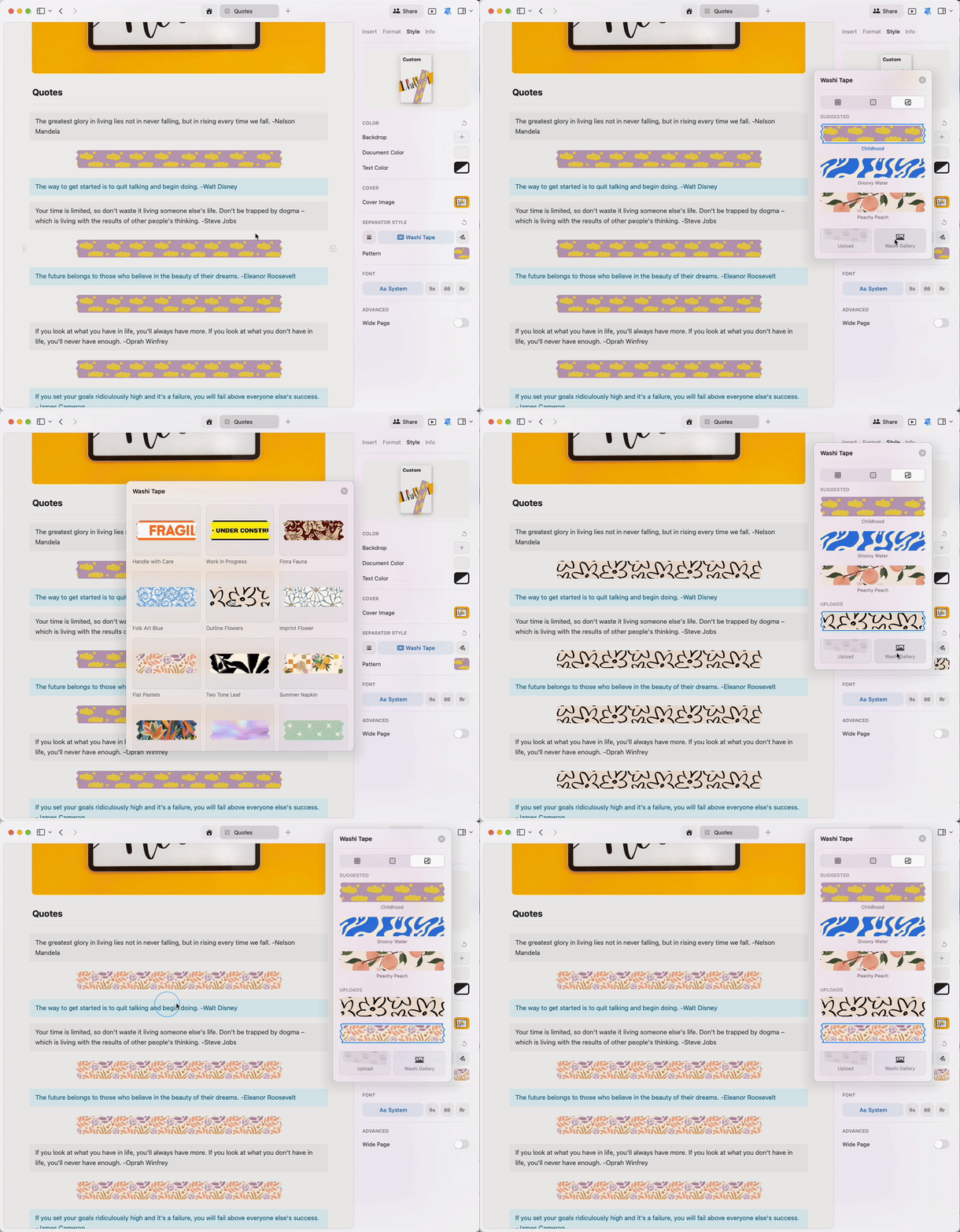
開啟**和紙膠帶圖庫**，探索精美的預設圖案：

<img src="https://mintcdn.com/craft-support/jHjNTJCRmpMXi5vN/images/write-and-edit/styling/quick-guide/en/content/washi-gallery.gif?s=8435350d7507d46cde5b5097bca4fb62" alt="Browsing Washi tape gallery" width="800" height="685" data-path="images/write-and-edit/styling/quick-guide/en/content/washi-gallery.gif" />

您可以依照喜好精細調整和紙膠帶的顏色，手動調出理想色調，或在色彩選擇器中輸入 RGB 色碼。

<img src="https://mintcdn.com/craft-support/L5zMoIm2o8A5WVUD/images/write-and-edit/styling/quick-guide/en/content/custom-color.gif?s=4a5d3a415f66b08b37a96623c5b50cb0" alt="Creating custom Washi tape colors" width="800" height="673" data-path="images/write-and-edit/styling/quick-guide/en/content/custom-color.gif" />

## 文字與文件顏色

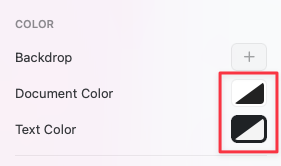
Craft 文件預設使用**系統預設**顏色——深色模式下為黑色，淺色模式下為白色。色彩選擇器中的黑白圖示即代表此設定。

<img src="https://mintcdn.com/craft-support/jHjNTJCRmpMXi5vN/images/write-and-edit/styling/quick-guide/en/content/system-color.png?fit=max&auto=format&n=jHjNTJCRmpMXi5vN&q=85&s=b277771553b8fd81b717eae717ff09e3" alt="System default color icon" width="281" height="166" data-path="images/write-and-edit/styling/quick-guide/en/content/system-color.png" />

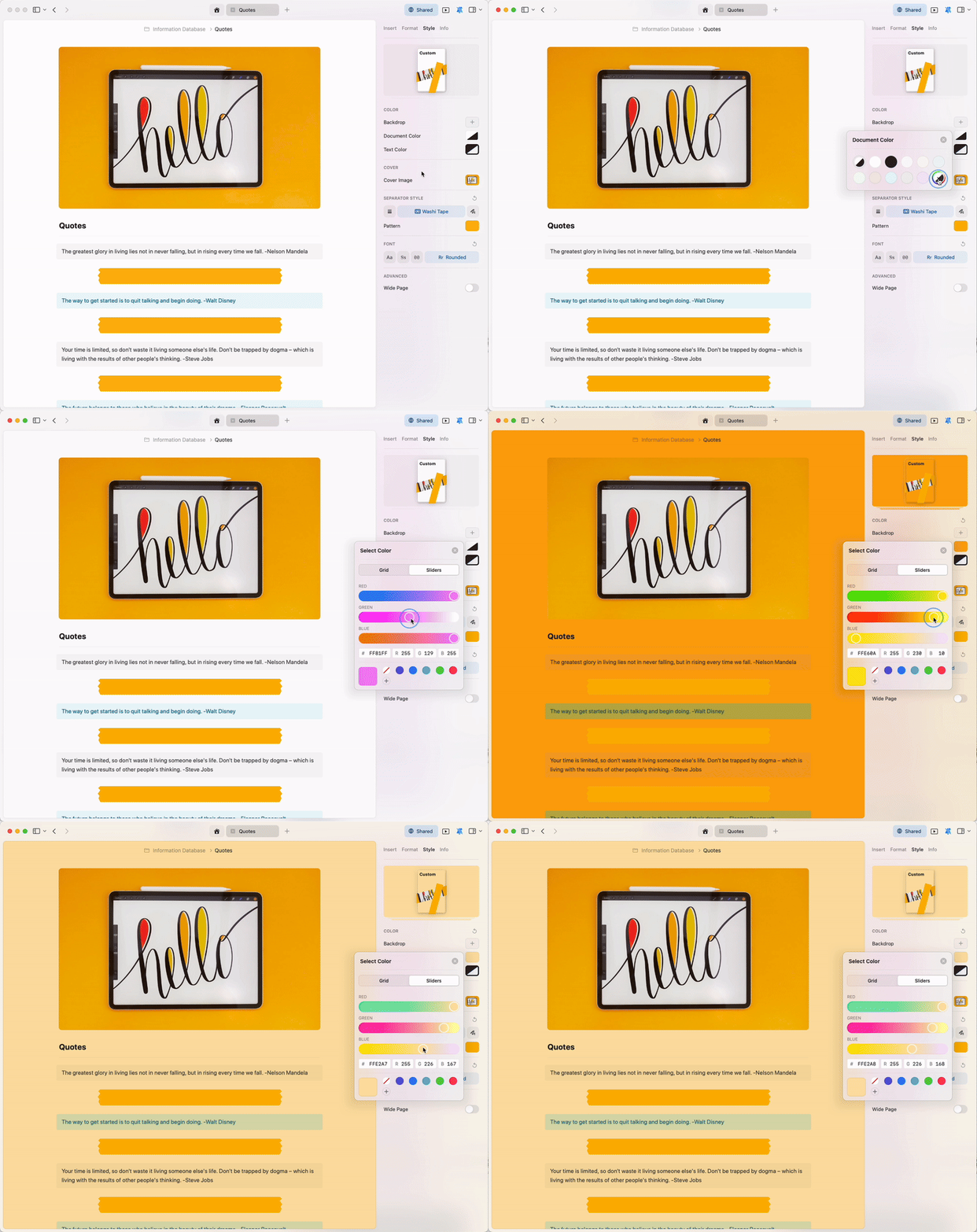
您可以完全掌控文件與文字的顏色。手動調整至偏好的色調，或在色彩選擇器中輸入 RGB 色碼，精準呈現您想要的顏色。

<img src="https://mintcdn.com/craft-support/L5zMoIm2o8A5WVUD/images/write-and-edit/styling/quick-guide/en/content/custom-doc-color.gif?s=7c3927c0a80033062ad48fab51b026b1" alt="Customizing document colors" width="800" height="673" data-path="images/write-and-edit/styling/quick-guide/en/content/custom-doc-color.gif" />

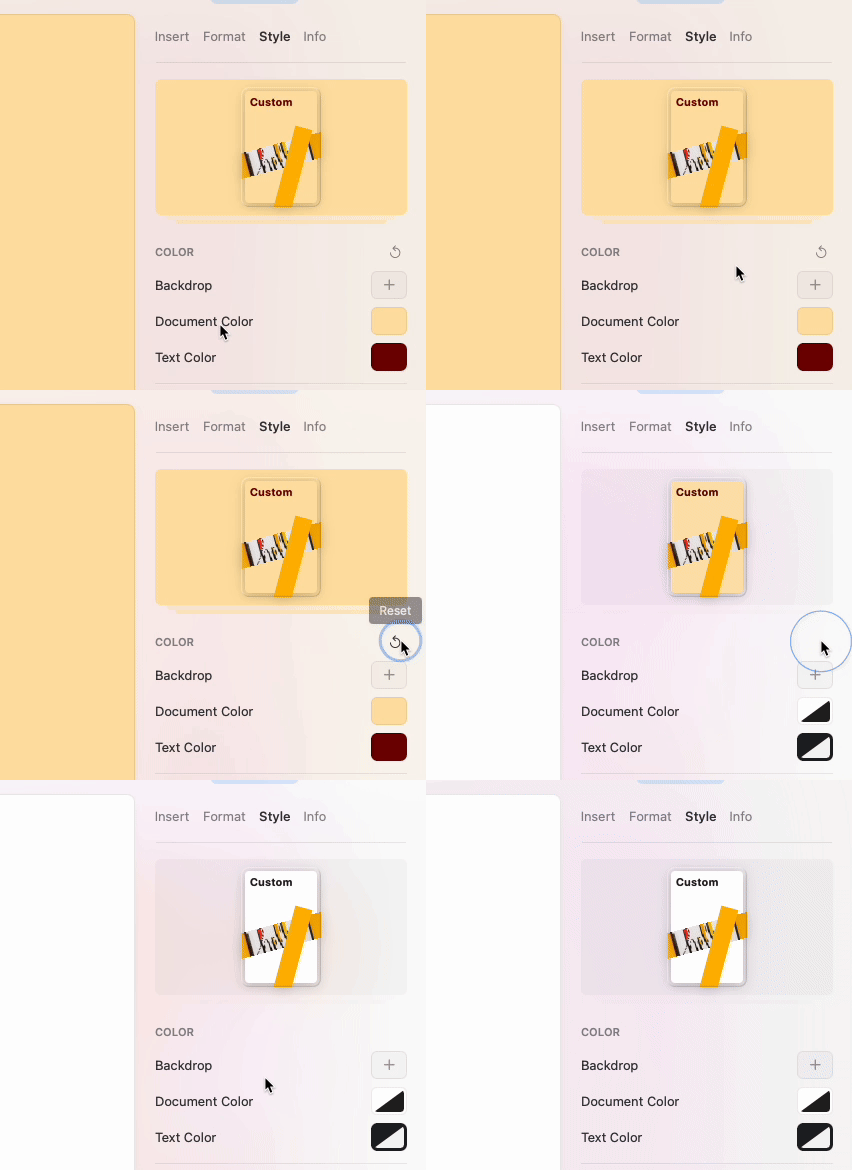
<Info title="重設顏色">
  使用重設按鈕可立即將文件恢復為系統預設顏色。
</Info>

<img src="https://mintcdn.com/craft-support/L5zMoIm2o8A5WVUD/images/write-and-edit/styling/quick-guide/en/content/reset-color.gif?s=52d971ac666bddfd6773f2afaf74d1a9" alt="Resetting document colors" width="426" height="390" data-path="images/write-and-edit/styling/quick-guide/en/content/reset-color.gif" />

## 字型

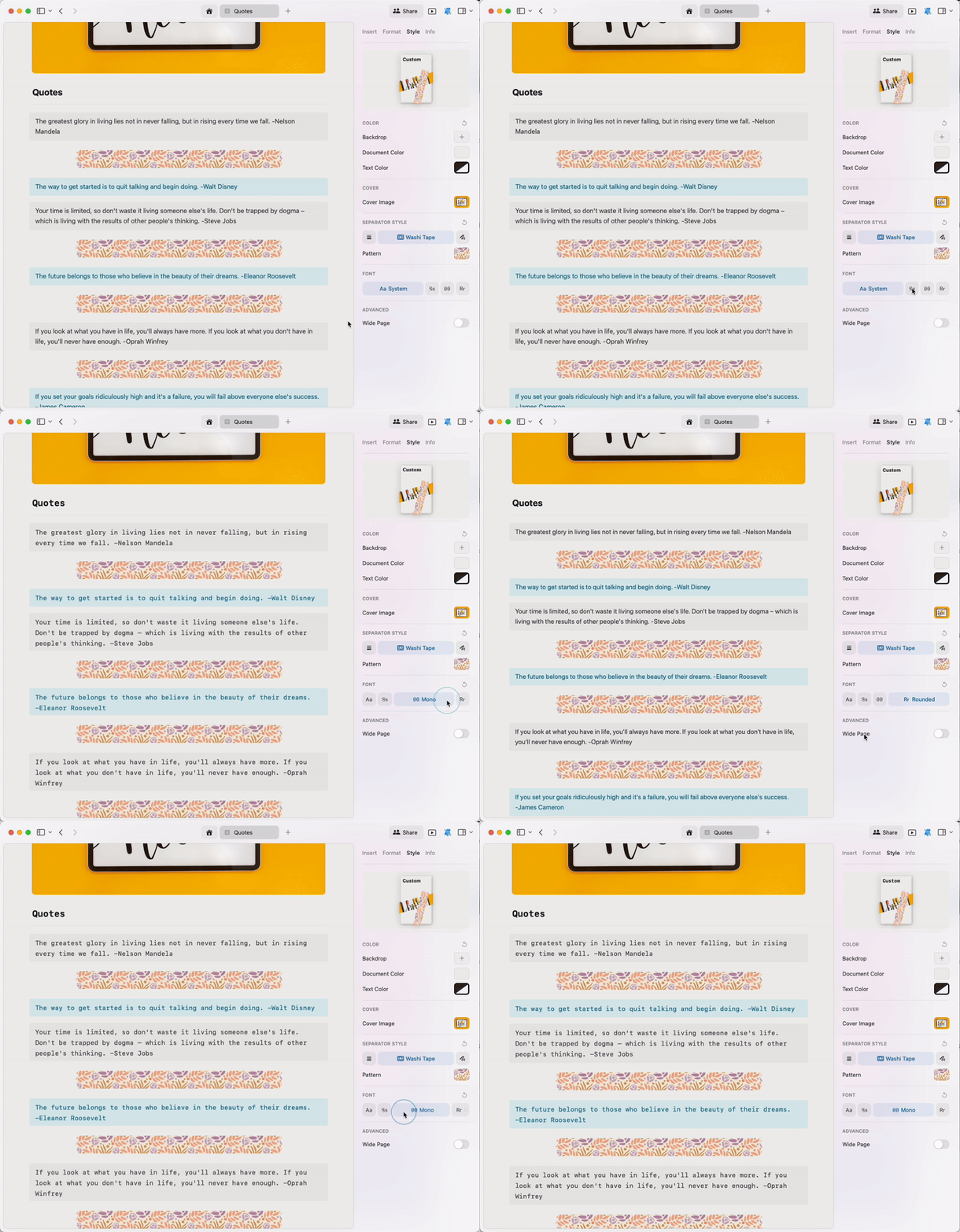
一鍵變更整份文件的字型樣式。可選擇：

* **系統** — 使用裝置的預設字型
* **襯線體** — 傳統、易讀的襯線字型
* **等寬體** — 適合程式碼或技術內容的等寬字型
* **圓體** — 友善、現代的圓角字型
<img src="https://mintcdn.com/craft-support/L5zMoIm2o8A5WVUD/images/write-and-edit/styling/quick-guide/en/content/fonts.gif?s=11732e87e5fcc8c62ace8900cbb879bf" alt="Changing document fonts" width="800" height="685" data-path="images/write-and-edit/styling/quick-guide/en/content/fonts.gif" />

<Warning title="自訂字型">
  目前 Craft 尚不支援上傳自訂字型。
</Warning>

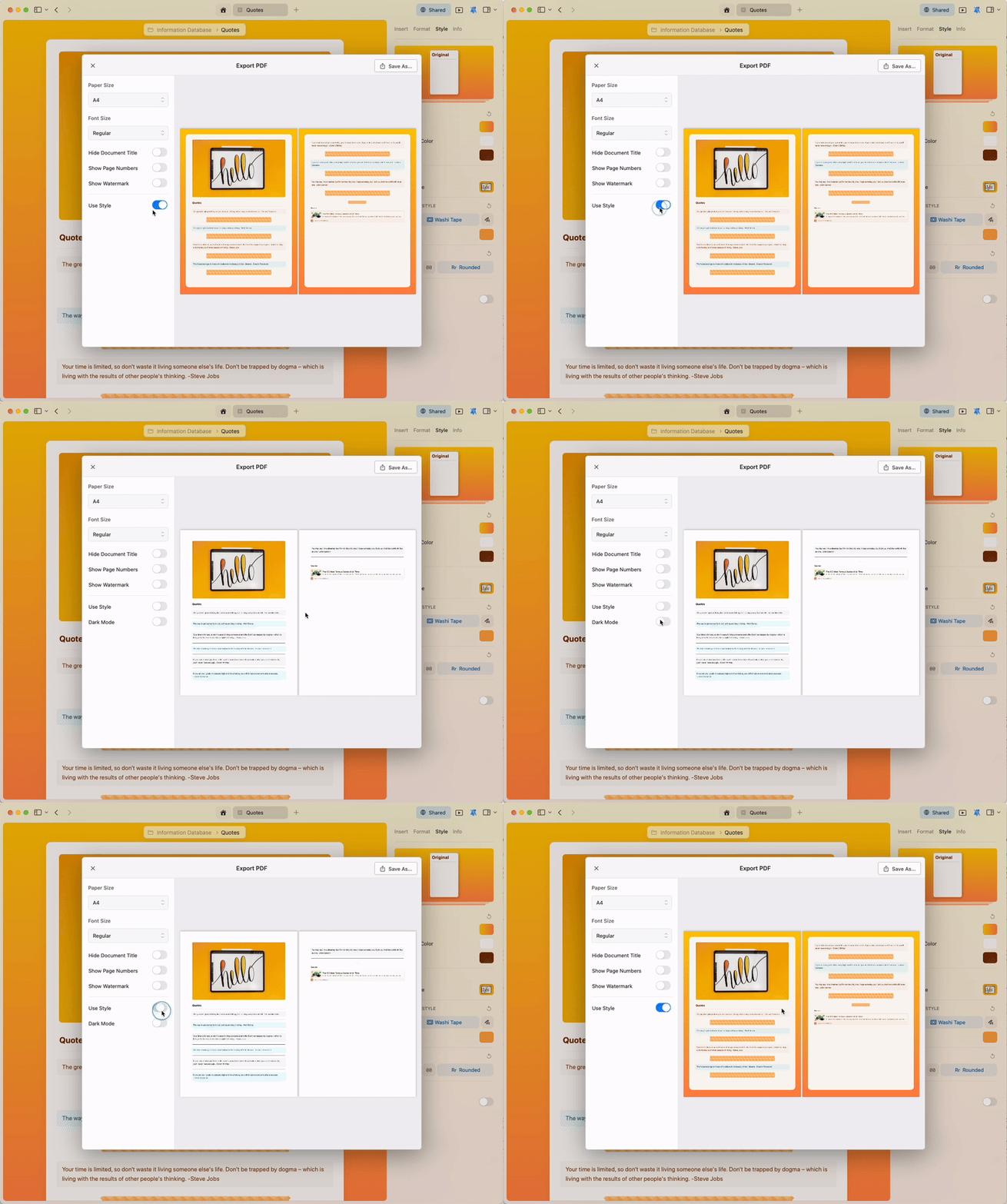
## 將套用樣式的文件匯出為 PDF

樣式功能旨在幫助您表達自我，並在編輯時打造理想的視覺環境。若您在將內容匯出為 PDF 時需要停用樣式，可在匯出選項中輕鬆完成設定。

<img src="https://mintcdn.com/craft-support/L5zMoIm2o8A5WVUD/images/write-and-edit/styling/quick-guide/en/content/export-styles.gif?s=0b04cf70df6513a5d9144629f0400399" alt="Disabling styles during PDF export" width="800" height="638" data-path="images/write-and-edit/styling/quick-guide/en/content/export-styles.gif" />

## 相關文章

<CardGroup cols={2}>
  <Card title="封面圖片" href="/zh-Hant/write-and-edit/styling/cover-images">
    自訂文件的封面圖片
  </Card>

  <Card title="卡片" href="/zh-Hant/write-and-edit/styling/cards">
    將頁面轉換為視覺卡片版面
  </Card>

  <Card title="應用程式樣式" href="/zh-Hant/write-and-edit/styling/app-styles">
    將文件樣式延伸至應用程式介面
  </Card>

  <Card title="預設樣式" href="/zh-Hant/write-and-edit/styling/default-styles">
    將偏好樣式設為預設值
  </Card>
</CardGroup>