> ## Documentation Index
> Fetch the complete documentation index at: https://craft-support.mintlify.site/llms.txt
> Use this file to discover all available pages before exploring further.

# 自訂區塊顏色

> 從區塊顏色調色盤中挑選、建立完全自訂的區塊顏色，並在 Craft 中設定專屬的預設區塊顏色。

區塊顏色是讓內容脫穎而出的簡單方法，非常適合用於重點提示、以顏色區分章節，或為頁面增添個人風格。區塊顏色調色盤提供涵蓋整個色譜的均衡配色，若沒有完全符合需求的顏色，您也可以完全自訂。

## 套用區塊顏色

<Steps>
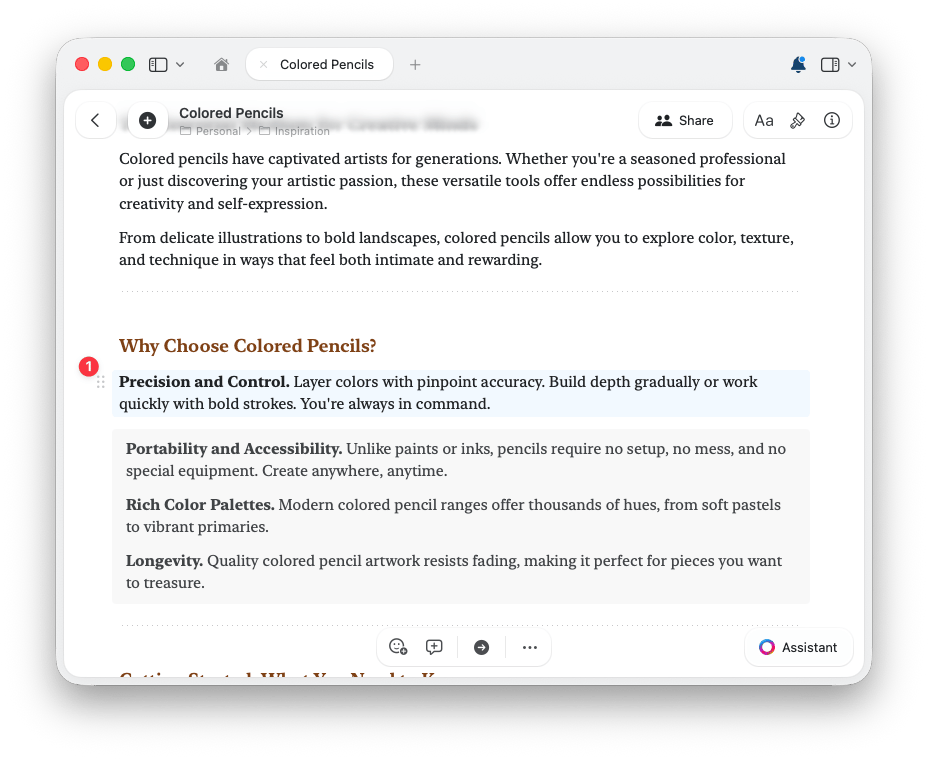
  <Step title="選取區塊">
    點選想要上色的區塊，或一次選取多個區塊。

    <img src="https://mintcdn.com/craft-support/bFuq7qeKyFxnmv1W/images/write-and-edit/styling/block-colors/en/content/apply-block-color-step-1.png?fit=max&auto=format&n=bFuq7qeKyFxnmv1W&q=85&s=89e724af9695db974901a249c837bc30" alt="選取區塊" width="928" height="759" data-path="images/write-and-edit/styling/block-colors/en/content/apply-block-color-step-1.png" />
  </Step>

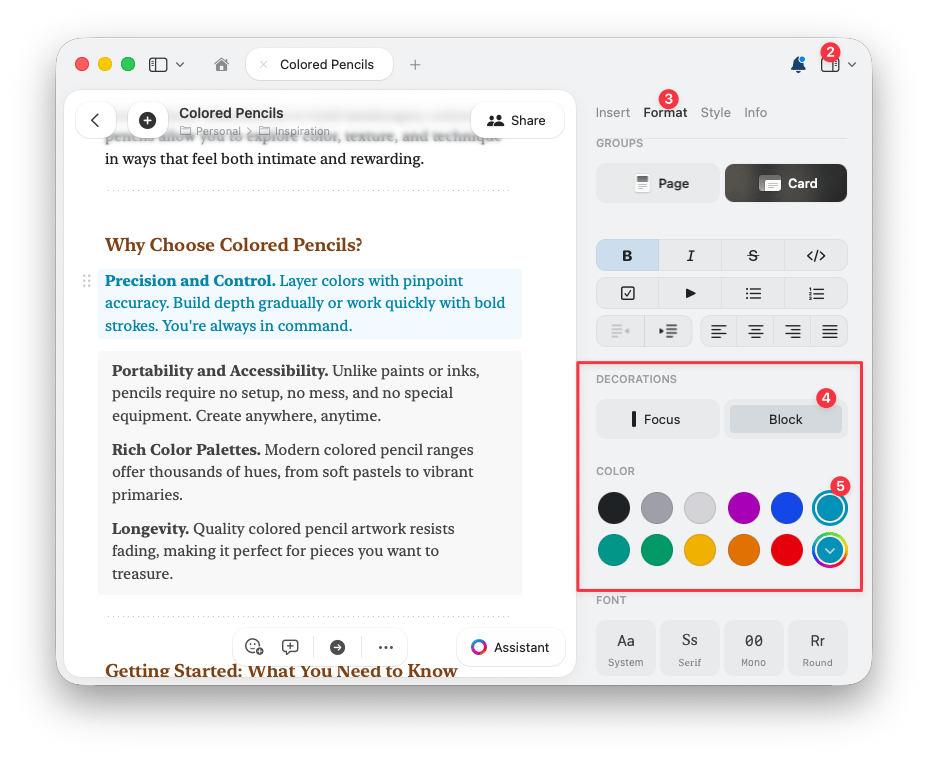
  <Step title="開啟格式面板">
    開啟右側邊欄，選取**格式**標籤。
  </Step>

  <Step title="挑選區塊顏色">
    在**裝飾**下選取**區塊**，然後從**顏色**調色盤中挑選顏色。將游標移到任一顏色上，即可在提示框中查看顏色名稱。

    <img src="https://mintcdn.com/craft-support/bFuq7qeKyFxnmv1W/images/write-and-edit/styling/block-colors/en/content/apply-block-color-step-2.png?fit=max&auto=format&n=bFuq7qeKyFxnmv1W&q=85&s=e293e198ba0c255b778adb624533e85b" alt="顯示區塊裝飾與顏色調色盤的格式面板" width="928" height="759" data-path="images/write-and-edit/styling/block-colors/en/content/apply-block-color-step-2.png" />
  </Step>
</Steps>

凡是可以選擇區塊顏色的地方（包括斜線指令選單）都會顯示同一組調色盤，因此無論從哪裡套用，顏色呈現都完全一致。

## 挑選自訂區塊顏色

想要調色盤中沒有的色調嗎？

<Steps>
  <Step title="開啟色彩選擇器">
    選取區塊顏色調色盤末端的自訂顏色選項。
  </Step>

  <Step title="選擇色調">
    瀏覽色調格狀選單、從光譜中挑選，或以滑桿微調。
  </Step>

  <Step title="或輸入精確色值">
    輸入 RGB 或 HSB 色值以精準比對，特別適合品牌顏色。
  </Step>
</Steps>

<video autoPlay muted loop playsInline className="w-full rounded-xl" src="https://mintcdn.com/craft-support/bFuq7qeKyFxnmv1W/images/write-and-edit/styling/block-colors/en/content/custom-block-color.mp4?fit=max&auto=format&n=bFuq7qeKyFxnmv1W&q=85&s=bccaba891fdf8399f03f5ab484ba8a98" data-path="images/write-and-edit/styling/block-colors/en/content/custom-block-color.mp4" />

## 設定專屬的預設區塊顏色

您也可以將預設調色盤中的任一顏色換成自己的色調。如果您希望最愛的顏色隨時可用，或想在所有文件中使用特定品牌顏色，這個功能非常實用。

<Steps>
  <Step title="在調色盤顏色上開啟內容選單">
    在區塊顏色調色盤中，對想要替換的顏色按右鍵（macOS）或長按（iOS）。
  </Step>

  <Step title="自訂顏色">
    選擇自訂顏色的選項，並在色彩選擇器中挑選自己的色調。調色盤該位置便會顯示您的顏色，且所有顯示區塊顏色的地方都會同步更新。
  </Step>

  <Step title="需要時重設">
    若要恢復原始顏色，再次在該顏色上開啟內容選單並重設即可。
  </Step>
</Steps>

<video autoPlay muted loop playsInline className="w-full rounded-xl" src="https://mintcdn.com/craft-support/bFuq7qeKyFxnmv1W/images/write-and-edit/styling/block-colors/en/content/default-block-colors.mp4?fit=max&auto=format&n=bFuq7qeKyFxnmv1W&q=85&s=16685de5e91e25ddfbc9882ed7293e00" data-path="images/write-and-edit/styling/block-colors/en/content/default-block-colors.mp4" />

<Info title="表格與集合">
  表格與集合會繼承套用在其上的區塊顏色，因此您可以像處理其他內容一樣，以顏色區分這些區塊。
</Info>

## 相關文章

<CardGroup cols={2}>
  <Card title="背景、顏色與分隔線" href="/zh-Hant/write-and-edit/styling/quick-guide">
    自訂背景、文件與文字顏色，以及分隔線
  </Card>

  <Card title="預設樣式" href="/zh-Hant/write-and-edit/styling/default-styles">
    將偏好樣式設為預設值
  </Card>
</CardGroup>