> ## Documentation Index
> Fetch the complete documentation index at: https://craft-support.mintlify.site/llms.txt
> Use this file to discover all available pages before exploring further.
# 品牌形象
> 在已發佈的頁面上顯示您的標誌,為讀者打造專業的品牌體驗。
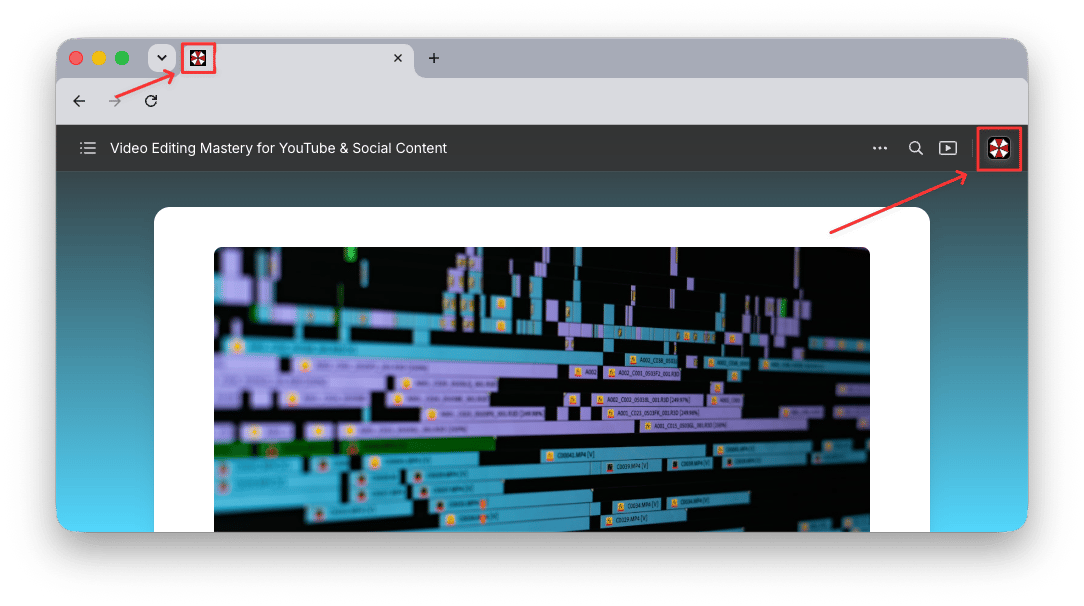
讓您已發佈的 Craft 文件呈現您的品牌識別。您的標誌可顯示於所有已發佈的頁面上,出現在頁面標題列與瀏覽器分頁中。
自訂品牌形象功能適用於 **Plus、Family、Team 及 Business** 方案。
## 已發佈頁面上的標誌
啟用後,您的標誌將顯示於每份已發佈文件的**右上角**,並作為**瀏覽器分頁圖示**。讀者可點擊標誌前往您指定的網址(例如您的網站)。
 ## 啟用您的標誌
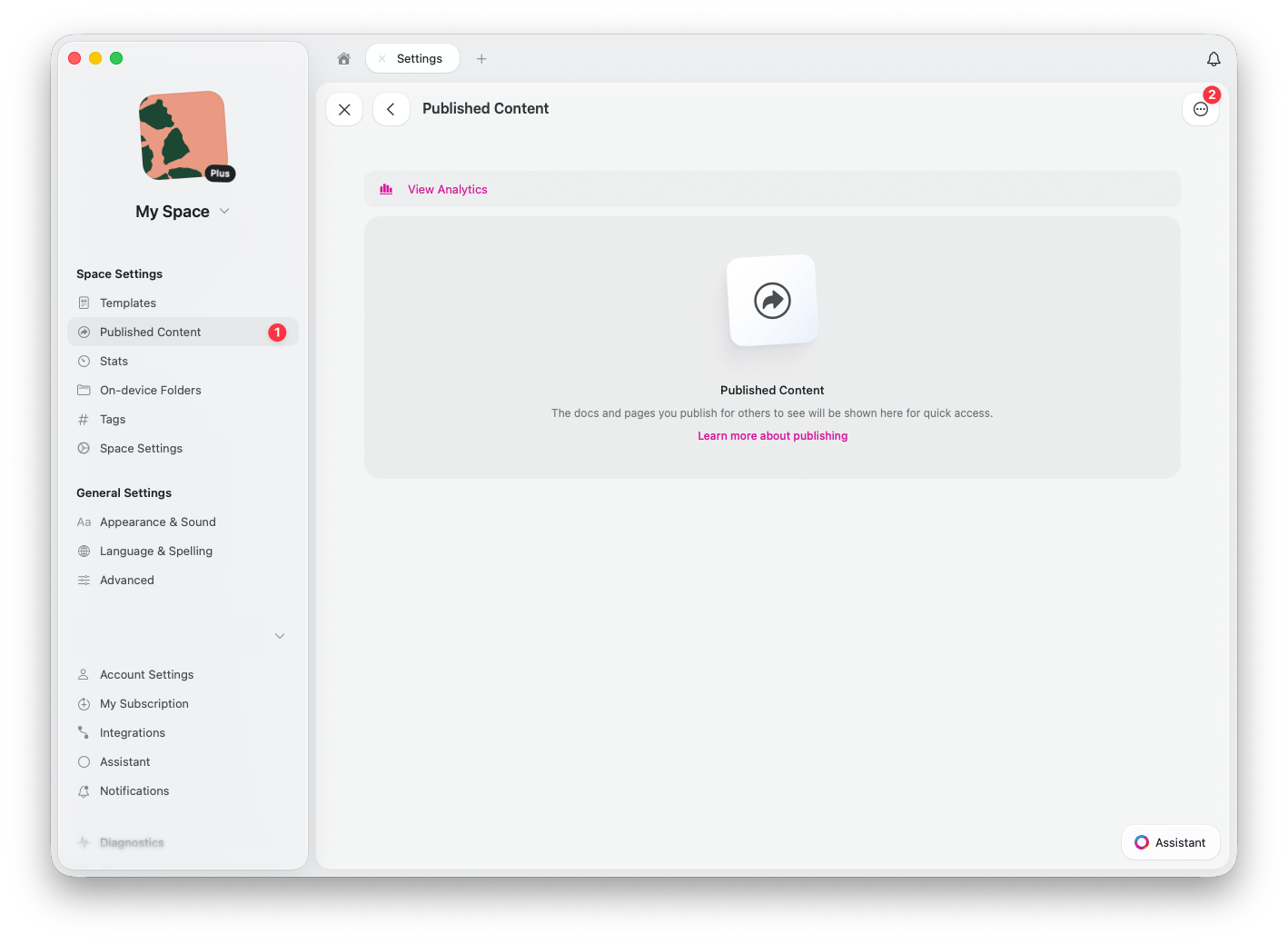
在 Craft 網頁版或桌面應用程式中,前往**空間設定** > **已發佈內容**
點擊設定圖示以進入**已發佈內容設定**
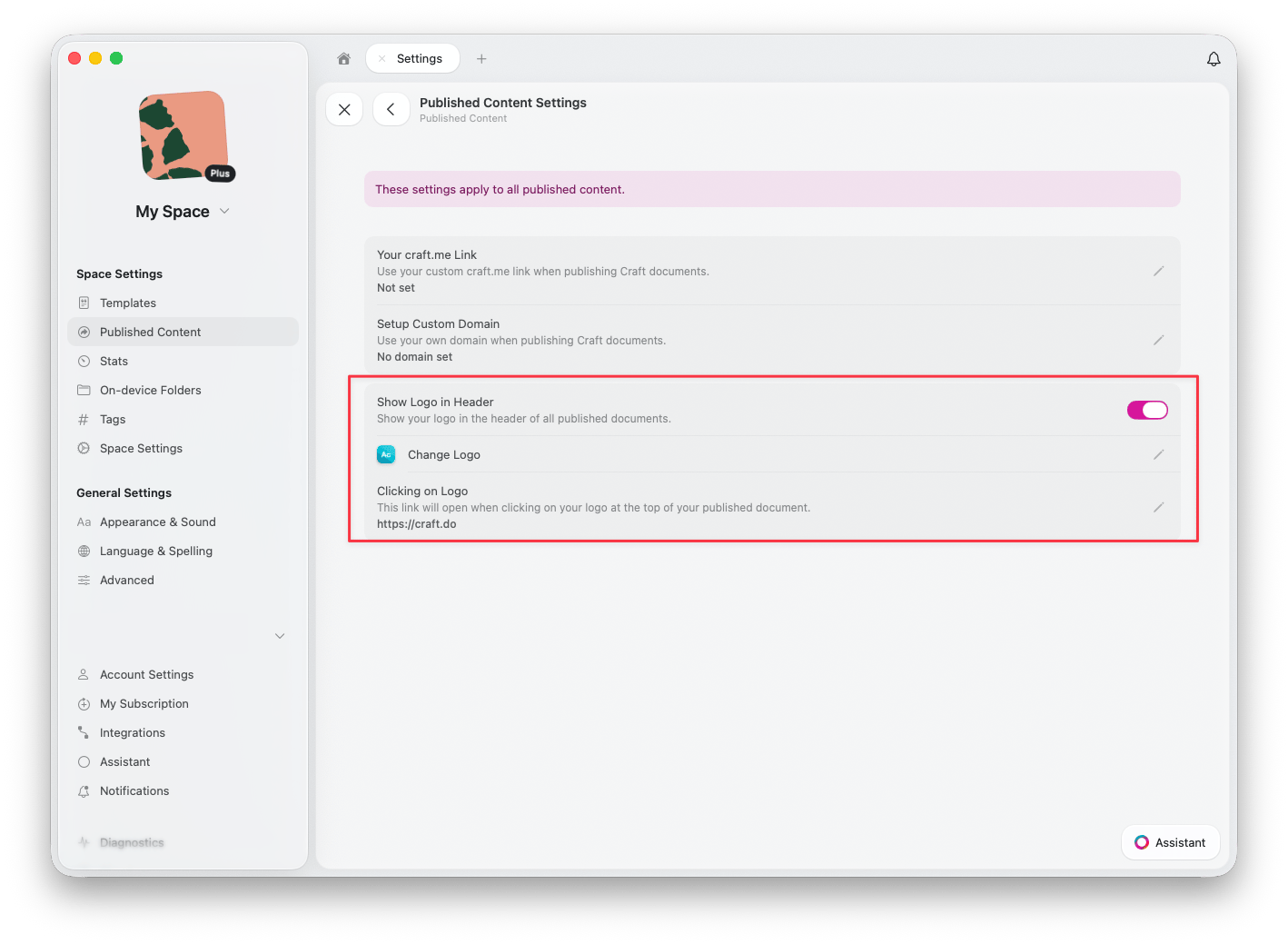
啟用 **Show Logo in Header**,即可在所有已發佈文件的標題列顯示您的標誌
點擊 **Change Logo** 以上傳或更新顯示於已發佈頁面的標誌
在 **Clicking on Logo** 下方,設定讀者點擊標誌時所開啟的網址(例如您的網站首頁)
## 啟用您的標誌
在 Craft 網頁版或桌面應用程式中,前往**空間設定** > **已發佈內容**
點擊設定圖示以進入**已發佈內容設定**
啟用 **Show Logo in Header**,即可在所有已發佈文件的標題列顯示您的標誌
點擊 **Change Logo** 以上傳或更新顯示於已發佈頁面的標誌
在 **Clicking on Logo** 下方,設定讀者點擊標誌時所開啟的網址(例如您的網站首頁)
 ## 品牌形象功能組合
自訂品牌形象可與其他發佈功能搭配使用,打造完整的品牌體驗:
**自訂網域** -- 使用您自己的網域(例如 `blog.yourcompany.com`)取代 `craft.me`
**標誌** -- 在所有已發佈頁面顯示您的標誌
**自訂 craft.me 連結** -- 個人化您的 craft.me 網址以符合您的品牌
這些功能合併使用,讓您發佈的專業內容看起來和感覺上都像是您品牌的一部分,同時在幕後充分運用 Craft 強大的文件功能。
***
將您自己的網域連結至已發佈的內容
了解如何將文件發佈至網路
## 品牌形象功能組合
自訂品牌形象可與其他發佈功能搭配使用,打造完整的品牌體驗:
**自訂網域** -- 使用您自己的網域(例如 `blog.yourcompany.com`)取代 `craft.me`
**標誌** -- 在所有已發佈頁面顯示您的標誌
**自訂 craft.me 連結** -- 個人化您的 craft.me 網址以符合您的品牌
這些功能合併使用,讓您發佈的專業內容看起來和感覺上都像是您品牌的一部分,同時在幕後充分運用 Craft 強大的文件功能。
***
將您自己的網域連結至已發佈的內容
了解如何將文件發佈至網路