> ## Documentation Index
> Fetch the complete documentation index at: https://craft-support.mintlify.site/llms.txt
> Use this file to discover all available pages before exploring further.
# 發佈文件
> 讓你的文件可在網路上公開存取,並提供可自訂的 URL、安全選項與互動控制。
將你的 Craft 文件轉換成任何瀏覽器都能存取的漂亮網頁。發布功能讓內容公開可見,同時讓你完全掌控存取權限、外觀與互動設定。
## 發佈文件
建立一個網路連結以讓文件對所有網際網路使用者可見。
點擊文件右上角的 **Share** 按鈕
選擇 **Publish**
點擊 **Create Link** 立即產生並複製網頁 URL
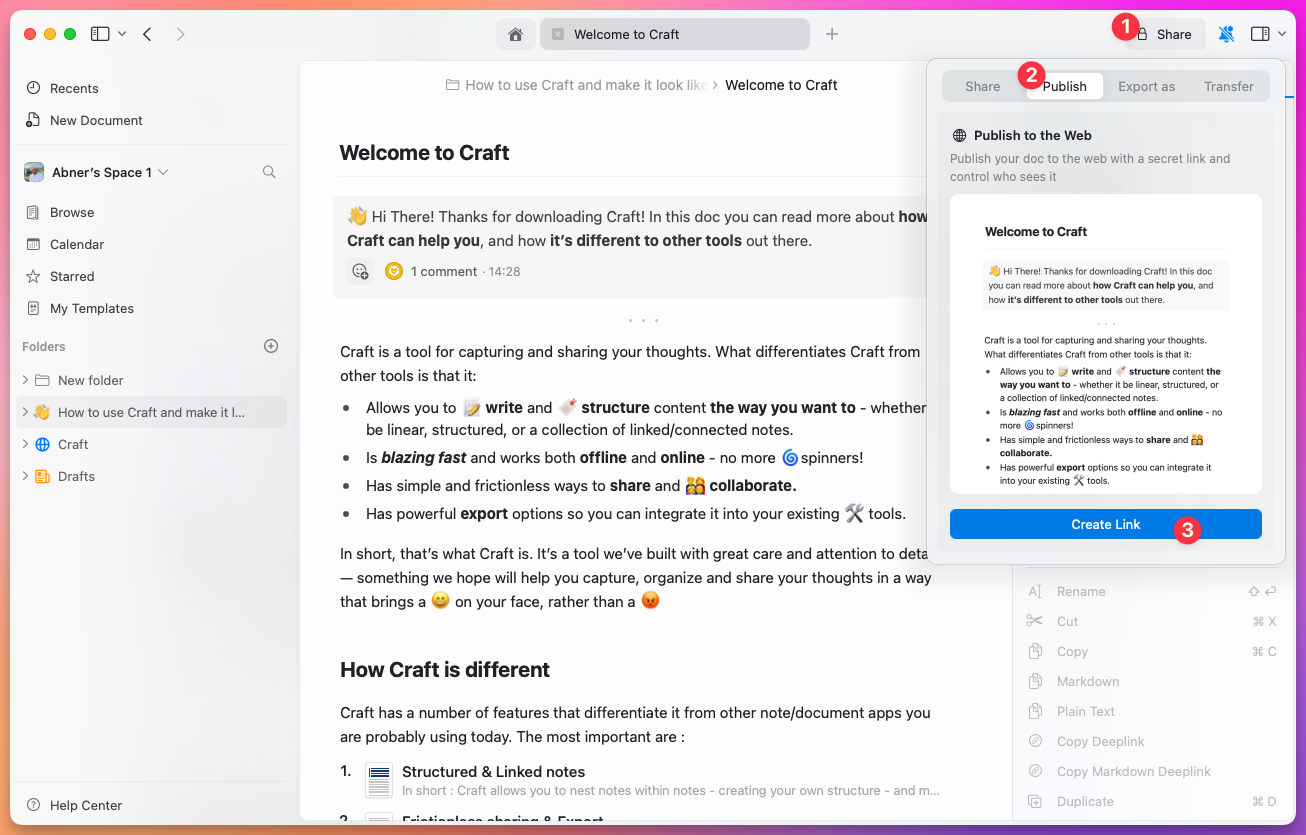 你的文件現在已在網路上公開,可以透過任何瀏覽器存取。預設的 URL 格式為 `craft.me/s/abc123`,但你也可以自訂。
## 已發佈頁面設定
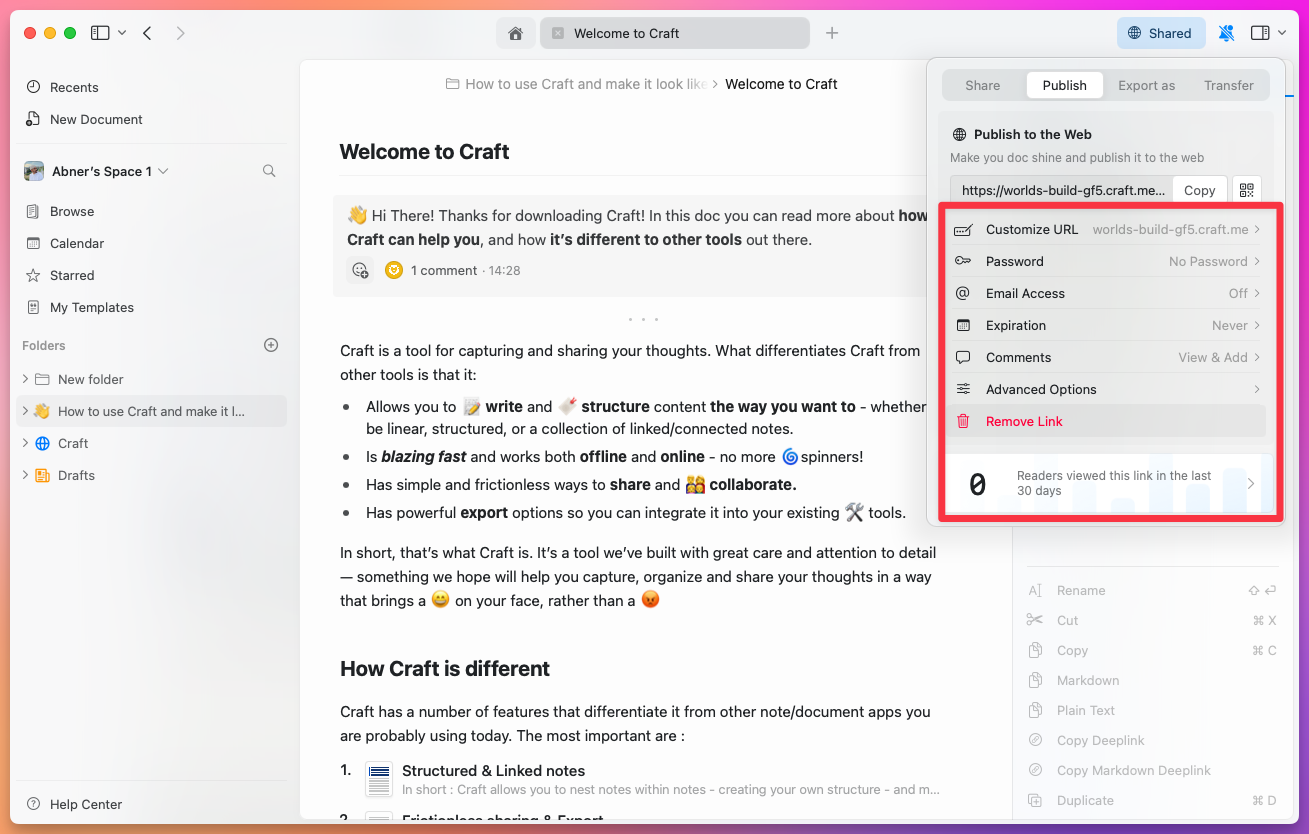
文件一旦發布,你可以管理多項設定以控制存取與外觀:
你的文件現在已在網路上公開,可以透過任何瀏覽器存取。預設的 URL 格式為 `craft.me/s/abc123`,但你也可以自訂。
## 已發佈頁面設定
文件一旦發布,你可以管理多項設定以控制存取與外觀:
 ### URL 自訂
**Craft Domain** – 將你的 Craft 網域從預設的隨機格式(例如 `brave-lion-456.craft.me`)個人化為更好記的名稱,例如 `yourname.craft.me`。所有方案(含 Starter)均可使用。
**Custom URL Path** – 自訂連結的路徑(例如使用 `/amazing-content` 取代 `/s/abc123`)。
**Custom Domain** – 將你的自有網域串接以品牌化發佈(例如 `blog.yourcompany.com`)。此功能需要 Plus 或更高方案。
**QR Code** – 為已發佈的連結產生 QR Code,方便在印刷品或螢幕上分享。
### 安全選項
**Password Protection** – 設定密碼以限制文件存取。只有持有密碼的人才能檢視該頁面。
**Email Domain Restriction** – 限制僅特定電子郵件網域可存取(例如僅限 `@yourcompany.com` 地址)。
**Expiration Date** – 設定連結自動失效的日期。
**Search Engine Indexing** – 控制搜尋引擎是否可以索引你的已發佈頁面。此設定與 Advanced Options 中的搜尋選項不同,後者控制的是頁面內部的搜尋功能。
### 互動控制
**Comments** – 啟用或停用讀者在已發布頁面上留言的功能。
**Advanced Options** – 控制視覺外觀與使用者互動功能:
* 目錄可見性
* 搜尋功能
* 列印選項
* 頁面導覽
### 管理
**Remove Link** – 取消發佈頁面,立即讓該網路連結失效。文件仍會保留在你的 Craft 工作區中。
## 簡報模式
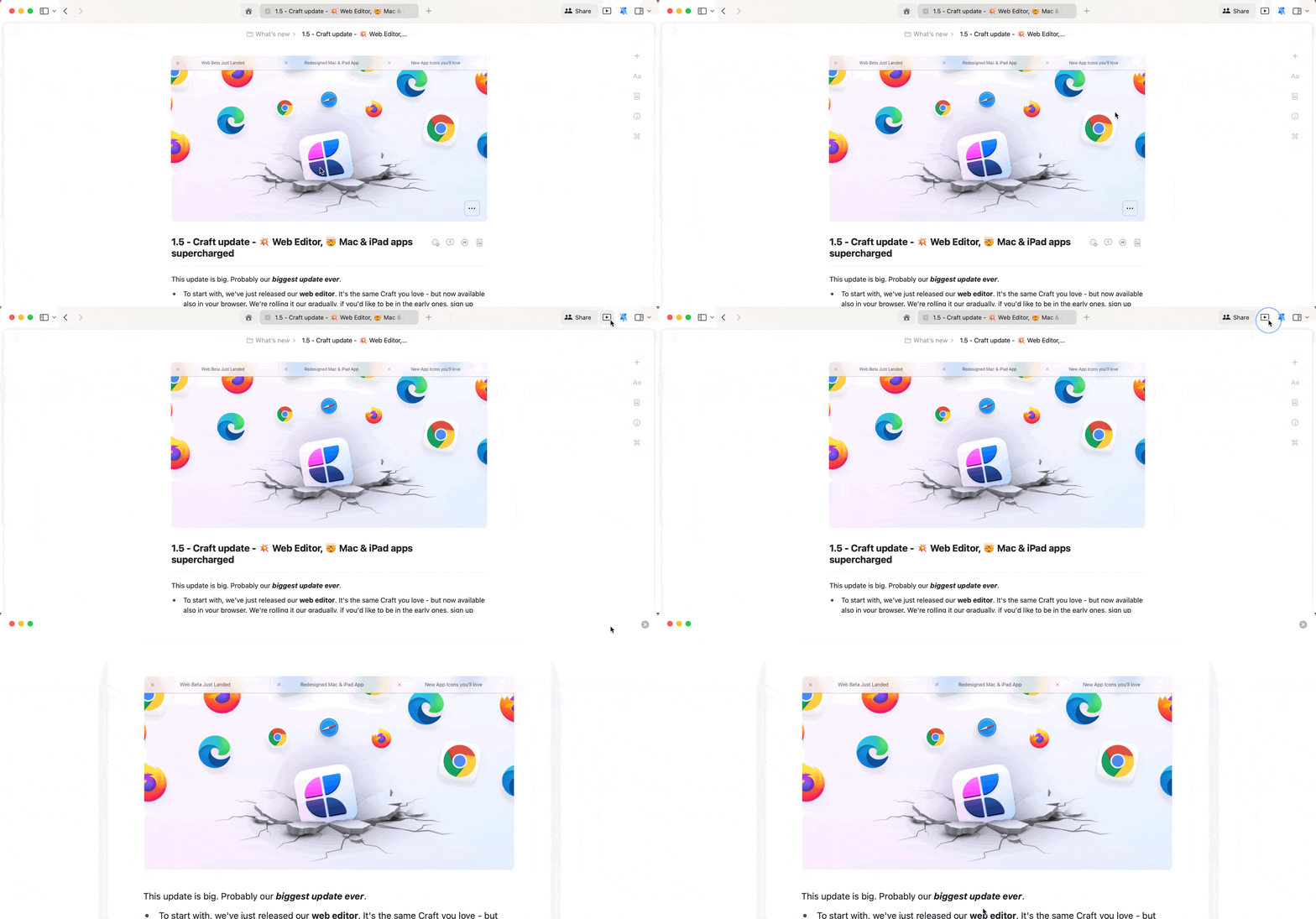
直接在 Craft 中將文件轉換成具有吸引力的投影片簡報。
在已發佈的文件上,點擊右上角的播放圖示即可開始簡報。在 Mac 上,你也可以直接從編輯器進行簡報:開啟 Info ⓘ 面板,並在 Actions 分頁中選擇 **Present**。
### URL 自訂
**Craft Domain** – 將你的 Craft 網域從預設的隨機格式(例如 `brave-lion-456.craft.me`)個人化為更好記的名稱,例如 `yourname.craft.me`。所有方案(含 Starter)均可使用。
**Custom URL Path** – 自訂連結的路徑(例如使用 `/amazing-content` 取代 `/s/abc123`)。
**Custom Domain** – 將你的自有網域串接以品牌化發佈(例如 `blog.yourcompany.com`)。此功能需要 Plus 或更高方案。
**QR Code** – 為已發佈的連結產生 QR Code,方便在印刷品或螢幕上分享。
### 安全選項
**Password Protection** – 設定密碼以限制文件存取。只有持有密碼的人才能檢視該頁面。
**Email Domain Restriction** – 限制僅特定電子郵件網域可存取(例如僅限 `@yourcompany.com` 地址)。
**Expiration Date** – 設定連結自動失效的日期。
**Search Engine Indexing** – 控制搜尋引擎是否可以索引你的已發佈頁面。此設定與 Advanced Options 中的搜尋選項不同,後者控制的是頁面內部的搜尋功能。
### 互動控制
**Comments** – 啟用或停用讀者在已發布頁面上留言的功能。
**Advanced Options** – 控制視覺外觀與使用者互動功能:
* 目錄可見性
* 搜尋功能
* 列印選項
* 頁面導覽
### 管理
**Remove Link** – 取消發佈頁面,立即讓該網路連結失效。文件仍會保留在你的 Craft 工作區中。
## 簡報模式
直接在 Craft 中將文件轉換成具有吸引力的投影片簡報。
在已發佈的文件上,點擊右上角的播放圖示即可開始簡報。在 Mac 上,你也可以直接從編輯器進行簡報:開啟 Info ⓘ 面板,並在 Actions 分頁中選擇 **Present**。
 ### 建立投影片
使用分隔線將文件切割成單張投影片:
1. 瀏覽你的文件並決定投影片分割處
2. 在這些位置使用斜線選單插入分隔線(輸入 `/` 並選擇一種分隔線樣式)
使用鍵盤上的 `Cmd + Arrow` 鍵或在觸控裝置上滑動以在投影片間切換。
### 簡報最佳實踐
* **簡潔為本**:使用項目符號並保持語句精簡
* **視覺吸引**:加入圖片、圖表與表格
* **風格一致**:維持字型、配色與大小的一致性
Presentation Mode 在所有平台上皆可使用,包括 Web 與 Windows。
## 隱私與分析
所有已發布頁面可追蹤基本的互動指標,協助你瞭解讀者行為。分析功能適用於所有付費方案。
追蹤已發布文件的瀏覽與互動
串接你的自有網域以建立專業品牌呈現
以商標與品牌元素自訂外觀
以自訂樣式讓已發布頁面更具美感
協助讀者在已發布頁面中找到內容
將結構化資料庫發布為互動式頁面
### 建立投影片
使用分隔線將文件切割成單張投影片:
1. 瀏覽你的文件並決定投影片分割處
2. 在這些位置使用斜線選單插入分隔線(輸入 `/` 並選擇一種分隔線樣式)
使用鍵盤上的 `Cmd + Arrow` 鍵或在觸控裝置上滑動以在投影片間切換。
### 簡報最佳實踐
* **簡潔為本**:使用項目符號並保持語句精簡
* **視覺吸引**:加入圖片、圖表與表格
* **風格一致**:維持字型、配色與大小的一致性
Presentation Mode 在所有平台上皆可使用,包括 Web 與 Windows。
## 隱私與分析
所有已發布頁面可追蹤基本的互動指標,協助你瞭解讀者行為。分析功能適用於所有付費方案。
追蹤已發布文件的瀏覽與互動
串接你的自有網域以建立專業品牌呈現
以商標與品牌元素自訂外觀
以自訂樣式讓已發布頁面更具美感
協助讀者在已發布頁面中找到內容
將結構化資料庫發布為互動式頁面