> ## Documentation Index
> Fetch the complete documentation index at: https://craft-support.mintlify.site/llms.txt
> Use this file to discover all available pages before exploring further.
# 在 iOS 上使用集合
> 在 iPhone 和 iPad 上建立和管理集合——包括圖庫檢視、觸控手勢和全螢幕模式。
iOS 上的集合功能完整,並針對觸控操作進行了最佳化。本指南介紹了在 iPhone 和 iPad 上使用集合時特定於 iOS 的互動方式。
有關集合的一般概念,如欄位類型、檢視和排序,請參閱[集合概覽](/zh-Hant/organize-and-find/collections)和[集合檢視](/zh-Hant/organize-and-find/collections/views)文章。
## 開始使用
使用斜線選單或區塊選單在任意文件中建立集合。在 iOS 上,建立流程可讓你設定欄位並立即開始新增項目。
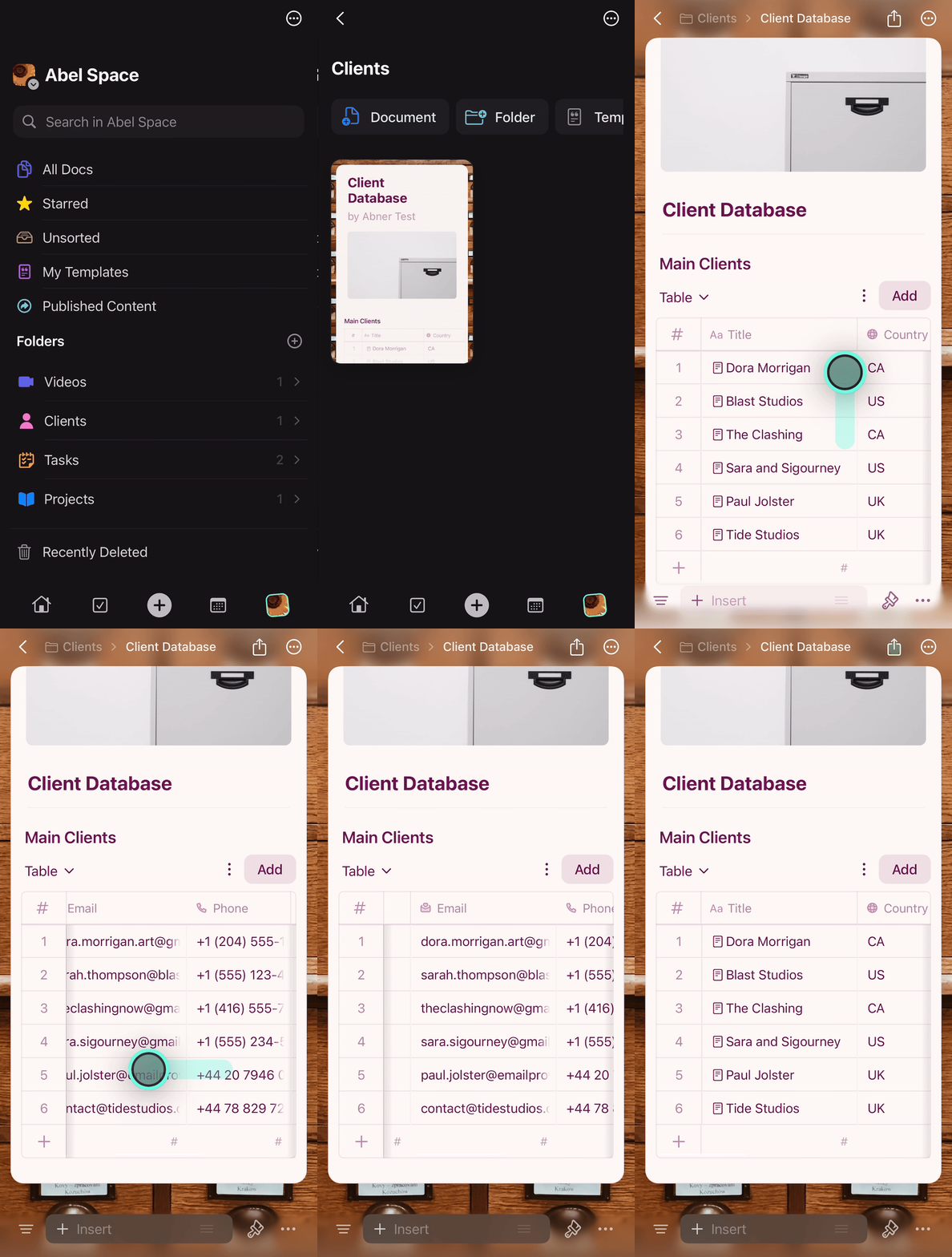 先設定好欄位——預先定義的分類和標籤能讓行動裝置上的資料輸入更加快速。
## 建立和編輯項目
### 新增項目
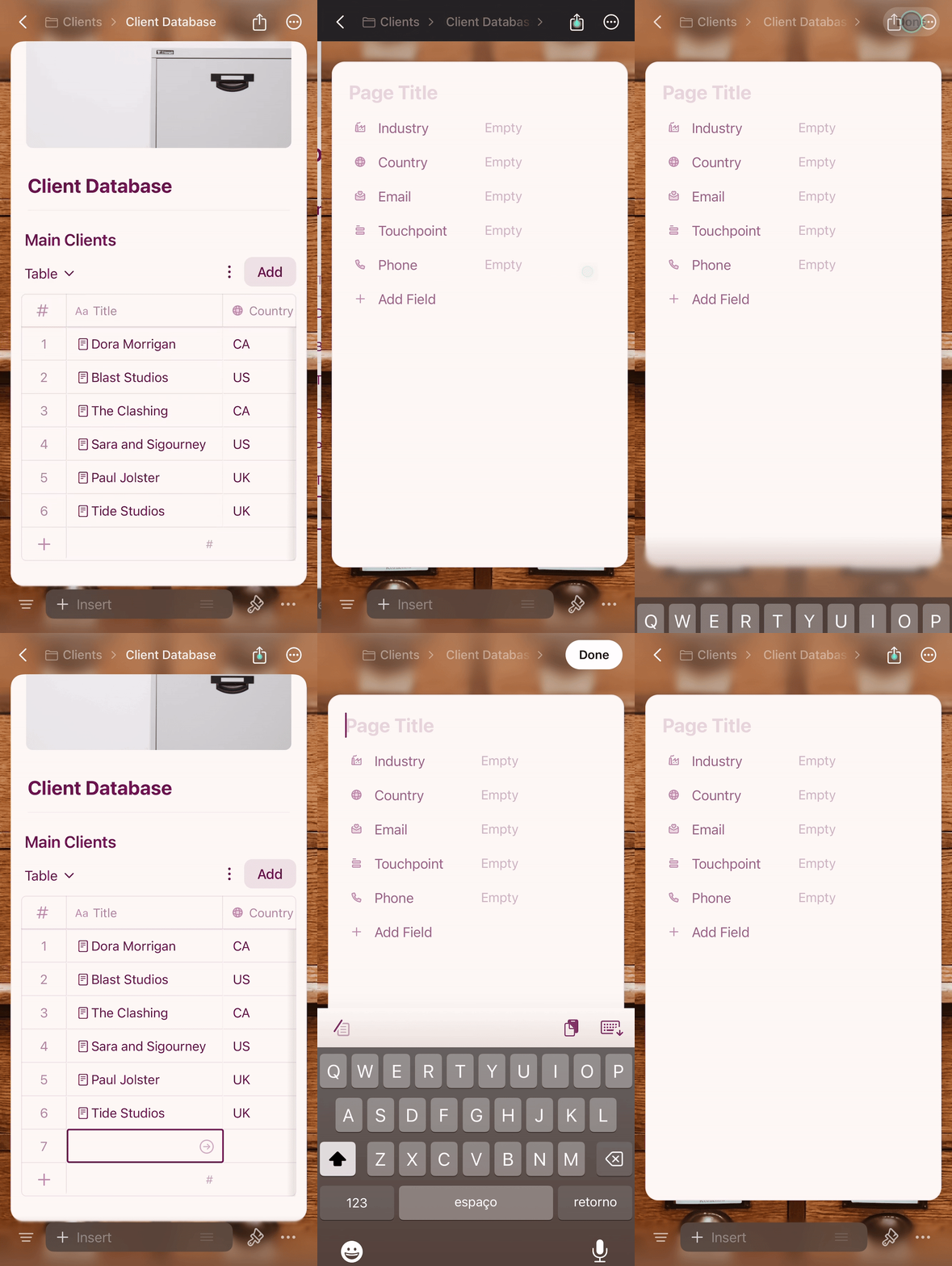
使用右上角的 **Add** 按鈕或左下角的 **+** 按鈕來建立新項目。
先設定好欄位——預先定義的分類和標籤能讓行動裝置上的資料輸入更加快速。
## 建立和編輯項目
### 新增項目
使用右上角的 **Add** 按鈕或左下角的 **+** 按鈕來建立新項目。
 ### 填寫資料
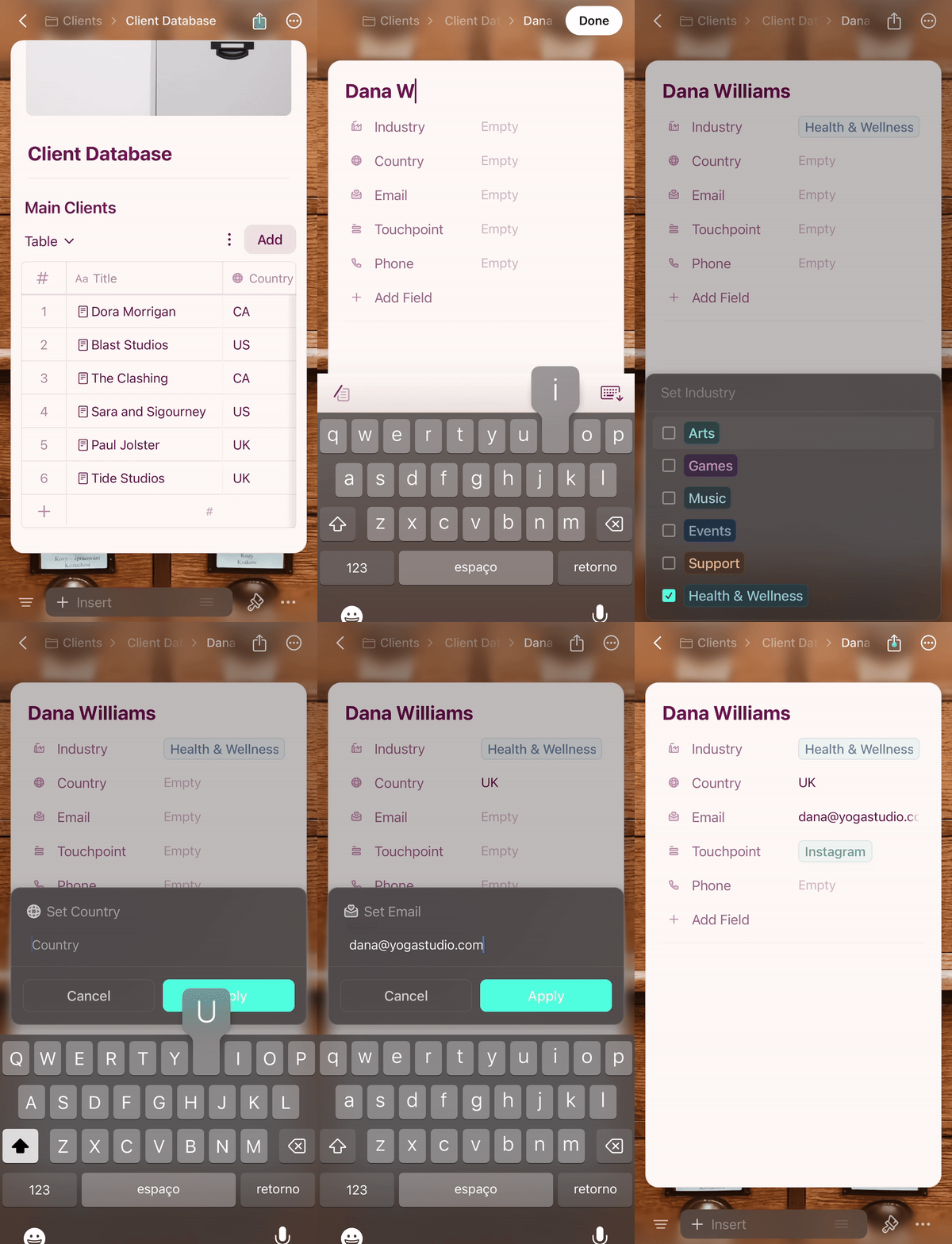
點一下任意儲存格進行編輯。選擇欄位會顯示預先定義的選項,方便快速輸入。
### 填寫資料
點一下任意儲存格進行編輯。選擇欄位會顯示預先定義的選項,方便快速輸入。
 ### 為項目新增內容
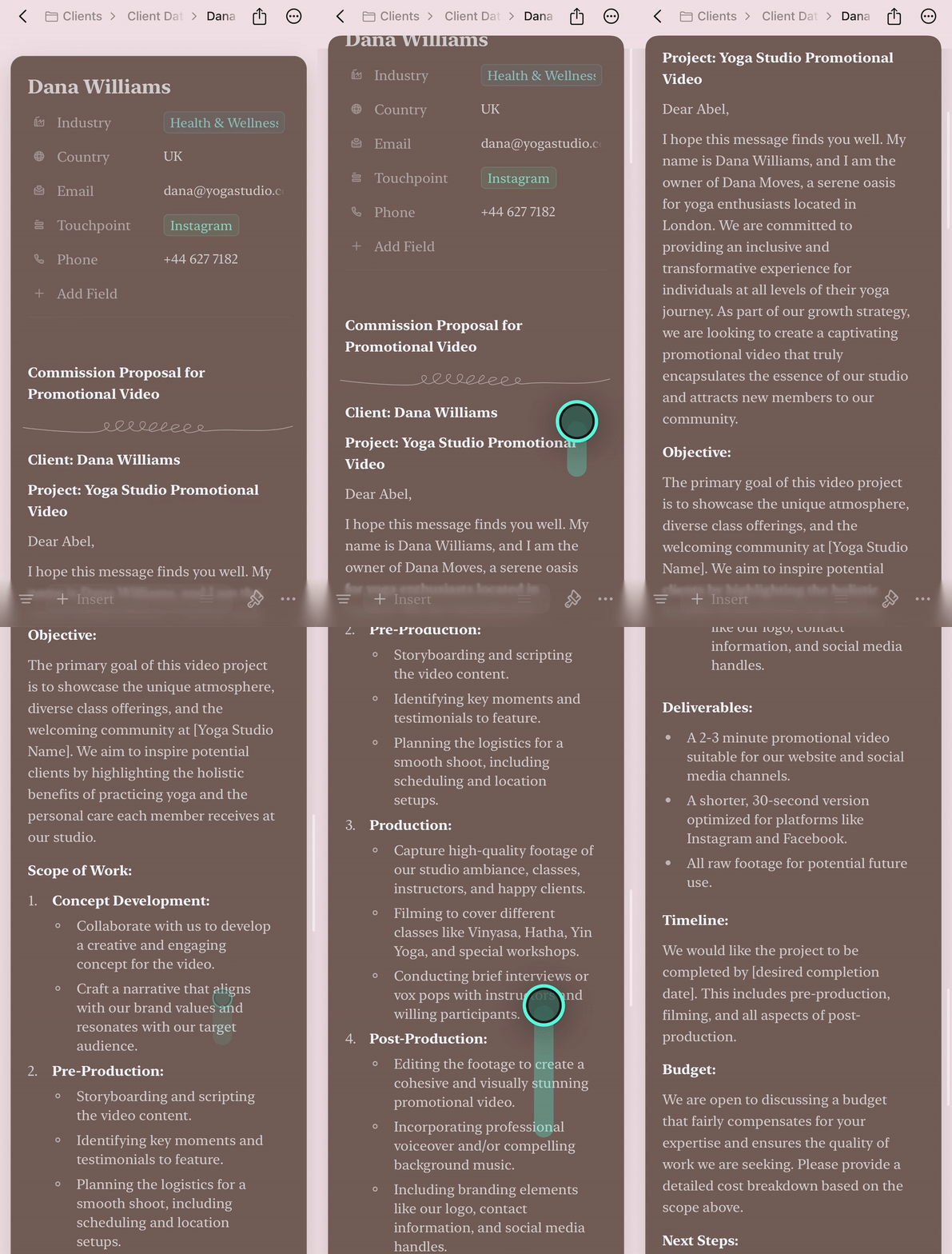
集合中的每個項目都是 Craft 中的獨立頁面。點一下項目標題即可開啟並新增任何內容——文字、圖片、連結或巢狀頁面。
### 為項目新增內容
集合中的每個項目都是 Craft 中的獨立頁面。點一下項目標題即可開啟並新增任何內容——文字、圖片、連結或巢狀頁面。
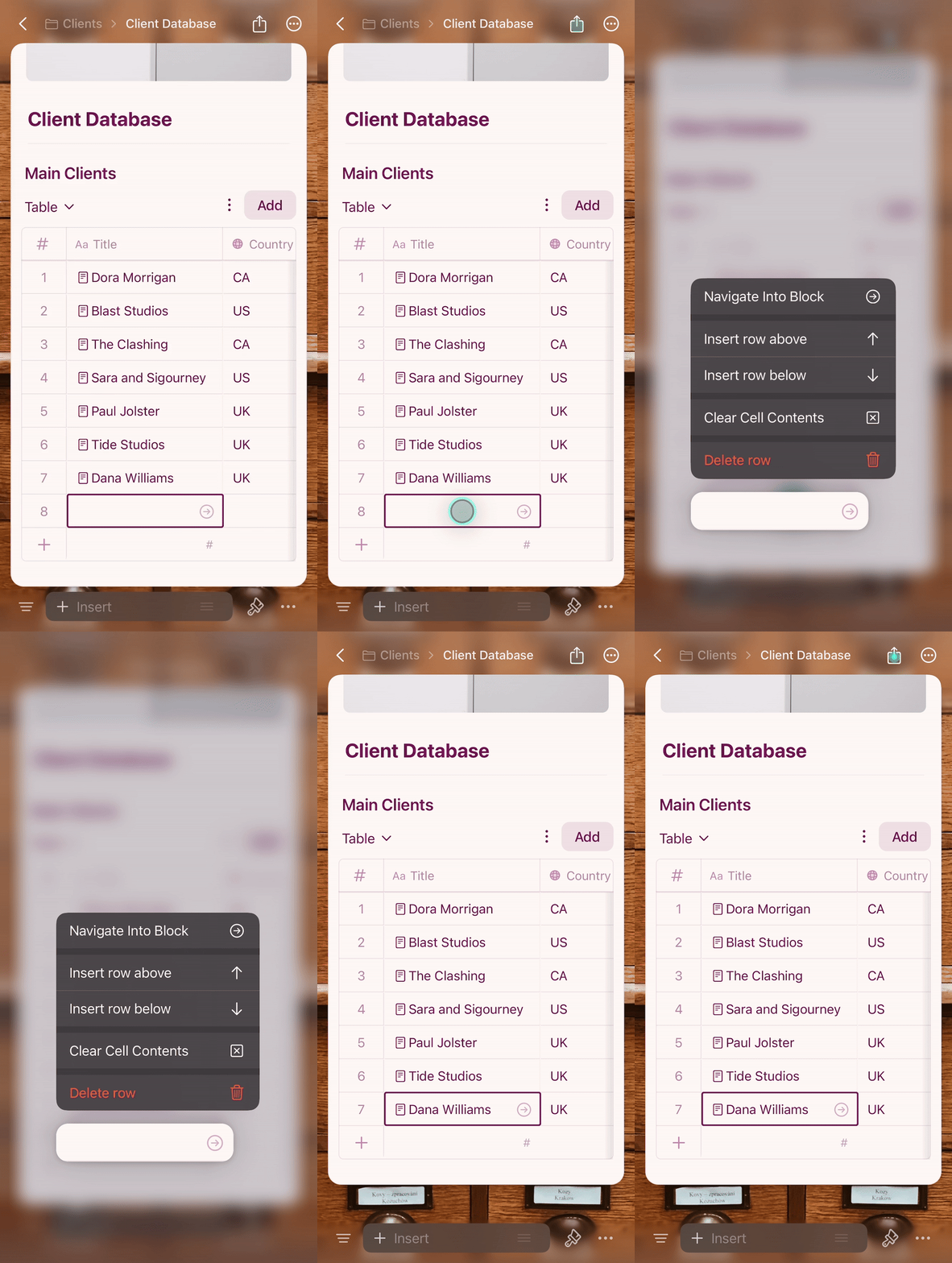
 ### 刪除項目
長按任意列以存取快捷選單。你可以刪除整個項目或清除特定儲存格的內容。
### 刪除項目
長按任意列以存取快捷選單。你可以刪除整個項目或清除特定儲存格的內容。
 ### 管理選擇欄位選項
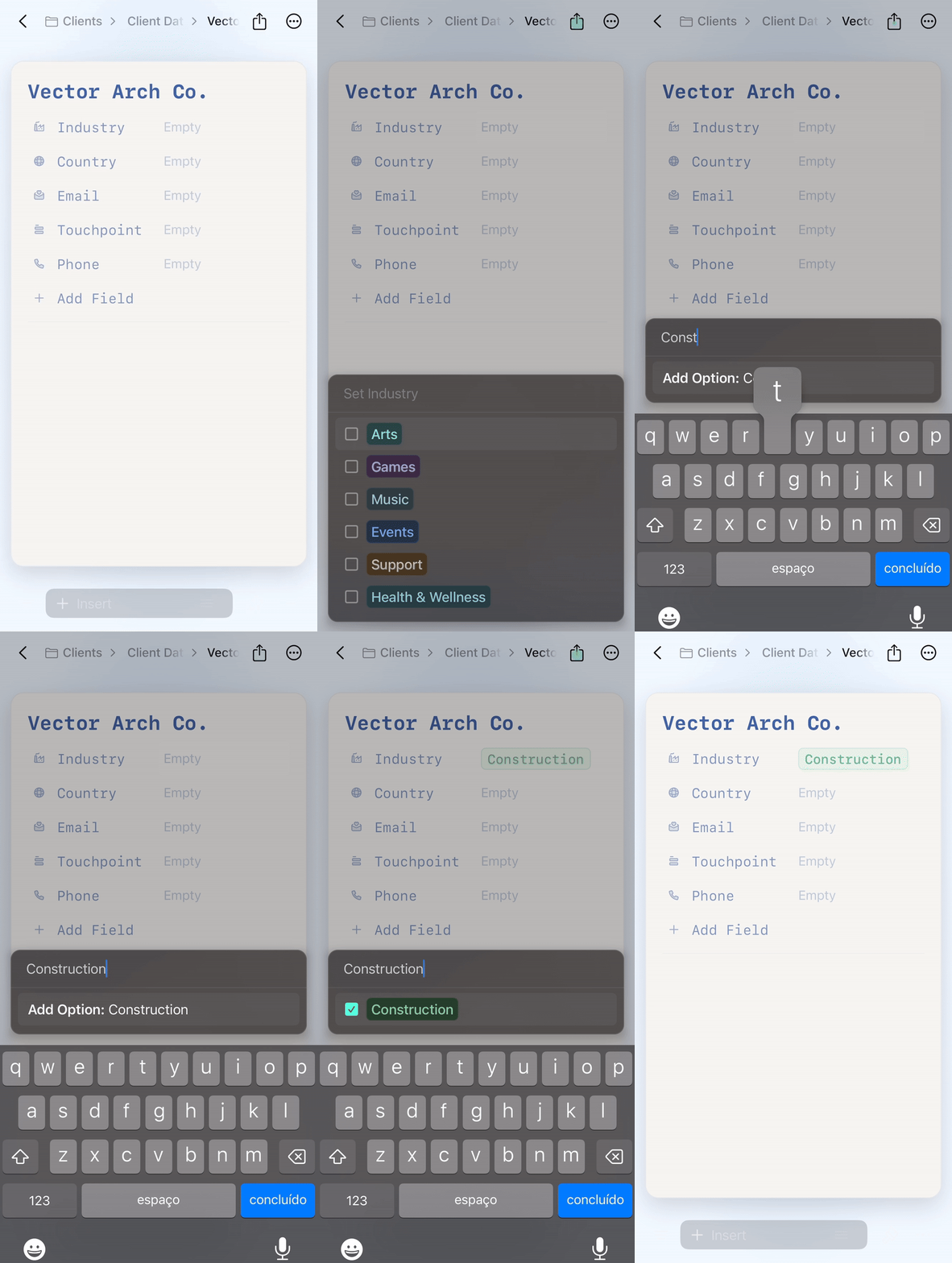
當你需要為選擇欄位新增選項時,直接輸入並點一下 **Add Option**。
### 管理選擇欄位選項
當你需要為選擇欄位新增選項時,直接輸入並點一下 **Add Option**。
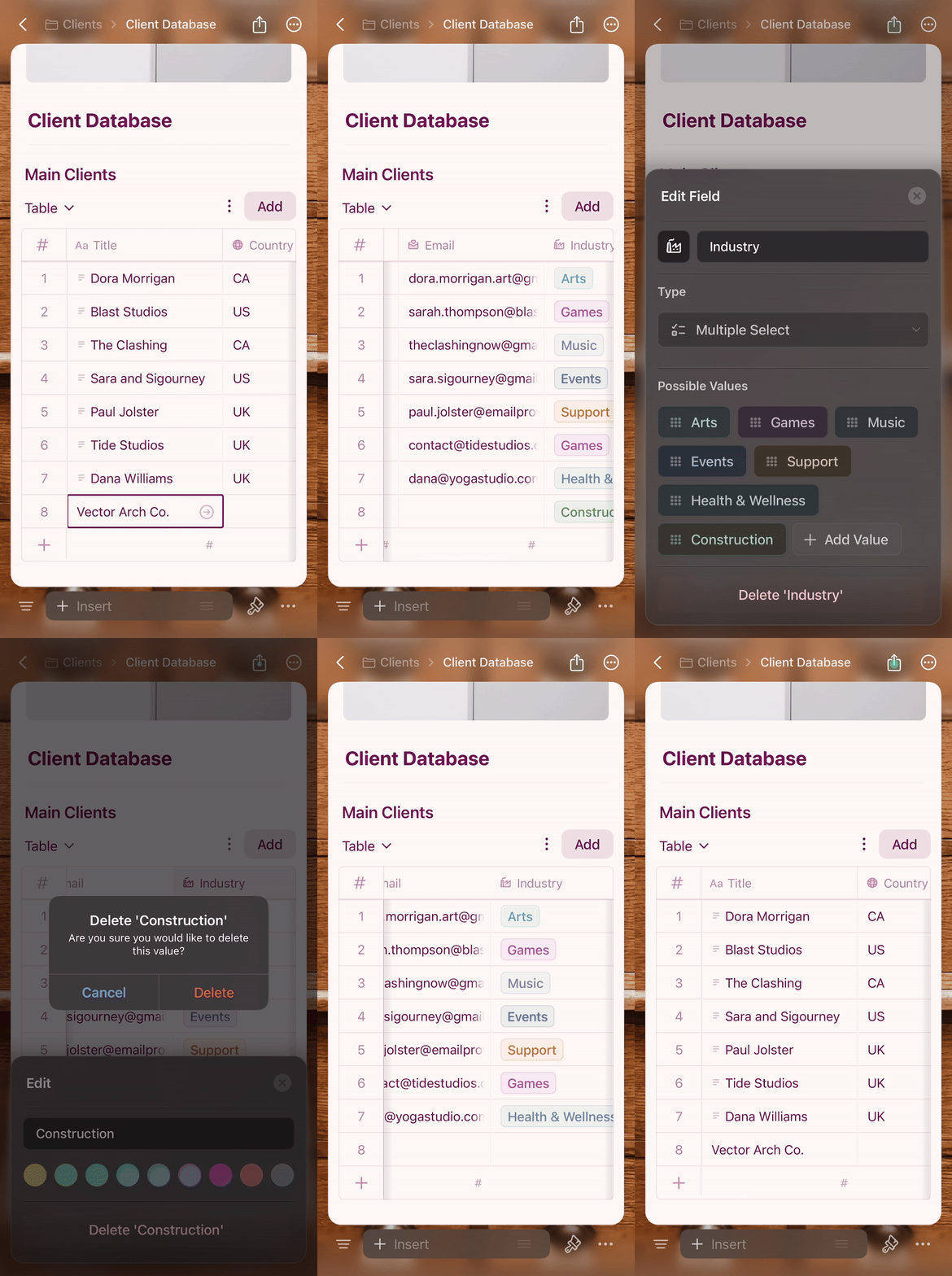
 要從選擇欄位中移除某個值:
點一下欄位標題以開啟欄位設定
點一下要刪除的值
從選項中選擇 **Delete**
點一下 **Apply** 以儲存變更
要從選擇欄位中移除某個值:
點一下欄位標題以開啟欄位設定
點一下要刪除的值
從選項中選擇 **Delete**
點一下 **Apply** 以儲存變更
 ## iOS 上的表格檢視
iOS 上的表格檢視如同試算表,具有針對觸控最佳化的互動:
* **水平捲動**查看更多欄位
* **點一下儲存格**編輯其值
* **長按列**開啟快捷選單(刪除、複製)
* **拖曳欄位邊框**調整欄寬
## iOS 上的圖庫檢視
圖庫檢視以帶有圖片預覽的視覺化卡片形式顯示項目,針對觸控進行了最佳化。
## iOS 上的表格檢視
iOS 上的表格檢視如同試算表,具有針對觸控最佳化的互動:
* **水平捲動**查看更多欄位
* **點一下儲存格**編輯其值
* **長按列**開啟快捷選單(刪除、複製)
* **拖曳欄位邊框**調整欄寬
## iOS 上的圖庫檢視
圖庫檢視以帶有圖片預覽的視覺化卡片形式顯示項目,針對觸控進行了最佳化。
 * **點一下卡片**開啟項目
* **長按卡片**開啟快捷選單,包含選擇、刪除或管理卡片的選項
### 全螢幕模式(iPhone)
在 iPhone 上,點一下內嵌的集合即可以流暢的縮放過渡效果進入**全螢幕模式**。這將提供全螢幕空間來瀏覽集合,不受周圍文件的干擾。
在橫向方向下,全螢幕檢視將使用整個螢幕——檢視選擇器移至頂部列,你可以透過捲動來隱藏和顯示工具列以取得更多空間。
* **點一下卡片**開啟項目
* **長按卡片**開啟快捷選單,包含選擇、刪除或管理卡片的選項
### 全螢幕模式(iPhone)
在 iPhone 上,點一下內嵌的集合即可以流暢的縮放過渡效果進入**全螢幕模式**。這將提供全螢幕空間來瀏覽集合,不受周圍文件的干擾。
在橫向方向下,全螢幕檢視將使用整個螢幕——檢視選擇器移至頂部列,你可以透過捲動來隱藏和顯示工具列以取得更多空間。
 ## 切換檢視
當你的集合有多個檢視時,檢視標籤會出現在頂部。點一下任意標籤即可切換。
要轉換檢視類型或新增檢視,請使用設定選單(⋯):
* **Add View** — 建立新的表格或圖庫檢視
* **Turn Into** — 在表格和圖庫之間轉換目前的檢視
## 切換檢視
當你的集合有多個檢視時,檢視標籤會出現在頂部。點一下任意標籤即可切換。
要轉換檢視類型或新增檢視,請使用設定選單(⋯):
* **Add View** — 建立新的表格或圖庫檢視
* **Turn Into** — 在表格和圖庫之間轉換目前的檢視
 ## 篩選、排序和分組
透過集合頂部的設定選單(⋯)存取這些選項。
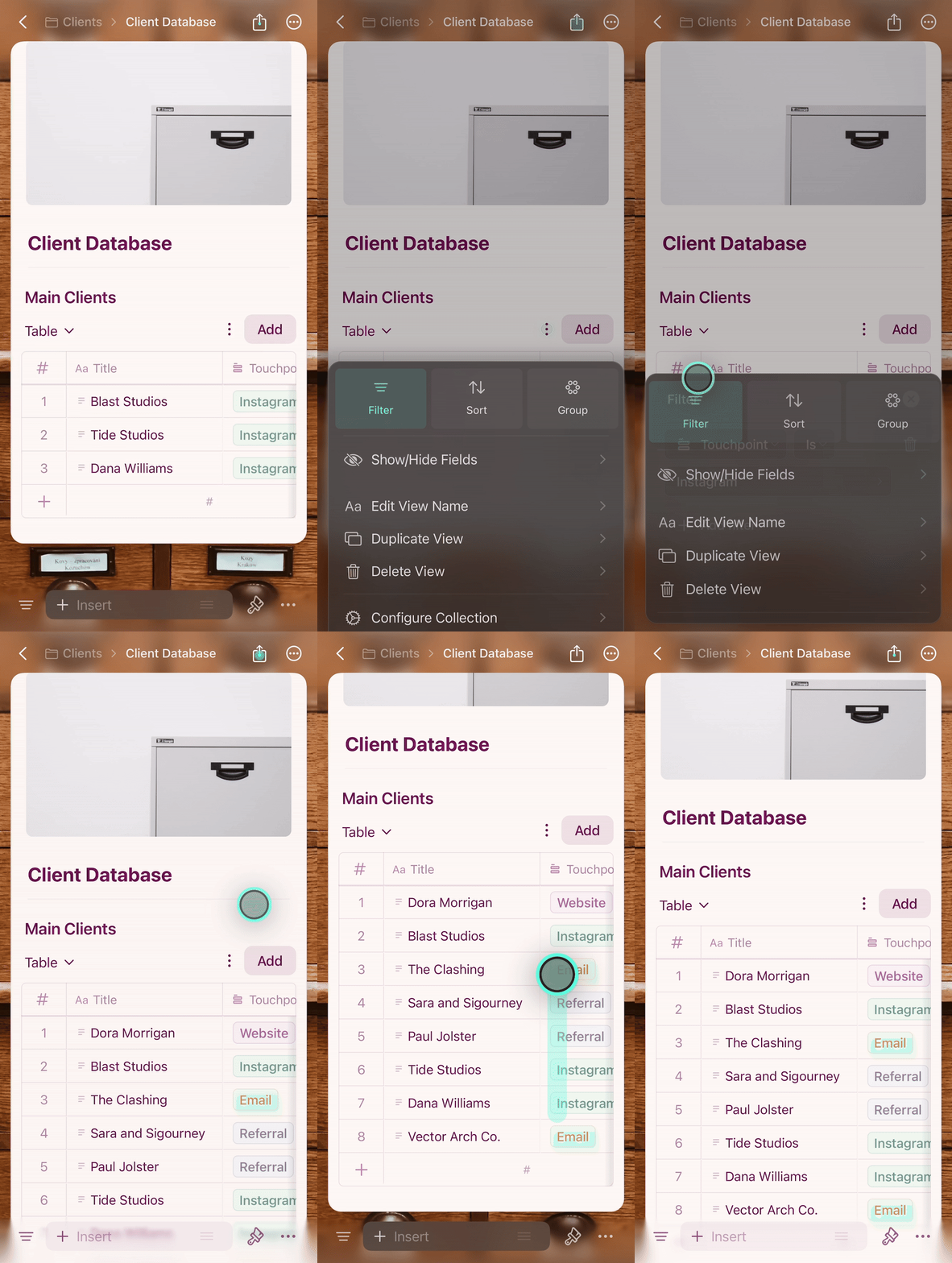
### 篩選
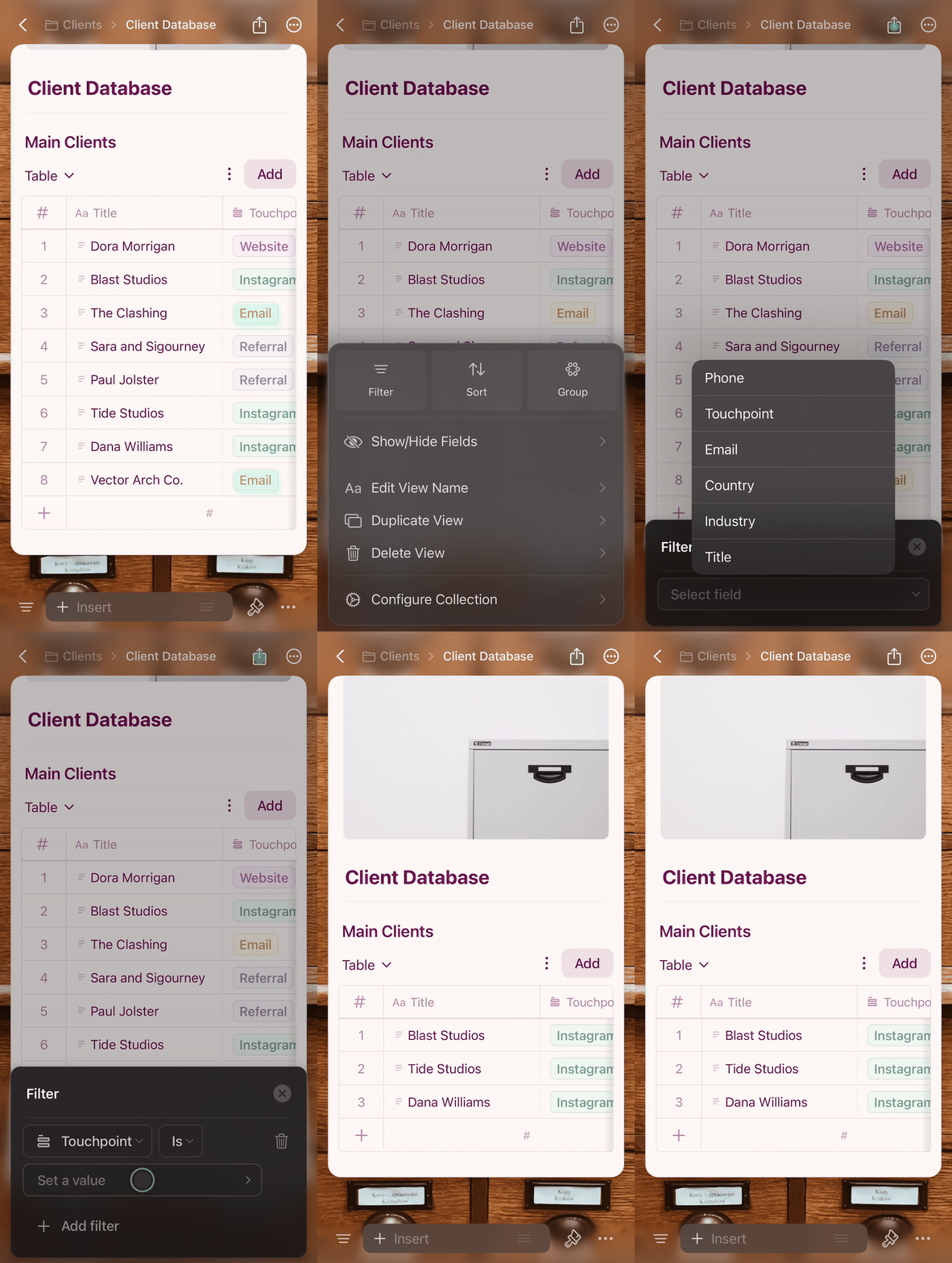
僅顯示符合特定條件的項目。
點一下設定選單 **(⋯)**
選擇 **Filter** 並選擇欄位
設定篩選條件
點一下面板外部以套用
## 篩選、排序和分組
透過集合頂部的設定選單(⋯)存取這些選項。
### 篩選
僅顯示符合特定條件的項目。
點一下設定選單 **(⋯)**
選擇 **Filter** 並選擇欄位
設定篩選條件
點一下面板外部以套用
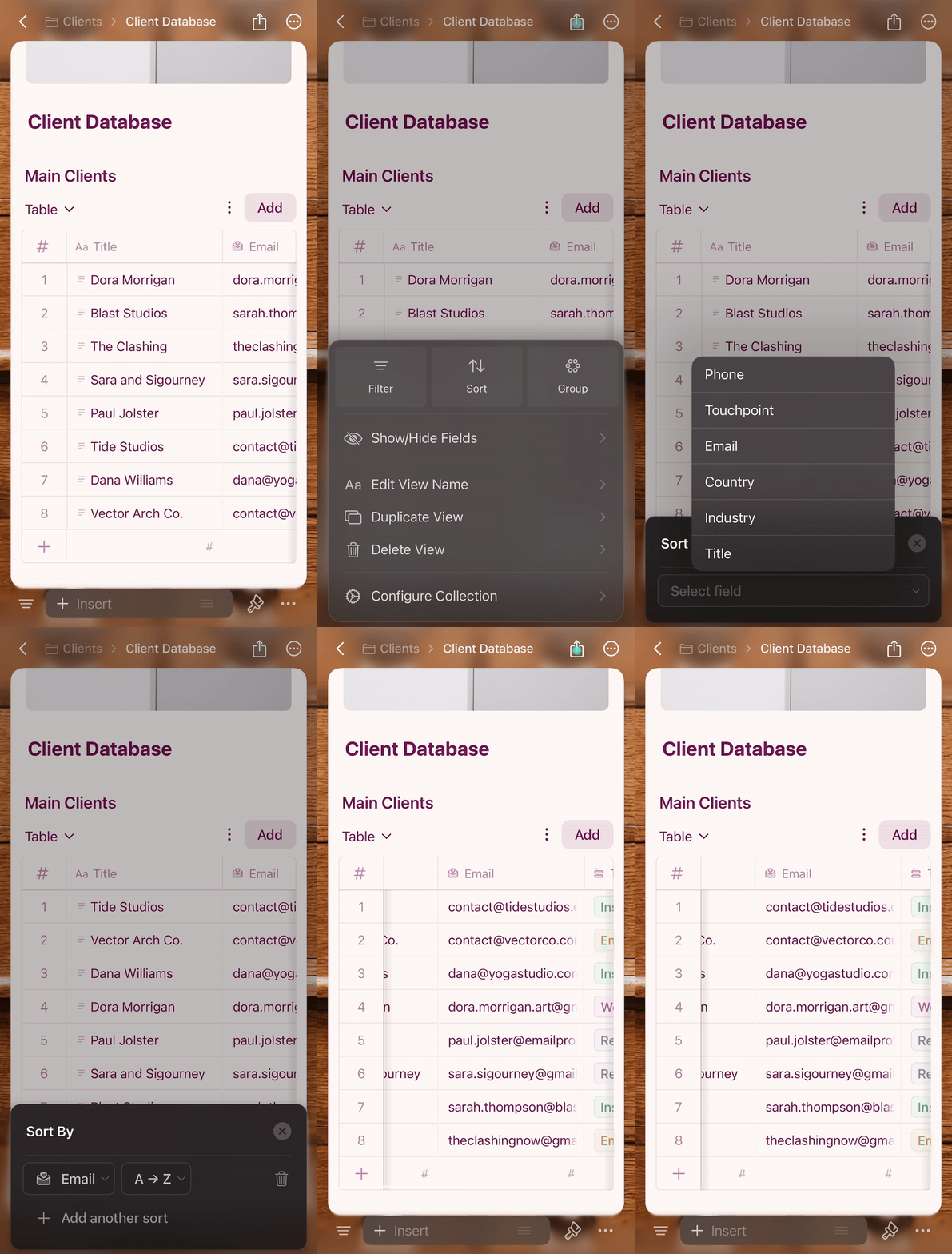
 ### 排序
根據欄位值排列項目。
點一下設定選單 **(⋯)**
選擇 **Sort** 並選擇欄位
選擇遞增或遞減順序
點一下外部以套用
### 排序
根據欄位值排列項目。
點一下設定選單 **(⋯)**
選擇 **Sort** 並選擇欄位
選擇遞增或遞減順序
點一下外部以套用
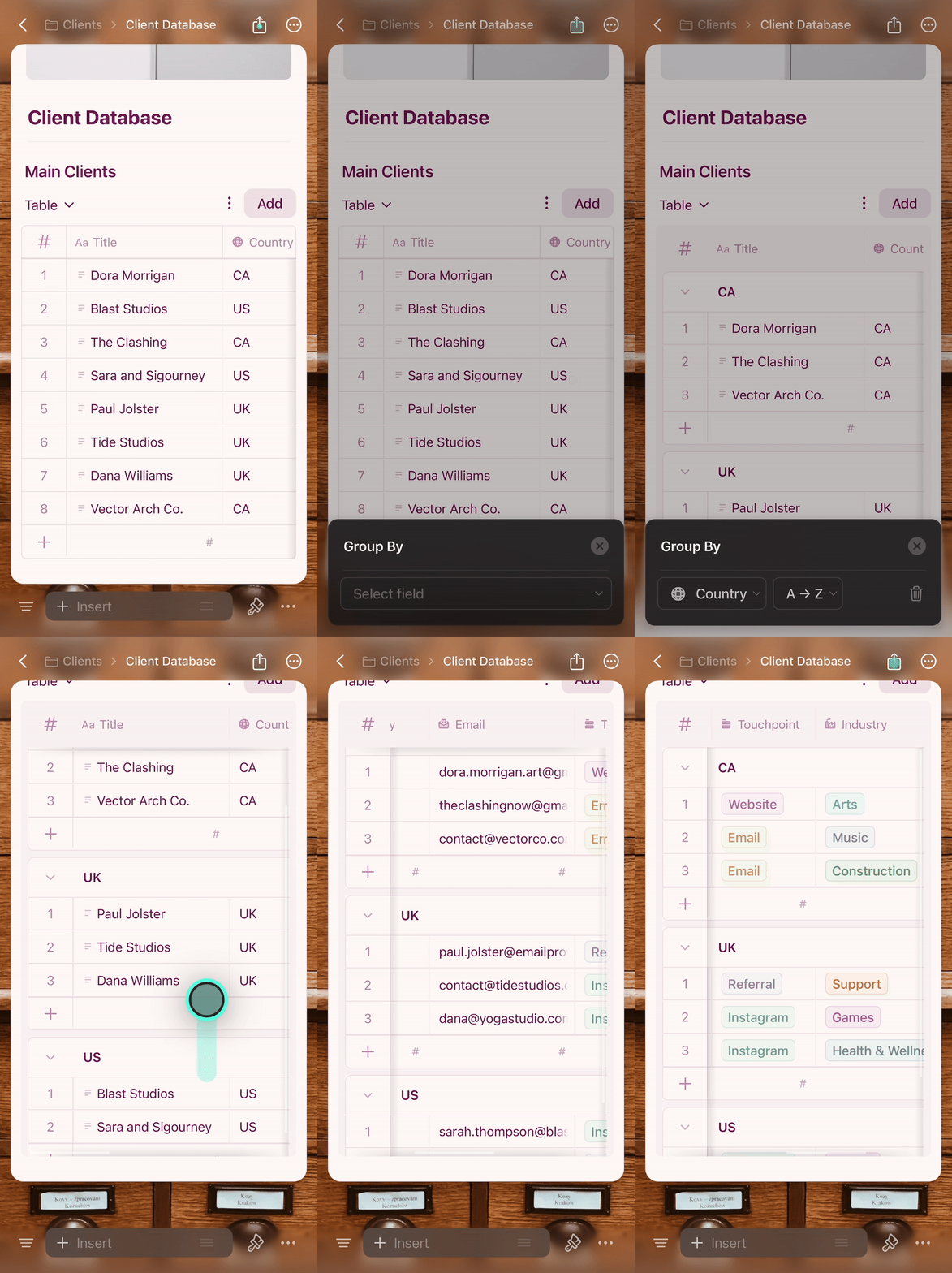
 ### 分組
根據欄位值將項目整理為分組。
點一下設定選單 **(⋯)**
選擇 **Group** 並選擇欄位
點一下外部以套用——分組會自動建立並標記
### 分組
根據欄位值將項目整理為分組。
點一下設定選單 **(⋯)**
選擇 **Group** 並選擇欄位
點一下外部以套用——分組會自動建立並標記
 ### 移除篩選、排序或分組
開啟設定選單(⋯),點一下活動篩選、排序或分組旁邊的**垃圾桶圖示**。
### 移除篩選、排序或分組
開啟設定選單(⋯),點一下活動篩選、排序或分組旁邊的**垃圾桶圖示**。
 ## iOS 使用秘訣
* **長按**相當於按右鍵——在列、卡片和儲存格上使用可存取快捷操作
* **滑動手勢**可讓你快速在項目之間導覽
* 為了在 iPhone 上獲得最佳體驗,請保持集合精簡——iPad 能更輕鬆地處理較大的資料集。
* 圖庫檢視非常適合在 iPhone 上單手瀏覽,尤其是在全螢幕模式下
## 相關文章
了解集合及其核心功能
以帶有圖片預覽的視覺化卡片顯示你的集合
建立和管理資料的不同檢視
自訂欄位和欄的順序
## iOS 使用秘訣
* **長按**相當於按右鍵——在列、卡片和儲存格上使用可存取快捷操作
* **滑動手勢**可讓你快速在項目之間導覽
* 為了在 iPhone 上獲得最佳體驗,請保持集合精簡——iPad 能更輕鬆地處理較大的資料集。
* 圖庫檢視非常適合在 iPhone 上單手瀏覽,尤其是在全螢幕模式下
## 相關文章
了解集合及其核心功能
以帶有圖片預覽的視覺化卡片顯示你的集合
建立和管理資料的不同檢視
自訂欄位和欄的順序