> ## Documentation Index
> Fetch the complete documentation index at: https://craft-support.mintlify.site/llms.txt
> Use this file to discover all available pages before exploring further.
# Collection 的 Gallery View
> 將 Collection 條目以帶有圖片預覽的視覺化卡片呈現。非常適合在 Craft 中用於作品集、媒體庫以及視覺化專案追蹤。
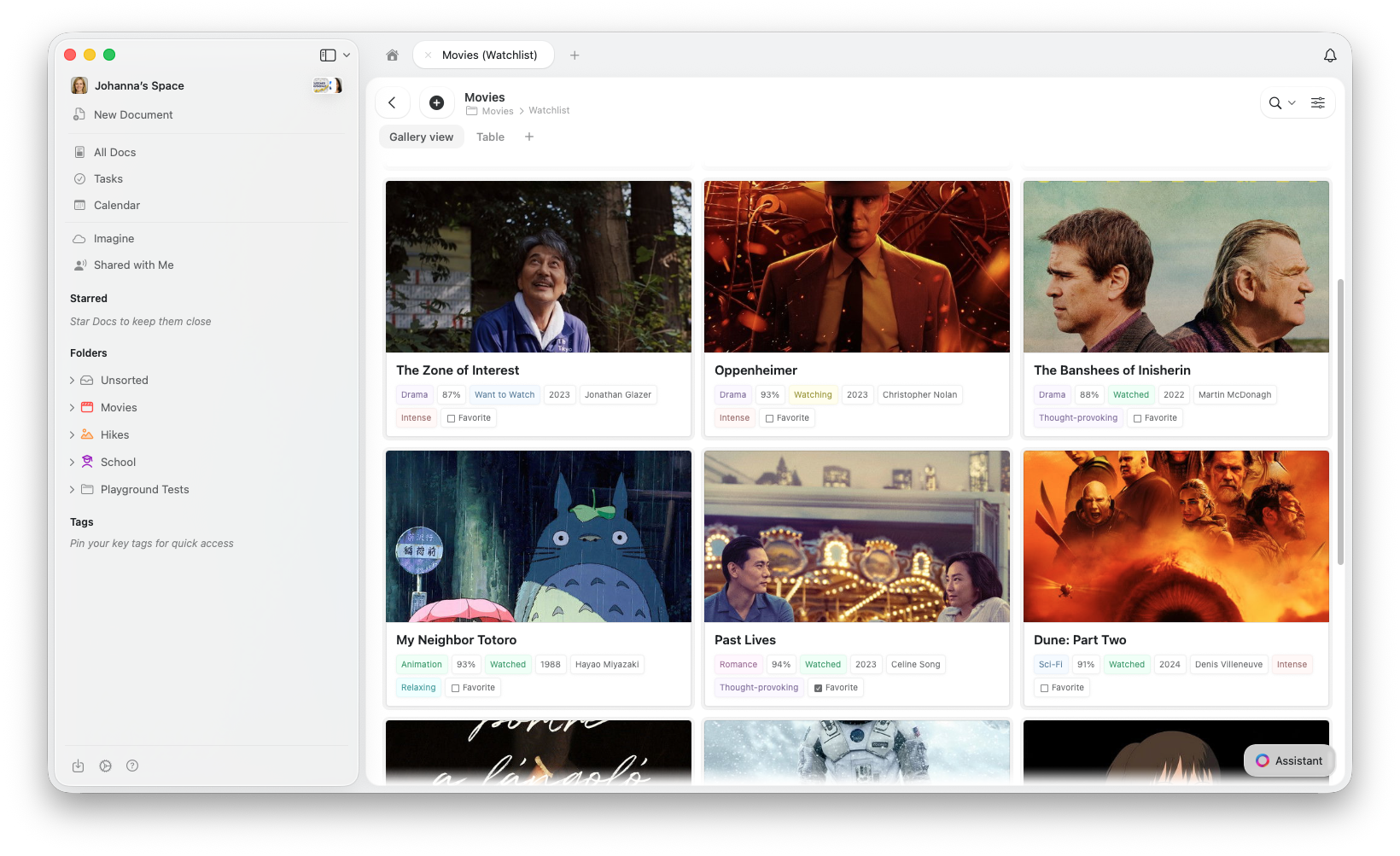
Gallery View 將 Collection 條目以視覺化卡片網格的形式顯示,每張卡片一目了然地呈現預覽圖片和關鍵屬性。
 ## Gallery 檢視與其他檢視的比較
所有檢視共用相同的資料,在它們之間切換不會刪除或修改你的項目。
| 使用 Gallery 的時機... | 使用 Table 的時機... | 使用 Kanban 的時機... |
| ----------------- | --------------- | ------------------- |
| 項目含有圖片或視覺內容 | 並排比較多個欄位 | 追蹤項目經歷不同階段(待辦 → 完成) |
| 視覺瀏覽(作品集、媒體) | 試算表式編輯 | 想要視覺化工作流程看板 |
| 附帶預覽的精簡概覽 | 批次資料輸入 | 狀態變更頻繁 |
## 建立 Gallery View
點選 Collection 頂部檢視標籤頁旁的 **+** 按鈕
選擇 **Add Gallery View**
## Gallery 檢視與其他檢視的比較
所有檢視共用相同的資料,在它們之間切換不會刪除或修改你的項目。
| 使用 Gallery 的時機... | 使用 Table 的時機... | 使用 Kanban 的時機... |
| ----------------- | --------------- | ------------------- |
| 項目含有圖片或視覺內容 | 並排比較多個欄位 | 追蹤項目經歷不同階段(待辦 → 完成) |
| 視覺瀏覽(作品集、媒體) | 試算表式編輯 | 想要視覺化工作流程看板 |
| 附帶預覽的精簡概覽 | 批次資料輸入 | 狀態變更頻繁 |
## 建立 Gallery View
點選 Collection 頂部檢視標籤頁旁的 **+** 按鈕
選擇 **Add Gallery View**
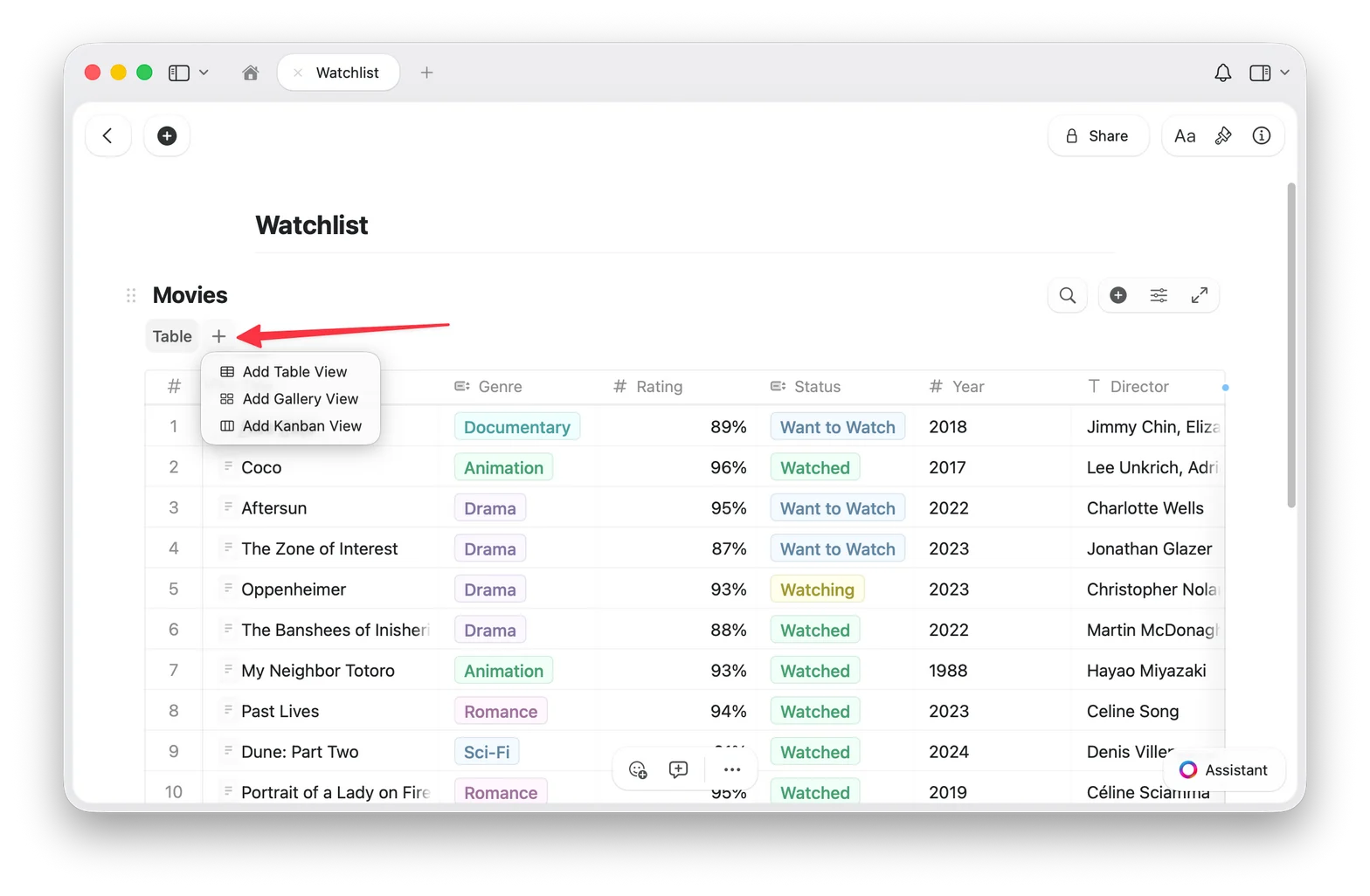 新的 Gallery View 會以分頁的形式出現在 Collection 頂部
## 切換回 Table View
如果你有多個檢視,點擊 Collection 頂部的 **Table** 檢視分頁。如果只有一個 Gallery View,使用設定選單(⋯)新增 Table View。
你的資料始終是安全的,切換檢視不會更改你的條目。
## 預覽類型
Gallery View 從**每個條目頁面的內容**中取得預覽圖片。要為卡片的預覽新增圖片,請開啟該條目並在其內容中新增圖片區塊。
開啟 Collection 中的任意條目,在頁面內容中新增圖片。Gallery View 會自動將該圖片用作卡片預覽。
你可以控制每張卡片預覽區域的顯示方式:
* **Document**(預設):顯示條目頁面內容的預覽
* **Fill**:用條目的圖片填滿卡片的預覽區域
* **Immersive**:將圖片用作卡片的全幅背景
* **無預覽**:完全隱藏預覽區域,僅顯示屬性
在 **Gallery Options** 中更改預覽類型(見下文)。
## 卡片大小
Gallery View 提供兩種卡片大小:
* **Small**:精簡網格,一次顯示更多卡片
* **Large**:更大的預覽,每行更少的卡片
## Gallery Options
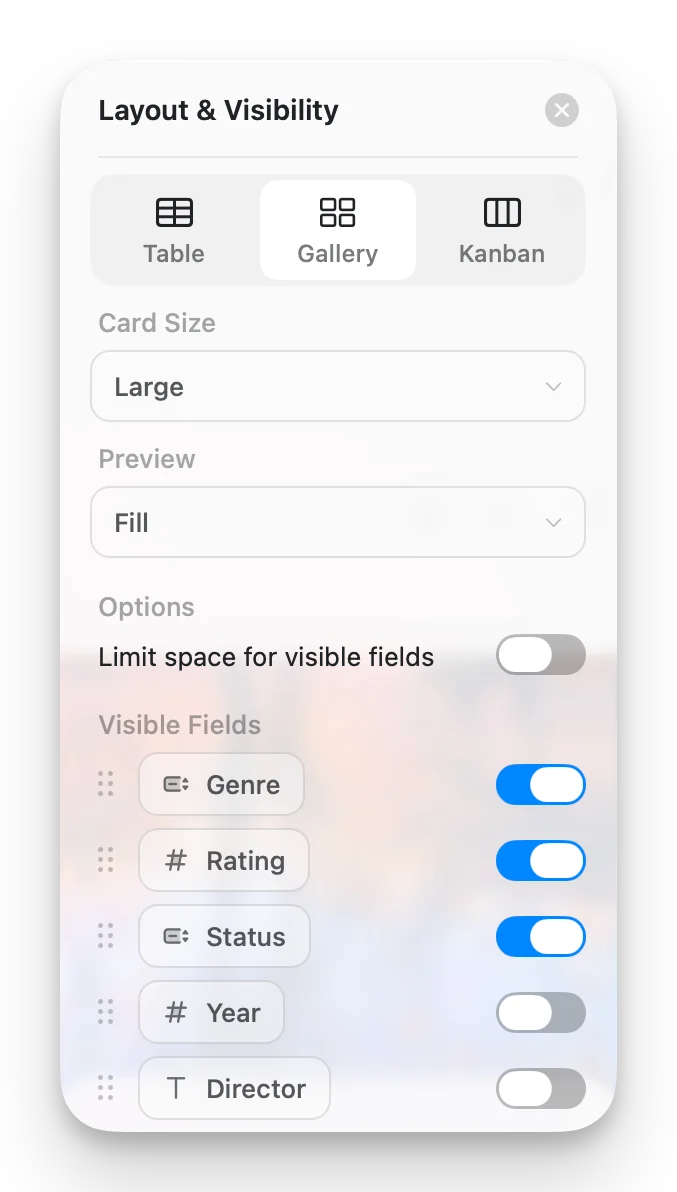
從設定選單(⋯)存取 Gallery Options 來自訂你的檢視:
* **Card Size**:Small 或 Large
* **Preview**:Document、Fill、Immersive 或無預覽
* **Limit visible fields**:啟用時(預設),卡片顯示有限數量的屬性,其餘以「+n」指示器顯示。關閉此選項可在每張卡片上顯示所有已啟用的欄位。
* **Fields**:選擇每張卡片上顯示的欄位並切換其可見性
新的 Gallery View 會以分頁的形式出現在 Collection 頂部
## 切換回 Table View
如果你有多個檢視,點擊 Collection 頂部的 **Table** 檢視分頁。如果只有一個 Gallery View,使用設定選單(⋯)新增 Table View。
你的資料始終是安全的,切換檢視不會更改你的條目。
## 預覽類型
Gallery View 從**每個條目頁面的內容**中取得預覽圖片。要為卡片的預覽新增圖片,請開啟該條目並在其內容中新增圖片區塊。
開啟 Collection 中的任意條目,在頁面內容中新增圖片。Gallery View 會自動將該圖片用作卡片預覽。
你可以控制每張卡片預覽區域的顯示方式:
* **Document**(預設):顯示條目頁面內容的預覽
* **Fill**:用條目的圖片填滿卡片的預覽區域
* **Immersive**:將圖片用作卡片的全幅背景
* **無預覽**:完全隱藏預覽區域,僅顯示屬性
在 **Gallery Options** 中更改預覽類型(見下文)。
## 卡片大小
Gallery View 提供兩種卡片大小:
* **Small**:精簡網格,一次顯示更多卡片
* **Large**:更大的預覽,每行更少的卡片
## Gallery Options
從設定選單(⋯)存取 Gallery Options 來自訂你的檢視:
* **Card Size**:Small 或 Large
* **Preview**:Document、Fill、Immersive 或無預覽
* **Limit visible fields**:啟用時(預設),卡片顯示有限數量的屬性,其餘以「+n」指示器顯示。關閉此選項可在每張卡片上顯示所有已啟用的欄位。
* **Fields**:選擇每張卡片上顯示的欄位並切換其可見性
 ## 使用 Gallery 卡片
* **開啟條目**:點擊卡片開啟其完整頁面
* **右鍵選單**:右鍵點擊(Mac)或長按(iOS)取得更多選項
* **選擇卡片**:點擊選擇,Shift+點擊多選
## 排序、篩選和分組
Gallery View 支援排序、篩選和分組,與 Table View 中相同的選項。分組後的畫廊會在卡片組之間顯示區段標題。
## 使用 Gallery 卡片
* **開啟條目**:點擊卡片開啟其完整頁面
* **右鍵選單**:右鍵點擊(Mac)或長按(iOS)取得更多選項
* **選擇卡片**:點擊選擇,Shift+點擊多選
## 排序、篩選和分組
Gallery View 支援排序、篩選和分組,與 Table View 中相同的選項。分組後的畫廊會在卡片組之間顯示區段標題。
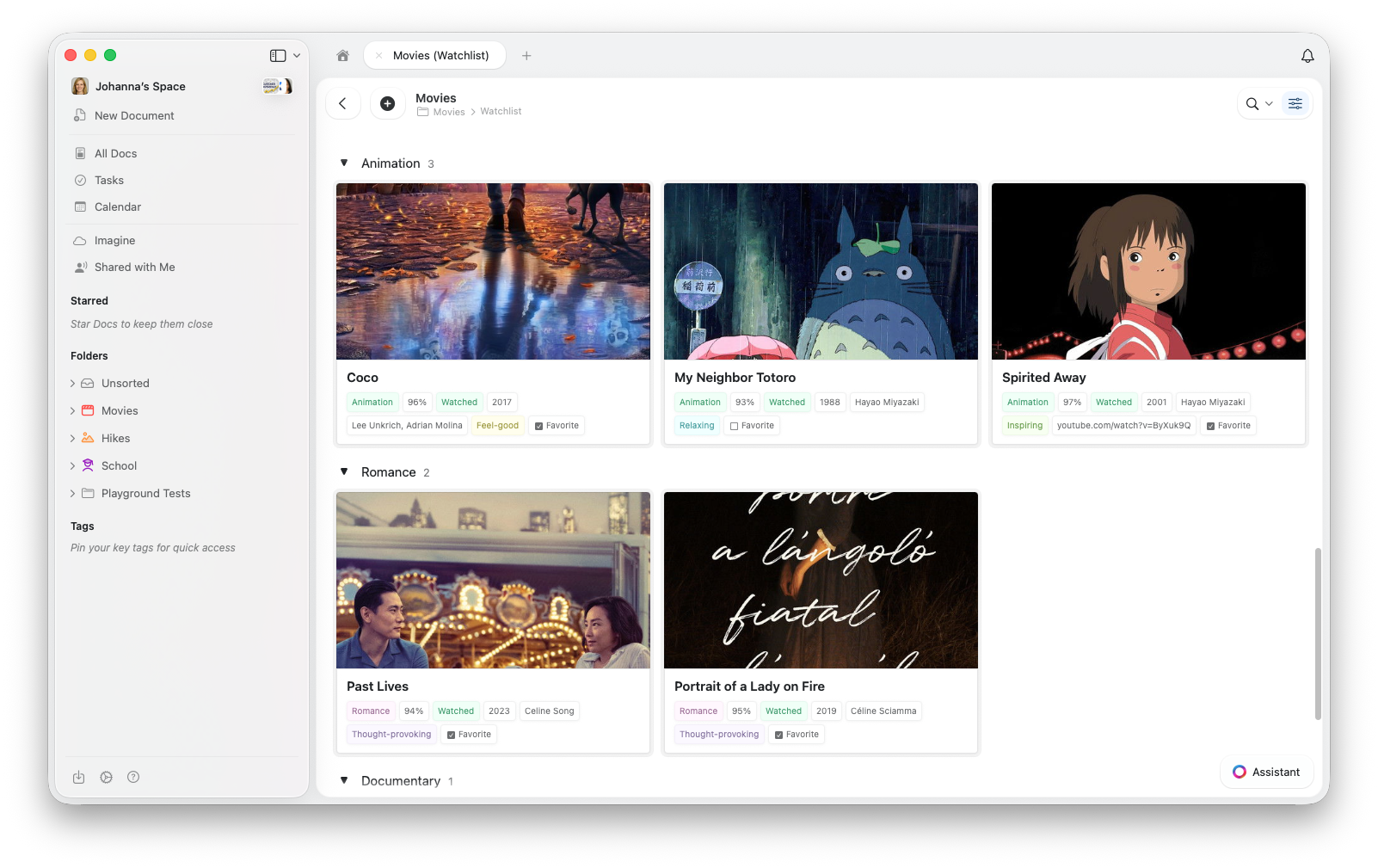 有關排序、篩選和分組的詳細說明,請參閱 [Collection Views](/zh-Hant/organize-and-find/collections/views)。
## 疑難排解
Gallery View 從**每個條目頁面的內容**中取得預覽圖片。要新增圖片,請點擊卡片開啟條目,然後在頁面內容中新增圖片區塊。
也請檢查 Gallery Options 中的 Preview 設定,將其設為 **Document** 或 **Fill**。
請確保你的應用程式是最新版本。在應用程式商店中檢查更新或重新整理瀏覽器。
Gallery View 會在捲動時載入圖片預覽。如果感覺效能不佳,請嘗試減少每張卡片上顯示的屬性數量。
## 相關文章
了解 Craft Collections 和欄位類型
建立包含排序、篩選和分組的檢視
透過拖放欄位依狀態或任意選擇欄位整理項目
自訂 Collections 中的欄位和欄順序
iPhone 和 iPad 上的觸控最佳化 Collections
有關排序、篩選和分組的詳細說明,請參閱 [Collection Views](/zh-Hant/organize-and-find/collections/views)。
## 疑難排解
Gallery View 從**每個條目頁面的內容**中取得預覽圖片。要新增圖片,請點擊卡片開啟條目,然後在頁面內容中新增圖片區塊。
也請檢查 Gallery Options 中的 Preview 設定,將其設為 **Document** 或 **Fill**。
請確保你的應用程式是最新版本。在應用程式商店中檢查更新或重新整理瀏覽器。
Gallery View 會在捲動時載入圖片預覽。如果感覺效能不佳,請嘗試減少每張卡片上顯示的屬性數量。
## 相關文章
了解 Craft Collections 和欄位類型
建立包含排序、篩選和分組的檢視
透過拖放欄位依狀態或任意選擇欄位整理項目
自訂 Collections 中的欄位和欄順序
iPhone 和 iPad 上的觸控最佳化 Collections