> ## Documentation Index
> Fetch the complete documentation index at: https://craft-support.mintlify.site/llms.txt
> Use this file to discover all available pages before exploring further.
# 移轉至 Craft
> 將你的筆記和文件順暢遷移到 Craft。
Craft 讓你可以輕鬆從其他筆記和文件應用程式匯入內容。匯入現有文件,立即開始使用 Craft 強大的功能。
## 為什麼要改用 Craft?
以下是大家最喜愛的一些優點:
* **乾淨、無干擾的介面** - 設計能幫助你專注、清晰思考,並建立美觀的內容
* **跨平台離線存取** - 可在 macOS、iOS、iPadOS、Windows、Web 和 Android 上離線工作,並自動同步
* **美觀、有結構的文件** - 使用彈性的版面、樣式卡片和直覺的巢狀結構,打造視覺上精緻的頁面
* **快速且流暢** - 在所有平台上都輕量且經過效能最佳化
* **依你的方式整理** - 使用資料夾、巢狀頁面、反向連結和集合,以你喜歡的方式管理內容
* **無縫分享與協作** - 即時協作,並提供強大的發佈選項
## 在哪裡找到匯入?
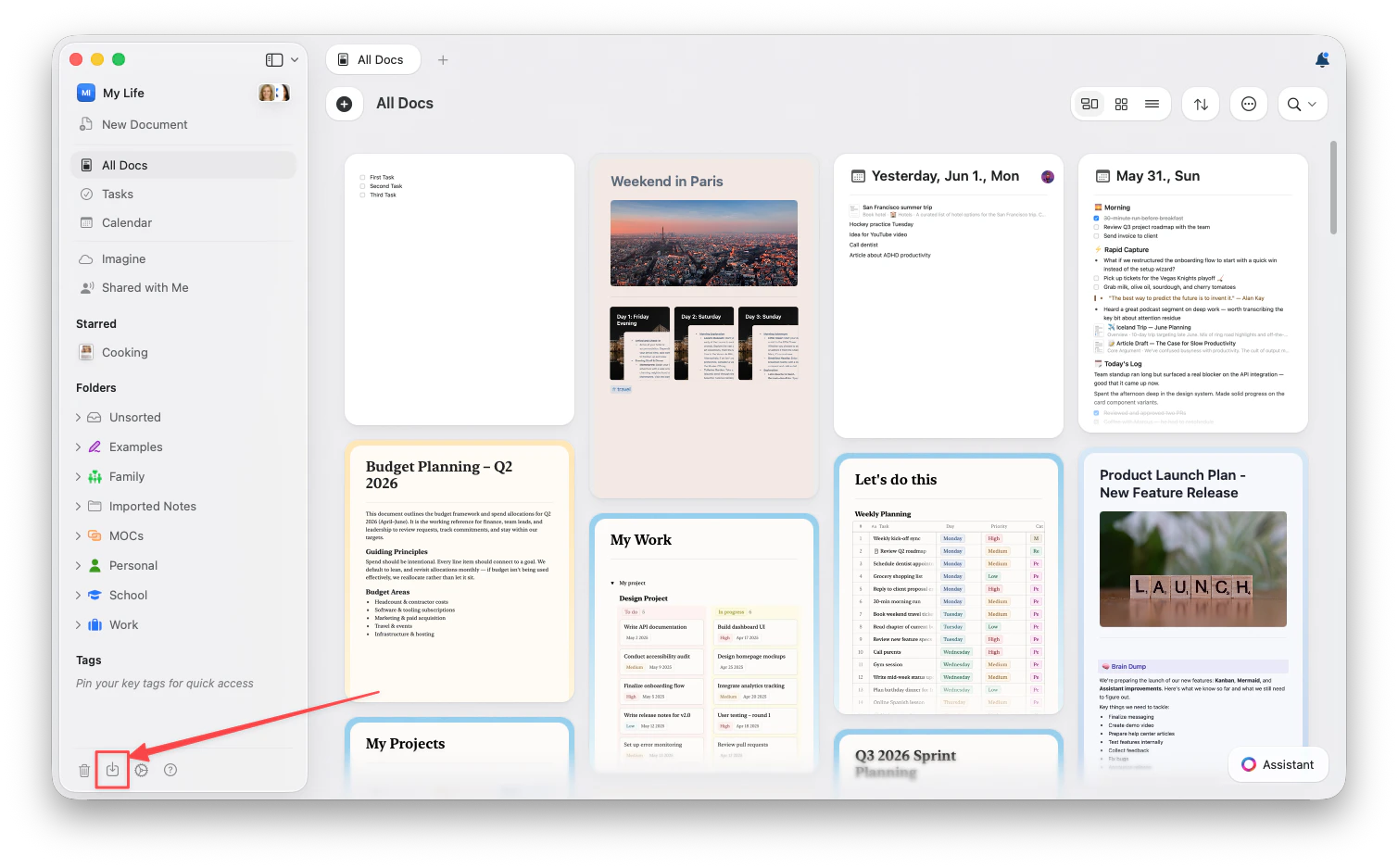
打開 Craft,然後點擊左側側邊欄底部的 **匯入** 圖示。你也可以在 **所有文件**、**整理** 或 **未分類** 檢視中,從右上角的三點選單(⋯)進入。
 在 Web 和 Windows 上,不支援 TextBundle 匯入。
## 選擇你的應用程式
每個應用程式都有各自的匯入流程。選擇你的應用程式,查看逐步說明:
直接連結你的工作區,不需要先匯出檔案
匯出 .enex 檔案並上傳
從 Google 雲端硬碟匯入文件
匯入保留反向連結的保管庫
移轉你的筆記和資料夾
轉移含標籤與附件的筆記
匯入筆記本與區段
帶入你的知識圖譜
匯入空間與物件
直接匯入標準檔案格式
## 會匯入哪些內容?
視來源應用程式和格式而定,匯入內容可能包含:
* **文字內容**,以及格式(粗體、斜體、連結)
* **圖片和附件**
* **文件結構**(標題、清單、巢狀層級)
* **表格**和結構化資料
* **文件之間的連結**(若來源支援)
* **標籤**和中繼資料(若來源支援)
## 匯入後
內容進入 Craft 後:
1. **檢查並整理** - 確認所有內容都已正確匯入
2. **更新連結** - 內部連結應可正常運作,但請確認任何外部參照
3. **套用 Craft 樣式** - 使用文件樣式、卡片和頁面樣式來強化內容
4. **設定資料夾和空間** - 使用 Craft 的資料夾結構整理內容
## 需要協助嗎?
如果你在轉換過程中遇到任何問題或有疑問,歡迎[聯絡支援](https://craftdocs.zendesk.com/hc/en-us/requests/new)。我們很期待你加入 Craft 社群!
## 相關文章
各應用程式匯入方式的詳細指南
了解如何在 Craft 中整理內容
使用資料庫和結構化內容
在 Web 和 Windows 上,不支援 TextBundle 匯入。
## 選擇你的應用程式
每個應用程式都有各自的匯入流程。選擇你的應用程式,查看逐步說明:
直接連結你的工作區,不需要先匯出檔案
匯出 .enex 檔案並上傳
從 Google 雲端硬碟匯入文件
匯入保留反向連結的保管庫
移轉你的筆記和資料夾
轉移含標籤與附件的筆記
匯入筆記本與區段
帶入你的知識圖譜
匯入空間與物件
直接匯入標準檔案格式
## 會匯入哪些內容?
視來源應用程式和格式而定,匯入內容可能包含:
* **文字內容**,以及格式(粗體、斜體、連結)
* **圖片和附件**
* **文件結構**(標題、清單、巢狀層級)
* **表格**和結構化資料
* **文件之間的連結**(若來源支援)
* **標籤**和中繼資料(若來源支援)
## 匯入後
內容進入 Craft 後:
1. **檢查並整理** - 確認所有內容都已正確匯入
2. **更新連結** - 內部連結應可正常運作,但請確認任何外部參照
3. **套用 Craft 樣式** - 使用文件樣式、卡片和頁面樣式來強化內容
4. **設定資料夾和空間** - 使用 Craft 的資料夾結構整理內容
## 需要協助嗎?
如果你在轉換過程中遇到任何問題或有疑問,歡迎[聯絡支援](https://craftdocs.zendesk.com/hc/en-us/requests/new)。我們很期待你加入 Craft 社群!
## 相關文章
各應用程式匯入方式的詳細指南
了解如何在 Craft 中整理內容
使用資料庫和結構化內容