> ## Documentation Index
> Fetch the complete documentation index at: https://craft-support.mintlify.site/llms.txt
> Use this file to discover all available pages before exploring further.
# Email to Craft
> 將電子郵件直接轉寄到 Craft,以擷取想法並將郵件轉為任務或文件。
**Email to Craft** 讓你可以直接將電子郵件轉寄到你的 Craft 工作區,將郵件轉為任務、文件或每日筆記。無論是管理電子報、提醒或待辦事項,此功能都能在不離開收件匣的情況下,協助你維持整理有序。
## 設定方式
開啟任何 Craft 應用(Mac、iPad、iPhone 或 Web)。如果你在桌面使用 Web 應用,也可以直接透過此連結開啟設定頁面:[Email to Craft Settings page](https://docs.craft.do/email-to-craft).
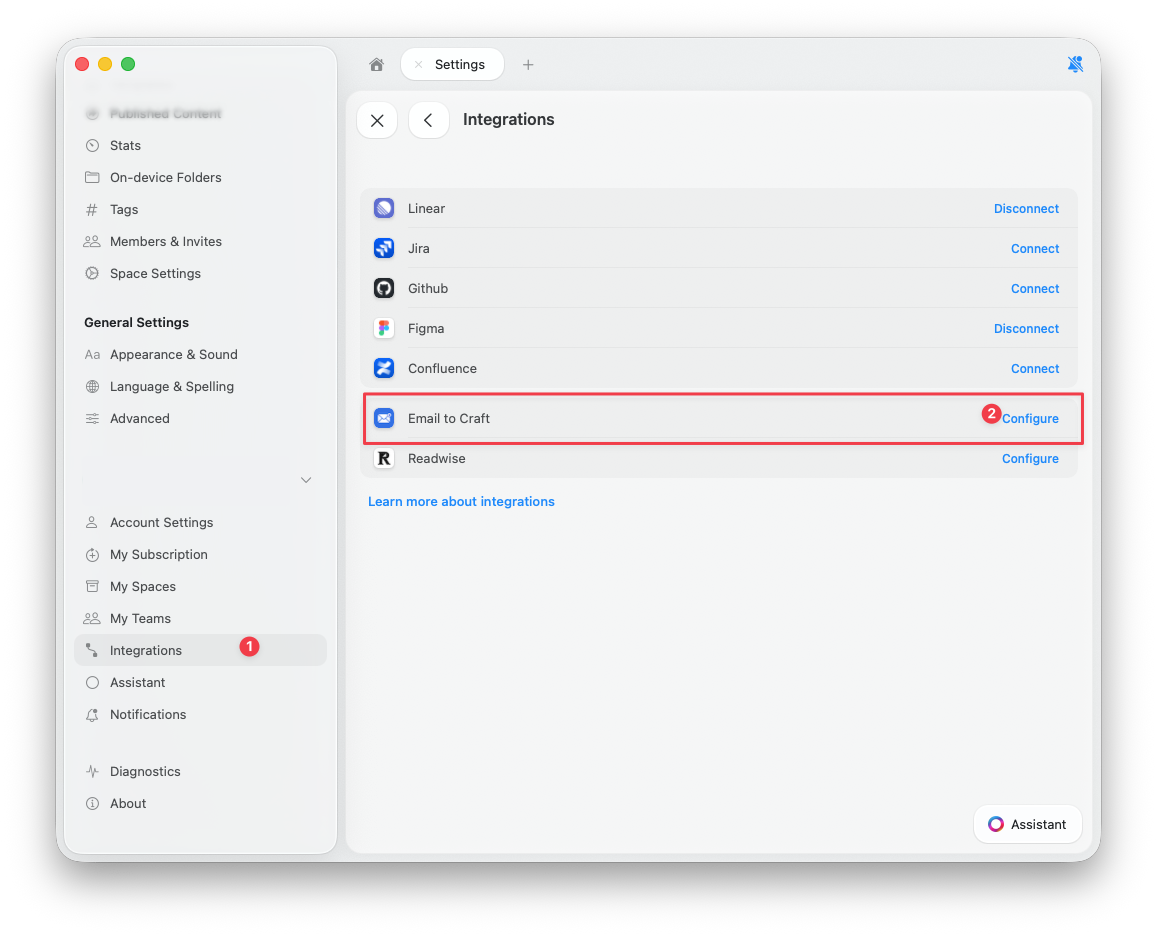
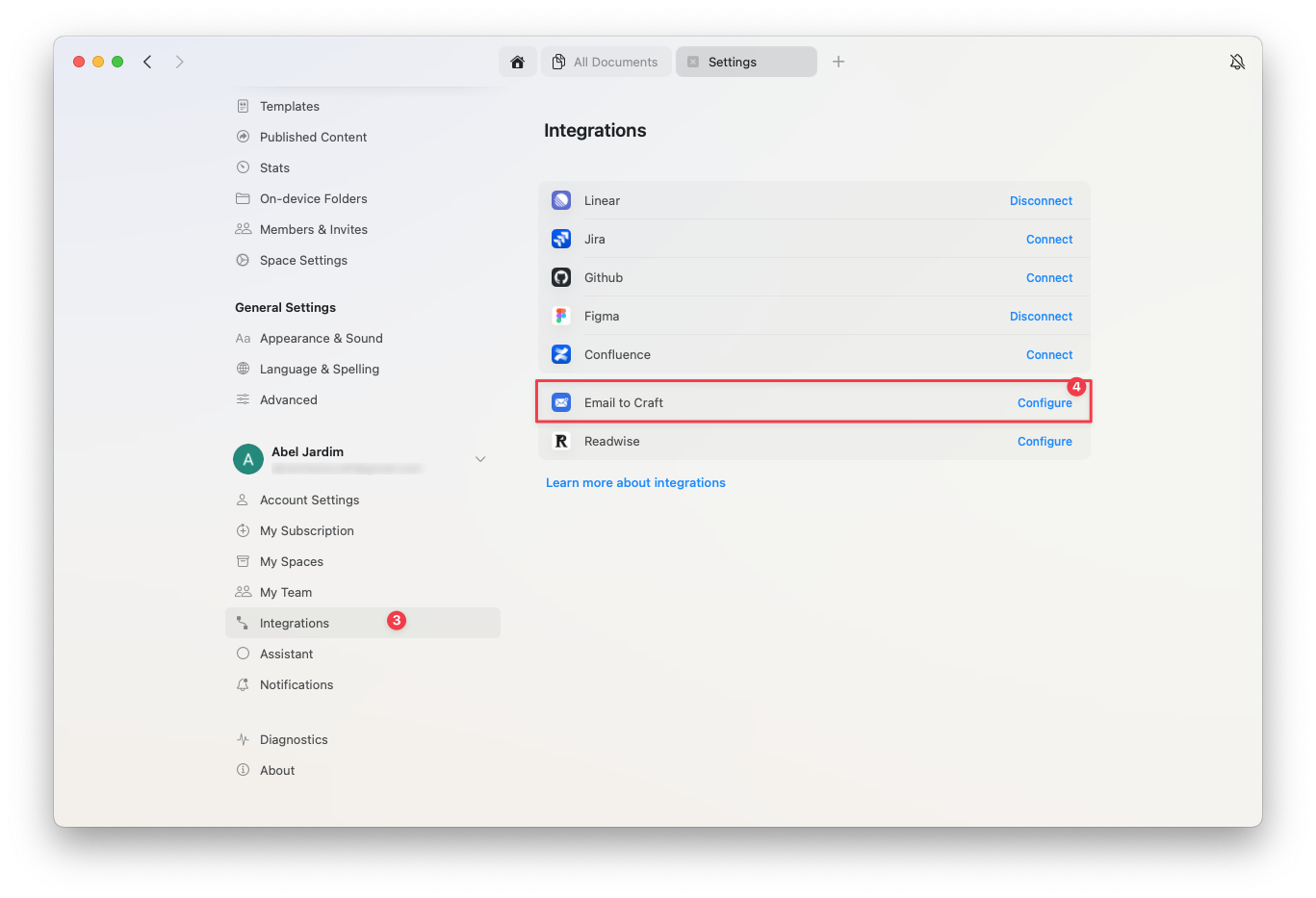
前往 **設定 → Integrations → Email to Craft → Configure**。
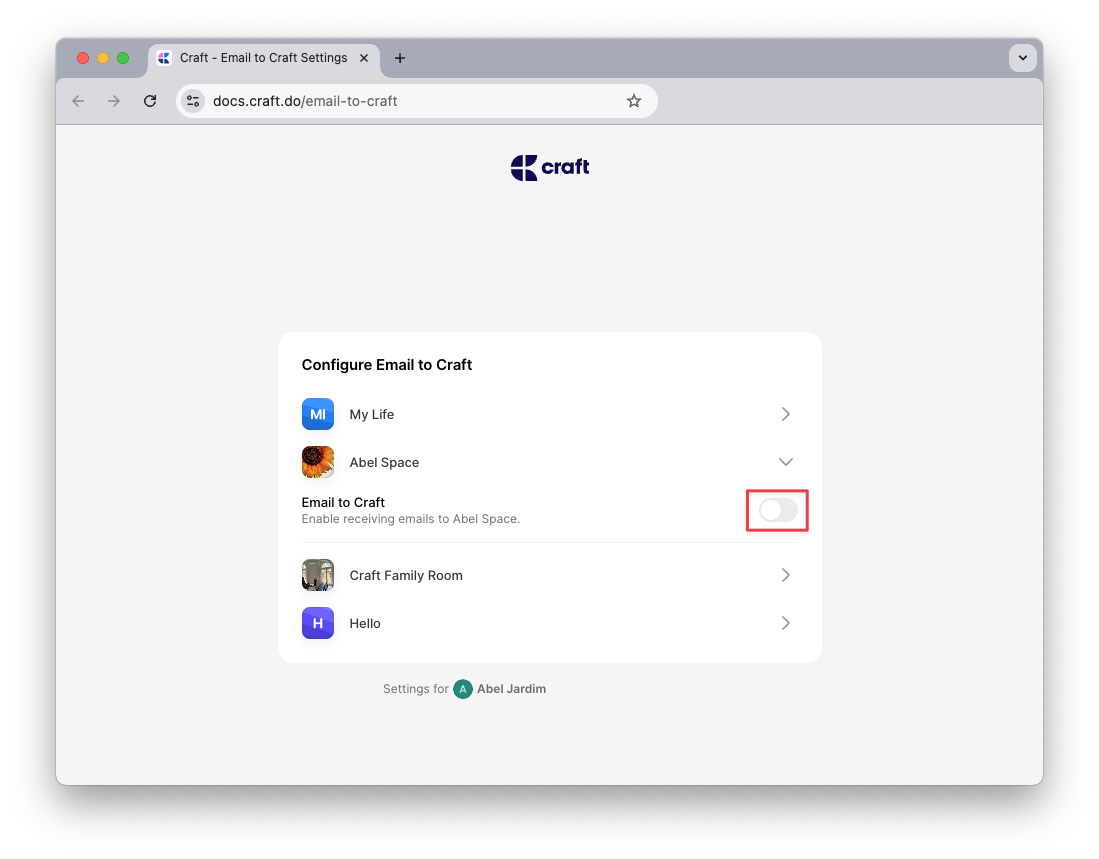
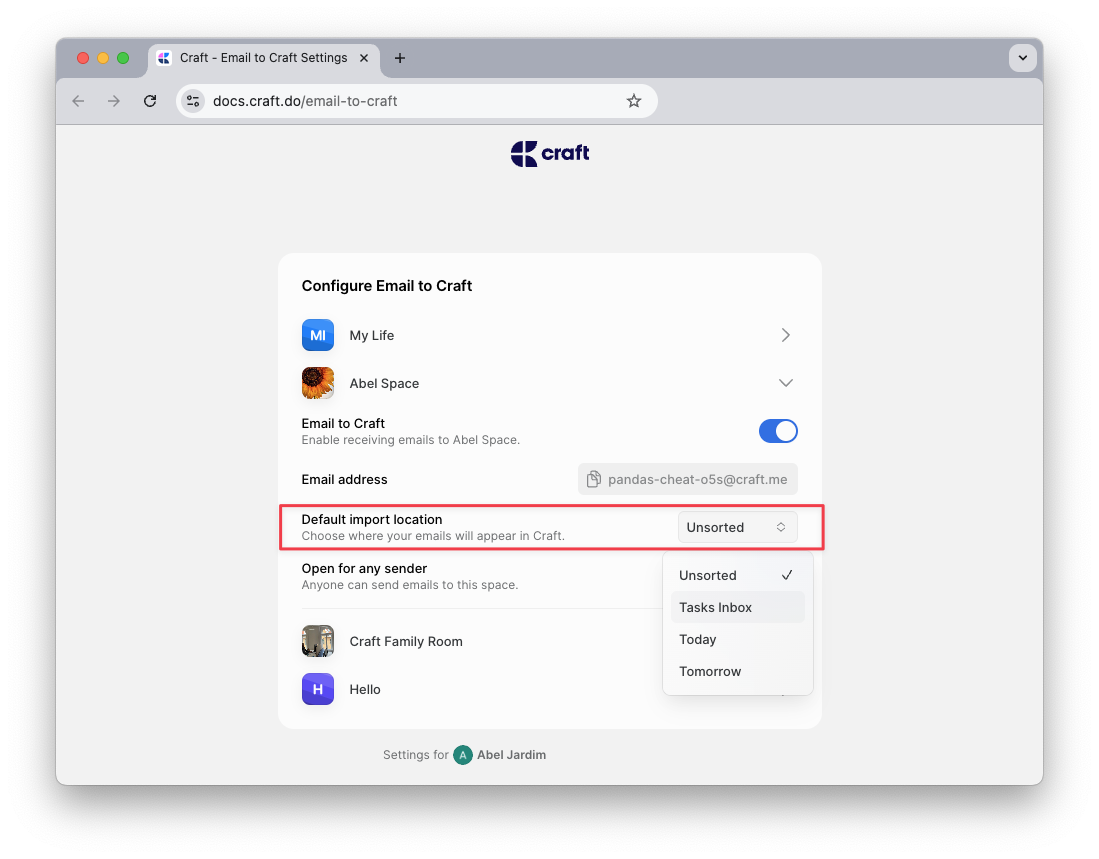
 選擇要接收轉寄郵件的 Craft 空間(Space),並啟用 Email to Craft 功能。
 系統會產生一組專屬電子郵件地址 – 你可將郵件轉寄至該地址以匯入 Craft。
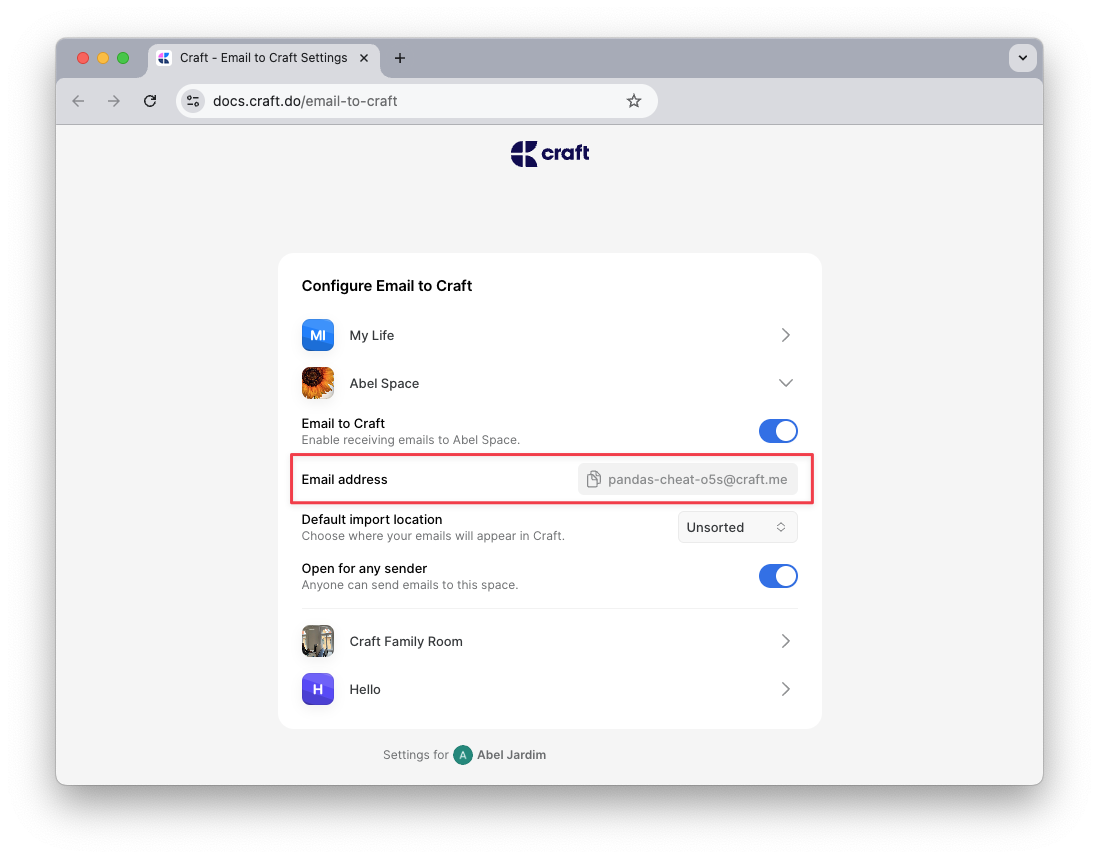 在相同的設定頁面,你也可以定義來信的預設處理方式。
 ## 運作方式
Craft 會透過主旨中的簡單標記來判斷轉寄郵件的處理方式。這些標記包含任務標記、位置標記以及期限標記。
### 建立任務
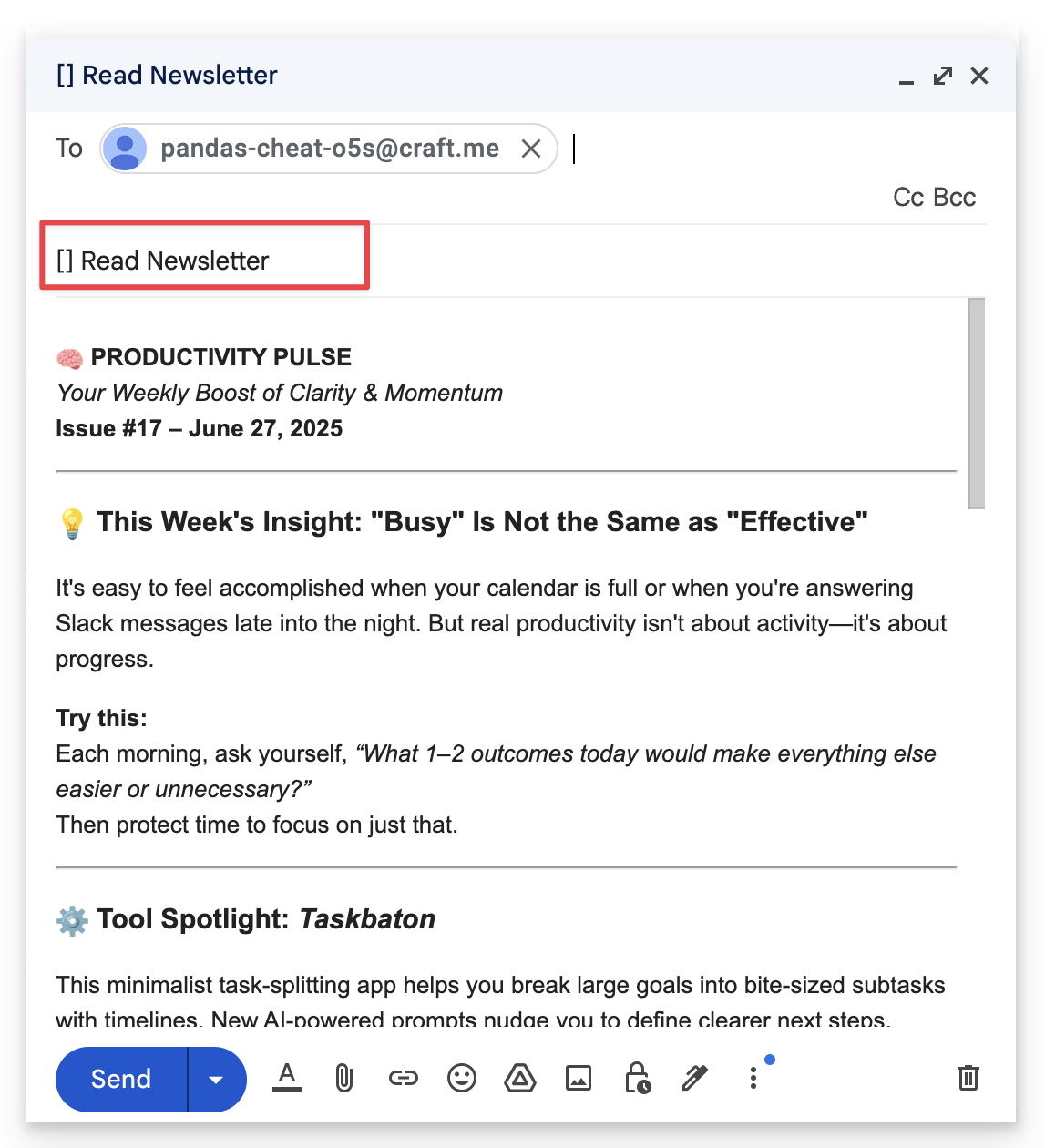
要將郵件轉為任務,請在主旨開頭加入 **`[ ]`**。
**範例**: `[ ] Read newsletter`
## 運作方式
Craft 會透過主旨中的簡單標記來判斷轉寄郵件的處理方式。這些標記包含任務標記、位置標記以及期限標記。
### 建立任務
要將郵件轉為任務,請在主旨開頭加入 **`[ ]`**。
**範例**: `[ ] Read newsletter`
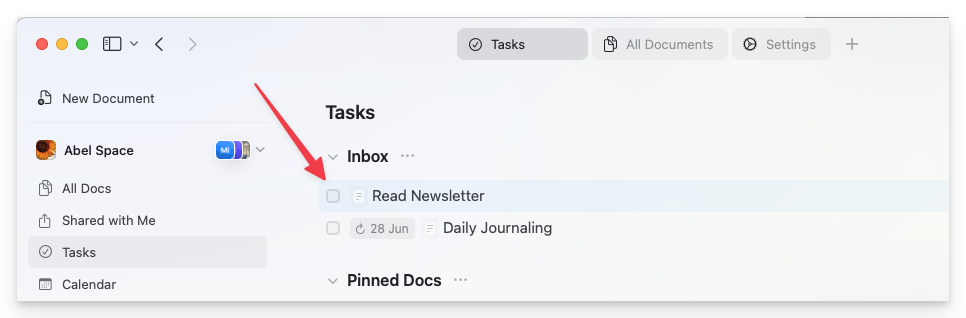
 任務會被加入到你的 **任務 Inbox**,除非你指定不同的位置(見下方)。
 ### 選擇位置
使用 **`>`** 標記來設定郵件要放置的位置:
* **`>today`**, **`>tomorrow`**, 或 **`>yesterday`** – 將內容加入對應的每日筆記
* **`>YYYY-MM-DD`** – 將內容加入當日的每日筆記
* **`>unsorted`** – 在 Unsorted 資料夾中建立新的獨立文件
**範例**: `[ ] Team meeting notes >2025-07-01`
### 加入期限
若要為任務設定期限,請使用 **`!`** 標記:
* **`!today`**, **`!tomorrow`**, 或 **`!YYYY-MM-DD`** – 為任務設定期限
**範例**: `[ ] Submit report >today !tomorrow`
→ 這會在今日的每日筆記中建立一個任務,並將期限設定為明天。
## 預設行為
如果你未在主旨中加入任何標記,Craft 將套用你的 **預設匯入設定**,你可以在 [Email to Craft Settings page](https://docs.craft.do/email-to-craft) 上進行設定。
## 附件
* 支援 PDF、圖片與文件等附件,會匯入到 Craft 文件中
* **影片** 會以 **可下載的檔案區塊** 匯入,而非內嵌影片播放元件
* 部分電子郵件服務供應商可能無法自動轉寄附件 – 請使用 「Forward with attachments」 以確保附件包含在內。對於 Gmail,請參考 [此文章](https://support.google.com/mail/thread/28000081/how-can-i-forward-an-email-thread-that-includes-attachments?hl=en)
## 格式
Craft 的郵件匯入會調整郵件內容與格式,確保匯入結果整齊且美觀:
* 項目符號與換行會被保留
* 郵件內文中的任務標記(例如 **`[ ]`** 或 **`[x]`**)會轉換為核取清單項目
* 分隔線(例如 **`---`**)會被識別為段落分隔
## 故障排除
如果你轉寄的郵件未出現在 Craft:
* 確認你發信的電子郵件地址已在 **Email to Craft** 設定中授權
* 確保主旨標記(**`[ ]`**, **`>today`**, **`!tomorrow`**)格式正確
* 若使用自動轉寄或轉向(例如透過 Gmail 或 Apple Mail),請確保完整郵件與附件有被轉寄
## 使用情境
Email to Craft 非常適合用於:
* **電子報管理**:將電子報轉寄至 Craft 以便閱讀與整理
* **任務擷取**:把郵件轉為有期限的可執行任務
* **每日記錄**:寄給自己的郵件自動存到今天的每日筆記
* **參考收藏**:轉寄重要郵件以便長期保存
* **會議記錄**:把會議筆記寄到對應的每日筆記
## 快速參考
| 主旨 | 結果 |
| ----------------------------- | ------------------ |
| `[ ] Review document` | 任務在任務 Inbox |
| `[ ] Call client >today` | 任務在今日的每日筆記 |
| `[ ] Submit report !tomorrow` | 任務 – 期限為明天 |
| `Meeting notes >2025-01-15` | 文件於 1 月 15 日的每日筆記中 |
| `Research article >unsorted` | Unsorted 資料夾中的新文件 |
了解在 Craft 中管理任務的更多資訊
使用每日筆記規劃你的一天
### 選擇位置
使用 **`>`** 標記來設定郵件要放置的位置:
* **`>today`**, **`>tomorrow`**, 或 **`>yesterday`** – 將內容加入對應的每日筆記
* **`>YYYY-MM-DD`** – 將內容加入當日的每日筆記
* **`>unsorted`** – 在 Unsorted 資料夾中建立新的獨立文件
**範例**: `[ ] Team meeting notes >2025-07-01`
### 加入期限
若要為任務設定期限,請使用 **`!`** 標記:
* **`!today`**, **`!tomorrow`**, 或 **`!YYYY-MM-DD`** – 為任務設定期限
**範例**: `[ ] Submit report >today !tomorrow`
→ 這會在今日的每日筆記中建立一個任務,並將期限設定為明天。
## 預設行為
如果你未在主旨中加入任何標記,Craft 將套用你的 **預設匯入設定**,你可以在 [Email to Craft Settings page](https://docs.craft.do/email-to-craft) 上進行設定。
## 附件
* 支援 PDF、圖片與文件等附件,會匯入到 Craft 文件中
* **影片** 會以 **可下載的檔案區塊** 匯入,而非內嵌影片播放元件
* 部分電子郵件服務供應商可能無法自動轉寄附件 – 請使用 「Forward with attachments」 以確保附件包含在內。對於 Gmail,請參考 [此文章](https://support.google.com/mail/thread/28000081/how-can-i-forward-an-email-thread-that-includes-attachments?hl=en)
## 格式
Craft 的郵件匯入會調整郵件內容與格式,確保匯入結果整齊且美觀:
* 項目符號與換行會被保留
* 郵件內文中的任務標記(例如 **`[ ]`** 或 **`[x]`**)會轉換為核取清單項目
* 分隔線(例如 **`---`**)會被識別為段落分隔
## 故障排除
如果你轉寄的郵件未出現在 Craft:
* 確認你發信的電子郵件地址已在 **Email to Craft** 設定中授權
* 確保主旨標記(**`[ ]`**, **`>today`**, **`!tomorrow`**)格式正確
* 若使用自動轉寄或轉向(例如透過 Gmail 或 Apple Mail),請確保完整郵件與附件有被轉寄
## 使用情境
Email to Craft 非常適合用於:
* **電子報管理**:將電子報轉寄至 Craft 以便閱讀與整理
* **任務擷取**:把郵件轉為有期限的可執行任務
* **每日記錄**:寄給自己的郵件自動存到今天的每日筆記
* **參考收藏**:轉寄重要郵件以便長期保存
* **會議記錄**:把會議筆記寄到對應的每日筆記
## 快速參考
| 主旨 | 結果 |
| ----------------------------- | ------------------ |
| `[ ] Review document` | 任務在任務 Inbox |
| `[ ] Call client >today` | 任務在今日的每日筆記 |
| `[ ] Submit report !tomorrow` | 任務 – 期限為明天 |
| `Meeting notes >2025-01-15` | 文件於 1 月 15 日的每日筆記中 |
| `Research article >unsorted` | Unsorted 資料夾中的新文件 |
了解在 Craft 中管理任務的更多資訊
使用每日筆記規劃你的一天