> ## Documentation Index
> Fetch the complete documentation index at: https://craft-support.mintlify.site/llms.txt
> Use this file to discover all available pages before exploring further.
# 實用捷徑範例
> 使用 Craft 和 Apple 捷徑記下口述的想法、準備每日筆記、建立任務、收集圖片,或匯入文字檔。
這些範例結合了 Craft 動作與 Apple「捷徑」的動作。下載分享的範例或自行建立,然後選擇你的 Craft 空間和目的地。
步驟中提到變數時,請透過變數選擇器插入。在文字欄位中輸入變數名稱並不會連接輸出結果。
## 語音收件匣
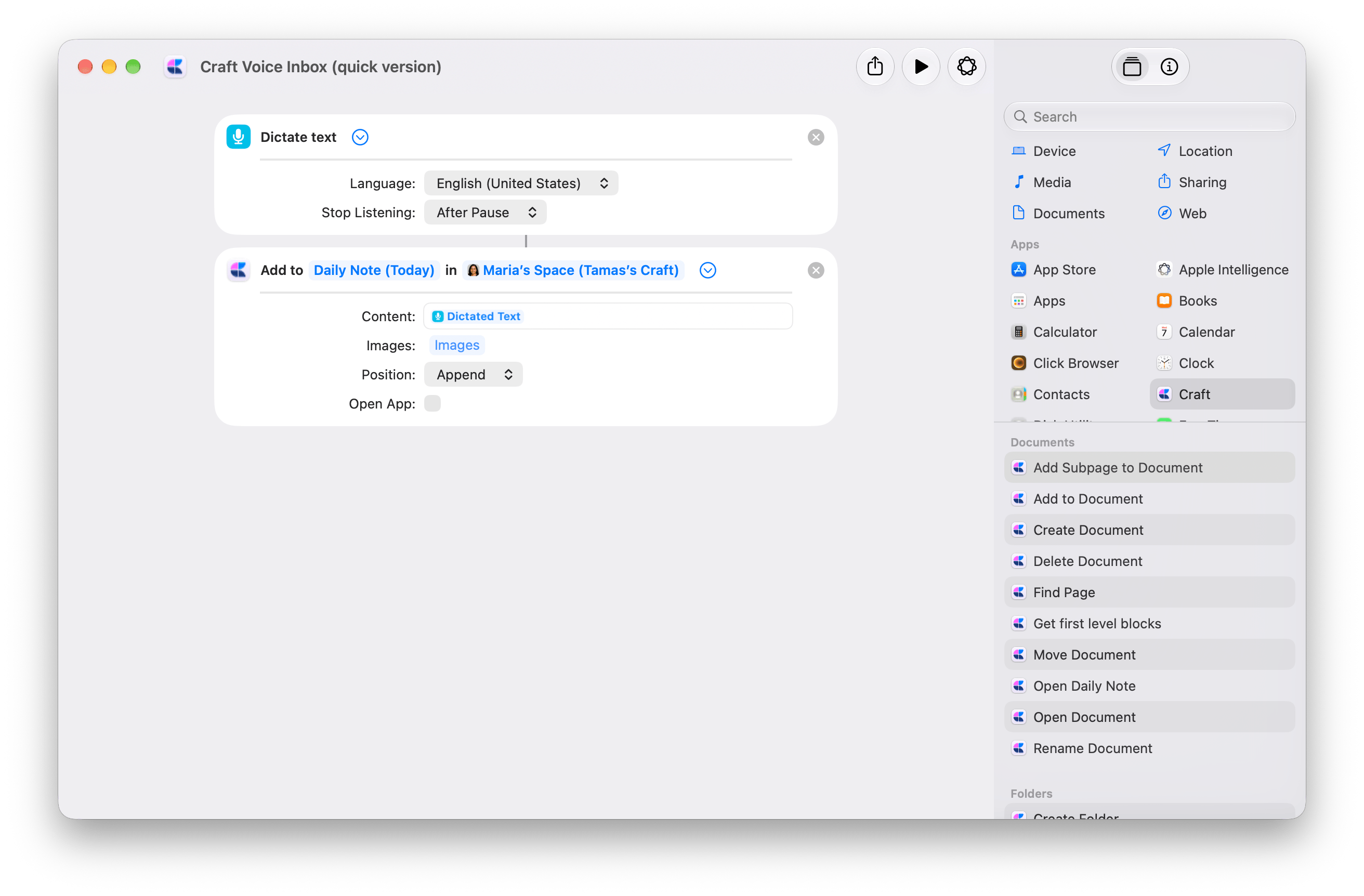
說出一個想法,並將聽寫的文字儲存到 Craft 今天的每日筆記。快速版使用兩個動作:**聽寫文字 → 加入文件**。
從這個只有兩個動作的捷徑開始,然後選擇你的目的地。
開啟下載的捷徑。在 Craft 的[加入文件](/zh-Hant/integrate/apple-shortcuts/actions#add-to-document)中,將示範用的**空間**換成你自己的空間。將**文件**保持為**每日筆記(今天)**,或選擇你常用的記錄文件。
展開**聽寫文字**。選擇你的 **Language**,並將 **Stop Listening** 設為 **After Pause**。
在**加入文件**中,讓**內容**保持連接到**聽寫的文字**,**位置**設為**附加**,並關閉**開啟 App**。
允許要求的權限,然後聽寫一句話。停頓即可結束,接著到 Craft 目的地查看。每次執行都會再加入一筆項目。
 進階版會為每筆項目加上背景資訊,並確認內容儲存的位置:
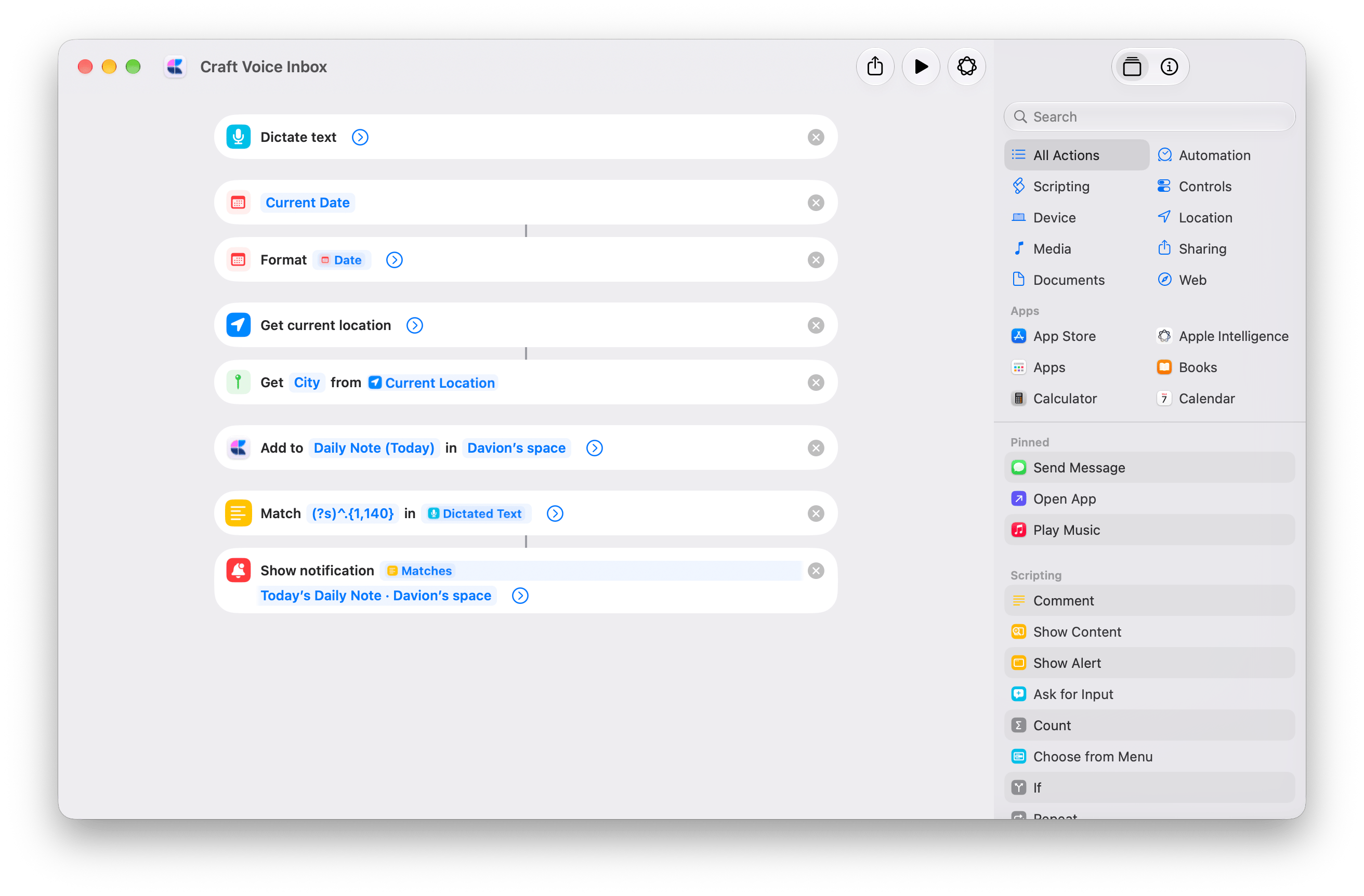
* **目前日期 → 格式化日期**會加上日期和時間。
* **取得目前位置 → 取得位置的詳細資訊(城市)** 會加上你所在的城市。此版本會要求取用位置。
* **顯示通知**會顯示「Saved to Craft」,並預覽前 140 個字元。完整的聽寫文字會儲存在 Craft 中。
[取得進階版語音收件匣](https://www.icloud.com/shortcuts/b9e6c53d834a40dcb223c8bbc1986024)
在**加入文件**中選擇你自己的**空間**。同時編輯**顯示通知**中的目的地文字,目前寫的是示範空間的名稱。通知文字不會改變儲存的目的地。
若不想加入城市,請移除**取得目前位置**、取得**城市**的動作,以及**加入文件 → 內容**中的**城市**變數。
進階版會為每筆項目加上背景資訊,並確認內容儲存的位置:
* **目前日期 → 格式化日期**會加上日期和時間。
* **取得目前位置 → 取得位置的詳細資訊(城市)** 會加上你所在的城市。此版本會要求取用位置。
* **顯示通知**會顯示「Saved to Craft」,並預覽前 140 個字元。完整的聽寫文字會儲存在 Craft 中。
[取得進階版語音收件匣](https://www.icloud.com/shortcuts/b9e6c53d834a40dcb223c8bbc1986024)
在**加入文件**中選擇你自己的**空間**。同時編輯**顯示通知**中的目的地文字,目前寫的是示範空間的名稱。通知文字不會改變儲存的目的地。
若不想加入城市,請移除**取得目前位置**、取得**城市**的動作,以及**加入文件 → 內容**中的**城市**變數。
 ## 準備我的每日筆記
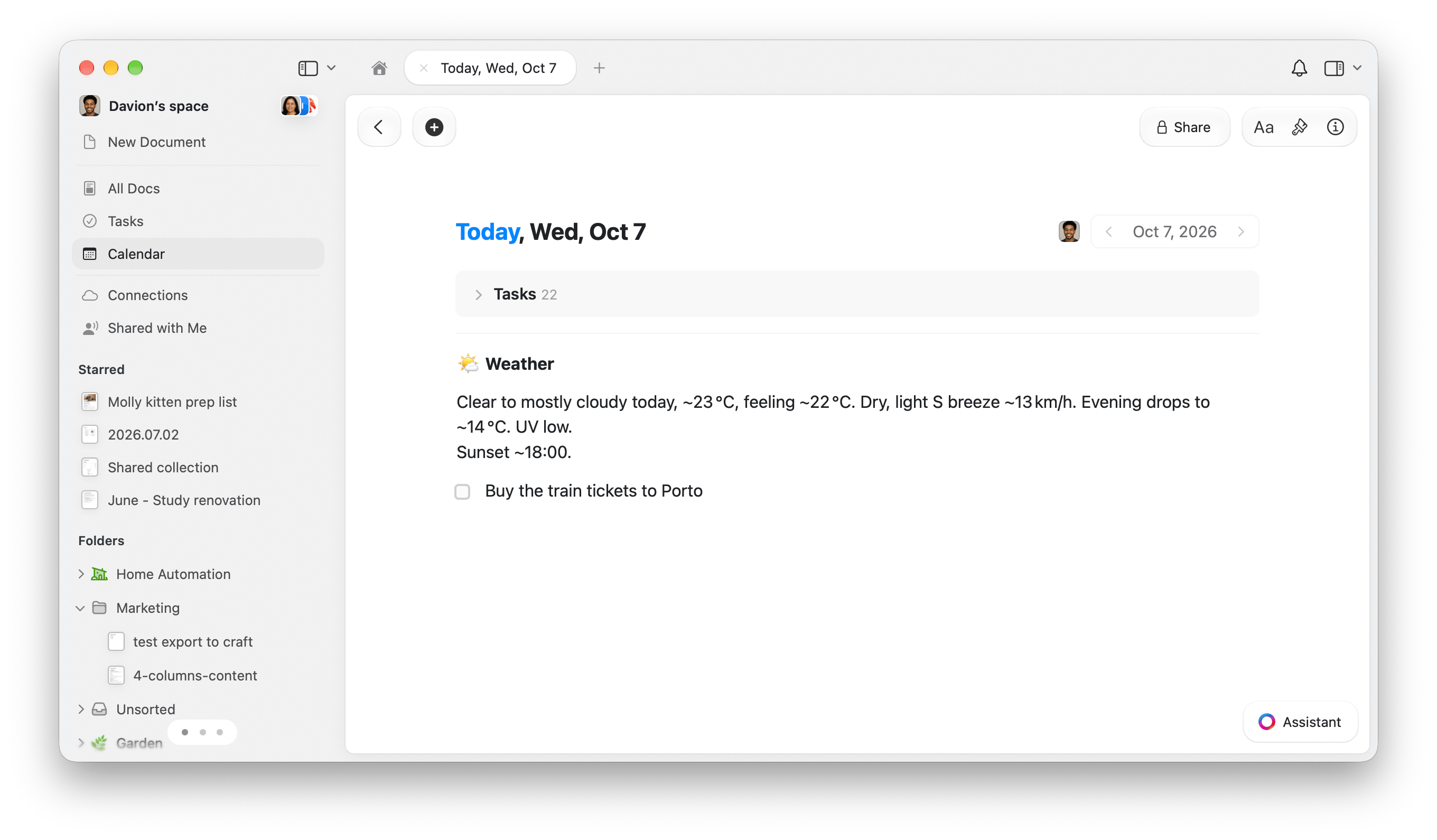
以天氣摘要和今天到期的 Apple 提醒事項開始新的一天,提醒事項會以任務的形式加入 Craft 今天的每日筆記。
加入捷徑,然後依照下方步驟設定。需要 Apple Intelligence。
在「捷徑」中開啟下載的捷徑。在**取得天氣預報**中,將 **Budapest** 換成你的位置。
開啟 Craft 並登入。接著變更兩個 Craft 動作中的**空間**:
* **加入文件**,位於**使用模型**下方。
* **創建任務**,位於**重複每一個**內。
兩者請選擇相同的空間。將**文件**保持為**每日筆記(今天)**。
下載的捷徑包含示範空間的選取設定,但不會授予你該空間的存取權。
執行捷徑並允許要求的權限。開啟今天的每日筆記,確認天氣摘要和任務。
只會複製**今天到期且未完成的提醒事項**。如果沒有符合的項目,你只會看到天氣。
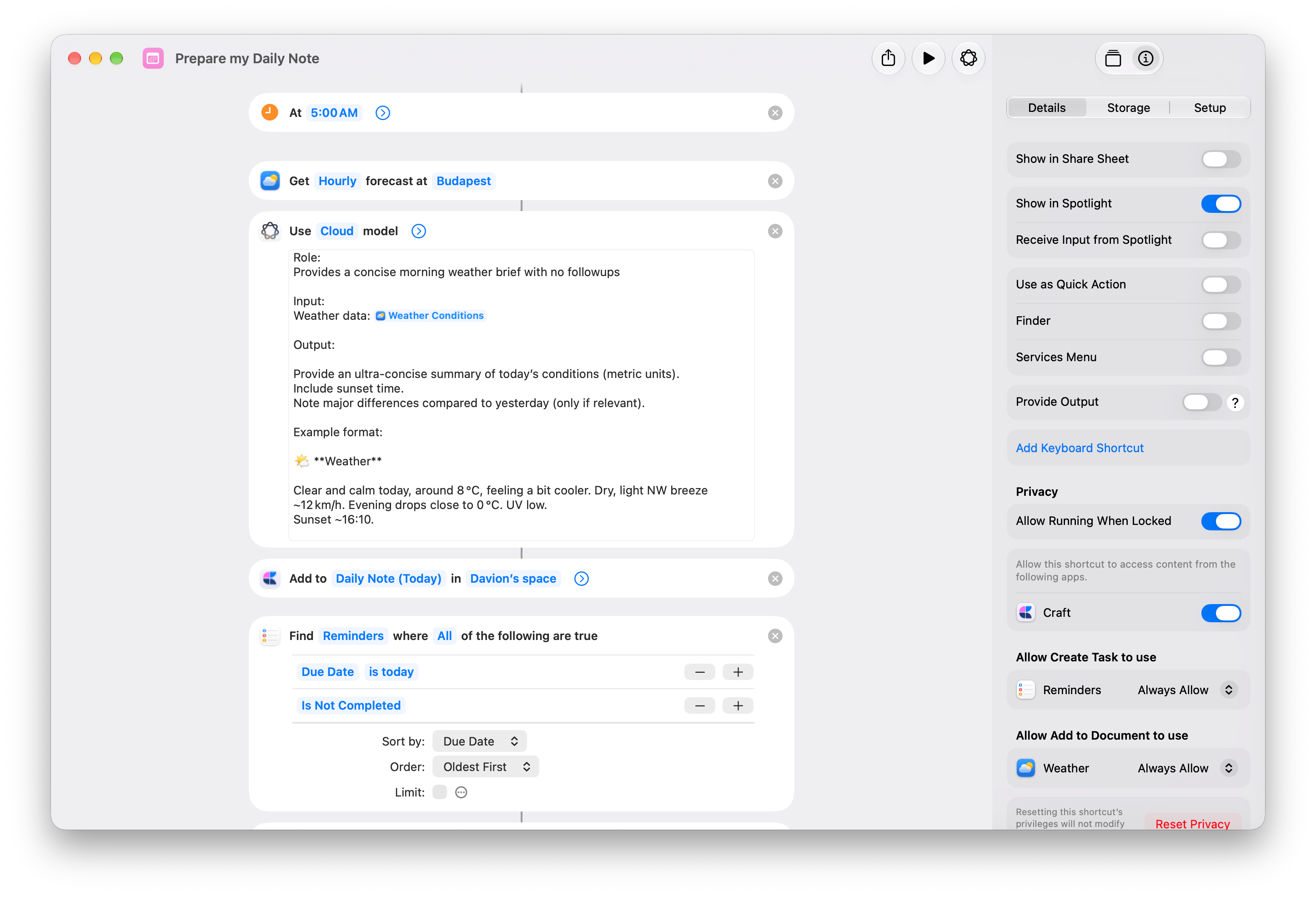
在 Mac 上,選擇 **Edit → Automation → Time of Day**。設定 **5:00 AM** 和 **Daily**。在 **Info → Privacy** 中啟用 **Allow Running When Locked**。
只在一台裝置上啟用觸發條件。[觸發條件同步到其他裝置時會是停用狀態](https://support.apple.com/guide/shortcuts-mac/apd690170742/mac)。詳情請參閱 [Apple 的自動化設定說明](https://support.apple.com/guide/shortcuts-mac/apdfbdbd7123/mac)。
提醒事項是複製過來,而不是同步。只會轉移標題。完成 Craft 任務不會完成 Apple 的提醒事項。每次執行都會再加入一份天氣摘要和新的任務副本。
## 準備我的每日筆記
以天氣摘要和今天到期的 Apple 提醒事項開始新的一天,提醒事項會以任務的形式加入 Craft 今天的每日筆記。
加入捷徑,然後依照下方步驟設定。需要 Apple Intelligence。
在「捷徑」中開啟下載的捷徑。在**取得天氣預報**中,將 **Budapest** 換成你的位置。
開啟 Craft 並登入。接著變更兩個 Craft 動作中的**空間**:
* **加入文件**,位於**使用模型**下方。
* **創建任務**,位於**重複每一個**內。
兩者請選擇相同的空間。將**文件**保持為**每日筆記(今天)**。
下載的捷徑包含示範空間的選取設定,但不會授予你該空間的存取權。
執行捷徑並允許要求的權限。開啟今天的每日筆記,確認天氣摘要和任務。
只會複製**今天到期且未完成的提醒事項**。如果沒有符合的項目,你只會看到天氣。
在 Mac 上,選擇 **Edit → Automation → Time of Day**。設定 **5:00 AM** 和 **Daily**。在 **Info → Privacy** 中啟用 **Allow Running When Locked**。
只在一台裝置上啟用觸發條件。[觸發條件同步到其他裝置時會是停用狀態](https://support.apple.com/guide/shortcuts-mac/apd690170742/mac)。詳情請參閱 [Apple 的自動化設定說明](https://support.apple.com/guide/shortcuts-mac/apdfbdbd7123/mac)。
提醒事項是複製過來,而不是同步。只會轉移標題。完成 Craft 任務不會完成 Apple 的提醒事項。每次執行都會再加入一份天氣摘要和新的任務副本。
 1. **取得天氣預報**取得每小時預報。
2. **使用模型**將預報整理成天氣摘要。
3. Craft 的[加入文件](/zh-Hant/integrate/apple-shortcuts/actions#add-to-document)將摘要附加到今天的每日筆記。
4. **尋找提醒事項**篩選出 **Due Date is today** 且 **Is Not Completed** 的項目,依 **Due Date** 以 **Oldest First** 排序,並關閉 **Limit**。
5. **取得提醒事項的詳細資訊**取得每個提醒事項的 **Title**。
6. **重複每一個**將每個標題作為**重複項目**傳給 Craft 的[創建任務](/zh-Hant/integrate/apple-shortcuts/actions#create-task)。
1. **取得天氣預報**取得每小時預報。
2. **使用模型**將預報整理成天氣摘要。
3. Craft 的[加入文件](/zh-Hant/integrate/apple-shortcuts/actions#add-to-document)將摘要附加到今天的每日筆記。
4. **尋找提醒事項**篩選出 **Due Date is today** 且 **Is Not Completed** 的項目,依 **Due Date** 以 **Oldest First** 排序,並關閉 **Limit**。
5. **取得提醒事項的詳細資訊**取得每個提醒事項的 **Title**。
6. **重複每一個**將每個標題作為**重複項目**傳給 Craft 的[創建任務](/zh-Hant/integrate/apple-shortcuts/actions#create-task)。
 ## 結束今天的工作
在明天的每日筆記中留下附有時間戳記的工作總結,再把接下來的步驟加為排程在明天的任務。
加入捷徑,然後選擇你的 Craft 目的地。
開啟下載的捷徑,並替換兩個 Craft 動作中的**空間**:
* **加入文件**,位於**文字**下方。
* **創建任務**,位於**重複**內。
兩者請選擇相同的空間。將**文件**保持為**每日筆記(明天)**,並將**創建任務 → 日程**保持為**明天**。
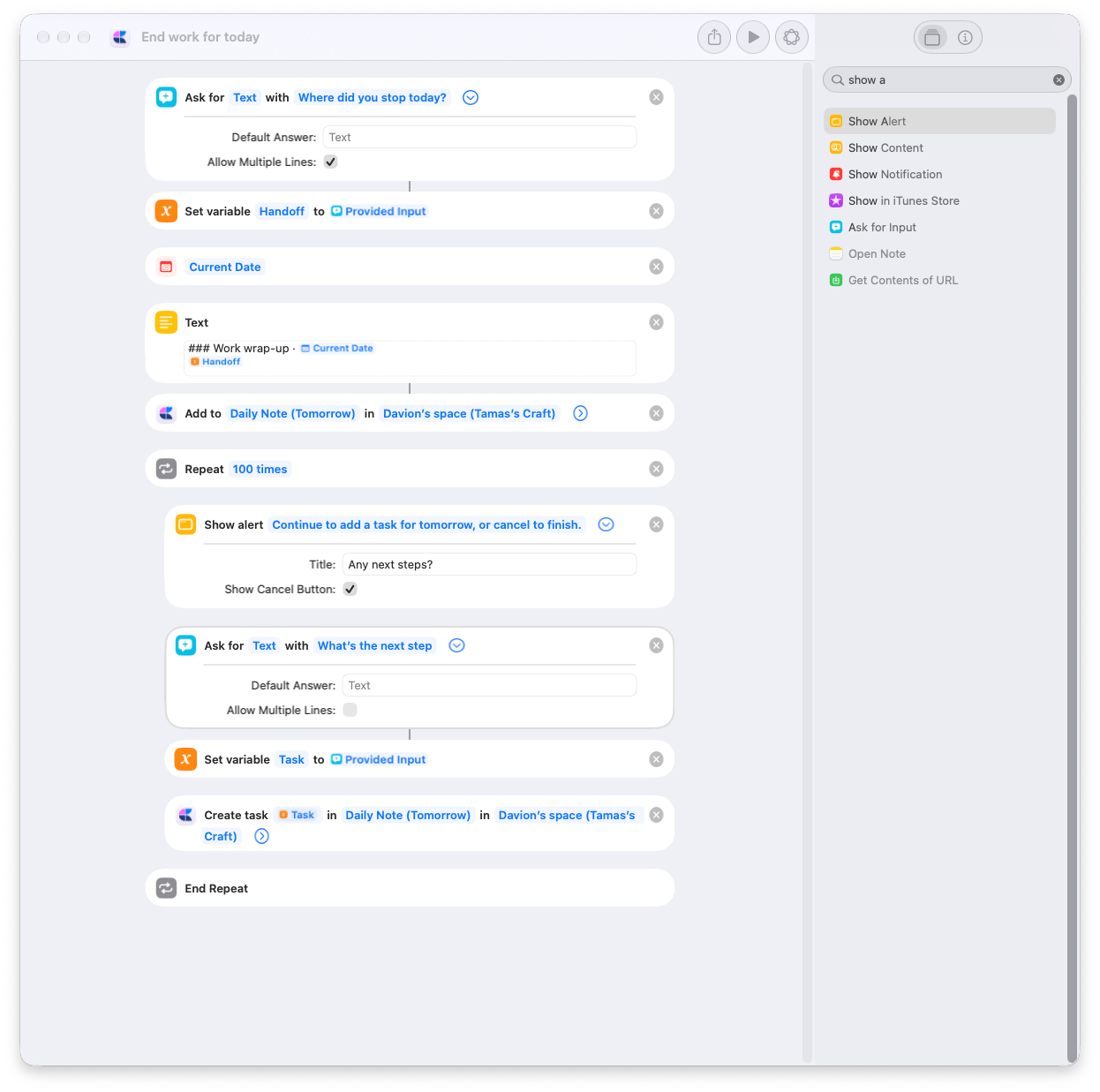
執行捷徑並回答 **Where did you stop today?** 例如:**定價頁面已完成。登陸頁面的引言還需要審閱。**
你的回答會連同星期幾和時間,儲存到明天的每日筆記。
出現 **Any next steps?** 時,繼續輸入一項任務,例如**檢查登陸頁面的引言**。每加入一項任務後,問題都會再次出現,讓你繼續新增。
完成後選擇**取消**;如果沒有接下來的步驟,在第一個提示時就選擇**取消**。你的工作總結和已加入的任務都會保留在 Craft 中。
「明天」指的是下一個日曆日,包括週末。排程任務不會設定通知。再次執行捷徑會再加入一份工作總結和新的任務。
1. **要求輸入**詢問你停在哪裡。**設定變數**將回答儲存為 **Handoff**。
2. **目前日期**和**文字**準備下方的工作總結。日期變數使用自訂格式 `EEEE, HH:mm`。
```markdown theme={null}
### Work wrap-up · [Current Date variable]
[Handoff variable]
```
3. Craft 的[加入文件](/zh-Hant/integrate/apple-shortcuts/actions#add-to-document)將**文字**的結果附加到**每日筆記(明天)**,並關閉**開啟 App**。
4. **重複**最多執行 **100 次**。在其中,**顯示提示**會詢問 **Any next steps?**,並開啟 **Show Cancel Button**。選擇取消會停止捷徑。
5. **要求輸入**詢問下一個步驟。**設定變數**將其儲存為 **Task**,接著 Craft 的[創建任務](/zh-Hant/integrate/apple-shortcuts/actions#create-task)將它加入**每日筆記(明天)**,**日程**設為**明天**,並關閉**開啟 App**。
若要收到定時的任務提醒,請將**創建任務 → 提醒**設為**明天**,並將**提醒時間**設為 24 小時制的時間,例如 `09:00`。
## 結束今天的工作
在明天的每日筆記中留下附有時間戳記的工作總結,再把接下來的步驟加為排程在明天的任務。
加入捷徑,然後選擇你的 Craft 目的地。
開啟下載的捷徑,並替換兩個 Craft 動作中的**空間**:
* **加入文件**,位於**文字**下方。
* **創建任務**,位於**重複**內。
兩者請選擇相同的空間。將**文件**保持為**每日筆記(明天)**,並將**創建任務 → 日程**保持為**明天**。
執行捷徑並回答 **Where did you stop today?** 例如:**定價頁面已完成。登陸頁面的引言還需要審閱。**
你的回答會連同星期幾和時間,儲存到明天的每日筆記。
出現 **Any next steps?** 時,繼續輸入一項任務,例如**檢查登陸頁面的引言**。每加入一項任務後,問題都會再次出現,讓你繼續新增。
完成後選擇**取消**;如果沒有接下來的步驟,在第一個提示時就選擇**取消**。你的工作總結和已加入的任務都會保留在 Craft 中。
「明天」指的是下一個日曆日,包括週末。排程任務不會設定通知。再次執行捷徑會再加入一份工作總結和新的任務。
1. **要求輸入**詢問你停在哪裡。**設定變數**將回答儲存為 **Handoff**。
2. **目前日期**和**文字**準備下方的工作總結。日期變數使用自訂格式 `EEEE, HH:mm`。
```markdown theme={null}
### Work wrap-up · [Current Date variable]
[Handoff variable]
```
3. Craft 的[加入文件](/zh-Hant/integrate/apple-shortcuts/actions#add-to-document)將**文字**的結果附加到**每日筆記(明天)**,並關閉**開啟 App**。
4. **重複**最多執行 **100 次**。在其中,**顯示提示**會詢問 **Any next steps?**,並開啟 **Show Cancel Button**。選擇取消會停止捷徑。
5. **要求輸入**詢問下一個步驟。**設定變數**將其儲存為 **Task**,接著 Craft 的[創建任務](/zh-Hant/integrate/apple-shortcuts/actions#create-task)將它加入**每日筆記(明天)**,**日程**設為**明天**,並關閉**開啟 App**。
若要收到定時的任務提醒,請將**創建任務 → 提醒**設為**明天**,並將**提醒時間**設為 24 小時制的時間,例如 `09:00`。
 ## Add to Craft Gallery
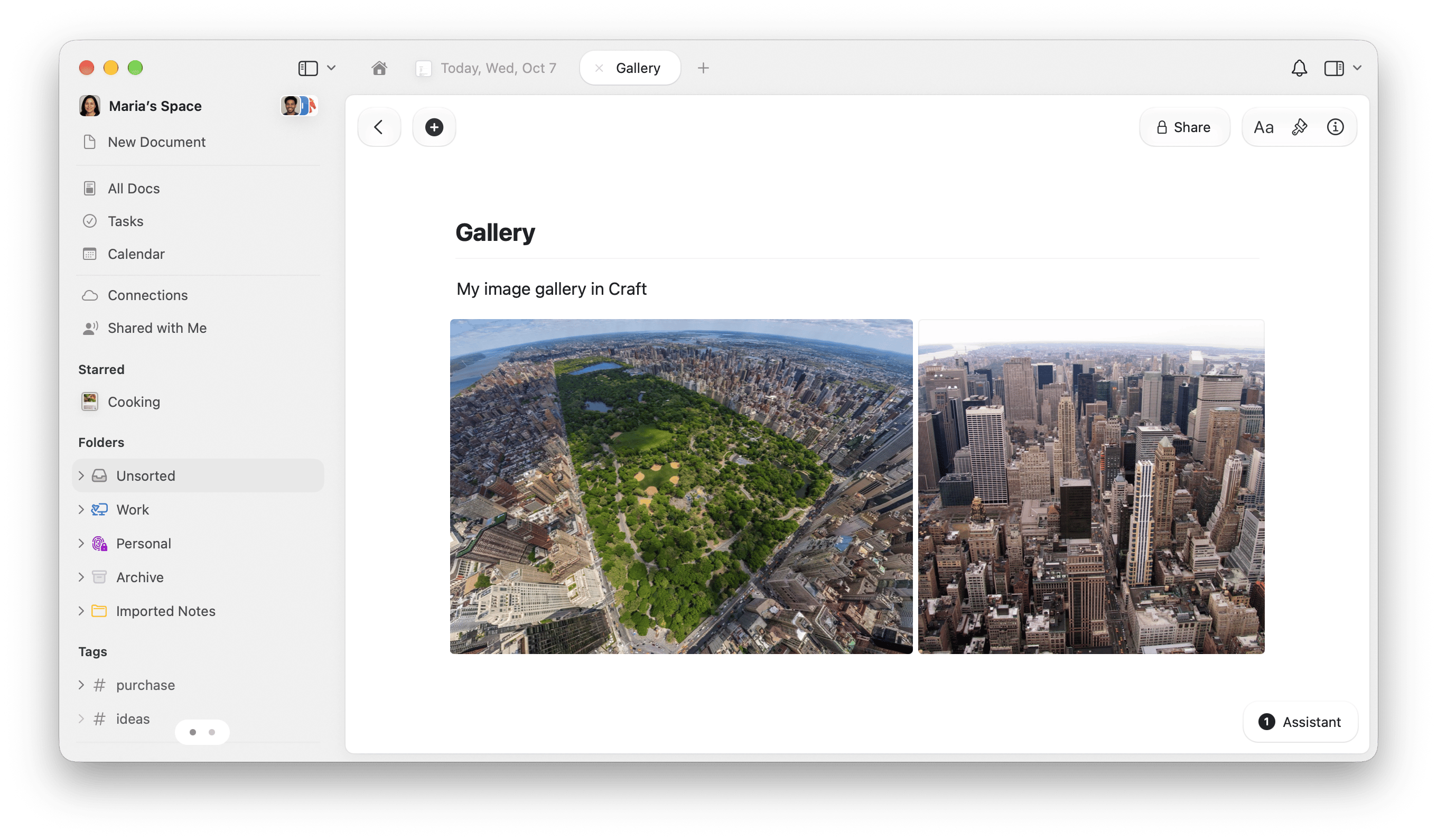
在 Finder 中選取圖片,並從**快速動作**傳送到 Craft 文件。可用來把螢幕截圖、視覺參考或照片收集在同一個地方,不必每次新增都開啟 Craft。
加入捷徑,然後選擇要收集圖片的文件。
為你的圖片建立一份 Craft 文件,或選擇現有的文件。開啟下載的捷徑,並展開 Craft 的[加入文件](/zh-Hant/integrate/apple-shortcuts/actions#add-to-document)。
將示範用的**空間**換成你自己的空間,然後將**文件**從示範用的 **Gallery** 改成你的目的地。Gallery 只是一般的 Craft 文件,你的文件可以任意命名。
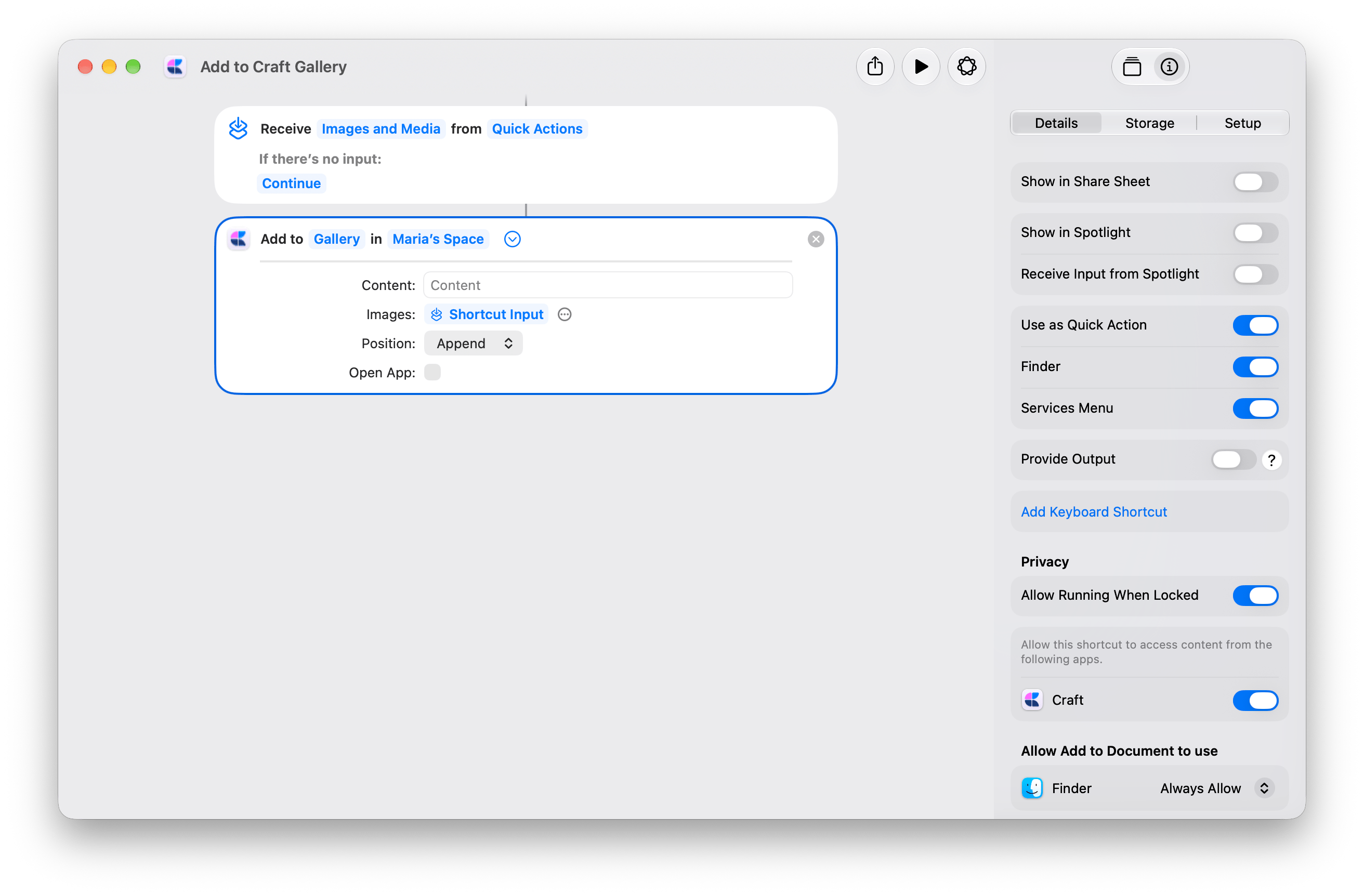
在 **Info → Details** 中,保持啟用 **Use as Quick Action** 和 **Finder**。分享的副本中已經啟用這些選項。
在**加入文件**中,讓**圖片**保持連接到**捷徑輸入**,**內容**留空,**位置**設為**附加**,並關閉**開啟 App**。
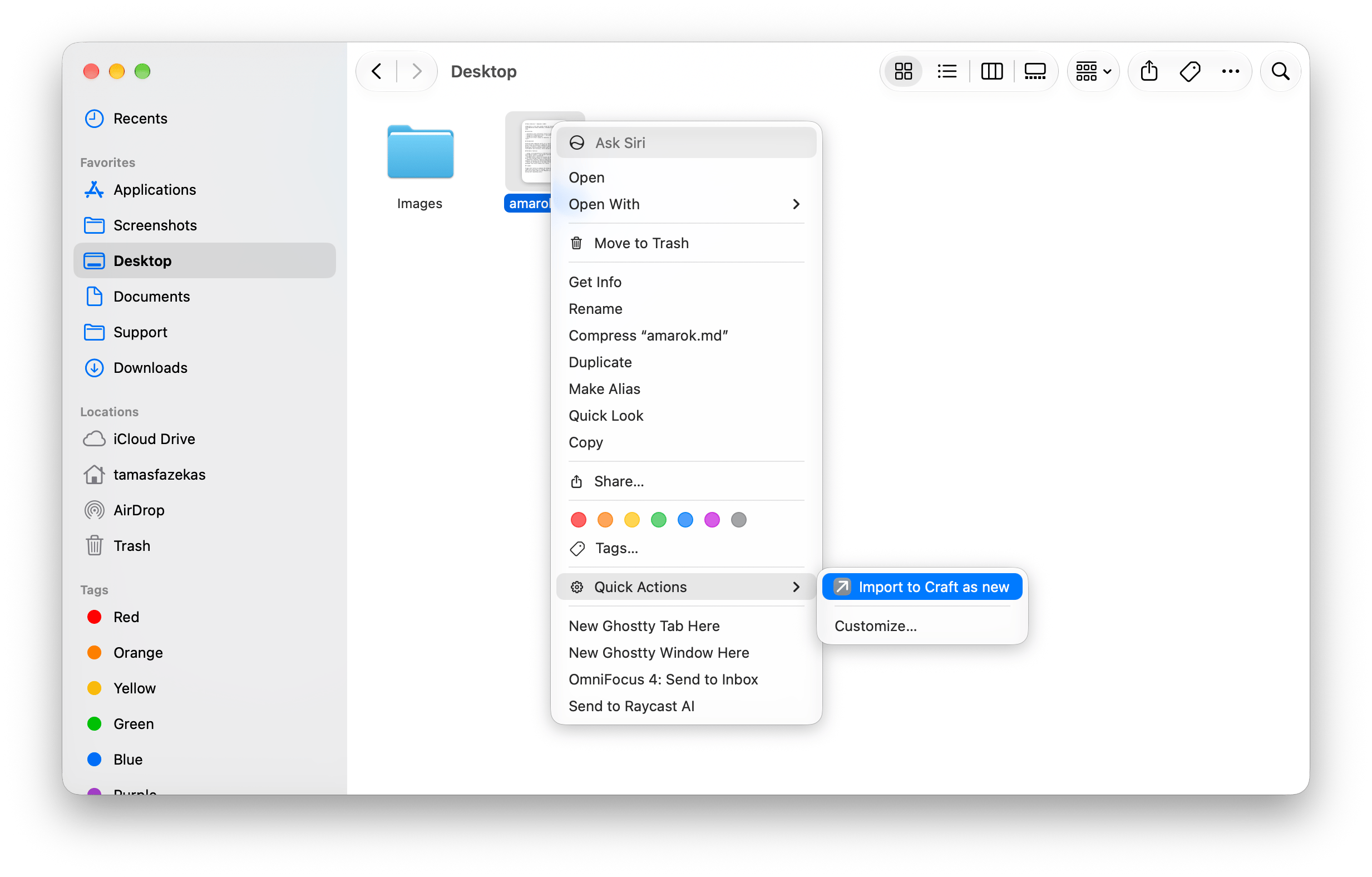
在 Finder 中選取一或多個圖片檔案。按一下右鍵,然後選擇**快速動作 → Add to Craft Gallery**。第一次執行時,請允許要求的權限。
開啟你的 Craft 文件,即可看到加入的圖片。每次執行都會附加到同一份文件。
## Add to Craft Gallery
在 Finder 中選取圖片,並從**快速動作**傳送到 Craft 文件。可用來把螢幕截圖、視覺參考或照片收集在同一個地方,不必每次新增都開啟 Craft。
加入捷徑,然後選擇要收集圖片的文件。
為你的圖片建立一份 Craft 文件,或選擇現有的文件。開啟下載的捷徑,並展開 Craft 的[加入文件](/zh-Hant/integrate/apple-shortcuts/actions#add-to-document)。
將示範用的**空間**換成你自己的空間,然後將**文件**從示範用的 **Gallery** 改成你的目的地。Gallery 只是一般的 Craft 文件,你的文件可以任意命名。
在 **Info → Details** 中,保持啟用 **Use as Quick Action** 和 **Finder**。分享的副本中已經啟用這些選項。
在**加入文件**中,讓**圖片**保持連接到**捷徑輸入**,**內容**留空,**位置**設為**附加**,並關閉**開啟 App**。
在 Finder 中選取一或多個圖片檔案。按一下右鍵,然後選擇**快速動作 → Add to Craft Gallery**。第一次執行時,請允許要求的權限。
開啟你的 Craft 文件,即可看到加入的圖片。每次執行都會附加到同一份文件。
 捷徑從**快速動作**接收選取的圖片,並將**捷徑輸入**傳給**加入文件 → 圖片**。一個 Craft 動作就會把圖片附加到你選擇的文件。
分享的副本也啟用了 **Services Menu**,供透過 macOS 服務提供相容圖片輸入的 App 使用。
捷徑從**快速動作**接收選取的圖片,並將**捷徑輸入**傳給**加入文件 → 圖片**。一個 Craft 動作就會把圖片附加到你選擇的文件。
分享的副本也啟用了 **Services Menu**,供透過 macOS 服務提供相容圖片輸入的 App 使用。
 ## 匯入文字檔並產生標題
從 Finder 將 `.txt` 或 `.md` 檔案轉成 Craft 文件。Apple Intelligence 會產生標題;檔案的文字會成為文件內容,並保留 Markdown 格式。
在你的裝置上產生標題。較短的文字可以從這個版本開始。
使用 Apple 的雲端模型處理較長或較複雜的文字。需要網際網路連線,且可能需要較長時間。
兩個版本都需要在支援的 Mac 上使用 Apple Intelligence。請參閱 [Apple 的模型選項](https://support.apple.com/guide/shortcuts/use-apple-intelligence-in-shortcuts-tpg3vrvwmclv/ios)。
開啟下載的捷徑。在**建立文件**中,將示範用的**空間**換成你自己的空間。在雲端版本中,也要在**重新命名文件**中選擇相同的空間。
**資料夾**設為**每次都詢問**,所以每次匯入時都可以選擇儲存位置。
開啟捷徑的 **Info → Details**。啟用 **Use as Quick Action** 和 **Finder**。裝置端版本的副本已經啟用 Finder;雲端版本的副本則需要自行啟用。
在 Finder 中,以右鍵按一下一個 `.txt` 或 `.md` 檔案。選擇**快速動作**,然後選擇你的匯入捷徑。允許要求的權限,並選擇一個 Craft 資料夾。
Craft 會開啟匯入的文件。檢查產生的標題,必要時重新命名。
## 匯入文字檔並產生標題
從 Finder 將 `.txt` 或 `.md` 檔案轉成 Craft 文件。Apple Intelligence 會產生標題;檔案的文字會成為文件內容,並保留 Markdown 格式。
在你的裝置上產生標題。較短的文字可以從這個版本開始。
使用 Apple 的雲端模型處理較長或較複雜的文字。需要網際網路連線,且可能需要較長時間。
兩個版本都需要在支援的 Mac 上使用 Apple Intelligence。請參閱 [Apple 的模型選項](https://support.apple.com/guide/shortcuts/use-apple-intelligence-in-shortcuts-tpg3vrvwmclv/ios)。
開啟下載的捷徑。在**建立文件**中,將示範用的**空間**換成你自己的空間。在雲端版本中,也要在**重新命名文件**中選擇相同的空間。
**資料夾**設為**每次都詢問**,所以每次匯入時都可以選擇儲存位置。
開啟捷徑的 **Info → Details**。啟用 **Use as Quick Action** 和 **Finder**。裝置端版本的副本已經啟用 Finder;雲端版本的副本則需要自行啟用。
在 Finder 中,以右鍵按一下一個 `.txt` 或 `.md` 檔案。選擇**快速動作**,然後選擇你的匯入捷徑。允許要求的權限,並選擇一個 Craft 資料夾。
Craft 會開啟匯入的文件。檢查產生的標題,必要時重新命名。
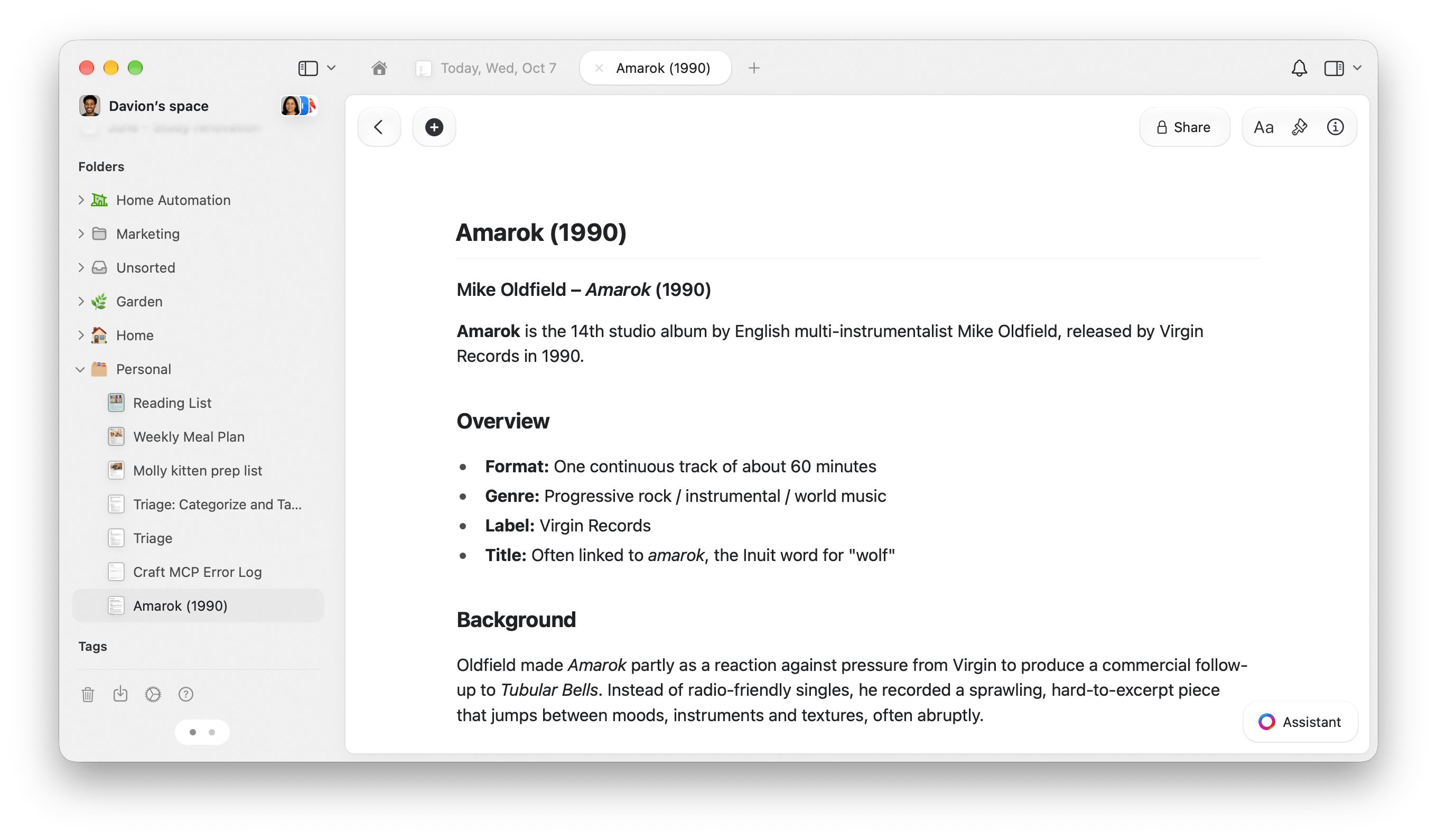 每次執行都會建立一份新文件。雲端版本會先匯入檔案再產生標題,因此即使模型步驟失敗,文件仍會保留在 Craft 中。裝置端版本則會先產生標題。
**裝置端**:**從輸入取得文字 → 使用模型 → 設定變數 → 建立文件**。模型會產生 **Generated Title**,作為新文件的標題。
**雲端**:**從輸入取得文字 → 取得名稱 → 建立文件 → 使用模型 → 重新命名文件**。「建立文件」會先以檔名儲存文件,接著「重新命名文件」會以模型的**回應**取代標題。只有開啟**開啟 App** 時,建立文件後才會開啟它;預設為關閉。
兩個提示詞都要求產生一行簡潔的標題,並在合適時使用來源的主要標題。它們不會要求模型改寫文件內容。
Craft 動作:[建立文件](/zh-Hant/integrate/apple-shortcuts/actions#create-document)和[重新命名文件](/zh-Hant/integrate/apple-shortcuts/actions#rename-document)。
This documentation is built and hosted on [Mintlify](https://mintlify.com), a developer documentation platform.
每次執行都會建立一份新文件。雲端版本會先匯入檔案再產生標題,因此即使模型步驟失敗,文件仍會保留在 Craft 中。裝置端版本則會先產生標題。
**裝置端**:**從輸入取得文字 → 使用模型 → 設定變數 → 建立文件**。模型會產生 **Generated Title**,作為新文件的標題。
**雲端**:**從輸入取得文字 → 取得名稱 → 建立文件 → 使用模型 → 重新命名文件**。「建立文件」會先以檔名儲存文件,接著「重新命名文件」會以模型的**回應**取代標題。只有開啟**開啟 App** 時,建立文件後才會開啟它;預設為關閉。
兩個提示詞都要求產生一行簡潔的標題,並在合適時使用來源的主要標題。它們不會要求模型改寫文件內容。
Craft 動作:[建立文件](/zh-Hant/integrate/apple-shortcuts/actions#create-document)和[重新命名文件](/zh-Hant/integrate/apple-shortcuts/actions#rename-document)。
This documentation is built and hosted on [Mintlify](https://mintlify.com), a developer documentation platform.