> ## Documentation Index
> Fetch the complete documentation index at: https://craft-support.mintlify.site/llms.txt
> Use this file to discover all available pages before exploring further.
# 文件版本歷史
> 了解 Craft 如何自動備份你的文件,以及如何還原先前的版本。
Craft 會自動為你的文件建立備份,讓你在需要時還原先前的版本。此功能可確保在意外更動或刪除時,能取回內容。
## 版本歷史的運作方式
### 每小時自動備份
* 文件的快照會在你積極編輯時每 **60 分鐘** 建立一次
* 當你進行編輯後,系統會開始計時
* 如果你持續編輯,經過一小時後會自動儲存一個快照
* 該程序會重複:只要持續編輯,每小時就會產生新的快照
**範例:**
* 你在 **上午 10:00** 更新文件 → 計時器開始計時
* 你持續編輯直到 **上午 11:00** → 儲存一個備份
* 計時器重置並追蹤你的變更,直到 **中午 12:00**,下一個備份再度儲存
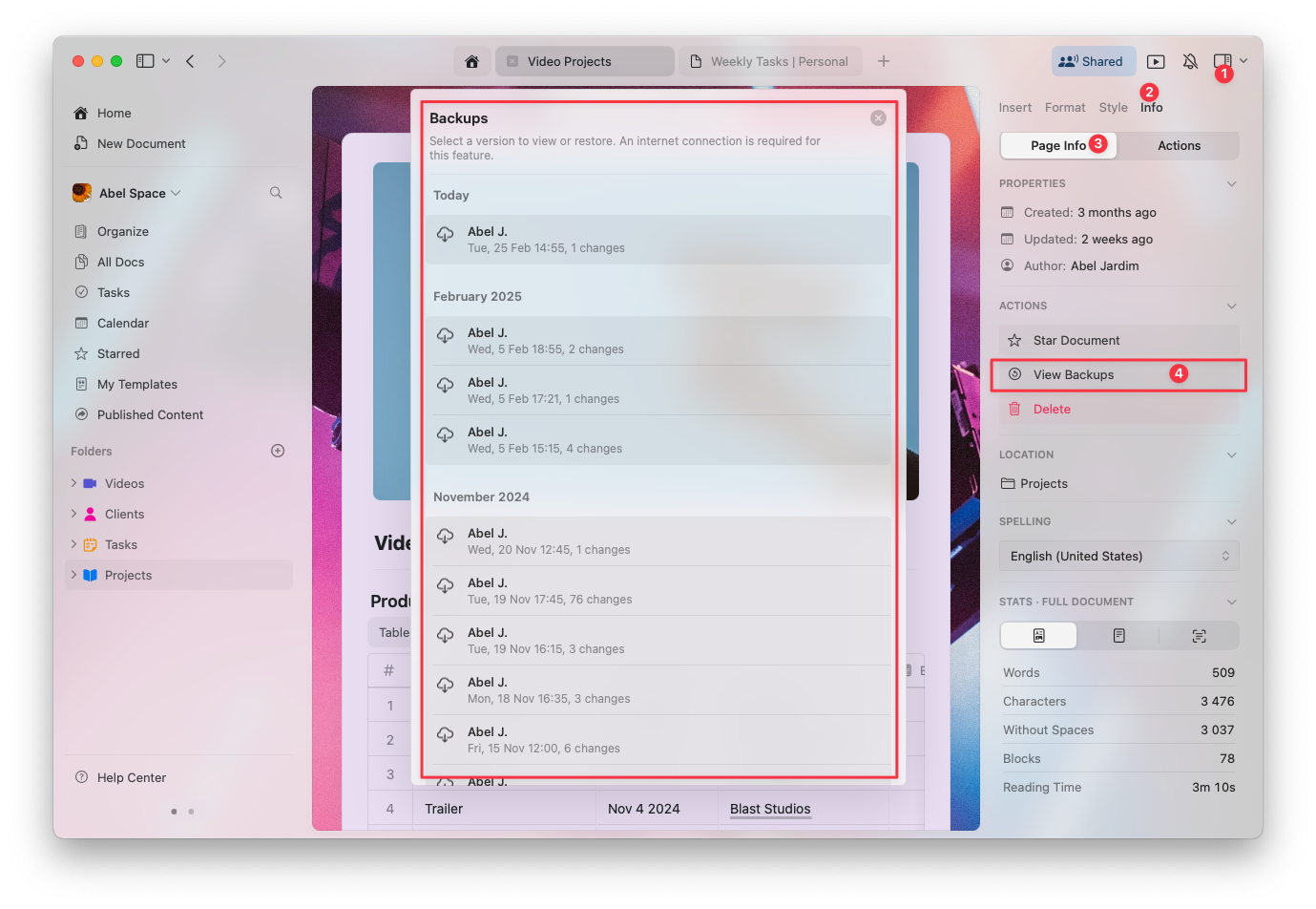
## 如何檢視文件備份
打開你想檢視的文件
在右側側邊欄的 **Info** 分頁上按一下
選取 **View Backups** 以存取已儲存版本的清單
從清單中選擇一個備份以預覽,如有需要可還原它
 ## 各方案的備份保留期限
文件版本可供存取的天數取決於你的 Craft 訂閱方案:
| 方案 | 版本歷史保留期限 |
| -------------- | -------- |
| Starter (Free) | 7 天 |
| Plus, Family | 30 天 |
| Team, Business | 180 天 |
在超過方案的保留期限後,較舊的備份會自動刪除且無法再存取。
## 疑難排解
如果看不到文件的先前版本,請參閱 [版本歷史疑難排解](/zh-Hant/account-and-subscription/storage-and-recovery/version-history-troubleshooting) 了解常見原因與解決方法。
## 相關文章
了解如何還原已刪除的文件、資料夾與頁面
解決文件版本歷史的問題
比較各方案的儲存限制
## 各方案的備份保留期限
文件版本可供存取的天數取決於你的 Craft 訂閱方案:
| 方案 | 版本歷史保留期限 |
| -------------- | -------- |
| Starter (Free) | 7 天 |
| Plus, Family | 30 天 |
| Team, Business | 180 天 |
在超過方案的保留期限後,較舊的備份會自動刪除且無法再存取。
## 疑難排解
如果看不到文件的先前版本,請參閱 [版本歷史疑難排解](/zh-Hant/account-and-subscription/storage-and-recovery/version-history-troubleshooting) 了解常見原因與解決方法。
## 相關文章
了解如何還原已刪除的文件、資料夾與頁面
解決文件版本歷史的問題
比較各方案的儲存限制