> ## Documentation Index
> Fetch the complete documentation index at: https://craft-support.mintlify.site/llms.txt
> Use this file to discover all available pages before exploring further.
# 外部位置
> 將你的 Craft 文件儲存在裝置本機,而非雲端。
**Craft 外部位置** 讓你可以選擇把文件 **儲存在裝置本機**,不論是你的 iPhone、iPad 或 Mac。
## 重要限制
在使用 外部位置 前,請注意以下重要限制:
在 外部位置 中無法使用文件分享與協作功能。你將無法透過 Secret Link 輕鬆分享文件,也無法使用像是評論與即時游標等協作功能。
* **需要手動重新加入**:由於我們不會儲存你使用的是哪個資料夾,如果你登出帳號或在裝置間切換,必須手動將該資料夾重新加入為一個 空間
* **不建議用於多裝置使用**:上傳與同步流程完全仰賴第三方服務。跨裝置使用 外部位置 可能導致資料衝突與遺失
如果你不確定如何安全地使用 外部位置,請聯絡我們的支援團隊以取得協助。
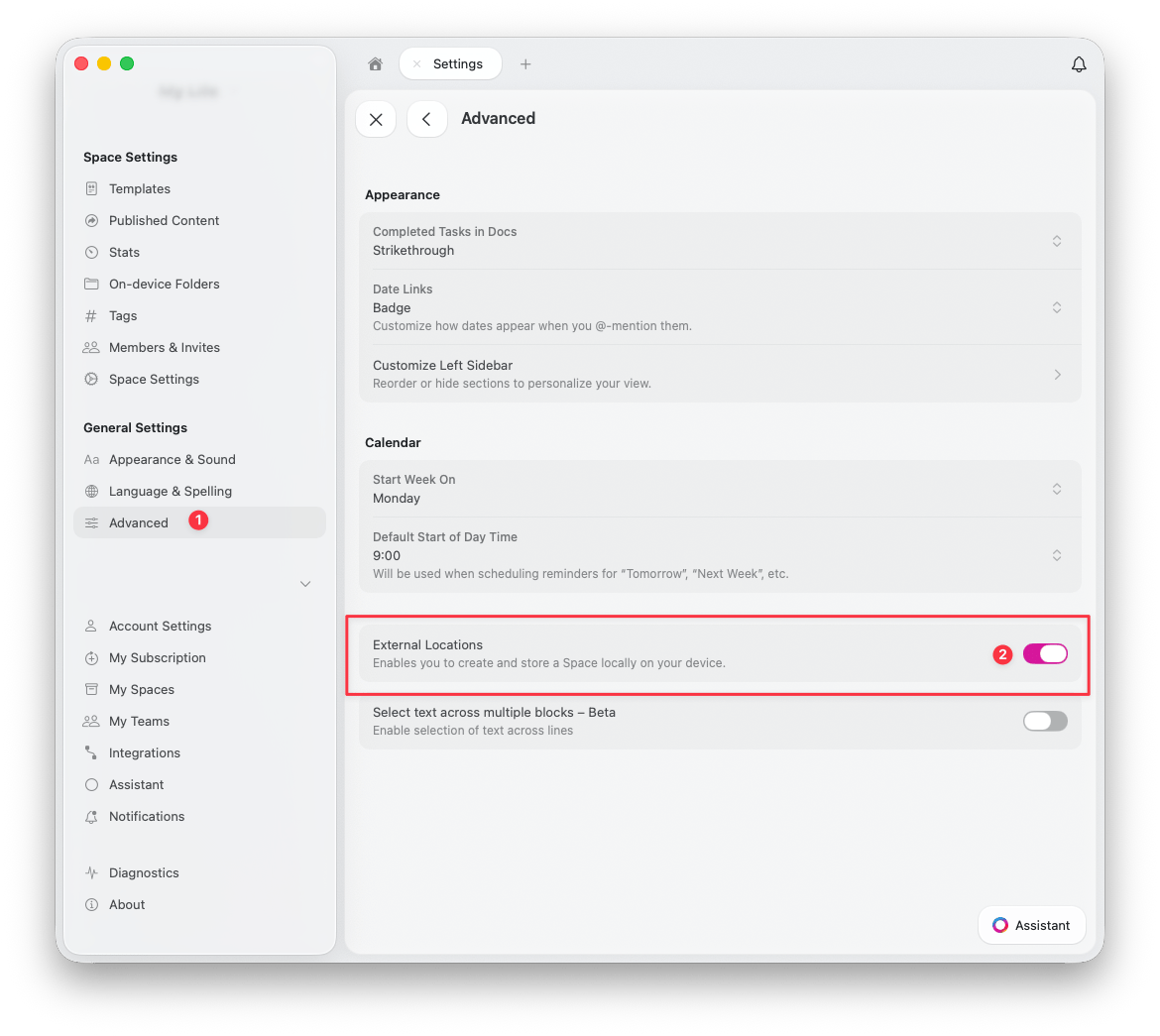
## 如何啟用外部位置
前往 **設定** > **進階**
開啟 **External Locations** 開關
 ## 如何新增外部位置
啟用後,你可以在 **設定** > **我的空間** 中新增外部位置:
## 如何新增外部位置
啟用後,你可以在 **設定** > **我的空間** 中新增外部位置:
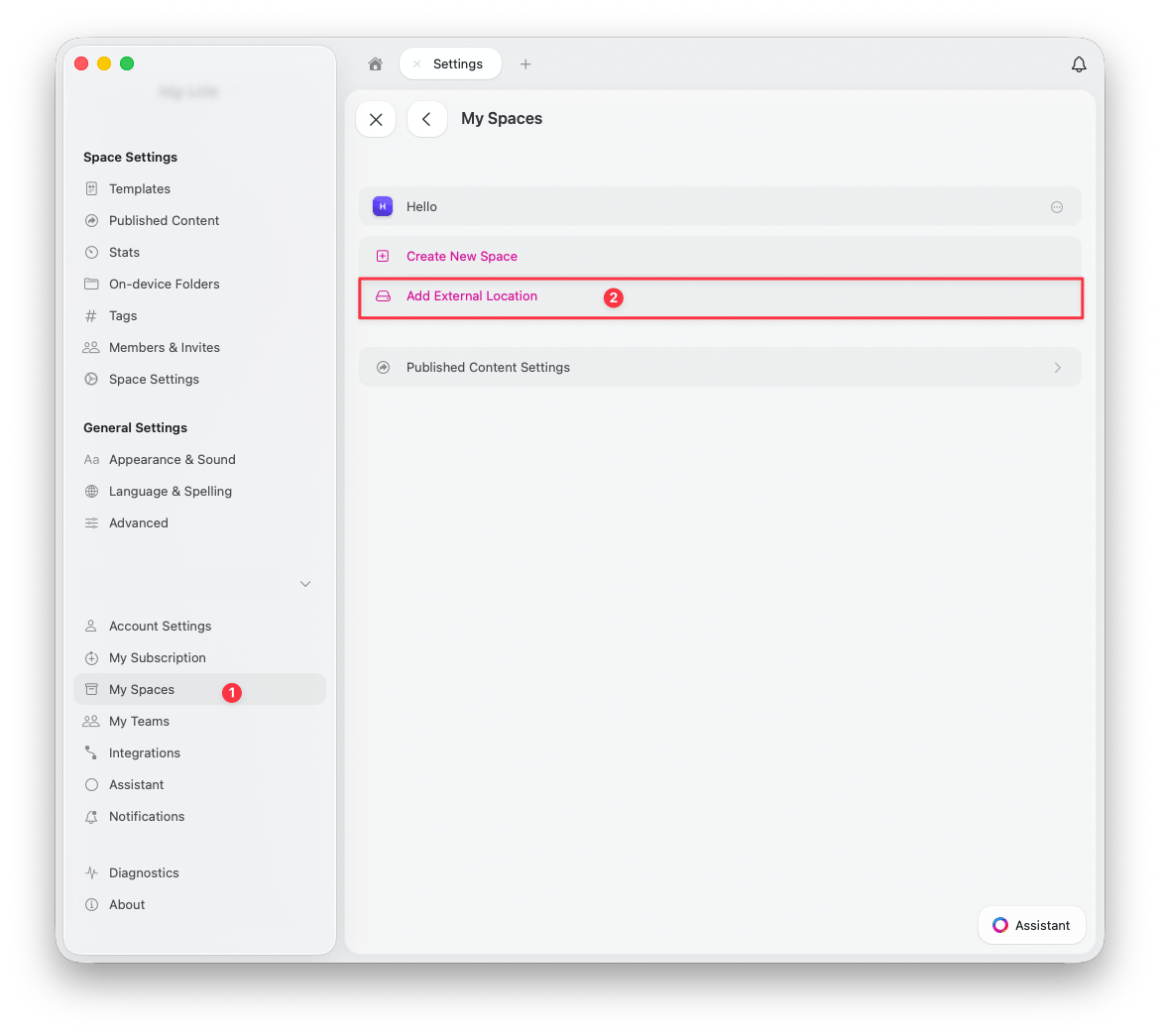 前往 **設定** > **我的空間**
點擊 **Add External Location**
在你偏好的位置建立或選擇一個資料夾 -- 這裡會儲存所有的文件與資產檔案
## 使用第三方同步服務
### macOS
在 macOS 上,你可以完全控制想要將儲存 Craft 文件 的資料夾放在哪裡。同步的品質與可靠性取決於你所使用的雲端服務提供者(例如 Dropbox、Google Drive 等)。
### iOS 和 iPadOS
在 iOS 與 iPadOS 上,Apple 目前不允許在選擇資料夾時將大多數第三方同步服務作為位置。此情況下唯一可用的選項是 **iCloud Drive**。
如果未來 iOS 更新改變了這項限制,Craft 將支援最新可用的選項。
## 何時使用 外部位置
外部位置 最適合用於:
* 需要完全控制資料儲存位置的使用者
* 不需要雲端協作功能的情境
* 單一裝置流程(不建議用於多裝置)
* 要求僅本機儲存的合規需求
## 何時不該使用 外部位置
如果你符合下列情況,請避免使用 外部位置:
* 需要分享或協作文件
* 在多個裝置間工作
* 想要無需第三方工具的自動同步
* 依賴 Craft 的雲端功能,例如版本歷史與備份
## 需要協助?
如果你對 外部位置 有任何疑問,或需要協助安全設定,請聯絡我們的支援團隊。
前往 **設定** > **我的空間**
點擊 **Add External Location**
在你偏好的位置建立或選擇一個資料夾 -- 這裡會儲存所有的文件與資產檔案
## 使用第三方同步服務
### macOS
在 macOS 上,你可以完全控制想要將儲存 Craft 文件 的資料夾放在哪裡。同步的品質與可靠性取決於你所使用的雲端服務提供者(例如 Dropbox、Google Drive 等)。
### iOS 和 iPadOS
在 iOS 與 iPadOS 上,Apple 目前不允許在選擇資料夾時將大多數第三方同步服務作為位置。此情況下唯一可用的選項是 **iCloud Drive**。
如果未來 iOS 更新改變了這項限制,Craft 將支援最新可用的選項。
## 何時使用 外部位置
外部位置 最適合用於:
* 需要完全控制資料儲存位置的使用者
* 不需要雲端協作功能的情境
* 單一裝置流程(不建議用於多裝置)
* 要求僅本機儲存的合規需求
## 何時不該使用 外部位置
如果你符合下列情況,請避免使用 外部位置:
* 需要分享或協作文件
* 在多個裝置間工作
* 想要無需第三方工具的自動同步
* 依賴 Craft 的雲端功能,例如版本歷史與備份
## 需要協助?
如果你對 外部位置 有任何疑問,或需要協助安全設定,請聯絡我們的支援團隊。