> ## Documentation Index
> Fetch the complete documentation index at: https://craft-support.mintlify.site/llms.txt
> Use this file to discover all available pages before exploring further.
# 下載發票與管理帳單
> 尋找發票、下載收據,並管理您 Craft 訂閱的帳單資訊。
您的 **Stripe** 與 **Paddle** 訂閱發票及帳單資訊可直接在 Craft 的「帳單與訂閱」檢視中取得。App Store 與 Setapp 訂閱則分別由 Apple 及 Setapp 管理。
請參閱[付款方式指南](/zh-Hant/account-and-subscription/billing/payment-methods),以確認您的訂閱類型。
## 開啟「帳單與訂閱」
### 步驟一:開啟設定
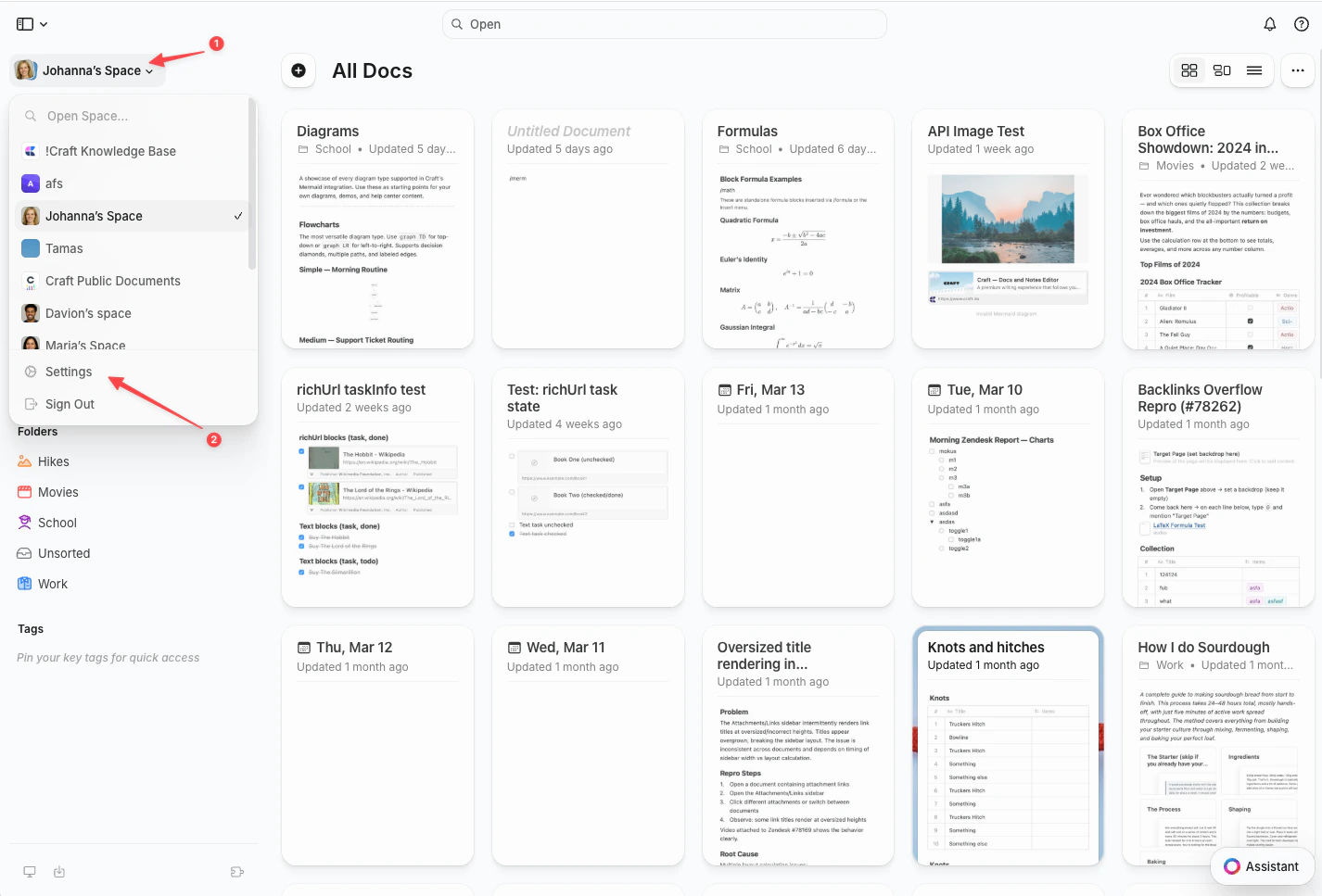
點擊側邊欄頂端的 **Space 名稱**以開啟設定。
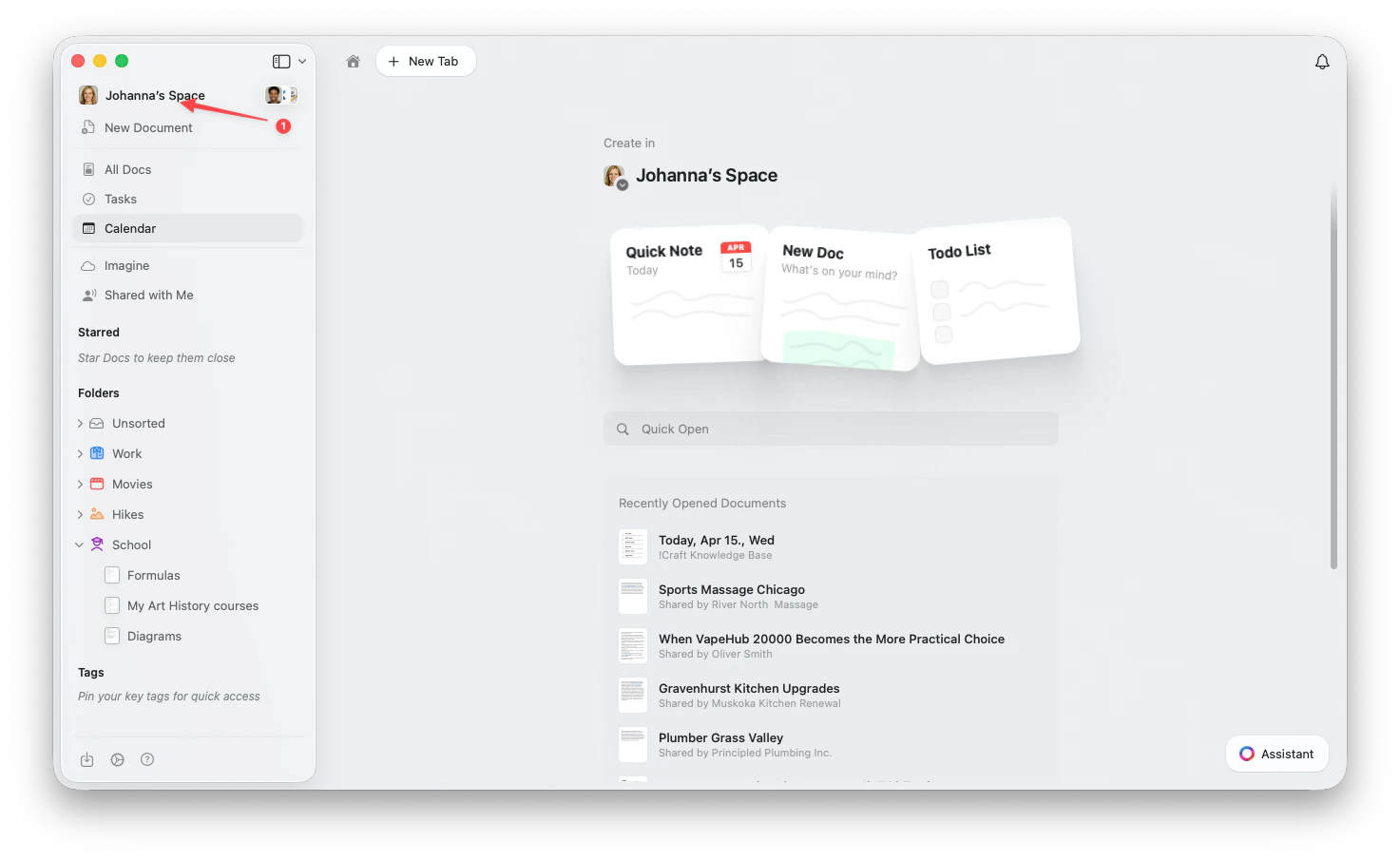 點擊左上角的 **Space 名稱**。
點擊下拉選單底部的**設定**。
點擊左上角的 **Space 名稱**。
點擊下拉選單底部的**設定**。
 點選左上角的 **Space 圖示**。
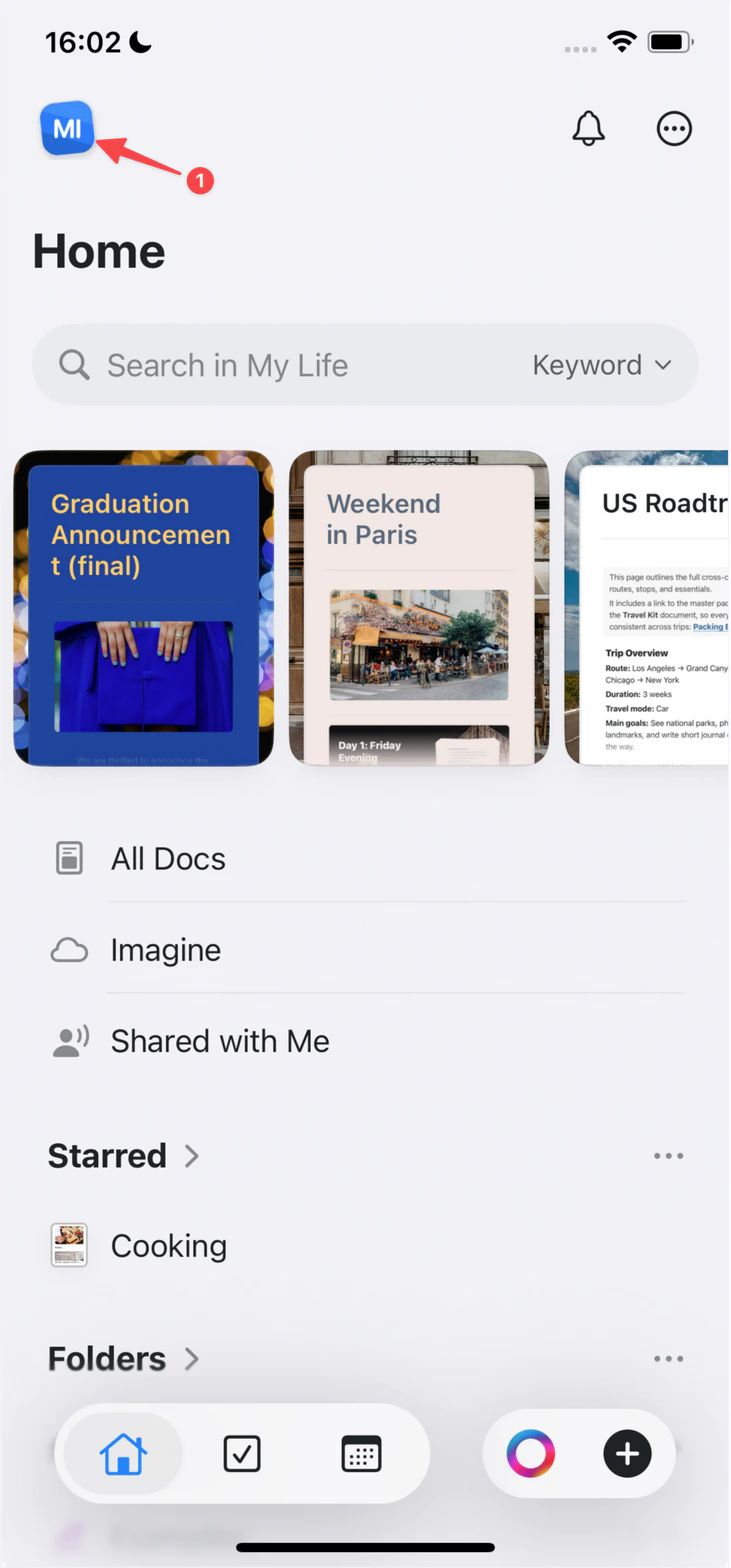 點選**設定**。
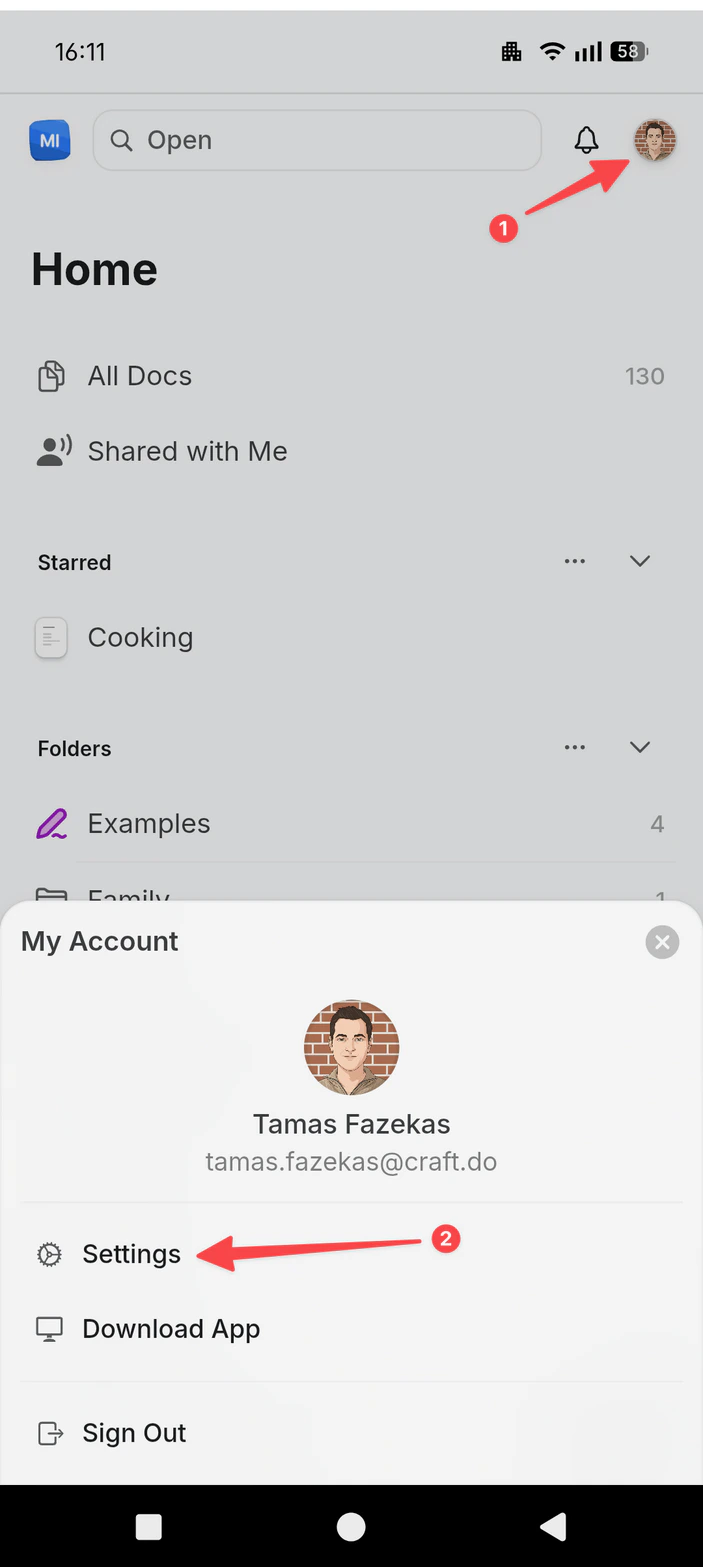
點選右上角的**個人頭貼**。
點選**設定**。
點選**設定**。
點選右上角的**個人頭貼**。
點選**設定**。
 ### 步驟二:前往「我的訂閱」
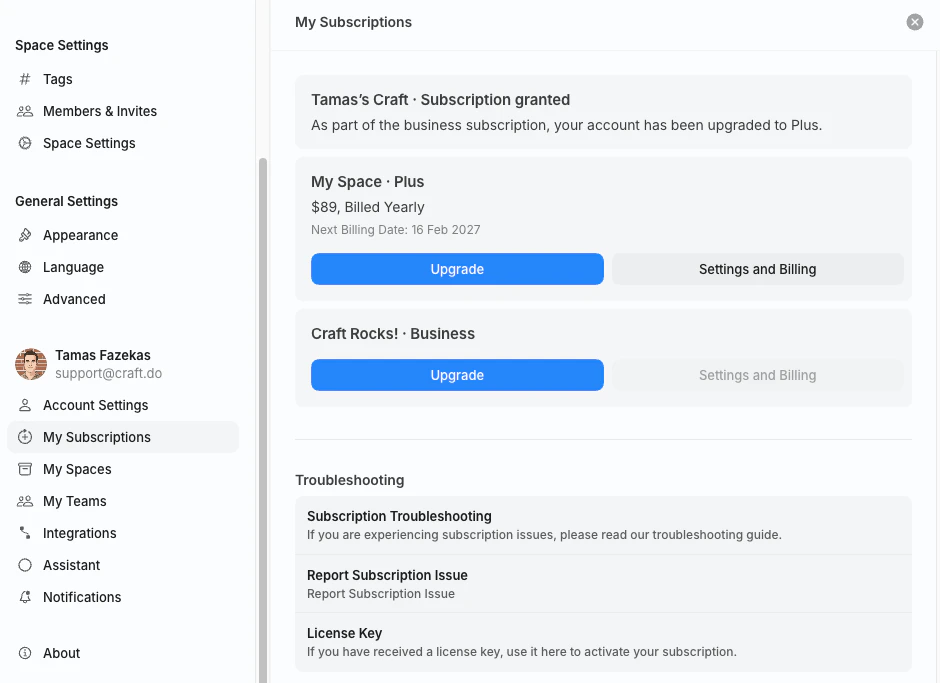
在設定側欄中,選擇 **My Subscriptions**。您將看到帳戶下每筆訂閱的卡片,包括個人空間(例如 *My Space · Plus*)以及您擁有的任何商業或團隊訂閱。
### 步驟二:前往「我的訂閱」
在設定側欄中,選擇 **My Subscriptions**。您將看到帳戶下每筆訂閱的卡片,包括個人空間(例如 *My Space · Plus*)以及您擁有的任何商業或團隊訂閱。
 ### 步驟三:開啟「設定與帳單」
在您要管理的訂閱上,點選 **Settings and Billing**。這將開啟該訂閱的「帳單與訂閱」檢視。
只有**訂閱擁有者**(購買方案的帳戶)才會看到 **Settings and Billing** 按鈕。若您是他人所擁有的團隊空間成員,請請訂閱擁有者代為下載發票。
## 「帳單與訂閱」檢視的內容
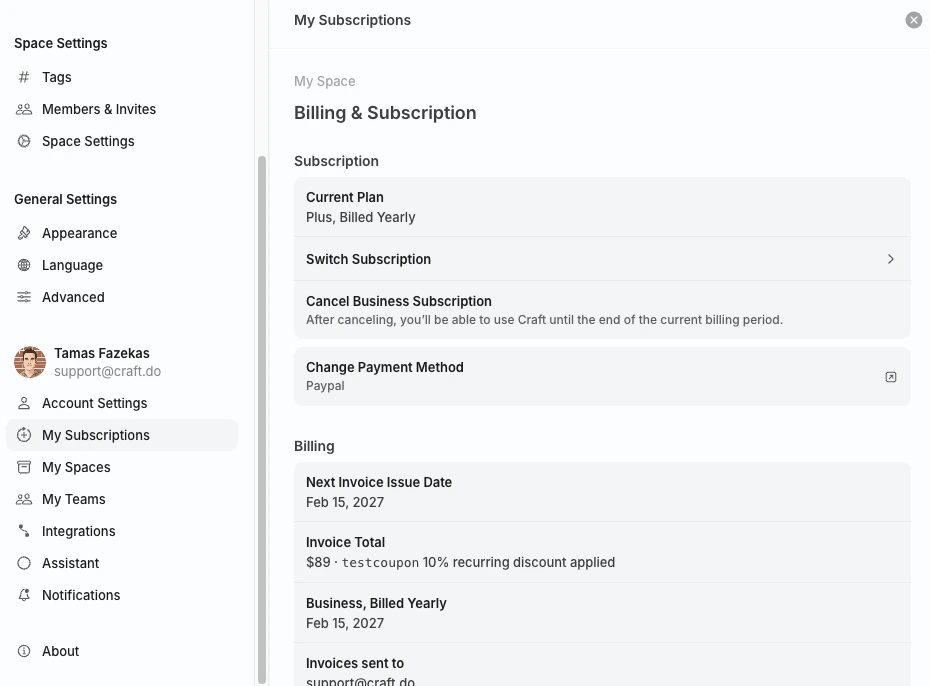
「帳單與訂閱」檢視分為三個區塊。
### 步驟三:開啟「設定與帳單」
在您要管理的訂閱上,點選 **Settings and Billing**。這將開啟該訂閱的「帳單與訂閱」檢視。
只有**訂閱擁有者**(購買方案的帳戶)才會看到 **Settings and Billing** 按鈕。若您是他人所擁有的團隊空間成員,請請訂閱擁有者代為下載發票。
## 「帳單與訂閱」檢視的內容
「帳單與訂閱」檢視分為三個區塊。
 ### 訂閱
| 項目 | 說明 |
| ------------------------- | ------------------------------------------------------------------------------------------------------- |
| **Current Plan** | 顯示目前使用的方案(例如 *Plus, Billed Yearly*)。 |
| **Switch Subscription** | 變更扣款週期(月繳 ↔ 年繳)或切換至其他方案。 |
| **Cancel Subscription** | 取消訂閱。您可繼續使用至目前計費週期結束。請參閱[取消訂閱](/zh-Hant/account-and-subscription/billing/cancel-subscription)。 |
| **Change Payment Method** | 開啟 Stripe 帳單入口以更新信用卡或付款方式。請參閱[更新付款方式](/zh-Hant/account-and-subscription/billing/update-payment-method)。 |
### 帳單
| 項目 | 說明 |
| --------------------------- | ---------------------------------------------------------------------------------------------------- |
| **Next Invoice Issue Date** | 下次發票的產生日期。 |
| **Invoice Total** | 下次發票金額,包含任何有效的折扣碼。請參閱[折扣碼](/zh-Hant/account-and-subscription/billing/discount-codes)。 |
| **Renewal info** | 將續約的方案及其續約日期。 |
| **Invoices sent to** | 接收發票與帳單通知的電子郵件地址。若要變更,請參閱[變更帳單電子郵件](/zh-Hant/account-and-subscription/billing/change-billing-email)。 |
### 發票
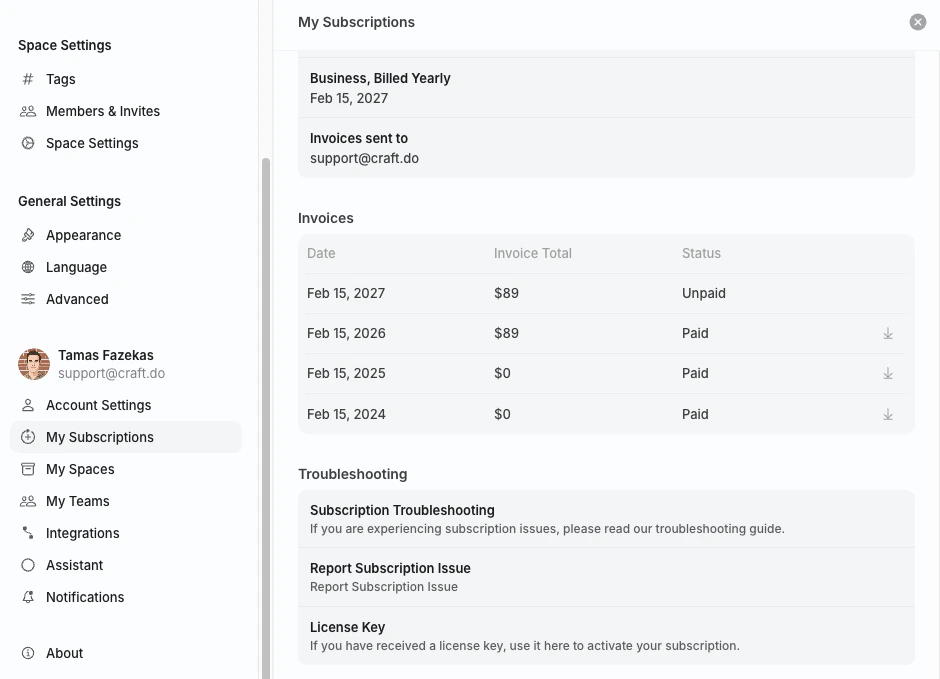
檢視底部的**發票**表格列出此訂閱所有已開立的發票,包含日期、金額及狀態。
### 訂閱
| 項目 | 說明 |
| ------------------------- | ------------------------------------------------------------------------------------------------------- |
| **Current Plan** | 顯示目前使用的方案(例如 *Plus, Billed Yearly*)。 |
| **Switch Subscription** | 變更扣款週期(月繳 ↔ 年繳)或切換至其他方案。 |
| **Cancel Subscription** | 取消訂閱。您可繼續使用至目前計費週期結束。請參閱[取消訂閱](/zh-Hant/account-and-subscription/billing/cancel-subscription)。 |
| **Change Payment Method** | 開啟 Stripe 帳單入口以更新信用卡或付款方式。請參閱[更新付款方式](/zh-Hant/account-and-subscription/billing/update-payment-method)。 |
### 帳單
| 項目 | 說明 |
| --------------------------- | ---------------------------------------------------------------------------------------------------- |
| **Next Invoice Issue Date** | 下次發票的產生日期。 |
| **Invoice Total** | 下次發票金額,包含任何有效的折扣碼。請參閱[折扣碼](/zh-Hant/account-and-subscription/billing/discount-codes)。 |
| **Renewal info** | 將續約的方案及其續約日期。 |
| **Invoices sent to** | 接收發票與帳單通知的電子郵件地址。若要變更,請參閱[變更帳單電子郵件](/zh-Hant/account-and-subscription/billing/change-billing-email)。 |
### 發票
檢視底部的**發票**表格列出此訂閱所有已開立的發票,包含日期、金額及狀態。
 ## 下載發票
依照上述步驟開啟您訂閱的 **Billing & Subscription** 檢視。
表格位於訂閱與帳單區塊下方。
在任何**已付款**發票上,點選該列右側的**下載箭頭(↓)**,即可下載 PDF 版本。
下載箭頭僅出現在**已付款**的發票上。若您最近的發票顯示**未付款**,請等待付款完成,或如需提前取得副本,請聯絡 [support@craft.do](mailto:support@craft.do)。
請在下次發票開立**之前**新增相關資訊。請參閱 [VAT 資訊](/zh-Hant/account-and-subscription/billing/vat-information)。歷史發票會反映當時記錄在案的資訊。
## App Store 訂閱(iOS/macOS)
若您透過 iPhone、iPad 或 Mac 上的 App Store 訂閱,**所有帳單均由 Apple 管理**。Craft 無法代表 Apple 產生或下載 App Store 發票。
若要尋找您的收據:
* **電子郵件**:Apple 會針對每筆購買,將收據寄至您 Apple ID 所綁定的電子郵件地址。
* **Apple ID 購買記錄**:可至 [reportaproblem.apple.com](https://reportaproblem.apple.com) 查閱過往收據。
* **Apple 客服支援**:若需副本、退款或符合統一編號規範的發票,請前往 [Apple 帳單支援](https://support.apple.com/billing)。
## Setapp
透過 Setapp 會員使用 Craft 的用戶,帳單由 Setapp 管理。收據與發票可在您的 Setapp 帳戶 [my.setapp.com](https://my.setapp.com) 中取得。
## 疑難排解
只有**訂閱擁有者**才會看到 **Settings and Billing** 按鈕。若您加入的是他人擁有的團隊空間,則需由擁有者下載發票。
發票會依照扣款當下記錄在案的帳單資訊產生。您可以在 Stripe 帳單入口更新資訊,以供**未來**的發票使用——請參閱 [VAT 資訊](/zh-Hant/account-and-subscription/billing/vat-information)。若需更正歷史發票,請附上發票編號聯絡 [support@craft.do](mailto:support@craft.do)。
Apple 為 App Store 訂閱的銷售主體,因此含統一編號的發票由 Apple 開立,而非 Craft。請前往 [Apple 帳單支援](https://support.apple.com/billing)申請符合規範的發票。
## 相關文章
Stripe、App Store 與 Setapp 說明
變更記錄在案的信用卡或付款資訊
在發票上新增統一編號或公司資訊
更新接收發票的電子郵件地址
終止您的 Craft 訂閱
套用或查看有效的折扣碼
關於一般疑難排解、同步或特定平台的問題,請參閱[疑難排解指南](/zh-Hant/introduction/troubleshooting)。
## 下載發票
依照上述步驟開啟您訂閱的 **Billing & Subscription** 檢視。
表格位於訂閱與帳單區塊下方。
在任何**已付款**發票上,點選該列右側的**下載箭頭(↓)**,即可下載 PDF 版本。
下載箭頭僅出現在**已付款**的發票上。若您最近的發票顯示**未付款**,請等待付款完成,或如需提前取得副本,請聯絡 [support@craft.do](mailto:support@craft.do)。
請在下次發票開立**之前**新增相關資訊。請參閱 [VAT 資訊](/zh-Hant/account-and-subscription/billing/vat-information)。歷史發票會反映當時記錄在案的資訊。
## App Store 訂閱(iOS/macOS)
若您透過 iPhone、iPad 或 Mac 上的 App Store 訂閱,**所有帳單均由 Apple 管理**。Craft 無法代表 Apple 產生或下載 App Store 發票。
若要尋找您的收據:
* **電子郵件**:Apple 會針對每筆購買,將收據寄至您 Apple ID 所綁定的電子郵件地址。
* **Apple ID 購買記錄**:可至 [reportaproblem.apple.com](https://reportaproblem.apple.com) 查閱過往收據。
* **Apple 客服支援**:若需副本、退款或符合統一編號規範的發票,請前往 [Apple 帳單支援](https://support.apple.com/billing)。
## Setapp
透過 Setapp 會員使用 Craft 的用戶,帳單由 Setapp 管理。收據與發票可在您的 Setapp 帳戶 [my.setapp.com](https://my.setapp.com) 中取得。
## 疑難排解
只有**訂閱擁有者**才會看到 **Settings and Billing** 按鈕。若您加入的是他人擁有的團隊空間,則需由擁有者下載發票。
發票會依照扣款當下記錄在案的帳單資訊產生。您可以在 Stripe 帳單入口更新資訊,以供**未來**的發票使用——請參閱 [VAT 資訊](/zh-Hant/account-and-subscription/billing/vat-information)。若需更正歷史發票,請附上發票編號聯絡 [support@craft.do](mailto:support@craft.do)。
Apple 為 App Store 訂閱的銷售主體,因此含統一編號的發票由 Apple 開立,而非 Craft。請前往 [Apple 帳單支援](https://support.apple.com/billing)申請符合規範的發票。
## 相關文章
Stripe、App Store 與 Setapp 說明
變更記錄在案的信用卡或付款資訊
在發票上新增統一編號或公司資訊
更新接收發票的電子郵件地址
終止您的 Craft 訂閱
套用或查看有效的折扣碼
關於一般疑難排解、同步或特定平台的問題,請參閱[疑難排解指南](/zh-Hant/introduction/troubleshooting)。