> ## Documentation Index
> Fetch the complete documentation index at: https://craft-support.mintlify.site/llms.txt
> Use this file to discover all available pages before exploring further.
# 帳單
> 管理您的 Craft 訂閱、付款資料與發票。
帳單的管理方式取決於您訂閱 Craft 的管道。共有三種訂閱方式,每一種的管理位置都不同。
## 您是透過哪種方式訂閱的?
| 訂閱管道 | 帳單由誰處理 | 在哪裡管理 |
| -------------------------------- | ------ | ----------------------------------------------------- |
| **直接向 Craft 訂閱**(在應用程式內或我們的網站上) | Craft | 在 Craft 中,前往**設定 → 我的訂閱** |
| **App Store**(iPhone、iPad 或 Mac) | Apple | 您的 Apple 帳號訂閱設定 |
| **Setapp** | Setapp | 您在 [my.setapp.com](https://my.setapp.com) 的 Setapp 帳戶 |
不確定自己屬於哪一種?可以在 Craft 中查看:
點擊側邊欄頂端的 **Space 名稱**以開啟設定。
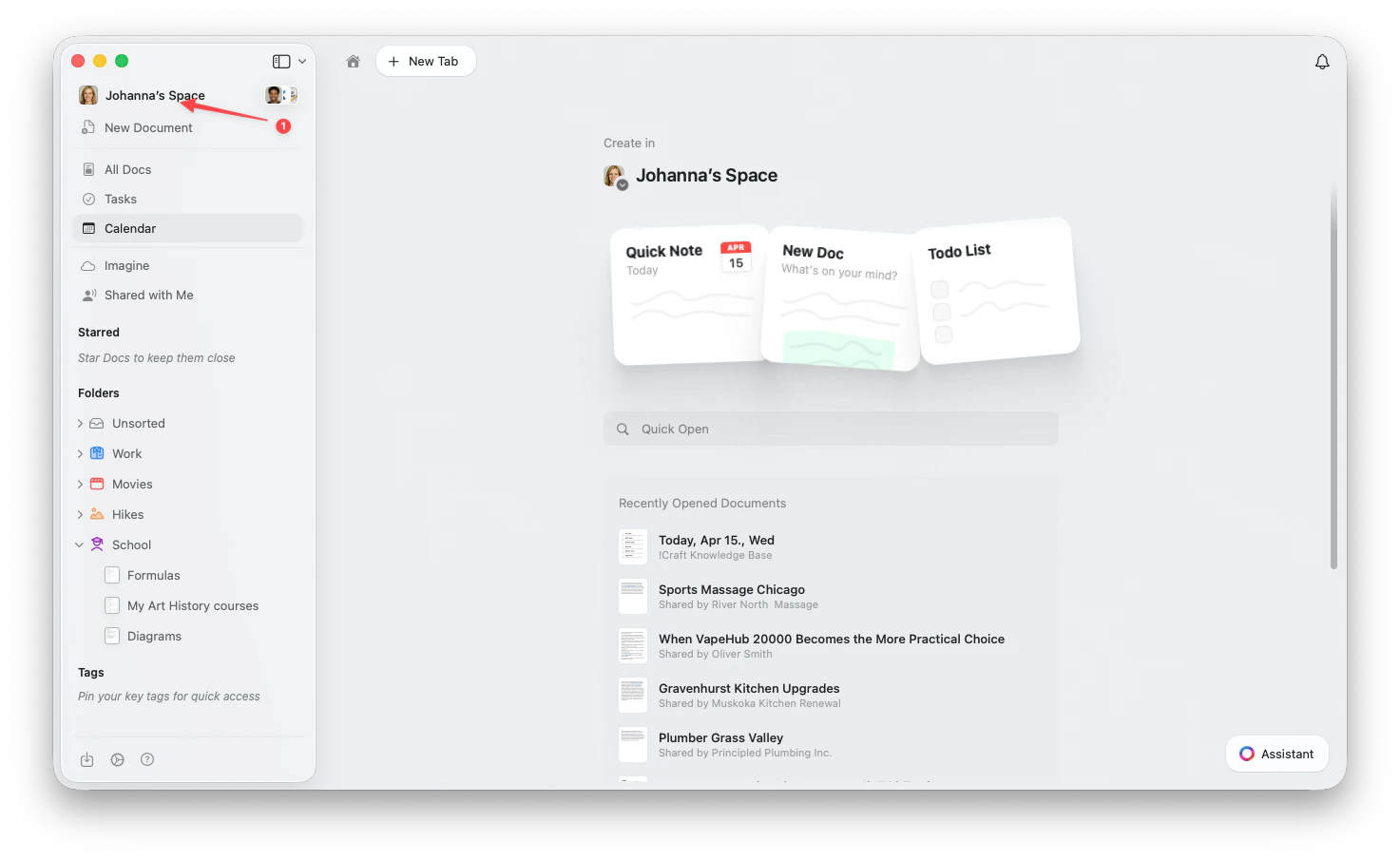 點擊左上角的 **Space 名稱**。
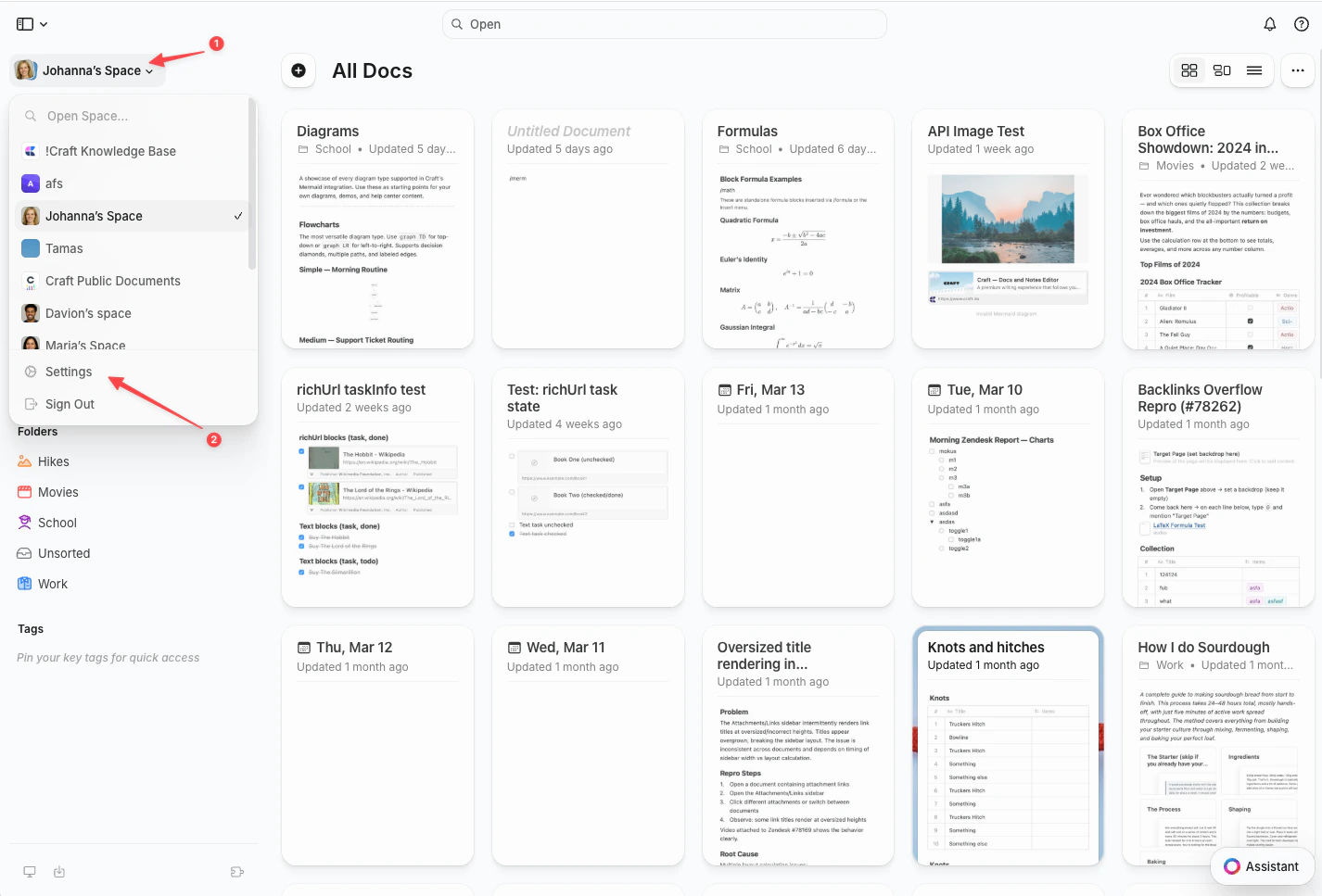
點擊下拉選單底部的**設定**。
點擊左上角的 **Space 名稱**。
點擊下拉選單底部的**設定**。
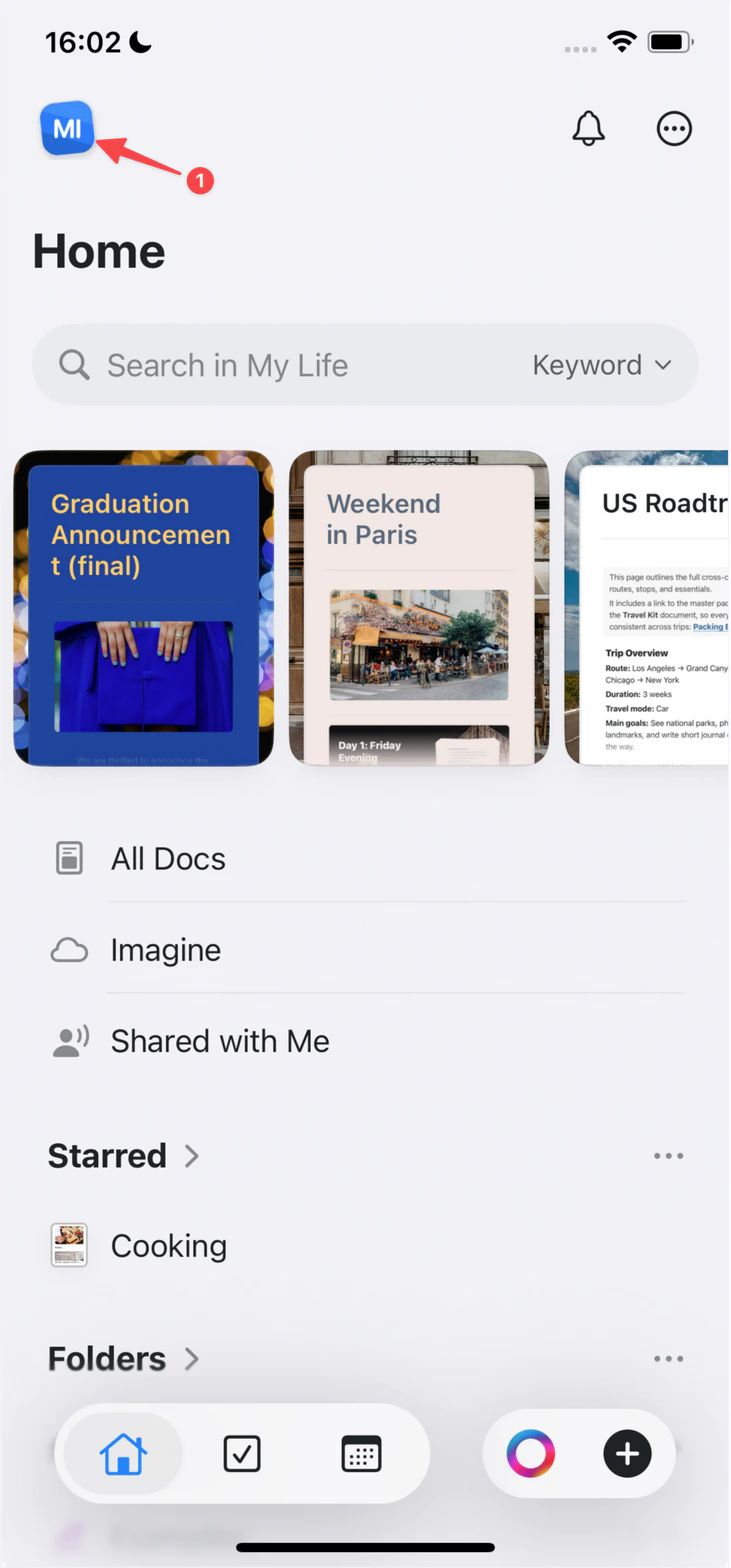
 點選左上角的 **Space 圖示**。
 點選**設定**。
點選右上角的**個人頭貼**。
點選**設定**。
點選**設定**。
點選右上角的**個人頭貼**。
點選**設定**。
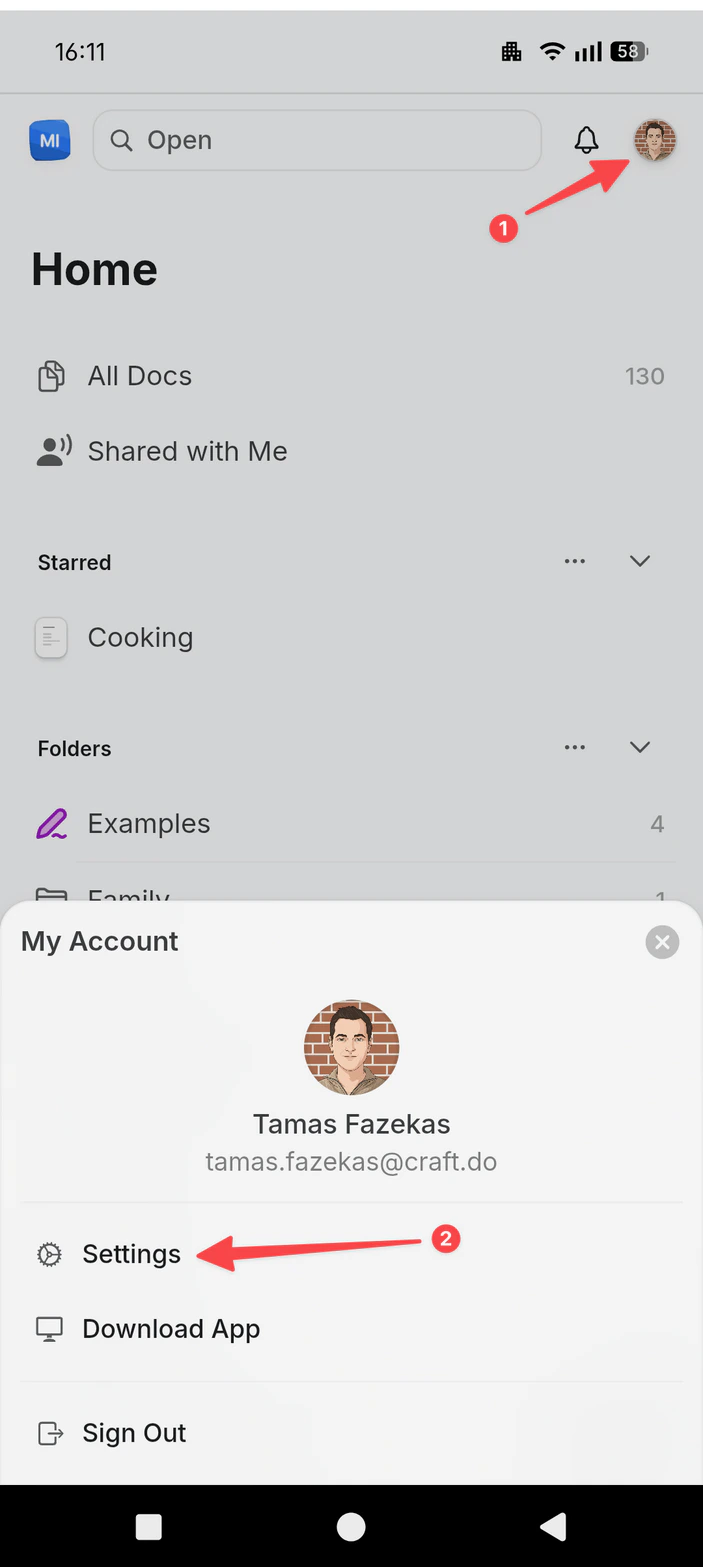 接著選擇**我的訂閱**:
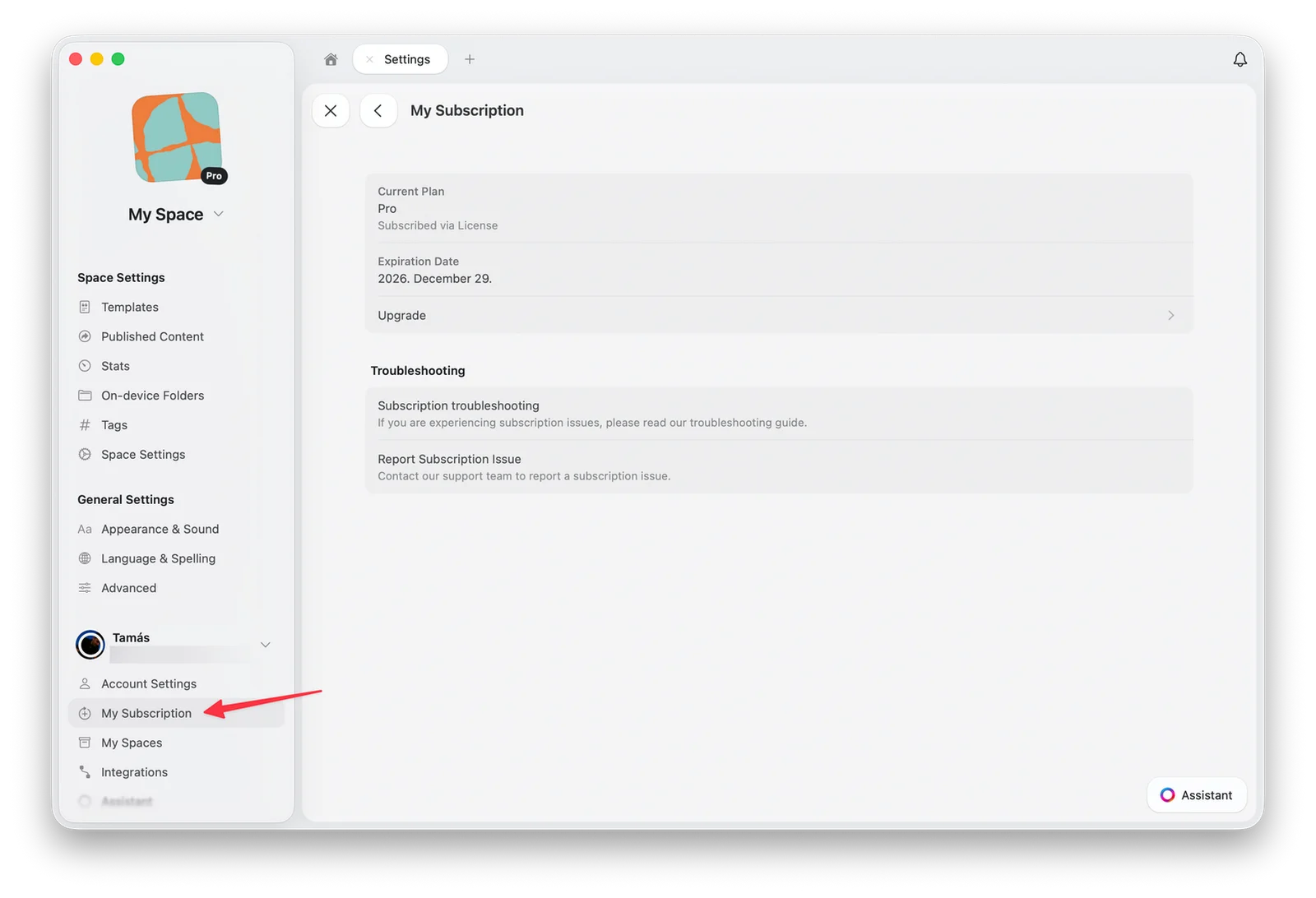 直接向 Craft 購買的訂閱會顯示**設定與帳單**按鈕。App Store 與 Setapp 訂閱則會引導您前往 Apple 或 Setapp。
## 管理您的訂閱
尋找並下載您訂閱的發票
變更訂閱所綁定的信用卡
隨時可以取消,您的文件依然安全
在發票中加入公司資料與增值稅編號
在新訂閱中使用優惠碼
將您的訂閱從 Apple 改為直接向 Craft 訂閱
## 退款
訂閱管道同時也決定了由誰處理退款:
* **直接向 Craft 訂閱**(在應用程式內或我們的網站上):請在扣款後 14 天內來信 [support@craft.do](mailto:support@craft.do),我們會協助您處理。
* **App Store**:所有 App Store 付款均由 Apple 處理,因此只有 Apple 能夠退款。[向 Apple 申請退款](https://support.apple.com/en-us/HT204084)。
* **Setapp**:請透過您的 Setapp 帳戶聯絡 Setapp 支援團隊。
## 訂閱結束後會怎樣?
如果您的訂閱到期或被取消,您的內容依然安全。您的帳戶會轉為免費方案,並適用免費方案的限制。
### 您的內容不會被刪除
您所有的文件、Space 與已上傳的內容都會保留在帳戶中。訂閱結束後,Craft 絕不會刪除您的內容,也不會把您鎖在帳戶之外。
### 適用免費方案的限制
* 您可以繼續檢視及編輯現有的文件
* 您的 Space 上限為 **1,500 個內容區塊**與 **1 GB 儲存空間**
* 版本歷史保留 **7 天**
* 自訂網域、進階分享分析等進階功能將無法再使用
### 重新訂閱
您可以隨時重新訂閱。您的所有內容都完好無缺,訂閱生效後即可再次使用所有功能。
## 疑難排解
如果您已訂閱,但在一台或多台 Craft 應用程式中仍看不到付費功能:
* 請確認您登入的帳戶與訂閱時使用的帳戶相同,且登入方式一致(例如電子郵件登入與「使用 Apple 登入」是不同的)
* 如果您在首次建立 Craft 帳戶時啟用了[隱藏我的電子郵件](https://support.apple.com/en-us/HT210425),Apple 可能為您的 Craft 帳戶指派了一個*私密轉送*電子郵件地址
* **小提示**:要查看 Craft 帳戶綁定的電子郵件地址,請在任一 Craft 應用程式中前往**設定 → 我的帳戶**
* 付費功能僅在您擁有的 Space 中可用。如果您所在的共享 Space 其擁有者沒有付費訂閱,您的付費功能在該 Space 中不會生效
如果以上方法都沒有幫助,且您確實有成功的訂閱扣款紀錄,請聯絡 [support@craft.do](mailto:support@craft.do)。
在 Apple 裝置上的 Craft 中,開啟訂閱設定並使用**回復購買**按鈕:
* **macOS**:前往**團隊設定 → 目前方案**,然後選擇**回復購買**
* **iOS**:前往**團隊設定 → 管理團隊 → 目前方案**,然後選擇**回復購買**
如果仍未解決,請聯絡 [support@craft.do](mailto:support@craft.do)。
如果您是在同一台裝置上購買的 App Store 訂閱,可以使用**回復購買**按鈕(見上文)將其轉移到目前的帳戶。Craft 也支援 App Store 訂閱的家人共享。
如果您是直接向 Craft 訂閱時用錯了帳戶,請在交易後 14 天內聯絡 [support@craft.do](mailto:support@craft.do)。我們可以為您全額退款並取消訂閱,之後您即可用正確的帳戶重新訂閱。
對於在應用程式內或我們網站上直接向 Craft 購買的訂閱,Craft 與值得信賴的付款合作夥伴合作處理款項。依您訂閱的時間而定,您的信用卡帳單與收據電子郵件中可能會在 Craft 旁邊顯示 **Stripe** 或 **Paddle**。這些款項是正常的,您的訂閱仍然在 Craft 的**設定 → 我的訂閱**中管理。
如果您看到完全無法辨識的款項,請聯絡 [support@craft.do](mailto:support@craft.do),我們會為您查證。
請仔細檢查信箱的垃圾郵件資料夾,尤其是當您使用學校信箱申請時。如果您送出申請後兩週內沒有收到任何回覆,請聯絡 [support@craft.do](mailto:support@craft.do),並附上您的全名與申請時使用的電子郵件地址。我們很樂意為您查詢申請狀態。
如果您目前是 App Store 訂閱,只有 Apple 能夠退款。退款申請方式請見:[https://support.apple.com/en-us/HT204084](https://support.apple.com/en-us/HT204084)
如果您是直接向 Craft 訂閱的,請聯絡 [support@craft.do](mailto:support@craft.do),我們會為您找出最合適的解決方案。
關於一般疑難排解、同步或特定平台的問題,請參閱[疑難排解指南](/zh-Hant/introduction/troubleshooting)。
直接向 Craft 購買的訂閱會顯示**設定與帳單**按鈕。App Store 與 Setapp 訂閱則會引導您前往 Apple 或 Setapp。
## 管理您的訂閱
尋找並下載您訂閱的發票
變更訂閱所綁定的信用卡
隨時可以取消,您的文件依然安全
在發票中加入公司資料與增值稅編號
在新訂閱中使用優惠碼
將您的訂閱從 Apple 改為直接向 Craft 訂閱
## 退款
訂閱管道同時也決定了由誰處理退款:
* **直接向 Craft 訂閱**(在應用程式內或我們的網站上):請在扣款後 14 天內來信 [support@craft.do](mailto:support@craft.do),我們會協助您處理。
* **App Store**:所有 App Store 付款均由 Apple 處理,因此只有 Apple 能夠退款。[向 Apple 申請退款](https://support.apple.com/en-us/HT204084)。
* **Setapp**:請透過您的 Setapp 帳戶聯絡 Setapp 支援團隊。
## 訂閱結束後會怎樣?
如果您的訂閱到期或被取消,您的內容依然安全。您的帳戶會轉為免費方案,並適用免費方案的限制。
### 您的內容不會被刪除
您所有的文件、Space 與已上傳的內容都會保留在帳戶中。訂閱結束後,Craft 絕不會刪除您的內容,也不會把您鎖在帳戶之外。
### 適用免費方案的限制
* 您可以繼續檢視及編輯現有的文件
* 您的 Space 上限為 **1,500 個內容區塊**與 **1 GB 儲存空間**
* 版本歷史保留 **7 天**
* 自訂網域、進階分享分析等進階功能將無法再使用
### 重新訂閱
您可以隨時重新訂閱。您的所有內容都完好無缺,訂閱生效後即可再次使用所有功能。
## 疑難排解
如果您已訂閱,但在一台或多台 Craft 應用程式中仍看不到付費功能:
* 請確認您登入的帳戶與訂閱時使用的帳戶相同,且登入方式一致(例如電子郵件登入與「使用 Apple 登入」是不同的)
* 如果您在首次建立 Craft 帳戶時啟用了[隱藏我的電子郵件](https://support.apple.com/en-us/HT210425),Apple 可能為您的 Craft 帳戶指派了一個*私密轉送*電子郵件地址
* **小提示**:要查看 Craft 帳戶綁定的電子郵件地址,請在任一 Craft 應用程式中前往**設定 → 我的帳戶**
* 付費功能僅在您擁有的 Space 中可用。如果您所在的共享 Space 其擁有者沒有付費訂閱,您的付費功能在該 Space 中不會生效
如果以上方法都沒有幫助,且您確實有成功的訂閱扣款紀錄,請聯絡 [support@craft.do](mailto:support@craft.do)。
在 Apple 裝置上的 Craft 中,開啟訂閱設定並使用**回復購買**按鈕:
* **macOS**:前往**團隊設定 → 目前方案**,然後選擇**回復購買**
* **iOS**:前往**團隊設定 → 管理團隊 → 目前方案**,然後選擇**回復購買**
如果仍未解決,請聯絡 [support@craft.do](mailto:support@craft.do)。
如果您是在同一台裝置上購買的 App Store 訂閱,可以使用**回復購買**按鈕(見上文)將其轉移到目前的帳戶。Craft 也支援 App Store 訂閱的家人共享。
如果您是直接向 Craft 訂閱時用錯了帳戶,請在交易後 14 天內聯絡 [support@craft.do](mailto:support@craft.do)。我們可以為您全額退款並取消訂閱,之後您即可用正確的帳戶重新訂閱。
對於在應用程式內或我們網站上直接向 Craft 購買的訂閱,Craft 與值得信賴的付款合作夥伴合作處理款項。依您訂閱的時間而定,您的信用卡帳單與收據電子郵件中可能會在 Craft 旁邊顯示 **Stripe** 或 **Paddle**。這些款項是正常的,您的訂閱仍然在 Craft 的**設定 → 我的訂閱**中管理。
如果您看到完全無法辨識的款項,請聯絡 [support@craft.do](mailto:support@craft.do),我們會為您查證。
請仔細檢查信箱的垃圾郵件資料夾,尤其是當您使用學校信箱申請時。如果您送出申請後兩週內沒有收到任何回覆,請聯絡 [support@craft.do](mailto:support@craft.do),並附上您的全名與申請時使用的電子郵件地址。我們很樂意為您查詢申請狀態。
如果您目前是 App Store 訂閱,只有 Apple 能夠退款。退款申請方式請見:[https://support.apple.com/en-us/HT204084](https://support.apple.com/en-us/HT204084)
如果您是直接向 Craft 訂閱的,請聯絡 [support@craft.do](mailto:support@craft.do),我們會為您找出最合適的解決方案。
關於一般疑難排解、同步或特定平台的問題,請參閱[疑難排解指南](/zh-Hant/introduction/troubleshooting)。