> ## Documentation Index
> Fetch the complete documentation index at: https://craft-support.mintlify.site/llms.txt
> Use this file to discover all available pages before exploring further.
# 品牌设置
> 在已发布的页面上展示您的徽标,为读者创造专业的品牌体验。
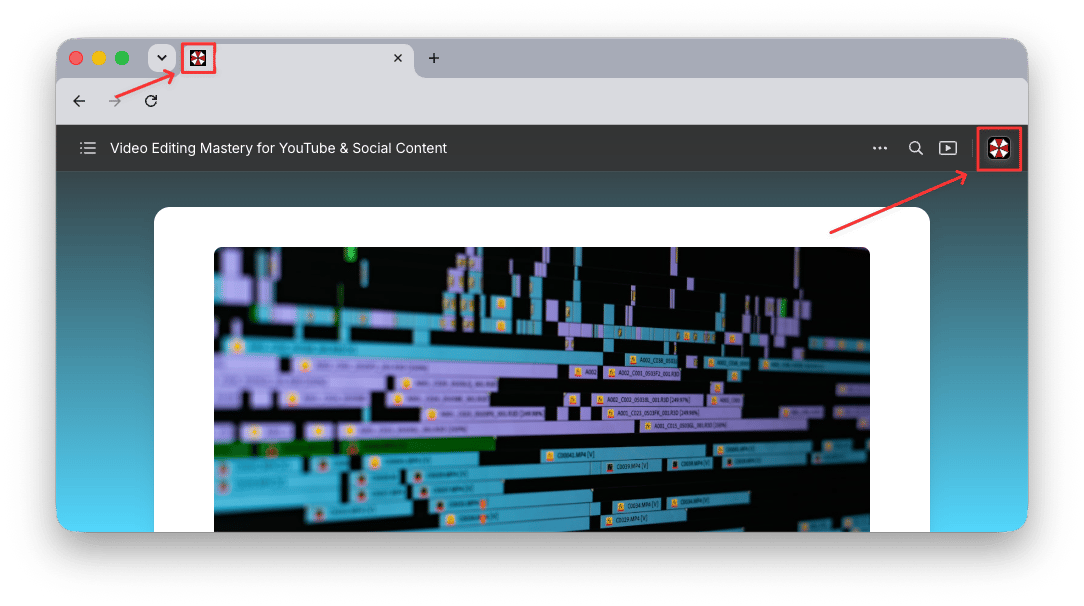
让您发布的 Craft 文档体现您的品牌形象。您的徽标可以显示在所有已发布的页面上,出现在页面标题和浏览器标签页中。
自定义品牌功能适用于 **Plus、Family、Team 和 Business** 计划。
## 已发布页面上的徽标
启用后,您的徽标将出现在每个已发布文档的**右上角**,并作为**浏览器标签页图标**显示。读者可以点击徽标访问您指定的网址(例如您的官方网站)。
 ## 启用您的徽标
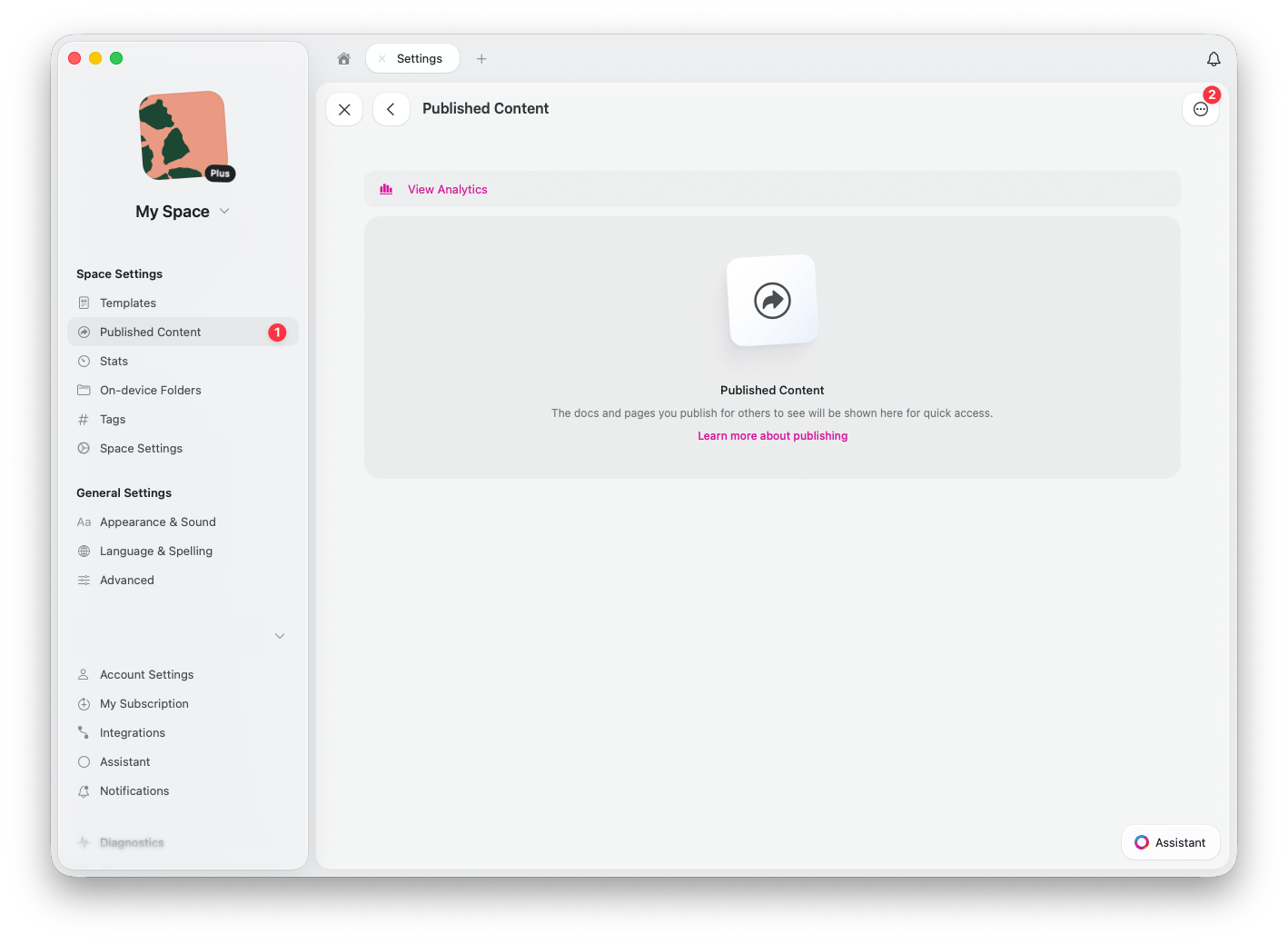
在 Craft 网页版或桌面应用中,前往**空间设置** > **已发布内容**
点击设置图标以访问**已发布内容设置**
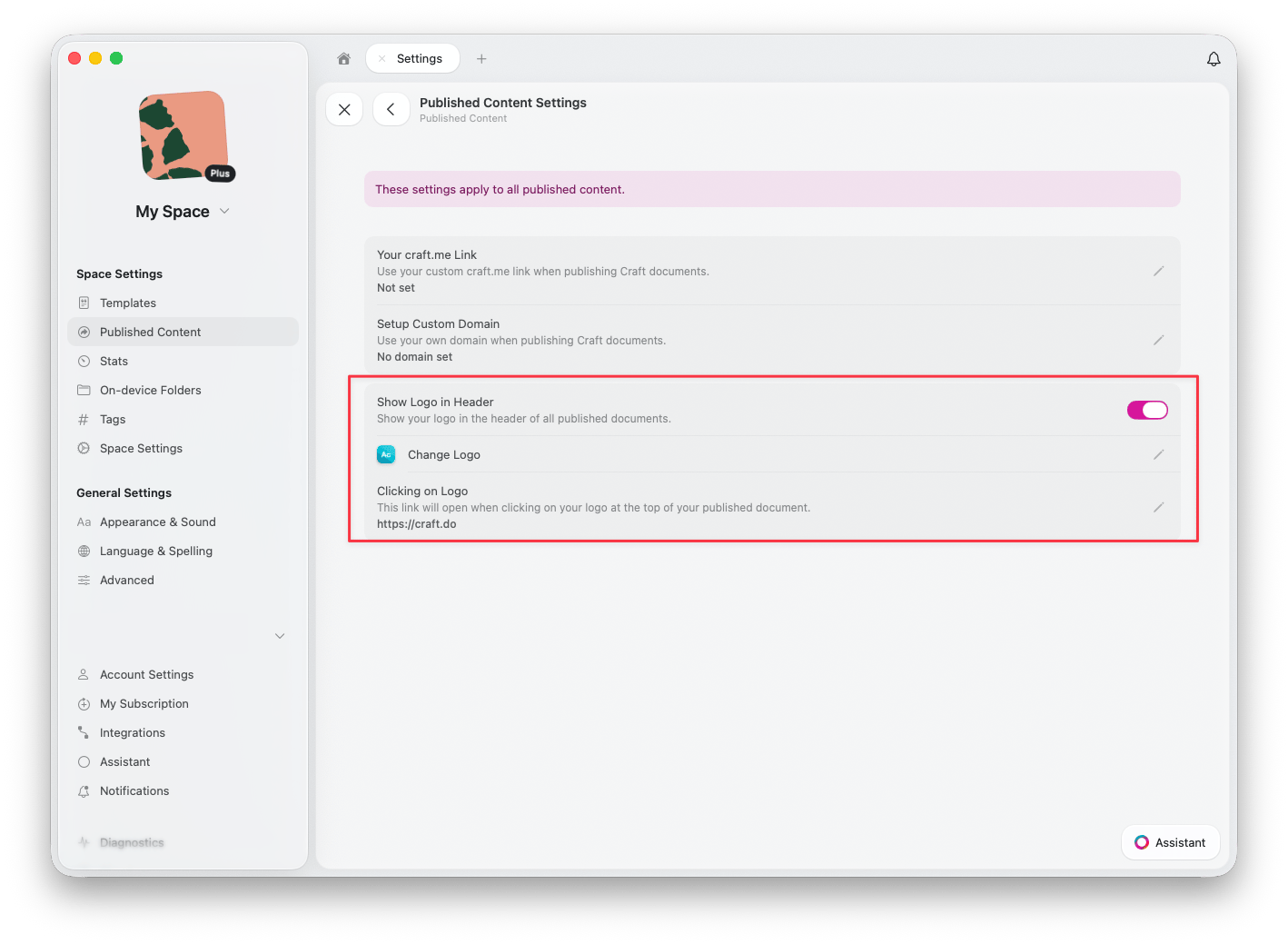
启用 **Show Logo in Header** 以在所有已发布文档的标题中显示您的徽标
点击 **Change Logo** 上传或更新显示在已发布页面上的徽标
在 **Clicking on Logo** 下,设置读者点击您的徽标时跳转的网址(例如您的网站主页)
## 启用您的徽标
在 Craft 网页版或桌面应用中,前往**空间设置** > **已发布内容**
点击设置图标以访问**已发布内容设置**
启用 **Show Logo in Header** 以在所有已发布文档的标题中显示您的徽标
点击 **Change Logo** 上传或更新显示在已发布页面上的徽标
在 **Clicking on Logo** 下,设置读者点击您的徽标时跳转的网址(例如您的网站主页)
 ## 品牌功能组合使用
自定义品牌可与其他发布功能配合使用,打造完整的品牌体验:
**自定义域名** -- 使用您自己的域名(例如 `blog.yourcompany.com`)替代 `craft.me`
**徽标** -- 在所有已发布页面上展示您的徽标
**自定义 craft.me 链接** -- 个性化您的 craft.me 网址以匹配您的品牌
这些功能协同工作,使您可以发布专业内容,让页面看起来与品牌无缝融合,同时在幕后充分发挥 Craft 强大的文档功能。
***
将您自己的域名连接到已发布内容
了解如何将文档发布到网络
## 品牌功能组合使用
自定义品牌可与其他发布功能配合使用,打造完整的品牌体验:
**自定义域名** -- 使用您自己的域名(例如 `blog.yourcompany.com`)替代 `craft.me`
**徽标** -- 在所有已发布页面上展示您的徽标
**自定义 craft.me 链接** -- 个性化您的 craft.me 网址以匹配您的品牌
这些功能协同工作,使您可以发布专业内容,让页面看起来与品牌无缝融合,同时在幕后充分发挥 Craft 强大的文档功能。
***
将您自己的域名连接到已发布内容
了解如何将文档发布到网络