> ## Documentation Index
> Fetch the complete documentation index at: https://craft-support.mintlify.site/llms.txt
> Use this file to discover all available pages before exploring further.
# 链接与反向链接
> 使用内部链接在文档与块之间创建连接,并通过自动反向链接发现它们的关系。
## Sharing & Publishing
In Craft, you can share or publish your documents with just a few clicks. Whether you want to invite collaborators or create a public link, sharing is built right into every document.
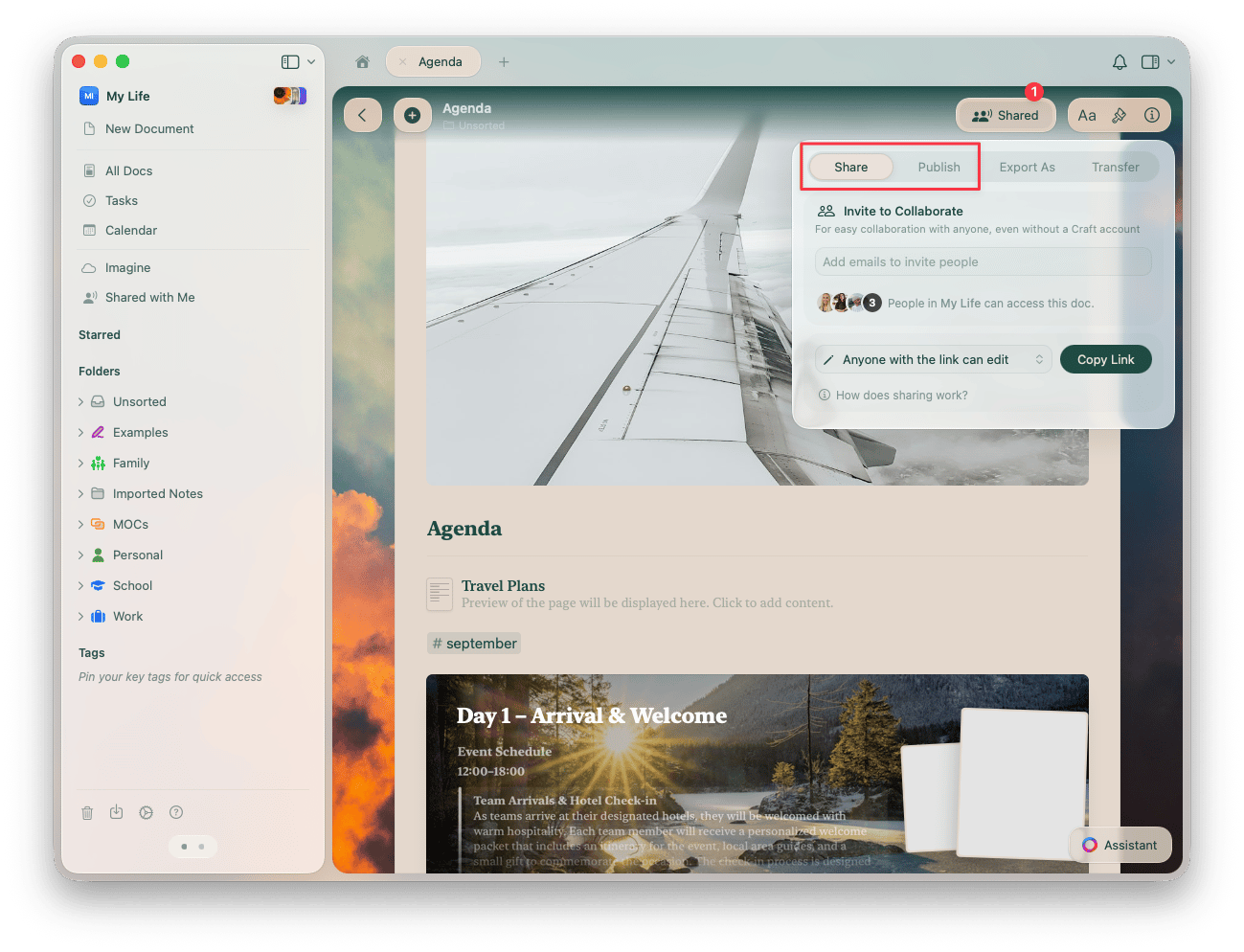 You can read more about sharing and publishing in the [Sharing Documents](/zh-Hans/share-and-publish/share#sharing-documents) article.
## 链接到 Craft 文档或块
你可以在同一空间内链接其他文档或块。当你想引用另一条信息时,这非常有用。有两种方法可以做到这一点:
### 使用 @ 命令
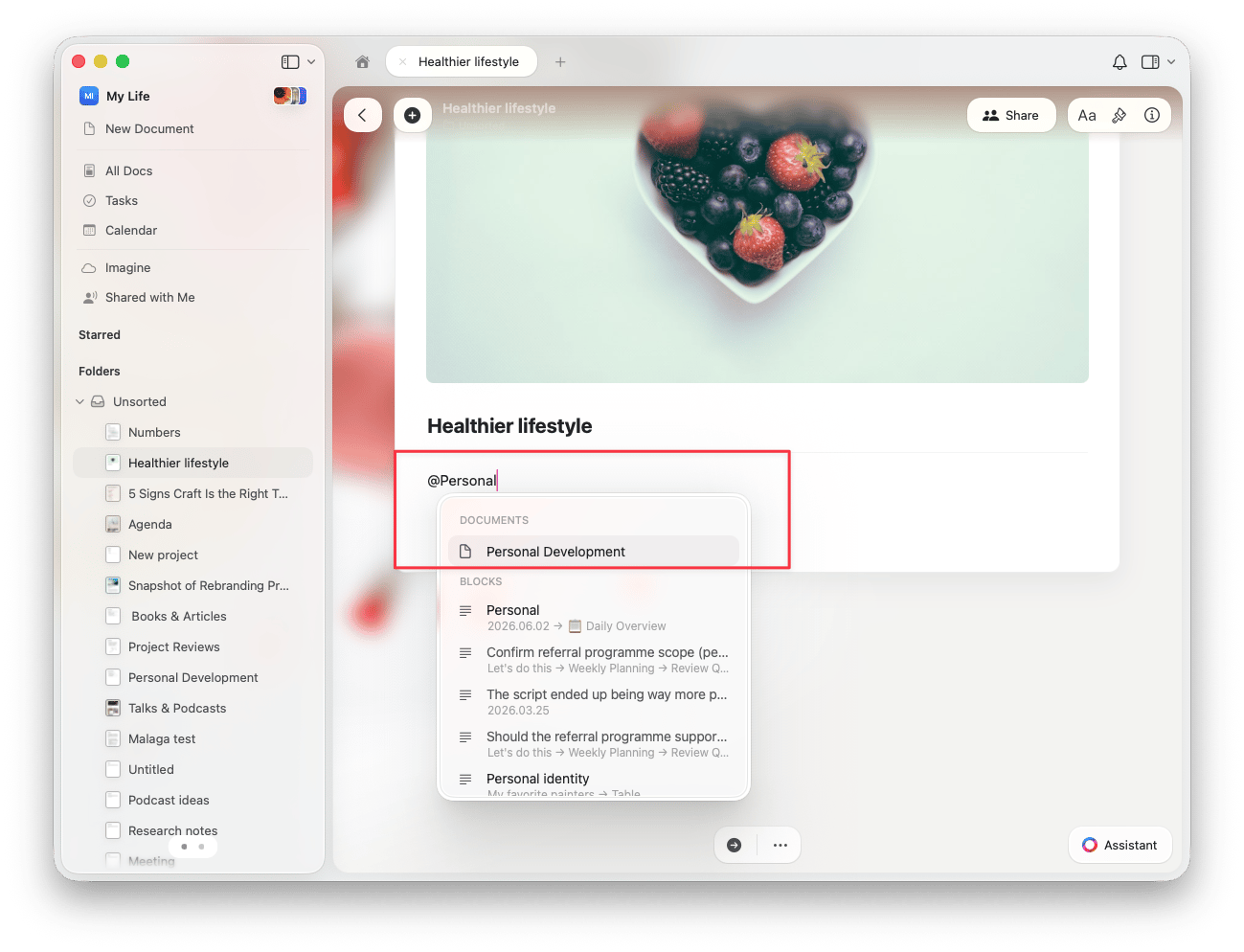
输入 **@** 后,你会看到一个用于链接的下拉选项。输入前几个字符可以帮助你快速找到目标块 / 页面 / 文档。你也可以通过输入当前空间中不存在的标题来创建一个带链接的新页面。
You can read more about sharing and publishing in the [Sharing Documents](/zh-Hans/share-and-publish/share#sharing-documents) article.
## 链接到 Craft 文档或块
你可以在同一空间内链接其他文档或块。当你想引用另一条信息时,这非常有用。有两种方法可以做到这一点:
### 使用 @ 命令
输入 **@** 后,你会看到一个用于链接的下拉选项。输入前几个字符可以帮助你快速找到目标块 / 页面 / 文档。你也可以通过输入当前空间中不存在的标题来创建一个带链接的新页面。
 ### 使用 \[\[ 命令
输入 **\[\[** 会自动转换为 **@**,并显示相同的下拉菜单。
## 反向链接
反向链接会显示所有链接到当前文档的块。你可以利用这些链接在你的空间中快速导航,查看文档与块之间的关联。
* 反向链接会自动创建!每当你 @ 提到某个文档/块时,系统会在被链接的内容中添加一条反向链接。
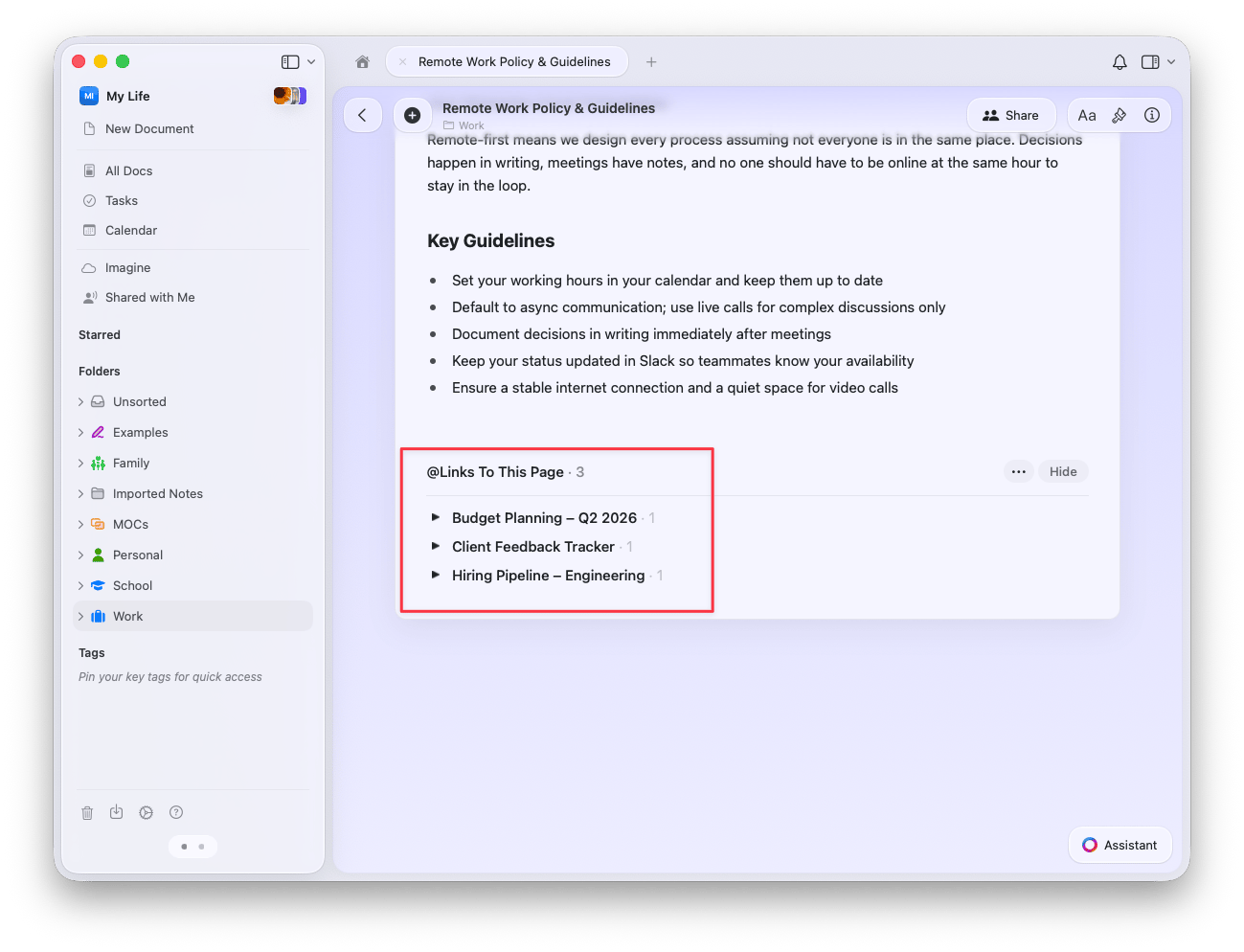
* 反向链接会显示在被链接内容的底部,在 **链接到此页面** 下方。如果某个文档没有任何链接,则此部分不会显示。
你可以快速导航到包含该链接的文档或具体块位置。
### 使用 \[\[ 命令
输入 **\[\[** 会自动转换为 **@**,并显示相同的下拉菜单。
## 反向链接
反向链接会显示所有链接到当前文档的块。你可以利用这些链接在你的空间中快速导航,查看文档与块之间的关联。
* 反向链接会自动创建!每当你 @ 提到某个文档/块时,系统会在被链接的内容中添加一条反向链接。
* 反向链接会显示在被链接内容的底部,在 **链接到此页面** 下方。如果某个文档没有任何链接,则此部分不会显示。
你可以快速导航到包含该链接的文档或具体块位置。
 你可以通过拖放将被链接的块移动到任意其他文档中以保留连接。但是,执行剪切并粘贴操作会删除该连接。
## 相关文章
为特定页面和块创建直接链接
在文档中嵌入 Google 地图
了解块与页面如何构成链接的基础
与协作者共享已链接的内容
将集合条目链接到其他文档和块
你可以通过拖放将被链接的块移动到任意其他文档中以保留连接。但是,执行剪切并粘贴操作会删除该连接。
## 相关文章
为特定页面和块创建直接链接
在文档中嵌入 Google 地图
了解块与页面如何构成链接的基础
与协作者共享已链接的内容
将集合条目链接到其他文档和块