> ## Documentation Index
> Fetch the complete documentation index at: https://craft-support.mintlify.site/llms.txt
> Use this file to discover all available pages before exploring further.
# Collection 的 Gallery View
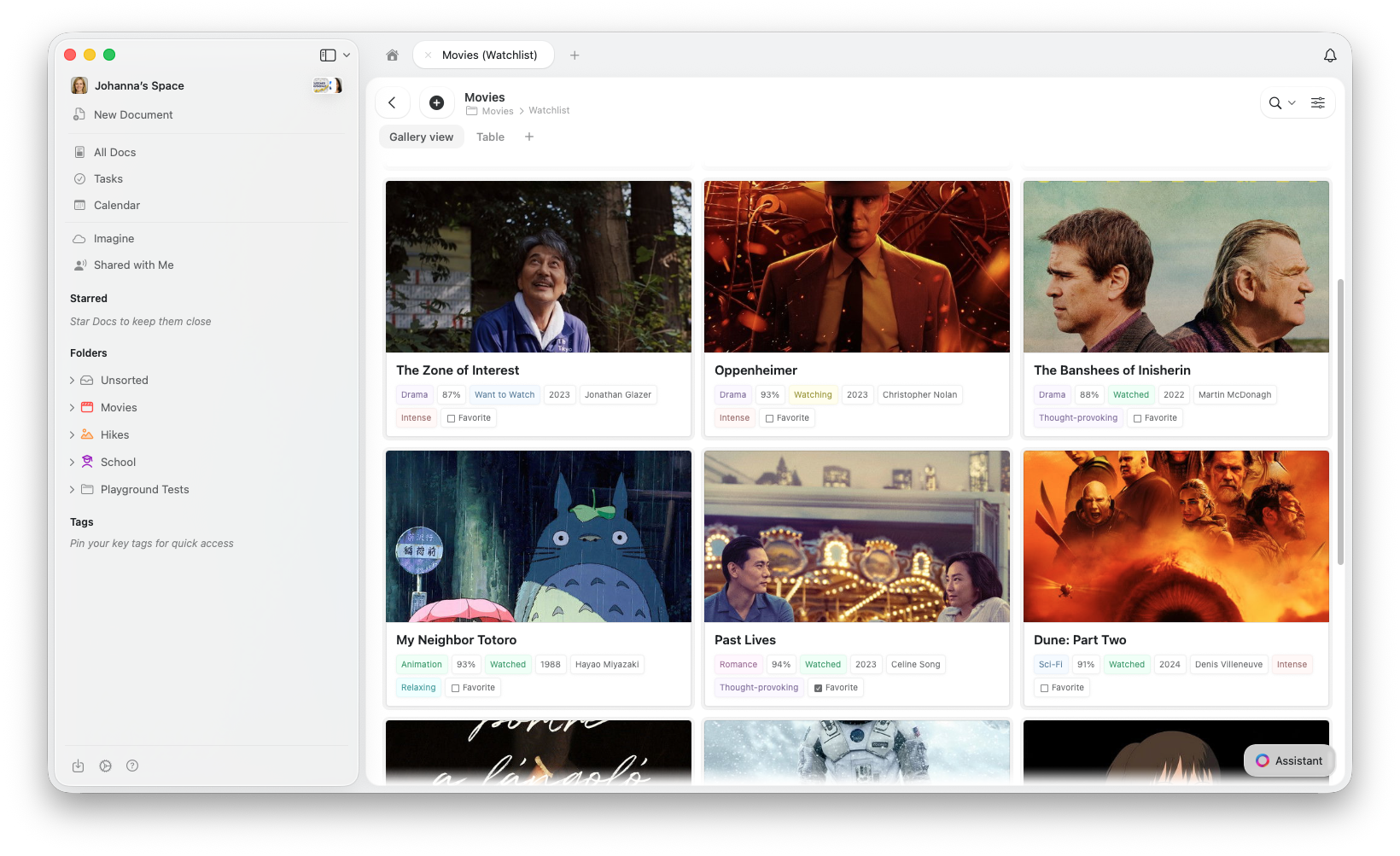
> 将 Collection 条目以带有图片预览的可视化卡片形式展示。非常适合在 Craft 中管理作品集、媒体库以及可视化的项目跟踪。
Gallery View 将 Collection 条目以可视化卡片网格的形式展示,每张卡片一目了然地显示预览图片和关键属性。
 ## Gallery View 与其他视图
所有视图共享相同的数据,在视图之间切换不会删除或修改任何条目。
| 适合使用 Gallery 的情况 | 适合使用 Table 的情况 | 适合使用 Kanban 的情况 |
| ---------------- | -------------- | --------------------- |
| 条目包含图片或视觉内容 | 并排比较多个字段 | 跟踪项目经历的各个阶段(待办 → 已完成) |
| 视觉浏览(作品集、媒体) | 类似电子表格的编辑方式 | 需要可视化工作流看板 |
| 带预览的简洁概览 | 批量数据录入 | 状态变更频繁 |
## 创建 Gallery View
点击 Collection 顶部视图标签页旁边的 **+** 按钮
选择 **Add Gallery View**
## Gallery View 与其他视图
所有视图共享相同的数据,在视图之间切换不会删除或修改任何条目。
| 适合使用 Gallery 的情况 | 适合使用 Table 的情况 | 适合使用 Kanban 的情况 |
| ---------------- | -------------- | --------------------- |
| 条目包含图片或视觉内容 | 并排比较多个字段 | 跟踪项目经历的各个阶段(待办 → 已完成) |
| 视觉浏览(作品集、媒体) | 类似电子表格的编辑方式 | 需要可视化工作流看板 |
| 带预览的简洁概览 | 批量数据录入 | 状态变更频繁 |
## 创建 Gallery View
点击 Collection 顶部视图标签页旁边的 **+** 按钮
选择 **Add Gallery View**
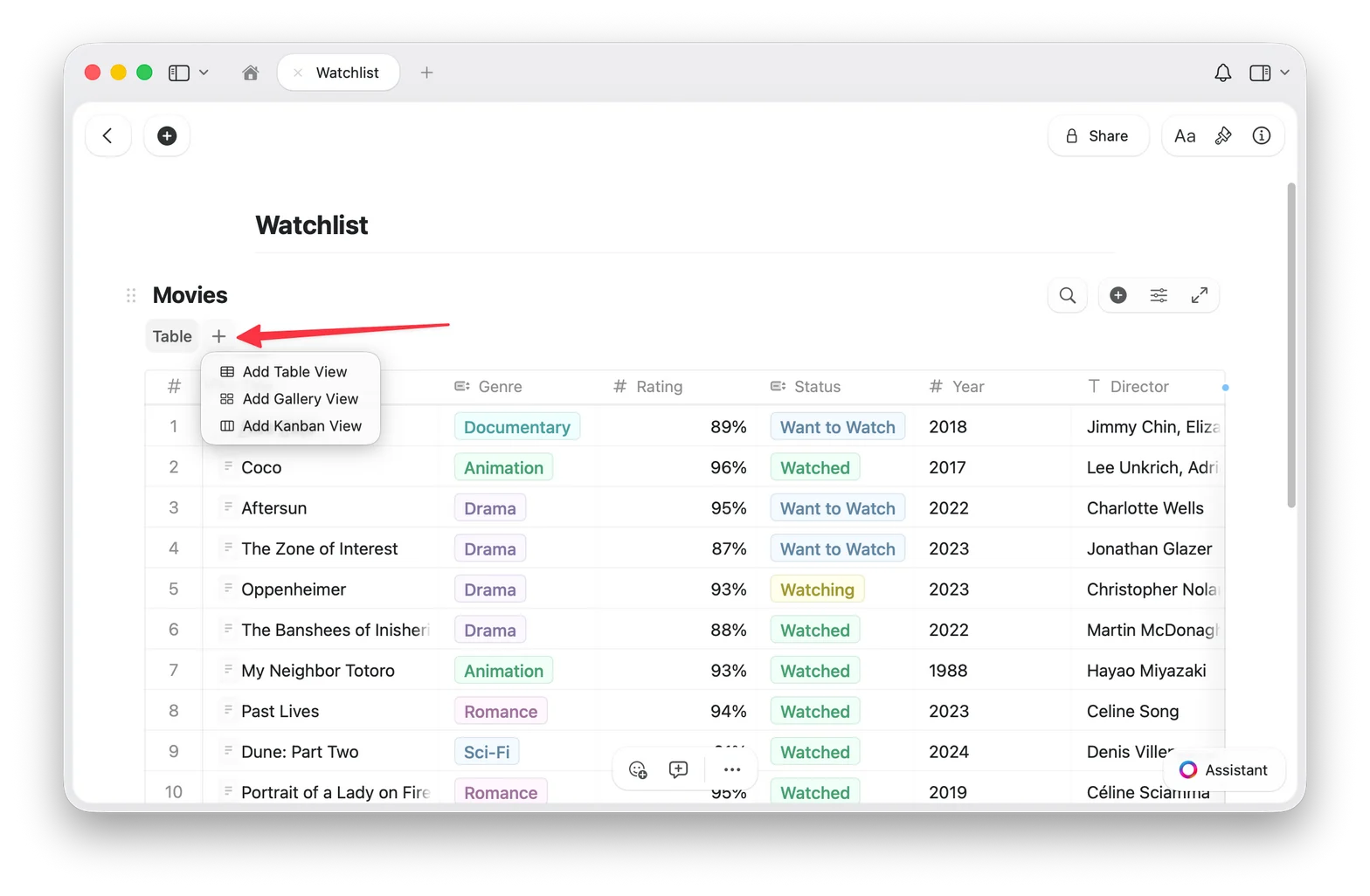 新的 Gallery View 会以标签页的形式出现在 Collection 顶部
## 切换回 Table View
如果你有多个视图,点击 Collection 顶部的 **Table** 视图标签页。如果只有一个 Gallery View,使用配置菜单(⋯)添加 Table 视图。
你的数据始终是安全的,切换视图不会更改你的条目。
## 预览类型
Gallery View 从**每个条目页面的内容**中获取预览图片。要为卡片的预览添加图片,请打开该条目并在其内容中添加图片块。
打开 Collection 中的任意条目,在页面内容中添加图片。Gallery View 会自动将该图片用作卡片预览。
你可以控制每张卡片预览区域的显示方式:
* **Document**(默认):显示条目页面内容的预览
* **Fill**:用条目的图片填充卡片的预览区域
* **Immersive**:将图片用作卡片的全幅背景
* **无预览**:完全隐藏预览区域,仅显示属性
在 **Gallery Options** 中更改预览类型(见下文)。
## 卡片大小
Gallery View 提供两种卡片大小:
* **Small**:紧凑网格,一次显示更多卡片
* **Large**:更大的预览,每行更少的卡片
## Gallery Options
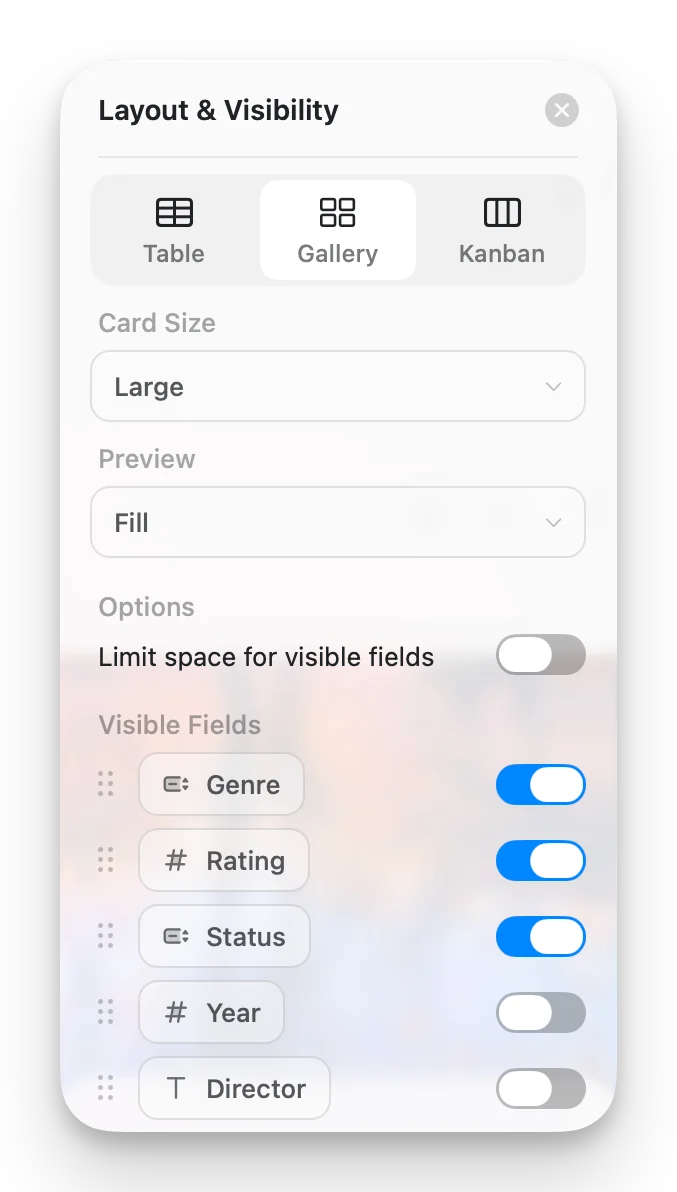
从配置菜单(⋯)访问 Gallery Options 来自定义你的视图:
* **Card Size**:Small 或 Large
* **Preview**:Document、Fill、Immersive 或无预览
* **Limit visible fields**:启用时(默认),卡片显示有限数量的属性,其余以"+n"指示器显示。关闭此选项可在每张卡片上显示所有已启用的字段。
* **Fields**:选择每张卡片上显示的字段并切换其可见性
新的 Gallery View 会以标签页的形式出现在 Collection 顶部
## 切换回 Table View
如果你有多个视图,点击 Collection 顶部的 **Table** 视图标签页。如果只有一个 Gallery View,使用配置菜单(⋯)添加 Table 视图。
你的数据始终是安全的,切换视图不会更改你的条目。
## 预览类型
Gallery View 从**每个条目页面的内容**中获取预览图片。要为卡片的预览添加图片,请打开该条目并在其内容中添加图片块。
打开 Collection 中的任意条目,在页面内容中添加图片。Gallery View 会自动将该图片用作卡片预览。
你可以控制每张卡片预览区域的显示方式:
* **Document**(默认):显示条目页面内容的预览
* **Fill**:用条目的图片填充卡片的预览区域
* **Immersive**:将图片用作卡片的全幅背景
* **无预览**:完全隐藏预览区域,仅显示属性
在 **Gallery Options** 中更改预览类型(见下文)。
## 卡片大小
Gallery View 提供两种卡片大小:
* **Small**:紧凑网格,一次显示更多卡片
* **Large**:更大的预览,每行更少的卡片
## Gallery Options
从配置菜单(⋯)访问 Gallery Options 来自定义你的视图:
* **Card Size**:Small 或 Large
* **Preview**:Document、Fill、Immersive 或无预览
* **Limit visible fields**:启用时(默认),卡片显示有限数量的属性,其余以"+n"指示器显示。关闭此选项可在每张卡片上显示所有已启用的字段。
* **Fields**:选择每张卡片上显示的字段并切换其可见性
 ## 使用 Gallery 卡片
* **打开条目**:点击卡片打开其完整页面
* **右键菜单**:右键点击(Mac)或长按(iOS)获取更多选项
* **选择卡片**:点击选择,Shift+点击多选
## 排序、筛选和分组
Gallery View 支持排序、筛选和分组,选项与 Table View 中相同。分组后的画廊会在卡片组之间显示分区标题。
## 使用 Gallery 卡片
* **打开条目**:点击卡片打开其完整页面
* **右键菜单**:右键点击(Mac)或长按(iOS)获取更多选项
* **选择卡片**:点击选择,Shift+点击多选
## 排序、筛选和分组
Gallery View 支持排序、筛选和分组,选项与 Table View 中相同。分组后的画廊会在卡片组之间显示分区标题。
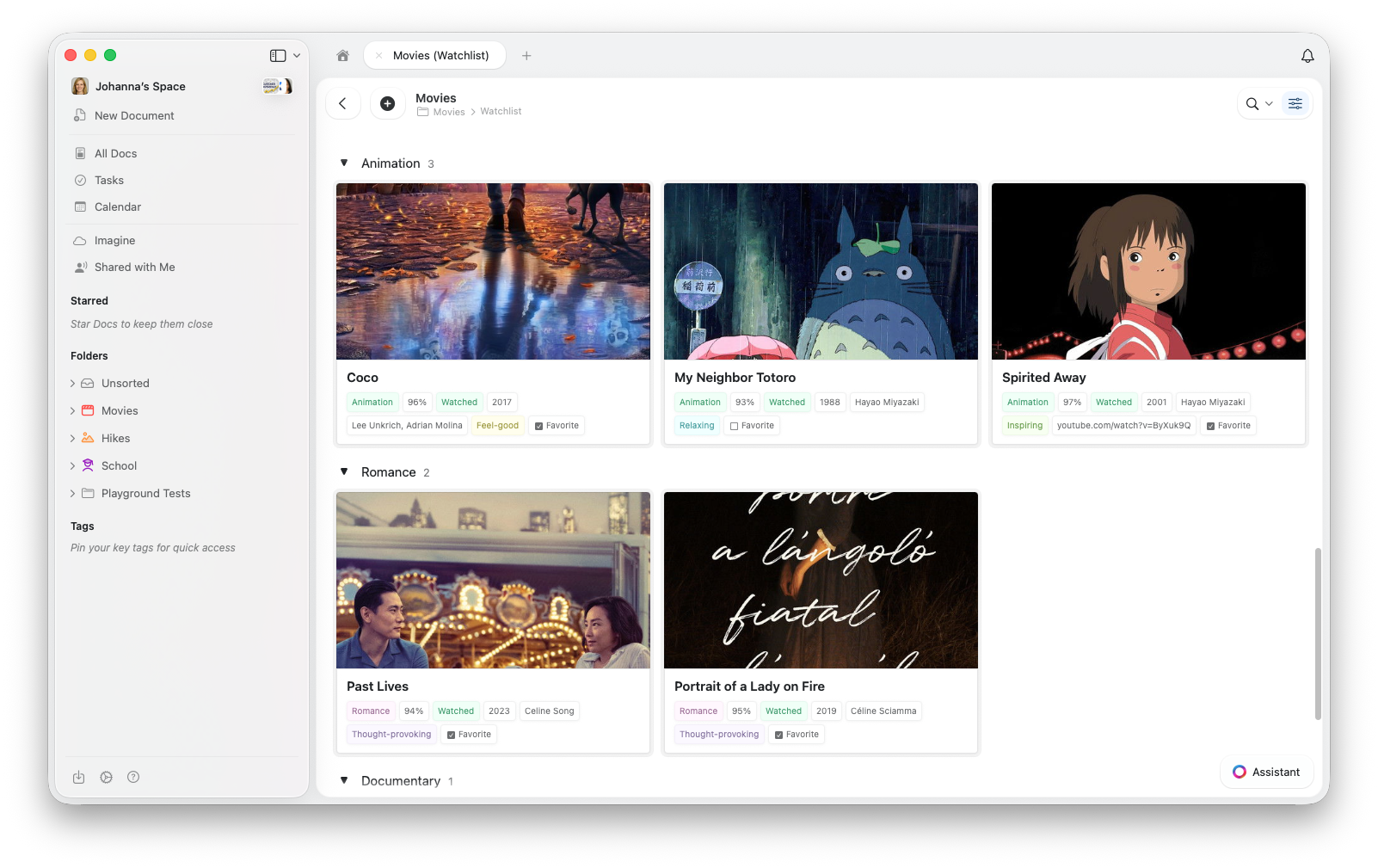 有关排序、筛选和分组的详细说明,请参阅 [Collection Views](/zh-Hans/organize-and-find/collections/views)。
## 故障排除
Gallery View 从**每个条目页面的内容**中获取预览图片。要添加图片,请点击卡片打开条目,然后在页面内容中添加图片块。
还请检查 Gallery Options 中的 Preview 设置,将其设为 **Document** 或 **Fill**。
请确保你的应用是最新版本。在应用商店中检查更新或刷新浏览器。
Gallery View 会在滚动时加载图片预览。如果感觉性能不佳,请尝试减少每张卡片上显示的属性数量。
## 相关文章
了解 Craft Collections 和字段类型
创建包含排序、筛选和分组的视图
通过状态或任意选择字段,将项目整理为可拖拽的列
自定义 Collections 中的字段和列顺序
iPhone 和 iPad 上的触控优化 Collections
有关排序、筛选和分组的详细说明,请参阅 [Collection Views](/zh-Hans/organize-and-find/collections/views)。
## 故障排除
Gallery View 从**每个条目页面的内容**中获取预览图片。要添加图片,请点击卡片打开条目,然后在页面内容中添加图片块。
还请检查 Gallery Options 中的 Preview 设置,将其设为 **Document** 或 **Fill**。
请确保你的应用是最新版本。在应用商店中检查更新或刷新浏览器。
Gallery View 会在滚动时加载图片预览。如果感觉性能不佳,请尝试减少每张卡片上显示的属性数量。
## 相关文章
了解 Craft Collections 和字段类型
创建包含排序、筛选和分组的视图
通过状态或任意选择字段,将项目整理为可拖拽的列
自定义 Collections 中的字段和列顺序
iPhone 和 iPad 上的触控优化 Collections