> ## Documentation Index
> Fetch the complete documentation index at: https://craft-support.mintlify.site/llms.txt
> Use this file to discover all available pages before exploring further.
# 迁移到 Craft
> 将你的笔记和文档从其他应用无缝迁移到 Craft。
Craft 让你轻松从其他笔记和文档应用导入内容。导入现有文档后,马上开始使用 Craft 强大的功能。
## 为什么要切换到 Craft?
以下是大家最喜欢的一些优势:
* **界面简洁、无干扰** - 旨在帮助你专注思考,并创建外观精美的内容
* **跨平台离线访问** - 在 macOS、iOS、iPadOS、Windows、Web 和 Android 上,即使没有网络也能工作,并自动同步
* **美观、结构化的文档** - 通过灵活布局、样式卡片和直观嵌套,构建视觉上精致的页面
* **快速且响应迅速** - 跨平台轻量高效,性能出色
* **按你的方式组织** - 使用文件夹、嵌套页面、反向链接和合集,以你喜欢的方式管理内容
* **无缝分享与协作** - 实时协作,配合强大的发布选项
## 在哪里找到导入功能
打开 Craft,然后点击左侧边栏底部的 **导入** 图标。你也可以在 **全部文档**、**整理** 或 **未分类** 视图中,通过右上角的三点菜单(⋯)进入。
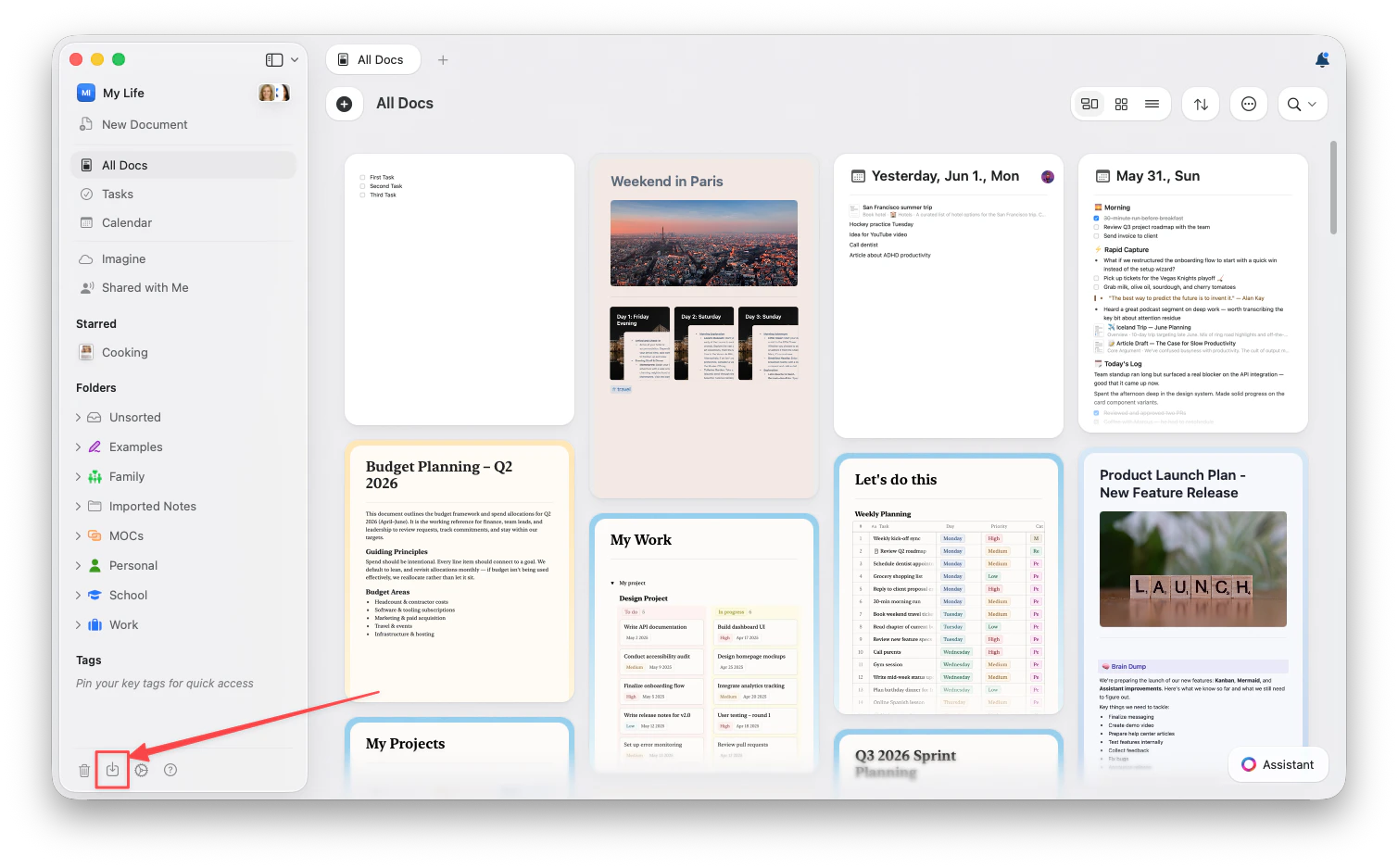 在 Web 和 Windows 上,不支持 TextBundle 导入。
## 选择你的应用
每个应用都有自己的导入流程。选择你的应用,查看逐步说明:
直接连接你的工作区,无需导出文件
导出 .enex 文件并上传
从 Google 云端硬盘导入文档
导入保留反向链接的库
迁移你的笔记和文件夹
转移带有标签和附件的笔记
导入笔记本和分区
带来你的知识图谱
导入空间和对象
直接导入标准文件格式
## 会导入哪些内容?
根据来源应用和格式的不同,导入内容可能包括:
* **文本内容**,以及格式(粗体、斜体、链接)
* **图片和附件**
* **文档结构**(标题、列表、嵌套)
* **表格**和结构化数据
* **文档之间的链接**(如果支持)
* **标签**和元数据(如果支持)
## 导入完成后
内容进入 Craft 后:
1. **检查并整理** - 确认所有内容都已正确导入
2. **更新链接** - 内部链接应可正常工作,但也请检查外部引用
3. **应用 Craft 样式** - 使用文档样式、卡片和页面样式来增强你的内容
4. **设置文件夹和空间** - 使用 Craft 的文件夹结构组织内容
## 需要帮助?
如果你在迁移过程中遇到任何问题或有疑问,欢迎随时[联系支持团队](https://craftdocs.zendesk.com/hc/en-us/requests/new)。我们很高兴你加入 Craft 社区!
## 相关文章
查看从各个应用导入的详细指南
了解如何在 Craft 中整理内容
使用数据库和结构化内容
在 Web 和 Windows 上,不支持 TextBundle 导入。
## 选择你的应用
每个应用都有自己的导入流程。选择你的应用,查看逐步说明:
直接连接你的工作区,无需导出文件
导出 .enex 文件并上传
从 Google 云端硬盘导入文档
导入保留反向链接的库
迁移你的笔记和文件夹
转移带有标签和附件的笔记
导入笔记本和分区
带来你的知识图谱
导入空间和对象
直接导入标准文件格式
## 会导入哪些内容?
根据来源应用和格式的不同,导入内容可能包括:
* **文本内容**,以及格式(粗体、斜体、链接)
* **图片和附件**
* **文档结构**(标题、列表、嵌套)
* **表格**和结构化数据
* **文档之间的链接**(如果支持)
* **标签**和元数据(如果支持)
## 导入完成后
内容进入 Craft 后:
1. **检查并整理** - 确认所有内容都已正确导入
2. **更新链接** - 内部链接应可正常工作,但也请检查外部引用
3. **应用 Craft 样式** - 使用文档样式、卡片和页面样式来增强你的内容
4. **设置文件夹和空间** - 使用 Craft 的文件夹结构组织内容
## 需要帮助?
如果你在迁移过程中遇到任何问题或有疑问,欢迎随时[联系支持团队](https://craftdocs.zendesk.com/hc/en-us/requests/new)。我们很高兴你加入 Craft 社区!
## 相关文章
查看从各个应用导入的详细指南
了解如何在 Craft 中整理内容
使用数据库和结构化内容