> ## Documentation Index
> Fetch the complete documentation index at: https://craft-support.mintlify.site/llms.txt
> Use this file to discover all available pages before exploring further.
# 自定义提示
> 创建可复用的 AI 指令,获得一致、个性化的结果,贴合你的工作流程。
自定义提示让你可以为助手保存可复用的指令。无需每次重新编写相同的请求,只需应用一条已保存的提示即可获得一致的结果。
## 什么是自定义提示?
自定义提示是你为重复性任务创建的可复用指令。
常见用途包括:
* 用特定语气重写文本
* 整理笔记或文档结构
* 将内容翻译为目标语言
* 按固定格式生成摘要
* 生成任务列表或计划
* 创建一致的图片说明和替代文本
## 访问自定义提示
点击侧边栏顶部的**空间名称**以打开设置。
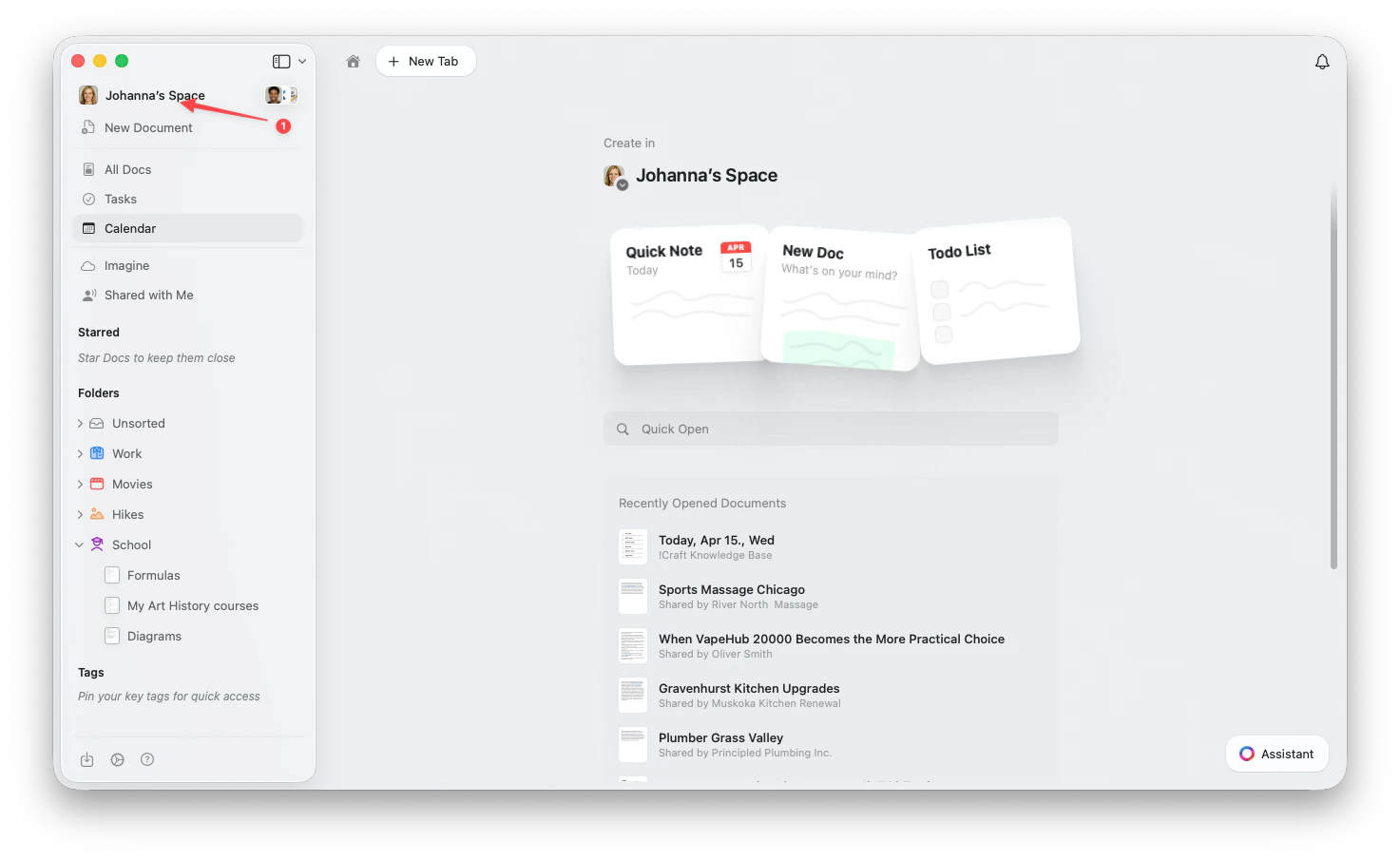 点击左上角的**空间名称**。
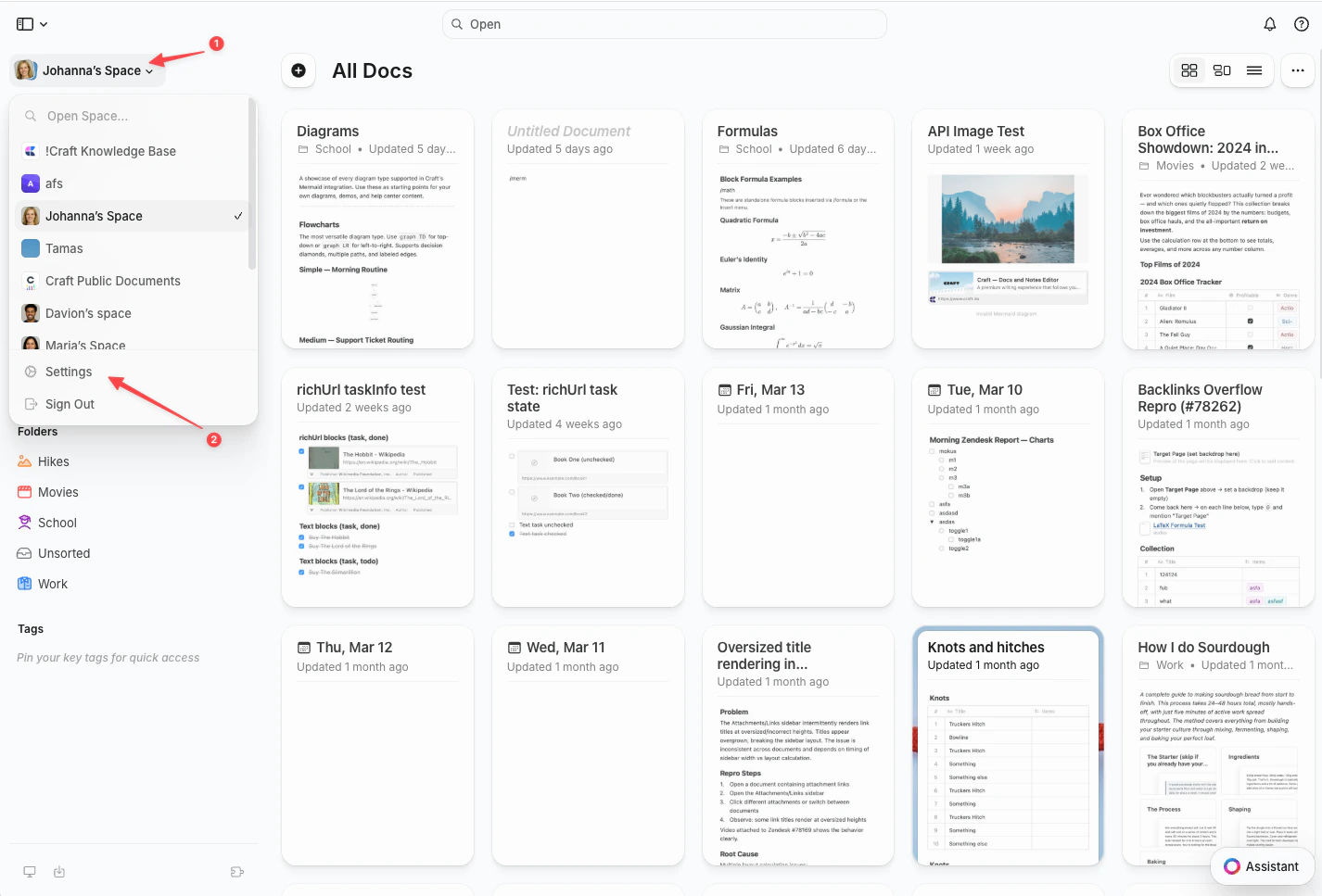
点击下拉菜单底部的**设置**。
点击左上角的**空间名称**。
点击下拉菜单底部的**设置**。
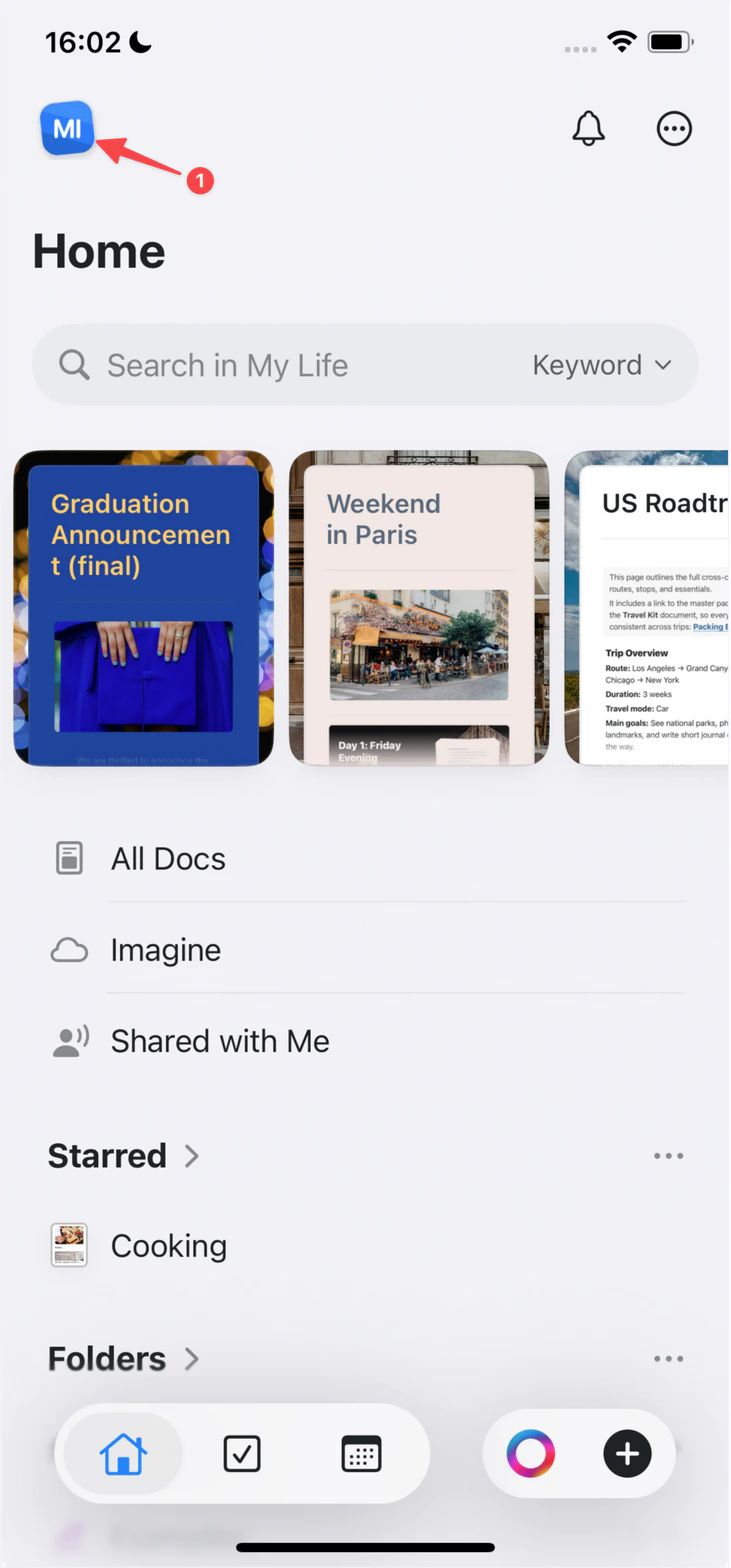
 点按左上角的**空间图标**。
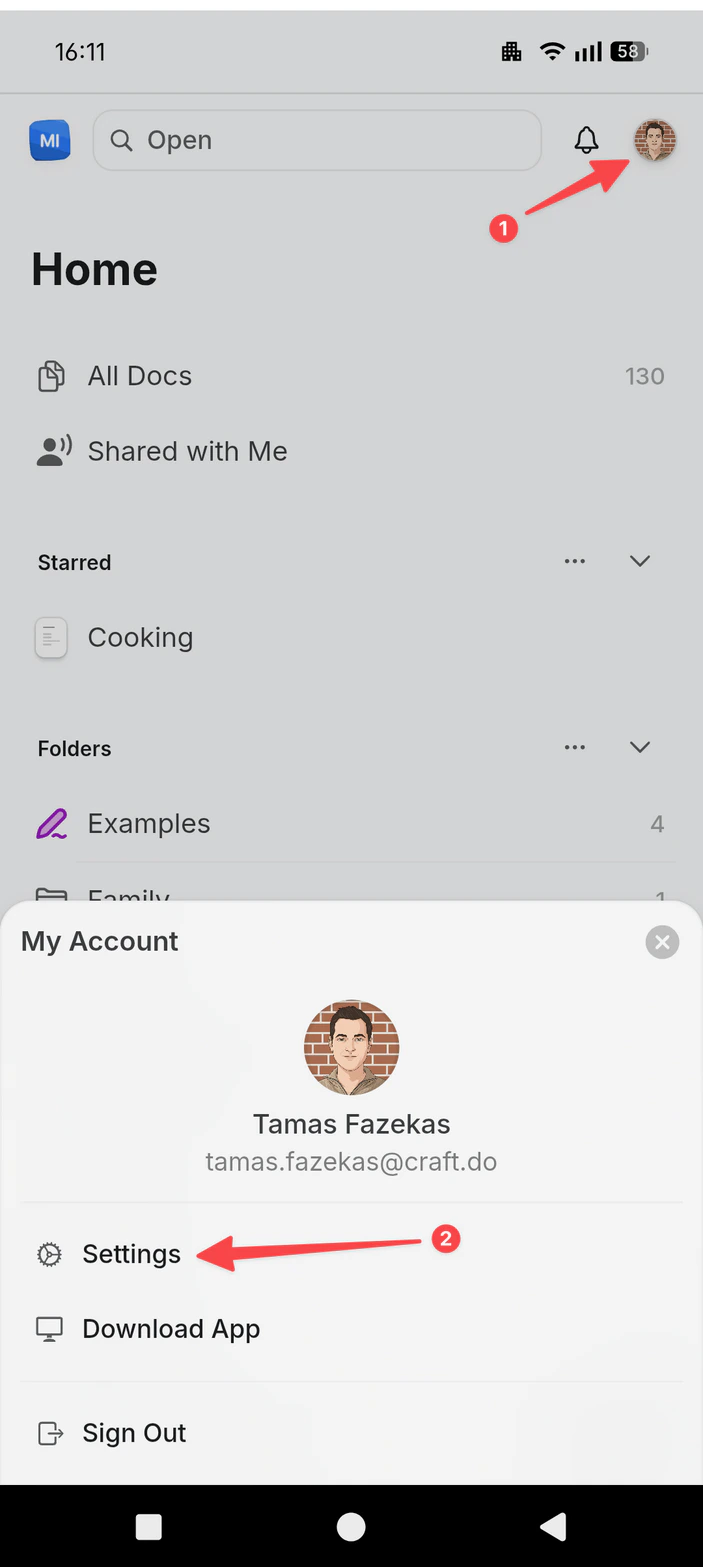
 点按**设置**。
点按右上角的**头像**。
点按**设置**。
点按**设置**。
点按右上角的**头像**。
点按**设置**。
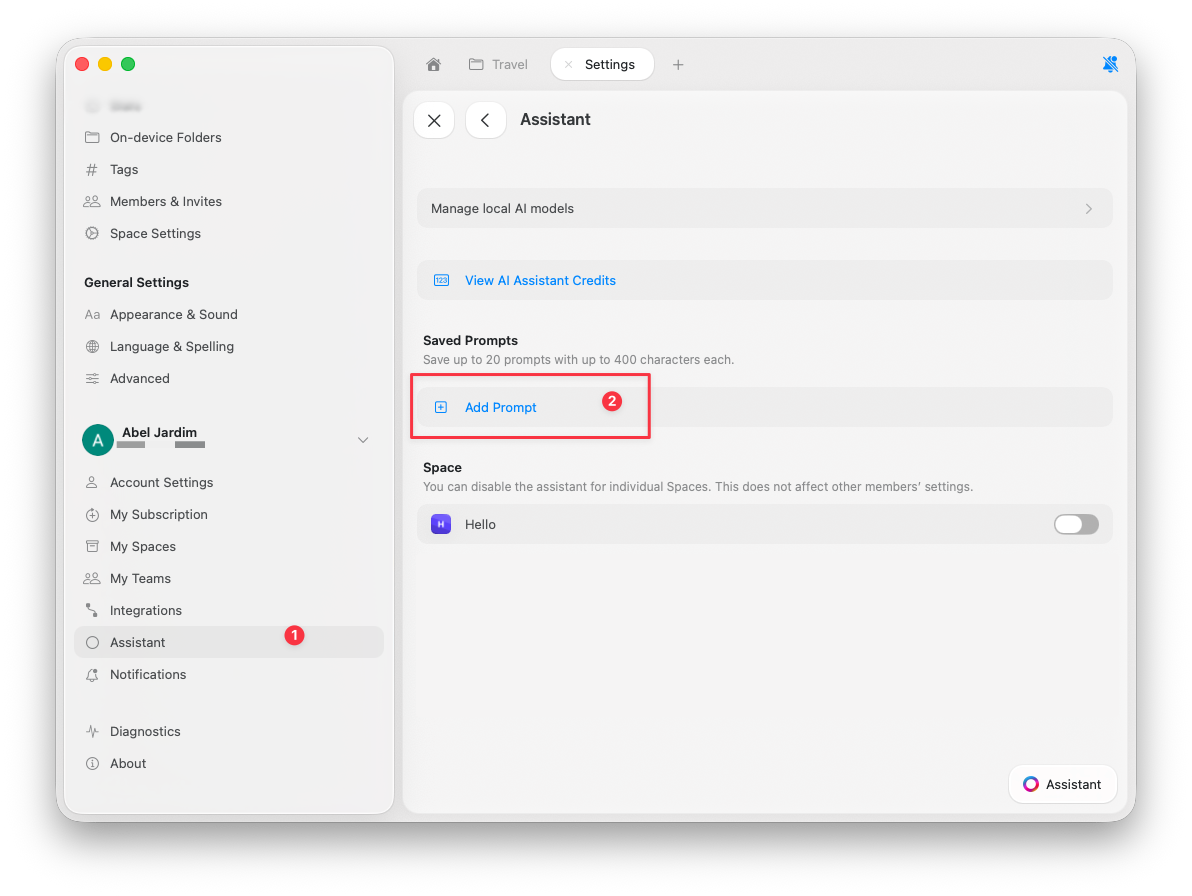
 进入 **Assistant**。
滚动到 **Saved Prompts**。
点击 **Add Prompt**。
进入 **Assistant**。
滚动到 **Saved Prompts**。
点击 **Add Prompt**。
 ## 编写高效提示
最好的提示需要具体且有明确的格式要求。
* ✓ "将内容总结为 3 个要点,侧重于行动事项"
* ✗ "总结一下"
* ✓ "用亲切的语气改写,适合博客开头"
* ✗ "写好一点"
## 提示示例
```
Title: Meeting Summary
Prompt: Extract key decisions, action items, and next steps from this note. Format as:
- Decisions: [list]
- Action Items: [list with owners]
- Next Steps: [list with dates]
```
```
Title: Restyle Document
Prompt: Restyle this document with colored section headings, callout boxes for key points, and subtle dividers between sections.
```
```
Title: Create Subpages
Prompt: Break this document into subpages, one per major section, and keep a short table of contents on the parent page.
```
```
Title: Restructure Notes
Prompt: Reorganize these notes into clear sections with headings: Context, Decisions, Action Items, and Follow-ups.
```
## 限制
* 最多可保存 **20 条提示**
* 每条提示最多 **1,000 个字符**
## 使用自定义提示
打开助手面板。
在快捷操作中找到你保存的提示。
选择它来应用。
你可以在助手面板中按名称搜索提示。
## 编辑类提示支持
编辑类提示需要使用 **Execute** 模式,并搭配 **Fast** 或 **Max** 模型。
## 管理你的提示
**编辑提示:**
* 进入设置 → Assistant → Saved Prompts
* 选择该提示
* 更新标题或内容
* 保存
**删除提示:**
* 进入设置 → Assistant → Saved Prompts
* 点击该提示上的删除按钮
* 确认
## 相关文章
了解使用助手的基础知识
在 Execute 模式中将提示直接应用于文档
为你的提示选择合适的模型
创建提示以实现一致的文本格式和样式
## 编写高效提示
最好的提示需要具体且有明确的格式要求。
* ✓ "将内容总结为 3 个要点,侧重于行动事项"
* ✗ "总结一下"
* ✓ "用亲切的语气改写,适合博客开头"
* ✗ "写好一点"
## 提示示例
```
Title: Meeting Summary
Prompt: Extract key decisions, action items, and next steps from this note. Format as:
- Decisions: [list]
- Action Items: [list with owners]
- Next Steps: [list with dates]
```
```
Title: Restyle Document
Prompt: Restyle this document with colored section headings, callout boxes for key points, and subtle dividers between sections.
```
```
Title: Create Subpages
Prompt: Break this document into subpages, one per major section, and keep a short table of contents on the parent page.
```
```
Title: Restructure Notes
Prompt: Reorganize these notes into clear sections with headings: Context, Decisions, Action Items, and Follow-ups.
```
## 限制
* 最多可保存 **20 条提示**
* 每条提示最多 **1,000 个字符**
## 使用自定义提示
打开助手面板。
在快捷操作中找到你保存的提示。
选择它来应用。
你可以在助手面板中按名称搜索提示。
## 编辑类提示支持
编辑类提示需要使用 **Execute** 模式,并搭配 **Fast** 或 **Max** 模型。
## 管理你的提示
**编辑提示:**
* 进入设置 → Assistant → Saved Prompts
* 选择该提示
* 更新标题或内容
* 保存
**删除提示:**
* 进入设置 → Assistant → Saved Prompts
* 点击该提示上的删除按钮
* 确认
## 相关文章
了解使用助手的基础知识
在 Execute 模式中将提示直接应用于文档
为你的提示选择合适的模型
创建提示以实现一致的文本格式和样式