> ## Documentation Index
> Fetch the complete documentation index at: https://craft-support.mintlify.site/llms.txt
> Use this file to discover all available pages before exploring further.

# 更改个人头像

> 更新你的个人头像，以个性化你的工作区并帮助协作者识别你。

Craft 中的个人头像可以让你的工作区更具个性，也能让协作者更容易识别你。

## 头像显示位置

你的头像会显示在：

* 共享文档
* 评论
* 空间或团队设置

## 更改个人头像

<Tabs>
  <Tab title="Mac">
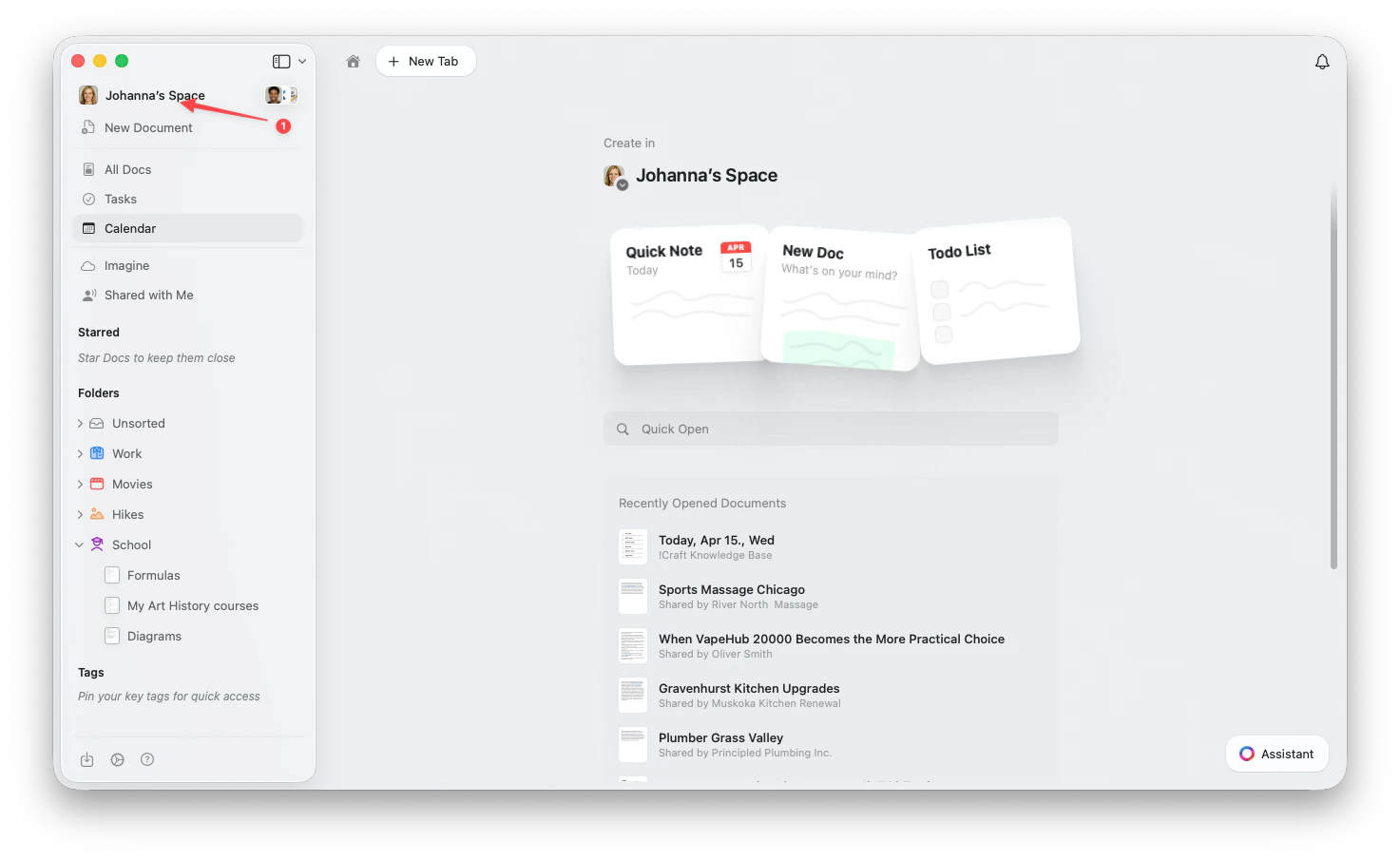
    点击侧边栏顶部的**空间名称**以打开设置。

    <Frame>
      <img src="https://mintcdn.com/craft-support/uCmTok0gNp17u6Tw/images/snippets/open-settings/en/content/mac-space-name.png?fit=max&auto=format&n=uCmTok0gNp17u6Tw&q=85&s=b2a80ae0eb9e67d830298c30f3046f02" alt="点击侧边栏中的空间名称" width="1473" height="905" data-path="images/snippets/open-settings/en/content/mac-space-name.png" />
    </Frame>
  </Tab>

  <Tab title="Web / Windows">
    <Steps>
      <Step title="打开空间下拉菜单">
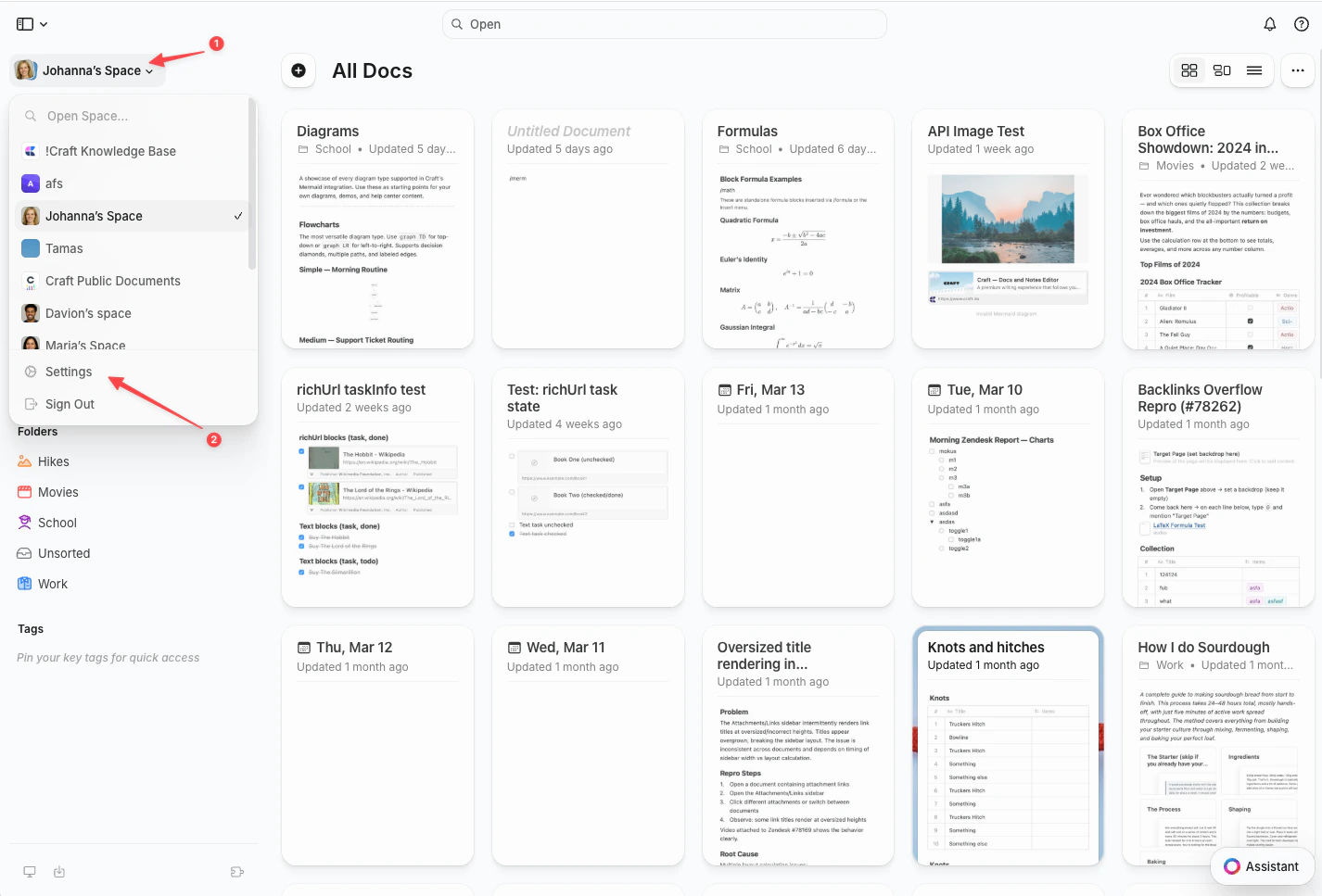
        点击左上角的**空间名称**。
      </Step>

      <Step title="选择设置">
        点击下拉菜单底部的**设置**。

        <Frame>
          <img src="https://mintcdn.com/craft-support/uCmTok0gNp17u6Tw/images/snippets/open-settings/en/content/web-space-dropdown.png?fit=max&auto=format&n=uCmTok0gNp17u6Tw&q=85&s=8fe2f1b7ca147ccd7de2d4851d2857e1" alt="包含设置选项的空间下拉菜单" width="1426" height="967" data-path="images/snippets/open-settings/en/content/web-space-dropdown.png" />
        </Frame>
      </Step>
    </Steps>
  </Tab>

  <Tab title="iOS">
    <Steps>
      <Step title="点按空间图标">
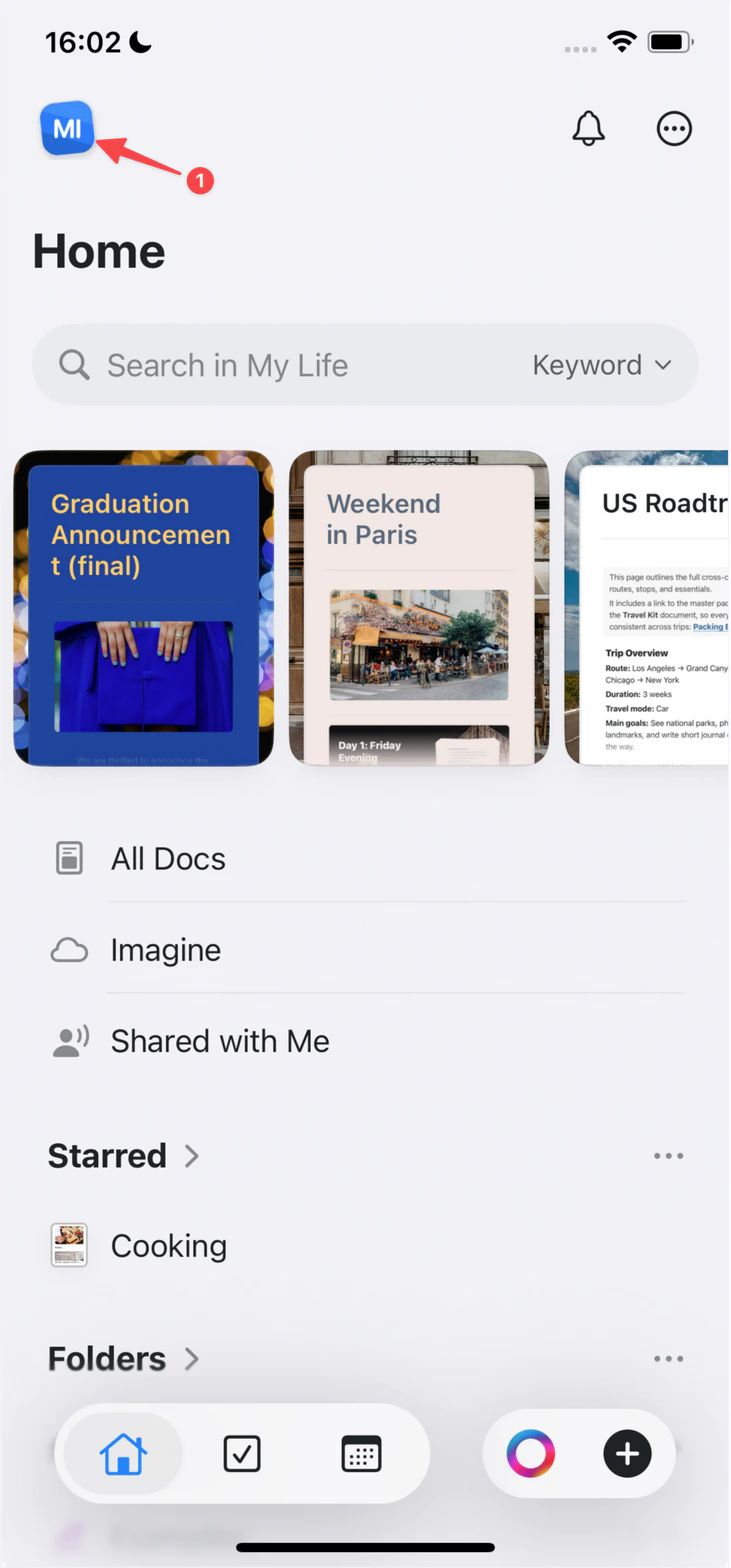
        点按左上角的**空间图标**。

        <Frame>
          <img src="https://mintcdn.com/craft-support/uCmTok0gNp17u6Tw/images/snippets/open-settings/en/content/ios-space-icon.png?fit=max&auto=format&n=uCmTok0gNp17u6Tw&q=85&s=82ed814971491d12743fb924294f595a" alt="左上角的空间图标" width="731" height="1568" data-path="images/snippets/open-settings/en/content/ios-space-icon.png" />
        </Frame>
      </Step>

      <Step title="打开设置">
        点按**设置**。
      </Step>
    </Steps>
  </Tab>

  <Tab title="Android">
    <Steps>
      <Step title="点按您的头像">
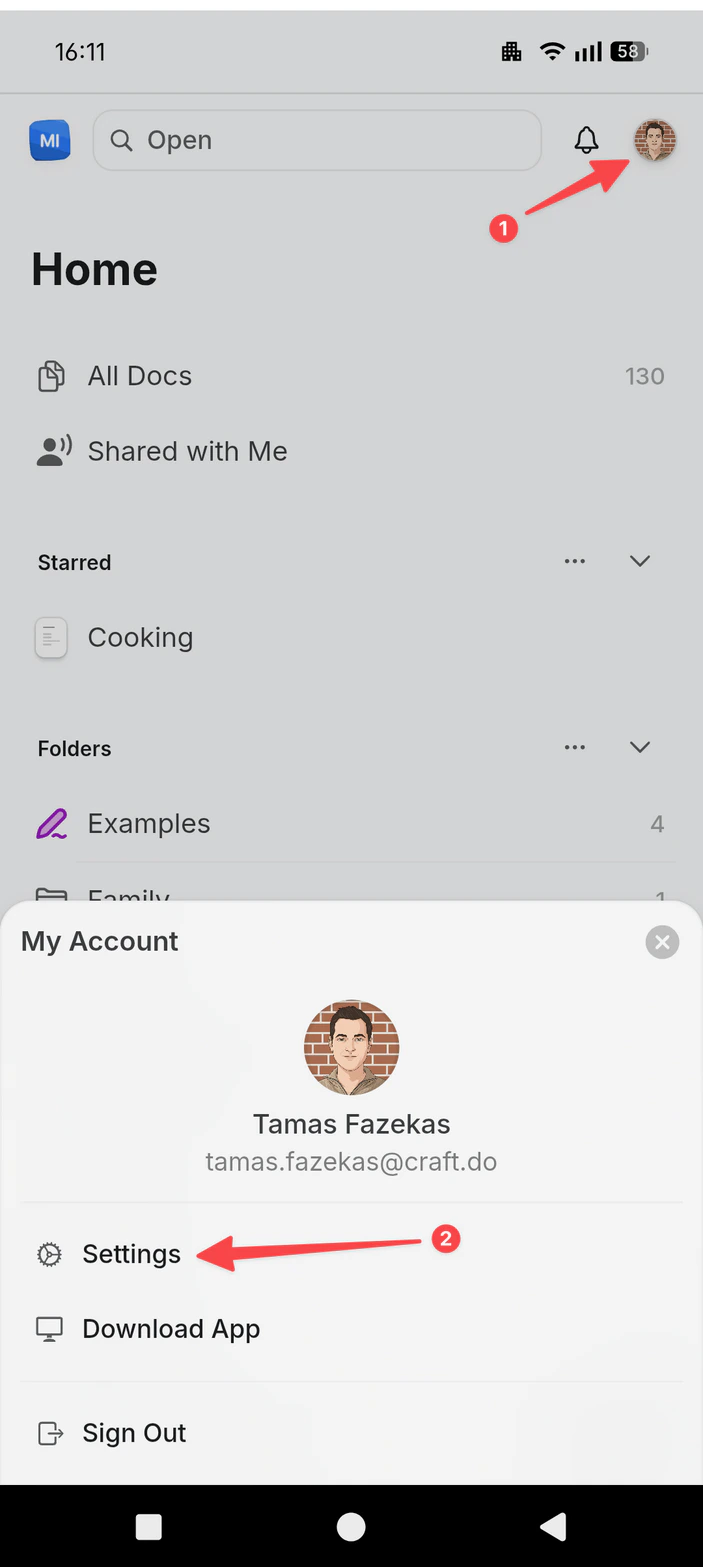
        点按右上角的**头像**。
      </Step>

      <Step title="打开设置">
        点按**设置**。

        <Frame>
          <img src="https://mintcdn.com/craft-support/uCmTok0gNp17u6Tw/images/snippets/open-settings/en/content/android-profile-menu.png?fit=max&auto=format&n=uCmTok0gNp17u6Tw&q=85&s=04626672ba7545613f9b039a5d363698" alt="包含设置选项的个人资料菜单" width="703" height="1567" data-path="images/snippets/open-settings/en/content/android-profile-menu.png" />
        </Frame>
      </Step>
    </Steps>
  </Tab>
</Tabs>

<Steps>
  <Step>
    前往**我的帐户**
  </Step>

  <Step>
    单击你的头像以上传新照片
  </Step>

  <Step>
    从设备中选择图像（JPG、JPEG 或 PNG）
  </Step>
</Steps>

你的新头像会自动在所有设备上更新。

<Info title="温馨提示">
  你的头像与 Craft 账户关联，而不是与单个空间关联。如果你未立即看到更新，请尝试重启应用。
</Info>