> ## Documentation Index
> Fetch the complete documentation index at: https://craft-support.mintlify.site/llms.txt
> Use this file to discover all available pages before exploring further.
# 배경, 색상 및 구분선
> 배경, 문서 및 텍스트 색상, 폰트, 와시 테이프 구분선을 커스터마이즈하고, 스타일 갤러리에서 프리셋 스타일을 탐색해 보세요.
Craft를 사용하면 디자인 전문 지식 없이도 시각적으로 멋진 문서를 손쉽게 만들 수 있습니다. 스타일 기능을 통해 배경, 텍스트 및 문서 색상, 폰트, 와시 테이프와 같은 장식 구분선을 커스터마이즈할 수 있습니다. 각 플랫폼에서 스타일 메뉴를 찾는 방법은 [스타일링 개요](/ko/write-and-edit/styling)를 참고하세요.
## 스타일 미리보기 및 스타일 갤러리
스타일 메뉴에는 현재 설정된 폰트, 커버, 배경의 간결한 미리보기가 표시되어 문서의 스타일 요소가 어떻게 어우러지는지 빠르게 확인할 수 있습니다.
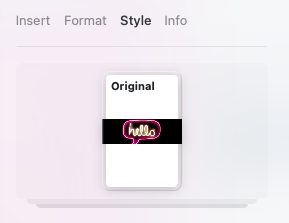
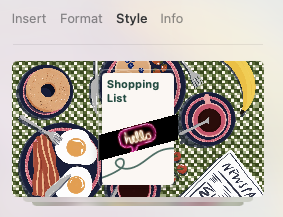
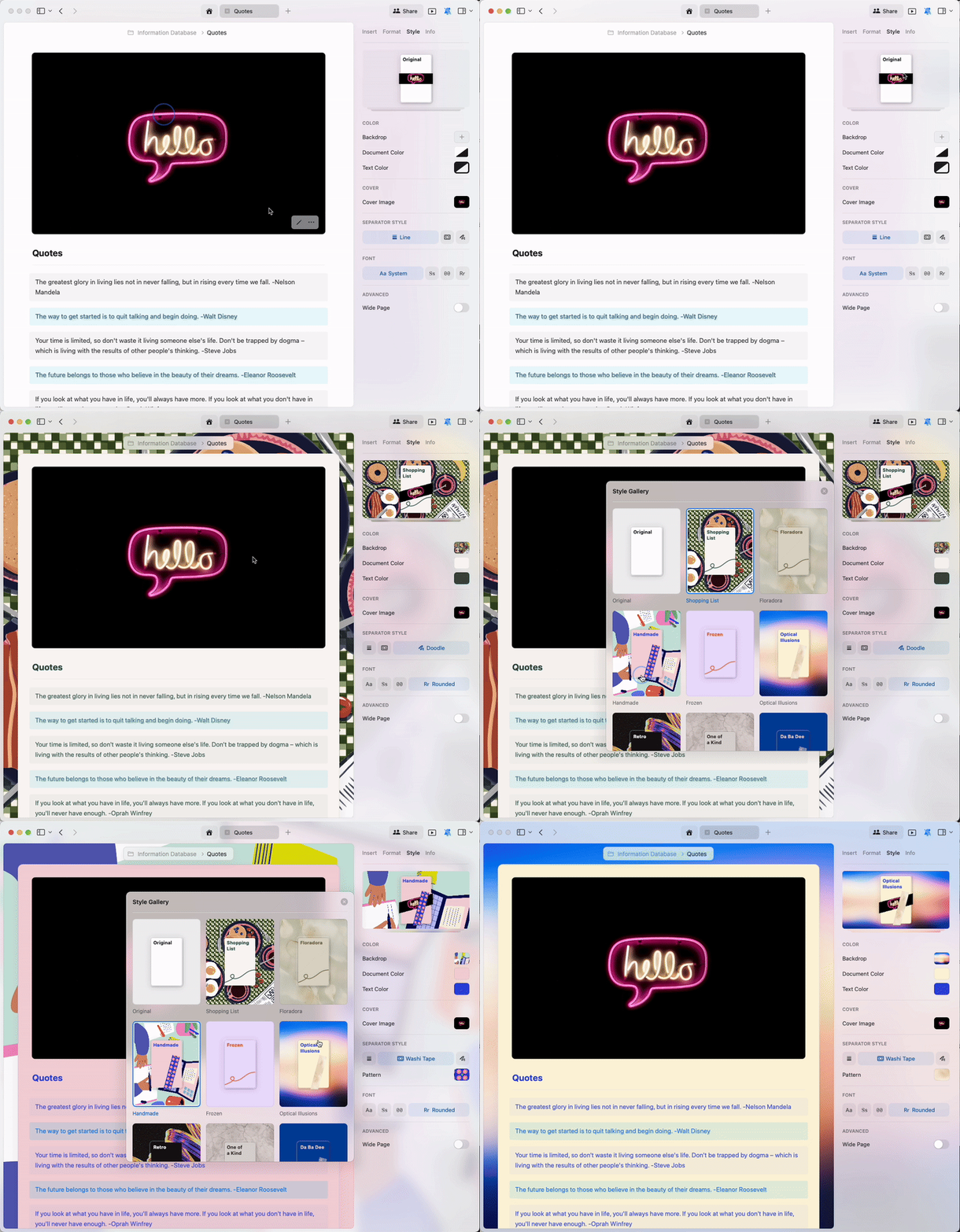
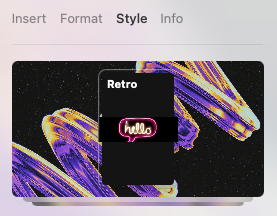 **스타일 미리보기**를 클릭하면 **스타일 갤러리**로 이동하여 문서에 적용할 수 있는 다양한 프리셋 스타일 컬렉션을 탐색할 수 있습니다.
 ## 커스텀 스타일링
프리셋 스타일 외에도 배경, 텍스트, 문서 자체에 나만의 색상을 직접 지정할 수 있습니다.
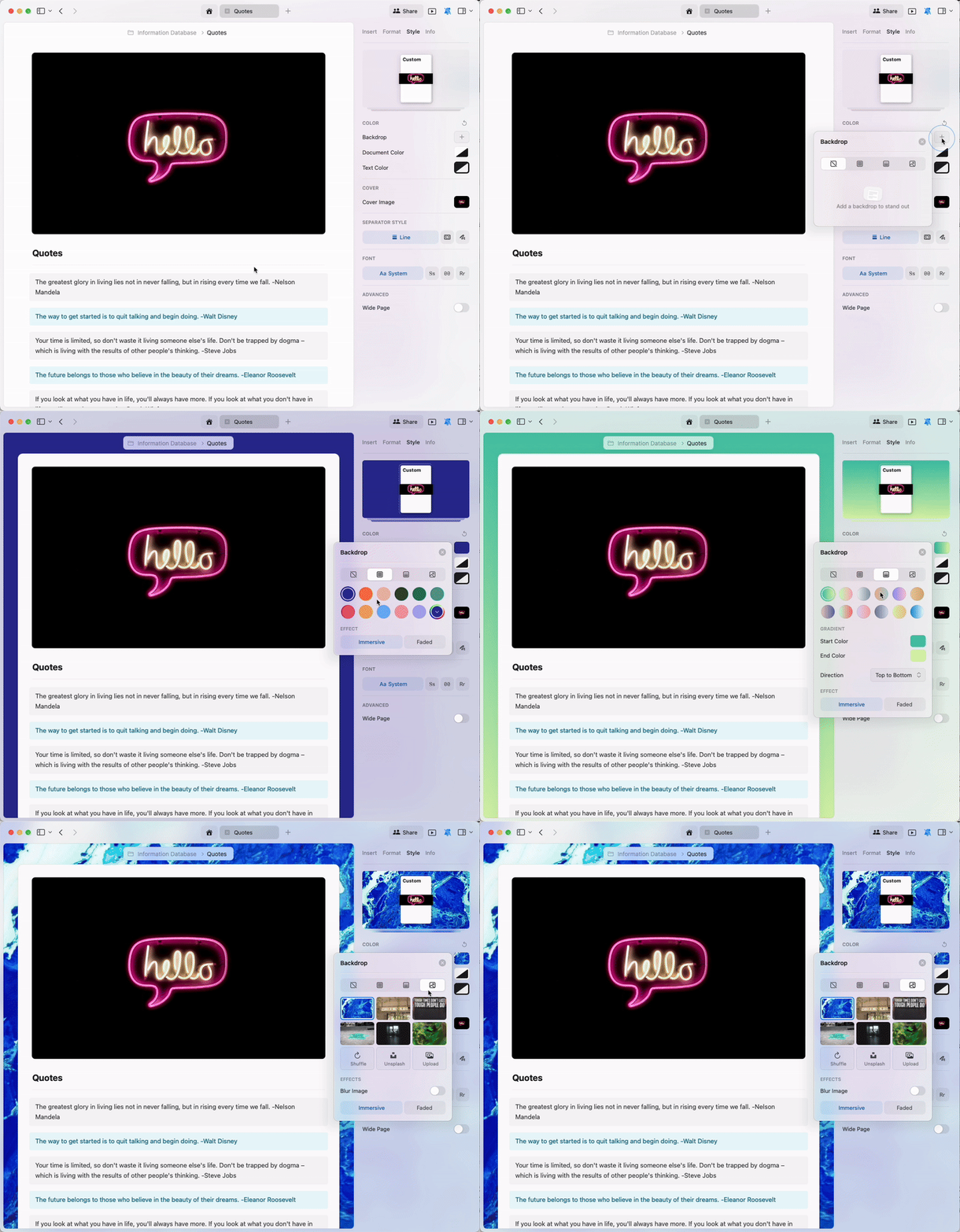
배경 기능은 다양한 옵션을 제공합니다:
* **단색** - 색상 팔레트에서 선택하거나 직접 색상을 만들 수 있습니다
* **그라디언트** - 두 가지 이상의 색상을 자연스럽게 혼합합니다
* **이미지** - 직접 업로드하거나 Unsplash에서 선택합니다
## 커스텀 스타일링
프리셋 스타일 외에도 배경, 텍스트, 문서 자체에 나만의 색상을 직접 지정할 수 있습니다.
배경 기능은 다양한 옵션을 제공합니다:
* **단색** - 색상 팔레트에서 선택하거나 직접 색상을 만들 수 있습니다
* **그라디언트** - 두 가지 이상의 색상을 자연스럽게 혼합합니다
* **이미지** - 직접 업로드하거나 Unsplash에서 선택합니다
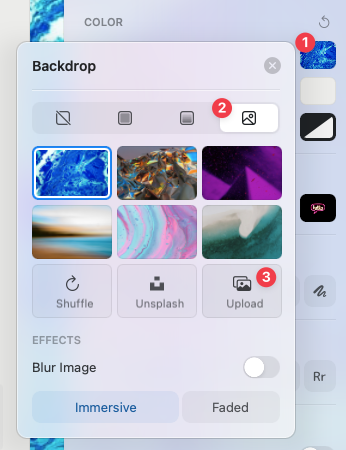
 나만의 배경 이미지를 업로드하려면 배경 설정에서 **이미지** 옵션을 선택한 후 **업로드**를 눌러 기기에서 이미지를 선택하세요. 또는 **Unsplash** 버튼을 선택하고 키워드를 검색하여 원하는 테마에 맞는 전문 사진을 찾을 수도 있습니다.
 문서에 시각적인 헤더를 추가하고 싶으신가요? 업로드, 크롭, Unsplash 옵션에 대한 자세한 내용은 [커버 이미지](/ko/write-and-edit/styling/cover-images) 문서를 참고하세요.
## 구분선 및 와시 테이프
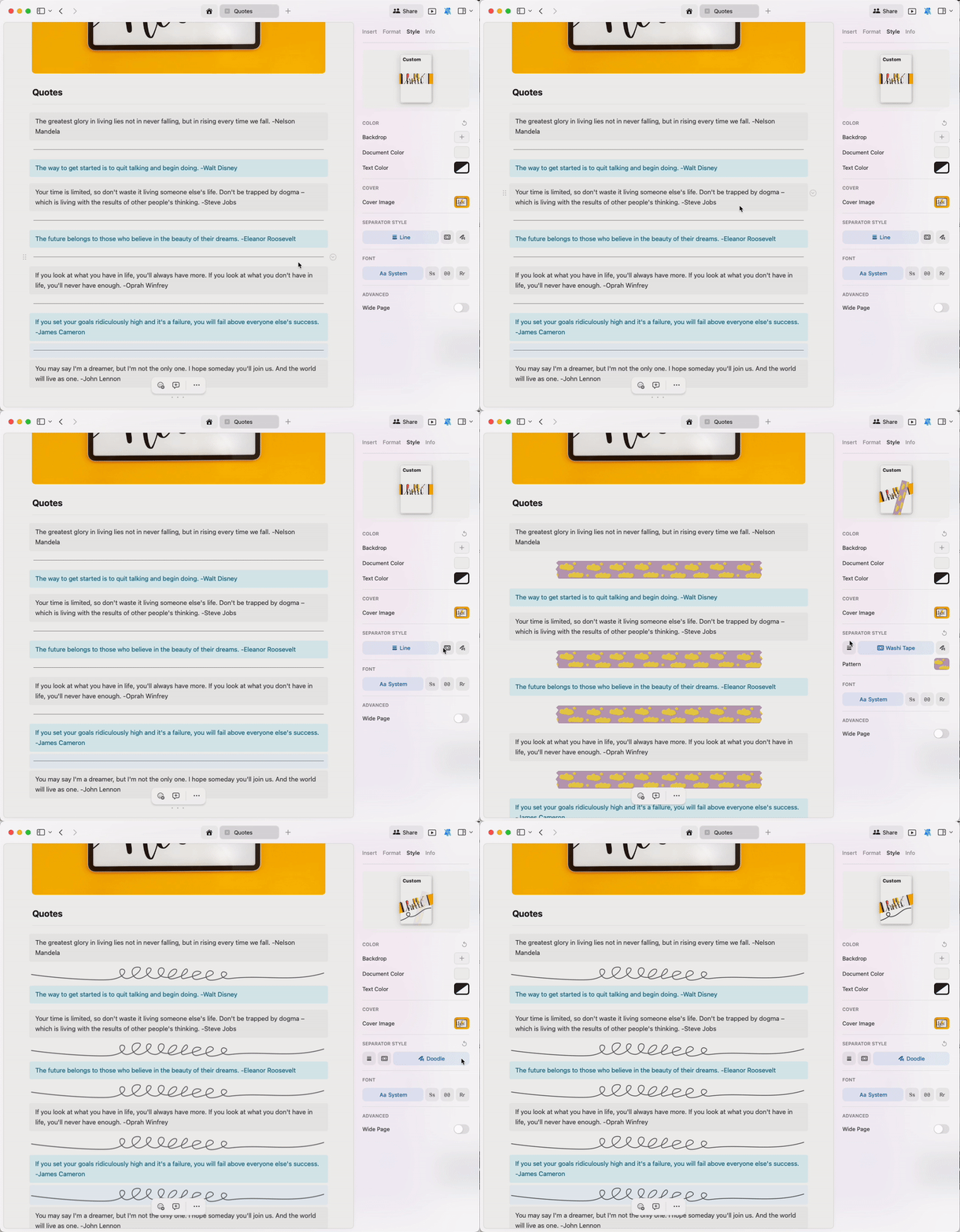
구분선은 문서 내 콘텐츠를 구조적으로 정리하는 데 도움을 줍니다. Craft는 여기서 한 단계 더 나아가 와시 테이프를 제공합니다. 와시 테이프는 독특하게 장식된 띠 형태의 시각적 구분선입니다.
다음 중에서 선택하세요:
* **기본 선** - 클래식한 구분선 스타일
* **와시 테이프** - 패턴이 있는 장식 구분선
* **낙서** - 손으로 그린 듯한 스타일의 구분선
문서에 시각적인 헤더를 추가하고 싶으신가요? 업로드, 크롭, Unsplash 옵션에 대한 자세한 내용은 [커버 이미지](/ko/write-and-edit/styling/cover-images) 문서를 참고하세요.
## 구분선 및 와시 테이프
구분선은 문서 내 콘텐츠를 구조적으로 정리하는 데 도움을 줍니다. Craft는 여기서 한 단계 더 나아가 와시 테이프를 제공합니다. 와시 테이프는 독특하게 장식된 띠 형태의 시각적 구분선입니다.
다음 중에서 선택하세요:
* **기본 선** - 클래식한 구분선 스타일
* **와시 테이프** - 패턴이 있는 장식 구분선
* **낙서** - 손으로 그린 듯한 스타일의 구분선
 대시 세 개(`---`)를 입력하면 현재 문서에 설정된 스타일의 구분선을 즉시 추가할 수 있습니다.
### 와시 테이프 스타일링
배경 및 커버 이미지 옵션과 마찬가지로, 와시 테이프 구분선도 단색 또는 패턴으로 커스터마이즈할 수 있습니다.
대시 세 개(`---`)를 입력하면 현재 문서에 설정된 스타일의 구분선을 즉시 추가할 수 있습니다.
### 와시 테이프 스타일링
배경 및 커버 이미지 옵션과 마찬가지로, 와시 테이프 구분선도 단색 또는 패턴으로 커스터마이즈할 수 있습니다.
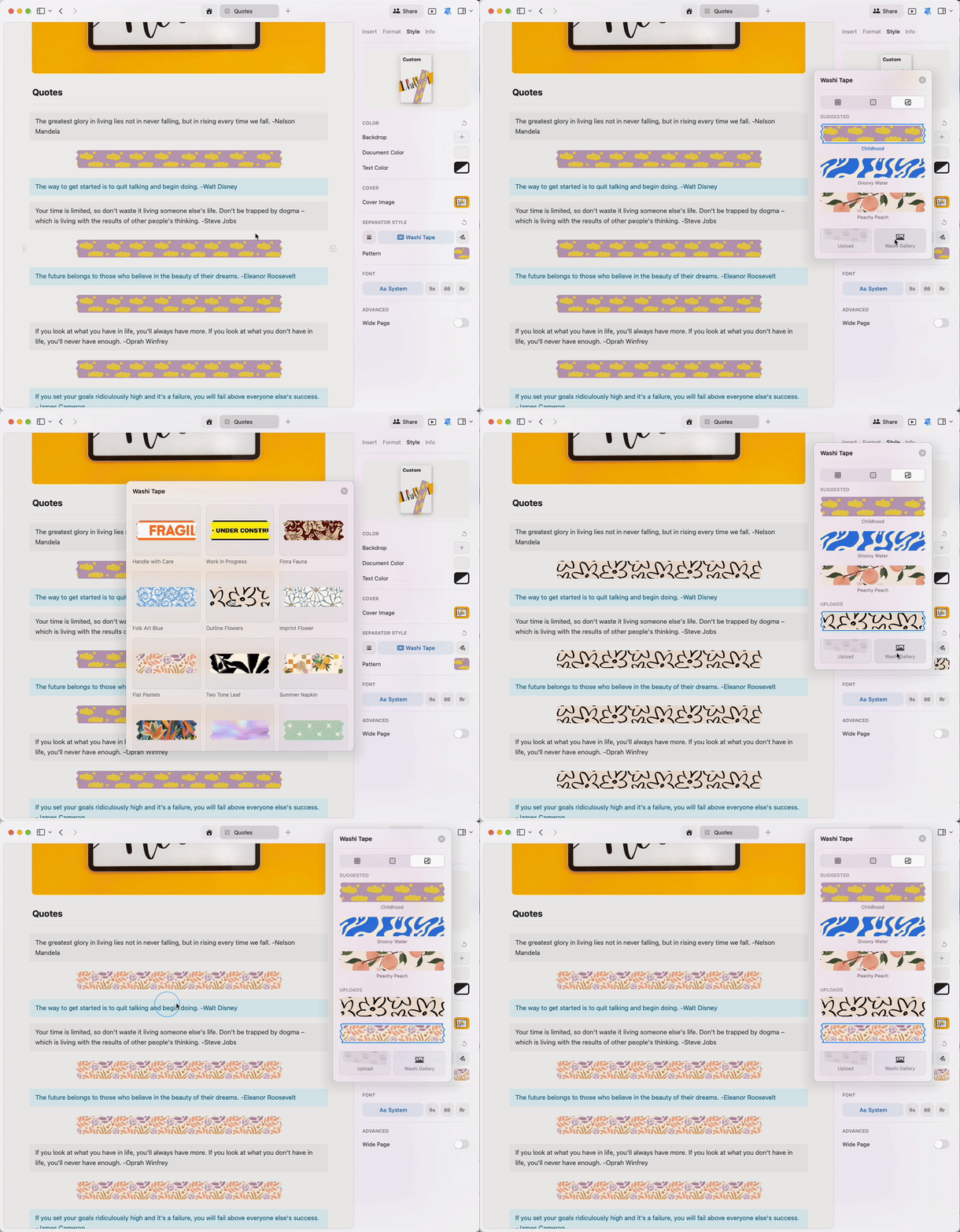
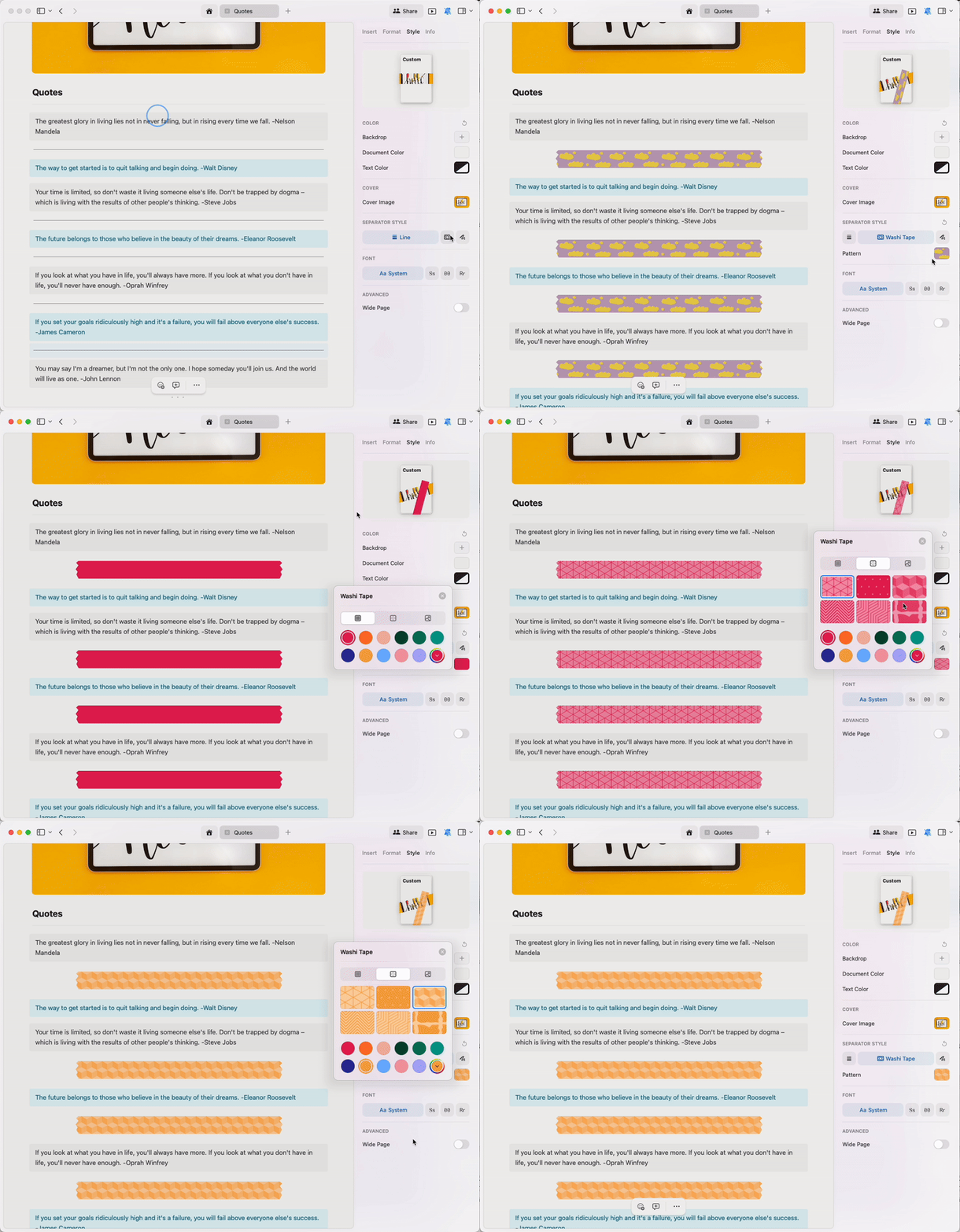 **와시 테이프 갤러리**에 접근하여 아름다운 프리셋 패턴을 찾아보세요:
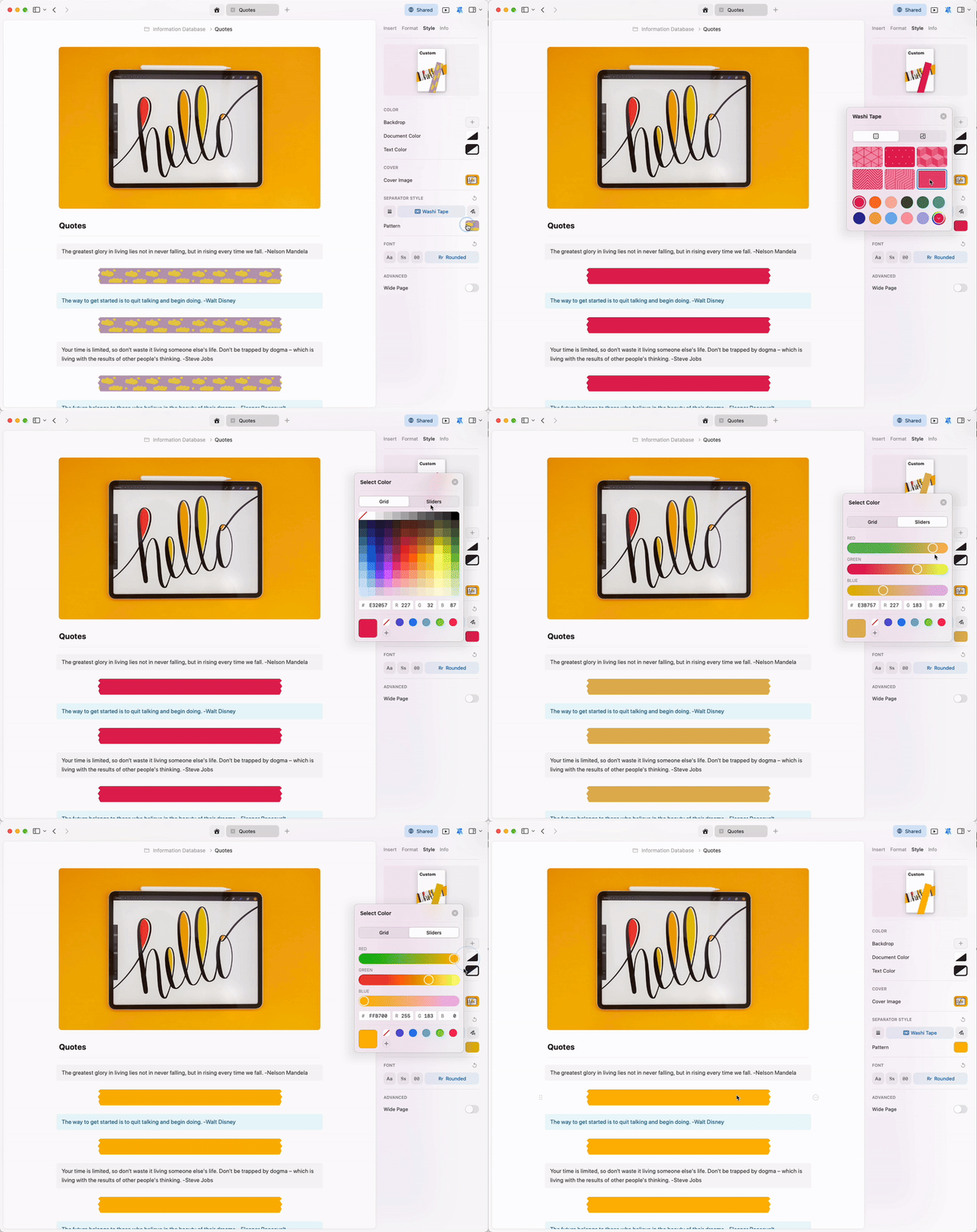
 와시 테이프 색상은 원하는 만큼 세밀하게 설정할 수 있습니다. 색상 피커에서 직접 원하는 색조를 만들거나 RGB 색상 코드를 입력하세요.
 ## 텍스트 및 문서 색상
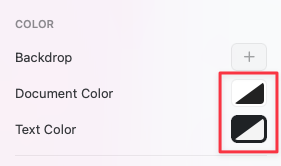
Craft 문서는 기본적으로 **시스템 기본** 색상을 사용합니다. 다크 모드에서는 검정색, 라이트 모드에서는 흰색으로 표시되며, 색상 선택기에서 흑백 아이콘으로 나타납니다.
## 텍스트 및 문서 색상
Craft 문서는 기본적으로 **시스템 기본** 색상을 사용합니다. 다크 모드에서는 검정색, 라이트 모드에서는 흰색으로 표시되며, 색상 선택기에서 흑백 아이콘으로 나타납니다.
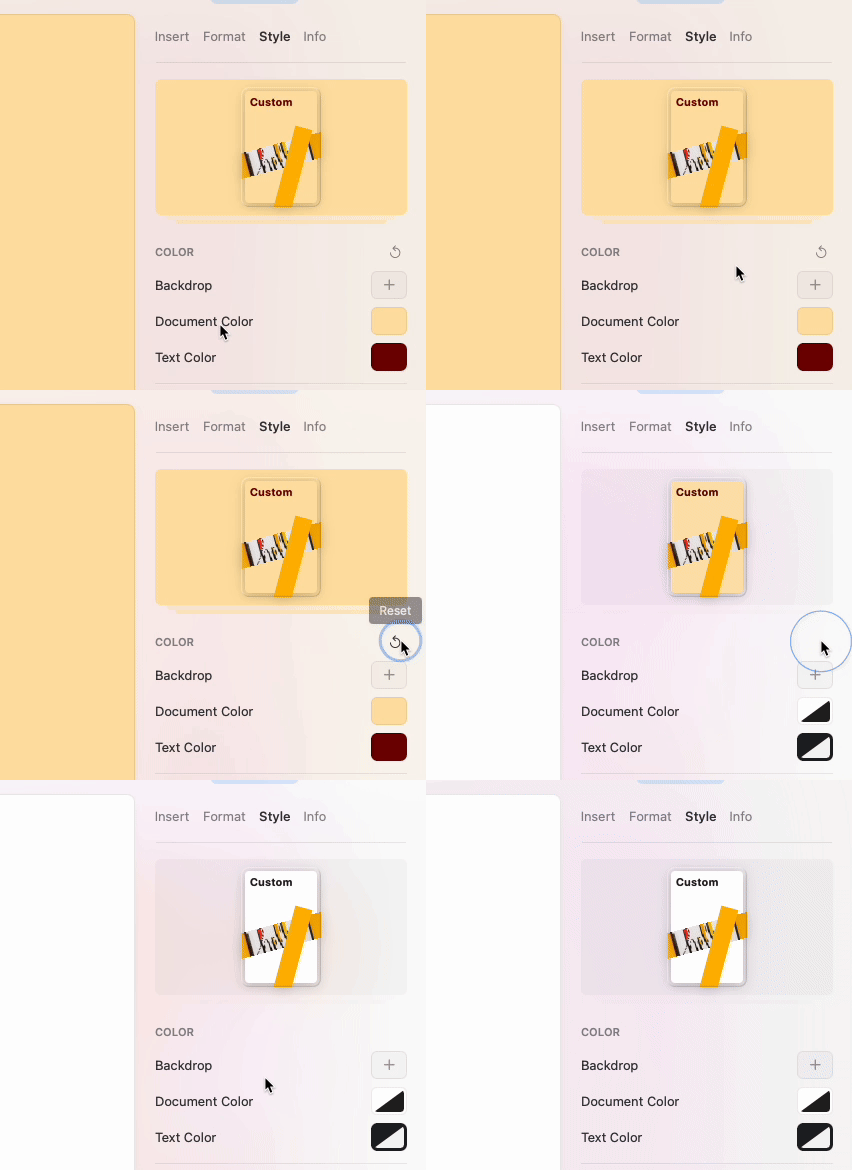
 문서와 텍스트 색상은 자유롭게 변경할 수 있습니다. 색상 피커에서 원하는 색조를 직접 선택하거나 RGB 코드를 입력하여 정확한 색상을 지정하세요.
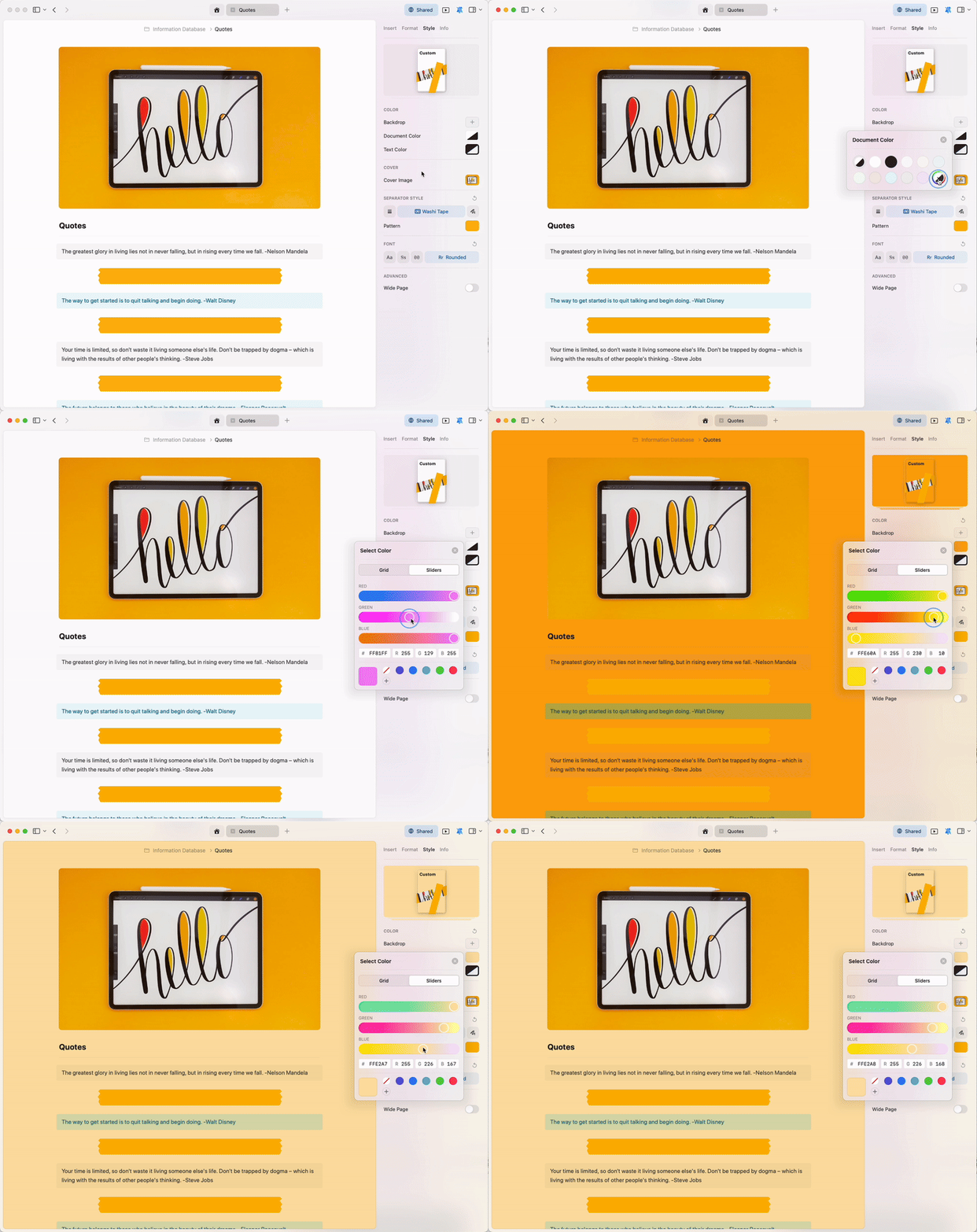 초기화 버튼을 사용하면 문서 색상을 시스템 기본 색상으로 즉시 되돌릴 수 있습니다.
 ## 폰트
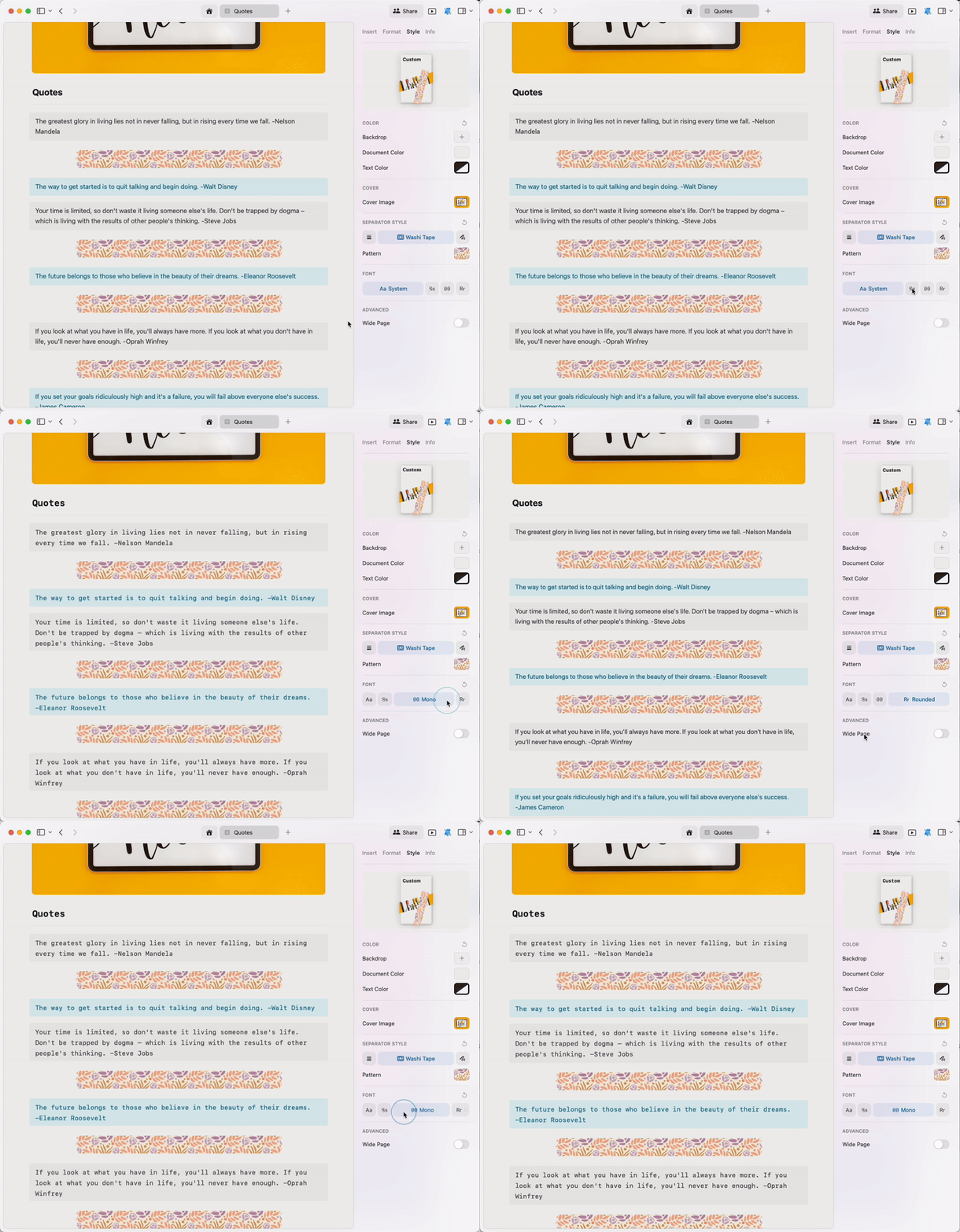
클릭 한 번으로 문서 전체의 폰트 스타일을 변경할 수 있습니다. 다음 중에서 선택하세요:
* **시스템** – 기기의 기본 폰트를 사용합니다
* **세리프** – 전통적이고 읽기 편한 세리프 폰트
* **모노** – 코드나 기술 콘텐츠에 적합한 고정폭 폰트
* **라운드** – 친근하고 현대적인 둥근 폰트
## 폰트
클릭 한 번으로 문서 전체의 폰트 스타일을 변경할 수 있습니다. 다음 중에서 선택하세요:
* **시스템** – 기기의 기본 폰트를 사용합니다
* **세리프** – 전통적이고 읽기 편한 세리프 폰트
* **모노** – 코드나 기술 콘텐츠에 적합한 고정폭 폰트
* **라운드** – 친근하고 현대적인 둥근 폰트
 현재 Craft에 커스텀 폰트를 직접 업로드하는 기능은 지원되지 않습니다.
## 스타일이 적용된 문서를 PDF로 내보내기
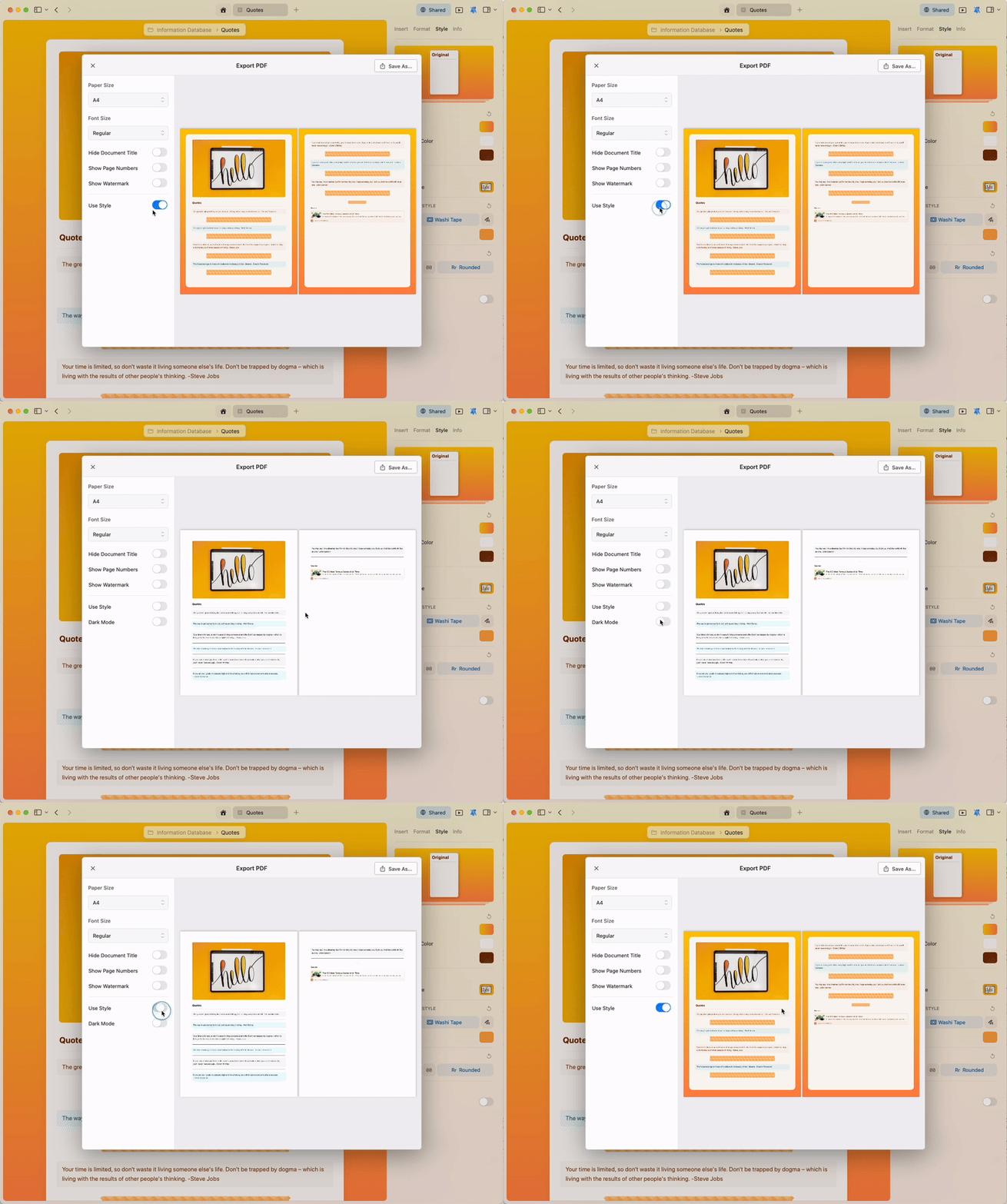
스타일 기능은 편집 시 나만의 시각적 환경을 표현하고 만들어 나갈 수 있도록 설계되었습니다. PDF로 내보낼 때 스타일 적용을 해제해야 하는 경우, 내보내기 옵션에서 간단하게 설정할 수 있습니다.
현재 Craft에 커스텀 폰트를 직접 업로드하는 기능은 지원되지 않습니다.
## 스타일이 적용된 문서를 PDF로 내보내기
스타일 기능은 편집 시 나만의 시각적 환경을 표현하고 만들어 나갈 수 있도록 설계되었습니다. PDF로 내보낼 때 스타일 적용을 해제해야 하는 경우, 내보내기 옵션에서 간단하게 설정할 수 있습니다.
 ## 관련 문서
문서의 커버 이미지를 커스터마이즈하세요
페이지를 시각적인 카드 레이아웃으로 변환하세요
문서 스타일을 앱 인터페이스까지 확장하세요
원하는 스타일을 기본값으로 설정하세요
## 관련 문서
문서의 커버 이미지를 커스터마이즈하세요
페이지를 시각적인 카드 레이아웃으로 변환하세요
문서 스타일을 앱 인터페이스까지 확장하세요
원하는 스타일을 기본값으로 설정하세요