> ## Documentation Index
> Fetch the complete documentation index at: https://craft-support.mintlify.site/llms.txt
> Use this file to discover all available pages before exploring further.
# External Locations
> Craft 문서를 클라우드 대신 기기 로컬에 저장합니다.
**Craft External Locations**을(를) 사용하면 iPhone, iPad 또는 Mac 등 기기에서 문서를 **로컬**로 저장할 수 있습니다.
## 중요한 제한 사항
External Locations를 사용하기 전에 다음의 중요한 제한 사항을 확인하세요:
External Locations에서는 문서 공유 및 협업 기능을 사용할 수 없습니다. 비밀 링크(Secret Link)를 통한 쉬운 공유나 댓글 달기, 실시간 커서 같은 협업 기능을 이용할 수 없습니다.
* **수동으로 다시 추가해야 함** - 우리가 사용 중인 폴더 정보를 저장하지 않기 때문에, 계정에서 로그아웃하거나 기기 간 전환을 할 경우 해당 폴더를 다시 스페이스로 수동 추가해야 합니다
* **다중 기기 사용 권장하지 않음** - 업로드 및 동기화 과정은 전적으로 서드파티 서비스에 의존합니다. External Locations를 여러 기기에서 사용하면 데이터 충돌이나 데이터 손실이 발생할 수 있습니다
External Locations를 안전하게 사용하는 방법이 확실하지 않다면, 지원팀에 문의하여 안내를 받으세요.
## External Locations 활성화 방법
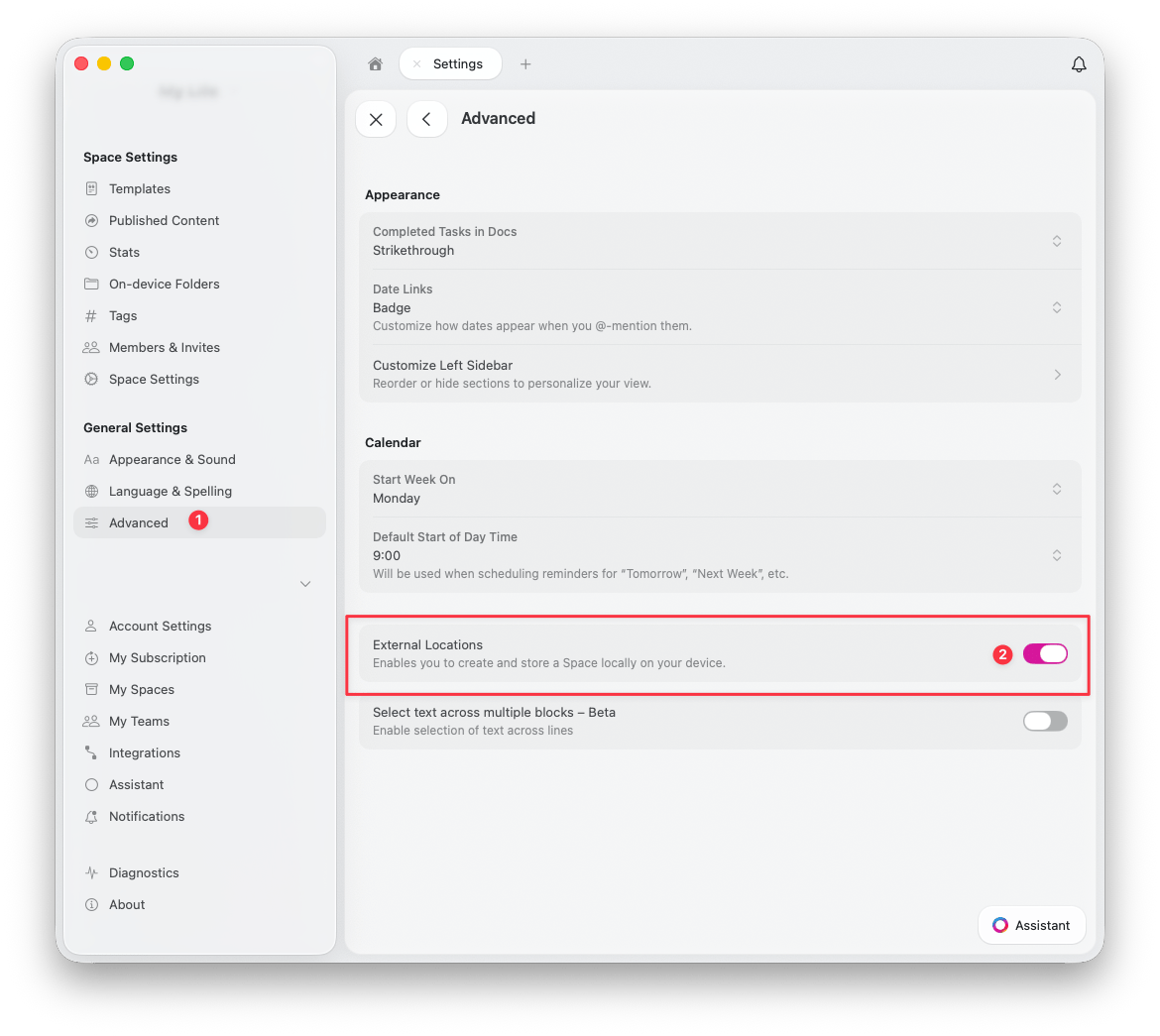
**설정** > **고급**으로 이동하세요
**External Locations** 토글을 켜세요
 ## External Location 추가 방법
활성화하면 **설정** > **내 스페이스**에서 External Location을 추가할 수 있습니다:
## External Location 추가 방법
활성화하면 **설정** > **내 스페이스**에서 External Location을 추가할 수 있습니다:
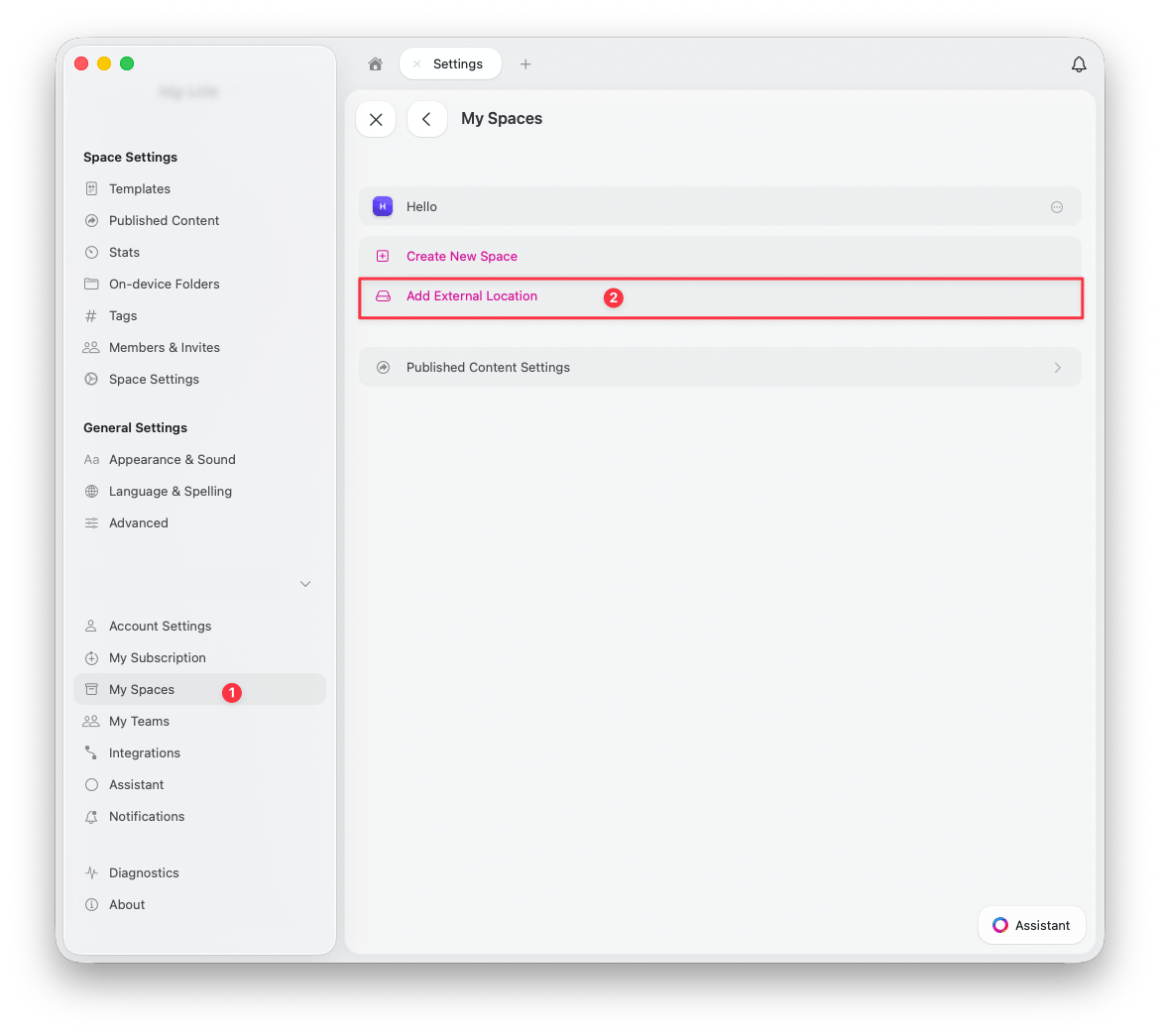 **설정** > **내 스페이스**로 이동하세요
**Add External Location**을 클릭하세요
원하는 위치에 새 폴더를 만들거나 기존 폴더를 선택하세요 -- 이 폴더에 모든 문서와 자산이 저장됩니다
## 서드파티 동기화 서비스 사용 시
### macOS
macOS에서는 Craft 문서를 저장할 폴더 위치를 직접 선택할 수 있는 완전한 제어권이 있습니다. 동기화 품질과 신뢰성은 Dropbox, Google Drive 등 사용 중인 클라우드 제공업체에 따라 달라집니다.
### iOS 및 iPadOS
iOS와 iPadOS에서는 현재 대부분의 서드파티 동기화 서비스를 폴더 선택 위치로 접근할 수 없도록 Apple에서 제한하고 있습니다. 이 경우 사용 가능한 유일한 옵션은 **iCloud Drive**입니다.
향후 iOS 업데이트로 변경사항이 생기면, Craft는 사용 가능한 최신 옵션을 지원할 것입니다.
## External Locations를 사용하면 좋은 경우
External Locations는 다음과 같은 경우에 적합합니다:
* 데이터 저장 위치를 완전히 제어할 필요가 있는 사용자
* 클라우드 기반 협업 기능이 필요 없는 상황
* 단일 기기 워크플로우(다중 기기에는 권장하지 않음)
* 로컬 전용 저장을 요구하는 규정 준수 요건
## External Locations를 사용하지 말아야 하는 경우
다음에 해당하면 External Locations 사용을 피하세요:
* 문서를 공유하거나 협업해야 하는 경우
* 여러 기기에서 작업하는 경우
* 서드파티 도구 없이 자동 동기화를 원할 경우
* 버전 기록 및 백업 같은 Craft의 클라우드 기반 기능에 의존하는 경우
## 도움이 필요하신가요?
External Locations에 대해 질문이 있거나 안전하게 설정하는 데 도움이 필요하면 지원팀에 문의하세요.
**설정** > **내 스페이스**로 이동하세요
**Add External Location**을 클릭하세요
원하는 위치에 새 폴더를 만들거나 기존 폴더를 선택하세요 -- 이 폴더에 모든 문서와 자산이 저장됩니다
## 서드파티 동기화 서비스 사용 시
### macOS
macOS에서는 Craft 문서를 저장할 폴더 위치를 직접 선택할 수 있는 완전한 제어권이 있습니다. 동기화 품질과 신뢰성은 Dropbox, Google Drive 등 사용 중인 클라우드 제공업체에 따라 달라집니다.
### iOS 및 iPadOS
iOS와 iPadOS에서는 현재 대부분의 서드파티 동기화 서비스를 폴더 선택 위치로 접근할 수 없도록 Apple에서 제한하고 있습니다. 이 경우 사용 가능한 유일한 옵션은 **iCloud Drive**입니다.
향후 iOS 업데이트로 변경사항이 생기면, Craft는 사용 가능한 최신 옵션을 지원할 것입니다.
## External Locations를 사용하면 좋은 경우
External Locations는 다음과 같은 경우에 적합합니다:
* 데이터 저장 위치를 완전히 제어할 필요가 있는 사용자
* 클라우드 기반 협업 기능이 필요 없는 상황
* 단일 기기 워크플로우(다중 기기에는 권장하지 않음)
* 로컬 전용 저장을 요구하는 규정 준수 요건
## External Locations를 사용하지 말아야 하는 경우
다음에 해당하면 External Locations 사용을 피하세요:
* 문서를 공유하거나 협업해야 하는 경우
* 여러 기기에서 작업하는 경우
* 서드파티 도구 없이 자동 동기화를 원할 경우
* 버전 기록 및 백업 같은 Craft의 클라우드 기반 기능에 의존하는 경우
## 도움이 필요하신가요?
External Locations에 대해 질문이 있거나 안전하게 설정하는 데 도움이 필요하면 지원팀에 문의하세요.