> ## Documentation Index
> Fetch the complete documentation index at: https://craft-support.mintlify.site/llms.txt
> Use this file to discover all available pages before exploring further.

# 프로필 사진 변경

> 워크스페이스를 개인화하고 협업자가 당신을 더 쉽게 알아볼 수 있도록 프로필 사진을 업데이트하세요.

Craft의 프로필 사진은 워크스페이스를 개인화하고 협업자가 당신을 더 쉽게 알아볼 수 있도록 도와줍니다.

## 프로필 사진이 표시되는 위치

프로필 사진은 다음 위치에 표시됩니다:

* 공유된 문서
* 댓글
* 스페이스 또는 팀 설정

## 프로필 사진 변경

<Tabs>
  <Tab title="Mac">
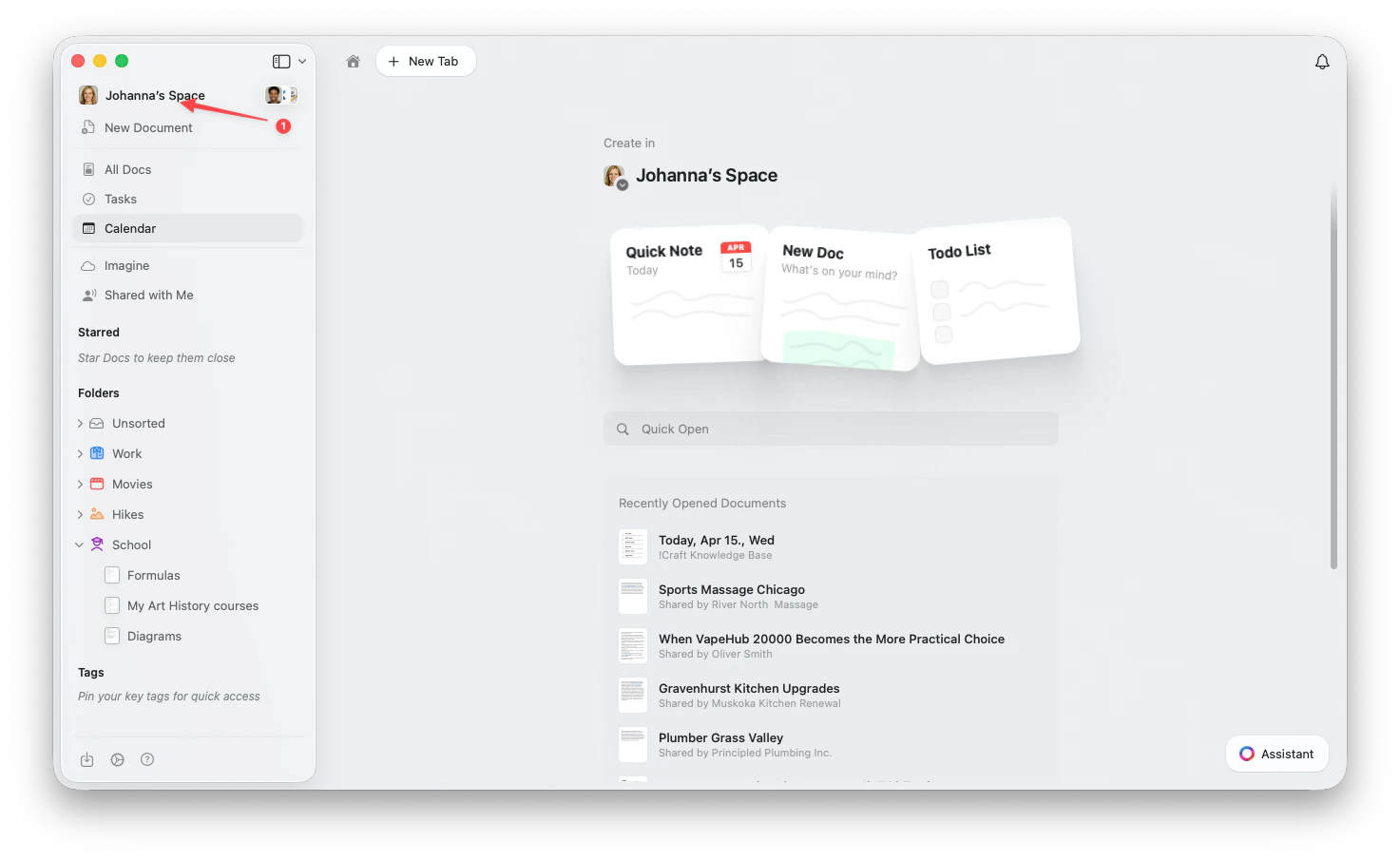
    사이드바 상단의 **스페이스 이름**을 클릭하여 설정을 엽니다.

    <Frame>
      <img src="https://mintcdn.com/craft-support/uCmTok0gNp17u6Tw/images/snippets/open-settings/en/content/mac-space-name.png?fit=max&auto=format&n=uCmTok0gNp17u6Tw&q=85&s=b2a80ae0eb9e67d830298c30f3046f02" alt="사이드바에서 스페이스 이름 클릭" width="1473" height="905" data-path="images/snippets/open-settings/en/content/mac-space-name.png" />
    </Frame>
  </Tab>

  <Tab title="Web / Windows">
    <Steps>
      <Step title="스페이스 드롭다운 열기">
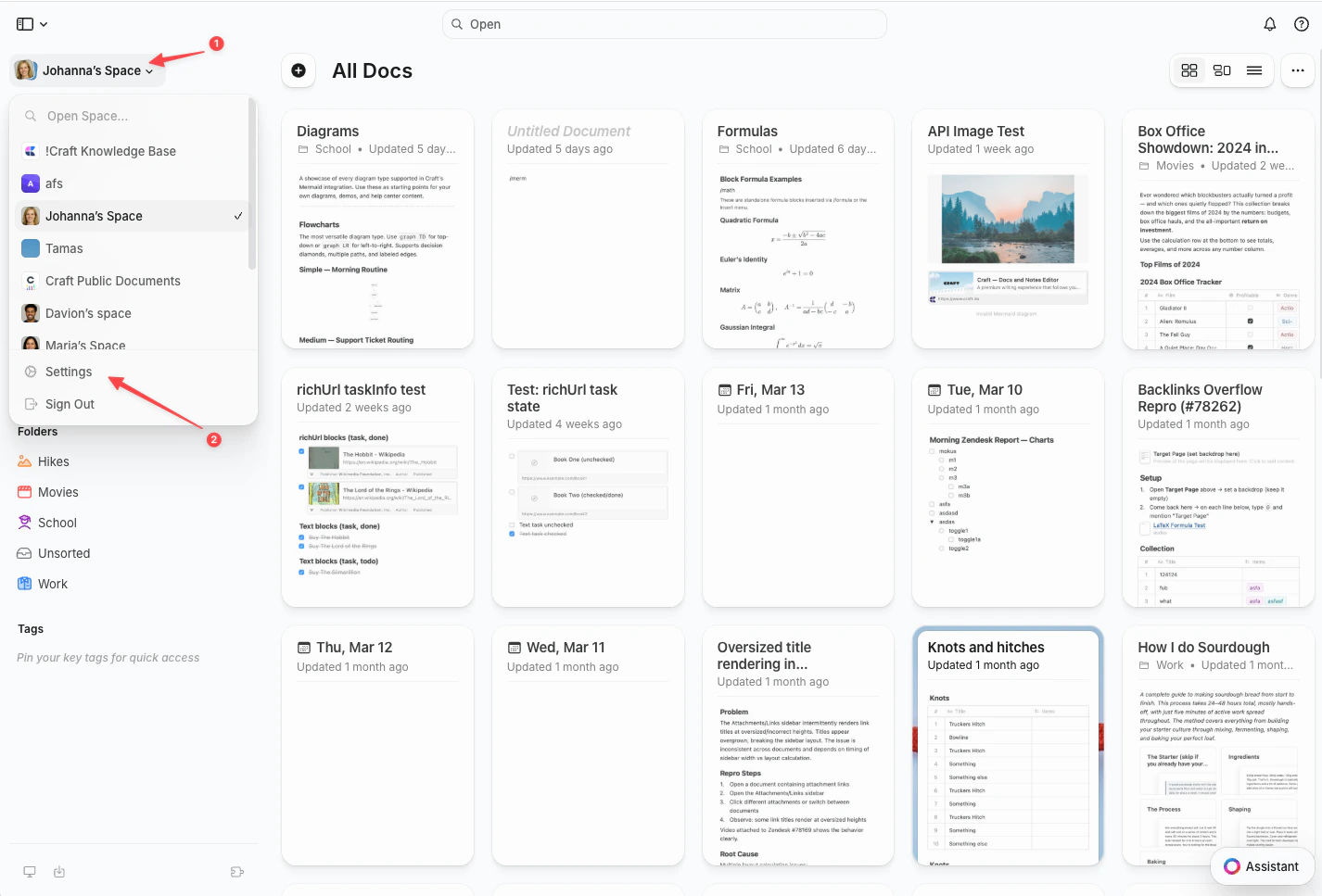
        왼쪽 상단 모서리의 **스페이스 이름**을 클릭합니다.
      </Step>

      <Step title="설정 선택">
        드롭다운 하단의 **설정**을 클릭합니다.

        <Frame>
          <img src="https://mintcdn.com/craft-support/uCmTok0gNp17u6Tw/images/snippets/open-settings/en/content/web-space-dropdown.png?fit=max&auto=format&n=uCmTok0gNp17u6Tw&q=85&s=8fe2f1b7ca147ccd7de2d4851d2857e1" alt="설정 옵션이 있는 스페이스 드롭다운" width="1426" height="967" data-path="images/snippets/open-settings/en/content/web-space-dropdown.png" />
        </Frame>
      </Step>
    </Steps>
  </Tab>

  <Tab title="iOS">
    <Steps>
      <Step title="스페이스 아이콘 탭">
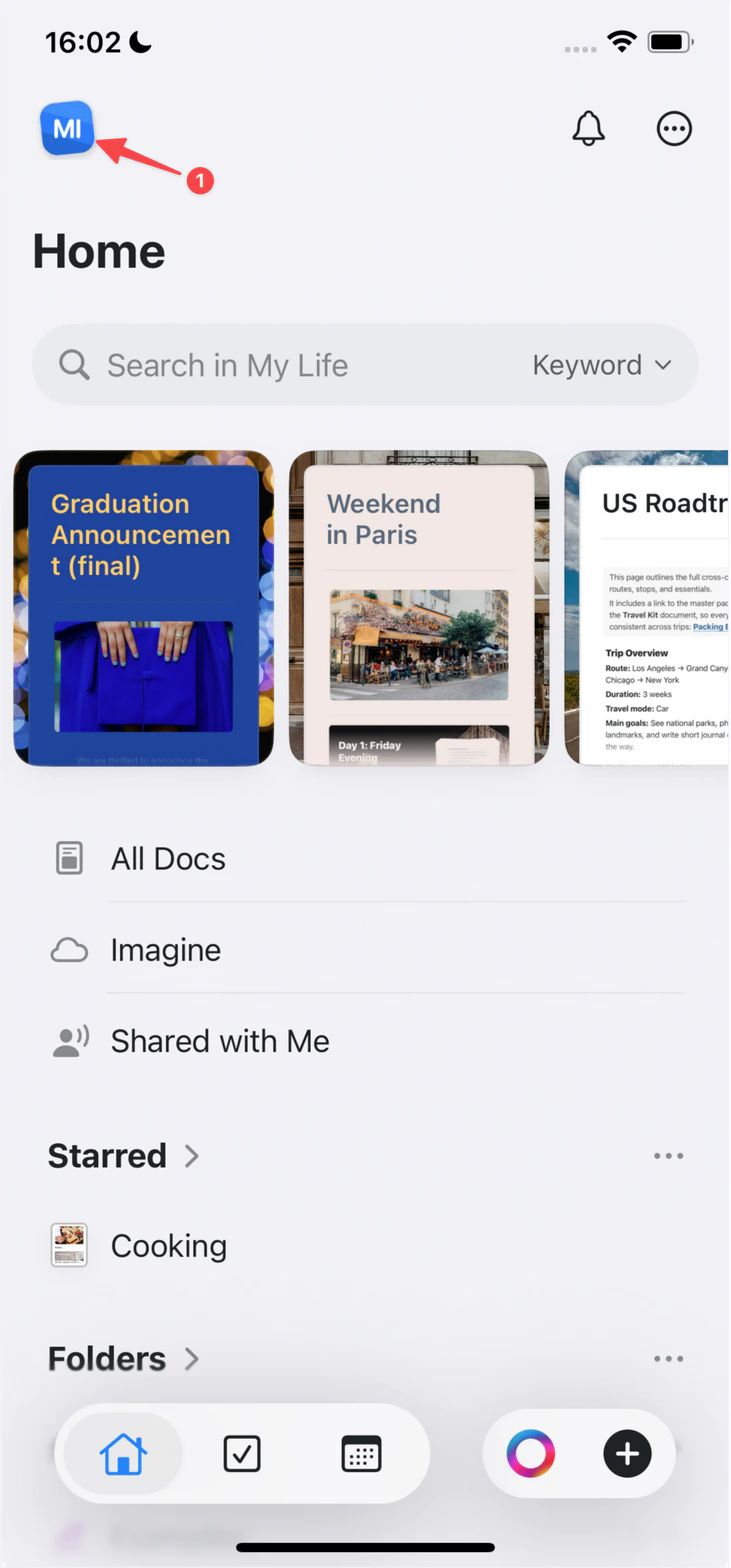
        왼쪽 상단 모서리의 **스페이스 아이콘**을 탭합니다.

        <Frame>
          <img src="https://mintcdn.com/craft-support/uCmTok0gNp17u6Tw/images/snippets/open-settings/en/content/ios-space-icon.png?fit=max&auto=format&n=uCmTok0gNp17u6Tw&q=85&s=82ed814971491d12743fb924294f595a" alt="왼쪽 상단 모서리의 스페이스 아이콘" width="731" height="1568" data-path="images/snippets/open-settings/en/content/ios-space-icon.png" />
        </Frame>
      </Step>

      <Step title="설정 열기">
        **설정**을 탭합니다.
      </Step>
    </Steps>
  </Tab>

  <Tab title="Android">
    <Steps>
      <Step title="프로필 사진 탭">
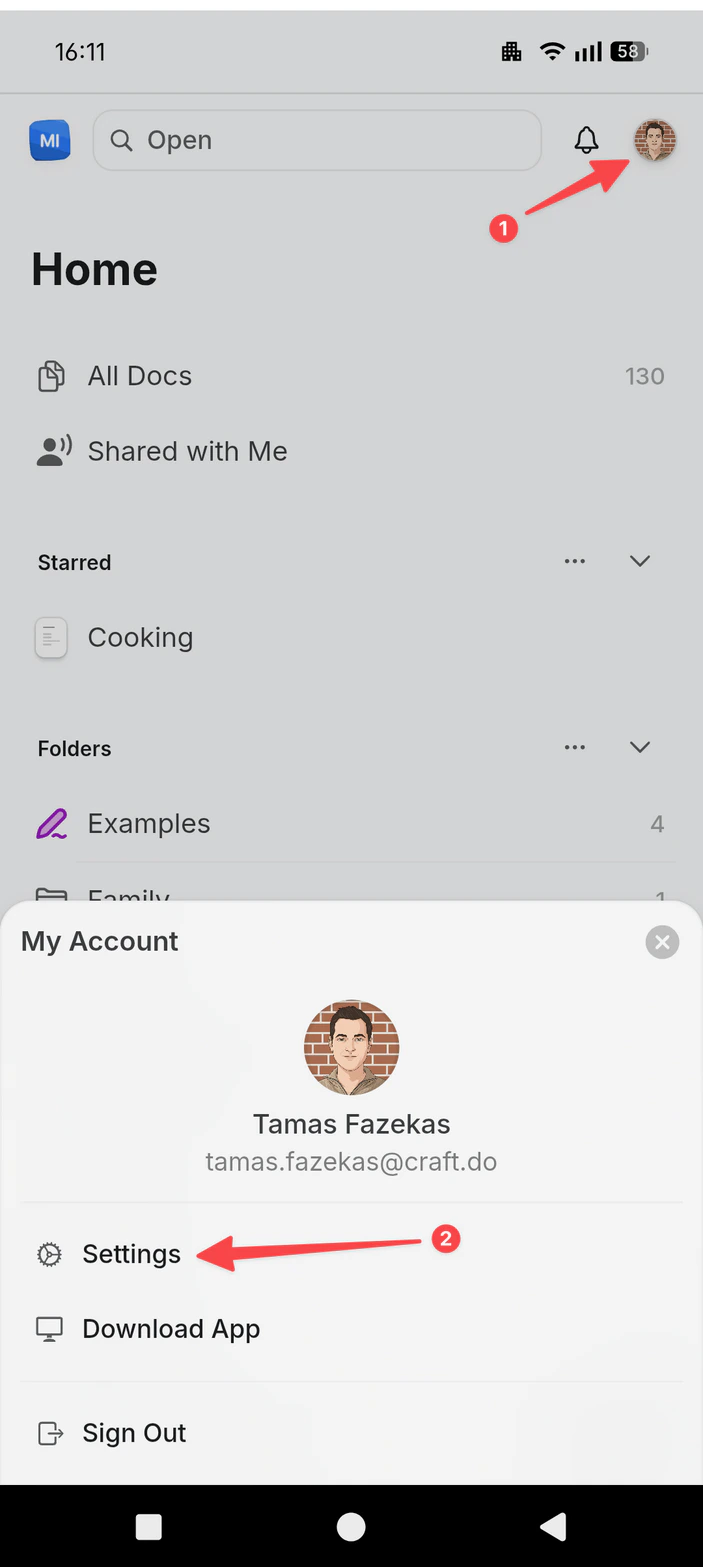
        오른쪽 상단 모서리의 **프로필 사진**을 탭합니다.
      </Step>

      <Step title="설정 열기">
        **설정**을 탭합니다.

        <Frame>
          <img src="https://mintcdn.com/craft-support/uCmTok0gNp17u6Tw/images/snippets/open-settings/en/content/android-profile-menu.png?fit=max&auto=format&n=uCmTok0gNp17u6Tw&q=85&s=04626672ba7545613f9b039a5d363698" alt="설정 옵션이 있는 프로필 메뉴" width="703" height="1567" data-path="images/snippets/open-settings/en/content/android-profile-menu.png" />
        </Frame>
      </Step>
    </Steps>
  </Tab>
</Tabs>

<Steps>
  <Step>
    **내 계정**으로 이동합니다
  </Step>

  <Step>
    새 사진을 업로드하려면 프로필 사진을 클릭하세요.
  </Step>

  <Step>
    기기에서 이미지를 선택하세요 (JPG, JPEG 또는 PNG)
  </Step>
</Steps>

새 사진은 모든 기기에 자동으로 반영됩니다.

<Info title="참고">
  프로필 사진은 개별 스페이스가 아니라 Craft 계정에 연결됩니다. 즉시 반영되지 않으면 앱을 다시 시작해 보세요.
</Info>