> ## Documentation Index
> Fetch the complete documentation index at: https://craft-support.mintlify.site/llms.txt
> Use this file to discover all available pages before exploring further.
# ブランディング
> 公開ページにロゴを表示して、読者にプロフェッショナルなブランド体験を提供しましょう。
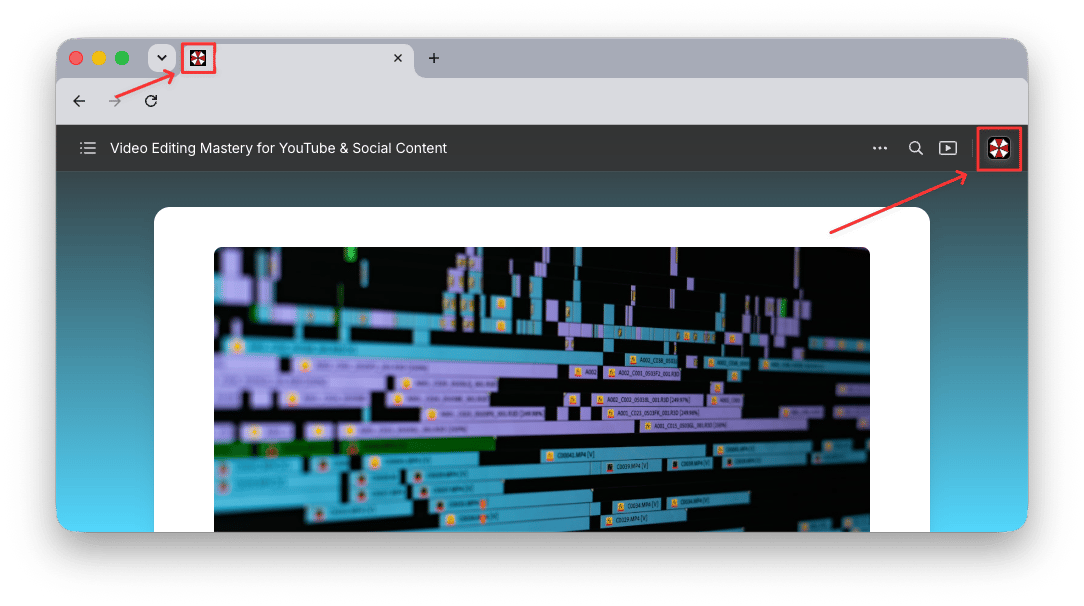
公開するCraftドキュメントにブランドアイデンティティを反映させましょう。ロゴはすべての公開ページに表示され、ページヘッダーとブラウザタブの両方に現れます。
カスタムブランディング機能は、**Plus、Family、Team、Business**プランでご利用いただけます。
## 公開ページのロゴ
有効にすると、ロゴはすべての公開ドキュメントの**右上隅**に表示され、**ブラウザタブのファビコン**としても使用されます。読者はロゴをクリックして、お好みのURL(例:あなたのウェブサイト)にアクセスできます。
 ## ロゴを有効にする
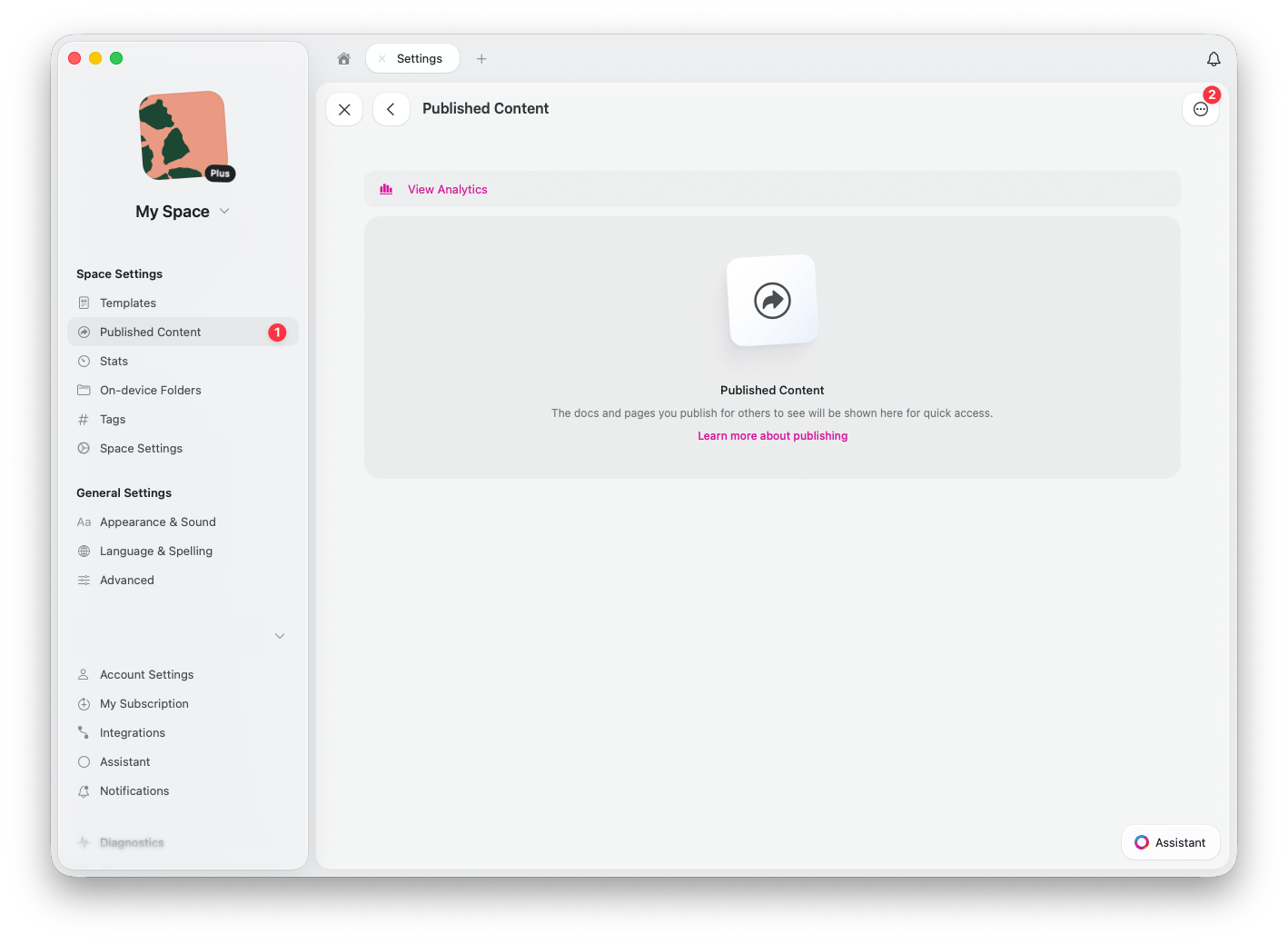
CraftのWebまたはデスクトップアプリで、**スペース設定** > **公開コンテンツ**に移動します
設定アイコンをクリックして**公開コンテンツ設定**にアクセスします
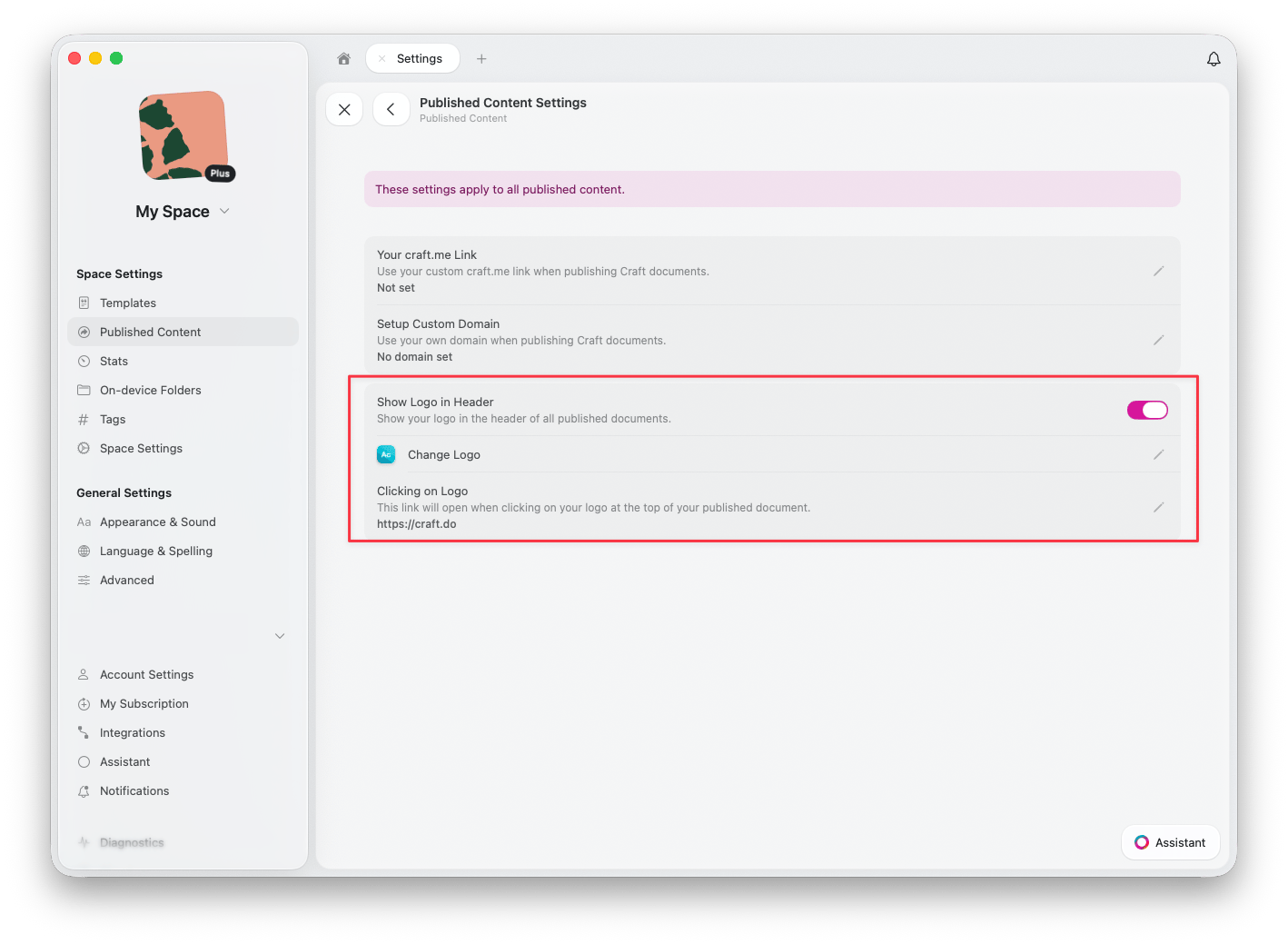
**Show Logo in Header** を有効にして、すべての公開ドキュメントのヘッダーにロゴを表示します
**Change Logo** をクリックして、公開ページに表示するロゴをアップロードまたは更新します
**Clicking on Logo** の下で、読者がロゴをクリックしたときに開くURL(例:ウェブサイトのホームページ)を設定します
## ロゴを有効にする
CraftのWebまたはデスクトップアプリで、**スペース設定** > **公開コンテンツ**に移動します
設定アイコンをクリックして**公開コンテンツ設定**にアクセスします
**Show Logo in Header** を有効にして、すべての公開ドキュメントのヘッダーにロゴを表示します
**Change Logo** をクリックして、公開ページに表示するロゴをアップロードまたは更新します
**Clicking on Logo** の下で、読者がロゴをクリックしたときに開くURL(例:ウェブサイトのホームページ)を設定します
 ## ブランディング機能の組み合わせ
カスタムブランディングは、他の公開機能と連携して完全なブランド体験を作り出します:
**カスタムドメイン** -- `craft.me`の代わりに独自のドメイン(例:`blog.yourcompany.com`)を使用します
**ロゴ** -- すべての公開ページにロゴを表示します
**カスタム craft.me リンク** -- craft.meのURLをブランドに合わせてパーソナライズします
これらの機能を組み合わせることで、Craftの強力なドキュメント機能を活用しながら、ブランドのシームレスな一部のように見えるプロフェッショナルなコンテンツを公開できます。
***
独自のドメインを公開コンテンツに接続します
ドキュメントをウェブに公開する方法を学びます
## ブランディング機能の組み合わせ
カスタムブランディングは、他の公開機能と連携して完全なブランド体験を作り出します:
**カスタムドメイン** -- `craft.me`の代わりに独自のドメイン(例:`blog.yourcompany.com`)を使用します
**ロゴ** -- すべての公開ページにロゴを表示します
**カスタム craft.me リンク** -- craft.meのURLをブランドに合わせてパーソナライズします
これらの機能を組み合わせることで、Craftの強力なドキュメント機能を活用しながら、ブランドのシームレスな一部のように見えるプロフェッショナルなコンテンツを公開できます。
***
独自のドメインを公開コンテンツに接続します
ドキュメントをウェブに公開する方法を学びます