> ## Documentation Index
> Fetch the complete documentation index at: https://craft-support.mintlify.site/llms.txt
> Use this file to discover all available pages before exploring further.
# Craft アプリのカスタムアイコン
> macOS 上の Craft アプリにカスタムアイコンを設定する方法。
カスタムアプリアイコンは macOS のみで利用できます。
Mac 上でカスタムアイコンを設定して、Craft をカスタマイズできます。
## カスタムアイコンを設定する
[Craft のアイコンギャラリー](https://www.craft.do/s/dhXngIMJLQu96b)から好みのアプリアイコンをダウンロードします
Mac の **Applications** フォルダを開きます
**Craft** を右クリックして **Get Info** を選択します
`.icns` ファイルを左上の小さな Craft ロゴにドラッグ&ドロップします
Craft を再起動します
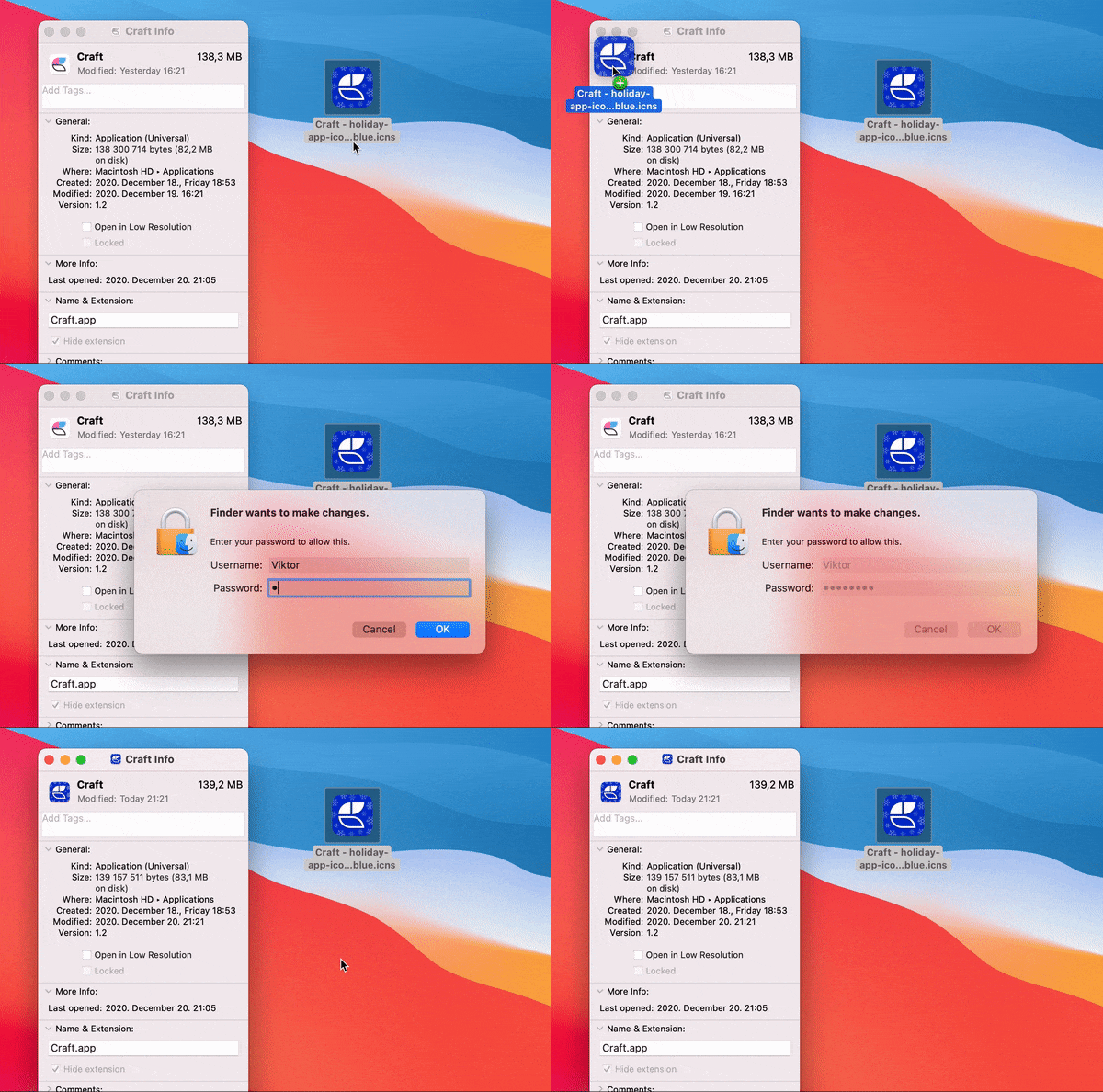 アプリがアップデートされるとカスタムアイコンはデフォルトにリセットされます。これは App Store による仕様です。
## カスタムアイコンを削除する
アイコンをデフォルトに戻すには:
Mac の **Applications** フォルダに移動します
**Craft** を右クリックして **Get Info** を選択します
**Get Info** の左上にあるアプリアイコンをクリックします
キーボードで **Delete** を押します
アプリがアップデートされるとカスタムアイコンはデフォルトにリセットされます。これは App Store による仕様です。
## カスタムアイコンを削除する
アイコンをデフォルトに戻すには:
Mac の **Applications** フォルダに移動します
**Craft** を右クリックして **Get Info** を選択します
**Get Info** の左上にあるアプリアイコンをクリックします
キーボードで **Delete** を押します