> ## Documentation Index
> Fetch the complete documentation index at: https://craft-support.mintlify.site/llms.txt
> Use this file to discover all available pages before exploring further.
# サブスクリプションのキャンセル
> ドキュメントとデータをすべて保持したまま、Craft のサブスクリプションをキャンセルします。
Craft のサブスクリプションはいつでもキャンセルできます。
キャンセルすると、現在の請求期間の終了時にアカウントは無料プランに移行します。サブスクリプションを変更しても、ドキュメントやデータに影響が及ぶことはありません。
## どこで購読しましたか?
キャンセル方法は、Craft をどこで購読したかによって異なります:
| 購読した場所 | キャンセル方法 |
| ------------------------------- | ------------------------------------------------------------------------ |
| **Craft から直接**(アプリ内または当社ウェブサイト) | Craft 内で[以下の手順](#craft-から直接購入したサブスクリプションをキャンセルする)に従います |
| **App Store**(iPhone、iPad、Mac) | Apple を通じてキャンセルします。[App Store の手順](#app-store-のサブスクリプションをキャンセルする)をご覧ください |
| **Setapp** | Setapp を通じてキャンセルします。[Setapp の手順](#setapp-のサブスクリプションをキャンセルする)をご覧ください |
どれに当てはまるかわからない場合は、[請求の概要](/ja/account-and-subscription/billing)でサブスクリプションがどこで管理されているかを確認してください。
## Craft から直接購入したサブスクリプションをキャンセルする
まず、Craft で設定を開きます:
サイドバー上部の**スペース名**をクリックして、設定を開きます。
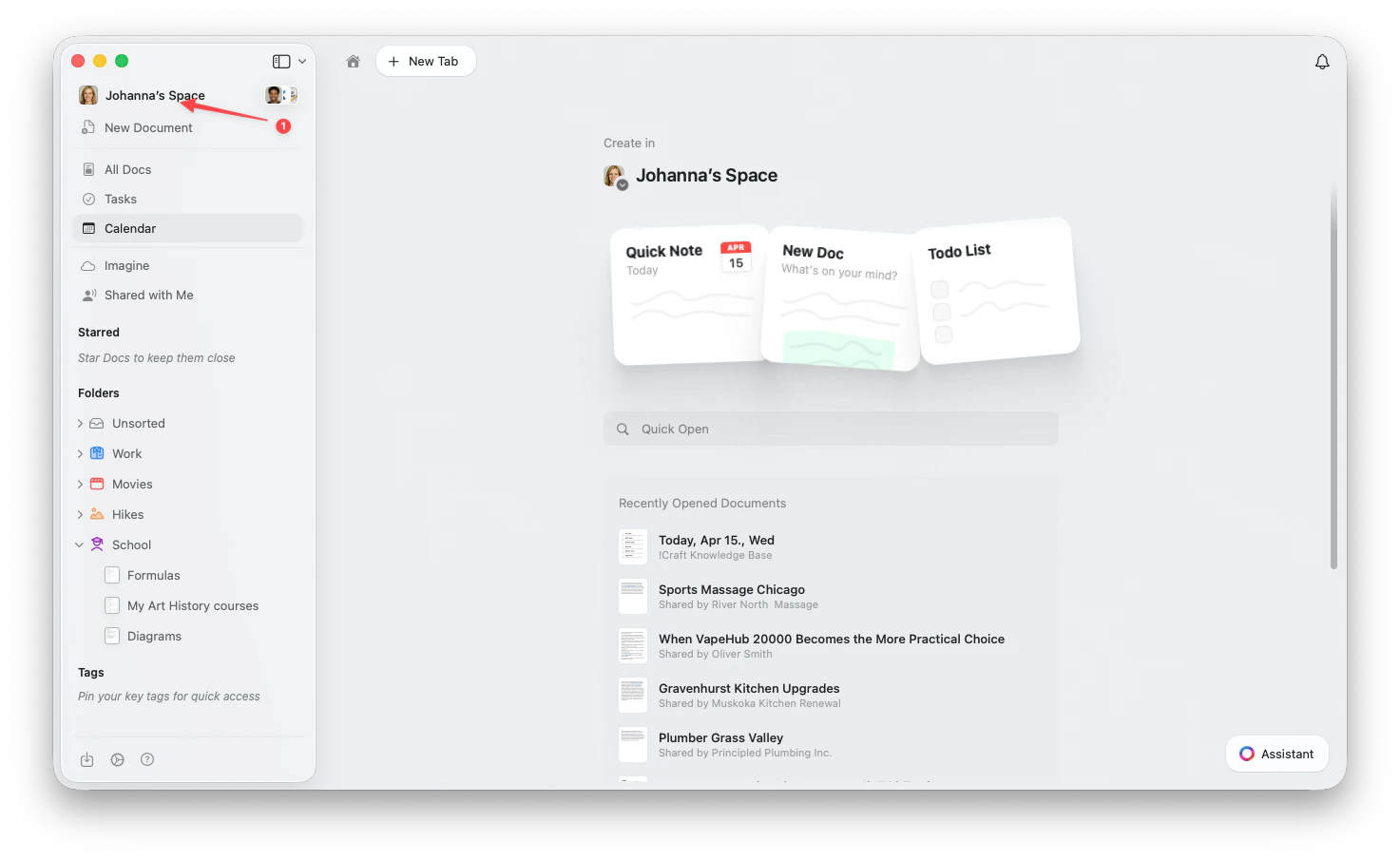 左上隅の**スペース名**をクリックします。
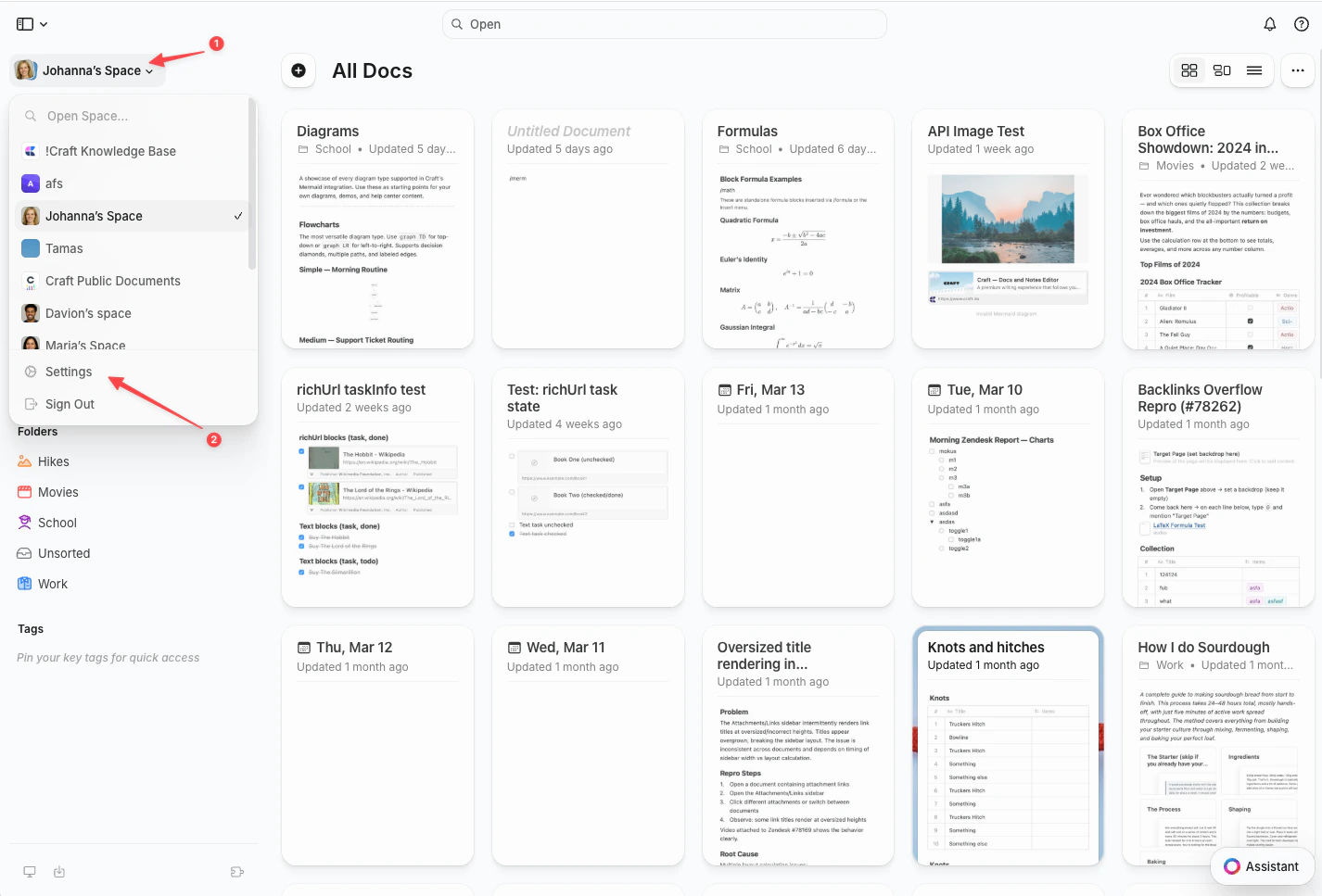
ドロップダウンの下部にある**設定**をクリックします。
左上隅の**スペース名**をクリックします。
ドロップダウンの下部にある**設定**をクリックします。
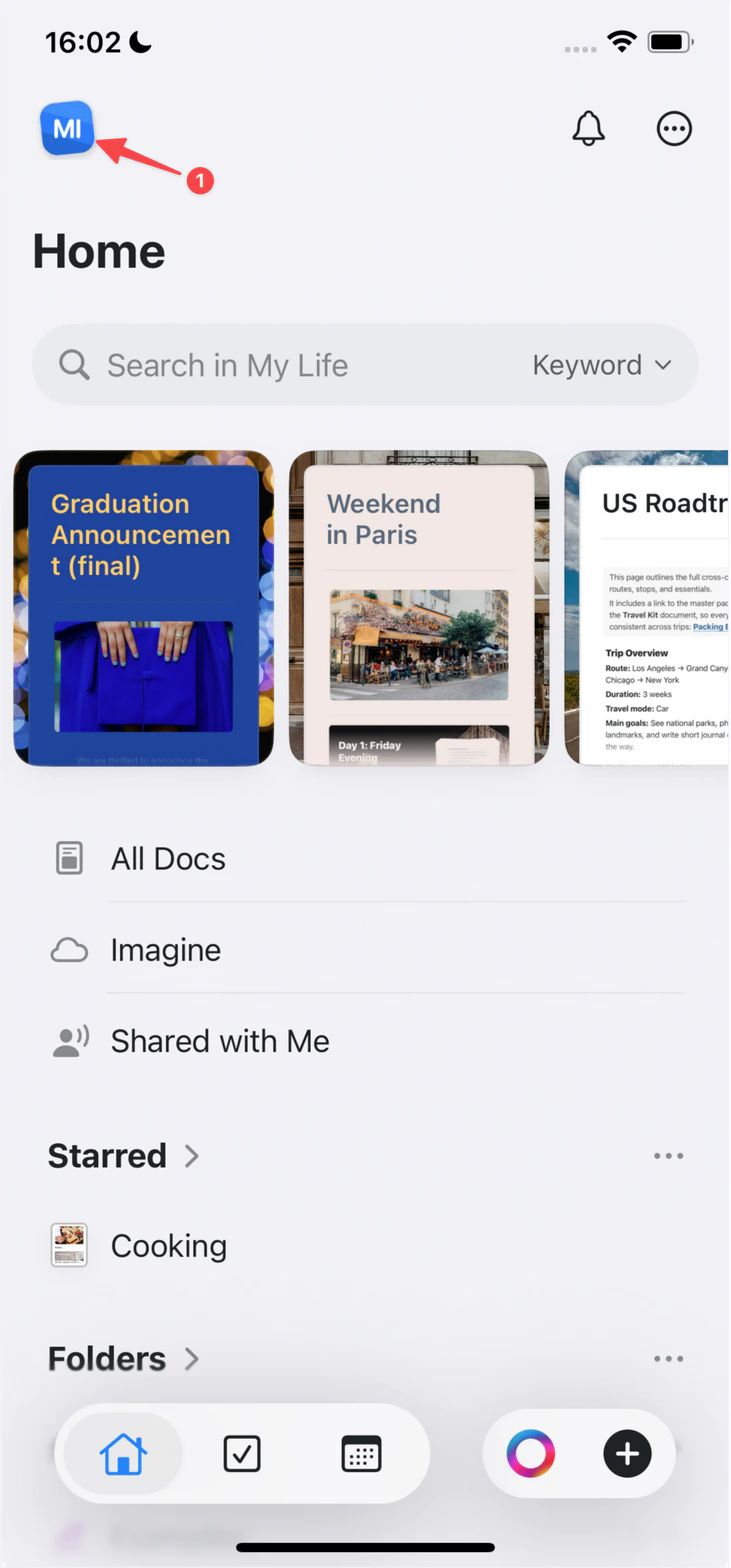
 左上隅の**スペースアイコン**をタップします。
 **設定**をタップします。
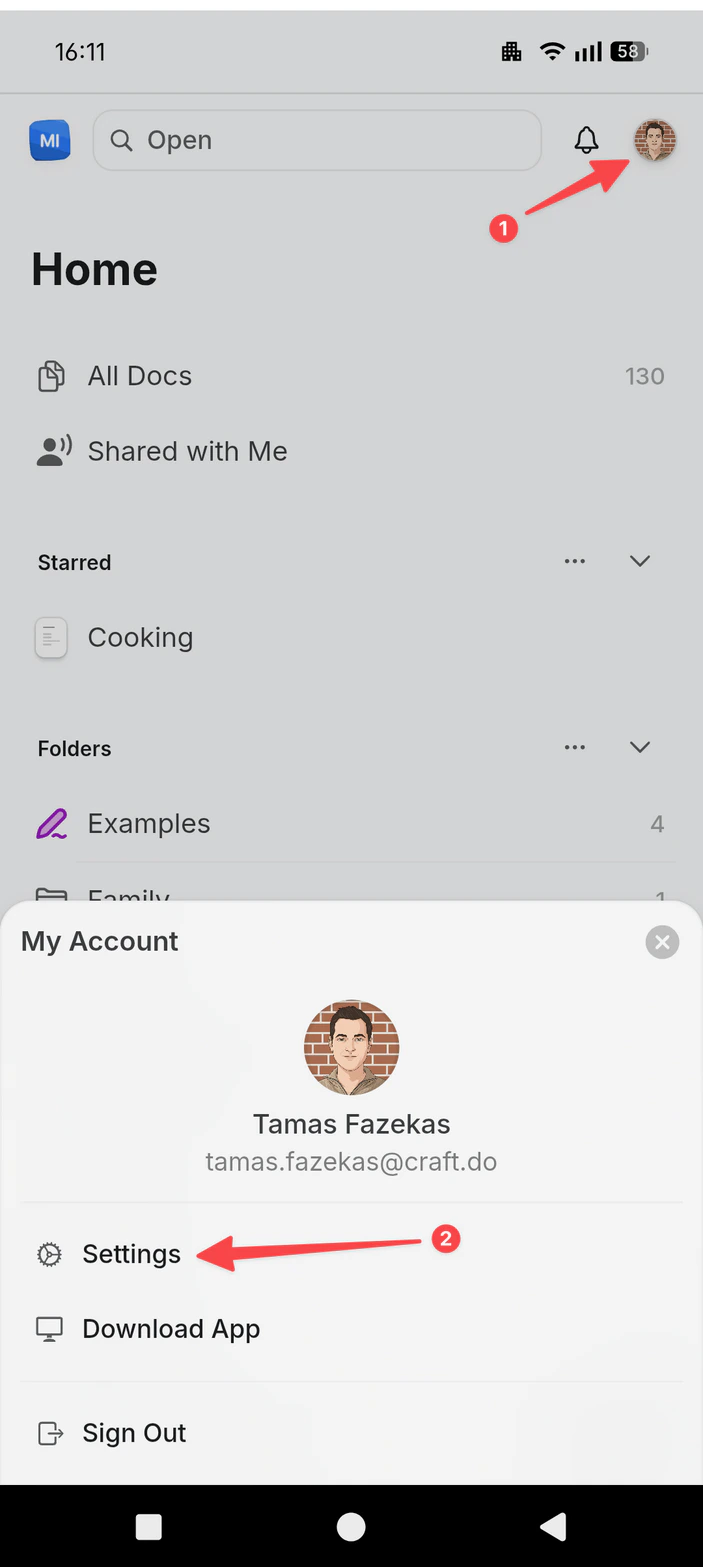
右上隅の**プロフィール写真**をタップします。
**設定**をタップします。
**設定**をタップします。
右上隅の**プロフィール写真**をタップします。
**設定**をタップします。
 次に、サブスクリプションをキャンセルします:
設定のサイドバーで**現在のサブスクリプション**を選択します(ウェブ版では**マイサブスクリプション**という名称です)。
次に、サブスクリプションをキャンセルします:
設定のサイドバーで**現在のサブスクリプション**を選択します(ウェブ版では**マイサブスクリプション**という名称です)。
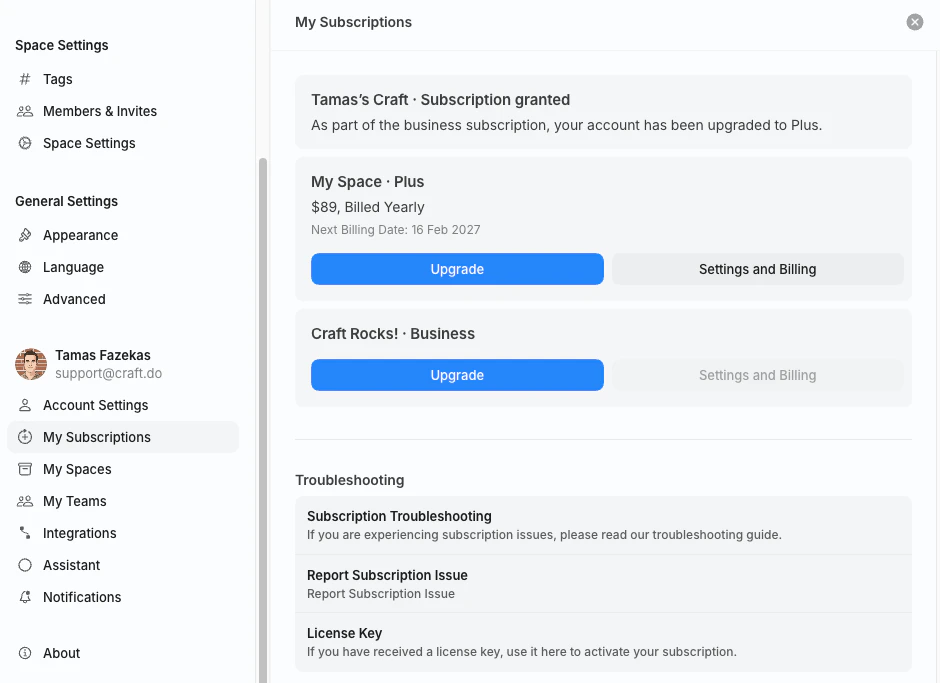 キャンセルしたいサブスクリプションで**設定と請求**をクリックします。**請求とサブスクリプション**画面が開きます。
このボタンが表示されるのは、サブスクリプションのオーナー(プランを購入したアカウント)のみです。
**サブスクリプション**セクションで**サブスクリプションをキャンセル**を選択し、確認します。ボタンにはプラン名が含まれます(例:**Plus サブスクリプションをキャンセル**)。
キャンセルしたいサブスクリプションで**設定と請求**をクリックします。**請求とサブスクリプション**画面が開きます。
このボタンが表示されるのは、サブスクリプションのオーナー(プランを購入したアカウント)のみです。
**サブスクリプション**セクションで**サブスクリプションをキャンセル**を選択し、確認します。ボタンにはプラン名が含まれます(例:**Plus サブスクリプションをキャンセル**)。
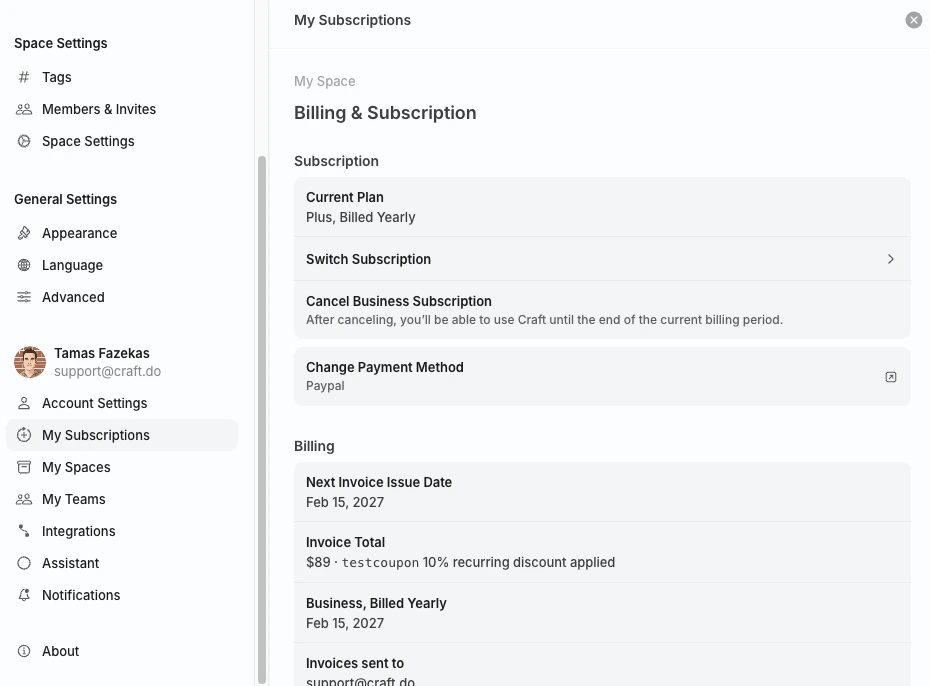 キャンセル後も、現在の請求期間が終了するまでは有料機能を引き続き利用できます。その後、アカウントは無料プランに移行します。
## App Store のサブスクリプションをキャンセルする
iPhone、iPad、Mac の App Store から購読した場合、サブスクリプションは Apple が管理しています。[Apple のガイド](https://support.apple.com/en-us/HT202039)に従って、Apple アカウントのサブスクリプション設定からキャンセルしてください。
## Setapp のサブスクリプションをキャンセルする
Setapp 経由で Craft を利用している場合、サブスクリプションは Setapp が管理しています。[my.setapp.com](https://my.setapp.com) にサインインして、メンバーシップの管理やキャンセルを行ってください。
## 下位プランへの切り替え
Craft には直接ダウングレードするボタンはありません。下位プラン(例:Plus から Starter)に切り替えるには:
購読した場所に応じて、上記の手順でキャンセルします。
有効期限までは現在のプランの機能を引き続き利用できます。
プランの有効期限が切れたら、アプリ内、[craft.do/pricing](https://www.craft.do/pricing)、または App Store から下位プランに登録します。
現在のサブスクリプションが終了する前に、新しいプランに登録しないでください。早めに登録してしまうと、アクティブなサブスクリプションが 2 つになる場合があります。
## 関連記事
サブスクリプションがどこで管理され、終了するとどうなるか
登録済みのカード情報を変更します
Craft のサブスクリプションプランと機能を比較します
一般的なトラブルシューティング、同期、プラットフォーム固有の問題については、[トラブルシューティングガイド](/ja/introduction/troubleshooting)をご覧ください。
キャンセル後も、現在の請求期間が終了するまでは有料機能を引き続き利用できます。その後、アカウントは無料プランに移行します。
## App Store のサブスクリプションをキャンセルする
iPhone、iPad、Mac の App Store から購読した場合、サブスクリプションは Apple が管理しています。[Apple のガイド](https://support.apple.com/en-us/HT202039)に従って、Apple アカウントのサブスクリプション設定からキャンセルしてください。
## Setapp のサブスクリプションをキャンセルする
Setapp 経由で Craft を利用している場合、サブスクリプションは Setapp が管理しています。[my.setapp.com](https://my.setapp.com) にサインインして、メンバーシップの管理やキャンセルを行ってください。
## 下位プランへの切り替え
Craft には直接ダウングレードするボタンはありません。下位プラン(例:Plus から Starter)に切り替えるには:
購読した場所に応じて、上記の手順でキャンセルします。
有効期限までは現在のプランの機能を引き続き利用できます。
プランの有効期限が切れたら、アプリ内、[craft.do/pricing](https://www.craft.do/pricing)、または App Store から下位プランに登録します。
現在のサブスクリプションが終了する前に、新しいプランに登録しないでください。早めに登録してしまうと、アクティブなサブスクリプションが 2 つになる場合があります。
## 関連記事
サブスクリプションがどこで管理され、終了するとどうなるか
登録済みのカード情報を変更します
Craft のサブスクリプションプランと機能を比較します
一般的なトラブルシューティング、同期、プラットフォーム固有の問題については、[トラブルシューティングガイド](/ja/introduction/troubleshooting)をご覧ください。