> ## Documentation Index
> Fetch the complete documentation index at: https://craft-support.mintlify.site/llms.txt
> Use this file to discover all available pages before exploring further.
# Connect to AI Providers
> Use your own OpenAI or Anthropic credentials with Craft Assistant instead of Craft AI credits.
Craft Assistant uses Craft AI credits by default, but you can connect your own AI provider account instead. When you use a connected provider, no Craft AI credits are spent.
This feature is available on **macOS** and **iOS** only. It is not currently available on Web or Windows.
## Available providers
| Provider | Connection method |
| ---------------- | ---------------------------------------- |
| **OpenAI** | Sign in with ChatGPT or paste an API key |
| **Anthropic** | Paste an API key |
| **Local Models** | Run on-device, no connection needed |
| **Craft** | Default, uses Craft AI credits |
When you use a connected provider, the conversation runs through that provider's API. Craft AI usage quota is not affected.
## Connect a provider
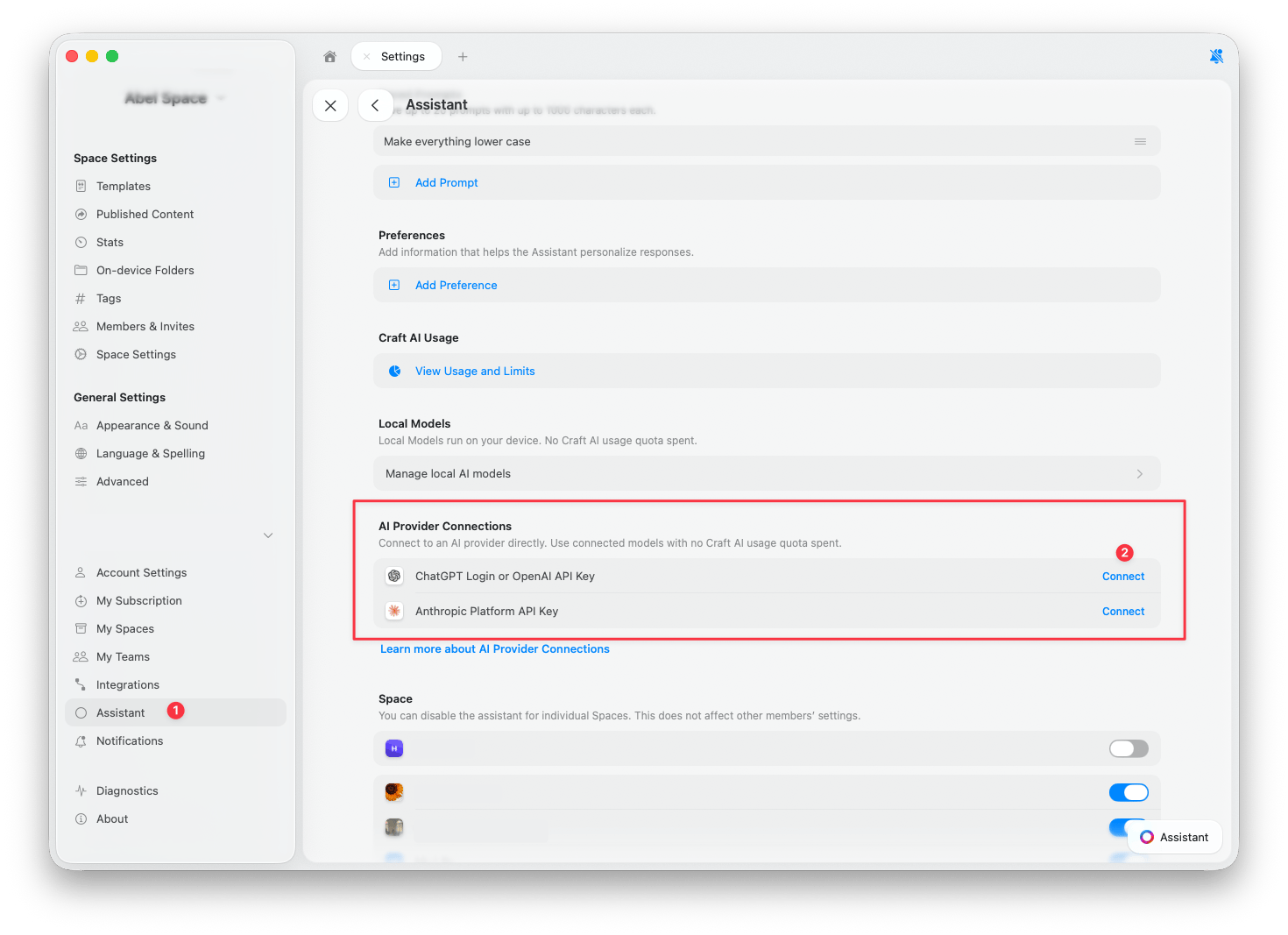
Go to **Settings** > **Assistant**.
Scroll to the **AI Provider Connections** section.
Tap **Connect** next to the provider you want to add.
Open the Assistant panel and check that your new provider is selected. New conversations use the connected provider automatically, but chats that were already open may still be using Craft. See [Switch between providers](#switch-between-providers) to change it.
 ### OpenAI
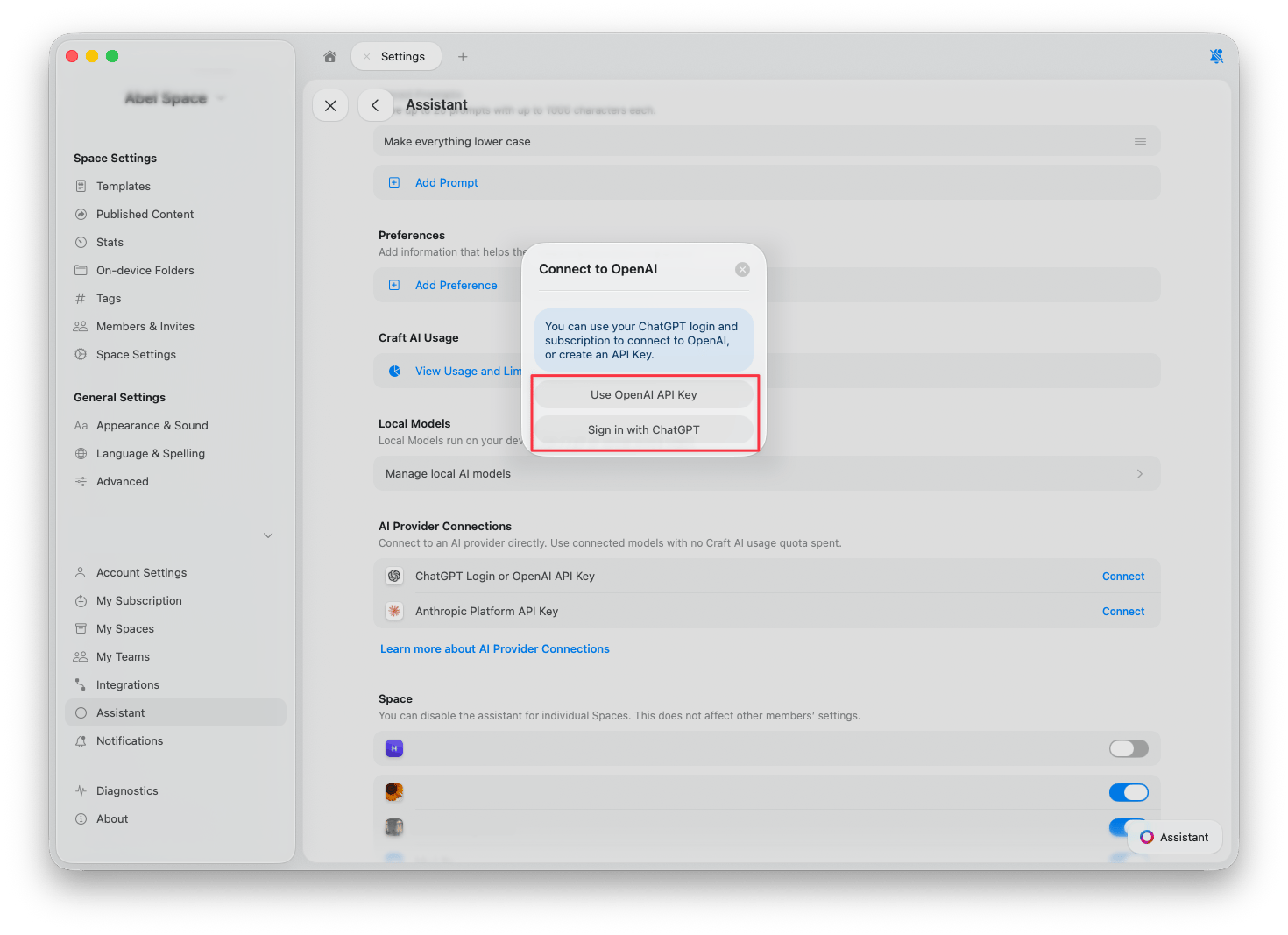
You have two ways to connect OpenAI:
* **Sign in with ChatGPT** -- Use your existing ChatGPT account and subscription. No API key needed.
* **Use OpenAI API Key** -- Paste an API key from the [OpenAI Platform](https://platform.openai.com/api-keys). Usage is billed to your OpenAI account.
### OpenAI
You have two ways to connect OpenAI:
* **Sign in with ChatGPT** -- Use your existing ChatGPT account and subscription. No API key needed.
* **Use OpenAI API Key** -- Paste an API key from the [OpenAI Platform](https://platform.openai.com/api-keys). Usage is billed to your OpenAI account.
 ### Anthropic
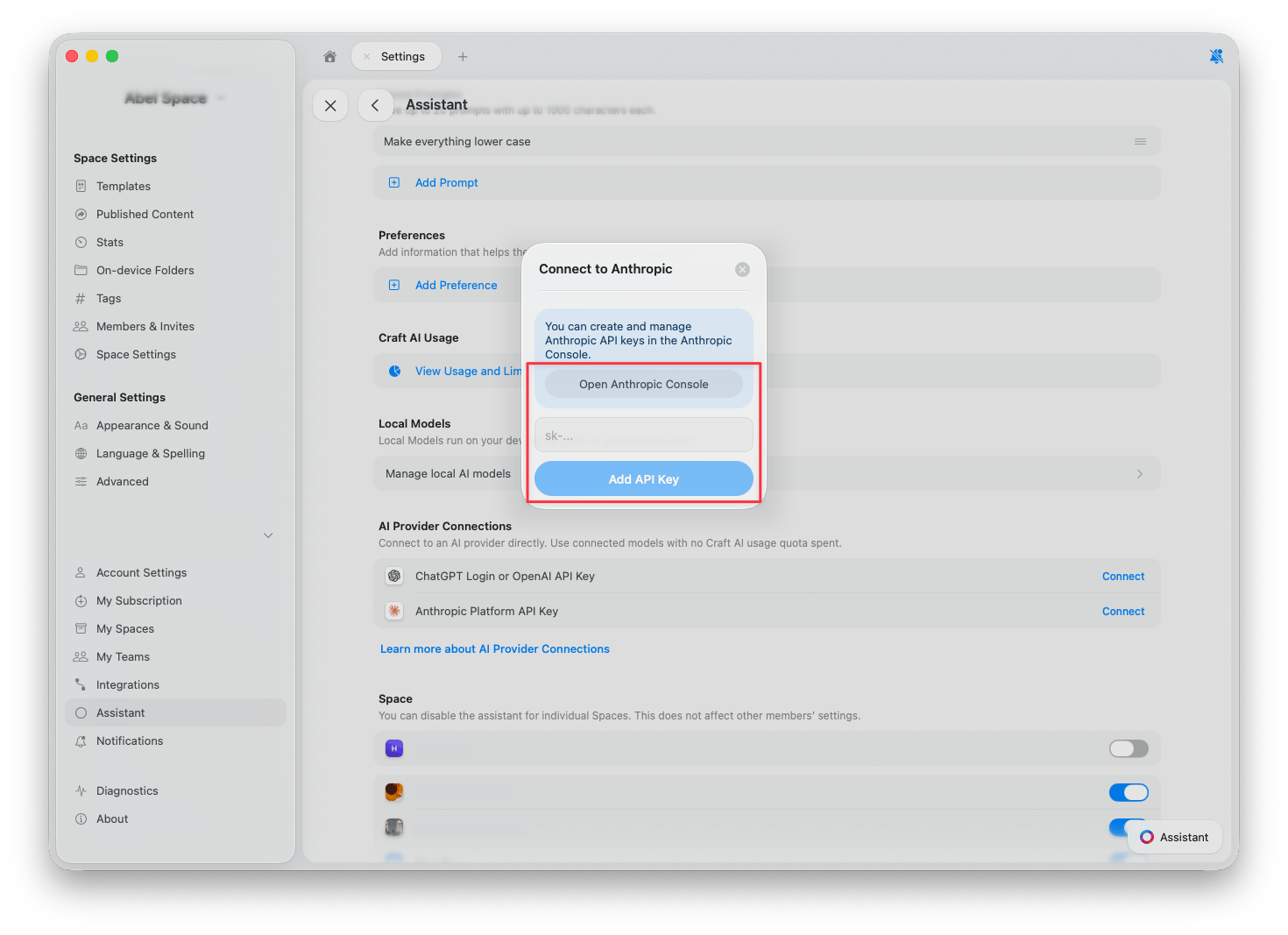
To connect Anthropic, paste an API key from the [Anthropic Console](https://console.anthropic.com/). Usage is billed to your Anthropic account.
### Anthropic
To connect Anthropic, paste an API key from the [Anthropic Console](https://console.anthropic.com/). Usage is billed to your Anthropic account.
 ## Switch between providers
Once you have connected a provider, you can switch between providers and models directly from the Assistant panel.
Open the Assistant from any document or Space view.
Below the input field, tap the **Assistant button**.
Choose **Model** from the popup. Models from your connected providers appear alongside Craft models.
## Switch between providers
Once you have connected a provider, you can switch between providers and models directly from the Assistant panel.
Open the Assistant from any document or Space view.
Below the input field, tap the **Assistant button**.
Choose **Model** from the popup. Models from your connected providers appear alongside Craft models.
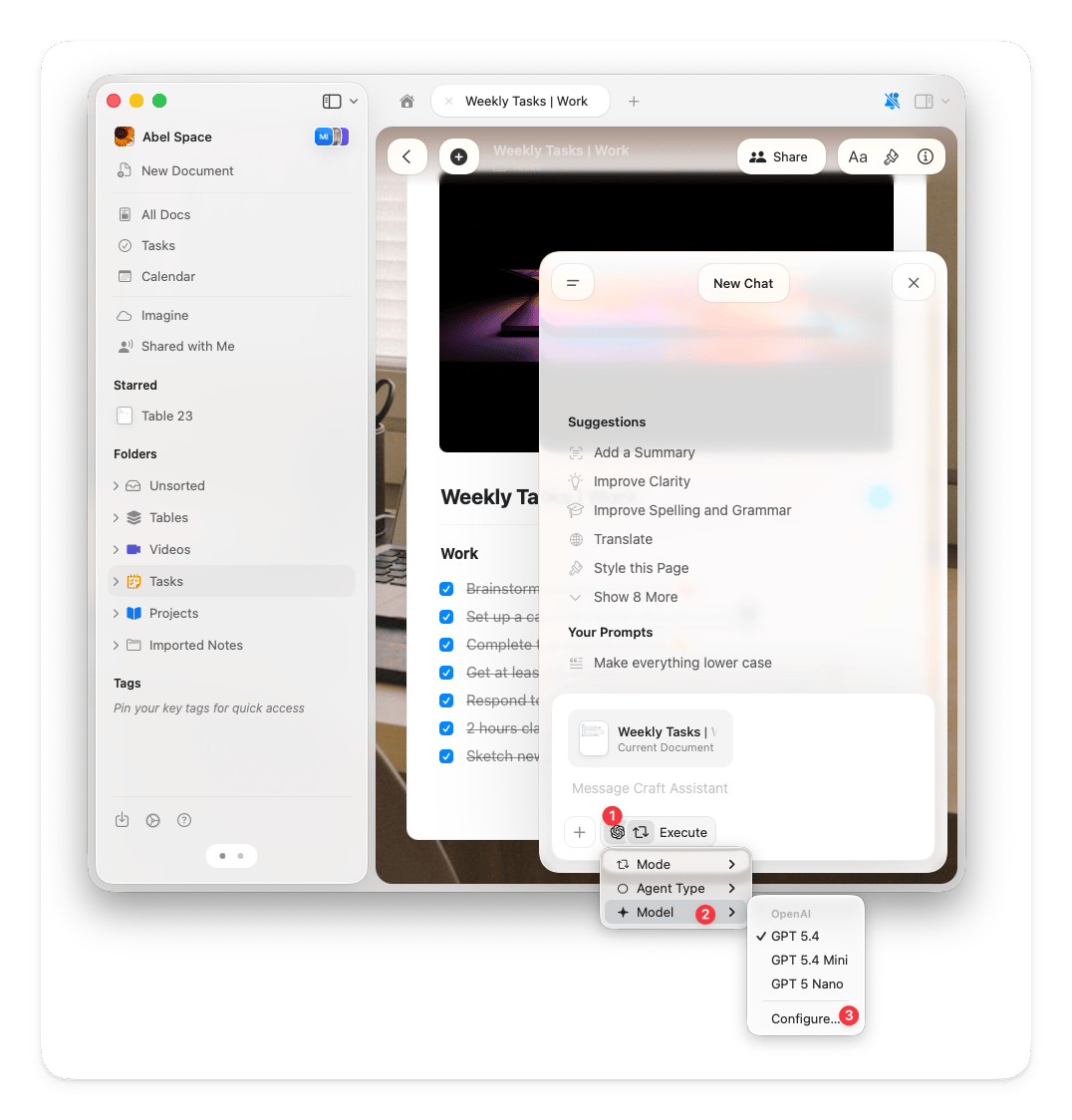 To change the active provider, tap **Configure** at the bottom of the model list and select a provider from the **Provider** dropdown.
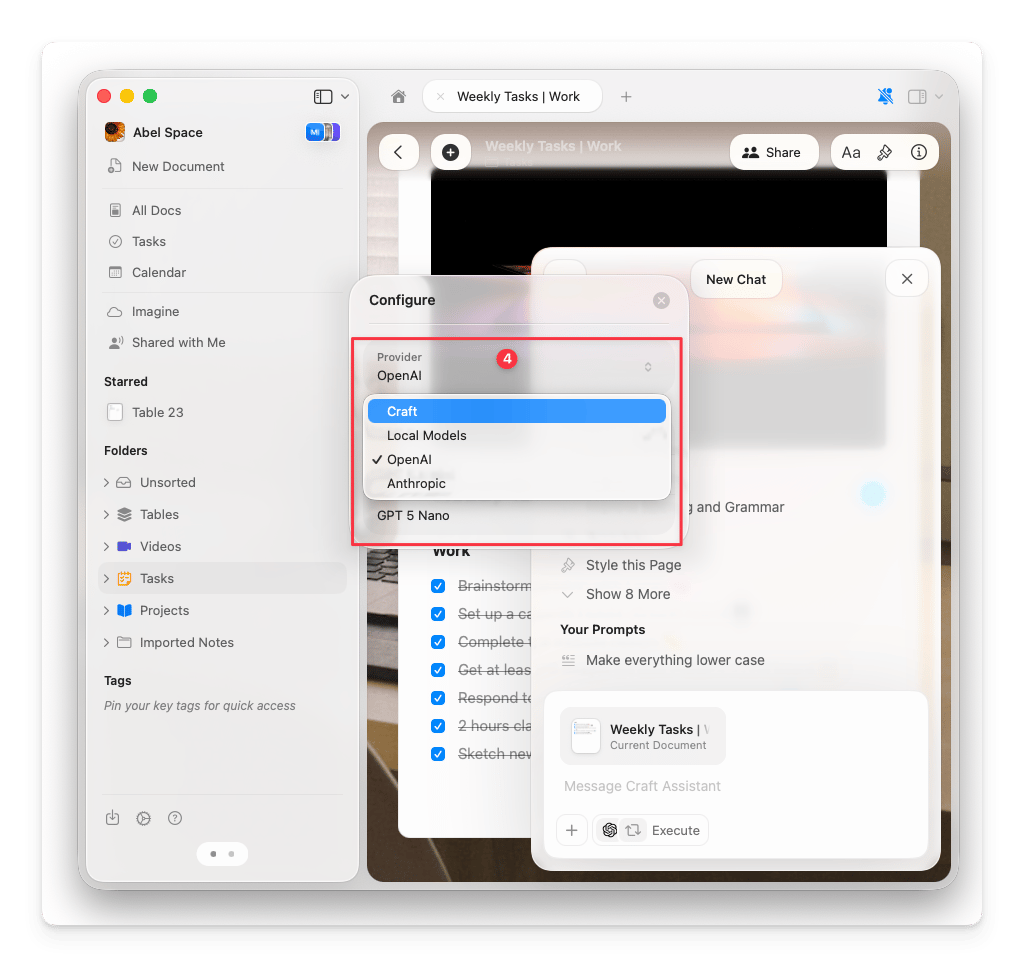 You can tell which provider is active by looking at the badge in the chat. The provider's logo appears next to the model name, so you always know whether a conversation is using Craft credits or your own provider.
## Remove a connection
Go to **Settings** > **Assistant**.
In the **AI Provider Connections** section, find the provider you want to remove.
Tap the **3-dots button** next to the connection, then tap **Remove**.
You can tell which provider is active by looking at the badge in the chat. The provider's logo appears next to the model name, so you always know whether a conversation is using Craft credits or your own provider.
## Remove a connection
Go to **Settings** > **Assistant**.
In the **AI Provider Connections** section, find the provider you want to remove.
Tap the **3-dots button** next to the connection, then tap **Remove**.
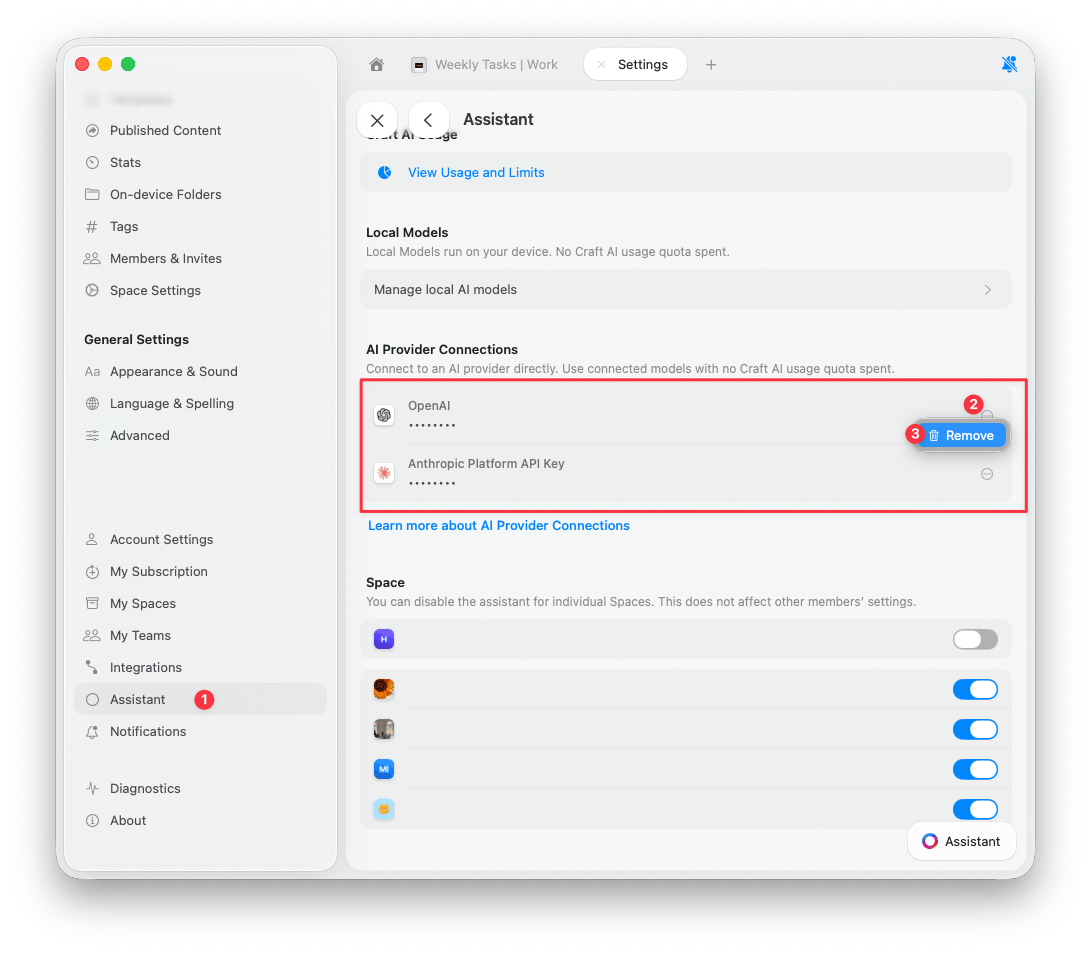 After removing a connection, the Assistant switches back to Craft AI credits.