

Craft allows you to export your documents in various formats, making it easy to share, back up, or move your content to other platforms. Exporting is available across iOS, Mac, iPad, Web, and Windows, with some format differences depending on the platform.Documentation Index
Fetch the complete documentation index at: https://craft-support.mintlify.app/llms.txt
Use this file to discover all available pages before exploring further.
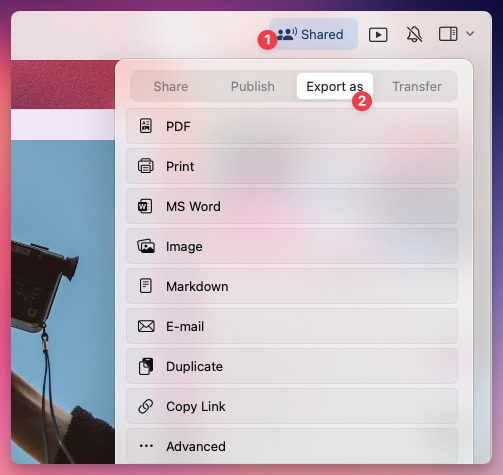
How to export a document
Available export formats
The available formats vary depending on which platform you’re using:- macOS
- iOS
- Windows
- Web
- PDF (.pdf) – Ideal for sharing a formatted, print-ready version of your document.
- Microsoft Word (.docx) – Exports a Word-compatible file for further editing.
- Image (.png/.jpeg) – Converts the document into an image.
- Markdown (.md) – Retains structure and basic formatting for use in other apps.
- TextBundle (.textbundle) – Exports Markdown along with embedded images and attachments.
- Email – Sends the document directly via email.
PDF export options
When you export a document as PDF, Craft opens an export sheet with options for paper size, font size, and what to include in the output. The available toggles and defaults differ slightly between platforms.- macOS / iOS
- Web / Windows
| Option | Type | Default |
|---|---|---|
| Paper Size | Dropdown (A4, Letter, …) | A4 |
| Font Size | Dropdown (Regular, …) | Regular |
| Hide Document Title | Toggle | Off (title is shown) |
| Show Page Numbers | Toggle | Off |
| Show Watermark | Toggle | Off |
| Hide Tags | Toggle | Off (tags are shown) |
| Use Style | Toggle | On |
| Dark Mode | Toggle | Off |
On Web and Windows, the Show Watermark toggle is on by default. Turn it off in the export sheet if you don’t want the Craft watermark on the bottom of the PDF. On macOS and iOS the watermark is off by default.
To export or copy tables made in Craft to Excel:
- Export the document or page from Craft to Word.
- Copy the desired table in Word, paste it into Excel.
Exporting multiple documents at once
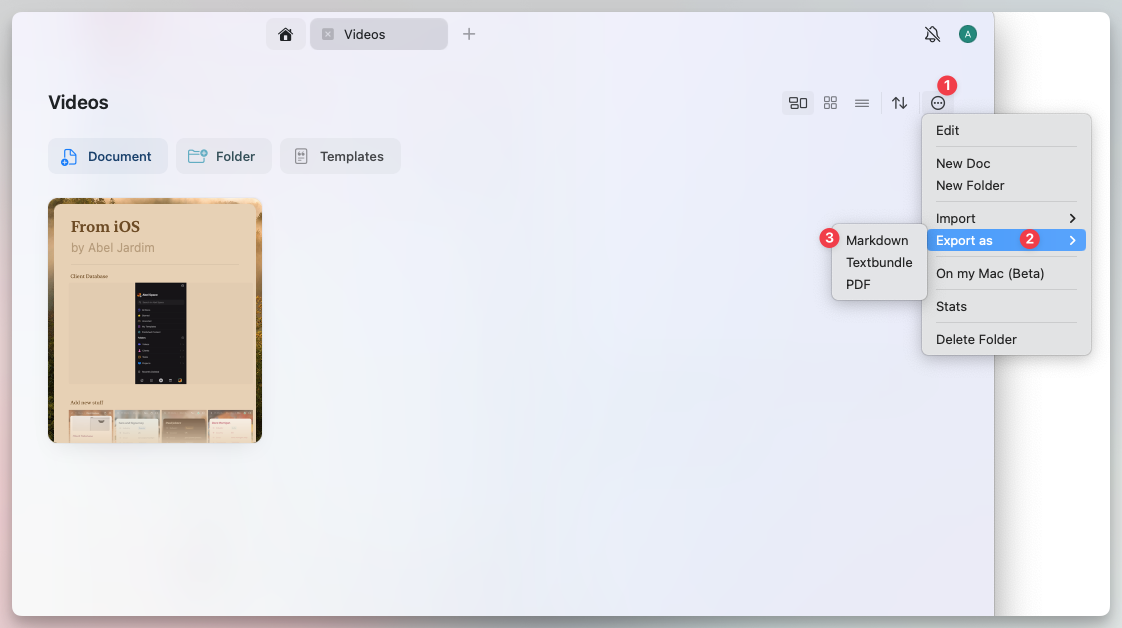
Bulk exporting multiple documents at once is only available on Mac and iPad. The available formats for bulk export are:- Markdown (.md)
- TextBundle (.textbundle)
- PDF (.pdf)
How to bulk export multiple documents
Sharing vs. exporting
- If you want to collaborate on a document, consider using Share Links instead of exporting. This allows others to view or edit the document in Craft.
- You can also publish documents online via Public Links for easy sharing.
Best practices for exporting
- Use PDF or Word for professional document sharing.
- Choose Markdown or TextBundle for cross-platform compatibility.
- Batch export multiple documents for backups or migrations (Mac & iPad only).
- Check formatting after exporting to ensure all elements appear correctly.