> ## Documentation Index
> Fetch the complete documentation index at: https://craft-support.mintlify.site/llms.txt
> Use this file to discover all available pages before exploring further.
# Spell Check and Corrections
> Configure spell checking in 34 languages for your documents in Craft.
Craft includes spell checking support for 34 languages to help you catch spelling issues in your documents. You can set a default language globally in Settings, or change it for specific documents.
## Global Spell Check Settings
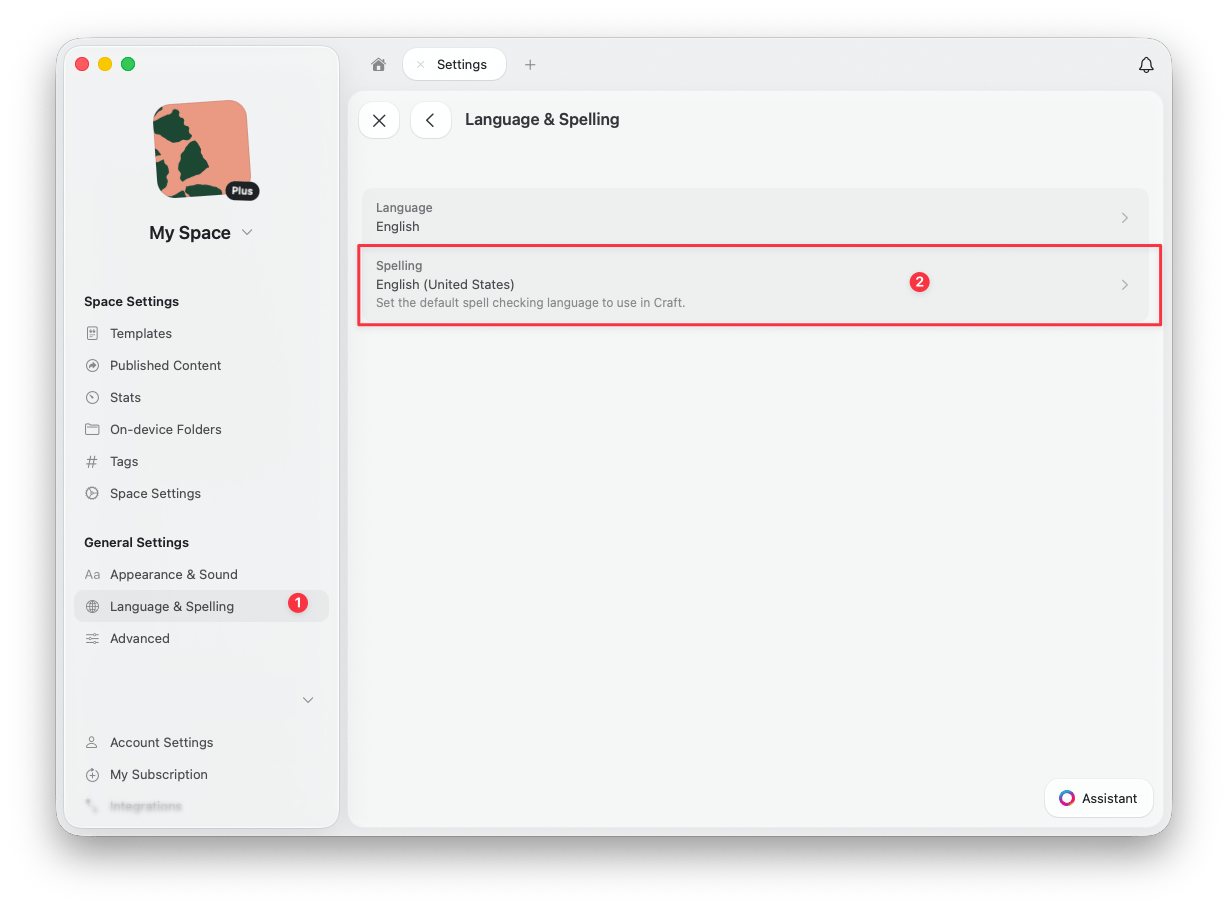
To set the default spell check language, go to **Settings** > **Language & Spelling**, then select your preferred language under **Spelling**.
 ## Document-Level Spell Check
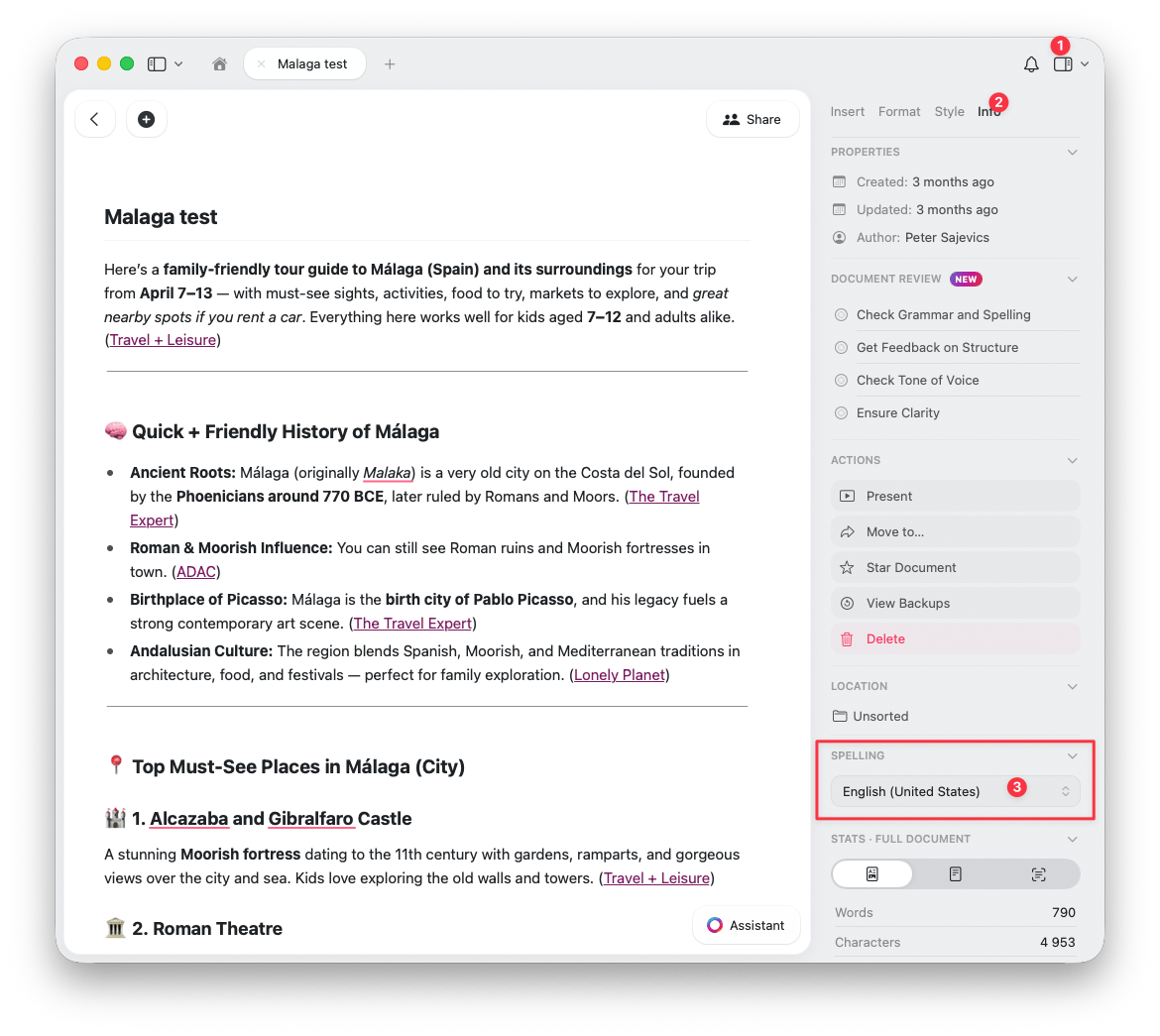
To change the spell check language for a specific document, open the **Info** tab in the right sidebar. Under **Spelling**, select the language you want to use for that document.
## Document-Level Spell Check
To change the spell check language for a specific document, open the **Info** tab in the right sidebar. Under **Spelling**, select the language you want to use for that document.
 The document-level setting is perfect when you need to write in different languages across your workspace.
## Managing Learned Words
Craft delegates spell checking to the operating system -- it does not maintain its own spelling dictionary. Learned words are stored and managed at the system level, not inside Craft.
When the spell checker flags a correctly spelled word, you can teach the system to recognise it. Once learned, the word is no longer underlined in Craft or any other app that uses the same OS spell checker.
### Learning a Word
Right-click (or long-press on mobile) the underlined word and select **Learn Spelling**. The word is added to the system dictionary shared across all apps.
### Unlearning a Word
If you accidentally learned a misspelled word, you can remove it.
Open Terminal and run:
```
open ~/Library/Spelling/LocalDictionary
```
This opens the file in TextEdit. Remove the unwanted word (one word per line), save, and restart Craft.
Tap the word, then tap **Unlearn Spelling** in the suggestion bar.
If you need to reset all learned words at once, go to the iOS **Settings** app > **General** > **Transfer or Reset iPhone** > **Reset** > **Reset Keyboard Dictionary**.
If iCloud Keyboard sync is enabled (**Settings > Apple Account > iCloud > Show All** > **iCloud Drive**, then check whether Keyboard is syncing), previously learned words may be restored from iCloud after a reset. Disable iCloud Keyboard sync before resetting the dictionary if you want a clean slate.
The document-level setting is perfect when you need to write in different languages across your workspace.
## Managing Learned Words
Craft delegates spell checking to the operating system -- it does not maintain its own spelling dictionary. Learned words are stored and managed at the system level, not inside Craft.
When the spell checker flags a correctly spelled word, you can teach the system to recognise it. Once learned, the word is no longer underlined in Craft or any other app that uses the same OS spell checker.
### Learning a Word
Right-click (or long-press on mobile) the underlined word and select **Learn Spelling**. The word is added to the system dictionary shared across all apps.
### Unlearning a Word
If you accidentally learned a misspelled word, you can remove it.
Open Terminal and run:
```
open ~/Library/Spelling/LocalDictionary
```
This opens the file in TextEdit. Remove the unwanted word (one word per line), save, and restart Craft.
Tap the word, then tap **Unlearn Spelling** in the suggestion bar.
If you need to reset all learned words at once, go to the iOS **Settings** app > **General** > **Transfer or Reset iPhone** > **Reset** > **Reset Keyboard Dictionary**.
If iCloud Keyboard sync is enabled (**Settings > Apple Account > iCloud > Show All** > **iCloud Drive**, then check whether Keyboard is syncing), previously learned words may be restored from iCloud after a reset. Disable iCloud Keyboard sync before resetting the dictionary if you want a clean slate.