> ## Documentation Index
> Fetch the complete documentation index at: https://craft-support.mintlify.site/llms.txt
> Use this file to discover all available pages before exploring further.
# Quick Entry
> Capture documents, tasks, and daily note entries from anywhere on your Mac with the Quick Entry panel.
Quick Entry is a capture panel for macOS. Press `Ctrl` + `Space` from any app window to write something down and send it to Craft without switching windows. Craft has to be running, but it can sit in the background.
Quick Entry does not open over an app running in full screen. Leave full screen to capture, or use Craft's own window.
## What You Can Capture
The row of icons at the bottom of the panel switches between four modes:
| Mode | Creates | Goes to by default |
| ----------------- | ------------------------------------- | ---------------------------- |
| New Document | A new document | Unsorted |
| New Task | A task | Task Inbox |
| Add to Daily Note | Text appended to a daily note | Today |
| Add to Document | Text appended to an existing document | The last document you picked |
The dropdown at the top of the panel changes that destination: a folder, a document, or a date. Daily notes are not limited to today, so you can send a thought to tomorrow's note or back-date it to yesterday. If no note exists for that day, Craft creates one.
If you have more than one Space or account, the profile icon in the corner picks which one receives the capture.
## Tasks
In **New Task** mode the panel gains **Schedule** and **Deadline** buttons, so a task can arrive fully dated instead of landing in the Inbox for you to sort out later. Reminders are available from the **Edit** menu while the panel is open.
## Markdown
Type Markdown and it arrives as real blocks. Headings, lists, to-dos, quotes, and code blocks are all converted. Each line becomes its own block, so a quick brain dump comes through as separate paragraphs rather than one run-on block.
In **New Document** mode, a single line becomes the document title.
## Changing the Shortcut
`Ctrl` + `Space` is the default. To use something else, open **Settings** → **Advanced** and record a new combination under **Quick Entry**.
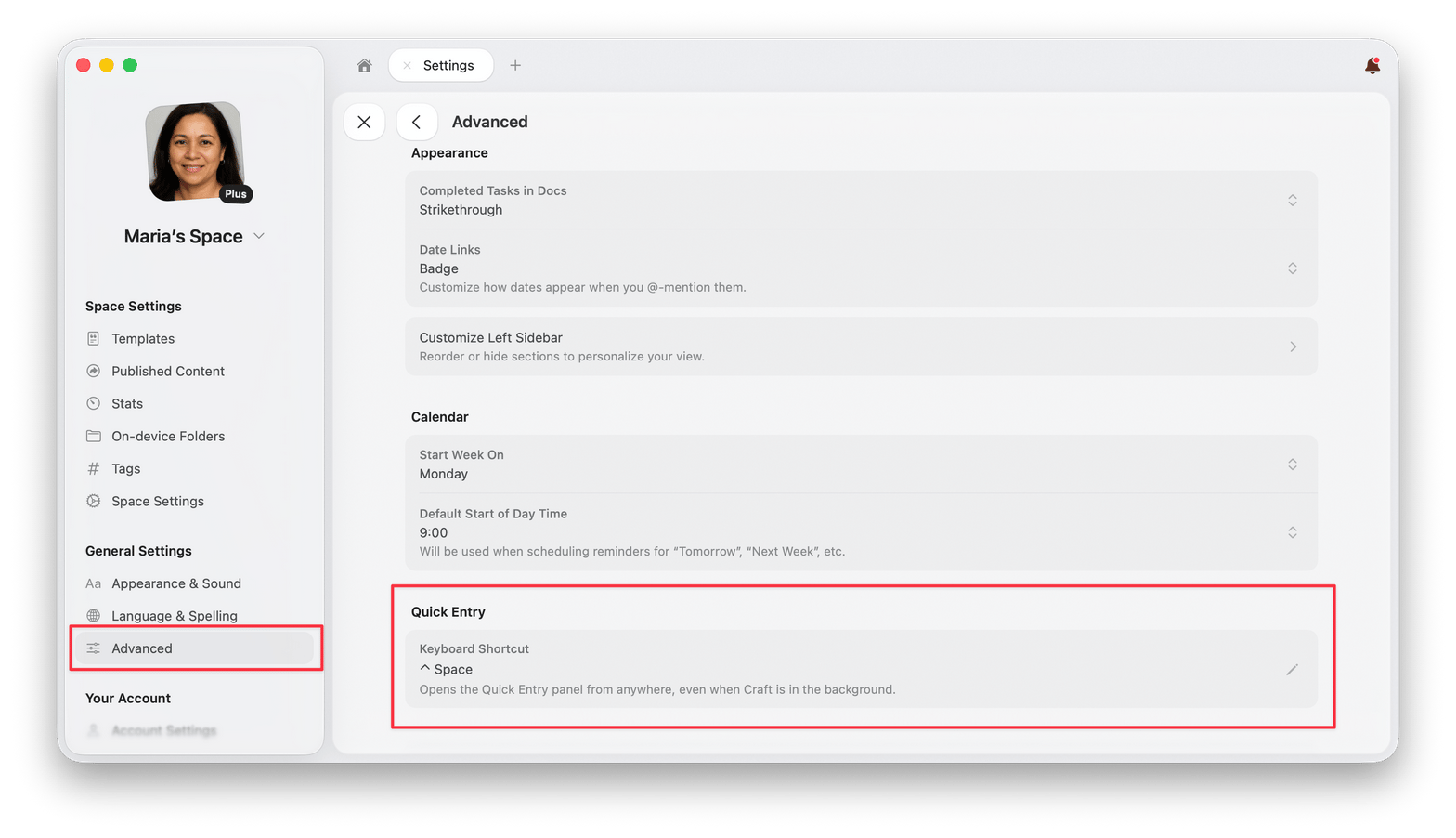 Clearing the field sets it to **None** and turns the shortcut off.
## Keyboard Shortcuts
| Action | Shortcut |
| -------------------------------- | -------------------------------- |
| Open or hide the panel | `Ctrl` + `Space` |
| Switch mode | `Cmd` + `1` – `Cmd` + `4` |
| Change destination | `Cmd` + `Shift` + `O` |
| Switch Space | `Cmd` + `Shift` + `U` |
| Next account (in Space switcher) | `Tab` |
| Schedule task | `Cmd` + `Shift` + `S` |
| Schedule task for today | `Cmd` + `Shift` + `Option` + `S` |
| Set deadline | `Cmd` + `Shift` + `D` |
| Capture | `Cmd` + `Return` |
| Capture and open in Craft | `Cmd` + `Shift` + `Return` |
| Close | `Esc` |
Hiding the panel keeps whatever you had typed. Reopen it within a minute and your text is still there.
## Related Articles
Plan your day with date-based notes
Ways to create and organize tasks
Shortcuts for navigating and editing in Craft
Format content with Markdown syntax
Clearing the field sets it to **None** and turns the shortcut off.
## Keyboard Shortcuts
| Action | Shortcut |
| -------------------------------- | -------------------------------- |
| Open or hide the panel | `Ctrl` + `Space` |
| Switch mode | `Cmd` + `1` – `Cmd` + `4` |
| Change destination | `Cmd` + `Shift` + `O` |
| Switch Space | `Cmd` + `Shift` + `U` |
| Next account (in Space switcher) | `Tab` |
| Schedule task | `Cmd` + `Shift` + `S` |
| Schedule task for today | `Cmd` + `Shift` + `Option` + `S` |
| Set deadline | `Cmd` + `Shift` + `D` |
| Capture | `Cmd` + `Return` |
| Capture and open in Craft | `Cmd` + `Shift` + `Return` |
| Close | `Esc` |
Hiding the panel keeps whatever you had typed. Reopen it within a minute and your text is still there.
## Related Articles
Plan your day with date-based notes
Ways to create and organize tasks
Shortcuts for navigating and editing in Craft
Format content with Markdown syntax