> ## Documentation Index
> Fetch the complete documentation index at: https://craft-support.mintlify.site/llms.txt
> Use this file to discover all available pages before exploring further.
# Useful Shortcut Examples
> Capture spoken thoughts, prepare Daily Notes, create tasks, collect images, or import a text file with Craft and Apple Shortcuts.
These examples combine Craft actions with Apple's Shortcuts actions. Download a shared example or build your own, then select your Craft Space and destination.
When a step names a variable, insert it with the variable picker. Typing its name into a text field does not connect the output.
## Voice inbox
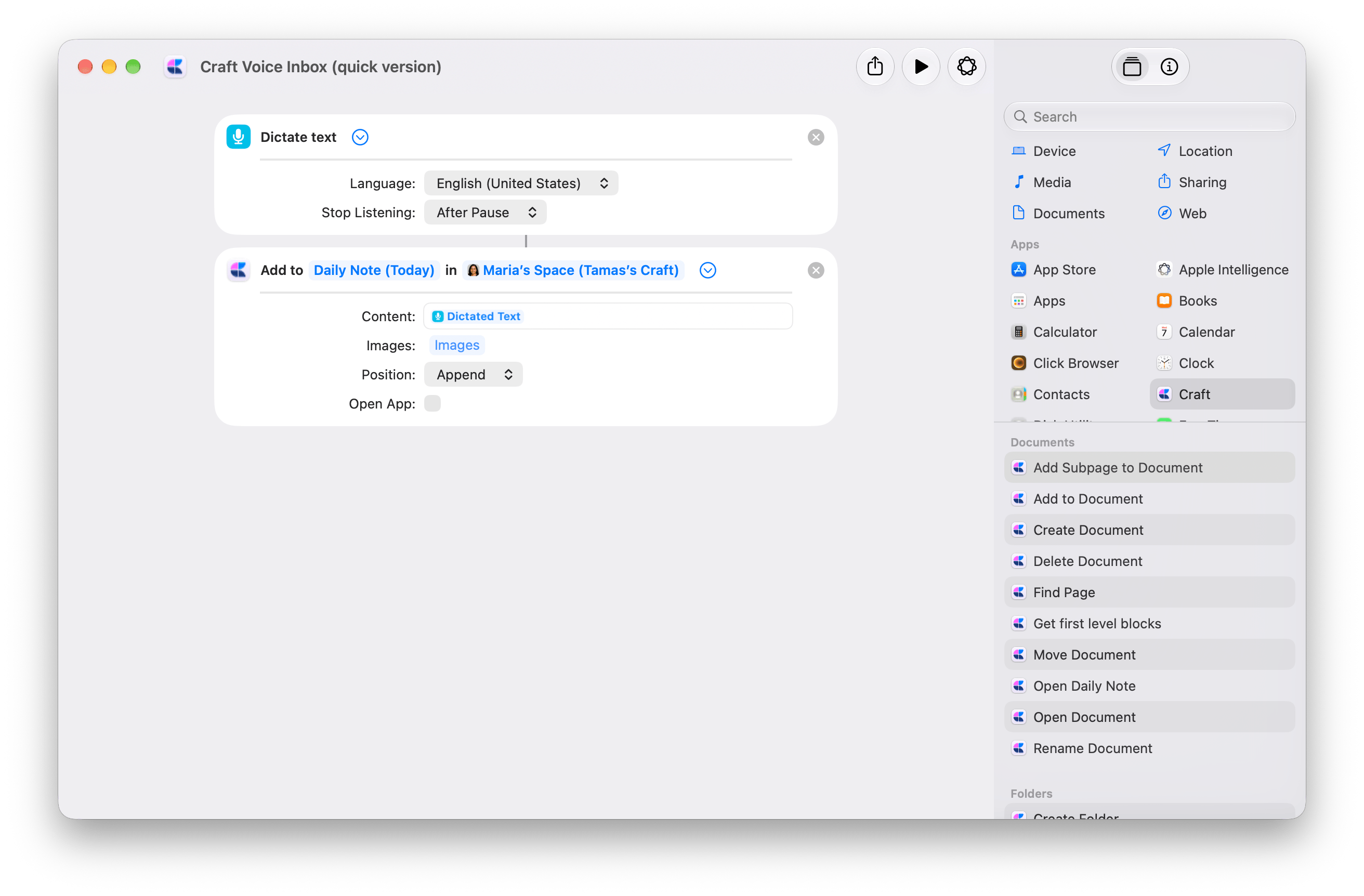
Speak a thought and save the dictated text to today's Craft Daily Note. The quick version uses two actions: **Dictate Text → Add to Document**.
Start with the two-action shortcut, then choose your destination.
Open the downloaded shortcut. In Craft's [Add to Document](/integrate/apple-shortcuts/actions#add-to-document), replace the demo **Space** with your own. Keep **Document** set to **Daily Note (Today)**, or choose a capture document you use regularly.
Expand **Dictate Text**. Choose your **Language** and set **Stop Listening** to **After Pause**.
In **Add to Document**, keep **Content** connected to **Dictated Text**, **Position** set to **Append**, and **Open App** off.
Approve the requested permissions, then dictate a sentence. Pause to finish and check your Craft destination. Each run adds another entry.
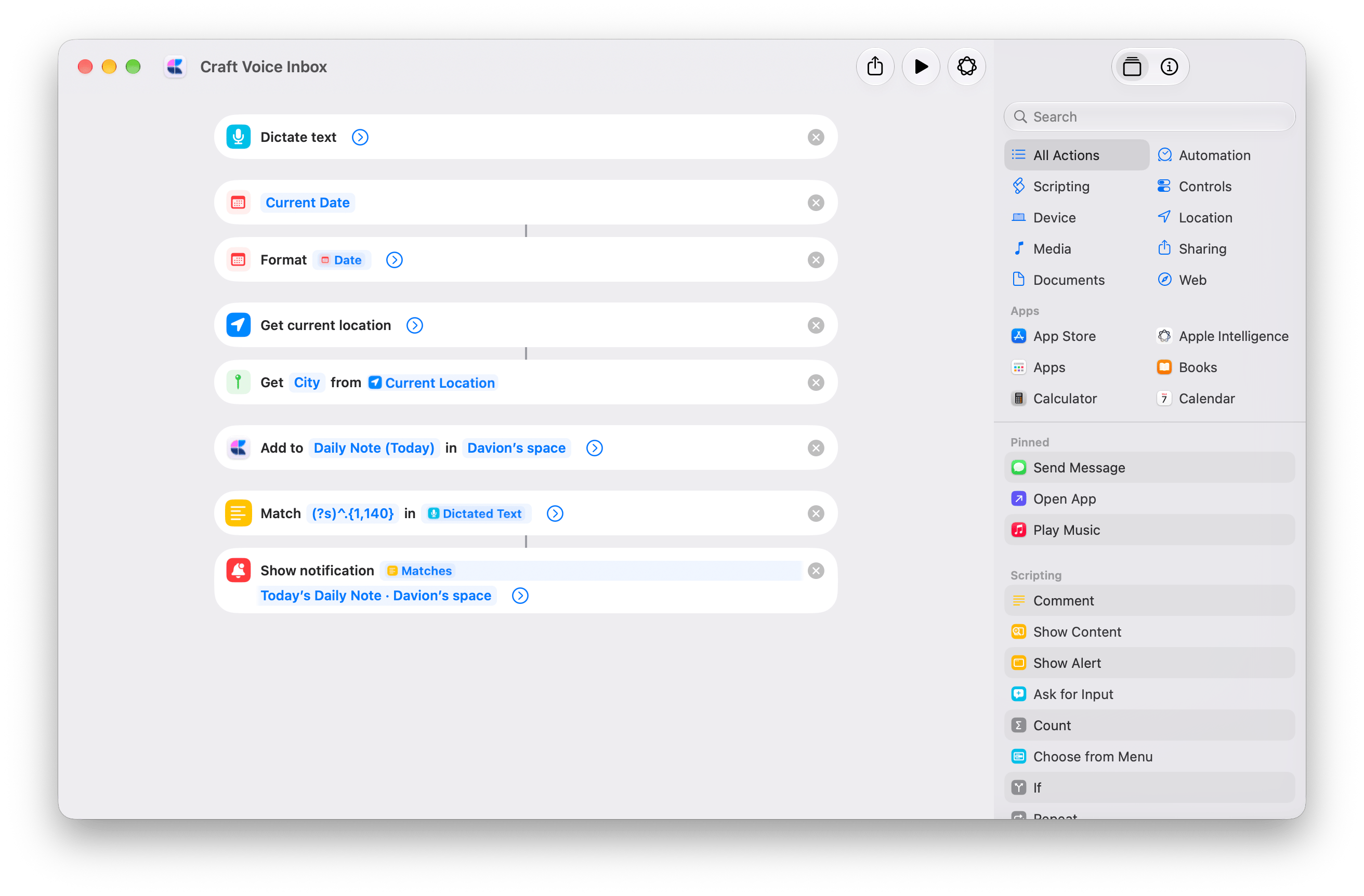
 The advanced version adds context to each entry and confirms where it was saved:
* **Current Date → Format Date** adds the date and time.
* **Get Current Location → Get Details of Locations (City)** adds your city. This version requests location access.
* **Show Notification** displays “Saved to Craft” with a preview of the first 140 characters. The full dictated text is saved in Craft.
[Get the advanced Voice Inbox](https://www.icloud.com/shortcuts/b9e6c53d834a40dcb223c8bbc1986024)
Select your own **Space** in **Add to Document**. Also edit the destination text in **Show Notification**, which currently names the demo Space. The notification text does not change the saving destination.
To leave out the city, remove **Get Current Location**, the action that gets **City**, and the **City** variable from **Add to Document → Content**.
The advanced version adds context to each entry and confirms where it was saved:
* **Current Date → Format Date** adds the date and time.
* **Get Current Location → Get Details of Locations (City)** adds your city. This version requests location access.
* **Show Notification** displays “Saved to Craft” with a preview of the first 140 characters. The full dictated text is saved in Craft.
[Get the advanced Voice Inbox](https://www.icloud.com/shortcuts/b9e6c53d834a40dcb223c8bbc1986024)
Select your own **Space** in **Add to Document**. Also edit the destination text in **Show Notification**, which currently names the demo Space. The notification text does not change the saving destination.
To leave out the city, remove **Get Current Location**, the action that gets **City**, and the **City** variable from **Add to Document → Content**.
 ## Prepare my Daily Note
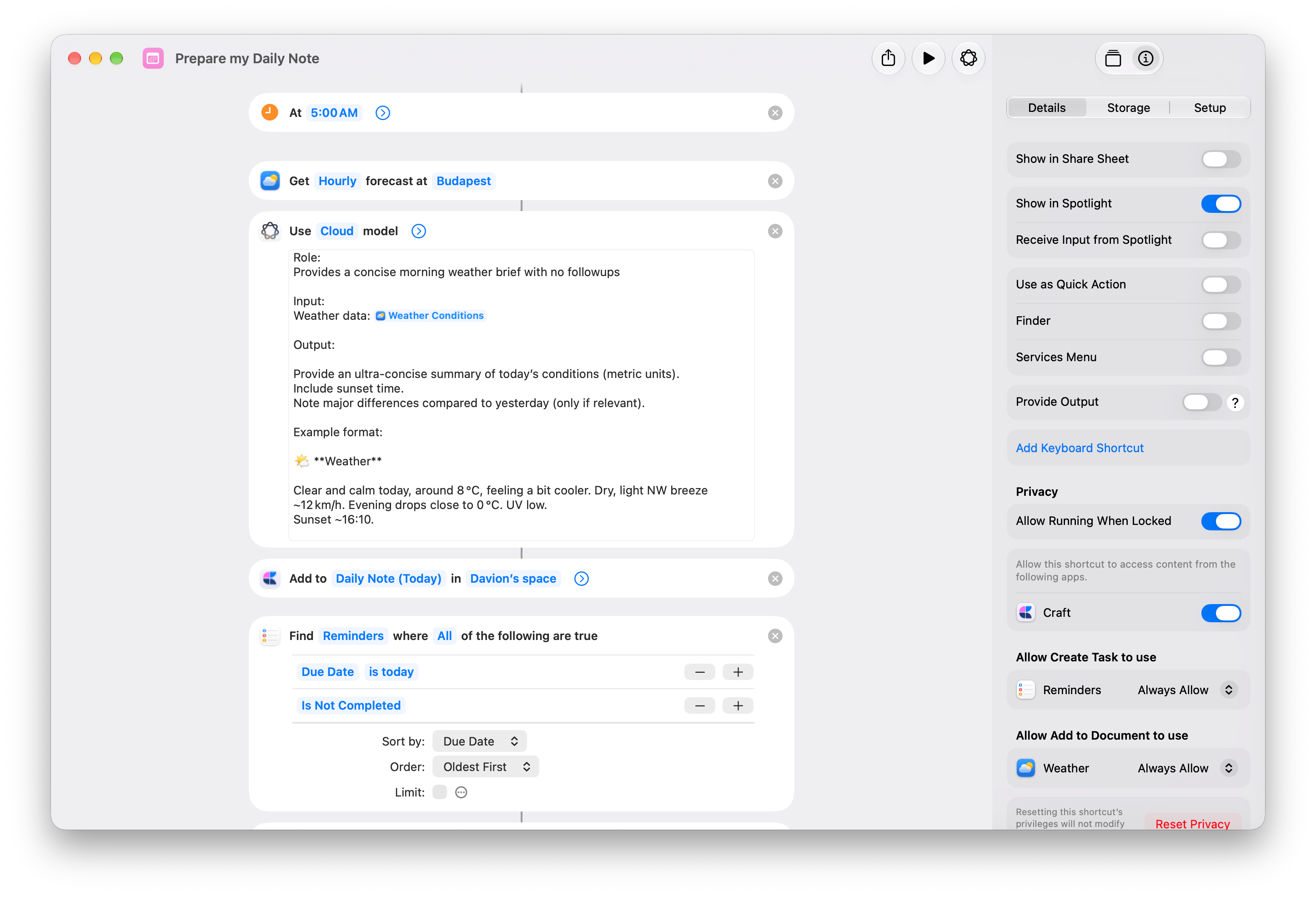
Start the day with a weather summary and your Apple Reminders due today, added as tasks in today's Craft Daily Note.
Add the shortcut, then follow the setup below. Requires Apple Intelligence.
Open the downloaded shortcut in Shortcuts. In **Get Weather Forecast**, replace **Budapest** with your location.
Open Craft and sign in. Then change **Space** in both Craft actions:
* **Add to Document**, below **Use Model**.
* **Create Task**, inside **Repeat with Each**.
Choose the same Space in both. Keep **Document** set to **Daily Note (Today)**.
The download contains the demo Space selection. It does not grant access to that Space.
Run the shortcut and approve the requested permissions. Open today's Daily Note to check the weather summary and tasks.
Only **incomplete reminders due today** are copied. If none match, you'll see only the weather.
On Mac, choose **Edit → Automation → Time of Day**. Set **5:00 AM** and **Daily**. Enable **Allow Running When Locked** under **Info → Privacy**.
Enable the trigger on one device. [Triggers sync to other devices disabled](https://support.apple.com/guide/shortcuts-mac/apd690170742/mac). See [Apple's automation setup](https://support.apple.com/guide/shortcuts-mac/apdfbdbd7123/mac) for details.
Reminders are copied, not synced. Only their titles transfer. Completing a Craft task does not complete the Apple reminder. Each run adds another weather summary and new task copies.
## Prepare my Daily Note
Start the day with a weather summary and your Apple Reminders due today, added as tasks in today's Craft Daily Note.
Add the shortcut, then follow the setup below. Requires Apple Intelligence.
Open the downloaded shortcut in Shortcuts. In **Get Weather Forecast**, replace **Budapest** with your location.
Open Craft and sign in. Then change **Space** in both Craft actions:
* **Add to Document**, below **Use Model**.
* **Create Task**, inside **Repeat with Each**.
Choose the same Space in both. Keep **Document** set to **Daily Note (Today)**.
The download contains the demo Space selection. It does not grant access to that Space.
Run the shortcut and approve the requested permissions. Open today's Daily Note to check the weather summary and tasks.
Only **incomplete reminders due today** are copied. If none match, you'll see only the weather.
On Mac, choose **Edit → Automation → Time of Day**. Set **5:00 AM** and **Daily**. Enable **Allow Running When Locked** under **Info → Privacy**.
Enable the trigger on one device. [Triggers sync to other devices disabled](https://support.apple.com/guide/shortcuts-mac/apd690170742/mac). See [Apple's automation setup](https://support.apple.com/guide/shortcuts-mac/apdfbdbd7123/mac) for details.
Reminders are copied, not synced. Only their titles transfer. Completing a Craft task does not complete the Apple reminder. Each run adds another weather summary and new task copies.
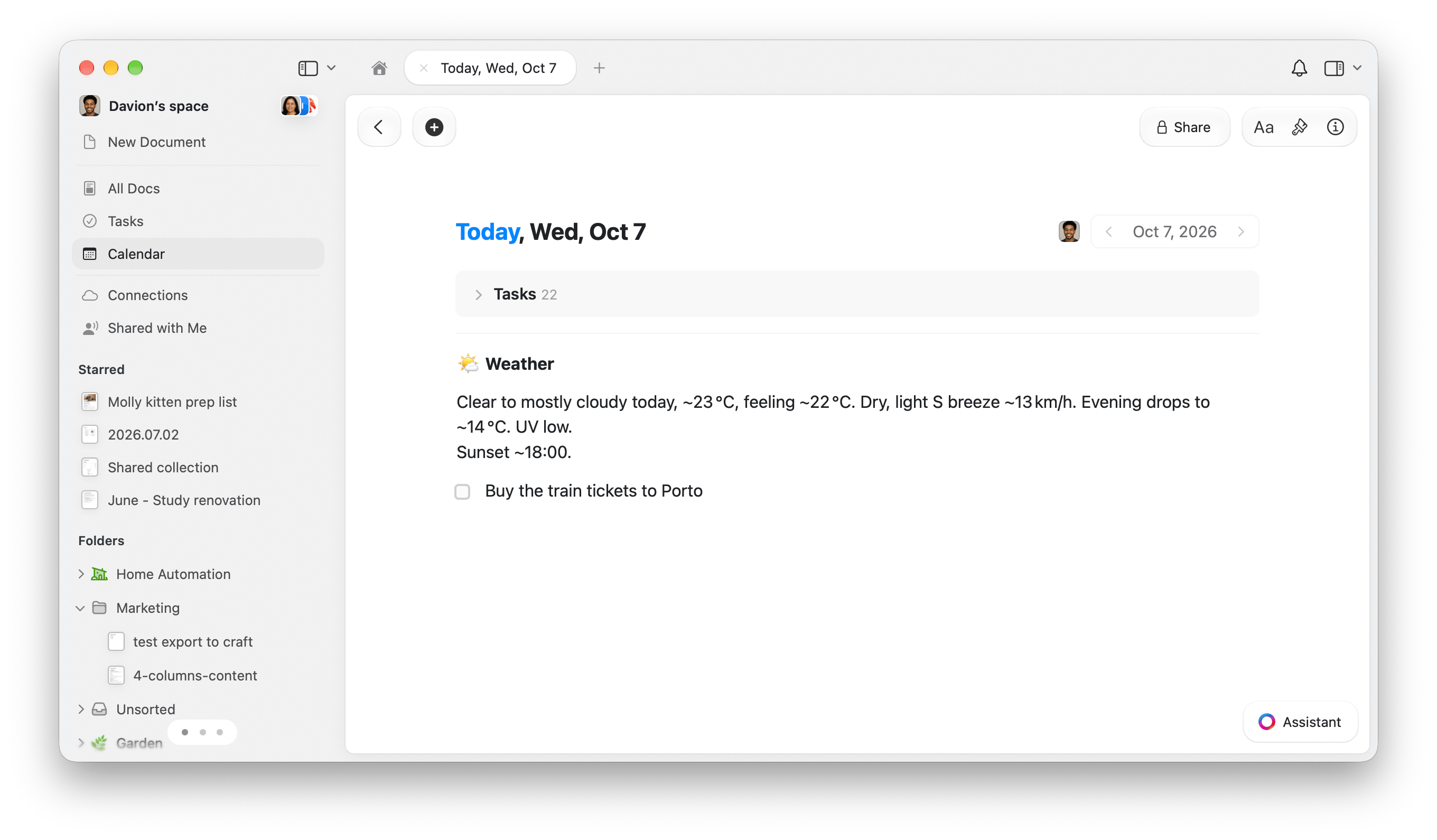 1. **Get Weather Forecast** gets the hourly forecast.
2. **Use Model** turns it into a weather summary.
3. Craft's [Add to Document](/integrate/apple-shortcuts/actions#add-to-document) appends the summary to today's Daily Note.
4. **Find Reminders** filters for **Due Date is today** and **Is Not Completed**, sorted by **Due Date**, **Oldest First**, with **Limit** off.
5. **Get Details of Reminders** gets each reminder's **Title**.
6. **Repeat with Each** passes each title to Craft's [Create Task](/integrate/apple-shortcuts/actions#create-task) as **Repeat Item**.
1. **Get Weather Forecast** gets the hourly forecast.
2. **Use Model** turns it into a weather summary.
3. Craft's [Add to Document](/integrate/apple-shortcuts/actions#add-to-document) appends the summary to today's Daily Note.
4. **Find Reminders** filters for **Due Date is today** and **Is Not Completed**, sorted by **Due Date**, **Oldest First**, with **Limit** off.
5. **Get Details of Reminders** gets each reminder's **Title**.
6. **Repeat with Each** passes each title to Craft's [Create Task](/integrate/apple-shortcuts/actions#create-task) as **Repeat Item**.
 ## End work for today
Leave a timestamped work wrap-up in tomorrow's Daily Note, then add any next steps as tasks scheduled for tomorrow.
Add the shortcut, then choose your Craft destination.
Open the downloaded shortcut and replace **Space** in both Craft actions:
* **Add to Document**, below **Text**.
* **Create Task**, inside **Repeat**.
Choose the same Space in both. Keep **Document** set to **Daily Note (Tomorrow)** and **Create Task → Schedule** set to **Tomorrow**.
Run the shortcut and answer **Where did you stop today?** For example: **Finished the pricing page. The landing-page quotes still need review.**
Your answer is saved to tomorrow's Daily Note with the weekday and time.
At **Any next steps?**, continue to enter a task, such as **Check the quotes for the landing page**. The question returns after each task so you can add more.
Choose **Cancel** when you're finished, or at the first alert if you have no next steps. Your wrap-up and any tasks already added stay in Craft.
Tomorrow is the next calendar day, including weekends. Scheduling a task does not set a notification. Running the shortcut again adds another wrap-up and new tasks.
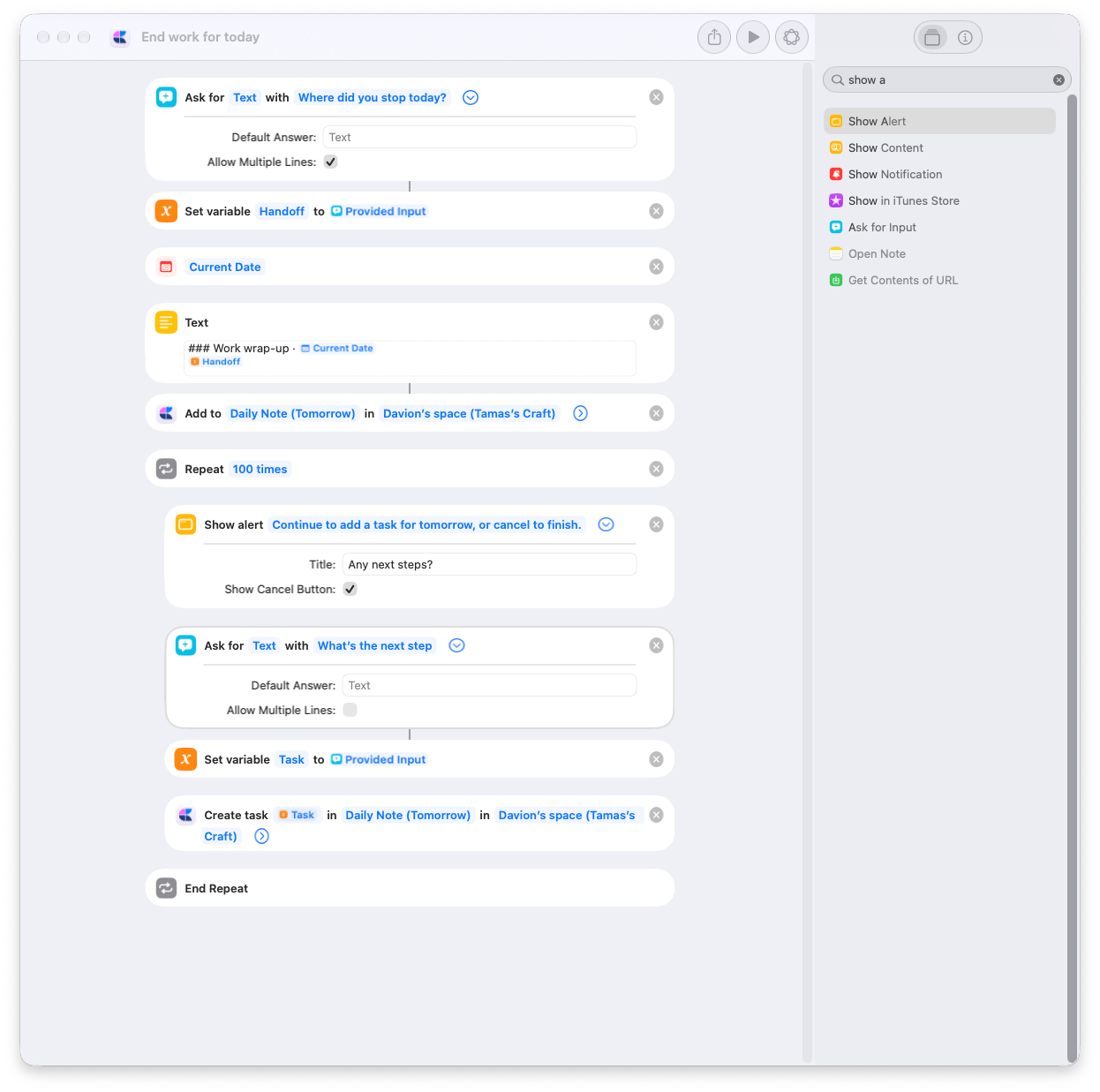
1. **Ask for Input** asks where you stopped. **Set Variable** stores the answer as **Handoff**.
2. **Current Date** and **Text** prepare the wrap-up below. The date variable uses the custom format `EEEE, HH:mm`.
```markdown theme={null}
### Work wrap-up · [Current Date variable]
[Handoff variable]
```
3. Craft's [Add to Document](/integrate/apple-shortcuts/actions#add-to-document) appends the **Text** result to **Daily Note (Tomorrow)**, with **Open App** off.
4. **Repeat** runs up to **100 times**. Inside it, **Show Alert** asks **Any next steps?**, with **Show Cancel Button** on. Cancel stops the shortcut.
5. **Ask for Input** asks for the next step. **Set Variable** stores it as **Task**, then Craft's [Create Task](/integrate/apple-shortcuts/actions#create-task) adds it to **Daily Note (Tomorrow)** with **Schedule** set to **Tomorrow** and **Open App** off.
To receive a timed task alert, set **Create Task → Reminder** to **Tomorrow** and **Reminder Time** to a 24-hour time such as `09:00`.
## End work for today
Leave a timestamped work wrap-up in tomorrow's Daily Note, then add any next steps as tasks scheduled for tomorrow.
Add the shortcut, then choose your Craft destination.
Open the downloaded shortcut and replace **Space** in both Craft actions:
* **Add to Document**, below **Text**.
* **Create Task**, inside **Repeat**.
Choose the same Space in both. Keep **Document** set to **Daily Note (Tomorrow)** and **Create Task → Schedule** set to **Tomorrow**.
Run the shortcut and answer **Where did you stop today?** For example: **Finished the pricing page. The landing-page quotes still need review.**
Your answer is saved to tomorrow's Daily Note with the weekday and time.
At **Any next steps?**, continue to enter a task, such as **Check the quotes for the landing page**. The question returns after each task so you can add more.
Choose **Cancel** when you're finished, or at the first alert if you have no next steps. Your wrap-up and any tasks already added stay in Craft.
Tomorrow is the next calendar day, including weekends. Scheduling a task does not set a notification. Running the shortcut again adds another wrap-up and new tasks.
1. **Ask for Input** asks where you stopped. **Set Variable** stores the answer as **Handoff**.
2. **Current Date** and **Text** prepare the wrap-up below. The date variable uses the custom format `EEEE, HH:mm`.
```markdown theme={null}
### Work wrap-up · [Current Date variable]
[Handoff variable]
```
3. Craft's [Add to Document](/integrate/apple-shortcuts/actions#add-to-document) appends the **Text** result to **Daily Note (Tomorrow)**, with **Open App** off.
4. **Repeat** runs up to **100 times**. Inside it, **Show Alert** asks **Any next steps?**, with **Show Cancel Button** on. Cancel stops the shortcut.
5. **Ask for Input** asks for the next step. **Set Variable** stores it as **Task**, then Craft's [Create Task](/integrate/apple-shortcuts/actions#create-task) adds it to **Daily Note (Tomorrow)** with **Schedule** set to **Tomorrow** and **Open App** off.
To receive a timed task alert, set **Create Task → Reminder** to **Tomorrow** and **Reminder Time** to a 24-hour time such as `09:00`.
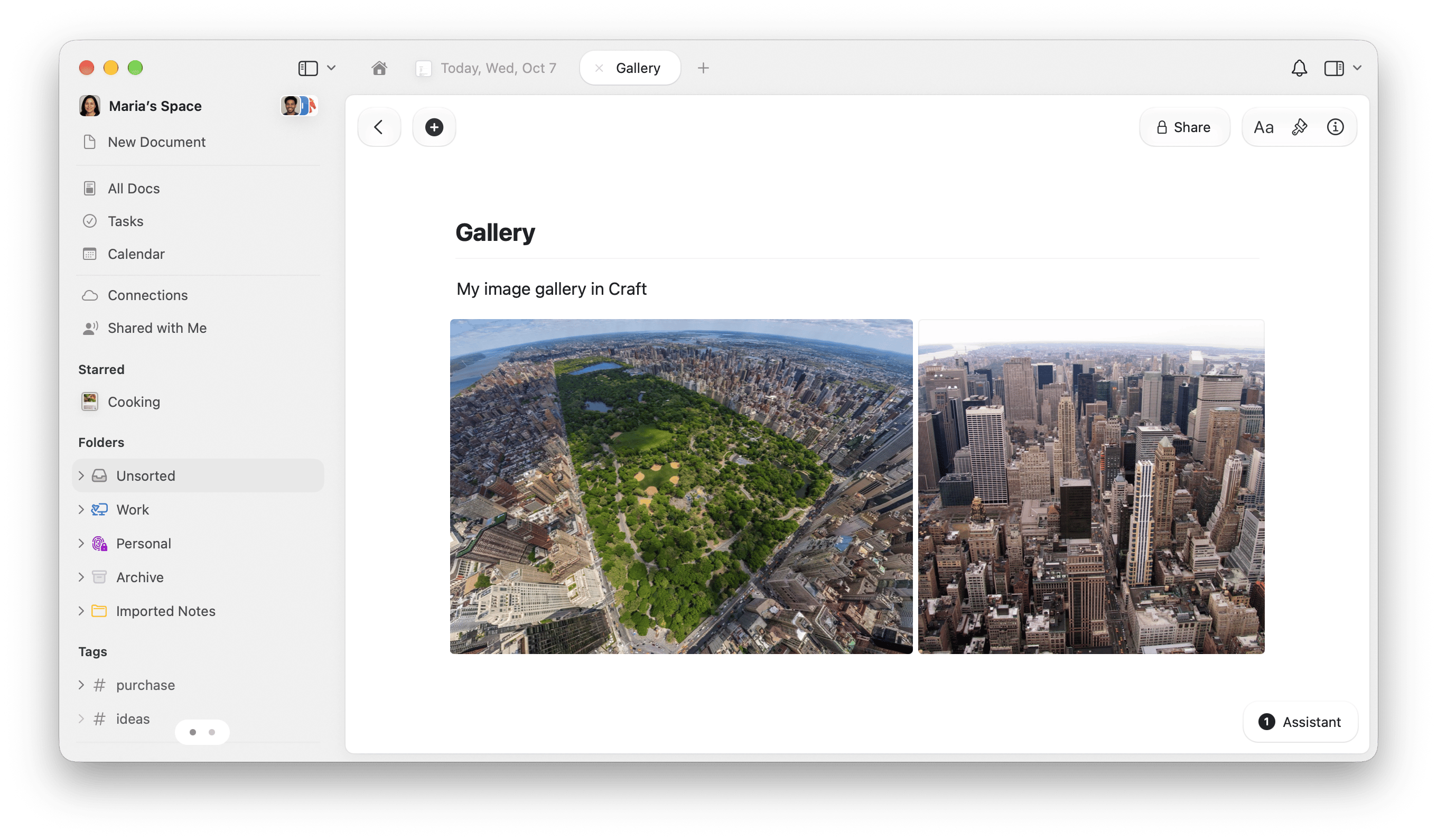
 ## Add to Craft Gallery
Select images in Finder and send them to a Craft document from **Quick Actions**. Use it to collect screenshots, visual references, or photos in one place without opening Craft for each addition.
Add the shortcut, then choose the document where you want to collect images.
Create a Craft document for your images, or choose an existing one. Open the downloaded shortcut and expand Craft's [Add to Document](/integrate/apple-shortcuts/actions#add-to-document).
Replace the demo **Space** with your own, then change **Document** from the demo **Gallery** to your destination. Gallery is an ordinary Craft document; you can name yours anything.
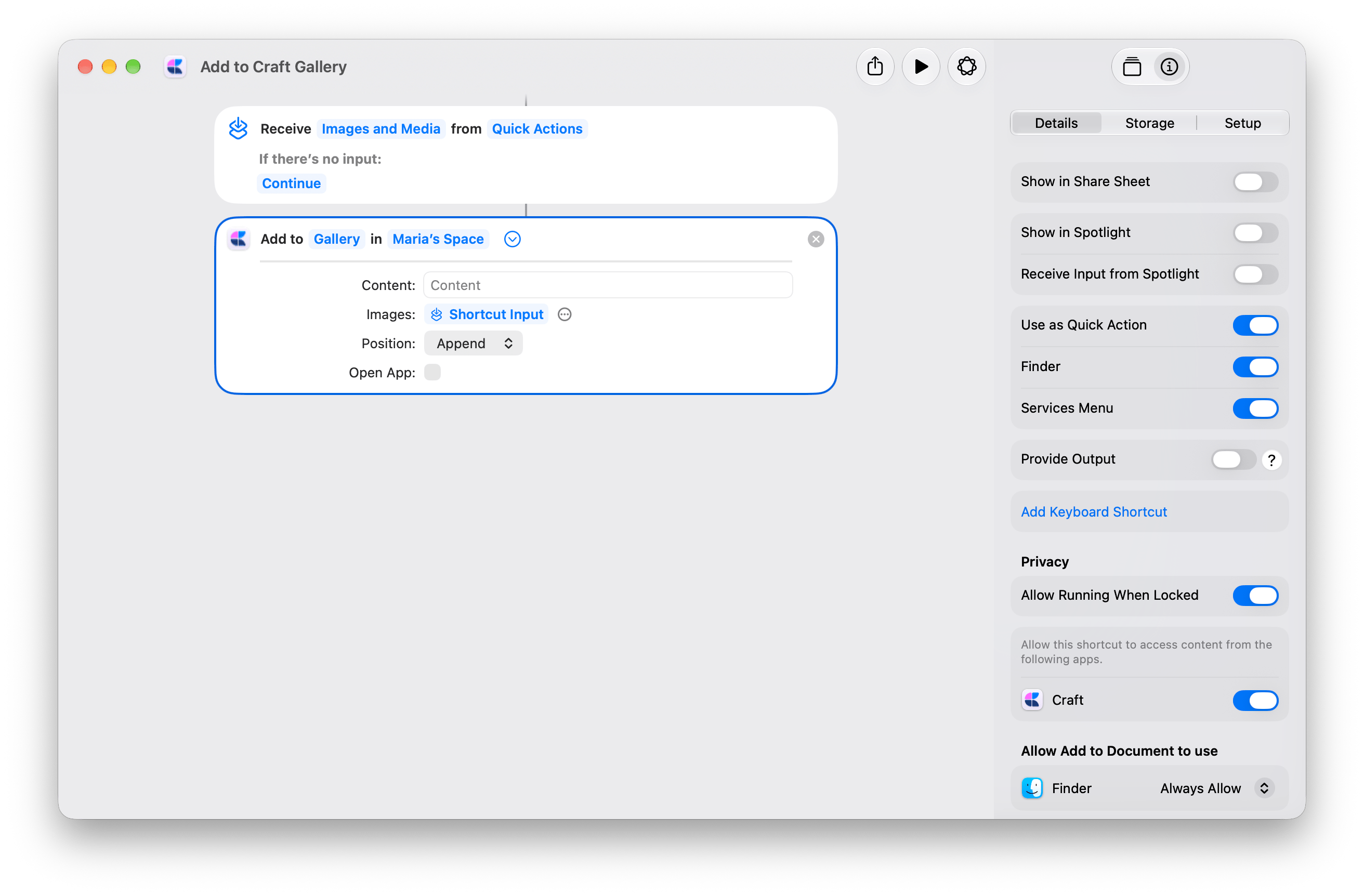
In **Info → Details**, keep **Use as Quick Action** and **Finder** enabled. These are already enabled in the shared copy.
In **Add to Document**, keep **Images** connected to **Shortcut Input**, **Content** empty, **Position** set to **Append**, and **Open App** off.
Select one or more image files in Finder. Right-click and choose **Quick Actions → Add to Craft Gallery**. Approve any requested permissions on the first run.
Open your Craft document to see the added images. Each run appends to the same document.
## Add to Craft Gallery
Select images in Finder and send them to a Craft document from **Quick Actions**. Use it to collect screenshots, visual references, or photos in one place without opening Craft for each addition.
Add the shortcut, then choose the document where you want to collect images.
Create a Craft document for your images, or choose an existing one. Open the downloaded shortcut and expand Craft's [Add to Document](/integrate/apple-shortcuts/actions#add-to-document).
Replace the demo **Space** with your own, then change **Document** from the demo **Gallery** to your destination. Gallery is an ordinary Craft document; you can name yours anything.
In **Info → Details**, keep **Use as Quick Action** and **Finder** enabled. These are already enabled in the shared copy.
In **Add to Document**, keep **Images** connected to **Shortcut Input**, **Content** empty, **Position** set to **Append**, and **Open App** off.
Select one or more image files in Finder. Right-click and choose **Quick Actions → Add to Craft Gallery**. Approve any requested permissions on the first run.
Open your Craft document to see the added images. Each run appends to the same document.
 The shortcut receives selected images from **Quick Actions** and passes **Shortcut Input** to **Add to Document → Images**. One Craft action appends them to your chosen document.
The shared copy also enables **Services Menu**, for apps that offer compatible image input through macOS Services.
The shortcut receives selected images from **Quick Actions** and passes **Shortcut Input** to **Add to Document → Images**. One Craft action appends them to your chosen document.
The shared copy also enables **Services Menu**, for apps that offer compatible image input through macOS Services.
 ## Import a text file with a generated title
Turn a `.txt` or `.md` file into a Craft document from Finder. Apple Intelligence generates the title; the file's text becomes the document content, with Markdown formatting preserved.
Generates the title on your device. Start here for shorter text.
Uses Apple's Cloud model for longer or more complex text. Requires internet and may take longer.
Both versions require Apple Intelligence on a supported Mac. See [Apple's model options](https://support.apple.com/guide/shortcuts/use-apple-intelligence-in-shortcuts-tpg3vrvwmclv/ios).
Open the downloaded shortcut. In **Create Document**, replace the demo **Space** with your own. In the Cloud version, also choose the same Space in **Rename Document**.
**Folder** is set to **Ask Each Time**, so you choose where to save each import.
Open the shortcut's **Info → Details**. Enable **Use as Quick Action** and **Finder**. Finder is already enabled in the on-device copy; enable it in the Cloud copy.
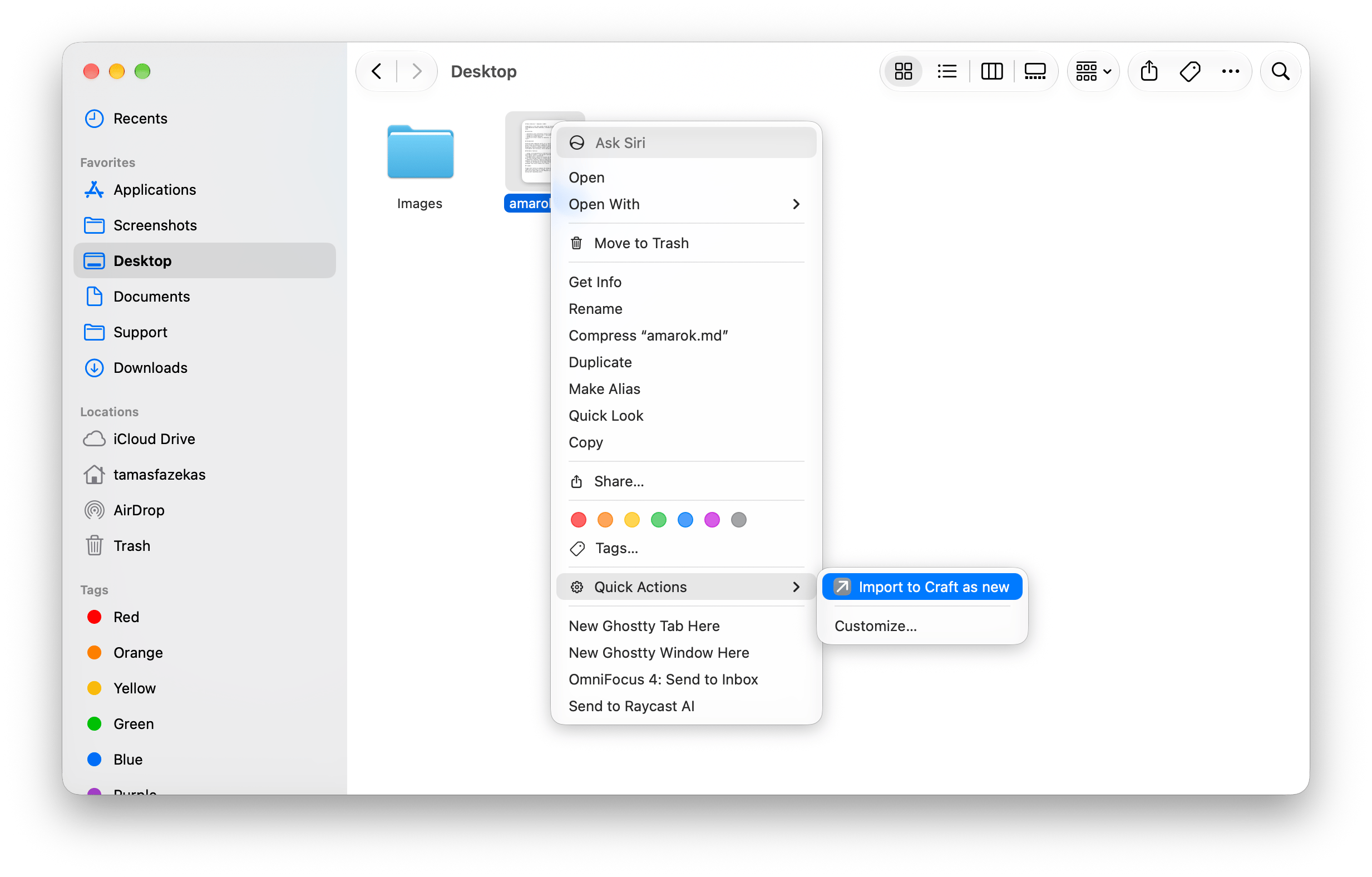
In Finder, right-click one `.txt` or `.md` file. Choose **Quick Actions**, then your import shortcut. Approve any requested permissions and choose a Craft folder.
Craft opens the imported document. Review its generated title and rename it if needed.
## Import a text file with a generated title
Turn a `.txt` or `.md` file into a Craft document from Finder. Apple Intelligence generates the title; the file's text becomes the document content, with Markdown formatting preserved.
Generates the title on your device. Start here for shorter text.
Uses Apple's Cloud model for longer or more complex text. Requires internet and may take longer.
Both versions require Apple Intelligence on a supported Mac. See [Apple's model options](https://support.apple.com/guide/shortcuts/use-apple-intelligence-in-shortcuts-tpg3vrvwmclv/ios).
Open the downloaded shortcut. In **Create Document**, replace the demo **Space** with your own. In the Cloud version, also choose the same Space in **Rename Document**.
**Folder** is set to **Ask Each Time**, so you choose where to save each import.
Open the shortcut's **Info → Details**. Enable **Use as Quick Action** and **Finder**. Finder is already enabled in the on-device copy; enable it in the Cloud copy.
In Finder, right-click one `.txt` or `.md` file. Choose **Quick Actions**, then your import shortcut. Approve any requested permissions and choose a Craft folder.
Craft opens the imported document. Review its generated title and rename it if needed.
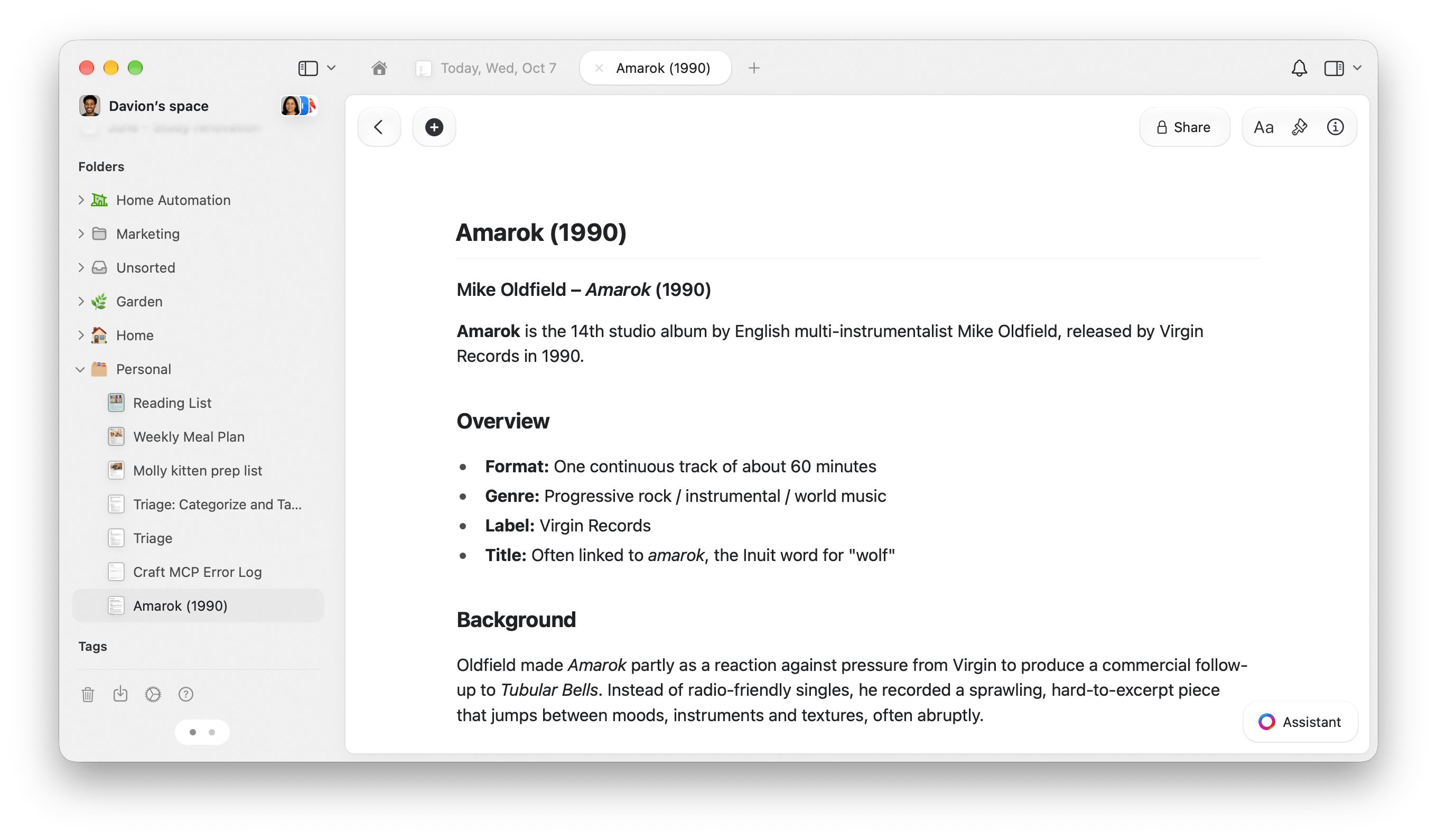 Each run creates a new document. The Cloud version imports the file before generating its title, so the document remains in Craft if the model step fails. The on-device version generates the title first.
**On-device:** **Get Text from Input → Use Model → Set Variable → Create Document**. The model generates **Generated Title**, which becomes the new document's title.
**Cloud:** **Get Text from Input → Get Name → Create Document → Use Model → Rename Document**. Create Document saves the document with its filename first, then Rename Document replaces the title with the model's **Response**. Creating the document only opens it if **Open App** is on; the default is off.
Both prompts request a concise title on one line and use the source's main heading when suitable. They do not ask the model to rewrite the document content.
Craft actions: [Create Document](/integrate/apple-shortcuts/actions#create-document) and [Rename Document](/integrate/apple-shortcuts/actions#rename-document).
This documentation is built and hosted on [Mintlify](https://mintlify.com), a developer documentation platform.
Each run creates a new document. The Cloud version imports the file before generating its title, so the document remains in Craft if the model step fails. The on-device version generates the title first.
**On-device:** **Get Text from Input → Use Model → Set Variable → Create Document**. The model generates **Generated Title**, which becomes the new document's title.
**Cloud:** **Get Text from Input → Get Name → Create Document → Use Model → Rename Document**. Create Document saves the document with its filename first, then Rename Document replaces the title with the model's **Response**. Creating the document only opens it if **Open App** is on; the default is off.
Both prompts request a concise title on one line and use the source's main heading when suitable. They do not ask the model to rewrite the document content.
Craft actions: [Create Document](/integrate/apple-shortcuts/actions#create-document) and [Rename Document](/integrate/apple-shortcuts/actions#rename-document).
This documentation is built and hosted on [Mintlify](https://mintlify.com), a developer documentation platform.