> ## Documentation Index
> Fetch the complete documentation index at: https://craft-support.mintlify.site/llms.txt
> Use this file to discover all available pages before exploring further.
# Cancel Subscription
> Cancel your Craft subscription while keeping all your documents and data.
You can cancel your Craft subscription at any time.
Canceling moves your account to the free plan at the end of your current billing period. Your documents and data are never affected by subscription changes.
## Where did you subscribe?
How you cancel depends on where you subscribed to Craft:
| You subscribed through | How to cancel |
| ------------------------------------------------------ | ---------------------------------------------------------------------------------------- |
| **Directly from Craft** (in the app or on our website) | In Craft, follow the [steps below](#cancel-a-subscription-purchased-directly-from-craft) |
| **App Store** (iPhone, iPad, or Mac) | Through Apple, see [App Store instructions](#cancel-an-app-store-subscription) |
| **Setapp** | Through Setapp, see [Setapp instructions](#cancel-a-setapp-subscription) |
Not sure which one applies to you? See the [Billing overview](/en/account-and-subscription/billing) to check where your subscription is managed.
## Cancel a subscription purchased directly from Craft
First, open Settings in Craft:
Click the **Space name** at the top of the sidebar to open Settings.
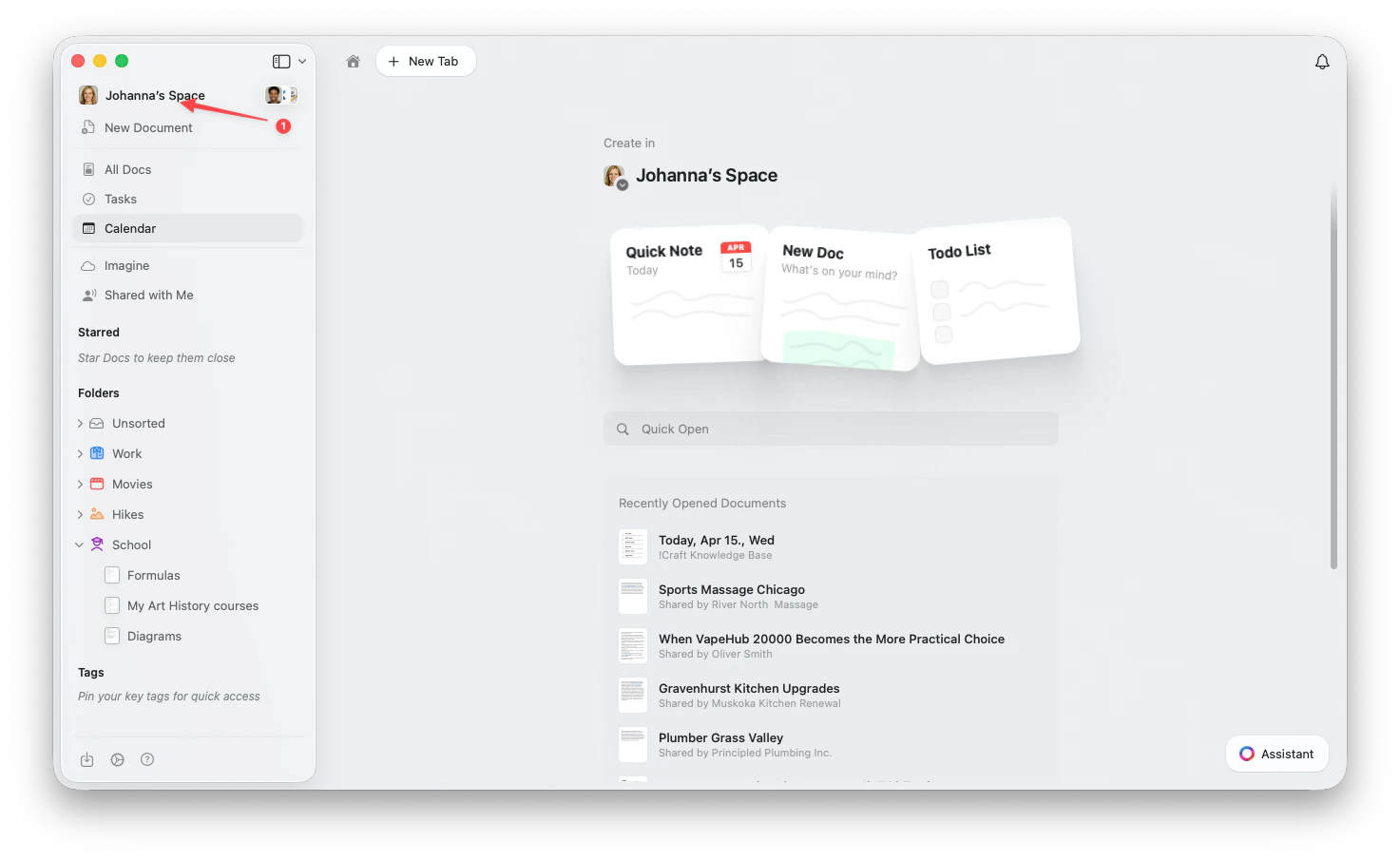 Click the **Space name** in the top-left corner.
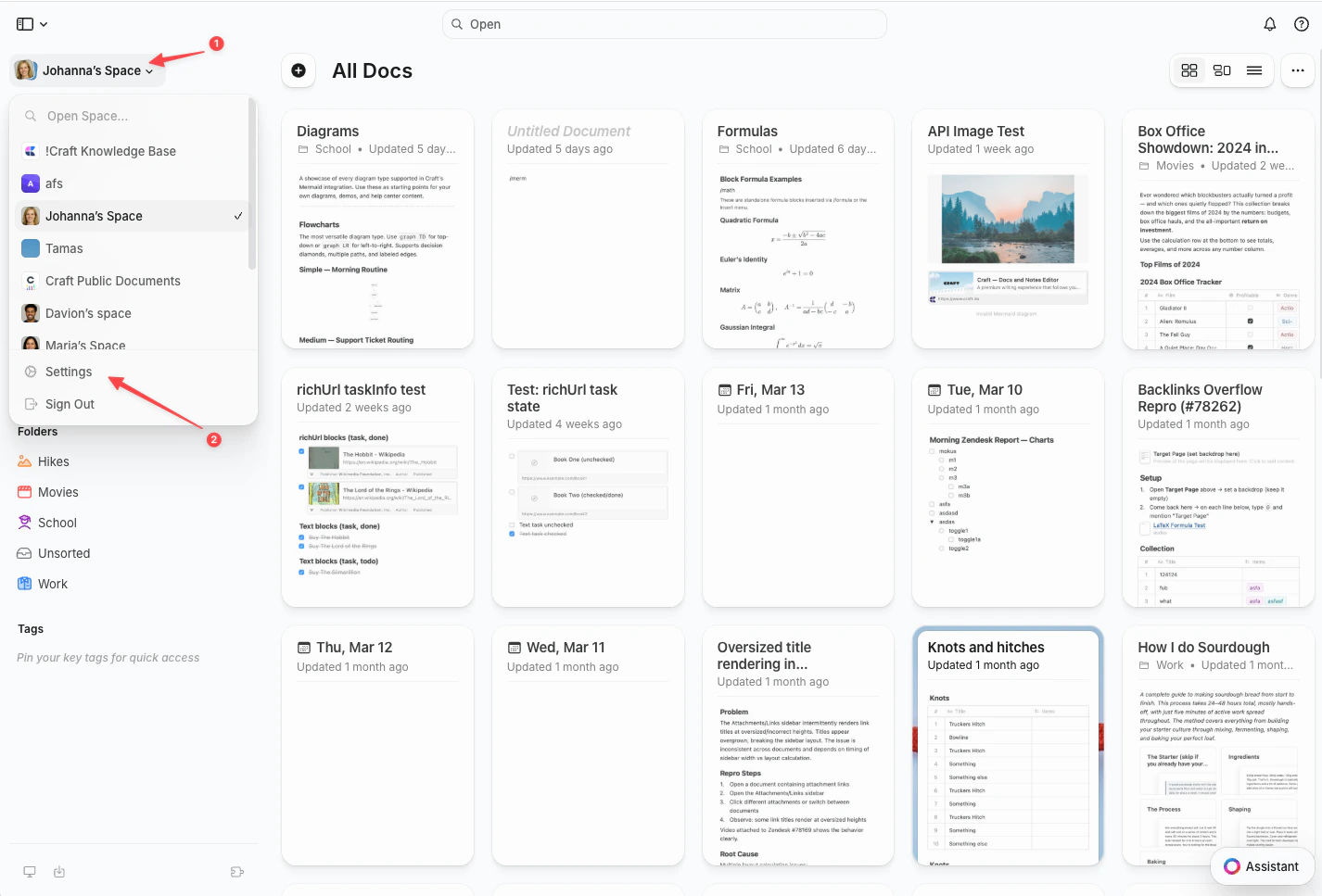
Click **Settings** at the bottom of the dropdown.
Click the **Space name** in the top-left corner.
Click **Settings** at the bottom of the dropdown.
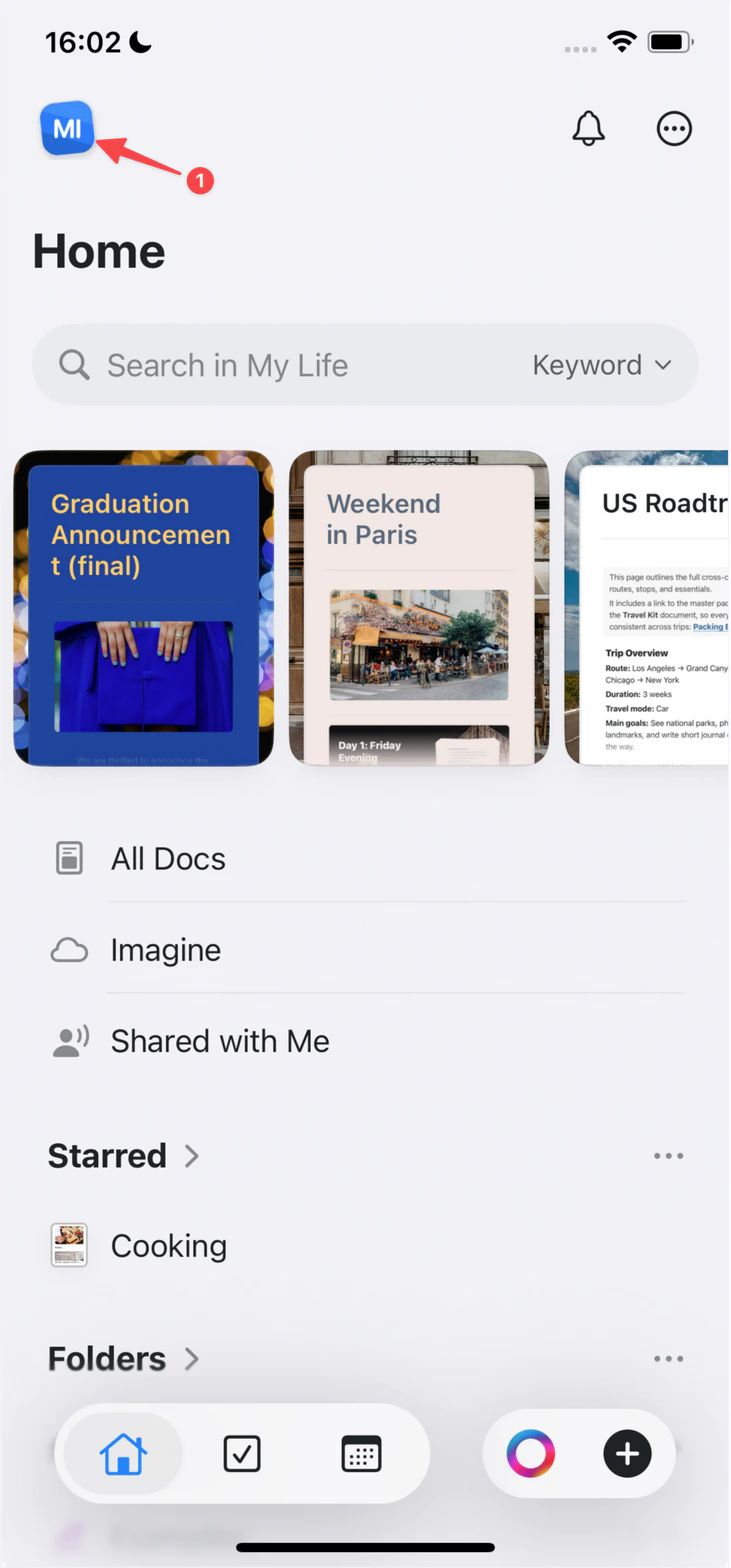
 Tap the **Space icon** in the top-left corner.
 Tap **Settings**.
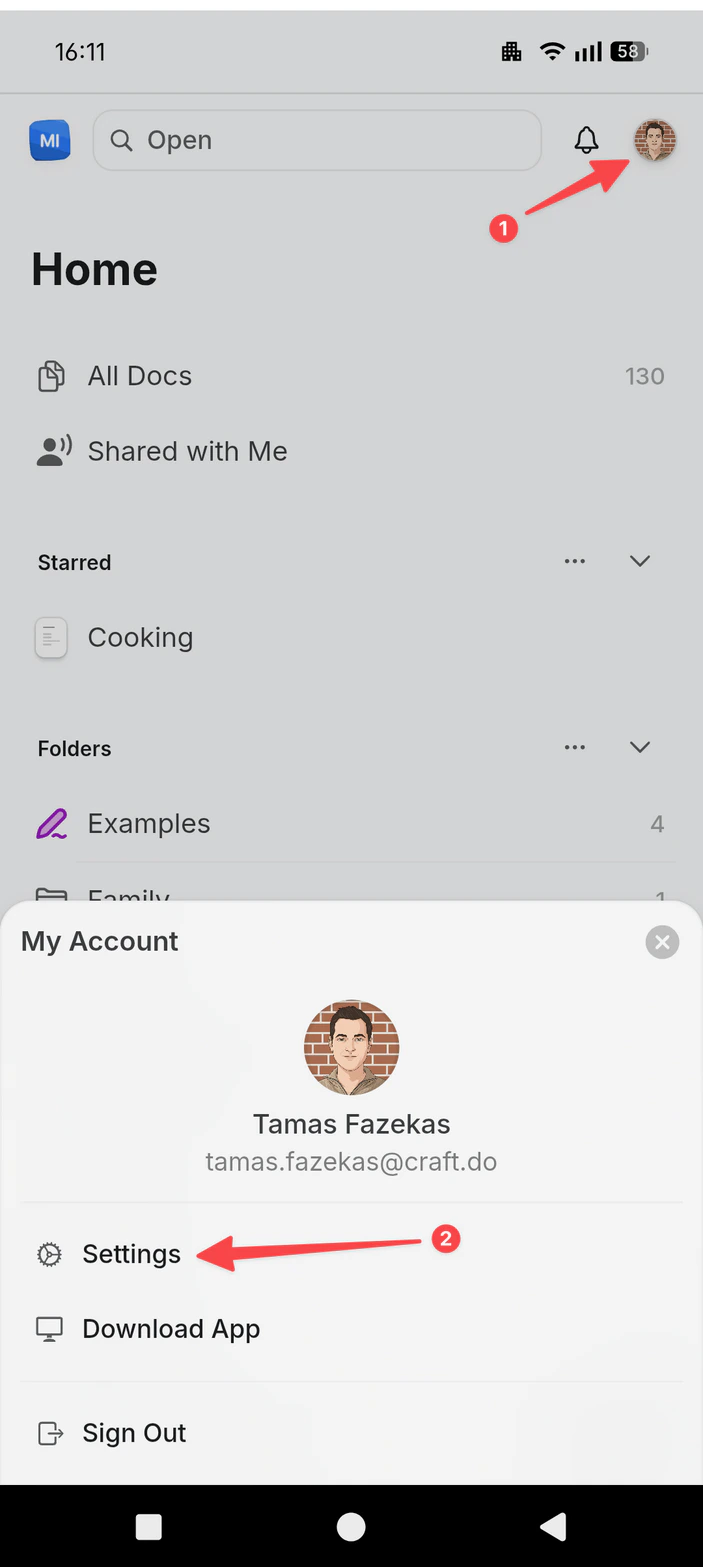
Tap your **profile picture** in the top-right corner.
Tap **Settings**.
Tap **Settings**.
Tap your **profile picture** in the top-right corner.
Tap **Settings**.
 Then cancel your subscription:
In the Settings sidebar, select **My Subscription** (called **My Subscriptions** on the web).
Then cancel your subscription:
In the Settings sidebar, select **My Subscription** (called **My Subscriptions** on the web).
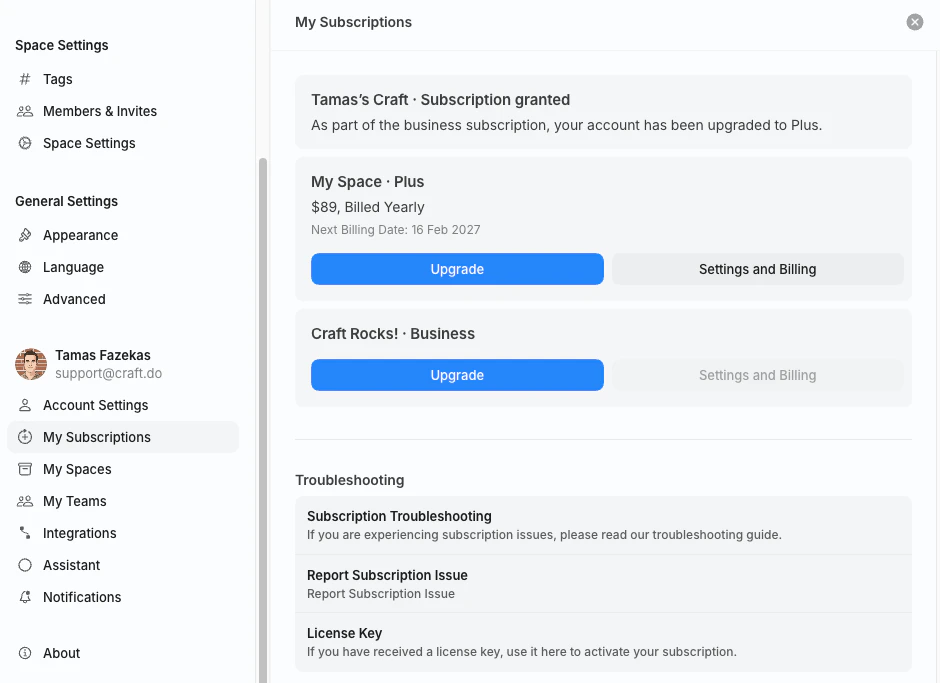 On the subscription you want to cancel, click **Settings and Billing**. This opens the **Billing & Subscription** view.
Only the subscription owner (the account that purchased the plan) sees this button.
In the **Subscription** section, select **Cancel Subscription** and confirm. The button includes your plan name, for example **Cancel Plus Subscription**.
On the subscription you want to cancel, click **Settings and Billing**. This opens the **Billing & Subscription** view.
Only the subscription owner (the account that purchased the plan) sees this button.
In the **Subscription** section, select **Cancel Subscription** and confirm. The button includes your plan name, for example **Cancel Plus Subscription**.
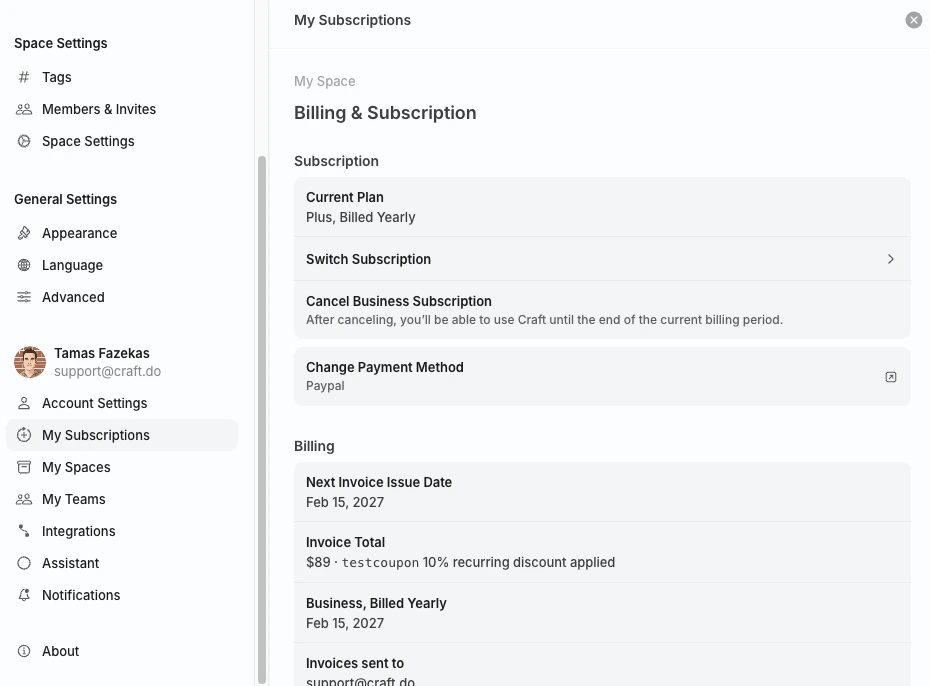 After canceling, you can keep using your paid features until the end of the current billing period. Your account then moves to the free plan.
## Cancel an App Store subscription
If you subscribed through the App Store on an iPhone, iPad, or Mac, Apple manages your subscription. Cancel it from your Apple Account subscription settings by following [Apple's guide](https://support.apple.com/en-us/HT202039).
## Cancel a Setapp subscription
If you use Craft through Setapp, your subscription is managed by Setapp. Sign in at [my.setapp.com](https://my.setapp.com) to manage or cancel your membership.
## Switching to a lower plan
Craft does not have a direct downgrade button. To switch to a lower plan (for example, from Plus to Starter):
Use the steps above for where you subscribed.
You keep your current plan's features until the expiry date.
After your plan expires, subscribe to the lower plan in the app, on [craft.do/pricing](https://www.craft.do/pricing), or through the App Store.
Do not subscribe to the new plan before your current subscription expires. If you subscribe early, you may end up with two active subscriptions.
## Related Articles
Where your subscription is managed and what happens when it ends
Change the card on file for your subscription
Compare Craft's subscription tiers and features
For general troubleshooting, sync, or platform-specific issues, see the [Troubleshooting Guide](/docs/introduction/troubleshooting).
After canceling, you can keep using your paid features until the end of the current billing period. Your account then moves to the free plan.
## Cancel an App Store subscription
If you subscribed through the App Store on an iPhone, iPad, or Mac, Apple manages your subscription. Cancel it from your Apple Account subscription settings by following [Apple's guide](https://support.apple.com/en-us/HT202039).
## Cancel a Setapp subscription
If you use Craft through Setapp, your subscription is managed by Setapp. Sign in at [my.setapp.com](https://my.setapp.com) to manage or cancel your membership.
## Switching to a lower plan
Craft does not have a direct downgrade button. To switch to a lower plan (for example, from Plus to Starter):
Use the steps above for where you subscribed.
You keep your current plan's features until the expiry date.
After your plan expires, subscribe to the lower plan in the app, on [craft.do/pricing](https://www.craft.do/pricing), or through the App Store.
Do not subscribe to the new plan before your current subscription expires. If you subscribe early, you may end up with two active subscriptions.
## Related Articles
Where your subscription is managed and what happens when it ends
Change the card on file for your subscription
Compare Craft's subscription tiers and features
For general troubleshooting, sync, or platform-specific issues, see the [Troubleshooting Guide](/docs/introduction/troubleshooting).